Intent: decide. A touchscreen recognition display support escalation matrix defines which incidents belong to frontline staff, which require school IT, which need facilities involvement, and which must go directly to the platform vendor—so the right person is contacted on the first call rather than the third.
This guide provides a complete escalation matrix, per-category response guidance, and a numbered decision workflow schools can adapt to their own organizational structures. It is written for athletic directors, school administrators, IT coordinators, and facilities managers who share responsibility for recognition display systems.
When a touchscreen recognition display goes dark the day before a hall of fame induction ceremony, the clock matters as much as the diagnosis. The wrong phone call—reporting a network outage to the platform vendor, or asking facilities to troubleshoot a content management issue—costs time schools do not have. A documented touchscreen recognition display support escalation matrix eliminates that confusion by assigning clear ownership before incidents occur.
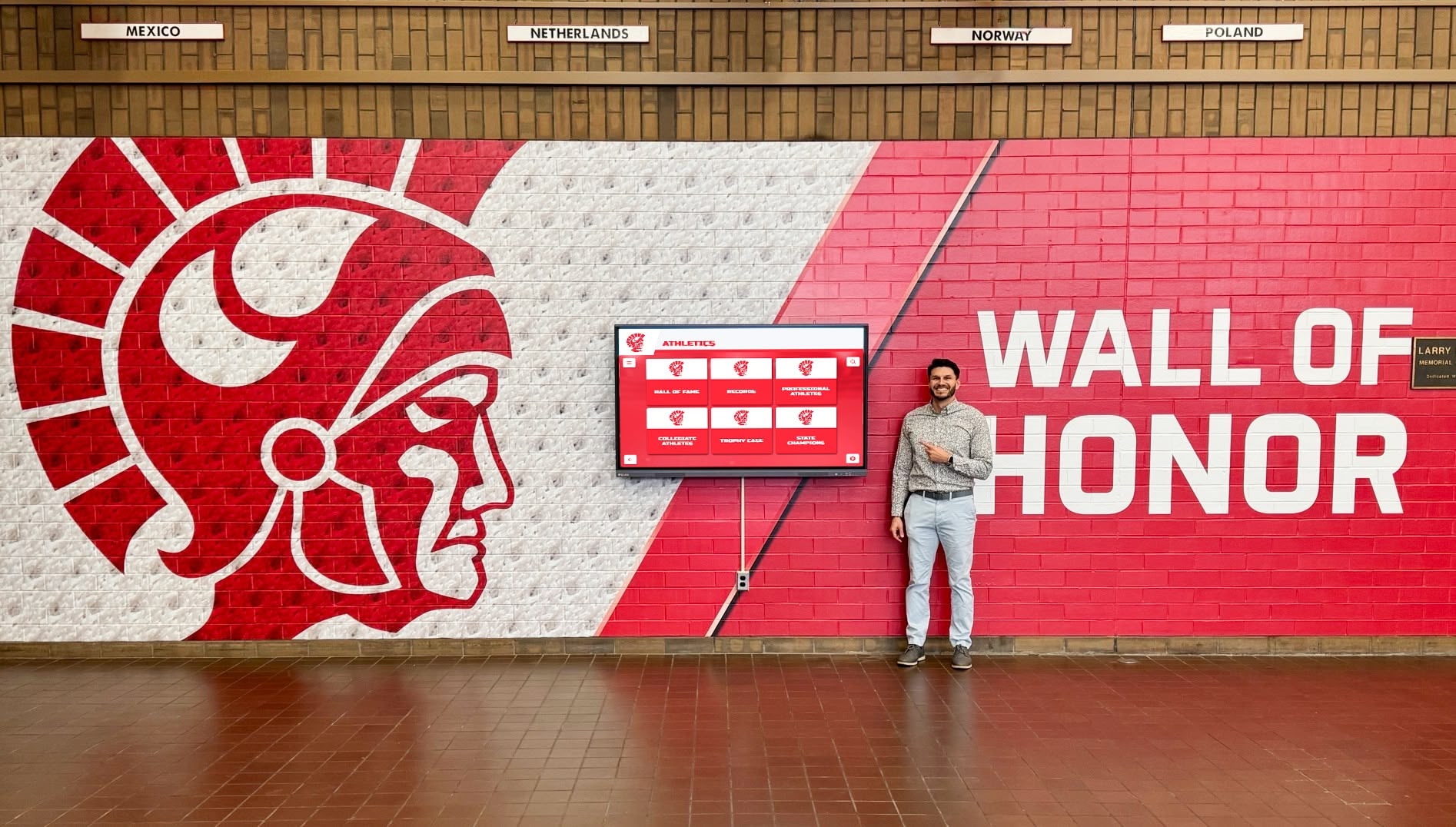
Touchscreen recognition displays involve content, network, hardware, and account layers—each with a different support owner when something goes wrong
What a Support Escalation Matrix Does
A support escalation matrix is a reference document, not a troubleshooting flowchart. Its purpose is to answer one question quickly: which person or team owns this type of incident? Once ownership is clear, that team can apply their own troubleshooting processes.
Recognition display incidents typically fall into five categories. Each category has a different primary owner, different escalation path, and different expected response timeline. The matrix below captures the standard ownership structure for K-12 schools and institutions managing cloud-based touchscreen recognition platforms.
Touchscreen Recognition Display Support Escalation Matrix
| Incident Category | First Contact | Escalate To | Platform Vendor? | Facilities? |
|---|---|---|---|---|
| Content not displaying / incorrect | Athletic Director / Program Admin | Communications or IT | If CMS issue persists | No |
| Display screen is blank or black | Frontline Staff / AD | School IT | If hardware confirmed working | Confirm power |
| Touchscreen not responding to touch | School IT | Platform Vendor | If firmware issue suspected | Confirm mount/cable |
| Network/connectivity error on display | School IT | District Network Team | If cloud sync fails | No |
| Login / account access failure | Program Admin | School IT | Yes — account recovery | No |
| CMS platform is down or inaccessible | Program Admin | Platform Vendor (direct) | Yes — primary contact | No |
| Hardware damage (cracked screen, mount) | Facilities | School IT (assess scope) | No | Yes — primary |
| Display not updating after content edit | Program Admin | School IT | Yes — if not syncing | No |
| Subscription lapsed / access suspended | Program Admin | Department Head | Yes — billing contact | No |
| Software update broke display behavior | School IT | Platform Vendor | Yes — version issue | No |
This matrix reflects a typical structure. Schools should adapt it to reflect their actual organizational chart, vendor contracts, and support agreements. The column headings are roles, not individuals—assign named contacts before an incident occurs.
Category 1: Content Incidents
Content incidents involve information that appears incorrectly on the display, is missing, or has not reflected a recent update made in the content management system (CMS). These are the most common category of recognition display issues and are almost always resolvable without IT or vendor involvement.
Who owns it: The athletic director, alumni relations coordinator, or whoever manages day-to-day content in the CMS platform.
Step 1. Log in to the CMS platform and confirm the change was saved and published—not just drafted. Step 2. Check the display’s expected sync interval. Cloud-based platforms typically push updates to the physical display on a scheduled interval ranging from a few minutes to several hours. Wait the full interval before escalating. Step 3. If content is confirmed published but not appearing after the sync window, escalate to school IT to verify the display’s network connection. Step 4. If network connectivity is confirmed and content still does not appear, contact the platform vendor’s support team with the content record ID and a timestamp of when the edit was published.
Schools that have defined role-based content permissions as part of their platform configuration can resolve most content disputes internally by confirming which account last edited the affected record.
Category 2: Network and Connectivity Incidents
Network incidents prevent the display hardware from communicating with the cloud-based CMS or streaming platform content. These incidents require IT involvement because they involve infrastructure the program administrator typically cannot access.
Who owns it: School IT coordinator or district network team.
Step 1. Confirm the display is powered on and shows any content at all—a static screen or error message indicates the hardware is working but the connection is not. Step 2. Check whether other network-connected devices in the same area are working normally. A room-wide outage points to a switch, access point, or VLAN issue rather than a display-specific problem. Step 3. Attempt to access the display’s on-screen network settings (if accessible without a keyboard/mouse) or check the device management console if one is configured. Step 4. If the display has been assigned a static IP address, confirm it has not been reassigned as part of a network reconfiguration. Step 5. If the network appears healthy but the display is not syncing with the cloud platform, contact the platform vendor to determine whether there is a server-side outage or a required IP/port change.
Planning a touchscreen display installation in a new gymnasium involves establishing dedicated network infrastructure for the display during construction—when that is done well, network incidents are rare; when it is deferred, they tend to be recurring.
Category 3: Hardware Incidents
Hardware incidents involve the physical display unit, mounting hardware, or connected peripherals. These incidents are the clearest example of divided responsibility: facilities may own the physical environment while IT owns the software and connectivity layers.
Who owns it: Facilities team for physical condition; school IT for hardware configuration and firmware.
Step 1. Assess whether the issue is physical (cracked screen, damaged mount, loose cables) or operational (screen powered but not functioning correctly). Step 2. For physical damage, contact facilities for assessment. Do not attempt to repair a mounted display or reconnect cables without the appropriate staff authorization and, where applicable, electrical safety protocols. Step 3. For operational hardware failures (display will not power on, display powers on but shows no image), school IT should verify power supply, cable connections, and whether the device appears in any device management system. Step 4. If hardware was provided under a vendor warranty or maintenance agreement, contact the platform vendor or hardware manufacturer to determine the warranty claim process before authorizing any independent repair. Step 5. Document the hardware issue with photos and a written description before any repair is attempted. This documentation supports warranty claims and facilities work order systems.
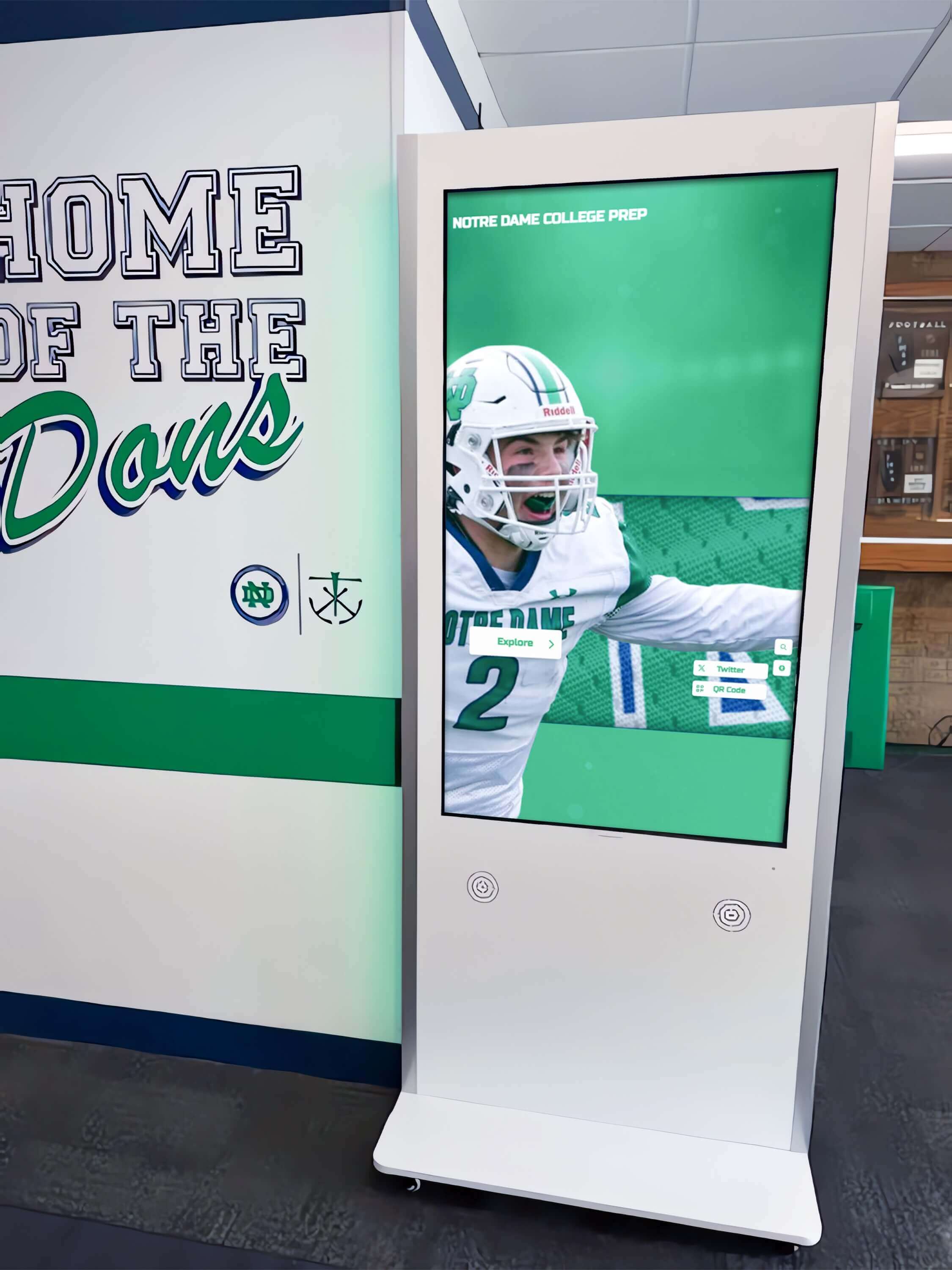
Physical hardware issues require facilities involvement; firmware and software issues belong to IT and the platform vendor
Category 4: Account and Access Incidents
Account incidents prevent an authorized administrator from logging in to the CMS, vendor portal, or hardware management console. These incidents are time-sensitive because they often surface immediately before an event when content updates are needed.
Who owns it: The program administrator initiates; school IT supports credential recovery; platform vendor resolves when internal options are exhausted.
Step 1. Attempt the platform’s standard password reset using the account recovery email. Step 2. If the recovery email is no longer accessible (because it belonged to a former employee or a deactivated account), escalate to school IT to determine whether the recovery email can be accessed through institutional email administration tools. Step 3. If institutional recovery is not possible, contact the platform vendor’s support team. Most cloud-based recognition platforms have an institutional verification process for account recovery. Expect to provide documentation of the institution’s contractual relationship with the platform. Step 4. While account recovery is in progress, determine whether any secondary administrator accounts exist that can perform urgent content updates. Step 5. Once access is restored, immediately update account recovery information to an institutional email address and add a secondary administrator account to prevent recurrence.
Account access incidents are one of the most common consequences of staff transitions without a formal handoff process. Schools handling recognition display responsibilities across multiple departments benefit from maintaining a defined access and ownership structure that documents which accounts exist and who can recover them.
Category 5: Platform and Vendor Incidents
Platform incidents originate with the vendor’s software, infrastructure, or service—not with the school’s hardware, network, or accounts. These incidents require direct engagement with the platform vendor’s support team.
Who owns it: Platform vendor for resolution; program administrator or school IT as school-side point of contact.
Step 1. Before contacting the vendor, confirm the issue is not a local network, hardware, or account problem by working through the relevant categories above. Step 2. Check whether the vendor maintains a status page for their platform. Many cloud-based recognition systems publish real-time service status that confirms whether an outage is affecting all customers or is specific to your account. Step 3. Gather the following before contacting vendor support: account name, institution name, the specific content or function that is not working, when the issue started, and any error messages displayed. Step 4. Submit a support ticket through the vendor’s official channel. Note the ticket number and expected response time in your incident log. Step 5. For time-sensitive incidents (a display that will be prominent during an event), use the vendor’s priority or urgent support path if one is available under your service agreement.
Understanding what support tiers a platform offers before signing a contract is worthwhile. Campus directory touchscreen display platforms and recognition wall systems vary considerably in whether they offer phone support, dedicated account managers, or ticketing-only channels—and that distinction matters when an issue surfaces on short notice.
When to Escalate: A Decision Workflow
When an incident does not fit neatly into one of the five categories above, use this numbered decision workflow to determine the escalation path.
1. Can you reproduce the issue? If you cannot reproduce the problem—it appeared once and resolved itself—document it and monitor for recurrence before escalating. A single unexplained incident is usually not actionable.
2. Is the display physically visible and powered on? If not, the issue is hardware or power. Contact facilities for physical assessment and school IT to confirm power infrastructure.
3. Is any content showing on the display? If content is displaying but is wrong or incomplete, start with the CMS platform (content incident). If the display is blank or shows an error, start with IT (hardware or network incident).
4. Can you log in to the CMS from another device? If not, this is a platform incident—check the vendor status page and contact vendor support. If yes, the issue is likely with the specific display hardware or its network connection.
5. Did anything change recently? A network reconfiguration, a staff transition, a software update, or a subscription renewal date immediately before the incident narrows the likely cause significantly. Report the change when escalating.
6. Is a time-critical event affected? If yes, activate the vendor’s urgent support path and notify the department head simultaneously. Document the timeline for post-incident review.
Building Your School’s Escalation Contact List
The escalation matrix is only as useful as the contact information attached to it. A matrix that names roles without identifying specific people produces the same outcome as having no matrix: someone has to figure out who to call in the moment.
Recommended Contact List Structure
| Role | Name | Phone / Email | Backup Contact |
|---|---|---|---|
| Primary CMS Administrator | |||
| School IT Coordinator | |||
| District Network Lead | |||
| Facilities Manager | |||
| Platform Vendor — Support | |||
| Platform Vendor — Account Manager | |||
| Department Head / Principal |
Complete this table with actual names and direct contact information. Store it in a location accessible to everyone on the list—not only in the primary administrator’s personal files.
Keep the List Current
The contact list becomes inaccurate as staff change roles. Build a contact list review into annual IT or athletic department administrative procedures alongside other institutional maintenance tasks. Schools using digital recognition walls for events such as community recognition programs find that updated contacts reduce escalation time significantly when issues arise close to planned events.
Coordinating Across Departments
Recognition display incidents rarely fall entirely within a single department’s authority. The most common multi-department scenarios—and how to handle them—are:
IT + Facilities (Hardware failure with power or mounting involvement) School IT cannot safely access a ceiling-mounted power cable; facilities cannot diagnose firmware problems. Define in advance who initiates the joint ticket and who is the single point of contact with the vendor while the incident is open.
Athletic Director + IT (Subscription lapse during a transition) A subscription renewal that fails because a credit card expired or a billing contact email was not updated is a business issue, not a technical one—but IT may need to verify whether the account was deactivated versus suspended. Athletic directors should own the vendor relationship for billing; IT should be looped in when platform access is affected.
Communications + IT (Content that will not display despite network connectivity) Some recognition platforms use content delivery networks or caching layers that require cache invalidation before updates appear on the physical display. This is a platform behavior, not a network failure—but distinguishing the two requires IT involvement to rule out the network before the communications team contacts the vendor.
Facilities + Multiple Departments (Display damaged during a construction or renovation project) Physical damage to a mounted display during a facility project requires facilities to document the incident, IT to assess the hardware impact, and the program administrator to determine whether content can be served through an alternative device while the hardware is repaired or replaced. Define this coordination path in advance with your facilities team, particularly if a renovation is planned near a recognition display installation. New gymnasium installations that coordinate display integration during construction avoid many of these post-installation complications.
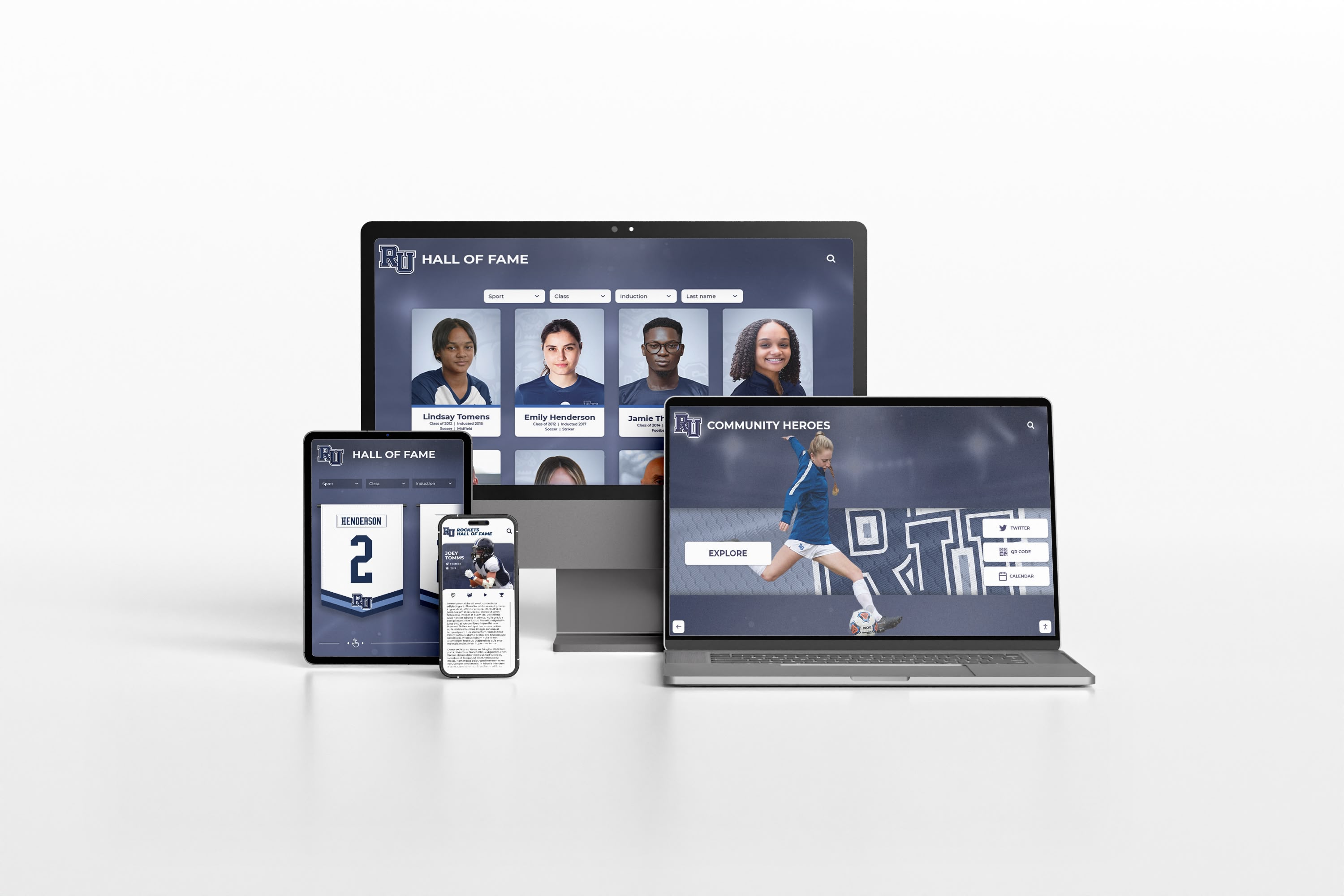
Cloud-based platforms allow administrators to verify CMS content from any device while hardware or network issues are being resolved separately
Escalation Matrix for Specific Event Scenarios
Some incidents are predictable because they correlate with specific institutional events. Planning for these in advance reduces escalation time.
| Scenario | Likely Incident Type | Proactive Step |
|---|---|---|
| Hall of fame induction ceremony | Content not updated, or display offline | Verify content and connectivity 48 hours before event |
| New athletic season begins | Outdated records still showing | Program admin reviews and publishes updated content before season start |
| Staff transition (AD or IT leaves) | Account access failure | Execute full handoff checklist before departure |
| Network infrastructure upgrade | Display loses connectivity | IT notifies program admin of maintenance window; test reconnect post-upgrade |
| Annual subscription renewal | Subscription lapse | Confirm billing contact 60 days before renewal date |
| Building renovation near display | Hardware damage risk | Facilities covers or relocates display during construction |
| Firmware update pushed by vendor | Display behavior changes | IT reviews release notes; tests before event |
For schools that use recognition displays for programs like alumni donor recognition walls, events such as annual fundraising campaigns create predictable content update cycles—proactively verifying display function before those campaigns launch avoids support incidents during high-visibility periods.
Frequently Asked Questions
Who should be the single point of contact for the platform vendor? Typically the primary CMS administrator—the athletic director, alumni relations coordinator, or communications officer who manages day-to-day content. That person should be registered as the account contact in the vendor portal. For billing and contract questions, the department head or business office may be the appropriate contact; confirm who receives invoices and renewal notifications when the account is first established.
What if the school does not have a dedicated IT coordinator? Many smaller schools manage technology through a district-level IT team or a shared services arrangement. Map the escalation matrix to whoever performs the IT function for your building, even if that person also supports multiple other schools. Ensure the district contact knows the recognition display exists and has access to the display’s network location and hardware specifications.
How quickly should a vendor respond to a support ticket? Response time expectations should be defined in your service agreement before signing a contract. For platforms used in visible locations during institutional events, a next-business-day response time for non-critical issues and a same-day response for platform outages are reasonable standards to negotiate. If your current agreement does not specify response times, ask your account manager to clarify what support tier your contract includes.
Should frontline staff (secretaries, coaches, custodians) be included in the escalation matrix? Include them as the initial observers, not as escalation owners. Frontline staff are often the first to notice a blank display or a hardware problem. Building a simple one-page summary—“If the display looks wrong, call ___"—gives frontline staff a clear first action without requiring them to diagnose the issue.
How do we handle a vendor that has gone out of business or stopped supporting the platform? This is an edge case but a real one. If a recognition platform vendor ceases operations, the escalation chain collapses at the vendor layer. Schools should maintain a current content export so that recognition data can be migrated to a new platform. Confirm with your current vendor what their data portability and export options are, and test an export annually to ensure it is complete and accessible. Country club and institutional recognition programs that have migrated between platforms emphasize that data portability—not just display quality—is a material factor in platform selection.
Should the escalation matrix be stored digitally or printed? Both. A printed copy posted in the athletics office or IT equipment room ensures it is accessible when system access is the problem. A digital copy shared with all stakeholders keeps it current when contacts change. Do not store the matrix only in the CMS platform itself—that is precisely the system that may be inaccessible during the incident.
What is the difference between a support incident and a change request? A support incident is an unplanned event that prevents the system from functioning as expected. A change request is a planned modification to how the system is configured—adding a new content category, changing the display layout, or updating integration settings. Treating change requests as support tickets can create confusion about priority. Most vendors handle these through separate channels; confirm the distinction with your platform vendor.
Maintaining the Matrix Over Time
A touchscreen recognition display support escalation matrix is not a one-time document. It requires the same periodic review as any institutional contact list or process document. Plan for these review triggers:
- Any staff transition that changes a named contact in the matrix
- A vendor contract renewal that changes support tier, response times, or account management contacts
- A network or facilities change that affects how the display connects or is powered
- Any support incident that revealed a gap in the matrix—an incident type that was not covered or an owner that was not clear
The matrix’s value is realized entirely during incidents—which are stressful, time-constrained moments. Investing fifteen minutes after each review cycle to confirm that the contact list is current and the ownership assignments are accurate pays off considerably when that investment is needed.
Schools that have structured recognition program administration across roles—from IT to athletics to communications—benefit from treating the escalation matrix as part of their broader role and access documentation rather than a standalone troubleshooting guide.
Schedule a demo with Rocket Alumni Solutions to see how a cloud-native recognition platform is structured for multi-department support, institutional account management, and escalation-ready vendor communication.