Intent: define. A touchscreen recognition display spare parts inventory gives school facilities managers, IT coordinators, and athletic directors a documented stock of cables, mounts, adapters, remotes, and replacement components so that a single failed part never takes a hall of fame, donor wall, or academic honor display offline for days. This guide explains what to stock, how to track it, and how to connect parts management to broader display uptime workflows.
Schools that maintain proactive spare parts inventories reduce unplanned downtime, eliminate emergency procurement delays, and extend the operational life of recognition display hardware. The framework below applies to any school running dedicated touchscreen kiosks—whether in gymnasium lobbies, trophy case alcoves, or main hallways.
When a touchscreen recognition display goes dark during a senior awards night or championship banquet, the failure is visible to every family in the building. Most of those failures trace back not to complex hardware faults but to a single missing component: a failed power cable, a loose HDMI adapter, or a remote that disappeared during a custodial cleaning. A structured spare parts inventory converts those reactive scrambles into a five-minute swap.
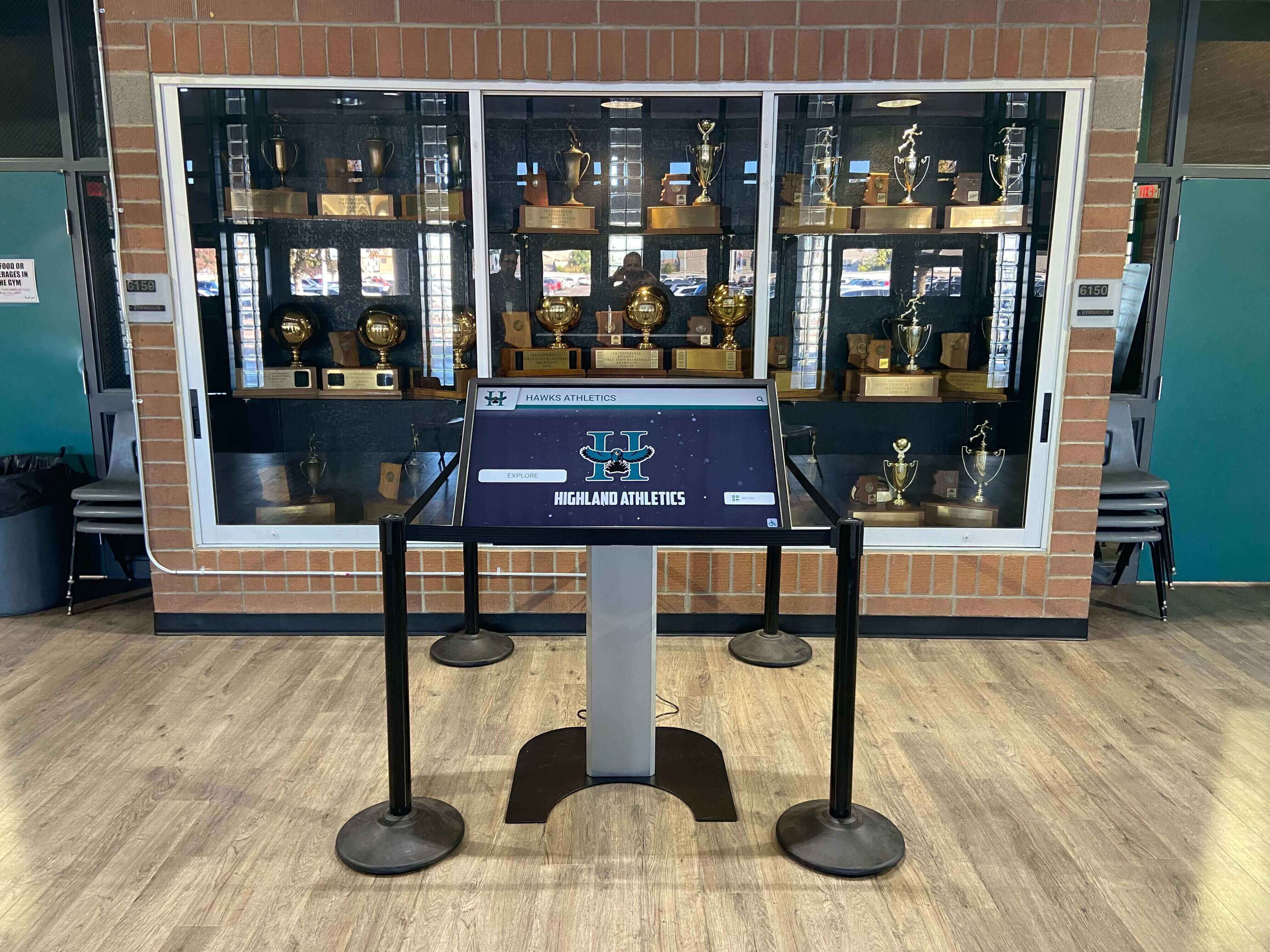
Recognition display kiosks integrated into trophy cases and lobby installations depend on a managed spare parts inventory for fast fault recovery
Why Recognition Displays Need a Dedicated Spare Parts Inventory
General school IT spare parts bins—stocked for student Chromebooks, staff laptops, and projectors—rarely contain the components that recognition touchscreens actually need. Commercial-grade display panels use different power supplies than consumer televisions. Interactive overlay hardware requires its own USB control cables. Mounting hardware is installation-specific.
Without a dedicated inventory, the typical school response to a failed recognition display component is: search the storage room, discover nothing useful, submit a purchase order, wait for delivery, and hope the display is back online before the next event. Depending on the component and procurement timeline, that sequence can take one to three weeks.
Maintaining a focused spare parts inventory for recognition displays addresses three operational realities:
- Component specificity: Recognition touchscreens combine commercial display panels, interactive overlay hardware, media players or mini-PCs, mounting systems, and cabling in configurations that differ by vendor and installation. Components are not interchangeable across device generations.
- Low failure frequency, high visibility impact: A power cable may last five years before failing—but when it fails at 6:45 PM before an event, no amount of troubleshooting substitutes for having a replacement on the shelf.
- Multi-department accountability gaps: Facilities staff manage mounting hardware; IT staff manage network cables and media players; athletic directors manage content. Without a central inventory, each party assumes another has covered the components they don’t personally manage.
For guidance on evaluating recognition platforms before deployment, interactive school display software selection frameworks help IT and administration align on platform requirements early—reducing the risk of hardware configuration surprises during installation.
Step 1: Audit Your Installed Recognition Display Hardware
Before stocking spare parts, document every component in the installed recognition display system. An accurate hardware audit prevents stocking parts that do not fit your installation and ensures nothing critical is overlooked.
Hardware audit checklist for each recognition display:
| Component Category | Items to Document |
|---|---|
| Display panel | Manufacturer, model number, panel size, power input specification, display interface (HDMI/DisplayPort version) |
| Interactive overlay | Manufacturer, model, interface (USB type, version), firmware version |
| Media player or mini-PC | Manufacturer, model, OS, storage capacity, RAM, power adapter specification |
| Mounting system | Mount manufacturer, model, VESA pattern, wall anchor type, load rating |
| Cabling | HDMI/DisplayPort version and length, USB type and length, power cable connector type |
| Remote or control device | Manufacturer, model, battery type |
| Network equipment | Ethernet cable category and length, PoE injector or switch specification if applicable |
| Enclosure or kiosk housing | Manufacturer, model, lock mechanism type, key serial |
Complete this audit for every recognition display in the building before purchasing spare parts. A gymnasium lobby kiosk and a hallway-mounted donor wall display may share a platform but use different mounting hardware, cabling lengths, and power specifications.
Step 2: Identify the Highest-Failure-Risk Components
Not every component fails at the same rate. Spare parts budgets are finite, so prioritize stocking items most likely to fail during the display’s operational life, most difficult to procure locally on short notice, and most impactful on display availability when missing.
High-priority spare parts for recognition displays:
Cables and Connectors
Cables are the most common cause of intermittent display failures and the easiest component to overlook until failure occurs.
- HDMI cables (matched to installed version—1.4, 2.0, or 2.1): Stock one spare per display, plus one additional for every three displays sharing similar hardware
- DisplayPort cables: Same stocking rule as HDMI; do not substitute HDMI for DisplayPort installations without verified adapter compatibility
- USB cables (Type-A, Type-B, Type-C as applicable): Interactive overlays commonly use USB-B or USB-C connections that differ from standard peripheral cables
- Power cables and IEC connectors: Commercial displays and media players use IEC 60320 connectors; stock C13/C14 and C7/C8 types as applicable to your hardware
- Ethernet patch cables: Stock Cat6 replacements matched to installed cable runs; damaged Ethernet is a common cause of false media player failures
Power Components
Power supply failures cause hard display outages—the screen goes completely dark and cannot be recovered remotely.
- Media player or mini-PC power adapters: These are often proprietary and unavailable at local electronics stores; source spares directly from the device manufacturer or an authorized distributor
- PoE injectors: Where network switches do not provide Power over Ethernet natively, failed PoE injectors take both the network connection and device power offline simultaneously
- Surge protector or UPS units: Dedicated power conditioning for recognition hardware protects against utility fluctuations; stock a spare suppressor matched to the installed unit’s outlet count and joule rating
Mounting and Physical Hardware
Mounting hardware failures are less frequent but often require immediate response because a failed mount creates a physical safety concern in addition to a display outage.
- Replacement mounting bolts and VESA plate hardware: Vibration and regular cleaning can loosen mounting fasteners over years of service
- Tilt adjustment mechanisms: Some commercial mounts include adjustable tilt arms with plastic locking components that degrade with age
- Lock cylinders and replacement keys: Enclosure and kiosk lock cylinders are proprietary to the enclosure manufacturer; stock a spare cylinder and two extra key copies
Peripheral and Control Components
- Remote controls: Remote controls are frequently misplaced during cleaning or event setup; stock one spare per display
- Remote batteries: Stock a full box of the battery type used by your remote control and media player remote; a depleted remote battery is a common source of “display malfunction” calls that require only a battery swap
- USB hub or extender: Where interactive overlays and media players connect through a USB hub, a spare hub eliminates a single-point-of-failure risk in multi-device installations
Step 3: Define Reorder Triggers and Stock Levels
A spare parts inventory without defined reorder triggers depletes silently—parts get used, replacements are not ordered, and the next failure finds the shelf empty. Establish minimum stock levels and reorder triggers before the inventory is put into service.
Recommended minimum stock levels:
| Component | Minimum Quantity (1–3 displays) | Minimum Quantity (4–10 displays) | Reorder Trigger |
|---|---|---|---|
| HDMI/DP cables (per version) | 2 | 4 | When stock falls to 1 |
| USB cables (per type in use) | 2 | 4 | When stock falls to 1 |
| IEC power cables (per connector type) | 2 | 3 | When stock falls to 1 |
| Media player power adapters | 1 per model in service | 1 per 3 devices | When stock falls to 0 |
| Remote controls | 1 per display | 1 per 2 displays | When stock falls to 1 |
| Remote batteries (per type) | 1 box | 2 boxes | When last box is opened |
| Mounting fastener kit | 1 kit | 2 kits | When kit is partially used |
| PoE injectors (if applicable) | 1 | 2 | When stock falls to 0 |
| USB hub (if applicable) | 1 | 1 per 4 displays | When stock falls to 0 |
Set a calendar reminder to review stock levels at the start of each school year and after any event season that involves significant setup and teardown activity around displays.
Step 4: Build the Inventory Tracking Document
Spare parts become findable and accountable only when they are tracked in a written record. A shared inventory tracking document—accessible to facilities staff, IT coordinators, and department heads—prevents duplicate purchasing, missing parts after events, and unclear ownership.
Recommended inventory tracking fields:
| Field | Purpose |
|---|---|
| Part name and description | Identifies the component clearly for non-technical staff |
| Manufacturer and part number | Enables reordering without guesswork |
| Compatible display models | Prevents installing incompatible parts |
| Current quantity on hand | Core tracking field |
| Minimum stock level | Defines the reorder trigger |
| Storage location | Eliminates search time during urgent repairs |
| Last restocked date | Flags inventory that has not been reviewed recently |
| Procurement source and lead time | Enables realistic repair timelines during ordering |
| Unit cost | Supports budget planning |
| Parts assigned to active repairs | Prevents double-counting checked-out parts |
Maintain this document in a shared drive accessible to every role that might need a spare part or need to report a repair. A spreadsheet managed in Google Sheets or Microsoft 365 satisfies this requirement without additional software.
Recognition display programs that track physical asset inventories alongside digital content—such as schools maintaining comprehensive championship banner inventories of titles, years, and display locations—benefit from applying the same structured tracking discipline to hardware components.
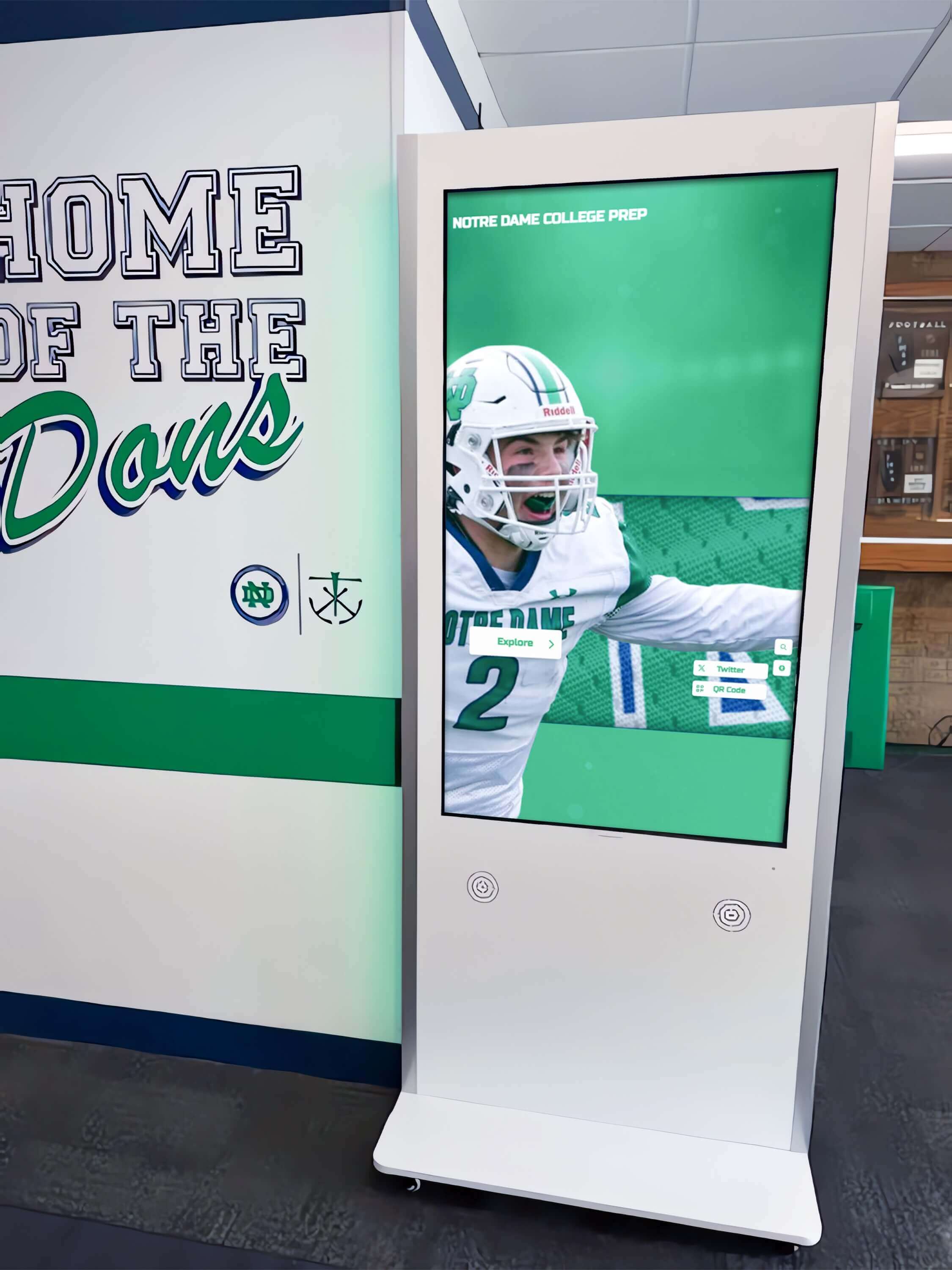
High-traffic recognition displays in school hallways see consistent daily use—maintaining a managed spare parts inventory reduces event-day outage risk
Step 5: Establish a Parts Request and Checkout Process
Spare parts disappear fastest when anyone can access the storage location without documentation. A simple checkout process—even just a shared log—ensures that when a part is used, the inventory record reflects it immediately and the reorder process starts without delay.
Parts request and checkout workflow:
- Request: Staff member identifies a failed component and submits a request to facilities or IT using whatever ticketing or communication system the school uses (email, help desk ticket, or written log)
- Identify: The technician responding to the request checks the inventory tracking document to confirm a spare part is available and locates it in the storage location
- Check out: The technician records the part name, quantity removed, date, their name, and the display location being repaired in the inventory log
- Install and verify: The technician installs the replacement part and confirms the display is operational before closing the repair record
- Update inventory: The quantity on hand in the tracking document is updated immediately; if stock falls to the reorder trigger, a purchase request is submitted the same day
- File removed part: The failed part is labeled with the display location, date of failure, and symptom before disposal or vendor return—this documentation helps identify patterns in component failure
A structured checkout process also protects against the common scenario where a spare part installed during an emergency repair is never logged, leaving the inventory record overstating available stock until the next audit.
For schools that maintain formal content approval workflows for recognition display updates, aligning the spare parts checkout process with the broader display management workflow creates a consistent governance structure across both hardware and content operations.
Step 6: Connect Spare Parts Inventory to Pre-Event Checklists
The highest-stakes moments for recognition display reliability are scheduled events: athletic banquets, induction ceremonies, senior awards nights, donor recognition galas, and school open houses. A spare parts inspection integrated into the pre-event preparation sequence catches component issues before the audience arrives.
Pre-event recognition display inspection checklist:
48 hours before the event:
- Verify display powers on and shows current content
- Test touchscreen responsiveness across the full screen area
- Confirm network connectivity and content synchronization
- Check that all cables are securely seated at both ends
- Verify remote control operates correctly; replace battery if low
- Confirm the spare parts inventory includes at minimum one spare cable for each cable type in use at the event location
Day of event:
- Power-cycle the display and confirm it returns to normal operation
- Verify touch calibration if the display was relocated or cleaned
- Confirm the on-call contact for facilities and IT is reachable during the event
- Identify the physical location of spare cables and power components relative to the event venue
- Document the display’s operational status in the event log
Connecting spare parts availability to the pre-event checklist converts inventory management from an abstract IT responsibility into a concrete readiness requirement that every event coordinator can verify. Schools preparing for major recognition events—such as athletic hall of fame inductions or academic honors ceremonies—benefit from running this checklist two to three days before the event to allow time for any part procurement.
The release readiness checklist framework for recognition displays provides a complementary set of pre-launch verification steps that include hardware, software, and content checks alongside physical component verification.
Step 7: Plan for Vendor-Specific and Long-Lead Parts
Some components in a recognition display system are proprietary to a specific manufacturer, available only through authorized distributors, or subject to extended procurement lead times. Identifying these parts in advance—and stocking spares before a failure occurs—prevents outages that no amount of emergency purchasing can resolve quickly.
Common long-lead and proprietary parts:
| Component | Typical Lead Time | Recommended Action |
|---|---|---|
| Proprietary media player power adapters | 1–3 weeks | Stock one spare per model at installation |
| Commercial display replacement panels | 4–8 weeks or longer | Register warranty, document serial number; consider extended service contract |
| Interactive overlay replacement units | 2–4 weeks | Coordinate with vendor on spare unit availability under service contract |
| Proprietary kiosk enclosure lock cylinders | 1–3 weeks | Stock one spare cylinder and retain key documentation at installation |
| OEM replacement remotes | 1–3 weeks | Stock one spare per display at installation |
| PoE injectors (specific models) | 1–2 weeks | Stock one spare per installed unit |
For proprietary components, contact your recognition display vendor at the time of installation to confirm whether they maintain spare parts stock for emergency fulfillment or whether components must be sourced through third-party distributors. Documenting vendor part numbers in your inventory tracking document eliminates the research step during an urgent repair.
Schools that track athlete spotlight programs and academic recognition displays across multiple locations benefit from standardizing hardware configurations where possible—using the same display models, cables, and mounting hardware across installations simplifies spare parts stocking because a single inventory covers all locations.
Step 8: Conduct Annual Inventory Audits
Spare parts inventories degrade silently: parts are used without being logged, components become obsolete as hardware is upgraded, and storage locations shift during facility renovations. An annual audit keeps the inventory accurate and aligned with the current hardware installation.
Annual inventory audit sequence:
- Physical count: Count every item in the spare parts storage location and compare to the tracking document; investigate and resolve any discrepancies
- Compatibility review: Confirm that each stocked spare part is still compatible with the current installed hardware; flag and remove parts that no longer match any installed device
- Condition check: Inspect cables and components for physical damage, oxidation, or degradation; discard and replace items that show visible wear
- Reorder assessment: Compare current quantities against minimum stock levels; submit purchase requests for any category below the reorder trigger
- Vendor and pricing update: Verify that procurement sources and part numbers in the tracking document are still current; update any discontinued or superseded references
- Storage location confirmation: Confirm that all staff with repair responsibilities know the current storage location; update documentation if the location changed
Schedule the annual audit before the start of the school year, when event schedules are being finalized and there is time to complete any purchase orders before the first high-visibility event.
What to Avoid in Spare Parts Inventory Management
Several common approaches reduce the effectiveness of a spare parts inventory without eliminating the effort required to maintain it:
- Generic cable bins without labeling: Unlabeled cables from different installations become unusable when a technician cannot verify the version, length, or compatibility during an urgent repair
- Single-person ownership without documentation: If only one IT staff member knows where spare parts are stored or what the inventory contains, a staff absence converts a five-minute repair into a day-long search
- Stocking only consumer-grade substitutes: Consumer HDMI cables, power strips, and USB hubs are not rated for the continuous operation and reliability that commercial recognition display installations require; use commercial-grade replacements
- Delaying reorder until the last spare is used: A component ordered after the last spare is installed arrives only after the next failure has already caused an outage; order at the reorder trigger, not at zero stock
- Treating the inventory as an IT-only resource: Facilities staff, athletic directors, and department administrators who manage recognition content should know the inventory exists and understand the basic checkout process so they can report component issues without waiting for an IT ticket to route
For schools managing donor recognition programs alongside athletic and academic displays, understanding what donors expect from recognition stewardship reinforces why display uptime is an institutional priority that justifies proactive spare parts investment—a dark donor wall during a fundraising gala has relationship consequences beyond an IT service ticket.
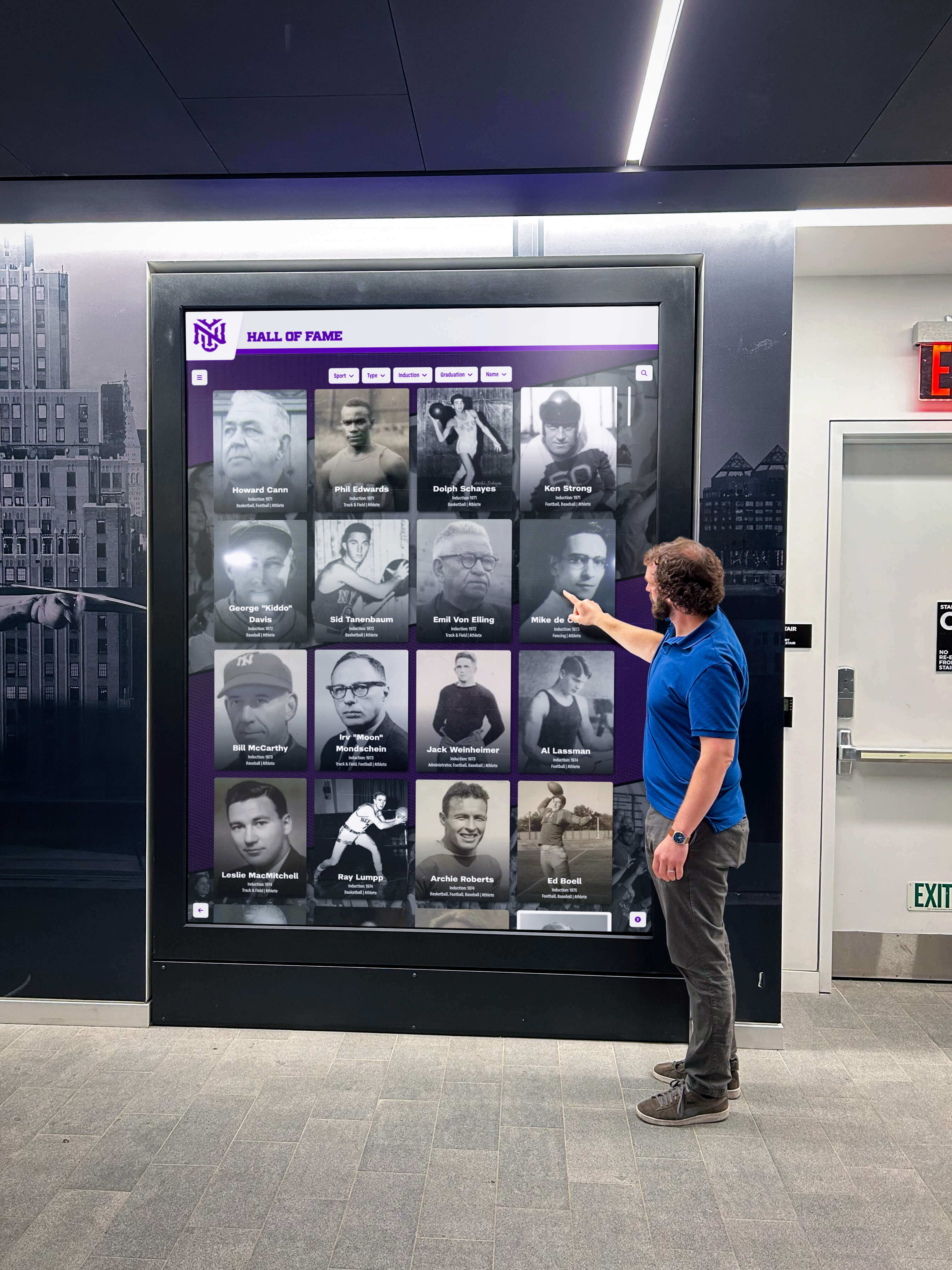
Recognition displays serve students, alumni, families, and donors—an effective spare parts inventory ensures they are operational for every audience
Connecting Spare Parts to Digital Recognition Program Goals
Physical spare parts inventory management and digital recognition content governance address different failure modes, but both protect the same institutional mission: ensuring that school achievements, honors, and acknowledgments are visible and accessible to the people they are meant to celebrate.
Schools running comprehensive recognition programs—covering athletic halls of fame, academic honors like academic honors diplomas, donor acknowledgments, and alumni spotlights—have invested significantly in the content that recognition displays present. A hardware failure that takes that content offline, even briefly, undermines the recognition investment.
A spare parts inventory does not replace a content backup strategy, a vendor service contract, or an IT governance policy for recognition display hardware. It works alongside those structures as the fastest-response layer: the resource that keeps a display operational while a deeper repair, warranty claim, or vendor support engagement proceeds in parallel.
Frequently Asked Questions
What is the most important spare part to stock for a school touchscreen recognition display?
Power cables and media player power adapters are consistently the highest-impact spare parts to stock. A failed power component takes the entire display offline immediately, recovery requires only a swap rather than diagnosis, and these components are often proprietary to specific device models—unavailable at local stores and subject to shipping delays. Stock at least one spare power adapter per media player model in service and one spare IEC power cable per display.
How should schools store spare parts for recognition displays?
Store recognition display spare parts in a labeled, secured cabinet or storage area that is accessible to facilities staff and IT coordinators but protected from unauthorized removal. Label each part clearly with its component type, compatible device models, and date received. Maintain a printed copy of the inventory tracking document in the storage location alongside the digital version. Avoid storing spare parts in the same location as general IT consumables—mixed storage leads to parts being used for the wrong devices.
Should spare parts for recognition displays be tracked separately from general IT inventory?
Yes. Recognition display hardware uses components—commercial display power cables, interactive overlay USB cables, media player adapters—that are specific to those installations and differ from the parts stocked for student and staff devices. Mixing recognition display spares into a general IT inventory creates confusion about compatibility and makes it difficult to audit recognition display readiness specifically. A separate tracking document, or a clearly labeled section of a broader inventory system, satisfies this requirement without requiring additional software.
How often should a spare parts inventory for recognition displays be reviewed?
At minimum, review the inventory at the start of each school year and before each major event season. Conduct a full physical audit at least once per year. Review part compatibility whenever a recognition display is upgraded or replaced, since new hardware may require different cables, adapters, or power components. A quarterly check of stock levels against minimum quantities is reasonable for schools with multiple recognition displays or a high event frequency.
What should schools do with failed components after replacing them with spares?
Label each failed component with the display location, date of failure, and the symptom observed before disposal. Retain failed components for at least 30 days before disposal in case the replacement part also fails or additional diagnosis is needed. If the component is under warranty, document the failure details before disposal—most warranty claims require a description of the symptom, the date of failure, and the device serial number. For components with data storage (media players, mini-PCs), follow your school’s data destruction policy before disposal.
How does spare parts inventory connect to a recognition display vendor service contract?
A spare parts inventory and a vendor service contract serve complementary but different functions. Spare parts enable immediate self-service recovery for common component failures without waiting for vendor response. A vendor service contract covers failures that require vendor-supplied components, remote platform support, or on-site technical service. For components under active warranty or service contract, document the vendor contact information and claim process alongside the spare parts inventory so staff can initiate both a parts-swap and a warranty claim simultaneously if needed.
Conclusion
A touchscreen recognition display spare parts inventory is one of the most cost-effective investments a school can make in recognition program reliability. The framework above walks through hardware auditing, component prioritization, stock level definition, inventory tracking, checkout process design, pre-event preparation, vendor-specific parts planning, and annual audits—the full operational cycle from initial stocking through ongoing management.
For school facilities and IT teams, the practical outcome is straightforward: when a cable fails before a championship banquet or a remote goes missing before an induction ceremony, the repair takes minutes rather than days. For athletic directors, advancement staff, and administrators, the outcome is equally direct—the recognition displays that honor athletes, donors, academics, and alumni are operational when the community is present to engage with them.
Build the inventory once, maintain it annually, and connect it to your pre-event preparation checklist. Those three steps convert a common source of high-visibility failures into a manageable maintenance routine.
Schools evaluating recognition display platforms should ask vendors about hardware support practices, spare parts availability, and service contract terms before installation. Request a demo from Rocket Alumni Solutions to see how a purpose-built recognition platform approaches hardware support, content management, and long-term uptime for athletic halls of fame, donor walls, and academic recognition displays.