Intent: define. A touchscreen recognition display mobile device management policy gives school IT coordinators, administrators, and facilities teams a documented governance framework for enrolling, securing, maintaining, and retiring the dedicated devices that power athletic halls of fame, donor walls, academic honor displays, and student recognition kiosks. Without a written policy, device configuration drifts, access credentials go undocumented, and hardware retirements risk losing years of recognition content.
This guide explains what an MDM policy for recognition touchscreens must cover, provides a numbered implementation sequence, and includes snippet-ready tables so IT staff and school administrators can adapt the framework to their institution’s existing governance standards.
Schools that invest in touchscreen recognition displays—showcasing championship records, inductee profiles, donor acknowledgments, and alumni milestones—are making a long-term institutional commitment. The devices serving those displays are often deployed for five to ten years, managed by IT staff who rotate, and shared across multiple departments with different update and content priorities. A written mobile device management policy transforms that operational complexity into a repeatable, auditable workflow.
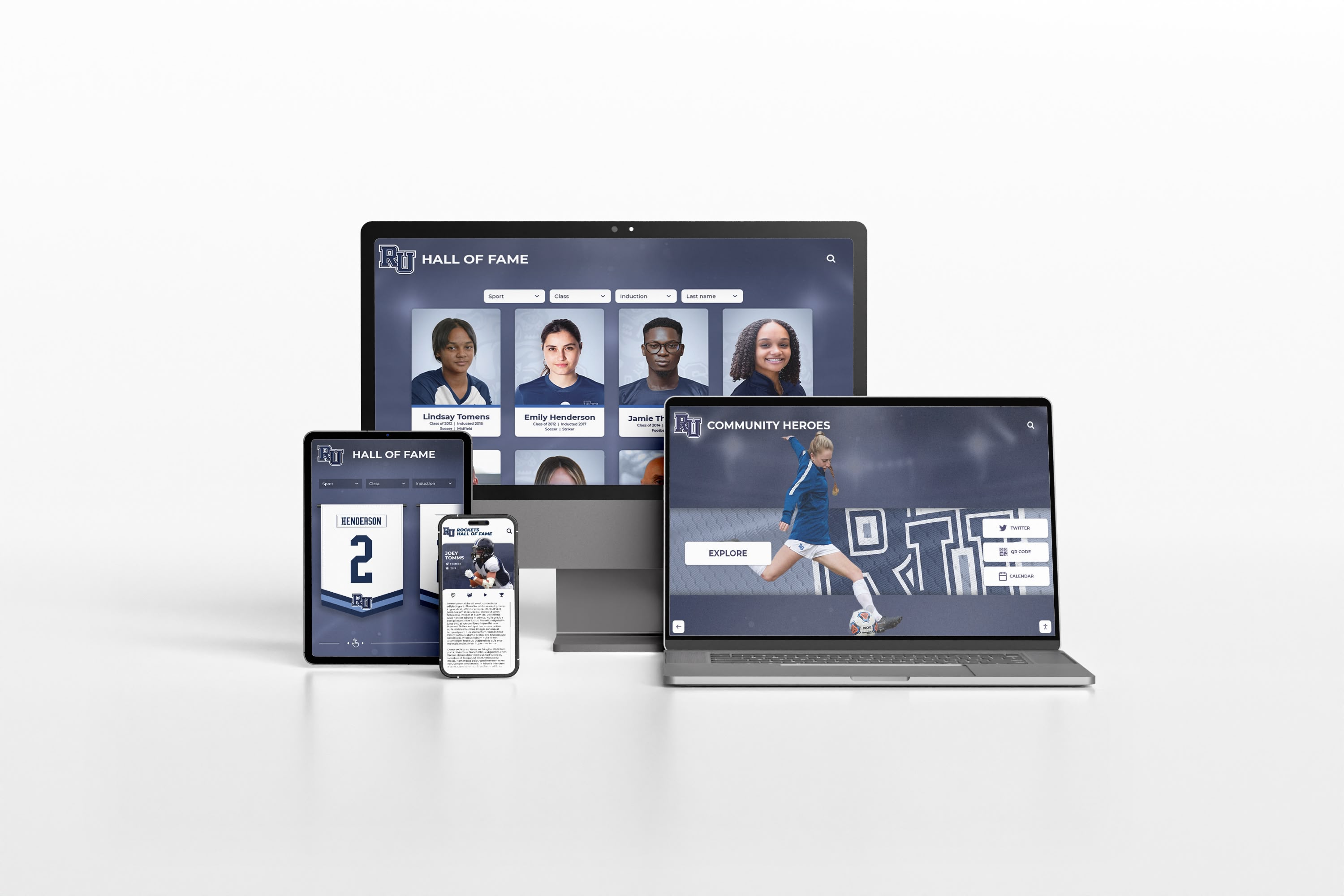
Modern recognition platforms serve both dedicated touchscreen kiosks and personal mobile devices—an MDM policy must address both access paths
Why Recognition Touchscreens Require Their Own MDM Policy Section
Most school MDM policies are written with student Chromebooks, staff laptops, and administrative tablets in mind. Dedicated touchscreen recognition kiosks differ from those managed devices in several ways that standard policy language does not address:
- Single-purpose deployment: Recognition kiosks run one application in locked-down kiosk mode rather than supporting a general-purpose computing environment
- Public-facing, always-on operation: Displays run during building hours without user authentication, meaning physical access controls matter more than login policies
- Multi-department content ownership: Athletic directors, advancement staff, facilities managers, and academic departments each have legitimate interest in display content—but IT owns the hardware and network connection
- Long hardware lifecycles: Recognition displays typically remain in service for five to ten years, spanning multiple network infrastructure generations, OS support windows, and vendor platform updates
- High-visibility failure consequences: When a recognition display goes dark during a championship event or fundraising gala, the failure is immediately visible to community members and stakeholders
For guidance on what to do when a display reaches end of life, a touchscreen recognition display decommissioning plan addresses content migration and credential preservation before hardware retirement.
Step-by-Step: Implementing a Touchscreen Recognition Display MDM Policy
The following sequence walks IT coordinators and school administrators through building and enforcing an MDM policy specifically for recognition display devices.
Step 1: Inventory and Classify Recognition Display Devices
Before writing policy language, document every device in scope. A recognition display MDM policy applies to physical hardware running the display interface, administrative tablets or laptops used to update content, and any secondary devices enrolled in the same management platform.
Create a device register with these fields for each unit:
| Field | Example Value |
|---|---|
| Device ID | REC-KIOSK-001 |
| Location | Main Gymnasium Lobby |
| Display purpose | Athletic Hall of Fame |
| Hardware make/model | Commercial display, 65" |
| OS and version | Windows 10 IoT / Android 12 |
| MDM enrollment date | 2024-09-01 |
| Primary content owner | Athletic Director |
| IT owner | Network Administrator |
| Warranty expiration | 2027-08-31 |
| Next lifecycle review | 2026-08-01 |
This inventory feeds directly into access control decisions, update scheduling, and eventual decommissioning planning. Update it whenever a device is added, relocated, or retired.
Step 2: Define Device Enrollment Requirements
All recognition display devices should be enrolled in the school’s MDM platform before installation. Enrollment provides remote visibility, policy enforcement, and the ability to push updates without physical access to the device.
Minimum enrollment requirements for recognition kiosks:
- Enrollment completed before the device is connected to the school network
- Device assigned to a dedicated recognition display management group with kiosk-mode policies applied
- Device name set to the naming convention established in Step 1 (e.g., REC-KIOSK-001)
- Local administrative accounts disabled or renamed; only MDM-managed service accounts permitted
- Network access limited to required platform endpoints and content delivery addresses; general internet browsing blocked at the MDM or firewall level
Step 3: Configure Kiosk Mode and Application Lockdown
Recognition display hardware should run in supervised or kiosk mode that prevents users from exiting the recognition application, accessing device settings, or installing unauthorized software. The specific mechanism depends on your operating system and MDM platform, but the governance requirements are consistent:
Kiosk mode policy requirements:
- Only the approved recognition display application may launch at startup
- Device auto-restarts on a defined schedule (commonly 2:00–3:00 AM on weekdays) to clear memory and apply queued updates
- On-screen access to system settings, browsers, and file managers is blocked
- Physical port access (USB, HDMI input) is logged or physically restricted where feasible
- Touch input outside the recognition application interface produces no system response
Schools managing alumni engagement programs through both physical kiosks and web-accessible platforms benefit from consistent kiosk mode policy because it prevents ad hoc configuration changes that break the display experience.
Step 4: Establish Content Management Access Controls
Recognition content—inductee profiles, championship records, donor acknowledgments, academic honors, and alumni spotlights—is updated by staff from multiple departments. The MDM policy must define who can access the content management system (CMS), from which devices, and under what authentication requirements.
Content access tiers:
| Role | CMS Access Level | Device Policy | Authentication Requirement |
|---|---|---|---|
| IT Administrator | Full platform and device access | Managed device required | MFA enforced |
| Content Administrator (Athletic Director, Advancement) | Content upload and publish | Managed or approved personal device | SSO or dedicated credentials |
| Content Reviewer (Coach, Faculty) | Draft submission only | Any device via web browser | Standard school login |
| Public Visitor | View-only via touchscreen or QR | Unmanaged device permitted | None |
The distinction between content access tiers prevents situations where a coach’s well-intentioned but unauthorized update accidentally removes a donor acknowledgment or corrupts an inductee record.
Alumni spotlight programs that publish content to both physical touchscreens and web-accessible alumni directories benefit particularly from clear content access governance, because a mistake in one channel often propagates to the other.
Step 5: Define the Update and Patch Management Schedule
Recognition displays face a tension between update stability and security currency. Applying an OS patch immediately after release risks breaking the kiosk mode configuration; deferring patches indefinitely creates security exposure on a network-connected device.
Recommended update governance framework:
| Update Category | Testing Requirement | Deployment Window | Maximum Deferral |
|---|---|---|---|
| Critical security patches (CVSS 9.0+) | Test in staging environment; deploy within 5 business days if no regression | Off-hours maintenance window | 10 business days |
| Standard OS updates | 10-day staging observation; deploy next monthly maintenance window | Monthly maintenance window (scheduled) | 45 days |
| Recognition platform software | Vendor-notified upgrade; test in staging; coordinate with content owners | Planned outage with 2-week notice | Per vendor SLA |
| Hardware firmware | Evaluate vendor release notes; test on one unit first | Scheduled maintenance | Per manufacturer guidance |
Scheduling updates during off-hours maintenance windows—typically early morning on a day with no scheduled events—limits the risk of displaying a broken interface to visitors during a championship game, donor event, or open house.
Step 6: Set Physical Security and Access Controls
MDM governs software configuration, but recognition display hardware is physically accessible in lobbies, hallways, and athletic facilities. The policy must address physical access alongside software controls.
Physical security requirements:
- Device enclosures locked or tamper-evident; mounting hardware requires tools to remove
- Any accessible USB or input ports labeled “IT use only” and documented in the device register
- Maintenance access logged in writing or via ticketing system, including date, technician name, and work performed
- Building access credentials for IT staff who service recognition displays documented in the device register and revoked when staff leave the institution
Physical access logging is especially important for high-traffic areas like gymnasium lobbies, where well-meaning visitors or student workers may attempt to interact with device ports during events.
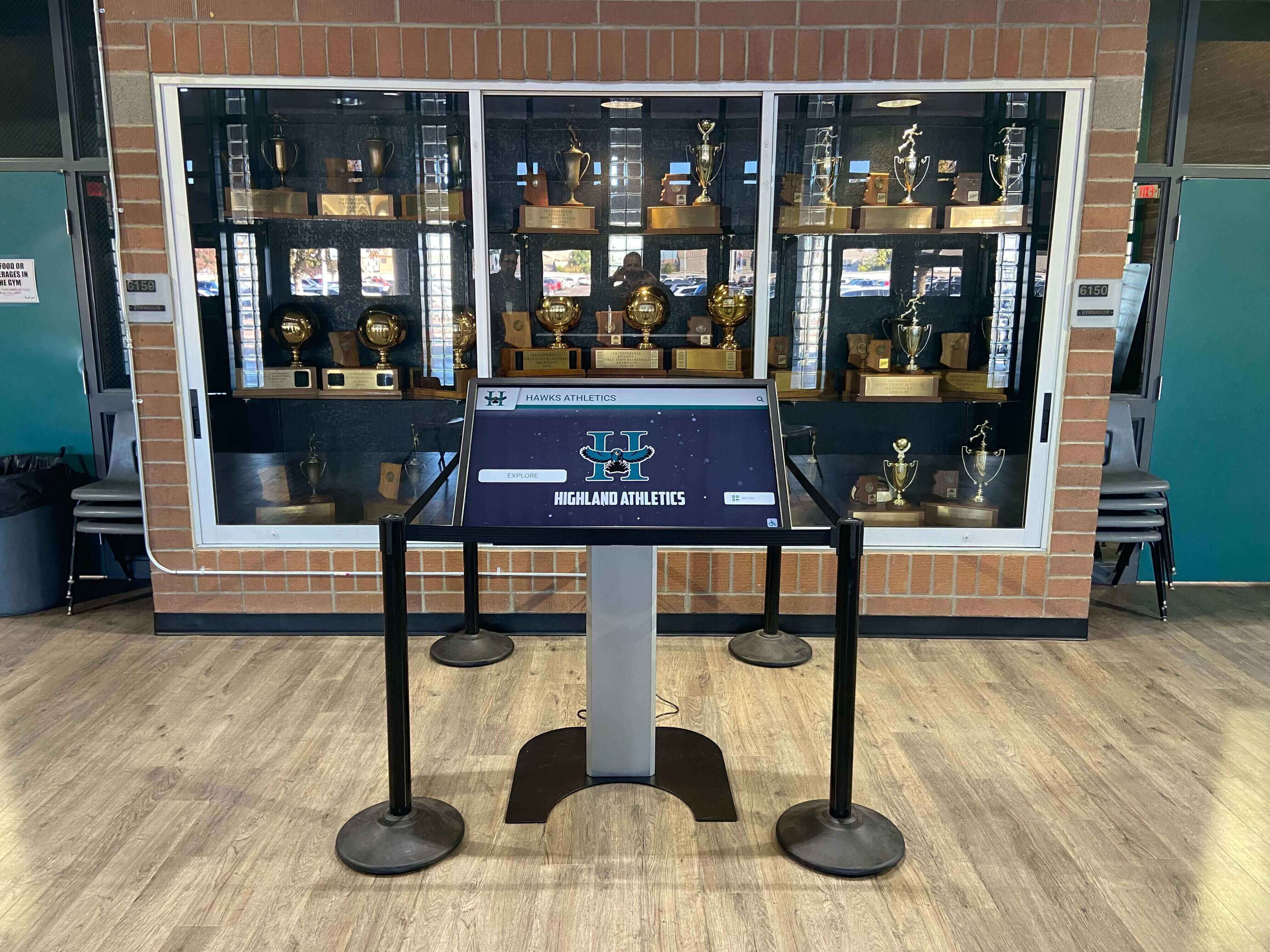
Physically integrated kiosks in trophy cases and lobby displays require documented physical access controls in addition to software-level MDM policy
Step 7: Document Incident Response Procedures
When a recognition display malfunctions—whether due to a failed update, network disruption, hardware fault, or content error—IT staff need documented procedures to diagnose and restore service quickly.
Recognition display incident response matrix:
| Symptom | First Response | Escalation Path | Target Resolution |
|---|---|---|---|
| Black screen, device powered | Verify network; remote restart via MDM | Check MDM console for policy conflict; contact platform vendor | 2 hours during school hours |
| Display shows error message | Capture screenshot; check CMS for corrupted content | Restore last known good content snapshot; contact vendor if platform error | 4 hours |
| Touchscreen unresponsive | Remote restart via MDM; check touch driver status | Dispatch technician for physical inspection | 4 hours during school hours |
| Content outdated despite published update | Verify CMS publish status; force content refresh via MDM | Check network connectivity to CDN; contact vendor | Same business day |
| Device offline in MDM console | Check physical power and network; check switch port | Dispatch technician; check device registration | 2 hours during school hours |
Document a contact list for each recognition display vendor alongside this matrix, including emergency support numbers and the school’s service account identifier, so IT staff do not spend time searching during an incident.
Step 8: Establish Lifecycle Review and Retirement Procedures
Recognition display devices do not become obsolete on a predictable schedule, but operating them beyond their supported lifecycle creates compounding risk: unmaintained OS versions, unpatched security vulnerabilities, and platform compatibility problems as the recognition software evolves.
Lifecycle review triggers:
- Annual review at the start of each school year
- When OS vendor announces end of support for the installed version
- When the recognition platform vendor announces a minimum OS or hardware requirement that the current device cannot meet
- When repair costs for a single incident exceed 30% of the replacement cost for equivalent hardware
- When the device has been in service for seven or more years
At retirement, execute a structured decommissioning sequence before the device is removed: export all recognition content and media, document current configuration and credentials, revoke device from MDM, and follow your school’s data destruction or surplus disposal policy.
Step 9: Define Roles and Responsibilities
MDM policy governance requires named role assignments, not just job titles. When staff rotate—as IT coordinators, athletic directors, and advancement staff regularly do—undocumented role assignments leave gaps that only surface during an incident.
Policy governance roles:
| Role | Responsibilities |
|---|---|
| MDM Policy Owner (IT Director) | Maintains written policy, approves configuration changes, conducts annual review |
| Device Administrator (IT Coordinator) | Manages MDM enrollment, applies updates, responds to incidents |
| Content Administrator (Department-specific) | Manages CMS access, publishes content, escalates display issues to IT |
| Physical Security Responsible Party (Facilities) | Maintains enclosure locks, logs physical access, reports damage |
| Policy Review Committee | IT Director, Principal or Head of School designee, Athletic Director, Advancement Director |
Annual policy review meetings with this committee ensure the policy keeps pace with new deployments, vendor platform changes, and evolving school governance requirements.
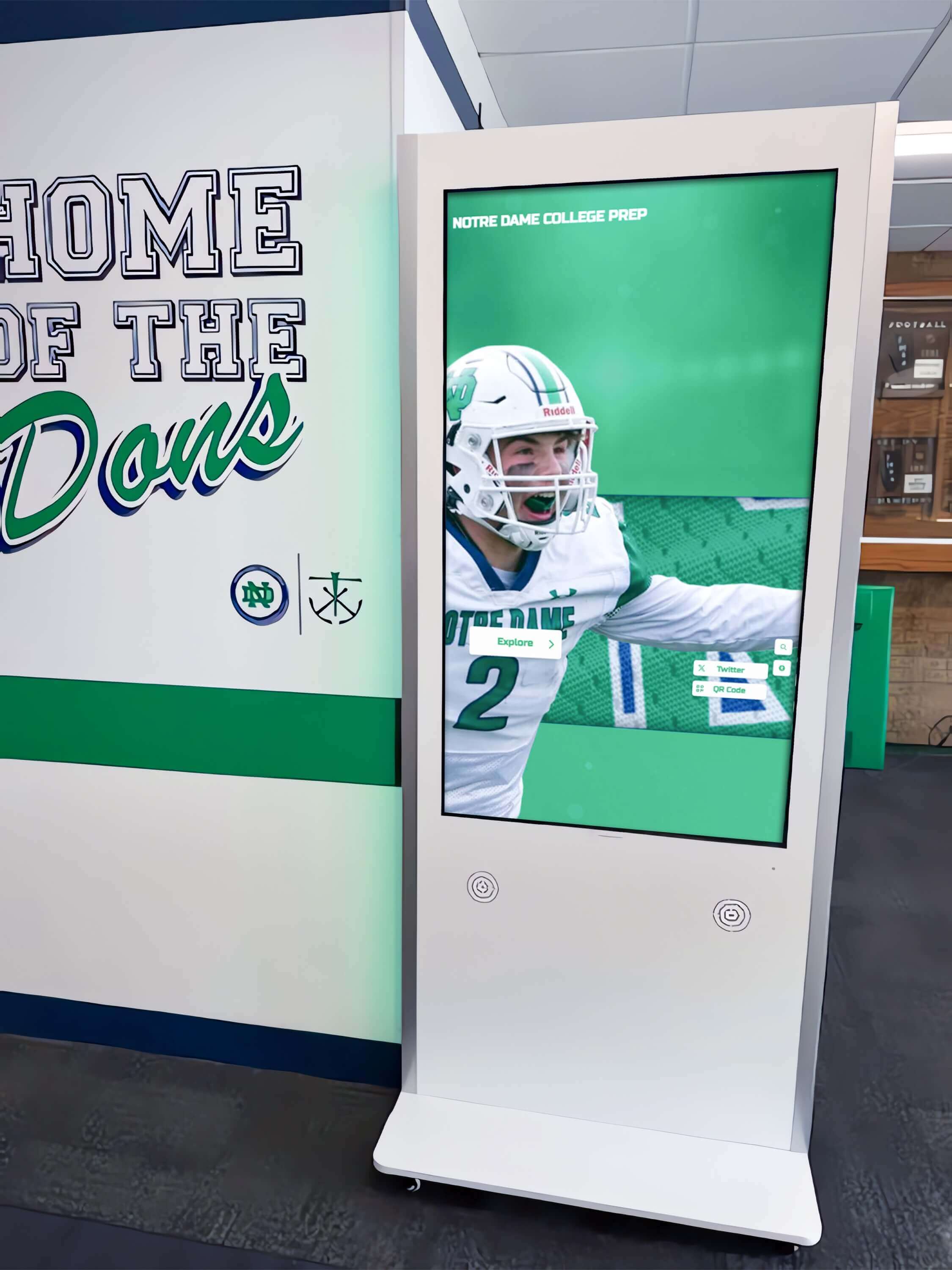
Recognition display kiosks in high-traffic school hallways serve broad audiences—MDM governance ensures consistent, reliable presentation of institutional recognition content
Connecting MDM Policy to Recognition Content Governance
A touchscreen recognition display MDM policy is not only an IT document. It directly shapes whether athletic halls of fame, donor walls, academic honors, and alumni recognition programs deliver consistent, reliable experiences to students, families, and community members.
Schools that manage digital showcase programs for class officers, academic honors, and student achievement know that broken or outdated displays undermine the recognition mission. When a device runs an unapproved configuration or a content update fails silently because of a policy gap, the visible result is incorrect or missing recognition—not an IT problem, from the community’s perspective.
MDM policy provisions that most directly protect recognition content quality include:
- Content backup and recovery requirements: Define how frequently content snapshots are taken and how many versions are retained. For recognition programs, a 30-day rolling backup protects against both accidental deletion and platform errors.
- Change documentation: Require that content administrators document what they published, when, and why before major events. Athletic directors updating championship records the week before a senior banquet benefit from this documentation if a display error requires rollback.
- Vendor change notification requirements: Require vendors to provide advance notice—commonly 30 days minimum—before platform updates that affect content structure, display behavior, or CMS workflows. Schools supporting booster club recognition programs that involve donor acknowledgment content need time to review platform changes before they affect published donor records.
MDM Policy and Mobile QR Access Paths
Many recognition platforms now include QR codes printed near displays, allowing visitors to browse hall of fame content, alumni spotlights, and award histories on their personal mobile devices. This access path creates an additional governance consideration that standard MDM policy may not address.
MDM policy provisions for QR-enabled recognition platforms:
- Document whether the QR access path serves content from the same platform and credentials as the physical touchscreen or from a separate mobile URL
- Confirm with the vendor whether mobile access data (page views, search queries) is retained and where it is stored
- Define whether mobile access paths are in scope for the same availability and uptime commitments as the physical display
- Ensure that content published to the physical display automatically synchronizes to the mobile view without a separate publish step—undocumented dual-publish workflows are a common source of content inconsistency
For institutions connecting physical recognition displays to broader digital archive strategies, a digital asset management framework for schools addresses how content governance extends beyond the display itself.
Schools honoring long-term community contributors through hall of fame programs that serve both in-person and remote audiences benefit from explicit policy language confirming that mobile access is treated as part of the recognition platform—not an informal extension managed outside the MDM framework.
MDM Policy and Vendor Contract Alignment
A school’s internal MDM policy is most effective when vendor contract terms reinforce it. Review your recognition display vendor contract against these policy provisions:
| MDM Policy Requirement | Corresponding Vendor Contract Provision |
|---|---|
| Advance notice for platform updates | Vendor notification clause with defined notice period |
| Content backup and recovery | Data portability and recovery provisions |
| Uptime and availability targets | Service level agreement with defined uptime commitment |
| Incident response expectations | Support response time tiers by incident severity |
| End-of-life data export rights | Data portability clause at contract termination |
When these provisions align, your MDM policy and vendor SLA create a coherent governance framework. When they conflict—for example, if your policy requires 30-day update notice but your contract allows the vendor to push updates without notice—the weaker provision controls in practice.
Frequently Asked Questions
Do school touchscreen recognition displays need to be enrolled in MDM?
Any network-connected device in a school environment benefits from MDM enrollment for security patching, remote management, and policy enforcement. Recognition display kiosks are particularly important to enroll because they are physically accessible in public areas, run continuously during school hours, and serve institutional content that reflects on the school’s recognition programs. Schools managing displays without MDM enrollment lose the ability to audit device configuration, apply patches remotely, or diagnose problems without physical access.
Which MDM platforms support kiosk mode for recognition displays?
Several enterprise MDM platforms support kiosk mode for Windows, Android, and iOS devices. Common platforms used in K-12 environments include Microsoft Intune, Jamf Pro (for Apple devices), Google Workspace device management, and Mosyle. The specific kiosk mode configuration depends on your operating system and recognition platform software. Verify kiosk mode support with your recognition display vendor before deployment, as some platforms require specific OS configurations to function correctly in supervised mode.
How should schools handle MDM policy when staff responsible for a recognition display leave?
Staff transitions are one of the most common sources of MDM governance gaps. When an IT coordinator, athletic director, or advancement staff member leaves, the offboarding checklist should include: removing their CMS access credentials, transferring device administrator rights in the MDM console, updating the device register role assignments, and documenting current display configurations in writing. Requiring these steps in the MDM policy itself—not just informal practice—ensures they happen consistently.
Can a mobile device management policy cover both student devices and recognition kiosks?
Yes, but the policy should address them in separate sections with distinct provisions. Student device policies focus on personal use restrictions, acceptable use agreements, and content filtering. Recognition kiosk policies focus on single-purpose application lockdown, content governance, and physical access controls. Combining them in a single section creates confusion about which rules apply to which devices. A modular policy structure—with a common section covering enrollment and security patching, and device-type-specific sections covering kiosk mode, content access, and physical security—is the most maintainable approach.
How does MDM policy interact with student recognition content that includes photos?
Student photos published on recognition displays are subject to the same consent and privacy requirements as photos in other school publications. MDM policy should reference the school’s media consent policy rather than duplicate it. The content access control tiers in your MDM policy should ensure that only staff with authority to publish student images—typically content administrators who have confirmed consent documentation—can publish photo content to recognition displays.
What should schools do if a recognition display vendor pushes an update that breaks the MDM configuration?
Document the incident in your IT ticketing system, contact the vendor support line immediately with the device ID and a description of the configuration change observed, and request rollback to the prior platform version while the issue is investigated. Your MDM policy should specify that vendor platform updates require coordination with IT before deployment—this provision gives you standing to request that vendors notify you before pushing updates to enrolled devices. If your vendor contract does not include an update notification clause, raise this at the next contract renewal.
Conclusion
A touchscreen recognition display mobile device management policy is the governance document that connects school IT’s device management responsibilities to the institutional recognition programs that touchscreen displays serve. The nine-step framework above covers inventory and classification, MDM enrollment, kiosk mode configuration, content access controls, update management, physical security, incident response, lifecycle planning, and role assignments.
For school IT coordinators, the policy provides the documented standards and role clarity needed to manage recognition displays consistently as staff rotate. For athletic directors, advancement staff, and administrators, it ensures that the championship records, donor acknowledgments, and inductee profiles displayed on school recognition walls are governed, backed up, and protected through hardware transitions.
Review this framework against your school’s existing MDM policy and update your vendor contracts to align support response times, update notification requirements, and data portability rights with your internal governance standards.
Schools evaluating recognition display platforms should ask vendors directly about MDM enrollment support, kiosk mode compatibility, and update notification practices before signing. Request a demo from Rocket Alumni Solutions to see how a purpose-built recognition platform approaches device governance, content management, and long-term platform support for athletic halls of fame, donor walls, and academic recognition programs.