Intent: demonstrate — this guide walks school IT coordinators, facilities teams, and athletic administrators through touchscreen recognition display ghost touch troubleshooting so they can identify the root cause before scheduling a service call.
A recognition display that registers phantom taps is more than an annoyance. It can cycle through athlete profiles on its own, dismiss menus visitors never opened, or lock up in navigation loops that turn an engaging athletic hall of fame into a frustrating dead end. When ghost touch appears, the instinct is to call for hardware service—but many cases can be diagnosed and resolved without a technician visit if staff work through the right sequence of checks first.
This guide explains what ghost touch is, why it surfaces on school recognition displays specifically, and how to systematically rule out each cause—from dirty glass and loose cables to software conflicts and environmental conditions—before deciding whether a service call is genuinely required.
Recognition kiosks in school lobbies, athletic corridors, and trophy alcoves run in public-facing environments that differ significantly from controlled office settings. They operate for extended hours, face varying humidity and temperature throughout the school year, accumulate fingerprint residue across dozens of daily interactions, and often share electrical circuits with HVAC systems, gymnasium equipment, or high-draw lighting rigs. Each of those conditions creates pathways for ghost touch that wouldn’t affect a typical desktop or tablet.
Understanding those pathways is the first step toward a reliable diagnosis.
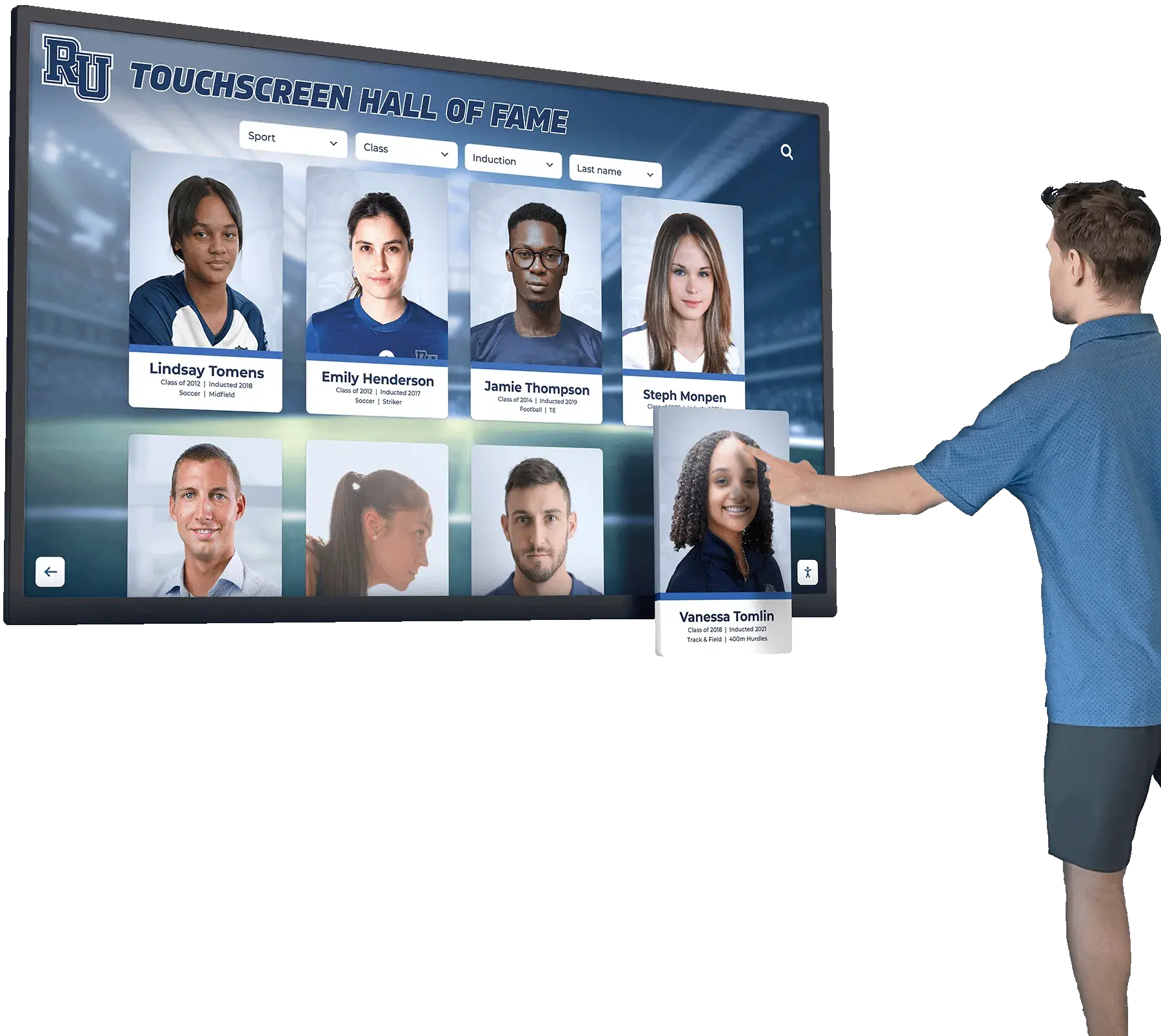
A well-functioning recognition display invites self-directed exploration—ghost touch disrupts that experience and erodes visitor confidence in the system
How Ghost Touch Appears on Touchscreen Recognition Displays
Ghost touch is the umbrella term for any touch input the system registers without a corresponding physical tap. On a school touchscreen recognition display, that typically presents in one of four ways:
Persistent phantom taps in a fixed location. The screen repeatedly activates the same area—opening a specific athlete profile, triggering a back button, or selecting a category—while no one is interacting with it. This pattern usually points to a localized issue: a small crack in the digitizer layer, a conductive contamination point on the glass, or a pressure artifact from an improperly seated cable.
Erratic taps scattered across the screen. Multiple false touch points appear in no consistent pattern, often while the display is idle or right after power-on. Electrical interference, driver instability, or significant humidity are common contributors.
Slow drift or scroll without input. The visible content scrolls or pans gradually as though someone is holding a finger on the edge. This often indicates static charge buildup or a damaged capacitive layer that is not fully registering its off-state baseline.
Touch input that lags, then fires multiple times. A visitor taps once, nothing happens for a second, then the system registers several taps in rapid succession. This usually points to a software or driver issue rather than a hardware failure.
Documenting which of these patterns your display shows will guide everything that follows.
Step 1: Document the Ghost Touch Behavior
Before touching cables, settings, or cleaning supplies, spend five minutes observing and recording what the display is doing. Useful details to capture:
- Location on screen: Is the phantom activity concentrated in one quadrant, along the edges, or scattered across the full display?
- Time of occurrence: Does it happen immediately on startup, after 20–30 minutes of operation, at specific times of day, or continuously?
- Frequency: Is the display registering a false tap every few seconds, or only occasionally?
- Environmental context: Is it happening on cold winter mornings when indoor humidity is low, or during humid summer afternoons?
- Correlation with other systems: Does ghost touch appear when the HVAC system cycles on, when lights in the same area switch, or when nearby equipment such as a projector or copier is running?
This documentation serves two purposes: it helps you work through the troubleshooting steps more efficiently, and it gives a technician or the recognition platform’s support team the specific context they need if the issue needs to be escalated.

Logging when and where false taps occur is the most efficient starting point for any ghost touch diagnosis
Step 2: Evaluate Environmental Conditions
School environments create conditions that many touchscreen displays are not designed to handle in isolation. Check each of these before assuming a hardware defect.
Temperature and Humidity
Capacitive touchscreens measure tiny electrical charges across the screen surface. Significant changes in ambient humidity alter the conductivity of the air and can cause the touch controller to misread baseline levels as touch events.
Low humidity (common in winter when heating systems run constantly): Static electricity builds up more easily on carpet, upholstery, and clothing. A visitor who has walked across a carpeted hallway and approaches the display without grounding themselves can introduce a charge before making any physical contact.
High humidity (summer months or poorly ventilated areas near gymnasiums and locker rooms): Moisture near the screen edge can create conductive pathways the digitizer interprets as touch.
If ghost touch appears or worsens seasonally, the environment is almost certainly a contributing factor. Improving HVAC distribution near the display, adding humidity control, or relocating the display away from exterior doors and gymnasium entrances can resolve the problem without any technical intervention.
Electromagnetic Interference
Electrical motors, fluorescent and older LED ballasts, HVAC compressors, and high-power audio equipment all generate electromagnetic fields that can interfere with the touch controller’s signal processing. Athletic facilities in particular tend to concentrate this type of equipment.
If ghost touch correlates with specific systems cycling on, the fix may be as straightforward as moving the display to a different electrical circuit, adding shielding, or requesting that your facilities team evaluate whether the display’s circuit shares a panel with the interference source.
Direct Sunlight on the Screen
UV-rich direct sunlight striking the screen can heat the surface unevenly and temporarily affect the digitizer’s calibration baseline. If your display is positioned near windows that receive direct morning or afternoon sun, a UV-filtering film or a change in mounting angle may eliminate ghost touch during those periods.
Schools planning school history and recognition archives should factor mounting location into the site survey before installation—lighting conditions and proximity to electrical infrastructure are as important as viewing angles for long-term reliability.
Step 3: Inspect and Clean the Screen Surface
This step resolves a meaningful share of ghost touch complaints and takes under five minutes.
Accumulated fingerprint oils, cleaning product residues, and airborne particles from gymnasium chalk or art classrooms can create thin conductive films on the screen surface. Those films can create zones where the capacitive sensor reads a weak signal it interprets as an incomplete touch—triggering a phantom input.
Correct cleaning procedure:
- Power down the display fully. Cleaning an active screen makes it harder to see residue, and the display will not register false inputs from the cleaning cloth during the process.
- Use a clean microfiber cloth dampened slightly with distilled water or an IPA-based screen cleaner rated for capacitive touchscreens. Standard glass cleaners, ammonia-based products, and abrasive cloths can damage the oleophobic coating on the screen surface—and a damaged coating makes fingerprint accumulation significantly worse over time.
- Wipe in overlapping strokes across the full screen surface rather than in circular motions. Circular wiping redistributes oils rather than removing them.
- Allow the screen to dry completely before powering back on.
- Power the display back on and observe for ghost touch. If the behavior was caused by surface contamination, improvement will be visible immediately.
If your display is in a high-touch location—visited by dozens of students, athletes, or community members daily—a weekly cleaning cycle should be part of the standard maintenance schedule. Schools managing sports award and recognition programs with interactive displays will find that routine cleaning extends the reliable service life of the touch sensor significantly.
Step 4: Inspect and Re-Seat Cable Connections
Loose or partially disconnected cables are a surprisingly common source of ghost touch on recognition kiosks, particularly in installations that experience vibration from nearby gymnasium traffic, bleachers, or HVAC equipment.
Most commercial touchscreen displays connect the touch sensor to the processing unit via a USB cable or a proprietary ribbon connector. Check the following:
USB cable at both ends: Power down the display. Disconnect and firmly reconnect the USB cable that carries the touch signal—usually a separate cable from the display’s power and video connections. If the cable shows signs of wear, kinking, or damage near the connectors, replace it before continuing.
HDMI or DisplayPort connections: A poorly seated video connection can, in some configurations, introduce signal noise that the touch controller misinterprets.
Internal cable management: If your display is mounted in a kiosk enclosure and you have safe access to the back panel, check whether any cables have shifted to press against moving parts or the interior walls in ways that create mechanical stress near the connectors.
After re-seating connections, power the display back on and test before moving to software-side steps.
Step 5: Recalibrate the Touch Controller
Many commercial touchscreen displays include a built-in calibration utility accessible through the on-screen display menu or a dedicated calibration application. Recalibration resets the baseline the touch controller uses to distinguish a resting state from an actual touch event.
Calibration is most effective when:
- The display has been running for at least 15–20 minutes (warmed up to operating temperature)
- The screen surface has been cleaned
- The display is in its normal installation environment rather than a temporary location
The specific calibration procedure varies by manufacturer. Common access paths include holding a button combination on the display itself, navigating to a settings menu in the kiosk management software, or running a calibration executable on the connected media player or computer. Check the display manufacturer’s documentation for the correct procedure for your model.
After recalibration, allow the display to run for 30 minutes before evaluating whether ghost touch has resolved. Some touch controllers take time to stabilize after a calibration event.
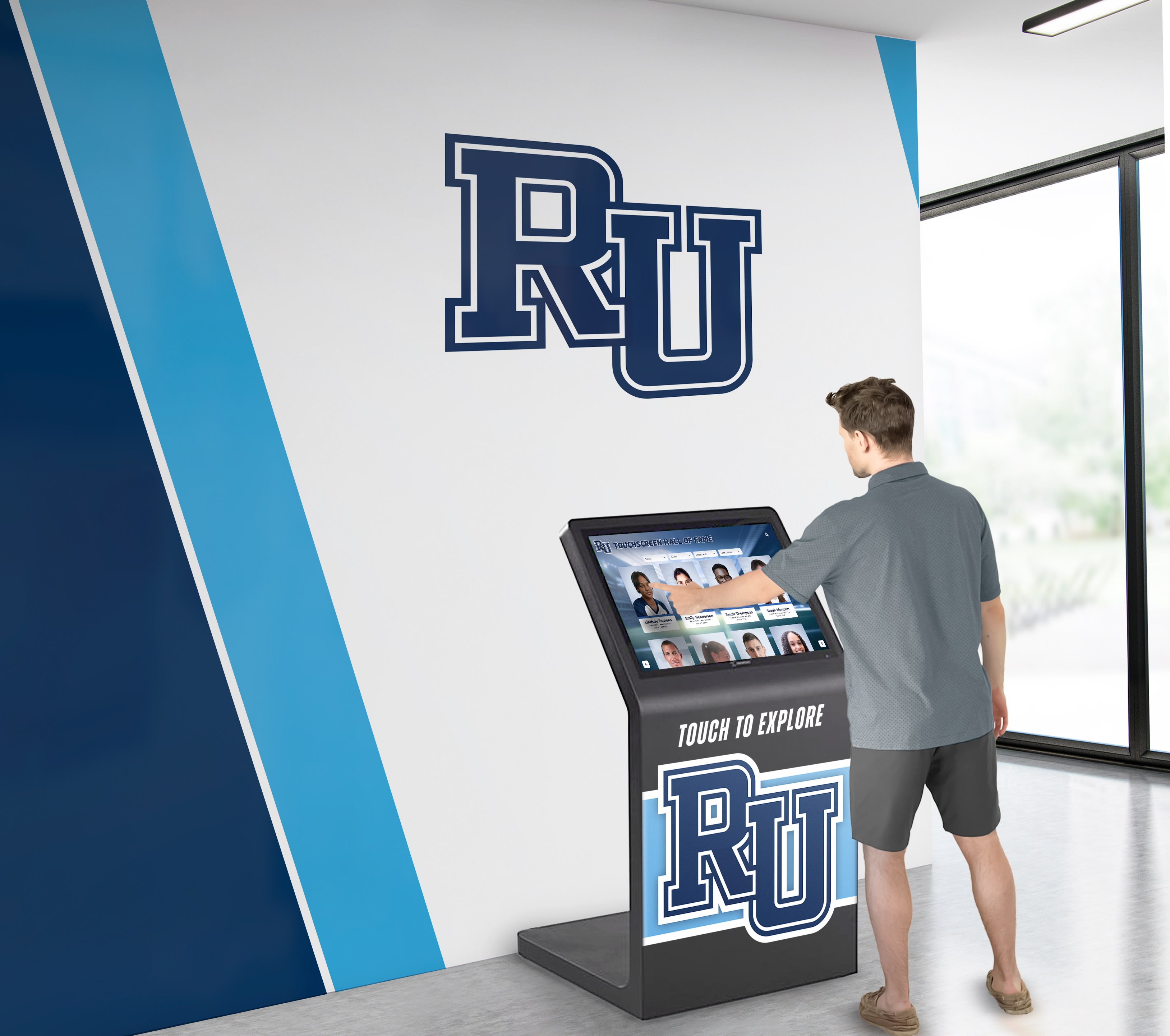
Recalibrating the touch controller after cleaning and cable inspection often resolves ghost touch without requiring replacement hardware
Step 6: Check and Update Touch Drivers
If the display’s recognition software runs on a Windows-based media player or computer, the touch controller communicates through a software driver. Outdated, corrupted, or incompatible drivers can cause ghost touch behaviors that do not respond to hardware-side fixes.
To check driver status:
- Access Device Manager on the connected computer (search “Device Manager” in the Windows start menu).
- Expand the “Human Interface Devices” or “Universal Serial Bus controllers” section.
- Look for the touch controller—it may appear as “HID-compliant touch screen,” the manufacturer’s specific device name, or (if something is wrong) with a yellow warning icon indicating a problem.
- Right-click the device and select “Update driver.” If an updated driver is found and installed, restart the computer and retest.
If updating the driver does not resolve the issue, try uninstalling the driver entirely and allowing Windows to reinstall it on the next startup. Corrupted driver installations sometimes persist through update processes but not through a clean reinstall.
Also check whether any recent operating system updates coincided with the start of ghost touch symptoms. OS updates occasionally introduce compatibility issues with specific touch controller chipsets. If ghost touch began immediately after an OS update, check the display manufacturer’s support resources for known compatibility notes.
Booster clubs and facilities teams that manage recognition displays for school programs and community fundraising events should note that driver troubleshooting steps require someone with local administrator access to the connected computer—if the kiosk software restricts access, coordinate with your IT coordinator before attempting this step.
Step 7: Test in a Simplified Configuration
If ghost touch persists after environmental checks, cleaning, cable inspection, recalibration, and driver updates, isolate the display from other variables by running it in the simplest possible configuration.
Simplified configuration test:
- Power down the display and disconnect it from its standard installation if safely possible.
- Reconnect using only the cables required for basic display and touch function—power, video, and USB touch.
- Boot the connected computer without launching the recognition software. Test touch responsiveness directly on the operating system desktop.
- If ghost touch is absent on the desktop but present when the recognition software is running: the issue is software-specific—contact your recognition platform’s support team with the behaviors documented in Step 1.
- If ghost touch persists on the bare desktop with minimal connections: the issue is hardware-level—the digitizer, touch controller board, or screen assembly requires evaluation.
This test cleanly separates software-origin ghost touch from hardware-origin ghost touch, which determines the correct next step.
Step 8: Inspect the Screen for Physical Damage
Before concluding that service is required, conduct a careful physical inspection of the screen surface and frame.
Micro-cracks: Run your fingertip lightly across the full screen surface. Cracks too fine to see clearly in normal lighting are often detectable by feel. Even small cracks can disrupt the capacitive grid and cause persistent false inputs in the affected zone.
Screen delamination: Look for areas where the glass appears to have separated from the underlying layers, visible as bubbling, discoloration, or a milky appearance near the edges.
Frame pressure: Check whether anything is pressing against the screen frame—a mounting bracket that’s slightly too tight, a kiosk enclosure panel that has shifted, or a cable that passes between the frame and the wall. Frame pressure on a capacitive screen creates a constant input the system cannot distinguish from a real touch.
Moisture ingress: Inspect the lower edge of the screen and the ports for signs of liquid damage. Even a small amount of moisture that has entered around the edge seal can cause persistent ghost touch.
Physical damage confirmed during this inspection will require hardware service. Document the location and nature of any damage with photographs before contacting the service provider.
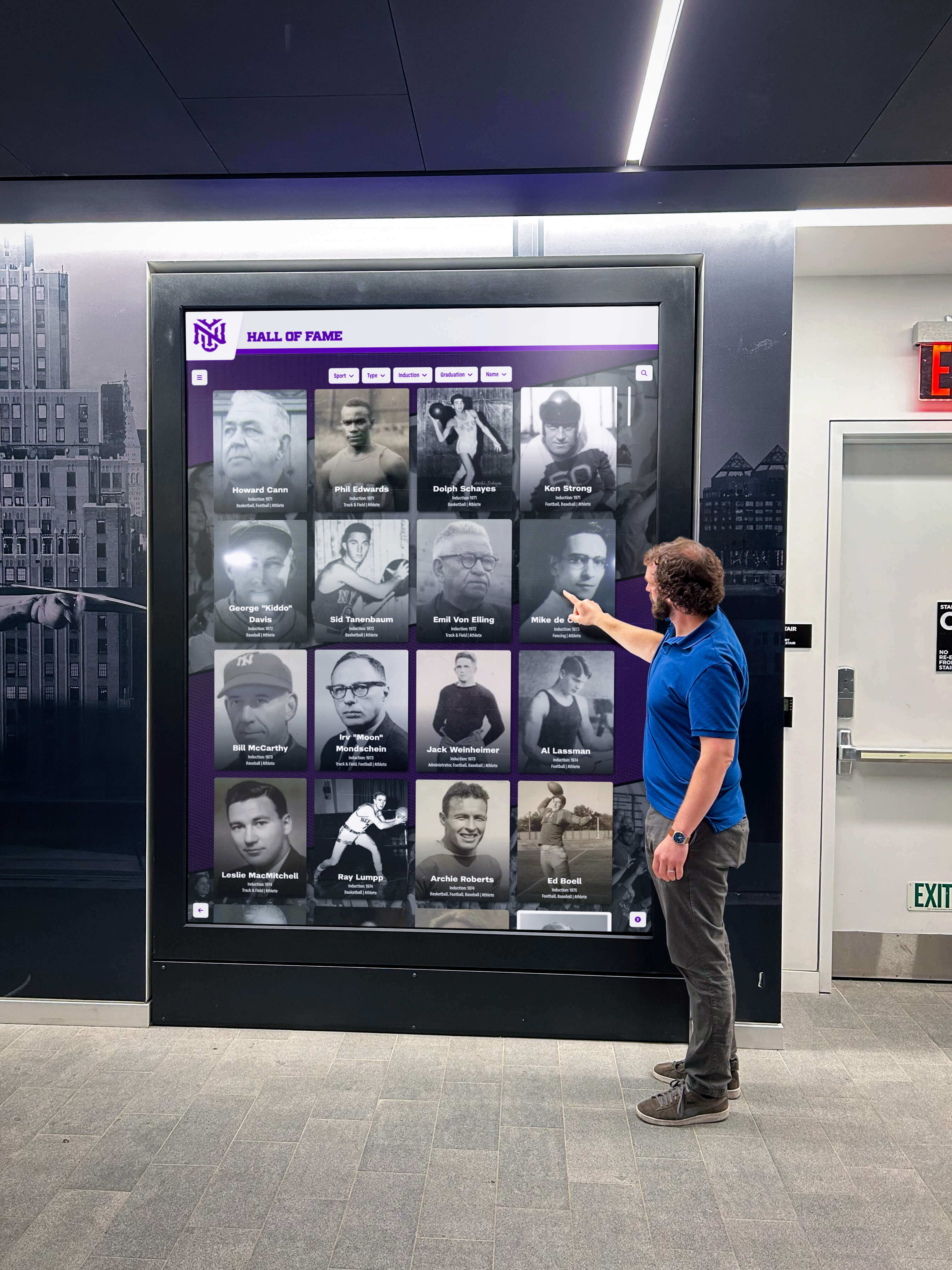
Persistent ghost touch that survives all software and environmental checks typically indicates physical damage to the digitizer requiring hardware service
When to Escalate to Hardware Service
Stop the diagnosis process and request professional service when any of the following apply:
- Physical damage is confirmed: Cracks, delamination, or liquid ingress visible during the Step 8 inspection cannot be resolved through software or environmental changes.
- Ghost touch is confined to a fixed zone that does not move: A consistently affected area of the screen that does not respond to cleaning, recalibration, or driver updates suggests a failed section of the capacitive grid.
- Ghost touch appeared immediately after a physical impact: If the display was bumped, something struck the screen surface, or the kiosk was moved and the behavior appeared the same day, the impact likely damaged the digitizer.
- Ghost touch persists through all troubleshooting steps with no change: After completing all steps above, if the behavior continues on the bare desktop with minimal connections, the hardware requires professional evaluation.
- The display is approaching end of component life: Touch controller components degrade over time. Displays that have run reliably for many years but now show new, persistent ghost touch may be approaching the end of the touch sensor’s service life.
When escalating, provide the technician with the documentation from Step 1 (behavior description, timing, location on screen) and the result of each troubleshooting step. This information significantly reduces diagnostic time and, in many cases, service cost.
Preventive Maintenance to Reduce Ghost Touch Risk
Systematic maintenance prevents most environmentally and contamination-driven ghost touch before it starts.
Cleaning schedule: Clean the screen surface weekly in high-traffic locations, and bi-weekly in lower-traffic installations. Use the correct materials described in Step 3.
Cable inspection: Include touch controller cable condition in annual display inspections. Look for visible wear at connectors and near any stress points created by the mounting configuration.
Driver maintenance: Include touch drivers in the standard OS patching review. Check driver version against manufacturer recommendations annually or after major OS updates.
Environmental monitoring: If your display is in a location with seasonal humidity variation, note whether ghost touch incidents correlate with specific months. A simple humidistat near the display helps establish whether environmental control changes would help.
Calibration schedule: Recalibrate annually as preventive maintenance, particularly for displays in temperature-variable locations such as gymnasium lobbies, vestibules, or buildings with older HVAC systems.
Schools that document these steps in a facilities asset record develop a clear history that simplifies troubleshooting when problems arise and supports warranty claims when hardware service is genuinely needed.
Schools planning interactive sports memorabilia and athletic history displays should factor maintenance ownership into the implementation discussion before the display goes live—clarity on who handles each step prevents displays from going without routine care.
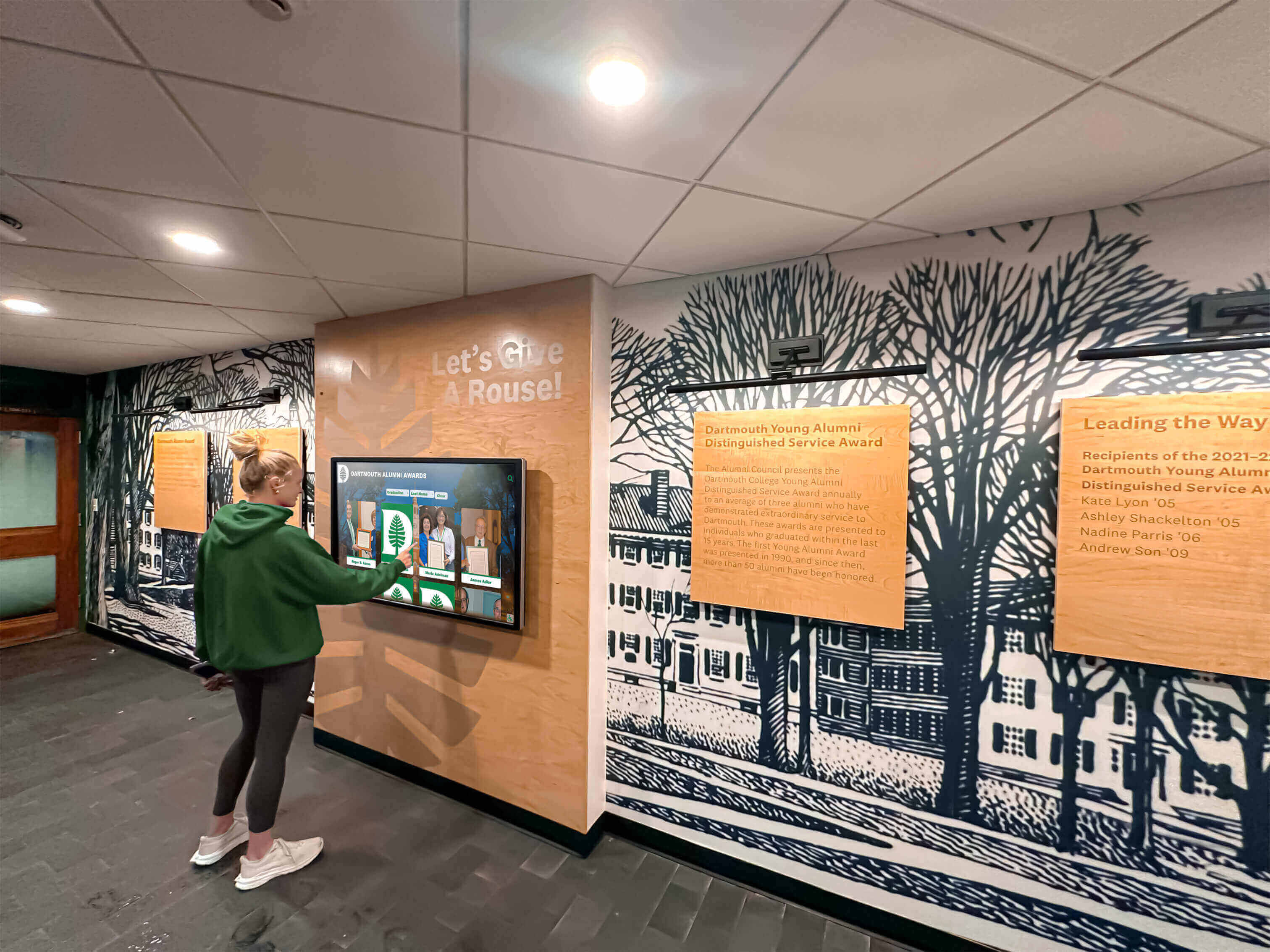
Regular maintenance keeps recognition displays performing reliably for the students, alumni, and community members who interact with them daily
Frequently Asked Questions
Can ghost touch cause data loss or corrupt recognition display content?
Ghost touch cannot overwrite or delete data in a cloud-managed recognition platform—the content lives on remote servers, not on the display itself. However, ghost touch can trigger accidental navigation and, in some configurations, interact with administrative interfaces if they are accessible from the public-facing screen. If your kiosk software has an admin login reachable from the public interface, verify that it is adequately protected against unintentional access before relying on the display in an unsupervised location.
How long does the full troubleshooting sequence take?
Most facilities coordinators can complete Steps 1 through 6 in 60 to 90 minutes spread across two sessions: one to observe and document, and one to work through the checks. The simplified configuration test in Step 7 adds roughly 30 minutes if the display can be safely disconnected from the installation. Staff familiar with Windows Device Manager will move through the driver steps more quickly.
Does ghost touch mean the display needs to be replaced?
Not usually. Many ghost touch incidents resolve with cleaning, recalibration, cable reseating, or driver updates. When hardware service is required, it commonly involves replacing the digitizer or touch controller board rather than the full display panel. Understanding which category your issue falls into is the main goal of this troubleshooting sequence.
Can adding a screen protector cause ghost touch?
Yes, in some cases. Screen protectors designed for consumer devices are often incompatible with commercial-grade capacitive displays. If a screen protector was added and ghost touch appeared shortly afterward, remove it and retest. Incompatible films alter the capacitive signal path and can create persistent false inputs, particularly at the film’s edges where air gaps or adhesive irregularities exist.
What is the difference between ghost touch and touchscreen lag?
Ghost touch registers inputs that were not made. Touchscreen lag registers real inputs but delays or batches them. They can overlap—a lagging touch controller sometimes fires accumulated inputs after a delay, producing behavior that looks like ghost touch—but they have different causes. Lag typically points to processing bottlenecks (the connected computer is underpowered or overloaded), while true ghost touch points to sensor or environmental issues. The simplified configuration test in Step 7 helps separate them: lag present on the desktop points to the hardware or OS, while lag that only appears inside the recognition software points to the application.
Recognition displays deliver the most value when they run without staff intervention. An athletic hall of fame that cycles through profiles on its own, or a donor wall that jumps between screens without input, fails to deliver the engagement it was installed to provide. Working through this troubleshooting sequence protects that value by separating fixable software and environmental issues from the smaller category of cases that genuinely require hardware service.
Schools building interactive digital trophy case and recognition experiences and those managing coach and volunteer service award programs benefit from having a documented troubleshooting workflow in place before problems arise—so that when ghost touch appears, staff know exactly what to check and in what order, without waiting for a service window that may be days away.
Thinking about a touchscreen recognition display for your school? Rocket Alumni Solutions builds interactive hall-of-fame and recognition platforms designed for public school environments, with a support team that can help your staff diagnose and resolve technical issues before they become service calls. Request a demo to see how their platform and support approach long-term display reliability.