Intent: research — this guide helps school IT coordinators and AV teams understand how to build and maintain a touchscreen recognition display firmware management policy that keeps athlete recognition systems running reliably through every update cycle.
School touchscreen recognition displays occupy a unique position in a building’s technology stack. They run continuously in public lobbies, athletic corridors, and field houses — often without a dedicated operator nearby. When a firmware update silently breaks touch input, reverts display calibration, or crashes the media player mid-presentation, the failure is visible to every student, parent, coach, and visitor who walks past. Unlike a back-office workstation, there is no minimizing a frozen hall of fame screen on game night.
A structured touchscreen recognition display firmware management policy prevents that scenario. It defines when updates run, how they are tested before touching live displays, and exactly how the team reverts to a stable baseline when something goes wrong. This guide walks through the policy components, step-by-step procedures, and documentation habits that keep recognition systems reliable across an entire school year.
Athletic recognition displays — whether showcasing a wall of champions, an interactive hall of fame, or a rotating donor honor board — depend on three distinct firmware layers: the commercial display panel itself, the embedded media player or computing module, and any peripheral hardware such as touch overlays, IR sensors, or network-connected control systems. Each layer receives independent update cycles from its manufacturer. A policy that treats them as a single system simplifies management but creates dangerous blind spots. A policy that addresses each layer separately gives IT staff the granularity to identify which component caused a problem and roll back precisely the right thing.
Schools exploring how interactive recognition technology fits their hallways can find useful framing in digital trophy case ideas for schools replacing glass cabinets with interactive displays — particularly for understanding the hardware ecosystem that underpins these systems.
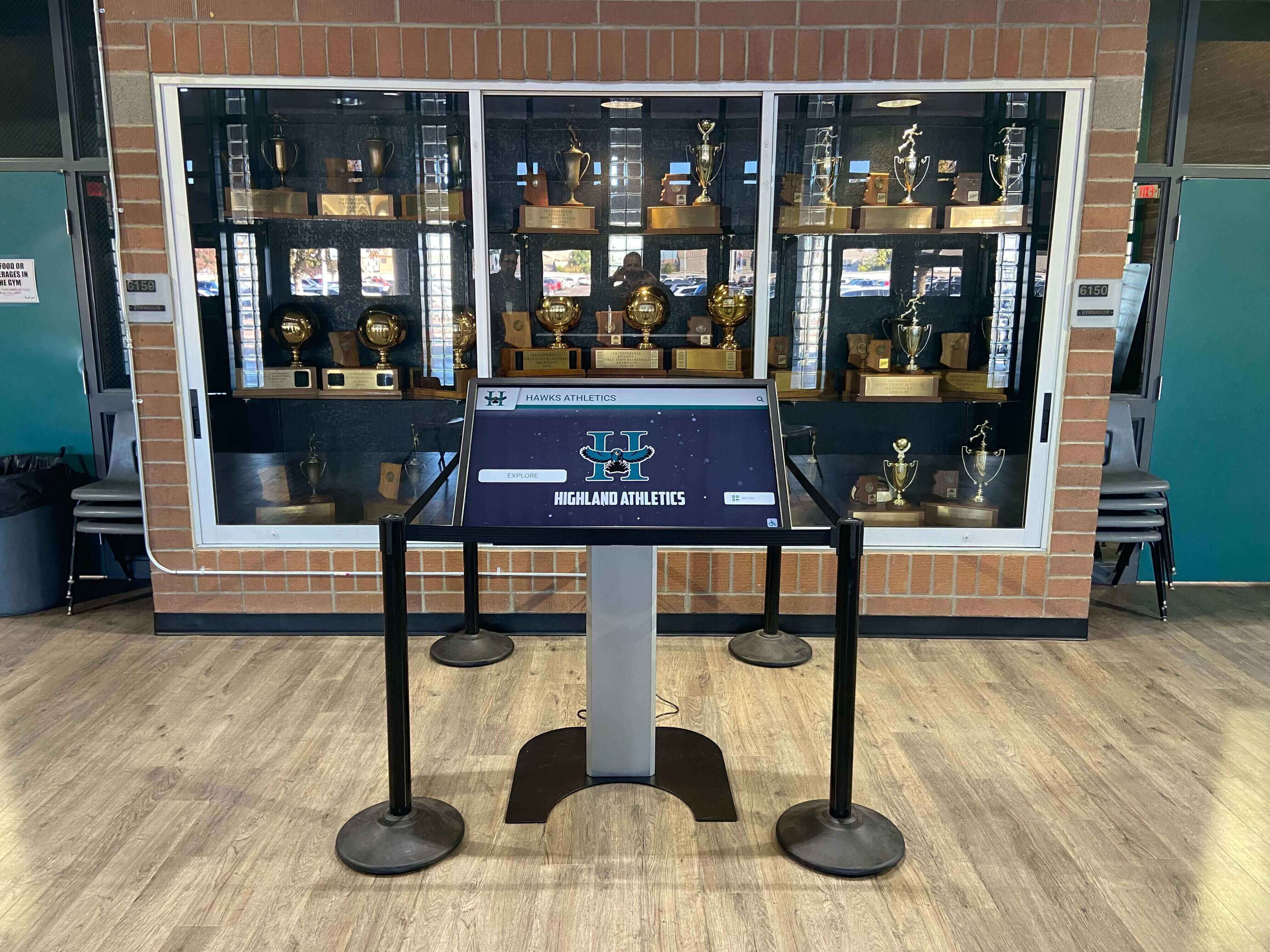
School recognition displays run continuously in public spaces — a firmware failure is immediately visible to every visitor who passes through the hallway
Why Firmware Management Deserves a Formal Policy
Most school IT departments manage firmware updates for computers, access points, and security cameras through centralized tools. Touchscreen recognition displays rarely fit that model. They run specialized operating environments — often Android-based embedded systems or locked-down commercial display OS builds — that require manual update workflows or vendor-specific management portals.
Several factors make ad hoc firmware management risky for these displays:
Continuous uptime expectations: Recognition displays in athletic lobbies are expected to run during school hours, evening events, and community gatherings. Update windows need to be scheduled around actual use — which requires knowing when the display is least visible and most safely offline.
Hardware variability: A school may have a 65-inch interactive panel from one manufacturer, a media player from another, and touch overlay hardware from a third. Each vendor publishes firmware on its own schedule, without coordinating compatibility across the stack. An update to one component can break another.
Limited on-site support: Most schools do not have AV technicians stationed at each recognition display. When a firmware update fails at 7:00 AM before a school day, whoever is first in the building needs a documented rollback procedure — not an emergency call to a vendor support line.
Long deployment cycles: School recognition displays are capital investments expected to serve programs for seven to ten years. Managing firmware correctly across that lifespan affects not just daily performance but long-term hardware longevity.
A written policy converts tribal knowledge into a repeatable process. It answers the questions before they arise: Who approves updates? How are they tested? What is the rollback trigger? Where is the baseline firmware stored?
The Three Layers of Display Firmware
Before building a policy, IT staff need a clear map of what firmware is actually being managed. For most school recognition display installations, that means three layers:
Layer 1: Display Panel Firmware
The commercial display panel — the physical screen — contains embedded firmware that controls brightness management, color calibration, input switching, onscreen display (OSD) menu behavior, and, for some panels, network management functions. Panel manufacturers release firmware updates to address bugs, add remote management features, and improve thermal performance. These updates are typically applied either through the OSD menu via USB flash drive or through a networked management tool.
Layer 2: Media Player / Computing Module
The device that drives content to the screen — whether an embedded Android module, a dedicated media player, or a mini PC — has its own OS and firmware environment. This layer handles content management system (CMS) connectivity, touch input processing, network communication, and application runtime. Updates here carry the highest risk because they touch the software stack that the recognition display application depends on. Android security patches, for example, sometimes change permission models in ways that require application-level adjustments.
Layer 3: Peripheral Hardware
Touch overlays, IR sensors, barcode readers for badge check-in, and external control processors each carry firmware. These updates are least frequent but carry specific risks: a touch overlay firmware update that recalibrates the sensing grid can introduce systematic offset — touches register slightly away from where the finger lands — which can make a recognition display feel broken to users without any visible change in content.
Building the Policy: Core Components
A functional touchscreen recognition display firmware management policy covers five areas.
1. Update Authorization and Ownership
Assign clear ownership. For most K-12 environments, the IT coordinator holds authorization for media player and network-related updates; the AV technician or facilities team holds authorization for panel and peripheral updates. Updates that touch production displays require sign-off from both owners before deployment begins. This prevents one-off updates during troubleshooting that leave the system in an undocumented state.
2. Test Environment Requirements
No firmware update should go directly to a production recognition display. The policy should require testing in one of two ways:
Parallel test unit: A dedicated display unit — ideally matching the production hardware specification — receives all firmware updates first. The test unit runs the same content as the production display for a minimum observation period (commonly 48-72 hours) before IT approves production deployment.
Staged rollout: If a parallel test unit is unavailable, the policy may designate one production display as the “lead unit” for updates. The lead unit receives the update first and runs in observation for the defined period before remaining displays are updated.
Schools with single-display installations should use the staging window approach — apply the update during a low-traffic period and observe the system through at least one full school day before considering the update stable.
3. Rollback Baseline Documentation
Every production display should have a documented baseline firmware state. This record includes:
- Panel firmware version (from the display’s system information menu)
- Media player OS version and application version
- Peripheral firmware versions (touch overlay, IR sensor, etc.)
- Date the baseline was established
- Location of recovery firmware files (USB drive in the AV cabinet, network file share, vendor portal)
When a new firmware version is deployed and confirmed stable, the baseline record is updated. The previous baseline firmware files are retained for one additional cycle before being archived — ensuring that a rollback always has a known-good target.
4. Rollback Triggers and Procedures
Define explicit rollback triggers so staff do not need to exercise judgment under pressure. Common triggers include:
- Touch input fails to register after the update
- Display enters a restart loop or fails to boot to the recognition application
- Content management system loses connectivity with the display
- Systematic calibration offset on touch input (touches register more than 10mm from target)
- Application crashes occur more than once per school day within 72 hours of an update
When a trigger condition is met, the rollback procedure begins immediately — it does not wait for vendor support. The documented procedure typically looks like this:
Media Player Rollback Steps
- Power off the media player module
- Insert the recovery USB drive (containing the prior stable firmware image)
- Boot into recovery mode using the manufacturer’s documented key sequence
- Apply the recovery image from the USB drive
- Allow the device to complete the recovery process and restart
- Confirm the recognition application launches and connects to the CMS
- Document the rollback in the change log with timestamp, trigger observed, and technician name
Panel Firmware Rollback Steps
- Access the OSD menu via the panel’s physical control buttons
- Navigate to the system / firmware section
- Insert the USB drive containing the prior panel firmware
- Select the firmware file and initiate the downgrade
- Allow the panel to complete the update cycle and restart
- Verify brightness, color temperature, and input selection return to baseline settings
- Document the rollback in the change log
Schools building athletic recognition programs that serve multiple sports — from basketball and football to individual achievement tracking — may find the resource on football team awards ideas and high school season-end recognition useful for understanding the content demands that recognition display firmware ultimately supports.
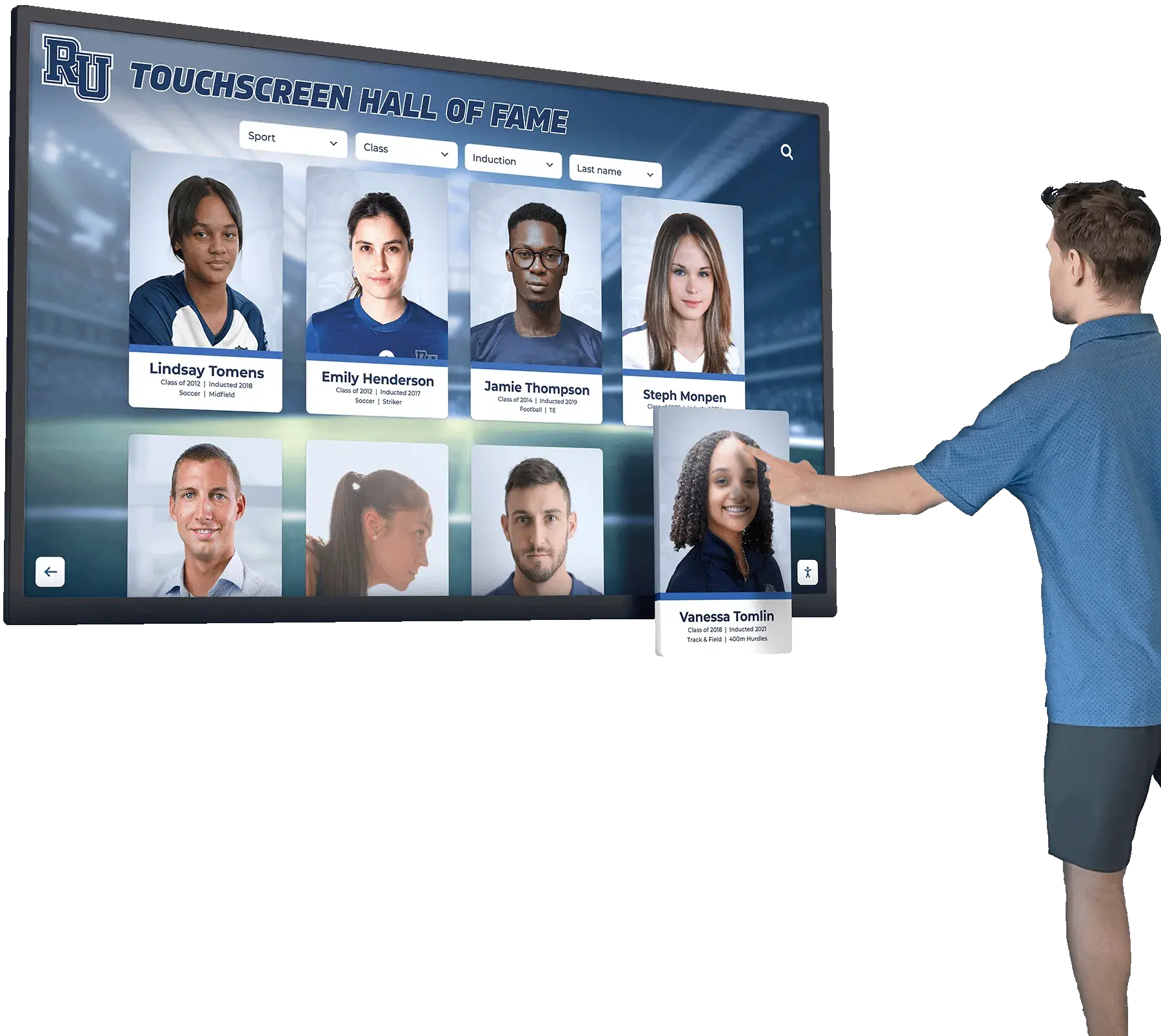
Reliable touch input depends on firmware stability across all three hardware layers — panel, media player, and touch peripheral
5. Update Scheduling Windows
Schedule firmware updates during defined maintenance windows that avoid high-visibility periods. A practical scheduling framework for school recognition displays:
| Window | Timing | Suitable Update Types |
|---|---|---|
| Primary maintenance | Friday evening after 6 PM | All update types including media player OS |
| Secondary maintenance | Sunday morning before 9 AM | Panel firmware, peripheral firmware |
| Emergency only | Weekday after 8 PM | Critical security patches only |
| Blackout periods | Athletic banquets, graduation week, open house nights, homecoming week | No updates permitted |
Blackout periods matter. A recognition display firmware update that introduces unexpected behavior during an athletic banquet or a community open house creates a visible failure at exactly the wrong moment. Adding blackout periods to the policy — tied to the school events calendar — eliminates that risk.
For schools working through broader recognition event planning that intersects with display availability, employee and volunteer appreciation event planning guides address scheduling considerations that apply to school recognition contexts as well.
Step-by-Step Update Procedure
With policy components defined, the update procedure itself becomes routine. The following sequence applies to a media player firmware update, the highest-risk update type:
Step 1 — Retrieve and verify the firmware package. Download the update from the manufacturer’s official support portal. Confirm the file hash matches the posted checksum. Do not apply firmware obtained from third-party sources.
Step 2 — Review release notes. Read the release notes for the firmware version before applying. Note any compatibility warnings, changed permissions, or required configuration adjustments. If the release notes mention changes to USB permissions or network certificate requirements, flag those as items to verify after the update.
Step 3 — Apply to the test unit first. Install the update on the designated test unit. Document the pre-update and post-update firmware versions. Note the time of application.
Step 4 — Run the observation period. Allow the test unit to run with normal content for the defined observation window (minimum 48 hours). Check touch input response, CMS connectivity, application stability, and content playback at the start of each school day during the observation window.
Step 5 — Confirm stable performance. At the end of the observation window, confirm no rollback triggers were observed. Document the test result.
Step 6 — Deploy to production during the maintenance window. Apply the update to production displays during the scheduled maintenance window. Document each display individually — serial number, firmware version applied, time of application, technician name.
Step 7 — Post-update verification. After each production display is updated, verify the recognition application launches correctly, touch input responds accurately, and CMS connectivity is confirmed. Do not leave the update unverified overnight.
Step 8 — Update the baseline record. Update the baseline documentation for each display. Retain the previous firmware files for one additional cycle.
Maintaining Design Consistency Through Updates
One underappreciated consequence of firmware updates on recognition displays is the effect on visual presentation consistency. Display panel firmware updates sometimes reset color calibration profiles to factory defaults, shift white balance, or alter backlight behavior in ways that make one display in a multi-screen installation look noticeably different from its neighbors.
Post-update verification should include a visual check for color temperature and brightness consistency, particularly in multi-display environments where visitors see all screens simultaneously. A useful reference for understanding why visual consistency matters across recognition display installations is this overview of design consistency and creative freedom considerations for digital recognition platforms.
If a panel firmware update alters color calibration, recalibrating all displays in the installation to a matching standard restores consistency before the update cycle closes.
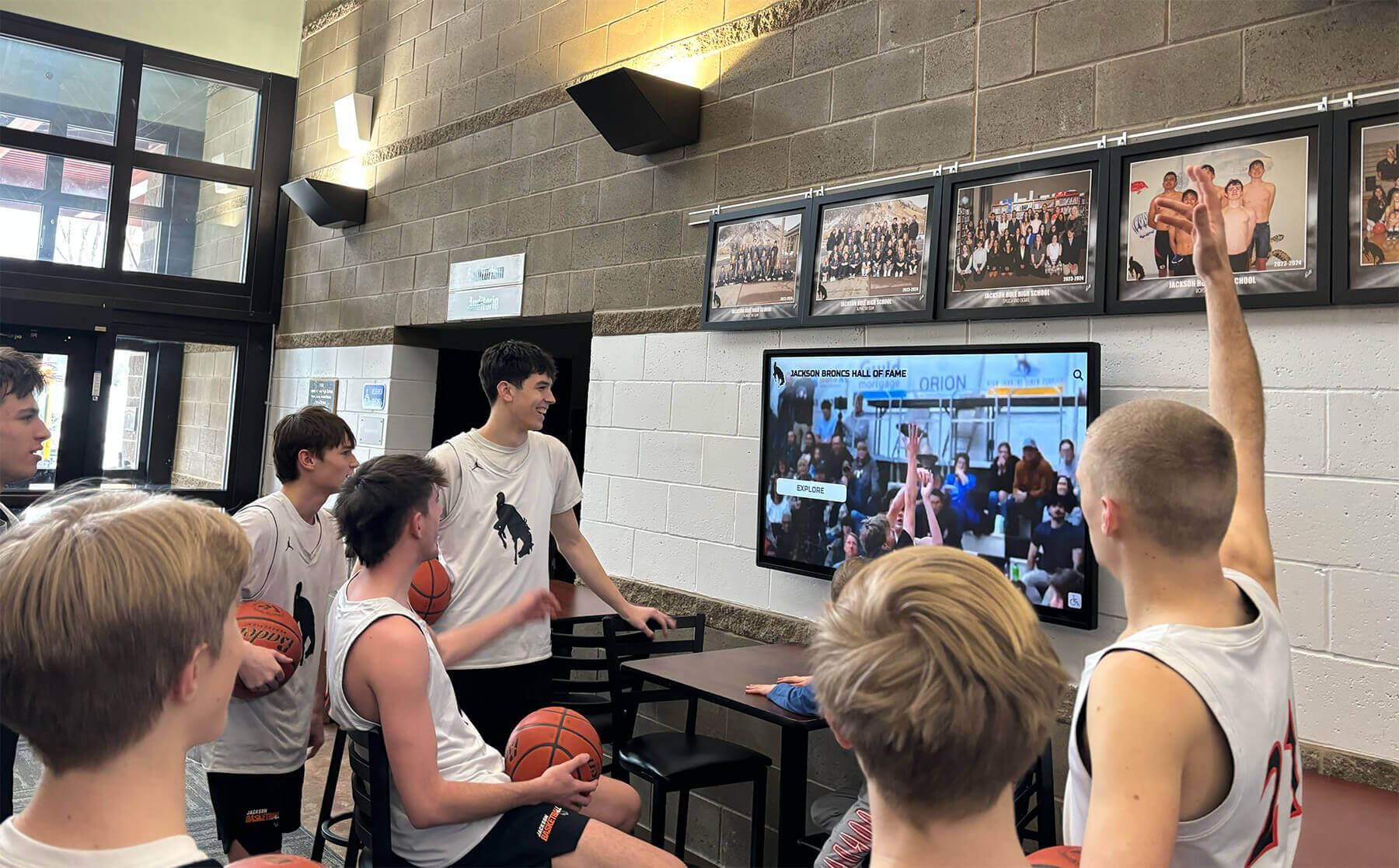
Multi-display installations require post-update visual consistency checks — color calibration resets are a common side effect of panel firmware updates
Change Log and Documentation Practices
A firmware change log is the institutional memory that enables effective troubleshooting and policy improvement. Every update — whether routine or emergency — generates a log entry. Effective entries include:
- Display identifier (location name and serial number)
- Component updated (panel / media player / peripheral)
- Prior firmware version
- New firmware version
- Update date and time
- Technician name
- Test unit observation period dates
- Any anomalies observed during or after the update
- Whether any rollback was required and the reason
The change log lives in a location accessible to both IT and AV staff — a shared network folder or a ticketing system. Reviewing the log quarterly identifies patterns: a specific panel firmware version that consistently causes calibration issues, a media player update that reliably causes CMS reconnection delays on the first boot, or a touch overlay firmware cycle that correlates with complaint reports from students.
Schools connecting their recognition display management practices to broader athletic program documentation may find context in resources on complete basketball hall of fame recognition guides and recognition practices for academic leadership programs — program documentation practices from the recognition side that parallel what good firmware documentation looks like on the IT side.
Vendor Communication and Support Escalation
Not every firmware issue resolves through rollback alone. Some updates introduce behavior that cannot be fully reversed by downgrading firmware — particularly if a CMS application was updated simultaneously to match new platform requirements. Building vendor communication expectations into the policy ensures that support escalation happens quickly when needed.
The policy should specify:
What to document before contacting support: Firmware versions on all three layers, the date and time of the update, the specific behavior observed, and any error codes displayed. Support teams resolve issues faster when they receive structured information rather than a general report of “the screen isn’t working.”
Escalation timeline: If a rollback attempt does not restore stable function within four hours of the initial failure, escalate to the vendor’s support line. Do not continue attempting self-service fixes after that threshold — escalation documentation from the vendor may be needed for warranty claims.
Warranty and support contract review: Review the display hardware warranty and software support contract annually. Confirm that self-applied firmware updates do not void the hardware warranty — some commercial display warranties restrict updates to manufacturer-certified procedures. Apply updates only through the documented procedure to preserve warranty coverage.
Schools evaluating recognition display platforms may also want to consider how vendors approach overall athlete recognition strategy, with resources like guides to athlete recovery and wellness program design and basketball hall of fame complete guides providing context on how recognition display systems serve athletics programs over time.
Planning a new recognition display installation? A managed recognition display platform handles firmware updates, CMS maintenance, and technical support as part of the service — removing the update burden from school IT staff entirely.
Frequently Asked Questions
How often should school recognition display firmware be updated?
There is no universal cadence. Panel firmware updates are typically infrequent — manufacturers release them quarterly or less often for stable commercial displays. Media player OS updates are more frequent, particularly for Android-based systems receiving security patches monthly. The policy should specify that updates are evaluated within 30 days of release, tested, and deployed if stable — rather than applying every update immediately as it becomes available.
Can firmware updates be automated on commercial recognition displays?
Some commercial display management platforms support automatic firmware deployment to enrolled devices. Automation is appropriate only when the policy also enforces automatic testing — meaning the update applies to a designated test unit first, with a defined observation window before automatic deployment to production displays. Automatic updates to all production displays simultaneously, without a test period, eliminate the safety margin the policy is designed to create.
What should be in the firmware recovery kit kept on-site?
Each display installation should have a recovery kit containing: a USB drive formatted with the last known stable firmware for each hardware component (panel, media player, peripheral); a printed copy of the rollback procedure for each component; the display serial numbers and model information; and the vendor support contact information. The kit should be stored in the AV equipment cabinet nearest the installation and reviewed for currency at the start of each school year.
Who is responsible for firmware management when a school uses a managed service provider?
When a managed service provider (MSP) handles IT operations, the firmware management responsibility should be explicitly assigned in the service contract. The contract should specify which party handles updates for each firmware layer, what the update testing and observation requirements are, what the rollback SLA is (how quickly the MSP must restore function after a failed update), and how the school is notified before and after updates are applied.
Does firmware management policy apply to cloud-managed recognition platforms?
Cloud-managed recognition platforms typically handle application-layer updates automatically, reducing the scope of IT-managed firmware to the hardware layers only — display panel and peripheral firmware. The policy still applies to those hardware layers but may be significantly lighter-weight for schools using a fully managed cloud service. IT staff should confirm with their platform provider which firmware layers the service covers and which remain the school’s responsibility.
How does a firmware rollback affect stored content on the recognition display?
Media player firmware rollbacks typically do not affect stored content, which resides in the application data layer rather than the firmware environment. However, a full factory reset — sometimes required when a media player firmware update corrupts the device state — does clear application data. The policy should require that all recognition content is synchronized to the cloud CMS before any firmware update begins, ensuring content can be restored quickly after a factory reset if needed.
Building a Sustainable Update Practice
A touchscreen recognition display firmware management policy does not need to be complex to be effective. The core requirement is a consistent cycle: document the current baseline, test updates before they reach production displays, define clear rollback triggers so staff act decisively rather than waiting, schedule updates around real school events, and record every change in a log the whole team can access.
That cycle, repeated consistently, keeps recognition displays running reliably through athletic seasons, ceremonial events, and the years of continuous service these systems are built to provide. The goal is not eliminating all firmware risk — updates will occasionally introduce unexpected behavior — but ensuring that when they do, the team has a documented path back to stable operation in hours rather than days.
Schools looking to reduce firmware management complexity through a fully managed platform solution — where update cycles, CMS maintenance, and technical support are handled as part of the service — can explore what integrated management looks like in practice.