School administrators face increasingly complex decisions when purchasing touchscreen display technology. What began as simple flat-screen monitors has evolved into sophisticated interactive systems with varied capabilities, price points, and long-term maintenance requirements that significantly impact both initial budgets and ongoing operational costs.
Yet many schools approach touchscreen display purchases without comprehensive understanding of critical technical specifications, hidden costs, or how different technologies align with intended use cases. A display that works perfectly for classroom instruction may fail completely in a high-traffic hallway environment. Budget-friendly options often carry expensive long-term maintenance obligations. Installation requirements overlooked during initial planning can double projected costs.
This comprehensive touchscreen display buying guide helps school administrators, technology directors, and facility managers navigate purchasing decisions with confidence, covering technology comparisons, budget planning, installation considerations, and vendor evaluation criteria that ensure schools invest in solutions truly meeting their needs.
Making informed touchscreen display purchases requires understanding how different technologies, installation environments, and use cases influence which solutions deliver value. Schools that approach these decisions systematically avoid costly mistakes while investing in technology that serves students, staff, and communities effectively for years.
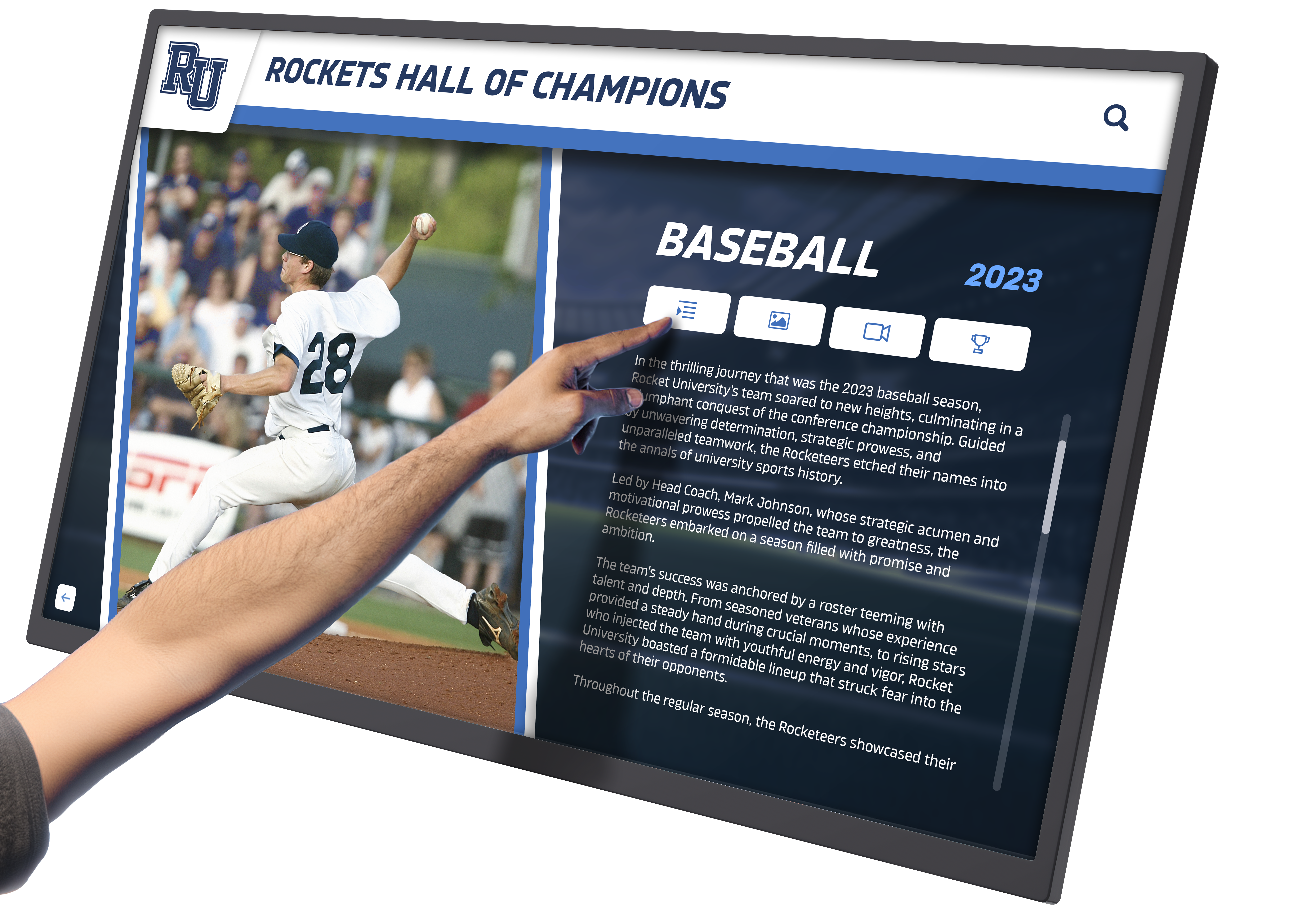
Modern touchscreen displays serve diverse educational purposes from wayfinding to recognition when matched properly to environment and use case
Understanding Touchscreen Display Technologies
Before evaluating specific products, understanding fundamental technology differences helps schools select appropriate solutions for their environments and applications.
Touchscreen Technology Comparison
Different touch-sensing technologies offer distinct advantages and limitations:
Capacitive Touchscreens
The technology most familiar from smartphones and tablets:
- Touch sensing through electrical conductivity of human fingers
- Excellent multi-touch support for gestures like pinch-to-zoom
- Crystal-clear display quality with minimal screen interference
- Requires conductive touch (bare fingers or specialized stylus)
- Higher cost compared to resistive alternatives
- Vulnerable to damage from sharp objects or excessive force
- Ideal for indoor environments with controlled access
Resistive Touchscreens
Pressure-sensitive technology responding to any touch type:
- Works with fingers, gloves, stylus, or any pointing device
- More affordable than capacitive alternatives
- Durable construction withstanding rough handling
- Limited multi-touch capabilities in most configurations
- Slight image quality reduction from protective layers
- Better suited for industrial or high-traffic environments
Infrared Touchscreens
Touch detection through light beam interruption:
- Excellent for large-format displays (40+ inches)
- Works with any touch type including gloved hands
- No screen overlay maintaining perfect image quality
- Higher cost for large installations
- Requires regular cleaning of sensors for consistent performance
- Ambient light interference potential in certain environments
Surface Acoustic Wave (SAW) Touchscreens
Ultrasonic wave technology for precise touch detection:
- Superior image clarity with no overlay interference
- Excellent durability for continuous use environments
- Precise touch response across entire screen surface
- Premium pricing for specialized applications
- Requires protection from contaminants and liquids
- Less common in educational applications
Schools should match touchscreen technology to intended environment—capacitive for controlled-access classroom settings, resistive or infrared for high-traffic public areas.
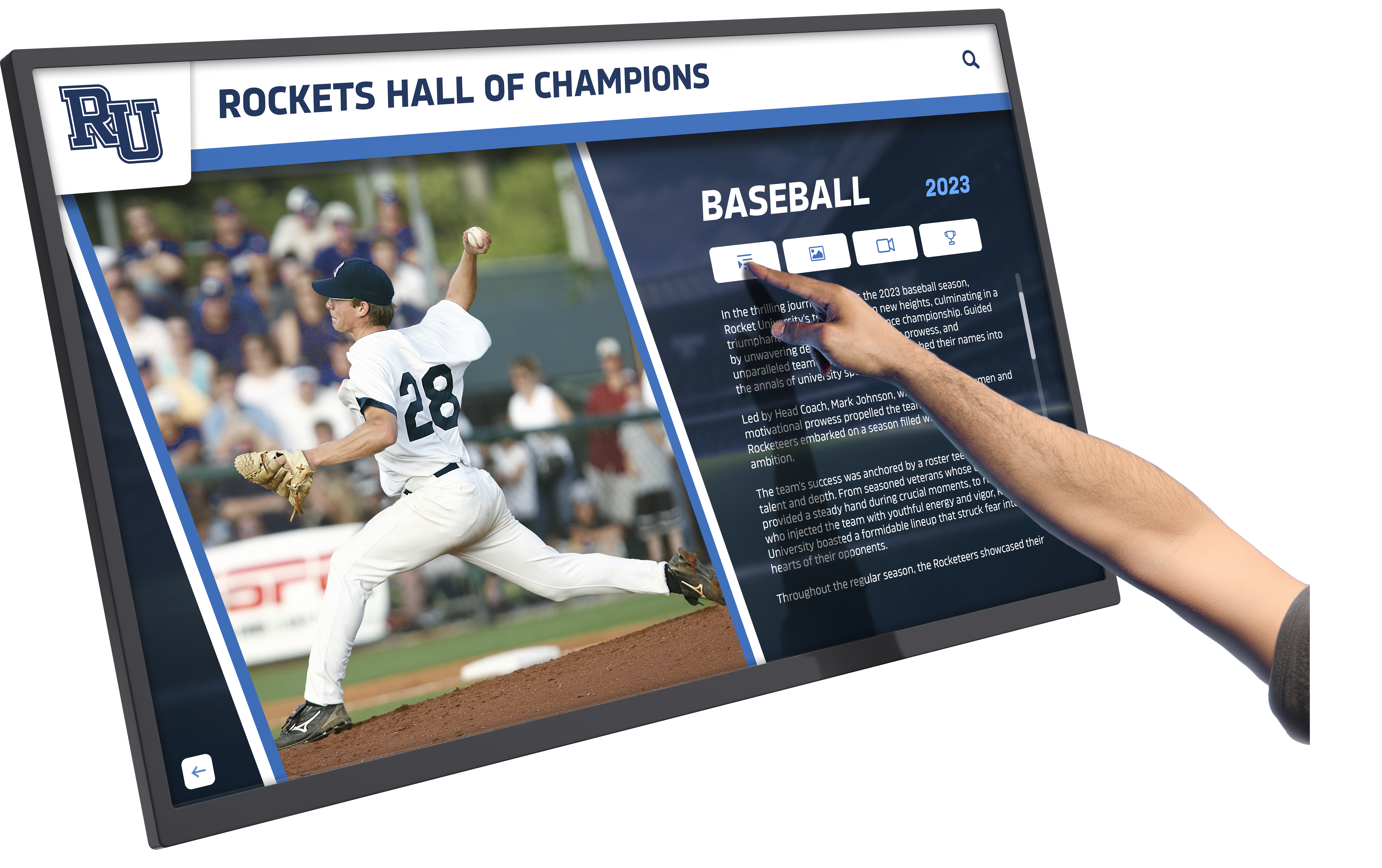
Technology selection should prioritize reliability and ease of use for intended users and environment
Critical Specifications and Features
Understanding which technical specifications actually impact functionality helps schools focus evaluation on meaningful criteria rather than marketing buzzwords.
Display Quality and Performance
Screen Resolution Requirements
Resolution needs scale with display size and viewing distance:
- Small displays (15-32"): 1080p (1920×1080) sufficient for close viewing
- Medium displays (32-55"): 1080p minimum, 4K (3840×2160) preferred
- Large displays (55"+): 4K resolution essential for image clarity
- Ultra-large installations (75"+): Consider 4K or higher for detailed content
Higher resolution becomes critical when displaying text-heavy content like academic recognition programs requiring readability from various distances.
Brightness and Viewing Angles
Environmental lighting conditions determine brightness requirements:
- Standard indoor environments: 300-400 nits brightness sufficient
- High-ambient-light areas (near windows): 500-700 nits minimum
- Commercial-grade displays: Typically 400-500 nits baseline
- Direct sunlight exposure: Specialized high-brightness displays (1000+ nits)
- Viewing angle specifications: Minimum 178° horizontal and vertical for public displays
Touch Response and Accuracy
User experience depends heavily on touch responsiveness:
- Touch response time: Less than 10 milliseconds for natural interaction
- Touch point accuracy: ±2mm or better across entire screen
- Multi-touch support: Minimum 10 simultaneous touch points for educational use
- Ghost touch prevention: Quality systems eliminate false touch detection
- Palm rejection: Important for writing and detailed interaction
Durability and Protection Features
Commercial-Grade vs Consumer Displays
Commercial-grade displays cost more but deliver value through longevity:
- Operating hours: Commercial displays rated 16-24 hours daily vs 8 hours for consumer
- Warranty coverage: 3-5 years commercial vs 1 year consumer typically
- Component quality: Industrial-grade parts designed for continuous operation
- Repair access: Serviceability designed into commercial products
- Total cost of ownership: Commercial displays typically cheaper over 5-7 year lifespan
Physical Protection Requirements
High-traffic school environments demand robust protection:
- Tempered glass screen protection: Minimum 4mm thickness for public areas
- Anti-glare coatings: Reducing reflection in varied lighting
- Vandal-resistant enclosures: For unsupervised locations
- IP rating considerations: IP65 rating for dusty or damp environments
- Impact resistance: IK rating for vandalism-prone locations
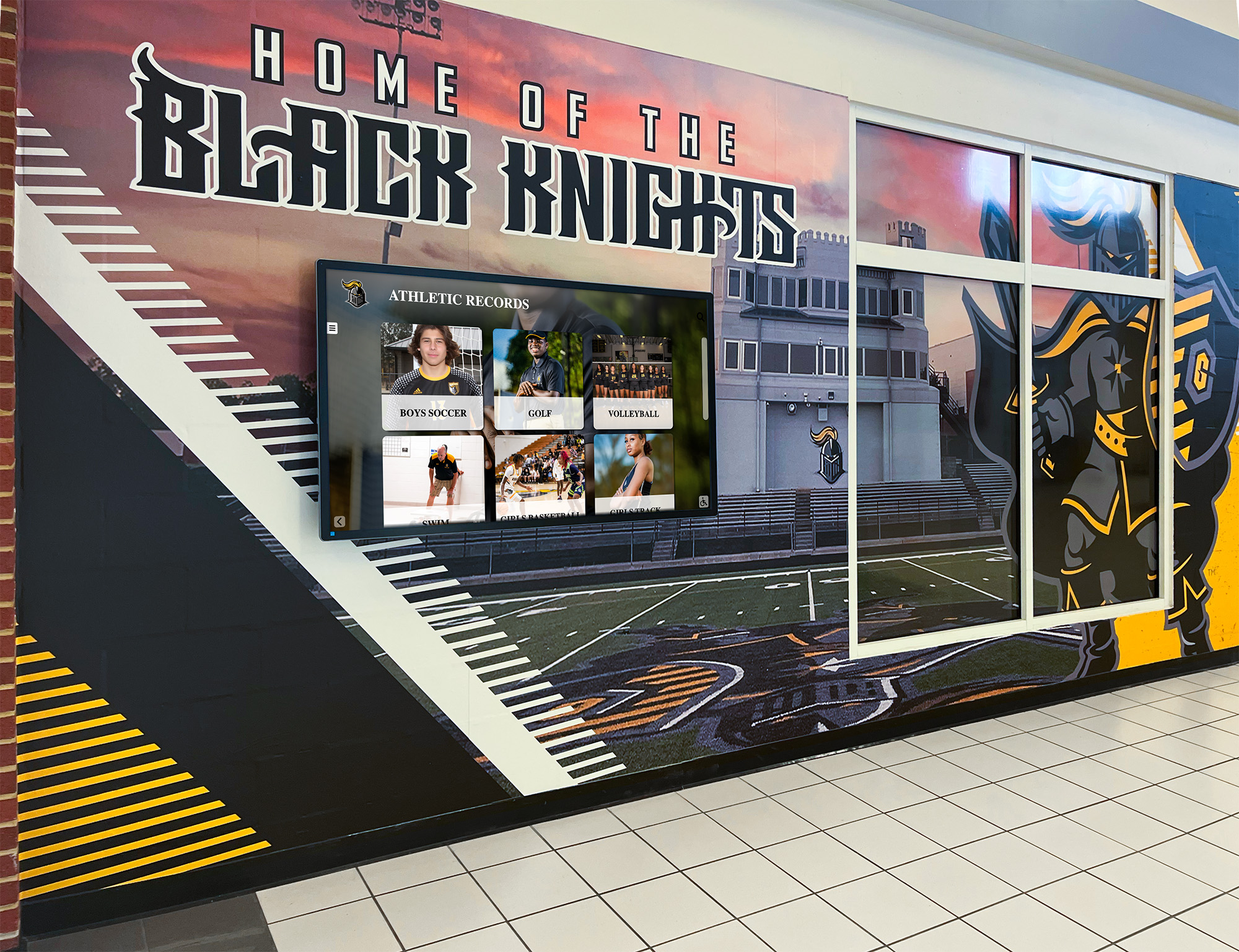
Durability specifications become critical for displays in uncontrolled environments like public hallways
Connectivity and Integration
Required Input/Output Options
Ensure displays support necessary connections:
- HDMI inputs: Minimum 2 ports, HDMI 2.0 or newer for 4K content
- USB ports: Multiple USB-A ports for external devices and updates
- Network connectivity: Ethernet and Wi-Fi for content management
- Audio output: Built-in speakers or audio-out for external amplification
- Content playback: Internal media player vs external computer requirements
- RS-232/Control systems: For integration with building automation
Content Management Systems
Evaluate how you’ll update and manage displayed content:
- Cloud-based content management: Remote updates from anywhere
- Scheduling capabilities: Automated content rotation by time/date
- Multi-display management: Centralized control for campus-wide deployments
- User permission levels: Control who can update different content types
- Content templates: Easy creation for non-technical staff
- Third-party integrations: Compatibility with existing school systems
Schools deploying multiple displays should prioritize robust content management systems preventing the administrative burden of manual updates at each location.
Budget Planning and Total Cost Analysis
Understanding complete financial implications prevents budget surprises and helps schools allocate resources appropriately.
Initial Purchase Considerations
Display Hardware Costs
Price ranges vary significantly by specifications:
- Small touchscreens (15-32"): $500-$2,500 depending on quality and features
- Medium commercial displays (32-55"): $2,000-$6,000 for quality units
- Large professional touchscreens (55-75"): $5,000-$15,000+ for commercial-grade
- Ultra-large installations (75"+): $10,000-$30,000+ for premium systems
- Outdoor-rated displays: 2-3× cost premium for weatherproof enclosures
Quality commercial-grade displays in the 43-55" range typically represent best value for most school applications, balancing visibility, durability, and cost.
Essential Accessories and Components
Beyond the display itself, budget for necessary additions:
- Mounting hardware: $100-$800 depending on complexity and weight capacity
- Protective enclosures: $500-$2,000 for vandal-resistant housings
- External computers: $500-$1,500 if display lacks integrated content player
- Content management software: $200-$1,000 annual licensing for quality platforms
- Extended warranties: 10-20% of hardware cost for comprehensive coverage
- Backup power: UPS systems $200-$800 protecting against power issues
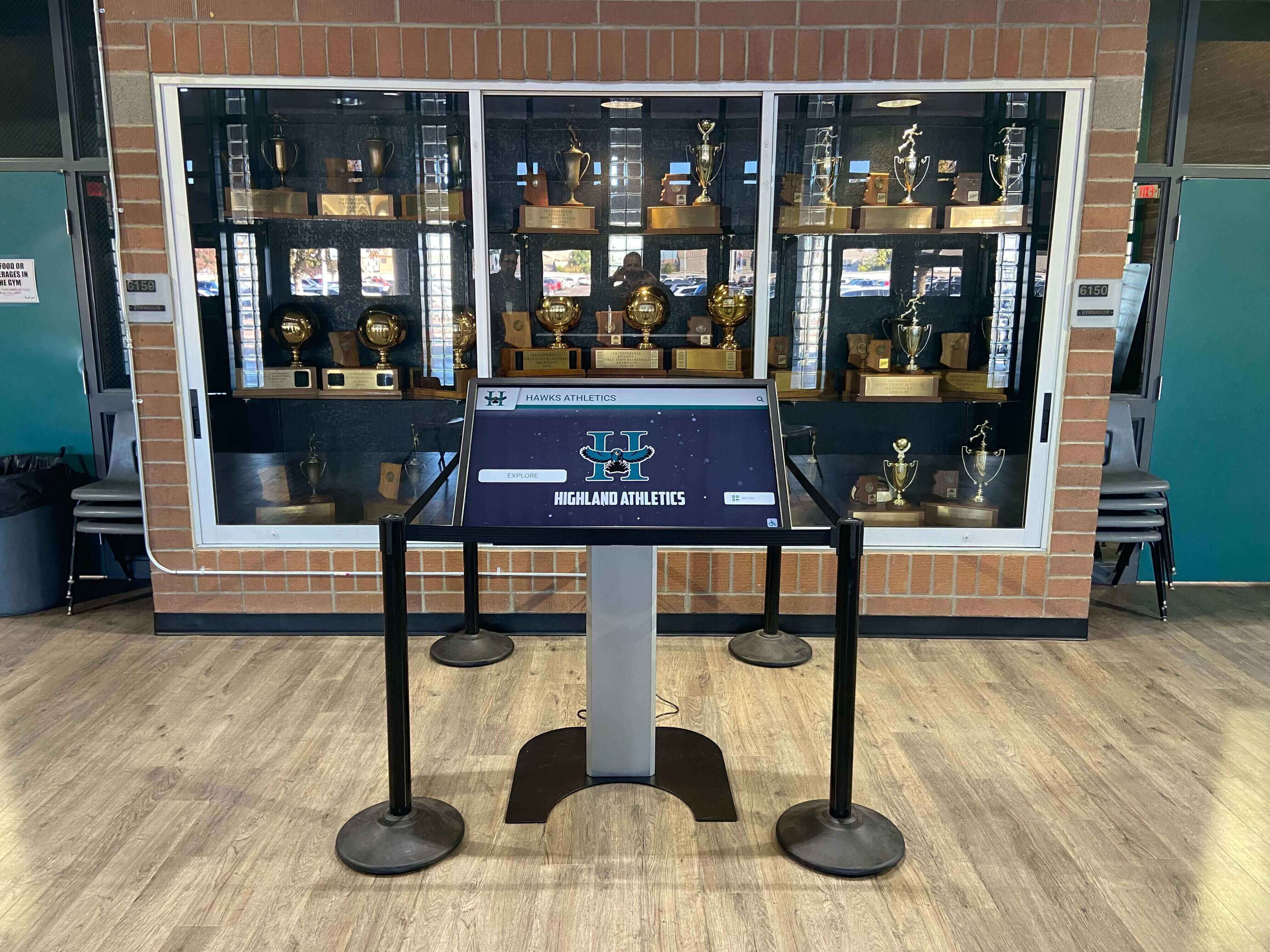
Complete installations require budgeting beyond display hardware for mounting, protection, and content systems
Installation and Setup Costs
Professional installation ensures reliability and often proves more cost-effective than anticipated DIY approaches:
Labor and Professional Services
- Electrical work: $300-$1,500 for new circuits or outlet installation
- Wall mounting: $200-$800 for professional installation with proper anchoring
- Network infrastructure: $150-$600 for Ethernet drops if required
- Content setup and configuration: $500-$2,000 for initial programming
- Training: $300-$1,000 for staff instruction on management systems
- Project management: 10-15% of total project cost for complex installations
Infrastructure Requirements
Existing building conditions impact installation expenses:
- Structural considerations: Load-bearing capacity for heavy displays
- Power availability: Proximity of electrical outlets to desired locations
- Network access: Wired or wireless connectivity requirements
- Climate control: Environmental conditions affecting display lifespan
- Accessibility: ADA compliance for height and interaction requirements
Schools should conduct site surveys before finalizing display selections, as installation environments significantly influence total project costs.
Long-Term Operational Expenses
Ongoing Maintenance and Support
Annual maintenance costs often overlooked during initial budgeting:
- Software licensing: $200-$1,000 annually for content management platforms
- Technical support contracts: $300-$1,200 annually for responsive vendor assistance
- Cleaning and basic maintenance: $100-$300 annually for professional service
- Repair reserves: Budget 5-10% of purchase price annually for unexpected repairs
- Content creation: Staff time or contracted services for fresh content development
- Electricity costs: Approximately $50-$200 annually per display depending on usage
Replacement and Upgrade Planning
Technology refresh cycles require advance planning:
- Commercial display lifespan: Typically 5-7 years with continuous operation
- Software compatibility: Plan for updates as operating systems evolve
- Content management migration: Budget for platform changes every 5-10 years
- Technology improvements: Newer displays offer significantly better performance over time
- Depreciation schedules: Align replacement planning with accounting practices
Creating five-year total cost of ownership projections reveals true investment implications and helps schools compare solutions fairly. A more expensive display with lower maintenance costs and longer lifespan often delivers better value than budget alternatives requiring frequent service or early replacement.
Installation Environment and Use Case Analysis
Matching display specifications to specific environments and intended uses prevents functionality disappointments and premature failures.
Location-Specific Requirements
Indoor Controlled Environments
Classrooms, libraries, and administrative offices offer ideal conditions:
- Temperature-controlled environments extending display lifespan
- Lower brightness requirements (300-400 nits) reducing costs
- Supervised access reducing vandalism concerns
- Easier maintenance access for cleaning and updates
- Standard mounting options without weatherproofing needs
- Opportunity for integrated technology like interactive classroom displays
High-Traffic Public Areas
Lobbies, cafeterias, and hallways present greater challenges:
- Higher brightness needs (500+ nits) for visibility in varied lighting
- Vandal-resistant enclosures protecting against intentional damage
- Anti-glare coatings reducing reflection from overhead lighting
- Accessible placement height meeting ADA requirements
- Robust mounting for displays experiencing regular interaction
- Content designed for brief viewing by passersby
Many schools successfully deploy displays showcasing athletic recognition and school achievements in these high-visibility locations.
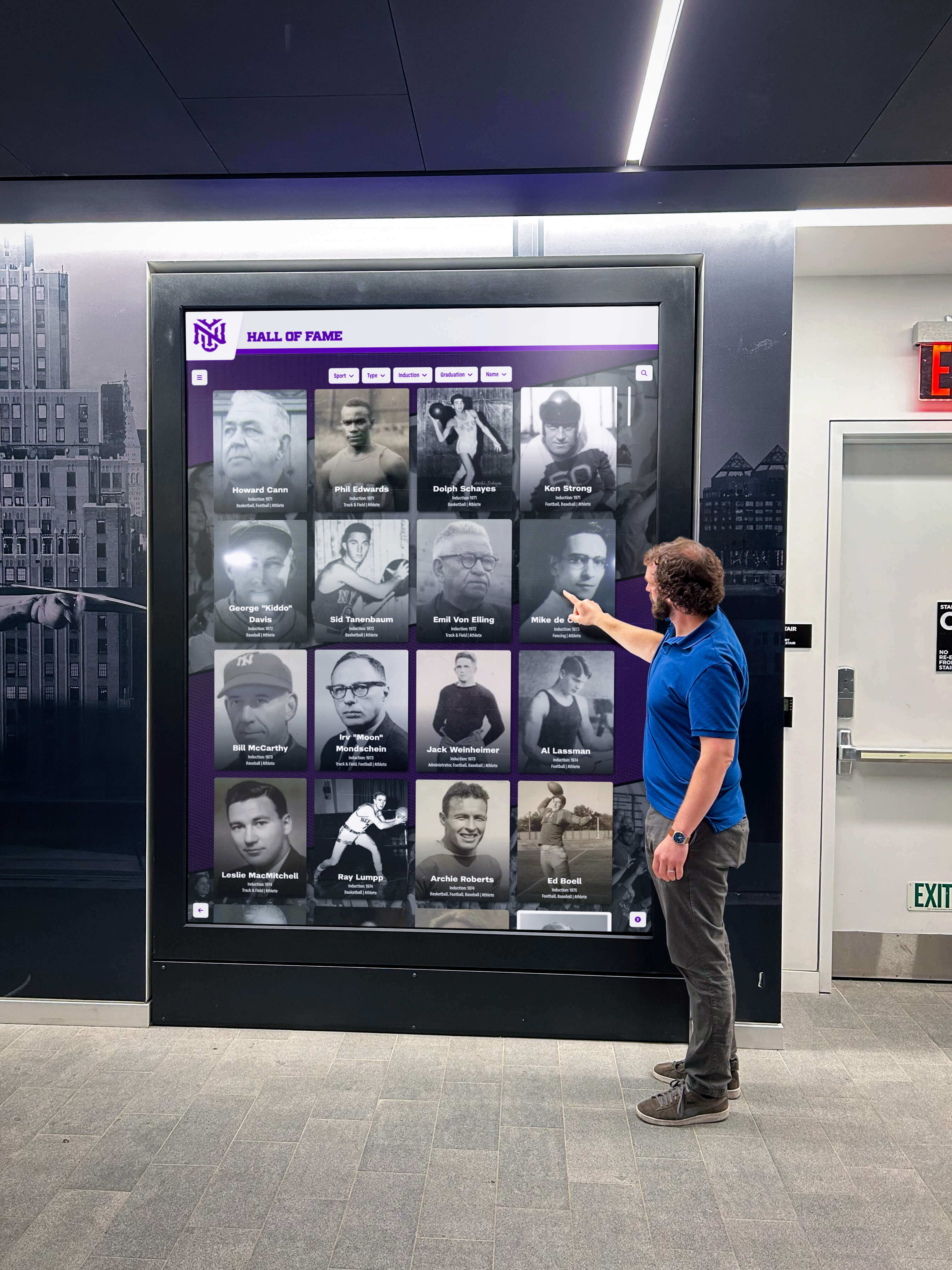
Public area displays require specifications supporting casual interaction by visitors unfamiliar with the system
Semi-Outdoor and Covered Exterior Locations
Covered walkways and outdoor common areas require specialized considerations:
- Temperature extremes: Operating range typically -20°F to 120°F for outdoor-rated displays
- Humidity resistance: IP-rated enclosures preventing moisture infiltration
- Direct sunlight: High-brightness displays (1000+ nits) for visibility
- Condensation management: Heating elements preventing internal fogging
- Extended warranty coverage: Outdoor environments void standard warranties without proper rating
Application-Specific Needs
Wayfinding and Directory Systems
Campus navigation displays serve specific functional requirements:
- Map interfaces: Clear visualization of campus layouts and buildings
- Search functionality: Quick location lookup for destinations
- Multilingual support: Serving diverse school communities
- Real-time updates: Class schedule changes and event locations
- ADA compliance: Accessible height and interaction for all users
- Integration with school data: Automated updates from scheduling systems
Recognition and Display Applications
Schools increasingly use touchscreens for celebrating achievements and building culture:
- High-resolution imagery: Showcasing photos of students and accomplishments
- Content depth: Browseable profiles beyond static plaque information
- Update frequency: Regular additions as new achievements occur
- Archive access: Historical records spanning multiple years
- Design consistency: Branded templates maintaining school identity
- Multiple content categories: Athletics, academics, arts, service, leadership
These applications benefit from displays with intuitive navigation since users interact infrequently and may be unfamiliar with the system.
Educational and Instructional Use
Classroom interactive displays support teaching and learning:
- Whiteboard functionality: Annotation and writing capabilities
- Software compatibility: Running educational applications and presentations
- Multi-student interaction: Simultaneous touch points for collaborative work
- Existing technology integration: Connection to computers and document cameras
- Wireless screen sharing: AirPlay, Miracast, or Chromecast support
- Lesson plan integration: Compatible with teachers’ existing workflows
Accessibility Considerations
ADA Compliance Requirements
Federal accessibility standards apply to school technology:
- Mounting height: Touch elements within reach ranges (15-48" from floor)
- Approach clearance: Minimum 30" x 48" clear floor space
- Operating force: Maximum 5 pounds force for touch activation
- Audio alternatives: Content available through multiple sensory modes
- Visual clarity: Text size and contrast meeting readability standards
- Alternative access methods: Non-touch ways to access all functionality
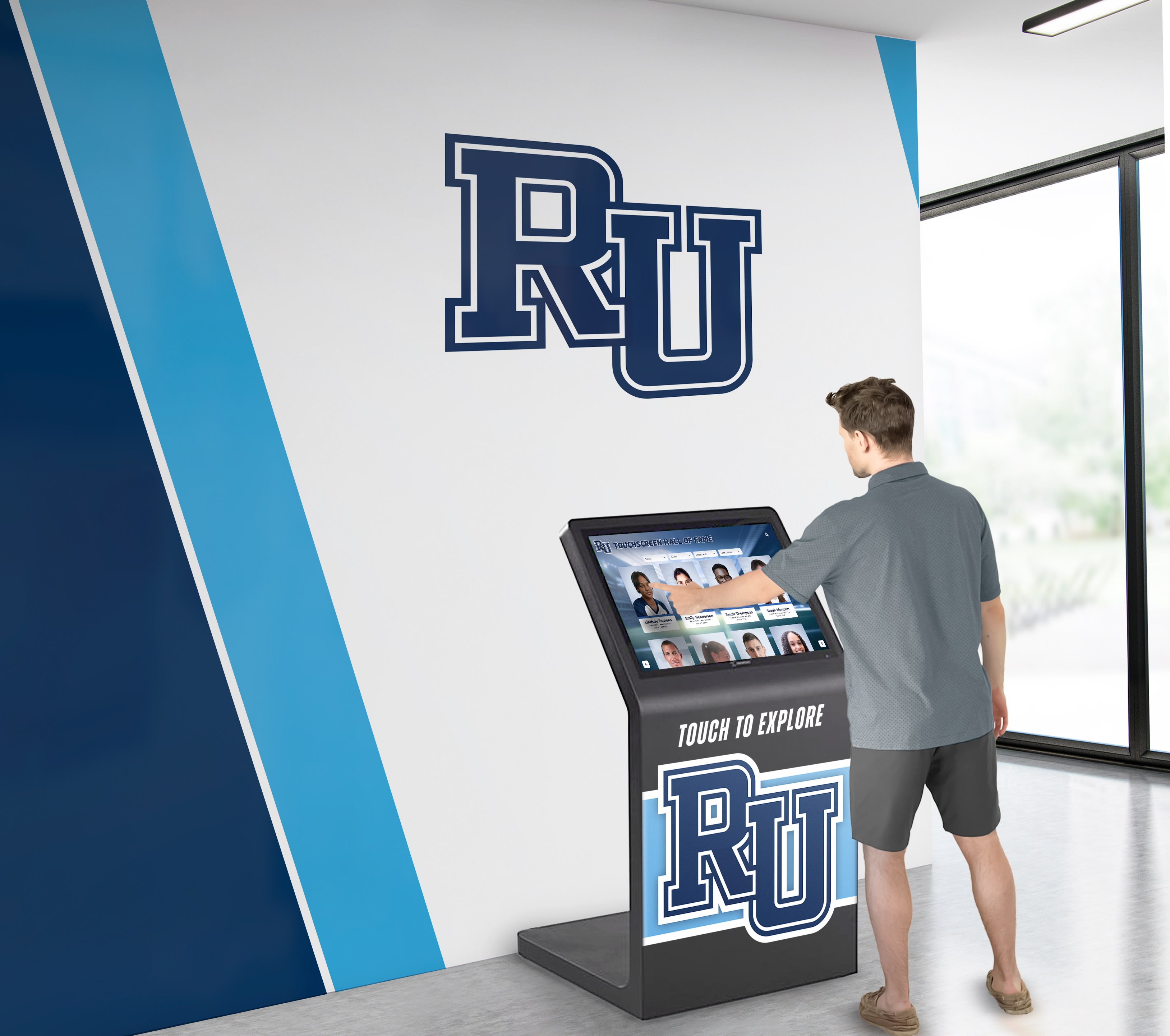
Accessibility standards influence mounting height, interface design, and alternative access provisions
Universal Design Principles
Beyond minimum compliance, thoughtful design serves all users:
- Intuitive interfaces: Minimal instruction required for basic use
- Adjustable text size: User control over displayed text
- High contrast modes: Enhanced visibility for vision challenges
- Audio feedback: Confirming touch interactions for those with limited vision
- Simple navigation: Clear pathways through content with minimal steps
- Multiple interaction modes: Touch, voice, or keyboard access where possible
Vendor Evaluation and Selection
Choosing the right technology partner significantly impacts long-term success beyond initial product quality.
Essential Vendor Qualifications
Experience and Track Record
Prioritize vendors demonstrating educational technology expertise:
- Educational installation portfolio: References from similar school environments
- Years in business: Stability indicating they’ll support products long-term
- Technical expertise: Staff capable of addressing complex integration questions
- Customer references: Contacts at schools with similar deployments
- Case studies: Documented successful implementations with measurable outcomes
- Industry certifications: Manufacturer authorizations and technical training
Support and Service Capabilities
Long-term relationships matter more than initial sales:
- Response time guarantees: Defined service level agreements for issue resolution
- Technical support availability: Phone/email support during school operating hours
- On-site service options: Availability of technicians for complex issues
- Warranty terms: Comprehensive coverage including labor and parts
- Loaner programs: Temporary replacements during extended repairs
- Training offerings: Staff development ensuring effective system utilization
Important Contract Considerations
Warranty and Service Agreements
Protect your investment through comprehensive coverage:
- Standard warranty terms: Minimum 3-year parts and labor for commercial displays
- Extended warranty options: 5-year coverage for long-term protection
- Response time commitments: Maximum time for initial response and resolution
- Covered components: Clarity on what’s included vs excluded from coverage
- On-site vs depot service: Avoid shipping large displays for simple repairs
- Replacement provisions: Advanced replacement for critical deployment locations
Software Licensing and Updates
Content management systems require ongoing licensing:
- Perpetual vs subscription licensing: Total cost implications over expected lifespan
- User/device limits: Restrictions on number of displays or administrators
- Update and upgrade policies: Access to software improvements and security patches
- Migration assistance: Support for transitioning to new platforms if needed
- Data portability: Ability to export content if changing systems
- Service level agreements: Uptime guarantees for cloud-based systems
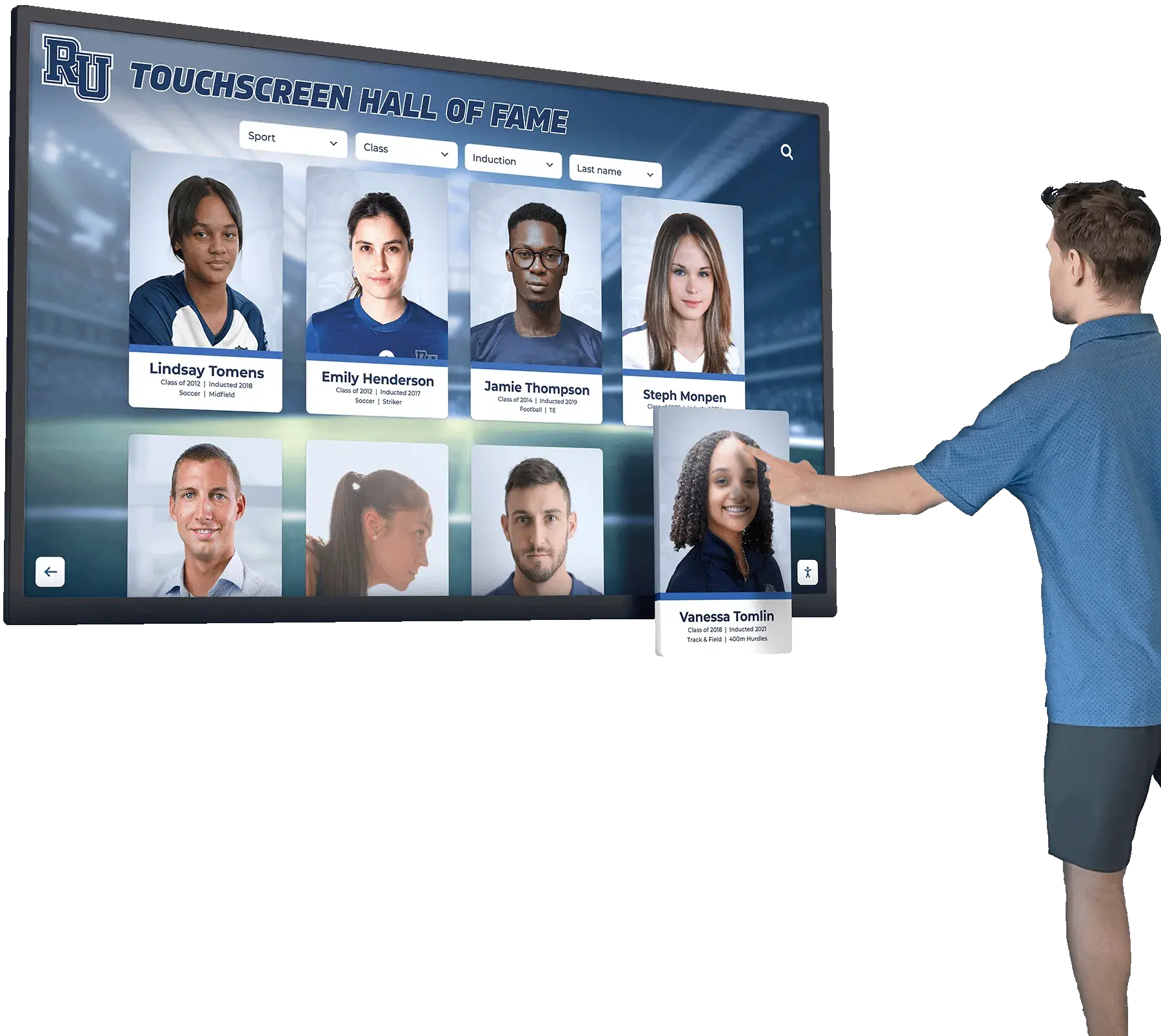
Vendor selection should emphasize long-term partnership for training, support, and system evolution
Avoiding Common Purchasing Pitfalls
Inadequate Specification Definition
Many schools purchase displays without fully defining requirements:
- Start with use cases, then determine specifications rather than selecting products first
- Create detailed requirement documents covering technical and functional needs
- Involve end users (teachers, staff, students) in specification development
- Consider environmental factors specific to each installation location
- Plan for future needs and potential expansion rather than only immediate requirements
Focusing Solely on Initial Price
Lowest bid frequently becomes most expensive option:
- Calculate total cost of ownership over expected 5-7 year lifespan
- Include installation, maintenance, and support costs in comparisons
- Evaluate warranty coverage and service response commitments
- Consider staff time required for ongoing management and content creation
- Account for reliability differences reducing downtime costs
Overlooking Integration Requirements
Displays rarely function in isolation:
- Existing network infrastructure capacity and security requirements
- Compatibility with current school technology systems and standards
- IT department bandwidth for ongoing management and troubleshooting
- Content creation resources and staff expertise for effective utilization
- Training requirements for administrators and end users
- Physical infrastructure (power, mounting, climate) at installation sites
Implementation Best Practices
Successful deployments require planning beyond product selection and purchase.
Pre-Installation Planning
Site Assessment and Preparation
Thorough evaluation prevents installation delays and surprises:
- Structural analysis: Wall load-bearing capacity for planned displays
- Electrical infrastructure: Power availability and circuit capacity
- Network connectivity: Wired and wireless access at installation locations
- Environmental conditions: Temperature, humidity, lighting, and airflow
- ADA compliance verification: Mounting height and clearance requirements
- Security considerations: Visibility for supervision and camera coverage
Stakeholder Communication
Building community support ensures positive reception:
- Faculty and staff notifications: Informing those affected by installations
- Student awareness: Communicating benefits and appropriate interaction
- Parent communication: Explaining investments in school technology
- Donor recognition: Acknowledging funding sources where appropriate
- Community messaging: Sharing improvements in public-facing areas
Many schools installing displays for athletic and academic recognition find that advance communication builds anticipation and increases engagement.
Content Strategy Development
Initial Content Planning
Launch with compelling content driving engagement:
- Define content categories: What information/stories will displays showcase
- Establish update schedules: How frequently content refreshes in each category
- Identify content sources: Who provides photos, text, and information
- Create templates: Consistent designs maintaining brand identity
- Develop approval workflows: Quality control before content publication
- Plan launch content: High-impact initial displays demonstrating value
Ongoing Content Management
Sustained engagement requires regular updates:
- Assign content responsibilities: Clear ownership preventing neglect
- Create content calendar: Scheduled updates aligned with school year
- Simplify creation processes: Templates and tools enabling quick updates
- Monitor engagement: Track interaction data identifying popular content
- Refresh regularly: Prevent stale displays reducing audience attention
- Archive appropriately: Preserve historical content while featuring current achievements
Schools effectively using displays for recognition often integrate content creation into existing workflows for athletics, academics, and activities rather than treating it as separate additional work.
Staff Training and Support
Administrative Training
Ensure staff can effectively manage systems:
- Content management system operation: Creating, editing, and publishing content
- Troubleshooting common issues: Basic problem resolution without vendor calls
- User management: Adding/removing access for content contributors
- Scheduling and automation: Automated content rotation and updates
- Reporting and analytics: Understanding engagement data and system health
- Escalation procedures: When and how to contact vendor support
End User Education
Help students, staff, and visitors engage effectively:
- Demonstration sessions: Showcasing features and navigation
- Signage and prompts: On-screen instructions for first-time users
- Student ambassadors: Training students to assist peers and visitors
- Faculty orientation: Helping teachers integrate displays into instruction
- Community events: Public demonstrations during open houses and events
Well-trained users extract maximum value from touchscreen investments while reducing support burdens on IT staff.
Measuring Success and ROI
Documenting value justifies initial investments while informing future technology decisions.
Engagement Metrics
Quantitative Measures
Modern displays provide data on actual usage:
- Interaction frequency: Number of daily/weekly touches and sessions
- Session duration: Average time users spend exploring content
- Popular content: Most frequently accessed categories and items
- Peak usage times: When displays experience highest engagement
- Unique vs repeat users: Patterns indicating diverse or concentrated usage
- Geographic analytics: Network data showing access points across campus
Qualitative Feedback
Numerical data incomplete without user perspectives:
- User surveys: Gathering feedback from students, staff, and visitors
- Observation studies: Watching how people discover and use displays
- Focus groups: Deep discussions about effectiveness and improvements
- Staff interviews: Understanding administrative burden and satisfaction
- Student testimonials: Stories about meaningful recognition experiences
Value Documentation
Educational Outcomes
Connect technology to mission and goals:
- School culture indicators: Surveys measuring pride, belonging, and community
- Attendance at events: Tracking promotion effectiveness for activities
- Donor engagement: Recognition displays supporting fundraising relationships
- Recruitment impact: Prospective family reactions during campus tours
- Student motivation: Academic and athletic performance among recognized students
- Community connections: Alumni and community member engagement
Operational Benefits
Touchscreens often deliver practical advantages:
- Staff time savings: Reduced manual updating compared to static displays
- Printing cost reduction: Digital recognition vs physical plaques and posters
- Space efficiency: Comprehensive content in compact footprint
- Flexibility: Easy updates supporting changing needs and priorities
- Professionalism: Modern technology enhancing school image
- Accessibility: Digital content reaching broader audiences than physical displays
Schools effectively demonstrating ROI position themselves well for future technology investments and potential funding from donors, grants, and community partners. Displays supporting initiatives like preserving school history or showcasing achievements generate multiple forms of value extending beyond the technology itself.
Emerging Trends and Future Considerations
Understanding developing technologies helps schools make investments remaining relevant as capabilities evolve.
Technology Evolution
Display Innovations
Continuous improvements in display technology:
- MicroLED displays: Superior brightness, contrast, and lifespan entering commercial availability
- Transparent displays: See-through screens enabling creative installations
- Flexible/curved displays: Unique form factors for architectural integration
- Reduced bezels: Seamless multi-display installations creating video walls
- Improved energy efficiency: Lower operating costs through LED advancement
- Enhanced touch sensitivity: More accurate, responsive interaction technologies
Software and Content Advances
Content management systems growing more sophisticated:
- Artificial intelligence: Automated content creation and personalization
- Augmented reality: Interactive experiences beyond screen boundaries
- Social media integration: Live feeds from school accounts and hashtags
- Mobile connectivity: Students and staff uploading content from smartphones
- Advanced analytics: Deeper insights into engagement patterns and effectiveness
- Voice interaction: Hands-free access and control options
Sustainability Considerations
Environmental impact increasingly influences purchasing decisions:
Energy Efficiency
Reducing operational costs and environmental footprint:
- ENERGY STAR certification: Verified efficiency standards
- Automatic brightness adjustment: Sensors matching output to ambient light
- Scheduled power management: Automatic shutdown during unoccupied hours
- Low-power modes: Reduced consumption during idle periods
- LED backlighting: Superior efficiency compared to older technologies
Lifecycle Planning
Responsible technology stewardship:
- Recyclable materials: Displays designed for end-of-life material recovery
- Upgrade paths: Modular designs enabling component replacement vs full disposal
- Vendor take-back programs: Manufacturer recycling of old equipment
- Extended lifespan: Quality investments reducing replacement frequency
- Energy consumption: Total electricity use over expected operational life
Schools increasingly prioritize vendors demonstrating environmental responsibility alongside technical capabilities, aligning technology decisions with broader institutional sustainability commitments.
Conclusion: Making Confident Technology Investments
Purchasing touchscreen displays for schools requires balancing immediate budget constraints with long-term value considerations, matching technical specifications to specific use cases, and selecting vendors capable of supporting technology throughout its operational life. Schools approaching these decisions systematically—defining clear requirements, calculating total cost of ownership, evaluating environmental factors, and planning for implementation and ongoing management—make investments delivering sustained benefits rather than generating expensive disappointments.
The most successful touchscreen deployments share common characteristics: clearly defined purposes addressing specific needs, appropriate technology selections matched to environments and users, comprehensive planning covering installation through ongoing content management, and realistic expectations about required resources and potential outcomes. Whether implementing classroom interactive displays, public wayfinding systems, or recognition showcases celebrating school achievements, these principles guide effective decision-making.
Technology investments ultimately serve broader missions—supporting teaching and learning, building school culture and community, recognizing achievement, connecting with alumni and donors, and creating welcoming environments where students, staff, and visitors thrive. When schools view touchscreen display purchases through this lens, focusing on outcomes rather than features, they make decisions benefiting their communities for years while avoiding common pitfalls that undermine technology initiatives.
Start your touchscreen display journey by clearly defining what you want to accomplish, involving stakeholders in requirement development, thoroughly evaluating your specific environments and use cases, and partnering with experienced vendors committed to long-term success. The investment in thoughtful planning pays dividends through technology that truly serves your school’s unique needs.
Ready to explore how interactive touchscreen displays can enhance recognition, celebration, and community building at your school? Rocket Alumni Solutions specializes in touchscreen walls of fame and digital recognition displays designed specifically for educational environments. Our team helps schools navigate technology decisions while creating engaging systems that celebrate student achievement, honor tradition, and build lasting school pride.