Intent: demonstrate — this school recognition touchscreen pointer capture testing guide walks athletic directors, school IT coordinators, and recognition-program administrators through verifying that drag gestures and swipe controls on hall-of-fame, athletic record board, and donor wall touchscreens route events correctly when a visitor’s finger moves outside an element’s boundaries — a failure mode that silently breaks photo browsing, timeline swiping, and category scrolling on the displays where your school’s athletic legacy lives.
Pointer capture is the browser mechanism that keeps pointer events flowing to the element that started a drag interaction, regardless of where the finger physically travels on the glass. When it works correctly, a visitor can swipe through a decade of championship seasons even if their finger momentarily crosses a panel boundary or an overlapping label. When it is missing or misimplemented, the interaction freezes mid-gesture — the display appears unresponsive, and the moment of recognition is lost before it happens.
The quick answer: a school recognition touchscreen pointer capture testing procedure calls element.setPointerCapture(ev.pointerId) on pointerdown, confirms that element.hasPointerCapture(ev.pointerId) returns true during the drag, verifies that lostpointercapture fires on release or cancellation, and checks that releasePointerCapture is called in cleanup. Each test should be run on a real device — not just a browser simulator — with swipes that deliberately exit the element’s bounding box, confirming the gesture completes correctly rather than stalling at the boundary.

School recognition displays present athletic achievements through touchable cards and swipeable galleries — pointer capture keeps drag gestures intact when a visitor's finger crosses an element boundary mid-swipe
Why Pointer Capture Matters for School Athletic Recognition Displays
Walk into a school lobby, gymnasium hallway, or alumni center with a modern athletic recognition display, and you will see a rich layer of touch interaction built on top of the content your community created. Visitors swipe through decades of championship seasons. They drag a timeline slider to jump between years. They scroll a horizontally paged gallery of state-qualifier portraits. These gestures share a common technical requirement: the browser must keep delivering pointermove events to the element that started the interaction, even if the visitor’s finger drifts outside that element’s layout boundary during the drag.
Without pointer capture, the browser stops routing events to the originating element the moment the touch point crosses its boundary. The drag handler receives no further updates. The gesture stalls. From the visitor’s perspective, the display simply stopped responding — not a hardware failure, not a network outage, but a software detail invisible to anyone except the developer who wrote the drag handler and the athletic director who hears that the display “keeps freezing.”
Pointer capture is also distinct from several related concepts that are worth separating before testing begins:
- Pointer capture vs. pointer lock: Pointer lock (
requestPointerLock) is a browser API for immersive mouse experiences such as games. It hides the cursor and provides relative movement deltas. It is not appropriate for a school recognition touchscreen and should not appear in recognition display code. Pointer capture, by contrast, routes events from an active touch point to a specific element without hiding any cursor or suppressing normal browser behavior beyond event routing. - Pointer capture vs. cancellation: Cancellation — the
pointercancelevent — fires when the browser decides a gesture must end, often because the system has taken over the touch point (scroll, screenshot gesture, or similar). Pointer capture does not prevent cancellation; it routes events until cancellation or release occurs. For acceptance test coverage of cancellation scenarios, the Digital Hall of Fame Pointer Cancellation Test for Touchscreen Controls provides a complementary procedure focused specifically on that event path. - Pointer capture vs. scroll suppression: Calling
setPointerCapturedoes not suppress scrolling. If the recognition display’s drag handler also needs to prevent the page from scrolling during a horizontal swipe,preventDefault()must be called explicitly on the relevant events. Disabling scrolling globally — for example, settingoverflow: hiddenon thebodyelement — creates accessibility problems and breaks visitors who rely on scroll navigation. Suppression should be scoped to the specific gesture and element, not applied site-wide.
Pointer capture is defined in the W3C Pointer Events specification, which covers the full event model including setPointerCapture, releasePointerCapture, hasPointerCapture, and the lostpointercapture event. The specification describes pointer capture as “implicit” when the browser routes events to the capturing element and requires that capture release on pointerup or pointercancel when the pointerType is touch or pen.
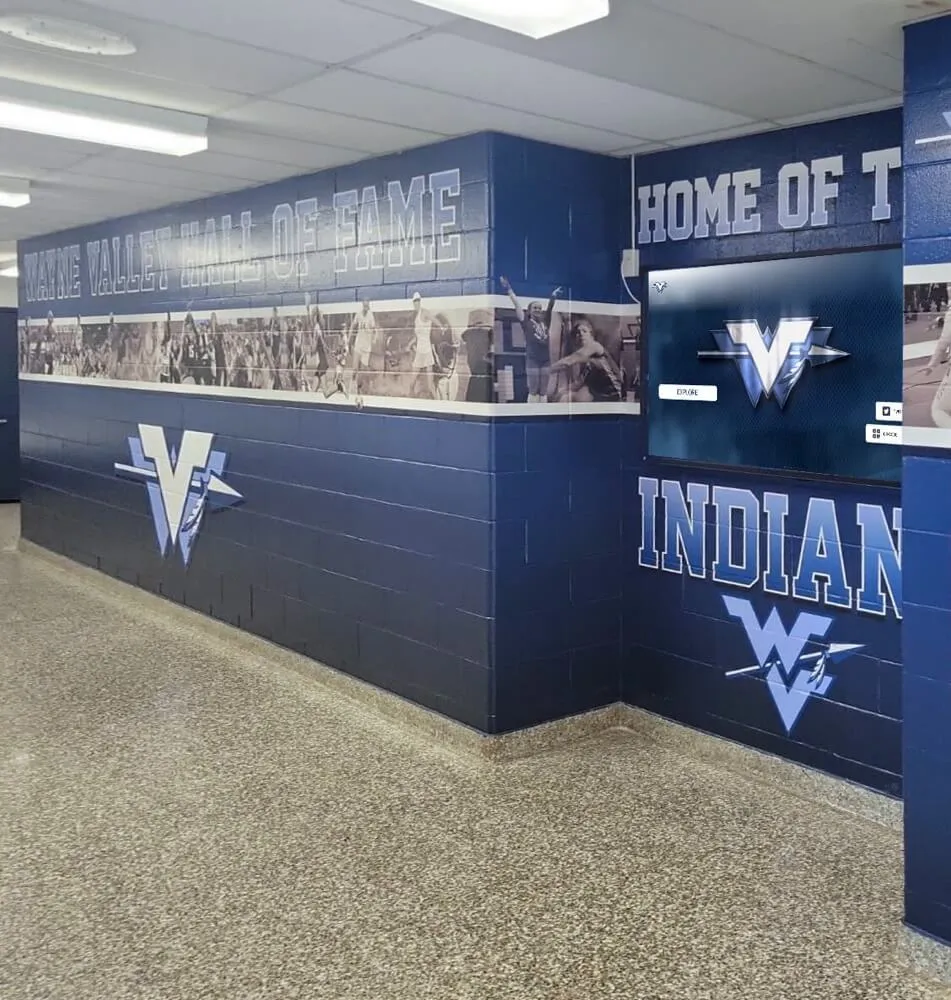
Recognition displays in school hallways and lobby spaces serve visitors across a wide age range — pointer capture acceptance testing confirms that drag gestures behave consistently for every visitor, from current students to returning alumni
The Pointer Capture Event Sequence
Understanding the event sequence makes it straightforward to write acceptance tests that cover the complete lifecycle.
On pointerdown: Establishing Capture
When a visitor’s finger contacts the screen, the browser dispatches pointerdown on the element under the touch point. The recognition display’s drag handler should call element.setPointerCapture(ev.pointerId) inside the pointerdown listener. According to the MDN documentation for setPointerCapture, calling this method designates the element as the capture target for all future events generated by the pointer with the specified pointerId.
A minimal implementation looks like this in pseudocode:
element.addEventListener('pointerdown', (ev) => {
  element.setPointerCapture(ev.pointerId);
  // record start position for drag delta calculation
});
The pointerId value is assigned by the browser to distinguish simultaneous touch points. On a single-touch recognition display, the pointerId is typically 1 for the first contact, but the code should always use the value from the event rather than a hardcoded number, because multi-touch scenarios (two visitors touching simultaneously, or accidental palm contact) produce different IDs.
During pointermove: Verifying Routing
After setPointerCapture is called, every subsequent pointermove event generated by the same pointer routes to the capturing element, regardless of the element’s layout boundary. The drag handler updates the display — advancing a photo carousel, repositioning a timeline indicator — based on the delta between the current and previous positions.
The acceptance test should confirm this routing by moving the pointer outside the element boundary and verifying that pointermove events still fire on the element, not on whatever element sits underneath the finger at that point in the DOM.
On pointerup or pointercancel: Release and Cleanup
The W3C specification requires that touch and pen capture be released automatically on pointerup or pointercancel. The browser fires lostpointercapture on the element when capture is released, either automatically or by an explicit call to releasePointerCapture. Recognition display code should also call releasePointerCapture explicitly in the pointerup handler as a belt-and-suspenders measure, because some older browser versions on commercial display hardware do not implement the automatic release reliably.
element.addEventListener('pointerup', (ev) => {
  element.releasePointerCapture(ev.pointerId);
  // finalize position, snap to nearest item
});

element.addEventListener('lostpointercapture', (ev) => {
  // reset drag state — runs whether release was explicit or automatic
});
The lostpointercapture handler is the correct place to reset drag state, because it fires in all termination paths: normal release, browser cancellation, and element removal from the DOM. A drag handler that only resets on pointerup will leave stale state if the browser fires pointercancel instead.
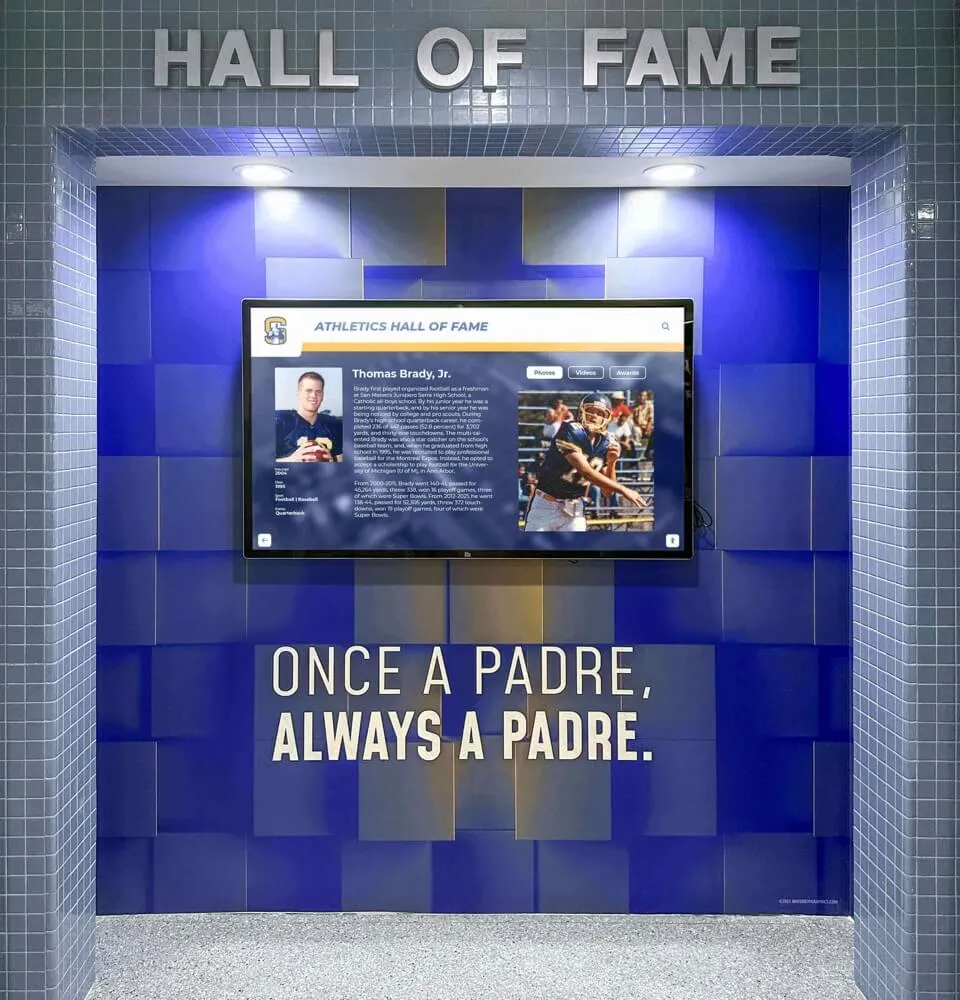
School recognition displays with tile-based navigation depend on reliable pointer event routing — incomplete cleanup after lostpointercapture can leave drag state active across separate touch interactions
School Recognition Touchscreen Pointer Capture Acceptance Test Procedure
The following steps define a practical acceptance test for a school recognition display installation. Run these after the display is mounted, cabled, and powered — and after signal chain, geometry, and edge linearity tests are complete — but before the recognition program goes live.
Step 1: Identify the Drag-Enabled Elements
List every interactive element on the recognition display that responds to drag or swipe input:
- Horizontally scrollable photo galleries (athlete portrait carousels)
- Timeline sliders that jump between championship years
- Vertically scrollable inductee lists that extend beyond the visible panel
- Category filter bars that scroll horizontally when sport count exceeds visible width
- Any custom drag-to-reveal or pull-to-refresh controls
For each element, confirm that the application code calls setPointerCapture in the pointerdown handler. If the source code is not available for inspection, you can verify behavior through the acceptance test steps below.
Step 2: Establish Baseline — Drag Within Bounds
Touch the draggable element at its center. Drag slowly in the primary scroll direction without leaving the element’s visible boundary. Verify the gesture completes correctly — photos advance, the timeline moves, the list scrolls. This establishes that the drag handler functions under normal conditions before testing the boundary cases.
Step 3: Exit-Boundary Drag Test
Touch the draggable element near one edge. Drag continuously, crossing the element’s boundary by a substantial margin — at least 100 pixels beyond the border — and continue moving in the same direction. Hold the position outside the element for two seconds, then release.
Expected result: The gesture continues to respond normally throughout the drag, even while the finger is outside the element boundary. The release action completes the interaction cleanly. No stale drag state remains after the finger lifts.
Failure indication: The interaction freezes when the finger exits the boundary. The element stops following the touch point. After release, subsequent taps may trigger unexpected behavior, indicating that drag state was not properly cleaned up.
Step 4: pointercancel Interruption Test
Initiate a drag on a swipeable element. While the drag is in progress, trigger a system gesture that causes pointercancel — on most Android devices, a downward swipe from the top bezel opens the notification shade and cancels active touch interactions. On iOS, a home gesture from the bottom edge produces the same effect.
Expected result: The lostpointercapture handler fires. The display returns to a stable resting state with no stale drag in progress. The next tap initiates a fresh interaction correctly.
Failure indication: After the system gesture, the display remains in a dragging state — the next touch is interpreted as a continuation of the cancelled drag. The element drifts unexpectedly or navigation produces incorrect results.
Step 5: Rapid Multi-Gesture Sequence
Perform five consecutive rapid swipes on the same draggable element, each starting immediately after the previous one ends. Vary direction — some left-to-right, some right-to-left.
Expected result: Each swipe produces a complete, correct animation. No gesture bleeds into the next. The display rests at the correct position after all five.
Failure indication: One or more swipes produces no movement, double movement, or a combination of the two directions. This typically indicates that lostpointercapture cleanup is incomplete, allowing one gesture’s state to contaminate the next.
Step 6: hasPointerCapture Verification (Developer Console)
If the display runs a Chromium-based browser with developer tools accessible, open the console and instrument the draggable element:
const el = document.querySelector('[data-drag-target]');
el.addEventListener('pointermove', (ev) => {
  console.log('has capture:', el.hasPointerCapture(ev.pointerId));
});
During a drag that exits the element boundary, hasPointerCapture should return true throughout the gesture. If it returns false mid-drag, setPointerCapture was either not called or was called on the wrong element.
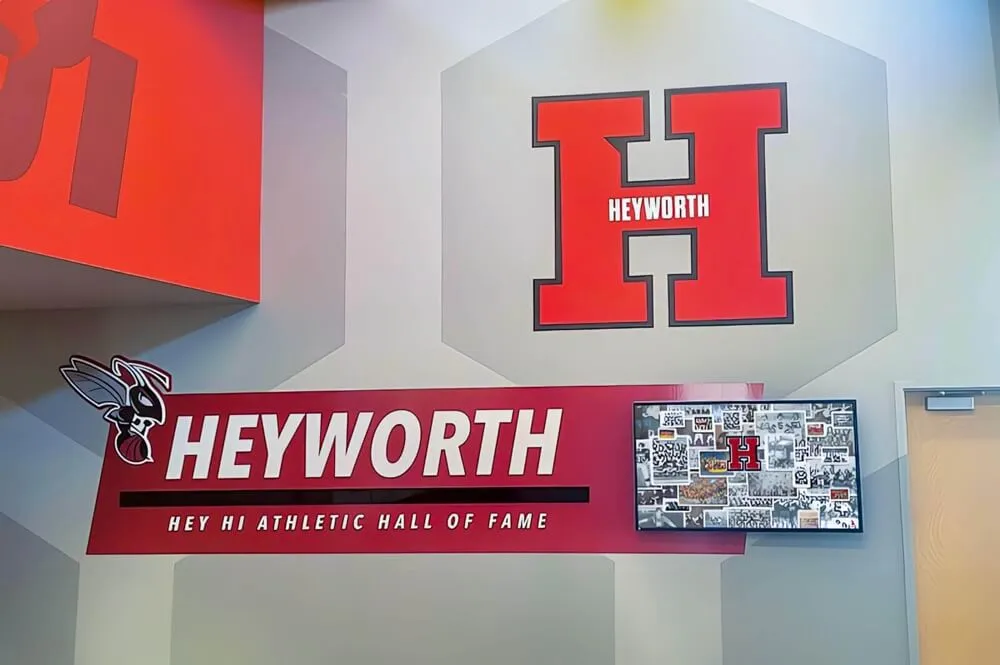
Physical and digital recognition elements share the same goal: honoring athletic achievement permanently and accessibly. Acceptance testing confirms that the digital layer delivers on that promise from day one
Acceptance Test Checklist
| Test Item | API / Event Involved | Pass Condition | Fail Indication | Action on Fail |
|---|---|---|---|---|
| setPointerCapture called on pointerdown | setPointerCapture(pointerId) | Drag continues when finger exits element boundary | Gesture freezes at boundary | Add capture call to pointerdown handler |
| hasPointerCapture returns true during drag | hasPointerCapture(pointerId) | Console log shows true throughout gesture | false returned mid-drag | Confirm correct element and pointerId used |
| pointermove routes outside boundary | pointermove event routing | Element updates position while finger is outside bounds | Element freezes when finger exits | Verify setPointerCapture succeeds (no exception) |
| lostpointercapture fires on pointerup | lostpointercapture | Drag state resets; next tap starts fresh | Stale drag state persists after release | Move cleanup logic to lostpointercapture handler |
| lostpointercapture fires on pointercancel | pointercancel + lostpointercapture | Display returns to stable state after system gesture | Display enters broken drag state | Add lostpointercapture handler if missing |
| releasePointerCapture called in cleanup | releasePointerCapture(pointerId) | No capture state persists between gestures | Subsequent gestures behave incorrectly | Add explicit release call to pointerup handler |
| Scroll not globally suppressed | Page scroll behavior | Vertical scroll works normally outside drag zones | Page scroll disabled globally | Scope preventDefault to drag elements only |
| Keyboard alternative available | Keyboard navigation | Arrow keys or Tab advances the same content | Swipeable content unreachable by keyboard | Add keyboard event handlers or visible buttons |
Keyboard and Button Alternatives
Pointer capture acceptance testing covers the touch path, but school recognition displays serve visitors who may not be able to perform drag or swipe gestures. WCAG 2.1 Success Criterion 2.1.1 requires that all functionality be operable by keyboard. For a recognition display mounted at a fixed kiosk, this means providing visible Previous / Next buttons alongside any swipeable carousel, or ensuring that the carousel responds to arrow key input when focused.
A concrete implementation adds both:
// Button alternative — always visible
prevButton.addEventListener('click', () => carousel.prev());
nextButton.addEventListener('click', () => carousel.next());

// Keyboard alternative — when element has focus
carousel.addEventListener('keydown', (ev) => {
  if (ev.key === 'ArrowLeft') carousel.prev();
  if (ev.key === 'ArrowRight') carousel.next();
});
These alternatives serve visitors using mobility aids, visitors with motor impairments that make sustained drags difficult, and visitors who are simply more comfortable tapping a button than swiping. They also provide a fallback path when a gesture test fails during acceptance — the button path confirms whether a failure is in the pointer capture layer specifically, or further upstream in the data and rendering logic.
For multi-screen recognition installations where each panel hosts different content, consistent keyboard behavior across panels reduces the cognitive load on visitors navigating the full display.
Related acceptance disciplines that touch school recognition touchscreens from adjacent angles include Screen Wake Lock Release and Reacquisition Tests for School Athletic Recognition Displays, which covers the separate question of how the display manages its power state when a visitor walks away and returns, and School Athletic Recognition Video requestVideoFrameCallback Testing, which addresses per-frame diagnostics for video content that plays within the same recognition panels.
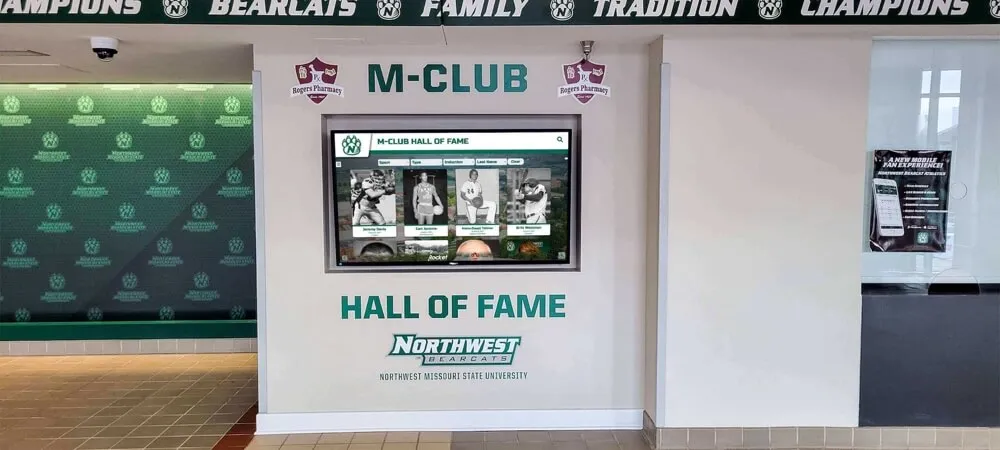
Multi-panel school recognition installations require consistent pointer capture behavior across every screen — acceptance testing on each panel individually confirms that the athletic community's history is navigable everywhere visitors encounter it
Real-Device Evidence Requirements
Browser developer tools simulate touch events, but they do not faithfully replicate the pointer event sequences generated by a physical touchscreen controller. Acceptance evidence for a school recognition display must come from a real device running the actual display hardware and browser configuration planned for production.
The specific behaviors that differ on real hardware:
pointercanceltiming: Physical devices firepointercancelmore readily during fast or multi-finger gestures. A simulated drag in dev tools may succeed where a fast physical swipe produces a cancellation, revealing missinglostpointercapturecleanup.- Simultaneous
pointerIdvalues: If two visitors touch the display simultaneously — common at a school event when parents and students both want to browse — each touch point has a distinctpointerId. Real-device testing with two simultaneous contacts confirms that capture is correctly scoped per-pointer and that one contact’s capture does not affect the other’s routing. - Browser version on commercial hardware: Many school recognition displays run Chromium-based browsers embedded in Android or Windows display OS configurations. The browser version may lag behind current Chrome releases by a significant margin. Behaviors that changed between Pointer Events Level 1 and Level 2 — including implicit capture behavior — should be verified on the installed browser version, not assumed from current desktop browser behavior.
For school lobby recognition video content that plays alongside interactive panels, MediaCapabilities Decoding Checks before touchscreen acceptance provides the parallel verification procedure for confirming that the display hardware can decode the video format used in the recognition program before go-live.
Placing Pointer Capture Tests in the Commissioning Sequence
Pointer capture testing belongs in the interactive-layer phase of school recognition touchscreen commissioning — after display hardware and signal chain tests, but before content population and final sign-off.
A recommended sequence:
- Signal chain and cable continuity
- Panel geometry, overscan, and native-resolution confirmation
- Edge linearity and touch accuracy grid
- Pointer capture acceptance test ← this guide
- Scroll suppression scoping verification
- Keyboard and button alternative verification
- Multi-touch scenario testing (if the recognition platform supports simultaneous users)
- Content management system access and remote update confirmation
- Final walk-through with athletic director or recognition program administrator
Completing pointer capture testing before content population means any software changes required by a test failure can be deployed before the recognition content team has spent time configuring athlete profiles, championship records, and historical photos — avoiding the situation where the content is ready but the display cannot be opened because a gesture behavior is unreliable.
Inline SVG award badges and championship graphics that appear within swiped gallery panels have their own accessibility requirements. The Digital Hall of Fame Inline SVG Award Badge Audit covers giving those graphics accessible meaning so that the achievements they represent are available to every visitor, including those using assistive technology.
Frequently Asked Questions
What is pointer capture and why does it apply to school recognition touchscreens?
Pointer capture is a browser mechanism, defined in the W3C Pointer Events specification, that routes all events from a specific touch point to a designated element regardless of where the pointer physically moves on the screen. On a school recognition touchscreen, this matters for any drag or swipe control — a photo carousel, a year-range slider, a horizontally scrolling sport filter — where the visitor’s finger may cross an element boundary mid-gesture. Without pointer capture, the drag handler stops receiving events at the boundary, and the gesture freezes. With it, the gesture completes reliably.
Does setPointerCapture prevent the page from scrolling?
No. Calling setPointerCapture routes events to a specific element but does not suppress browser-default scroll behavior. If a recognition display’s drag handler also needs to prevent incidental page scrolling during a horizontal swipe, the handler must call ev.preventDefault() explicitly inside the pointermove listener for that element. Scroll suppression should always be scoped to the specific draggable element — applying it globally breaks accessibility and interferes with visitors who rely on scroll navigation on other parts of the display.
When should releasePointerCapture be called explicitly?
The W3C specification states that touch and pen pointer capture is released automatically on pointerup or pointercancel. However, explicit calls to releasePointerCapture inside pointerup handlers are still recommended as a defensive measure, because some older Chromium versions used in commercial display hardware do not implement automatic release reliably. The lostpointercapture event fires in all cases — automatic and explicit — making it the correct location for drag state cleanup regardless of which release path is taken.
What does a lostpointercapture failure look like on a recognition display?
When lostpointercapture cleanup is incomplete, the most common symptom is a drag that does not end cleanly. After a visitor lifts their finger, the recognition display remains in a drag state: the next tap is interpreted as a continuation of the previous gesture, causing the carousel or timeline to jump unexpectedly. In some implementations, the element appears to follow the next touch point from its starting position rather than responding to the new gesture independently. Correcting it requires moving all drag-state reset logic into the lostpointercapture handler so it runs regardless of whether the gesture ended via pointerup or pointercancel.
Is pointer capture the same as pointer lock?
No. Pointer lock (requestPointerLock) is a separate browser API designed for immersive experiences like games and 3D applications. It hides the system cursor and provides continuous relative movement data without a boundary. It is not appropriate for school recognition displays. Pointer capture, by contrast, routes events from an active touch point to a specific element without altering cursor visibility or suppressing any browser UI. Recognition display code should not use pointer lock.
Can we test pointer capture without a developer console?
Yes. The exit-boundary drag test described in Step 3 of the acceptance procedure produces a clear behavioral result without any developer tools. A display that maintains responsive drag behavior after the touch point crosses the element boundary has functioning pointer capture. A display that freezes at the boundary does not. The console-based hasPointerCapture verification in Step 6 adds precision by confirming exactly when capture is established and released, but the behavioral test alone is sufficient for basic acceptance sign-off if console access is not available on the installed display hardware.
A school recognition touchscreen that preserves the athletic achievements of championship seasons, record holders, and longtime contributors deserves the same care in technical validation as it receives in content curation. Running a pointer capture acceptance test before the display opens to visitors ensures that every swipe through a decade of state qualifiers, every drag across a gallery of team photos, and every scroll through a donor recognition list completes reliably — so the athletic community your school has built can experience those achievements the way they were meant to be experienced.
See a School Athletic Recognition Display Built to Last
Rocket Alumni Solutions installs interactive hall-of-fame, athletic record board, and donor wall touchscreens in schools across the country — with structured commissioning that covers pointer event behavior, touch accuracy, and content management from the first day the display opens to your community.
Request a Demo