Intent: research. A school recognition display flickering in the lobby sends the wrong message—that the institution’s digital investment is unreliable. Here is how to diagnose and resolve it systematically.
Screen flicker on school recognition displays—digital hall of fame kiosks, athletic record boards, donor walls, and trophy case screens—is one of the most commonly reported issues that athletic directors, facilities managers, and school IT coordinators face after deployment. The causes range from a simple loose cable to deeper electrical grounding problems, and the steps to isolate them do not require specialized AV expertise.
This checklist walks through every common cause of screen flicker on recognition displays in roughly the order to check them: cheapest and easiest first, more complex second. Schools that work through this sequence typically resolve flicker issues within one or two diagnostic sessions without vendor calls or service fees.
When a recognition display flickers during a busy school day—in the main lobby, outside the gymnasium, or at the entrance to an athletic facility—it undermines the credibility of the recognition program it is meant to support. Visitors notice. Athletes and alumni honored on that display notice. And the staff responsible for the system often spend hours chasing the wrong cause.
The troubleshooting approach here applies to the most common school recognition display setups: commercial touchscreen kiosks running a cloud-based content management system (CMS), floor-standing or wall-mounted panels, and dedicated display devices connected to a remote management platform.
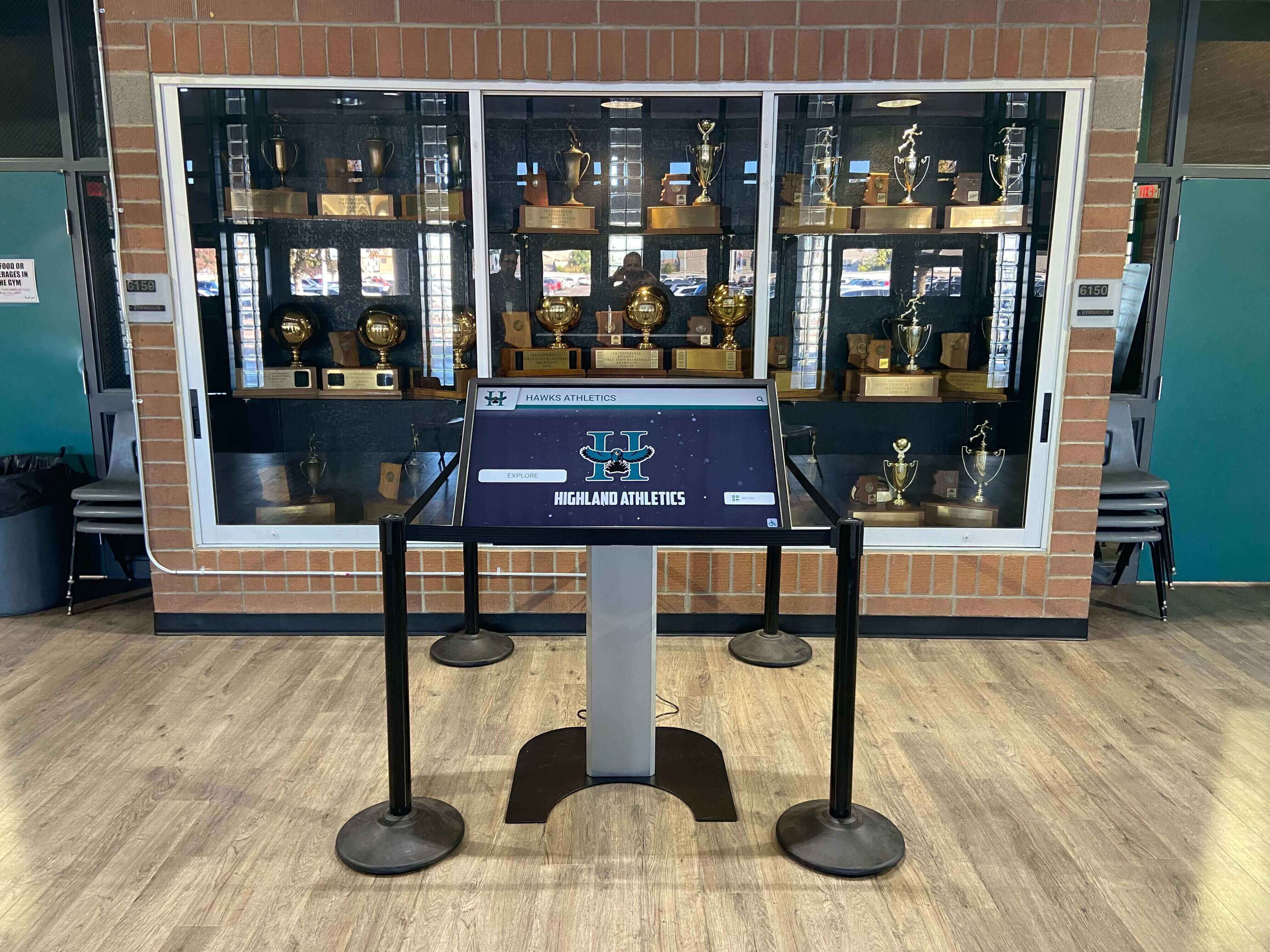
Recognition display kiosks in high-visibility school locations require reliable operation—flickering screens call for systematic diagnosis rather than guesswork
Quick Answer: What Causes Screen Flicker on School Recognition Displays?
Screen flicker on a school recognition display is almost always caused by one of five things: a loose or damaged video cable, an inadequate or unstable power supply, a refresh rate or resolution mismatch between the display and its source device, overheating from poor ventilation, or a software or driver conflict in the display’s operating system. Start with the cable and power—they account for the majority of reported flicker cases in school environments.
Full Troubleshooting Checklist
Work through these steps in order. Check off each item before moving to the next.
Step 1: Inspect Physical Connections
Check each of the following:
- Reseat the HDMI or DisplayPort cable at both ends (display and source device)
- Swap the video cable with a known-good replacement
- Verify the cable run is within spec—HDMI runs beyond 15 feet without a signal repeater can degrade enough to cause flicker
- Inspect the cable jacket for kinks, sharp bends, or visible damage near the connector
- Confirm the power cable is fully seated at both the display and the wall outlet or surge protector
- Test with the display connected directly to a wall outlet—remove any extension cords or power strips temporarily
Cable problems are the most common cause of intermittent flicker, particularly on displays installed for a year or more. HDMI connectors can work loose from vibration, from cleaning staff accidentally bumping the kiosk, or from repeated thermal expansion and contraction. Replacing a cable costs under $20 and eliminates the most frequent cause in under five minutes.
Step 2: Check Power Supply and Electrical Circuit
Check each of the following:
- Confirm the display is on a dedicated circuit, not shared with HVAC units, copiers, or other high-draw equipment
- Measure outlet voltage with a multimeter—commercial displays require stable voltage within manufacturer specifications (typically 110–120V AC in North America)
- Test the surge protector or UPS: some units develop high-resistance internal connections that cause voltage drop under load
- Note whether flicker is rhythmic and tied to the on/off cycle of nearby equipment (compressors, motors, HVAC)—this pattern points to electrical interference
- Ask the facilities team whether the circuit shares a panel with other high-draw equipment
- Consider a line conditioner if voltage fluctuations are confirmed
Power-related flicker often appears as a rhythmic pulse rather than random noise, and it tends to worsen at certain times of day when heating or cooling systems cycle. A licensed electrician can confirm whether the circuit is adequately sized and isolated.
Schools that manage ongoing operational decisions about their recognition programs—including display uptime requirements for events honoring coaches and program leaders—should factor electrical stability into their facility review process.
Step 3: Check Display Settings and Refresh Rate
Check each of the following:
- Access the display’s on-screen menu and confirm the refresh rate matches the source output (most recognition displays run at 60 Hz)
- If the display is driven by a PC or media player, verify the GPU output resolution and refresh rate match the display’s native specification
- Disable any “energy saving” or “eco” mode that dynamically reduces backlight brightness—these modes can cause perceived flicker
- Check auto-brightness settings: ambient light sensors that adjust the backlight can create flicker under certain lighting conditions
- Disable motion-smoothing or image-processing features that may interfere with stable rendering
A refresh rate mismatch between a source device and a display is a common post-update problem. If flicker began after a system update or software change, refresh rate settings are a strong suspect.
Step 4: Assess Ventilation and Thermal Conditions
Check each of the following:
- Confirm at least four inches of clearance behind and above the display for ventilation
- Check that display vents are not blocked by a recessed mount, trophy case enclosure, or built-in millwork
- Touch the display housing after extended operation—if it is uncomfortably warm, overheating may be causing the panel to throttle or restart
- Verify the installation environment stays within the display’s operating temperature range (consult the manufacturer spec sheet—most commercial displays are rated for 32°F–104°F / 0°C–40°C)
- In trophy case or enclosure installations, confirm whether a ventilation fan or gap was included in the original build
Kiosks installed in enclosed trophy cases—a common configuration for school hall of fame displays—are particularly prone to heat buildup. Some enclosures trap heat to the point where displays thermal-throttle or restart intermittently, producing flicker-like behavior.
Schools considering how to preserve related recognition content alongside their physical displays can review guidance on digitizing old school video footage for context on maintaining a complete digital record that survives hardware failures.
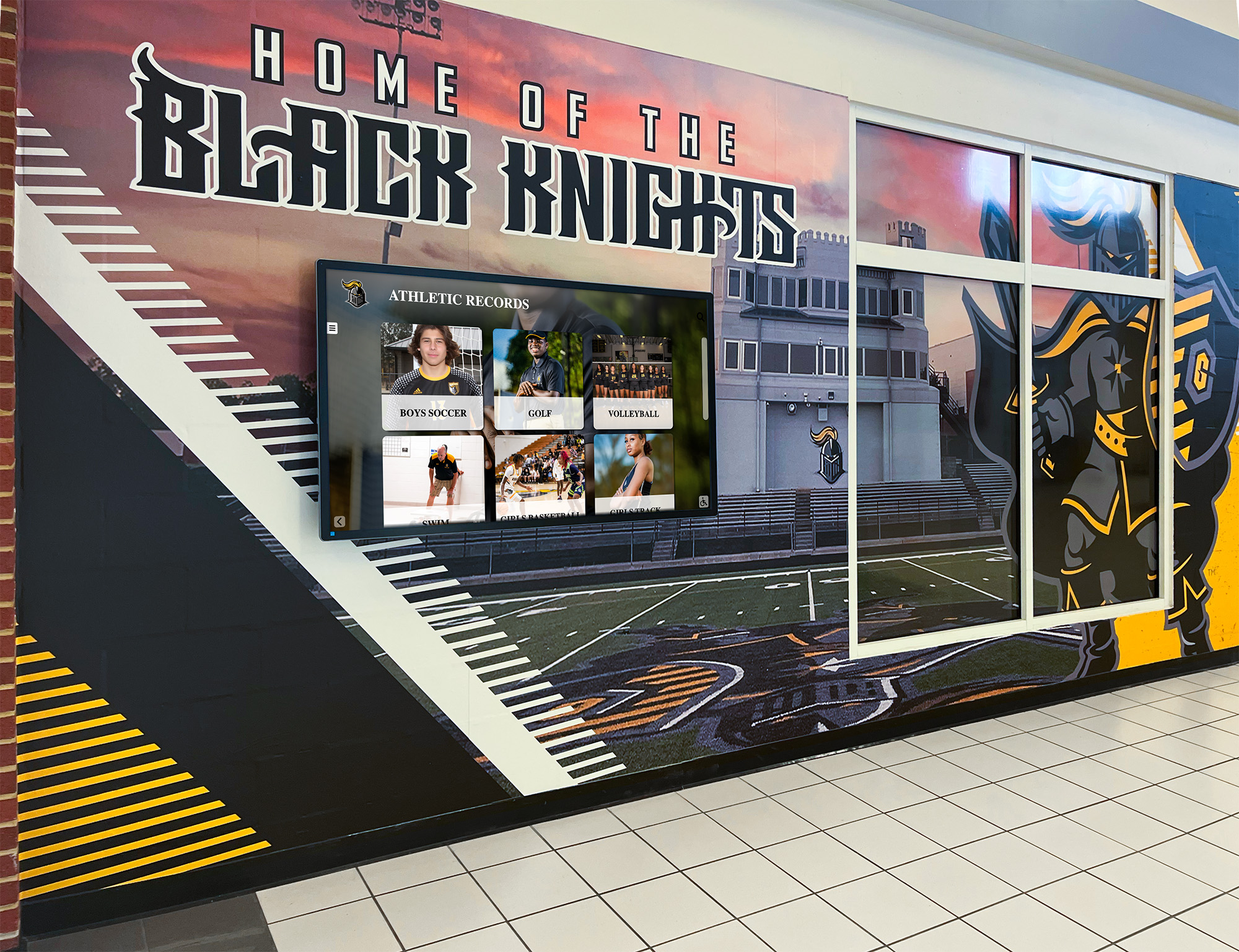
Hallway-mounted recognition displays need adequate ventilation and a stable electrical supply to operate reliably in high-traffic areas
Step 5: Evaluate Content and Software
Check each of the following:
- Display the built-in test pattern from the display’s on-screen menu (bypassing the source device) and observe whether flicker appears there too
- If flicker only occurs during video playback, the cause may be the video format, encoding, or a driver conflict—not the display panel itself
- Restart the CMS player device and observe whether flicker stops temporarily before returning
- Check for pending OS or firmware updates on the player device—an outdated GPU driver is a common culprit after major OS updates
- Review the display’s own firmware version and compare it to the manufacturer’s latest release
- If running a cloud-based recognition platform, confirm the device maintains a stable network connection—a platform that loses connectivity and repeatedly re-syncs content can produce visual artifacts that resemble flicker
The software features powering school recognition platforms matter in this context: platforms with lightweight, hardware-optimized rendering engines put less load on display devices than those running resource-intensive web applications. If flicker correlates with specific content types, that is a meaningful diagnostic signal.
Step 6: Test for Ground Loop or EMI Interference
Check each of the following:
- Note whether flicker worsens when fluorescent lighting is on in the same room
- Look for diagonal moving bars or horizontal tearing across the image—these patterns are characteristic of ground loop interference
- Try plugging the display and source device into the same power strip to equalize ground potential
- If the display connects to an external audio system or speakers, disconnect that connection temporarily and test
- Consult an electrician about whether the outlet serving the display is on a properly grounded circuit
Ground loops occur when two pieces of equipment connected by a cable have different ground potentials—a common problem in older school buildings where electrical systems were installed in phases. The fix is usually an HDMI ground loop isolator (available for under $30) or a corrected ground at the outlet.
Step 7: Examine the Display Panel Itself
Check each of the following:
- Run the display’s built-in diagnostic mode (check the manufacturer manual for the key sequence to enter it)
- Note whether flicker is uniform across the entire screen or localized to one edge or corner
- Consider whether the flicker pattern changed gradually over time—aging LCD backlights show progressive flicker as fluorescent backlight tubes wear, while LED backlights typically fail more suddenly
- Look for visible physical damage to the panel: pressure marks, cracks in the bezel, or evidence of liquid ingress
- If the display is more than five years old and flicker is progressive, the internal power supply board may be failing
At this stage, if cable, power, thermal, and software checks have been completed without resolution, the display panel itself is likely the source of the problem. Contact the manufacturer’s support line or your recognition system vendor for guided diagnosis before attempting internal repairs.
Flicker Pattern Reference Table
| Flicker pattern | Most likely cause |
|---|---|
| Rhythmic pulse tied to HVAC or equipment cycles | Electrical interference or shared circuit |
| Random, intermittent flicker | Loose cable or failing connector |
| Flicker only during video playback | Driver conflict or encoding mismatch |
| Moving horizontal bars or diagonal tearing | Ground loop |
| Flicker concentrated in one corner | Failing backlight or panel damage |
| Flicker that clears after reboot but returns | Software or driver conflict, or overheating |
| Flicker on all content including test patterns | Display hardware failure |
| Flicker that began after a system update | GPU driver or firmware conflict |
Preventive Maintenance Checklist
Scheduling routine maintenance prevents most flicker issues before they develop. Schools that include recognition display maintenance on their facilities calendar report fewer unplanned outages and longer display lifespans.
Monthly
- Inspect all cable connections and reseat any that feel loose
- Clean display vents with compressed air to prevent dust accumulation
- Verify the display operates within normal temperature range during peak hours
- Confirm the recognition platform is syncing content correctly
Quarterly
- Check for OS and firmware updates on the player device
- Review the display manufacturer’s recommended maintenance procedures
- Test the backup power path if a UPS is in place
- Inspect mounting hardware for any loosening
Annually
- Have an electrician verify the dedicated circuit remains within voltage specification
- Review display operating hours vs. rated lifespan (commercial displays are typically rated for 50,000–70,000 hours of backlight operation)
- Clean interior ventilation if the display allows access, or schedule a manufacturer service visit
- Assess whether the display’s hardware lifecycle warrants a planned replacement in the next budget cycle
Schools managing digital hall of fame systems that contain extensive athletic archive content should treat display maintenance and content archive maintenance as parallel responsibilities—a display that goes offline takes the program’s visibility with it.
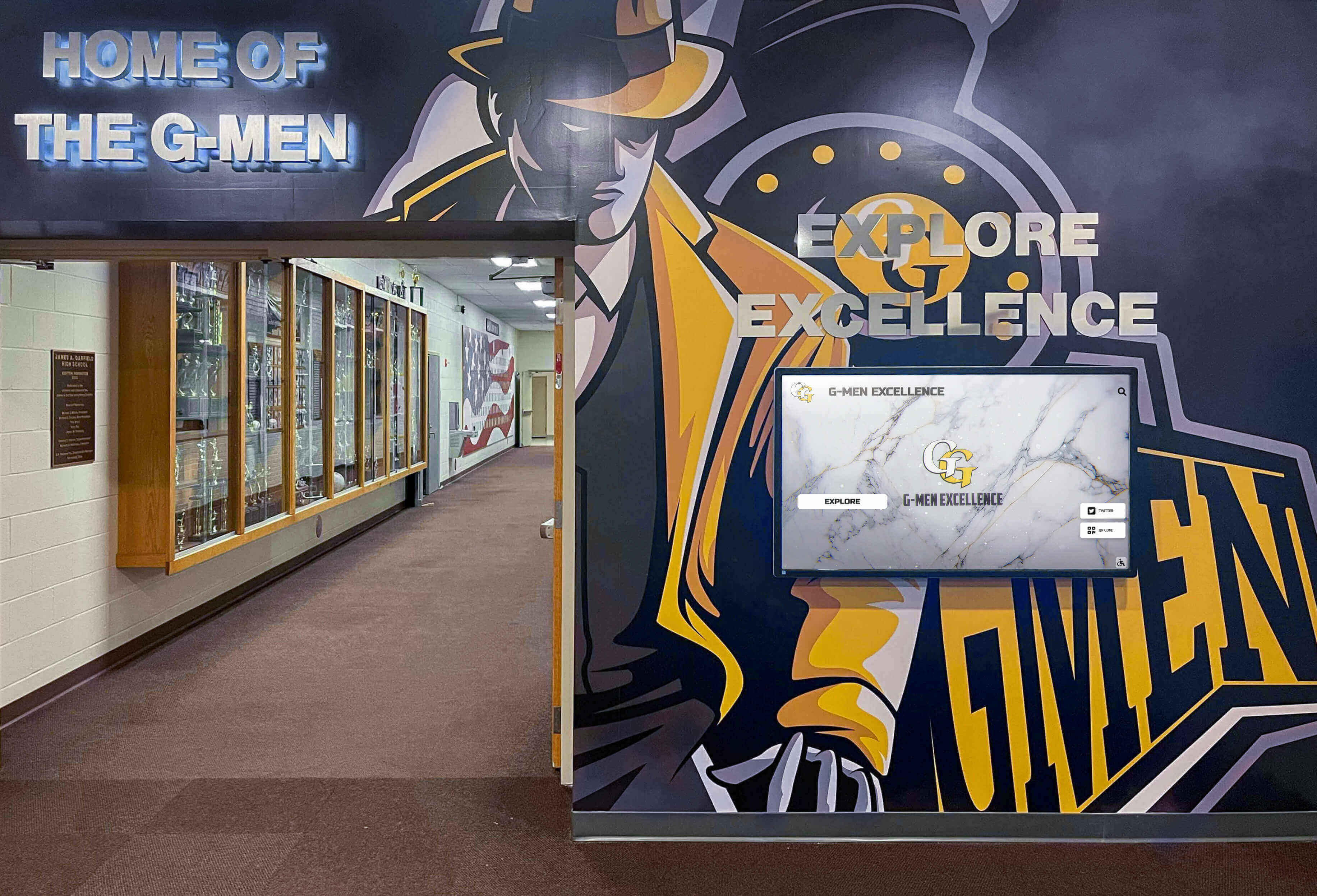
Recognition displays integrated into lobby and hallway environments benefit from scheduled maintenance reviews to prevent avoidable downtime
When to Call a Professional
Some situations warrant professional involvement rather than continued self-service troubleshooting:
- Flicker accompanied by a burning smell, visible sparks, or unusual sounds from the display—power off immediately and contact facilities
- Confirmed voltage irregularity at the outlet, which requires a licensed electrician
- Flicker that persists after replacing the cable, testing a different power source, and reseating all connections
- Displays under manufacturer warranty—self-service internal repairs may void coverage
- Displays installed under a service contract with a recognition platform vendor—check whether the contract includes hardware support before attempting repairs
Special Considerations for Trophy Case and Enclosure Installations
Displays built into custom trophy cases, millwork enclosures, or wall niches require separate attention:
- Heat management: Enclosed installations must include a ventilation path. If the original build omitted vents, adding a quiet 12V computer fan and a vent grill typically costs under $50 and resolves thermal flicker entirely
- Cable management: Cables routed inside millwork can develop kinks or pinch points during construction that are not visible without partial disassembly
- Access planning: Confirm that the display can be physically accessed without destroying the enclosure for hardware replacement—this is a critical planning consideration for new installations
Recognition programs that display content honoring teams across multiple sports, academic competitions including FBLA competitive events, and other achievement categories depend on displays that remain reliably operational. Content integrity depends on hardware reliability.
The Same Checklist Applies Across Recognition Display Types
The flicker troubleshooting steps above apply equally to other school recognition display formats: academic honor walls, debate team achievement boards, donor recognition kiosks, and multi-sport hall of fame installations. The electrical and hardware causes are identical regardless of the content displayed. The difference lies in when downtime is most visible—academic achievement boards in main entrance areas receive daily observation from students, parents, and visitors, making reliable operation particularly important.
Schools that maintain digital archives of photo consent forms and recognition records alongside their display systems have a more complete recognition infrastructure—but the infrastructure is only as reliable as the display hardware delivering that content to visitors.
Frequently Asked Questions
Why does my recognition display flicker only at certain times of day?
Time-of-day flicker patterns almost always point to electrical causes. HVAC systems cycling on and off during morning startup or afternoon peak, increased network congestion during passing periods, or higher fluorescent lighting loads in nearby classrooms can all produce interference that manifests as flicker. A clamp-style power meter placed on the circuit during peak flicker periods will confirm whether voltage drops correlate with the pattern.
Can a bad HDMI cable really cause screen flicker?
Yes. HDMI cables contain multiple shielded signal pairs, and damage to any of them—often invisible externally—causes data errors that the display renders as flicker or image instability. Cables are inexpensive enough that replacement should always be the first diagnostic step. Use a cable rated for the HDMI version supported by your display (HDMI 2.0 or higher for 4K content).
How do I know if flicker is a hardware problem or a software problem?
Display the built-in test pattern from the display’s on-screen menu, which bypasses the source device entirely. If the test pattern shows no flicker, the display panel itself is functioning correctly—the problem originates upstream in the source device, cable, or software. If the test pattern also flickers, the display’s internal hardware or power supply is the cause.
Does screen flicker damage the display?
Flicker caused by external factors such as cable issues or power supply problems generally does not damage the panel. Flicker caused by internal overheating may indicate a condition that shortens panel lifespan if left uncorrected. Flicker accompanied by a burning smell or unusual heat is a safety concern requiring immediate power-off.
How long do commercial school recognition displays typically last?
Commercial displays used in school recognition kiosks are typically rated for 50,000 to 70,000 hours of operation—roughly 6–8 years at 24/7 runtime, or 10–12 years at 12 hours per day. Displays approaching the end of their rated backlight lifespan will show progressive flicker and eventual brightness decline. This is a hardware lifecycle issue rather than a fixable technical problem.
Should IT or facilities handle recognition display troubleshooting?
Both teams have relevant expertise. IT staff handle software, drivers, network connectivity, and CMS platform issues. Facilities and AV staff handle electrical supply, physical mounting, cable management, and ventilation. The most efficient troubleshooting assigns cable, power, and thermal steps to facilities and software, firmware, and network steps to IT—with a shared log of what has been tested and when.
Reliable recognition displays require the same systematic maintenance attention given to any institutional AV investment. A flickering screen in a school lobby or athletic hallway is not just a technical annoyance—it interrupts the program’s ability to honor students, alumni, coaches, and donors in the way their contributions deserve.
Schools looking to evaluate or upgrade their recognition display platforms—including platforms with purpose-built hardware and dedicated technical support—can request a demonstration from Rocket Alumni Solutions to see how modern recognition systems are designed and supported for long-term, reliable operation in school environments.