Intent: demonstrate — this guide shows journalism advisors and school communications staff how to build a school newspaper template for recognition stories that translates cleanly from the printed page to a lobby touchscreen display, covering layout principles, image specs, typography rules, and the digital handoff workflow.
Recognition stories are among the most-shared content a school publication produces. Student athlete spotlights, academic honor roll features, club achievement profiles — these pieces circulate in print, appear on school websites, and increasingly show up on the large-format touchscreen walls schools install in lobbies and hallways. A template designed for one medium often fails spectacularly in the other. Headlines collapse. Photos pixelate. White space that breathed on paper feels cluttered on a 65-inch panel viewed from ten feet away.
This guide walks through designing recognition story layouts that succeed in both environments from the start — saving your staff redesign time, keeping your coverage visually consistent, and letting you repurpose content directly from print to touchscreen without starting over.
Why Recognition Stories Demand a Dual-Format Template
Most journalism programs still design primarily for print, then scramble to adapt content for screens afterward. That backward workflow creates a predictable set of problems: landscape crops that leave key subjects off-frame, body text set in 10-point type that disappears at display distance, and sidebar elements that become unreadable as standalone digital graphics.
Recognition content carries an additional complication: it features real people. An athlete of the month profile includes a posed portrait, jersey number, statistics, a quote, and a byline. All of those elements must remain dignified, readable, and organized no matter the format. A smeared or cropped portrait on a lobby touchscreen reflects badly on the student being honored — and on your publication.
Schools are investing heavily in lobby and hallway digital displays. Interactive touchscreen hallway displays give administrators a way to rotate content continuously, replacing static bulletin boards with dynamic recognition walls. When your school newspaper template already accounts for this channel, your journalism program becomes a direct content pipeline into that display infrastructure.
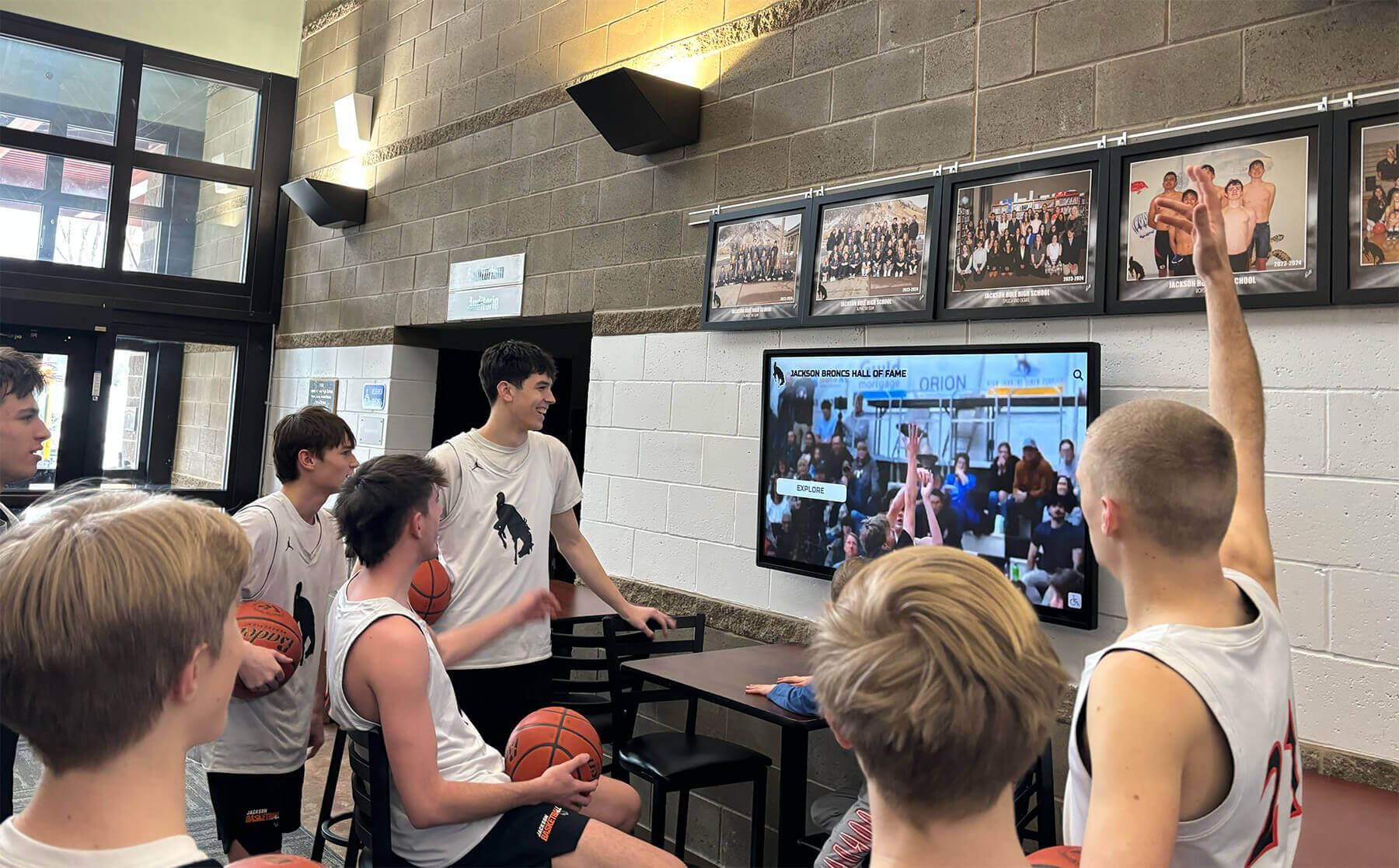
Students naturally gather around lobby touchscreens — recognition story content drives that engagement when the layout is designed for screen viewing
Anatomy of a Recognition Story Template
A strong school newspaper template for recognition stories contains five modular zones. Thinking in zones — rather than fixed positions — is what makes a layout adaptable across media.
Zone 1: The Nameplate/Header Block
In print, the nameplate carries the school name, publication name, volume number, and date. In a touchscreen context, that information is often handled by the display system’s interface wrapper. Design your header block so it can function with or without the publication nameplate present.
Print specs:
- Nameplate at top, full column width
- Minimum 18pt type for publication name
- Issue date and volume in 9-10pt type below masthead
Touchscreen adaptation:
- Strip the issue date line — it reads as outdated content on a display
- Keep school logo and publication name; they provide credibility
- Use the header zone primarily as a color identity band (school colors, consistent branding)
Zone 2: The Hero Portrait
Recognition stories live or die by the portrait. A strong, well-cropped headshot tells readers immediately that this story celebrates a specific person.
Print specs:
- Minimum 2-column width (approximately 3.5 inches in a broadsheet)
- 300 DPI at final print size
- Face occupying at least 60% of the frame height
- Dark background or contrasting color wash behind subject when possible
Touchscreen adaptation:
- Export at 1920 × 1080px minimum for full-screen display
- Crop to a 16:9 aspect ratio for widescreen panels, or 9:16 for portrait-orientation kiosks
- Face should occupy the upper 40% of the frame — allow space below for text overlay
- Avoid images where the subject wears clothing that blends into a white or light background
A common mistake is using the same portrait crop for both. Print portraits are often vertical (portrait orientation); touchscreen displays favor horizontal (landscape) frames. Build both crops into your photo workflow from the start.
Zone 3: The Stats/Achievement Block
This structured block carries the quantifiable recognition content — statistics for athletes, GPA for academic honors, award names for club achievers. It functions as an at-a-glance summary that readers scan before committing to the full story.
Design principles for both formats:
- Use a table or ruled list format rather than running prose
- Limit to 5-7 data points maximum
- Bold labels, regular weight values (e.g., Position: Wide Receiver | Yards: 847)
- Apply school color as a left border or header band on the block
Touchscreen-specific consideration: Text in this zone must be legible from 8-10 feet at minimum. That means no type smaller than 24pt rendered equivalent — roughly 32px in a 1080p layout. Test your template by stepping back from your monitor to simulate viewing distance.
Zone 4: The Quote Pull
A pull quote from the honored student, coach, or administrator humanizes recognition content in a way that statistics cannot. This is also the single element most likely to appear on a touchscreen display as standalone content.
Format guidelines:
- 24-36pt type in print; test at equivalent screen resolution
- Set in a contrasting color or italic face for visual separation
- Attribute clearly: name, role, and context beneath the quote
- Keep to 30 words or fewer — longer quotes lose impact on both print and screen
For touchscreen displays, the pull quote can serve as a teaser slide that rotates before the full recognition profile loads. Design the quote zone with this use case in mind: a dark background color wash behind light text, or school-color gradient behind white type, works at any scale.
Zone 5: The Story Body
Body text in a recognition story typically runs 250-450 words. This zone is where the formats diverge most sharply.
In print: 9-11pt body type, 2-4 columns, standard paragraph formatting.
On touchscreen displays: Body text as it appears in print is rarely displayed verbatim. Touchscreen recognition systems typically present a structured profile — not a flowing article. Plan for this by writing your recognition stories in modular paragraphs: an opening paragraph (50-75 words), a background paragraph, and an achievement paragraph. Each module can stand alone on a screen panel.
Typography Rules That Work Across Both Formats
Choosing typefaces that survive the print-to-screen conversion is non-negotiable for a robust school newspaper template.
Headline typefaces:
- Sans-serif families (geometric or humanist) reproduce cleanly at large sizes on screens
- Avoid decorative or script faces for recognition headlines — they pixelate unpredictably
- Maintain a minimum 48pt headline equivalent in screen layouts
Body typefaces:
- Serif faces designed for readability at small sizes (Georgia, Palatino, Times variants) work well in print
- Screen-first contexts: use the screen-optimized version of the same family, or switch to a matching sans-serif
- Never go below 14pt for print body; never below 24px (equivalent) for screen display body
Color contrast:
- WCAG 2.1 AA compliance requires a 4.5:1 contrast ratio for normal text, 3:1 for large text
- Check every text/background combination in both your print PDF and your screen export
- School colors that look sharp on print may fail contrast requirements on backlit displays — adjust luminosity values, not hue
Schools implementing accessible digital displays must meet federal accessibility standards, which apply to publicly viewable digital content including recognition displays. Building those contrast requirements into your newspaper template protects your publication from inadvertently producing non-compliant content.
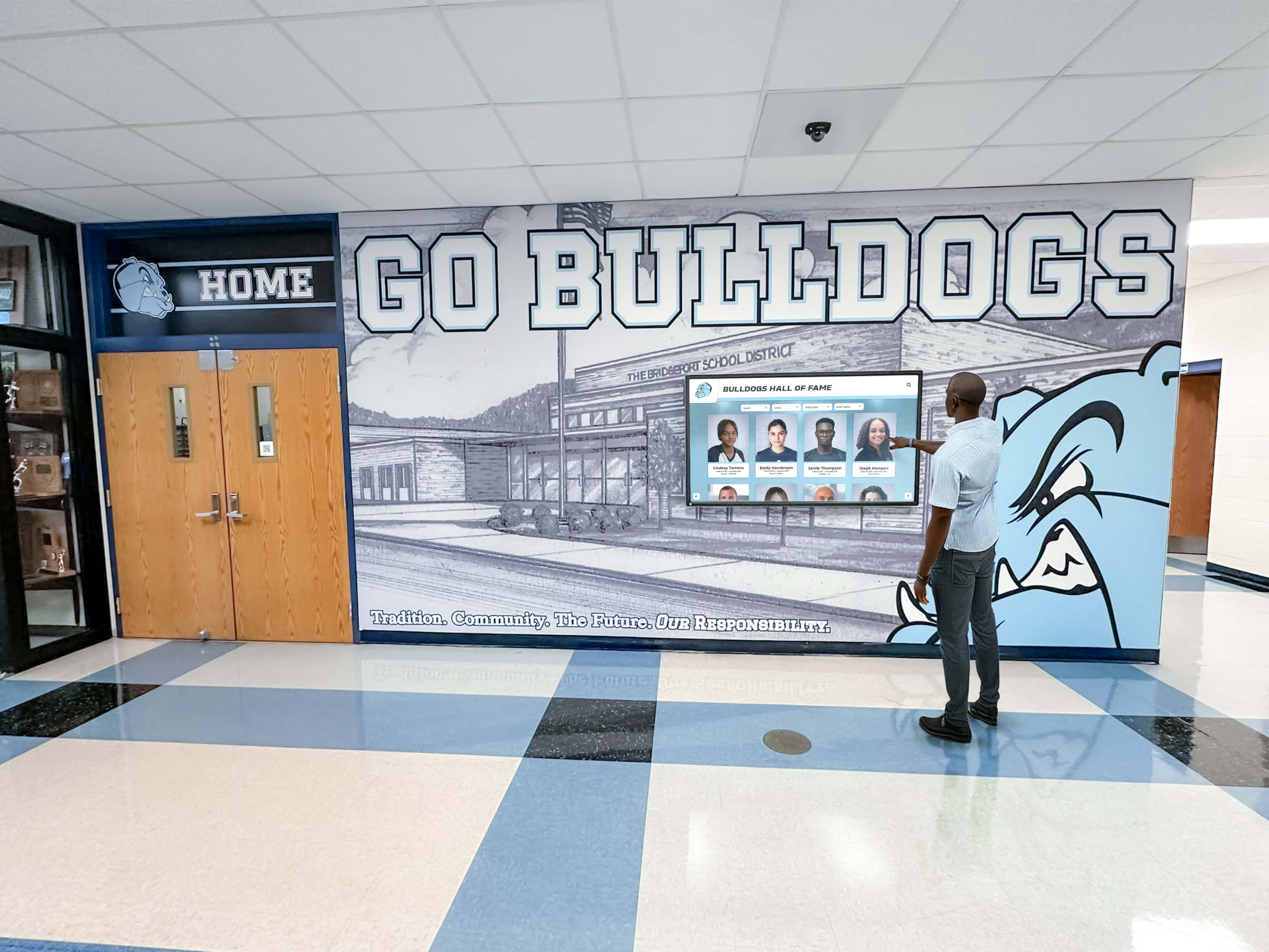
Recognition content displayed in school hallways must be readable from several feet away — type size and contrast requirements differ from print
The Print-to-Touchscreen Workflow
Once you have a template built with dual-format zones, the workflow for exporting content from print to touchscreen becomes repeatable and fast.
Step 1: Export Portrait Assets Early
When photographing subjects for recognition stories, have your photographer capture:
- A vertical crop (3:4 or 4:5 ratio) for print portrait use
- A horizontal crop (16:9 ratio) for screen display use
- Both at maximum sensor resolution — downsampling later is always preferable to upsampling
Step 2: Build a Screen Slide Template
In whatever design application your staff uses (Adobe InDesign, Canva for Education, or equivalent), create a companion slide template at 1920 × 1080px that mirrors your print template’s zones:
- Header band: school name and publication logo
- Left panel: hero portrait (landscape crop)
- Right panel: stats block and pull quote
- Bottom bar: student name in large type and role/category label
Step 3: Populate Once, Export Twice
Your layout software should allow you to populate one master file and export both a print-ready PDF and a screen-ready PNG or JPEG. Structure your template files to support this. Name layers clearly (PRINT-ONLY, SCREEN-ONLY, SHARED) so staff know which elements require modification for each output.
Step 4: Hand Off to Display System
Most school touchscreen display systems accept either static image uploads or integrate with cloud-based content management tools. Content management for school touchscreen displays typically involves an administrative web dashboard where staff upload graphics and schedule rotation timing. Your journalism advisor or communications coordinator can upload the screen export directly — no additional design work required when the template is built correctly.
Some schools use platforms that support Canva integrations with digital signage systems, enabling newspaper staff to push content to hallway displays directly from the same tool they use to design pages. This dramatically shortens the handoff cycle — a recognition story published on Thursday can appear on the lobby screen the same afternoon.
Expanding Recognition Beyond Print Constraints
The most significant advantage of adapting your school newspaper template for touchscreen use is that digital displays have no space limit. Print constrains recognition to however many pages your budget supports in a given issue. A touchscreen recognition wall can hold years of coverage, organized by category, searchable by name, and browsable by community members any time the display is active.
This opens programming possibilities that print journalism cannot reach:
Archival recognition: Feature past honorees alongside current ones. Digitized archives of school history can feed directly into recognition display systems, giving historical honor roll members and alumni athletes a permanent digital presence in school hallways.
Category browsing: Organize recognition stories by sport, academic department, club, or graduation year. Interactive touchscreen systems allow visitors to filter by category — something impossible in print without a separate index.
Multimedia expansion: Your print recognition story is limited to a static portrait and text. The touchscreen version of that same profile can embed a video highlight, link to a full photo gallery, or include an audio quote. The newspaper template becomes the visual shell; the digital medium fills it with richer content.
Honor roll recognition programs that once existed only as a printed list in the school newspaper now persist year-round on lobby displays, giving academic achievers the same continuous visibility that athletic trophies have always had in trophy cases.
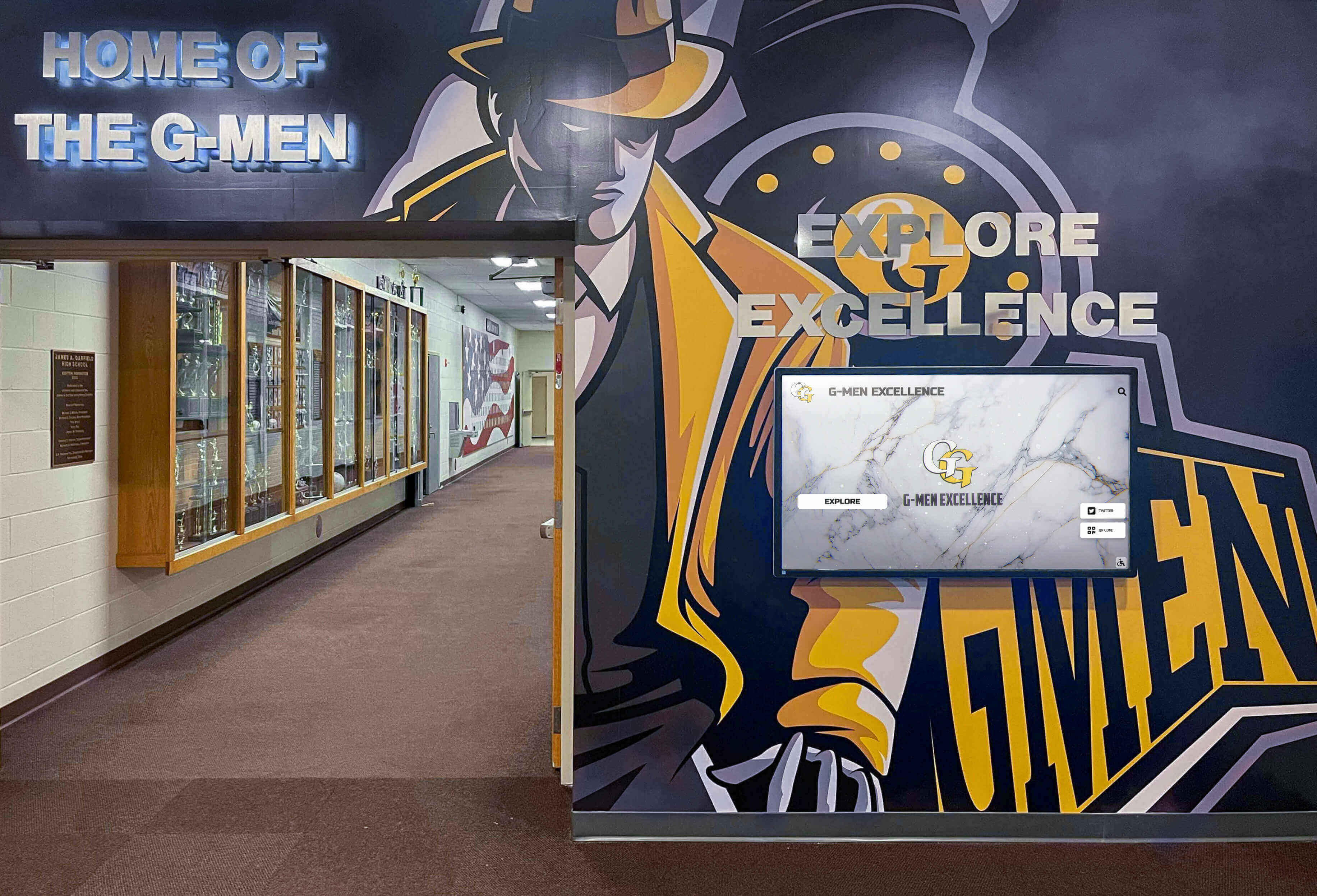
Modern school hallways integrate digital displays with traditional recognition elements — a dual-format newspaper template feeds content into both systems
Special Considerations for FBLA, FFA, and Academic Club Recognition
Co-curricular recognition stories follow slightly different template conventions than athletic profiles. Academic and vocational club honorees often lack the action photography that makes athletic recognition visually dynamic. Your template should account for this.
Portrait substitute options:
- Competition or event photography (students presenting, performing, competing)
- Award ceremony imagery with context (student accepting recognition at a ceremony)
- Group recognition photos for team awards (quiz bowl, debate, FBLA state competition)
Club and academic organization award displays increasingly appear on school touchscreen walls alongside athletic hall of fame content. Building a recognition template that works for multiple categories — not just sports — makes your publication’s content valuable across the full scope of school activities.
Stats block adaptation for academic recognition:
- Replace athletic statistics with competition results, GPA range, award tier
- For FBLA/FFA: chapter name, state/national placement, competition category
- For academic: subject area, teacher nominator, award organization
FAQ: School Newspaper Templates and Touchscreen Displays
What resolution should recognition story images be for touchscreen displays?
Export screen-destination images at 1920 × 1080px (1080p) at minimum for landscape-orientation panels. Portrait-orientation kiosks typically require 1080 × 1920px. Many modern touchscreen display systems support 4K panels — if your school has 4K hardware, export at 3840 × 2160px to take full advantage. Source photos should always be captured at maximum camera resolution; you can downsize cleanly, but upsampling degrades image quality.
Can we use Adobe InDesign or Canva templates for both print and screen output?
Yes, with intentional file setup. In InDesign, create separate master pages for print and screen layouts that share linked assets (portraits, logos, text content). In Canva for Education, duplicate your print design, resize to 1920 × 1080px, and adjust typography and image crops. The key is maintaining linked assets rather than embedding copies — when a portrait is updated, it updates everywhere simultaneously.
How often should recognition stories rotate on a touchscreen display?
Display rotation timing depends on foot traffic and content volume. High-traffic lobbies with short dwell times (15-30 seconds per person) benefit from shorter rotation cycles: 8-12 seconds per slide for recognition highlights, with a tap-to-read-more option revealing the full profile. Lower-traffic areas like trophy room hallways can sustain 20-30 second dwell times per slide. Most content management systems allow per-content timing configuration rather than a universal rotation speed.
What makes a recognition story template “print-ready” vs. “screen-ready”?
Print-ready templates use CMYK color mode, 300 DPI image resolution, bleed margins (0.125 inches), and embedded fonts. Screen-ready templates use RGB color mode, 72-150 DPI effective resolution at final display size, no bleed, and web-safe or system fonts. A dual-format template maintains RGB color (which converts to CMYK with manageable trade-offs) and 150+ DPI source images (which downscale cleanly for screen and upscale adequately for quality print output). Most modern school newspaper production happens digitally, making RGB master files the practical starting point with CMYK conversion applied at export.
Does the school newspaper have to be involved in managing the touchscreen display content?
No — but formalizing the relationship creates value for everyone. Many schools treat the journalism program as a content supplier to the communications or administration team that manages the display system. The newspaper produces recognition content; the communications coordinator uploads and schedules it. This division keeps editorial control with the publication while placing technical display management with staff already responsible for that infrastructure. Future digital recognition trends suggest tighter integration between student media programs and display infrastructure — building that workflow now positions your program ahead of the curve.
Building Your Template: Starting Points
Rather than designing from a blank canvas, journalism advisors can accelerate template development by starting with these structural decisions:
Choose a grid system: A 12-column grid gives maximum flexibility across both print and screen. Recognition story layouts typically use 4+8, 6+6, or 8+4 column splits for portrait/text arrangement.
Establish a type scale: Select two typefaces (one headline, one body) and define sizes at 4 levels: display headline, section headline, subhead, body. Apply these consistently across both print and screen exports.
Define the color system: School primary color, school secondary color, neutral background (off-white for print, dark gray for screens), and a text color (near-black for print, white or near-white for dark screen backgrounds). Four colors handle 95% of recognition story layout needs.
Build the portrait workflow first: Your photography and image processing pipeline is the most time-sensitive element. Define crop ratios, file naming conventions, and delivery folders before the first recognition story goes into production.
Test at scale before publishing: Print a test page at full size. View your screen template on an actual display monitor at the distance your audience will use. Typography that looks perfect at design-time often requires adjustment at real-world viewing conditions.
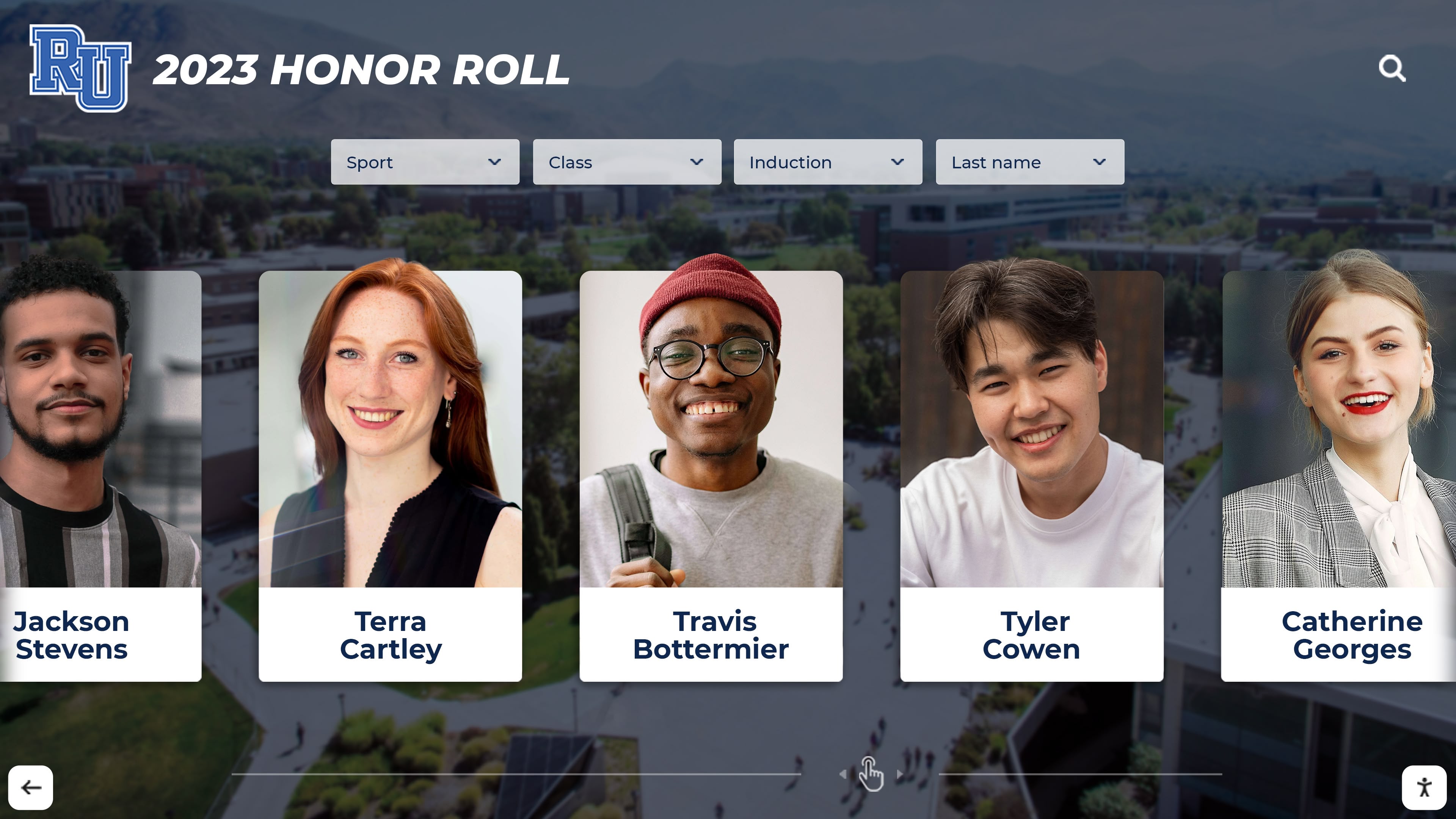
Recognition portrait cards follow consistent layout conventions that translate directly from print layouts to touchscreen display formats
Next Steps for Your School’s Recognition Program
A well-designed school newspaper template for recognition stories does double duty: it raises the visual quality of your publication and gives your school’s touchscreen display infrastructure a reliable, repeatable content source. Journalism students gain real-world design and production skills; honored students receive durable, multi-channel coverage; and the school community sees recognition content that reflects the quality of its programs.
For schools looking to expand recognition capabilities beyond what a newspaper template alone can deliver — building searchable archives, enabling QR code access on phones, or connecting print coverage to interactive kiosk profiles — dedicated touchscreen recognition platforms provide infrastructure designed specifically for this purpose. Rocket Alumni Solutions is one platform that schools use to build interactive digital recognition displays in lobbies and hallways, with content management tools that can accept graphics produced by journalism programs following dual-format templates like those described in this guide.
Related reading for journalism advisors and school communications staff:
- Hallway display design ideas for schools — ideas for integrating recognition content into physical school spaces
- How schools recognize academic achievement on digital displays — honor roll recognition best practices
- Digitizing school archives for display use — bringing historical recognition content into modern displays