Schools, nonprofits, and organizations investing in interactive touchscreen displays face an increasingly important question: will these systems serve all community members regardless of abilities? In 2026, digital accessibility represents both a legal requirement and a fundamental commitment to inclusive design that welcomes every visitor.
WCAG 2.2 AA accessibility compliance ensures touchscreen recognition displays, interactive kiosks, and digital donor walls function effectively for people with visual impairments, mobility limitations, hearing disabilities, cognitive differences, and other access needs. These standards establish clear technical requirements for contrast ratios, text sizing, keyboard navigation, screen reader compatibility, and alternative interaction methods that make digital content genuinely usable rather than merely visible.
Organizations implementing accessible touchscreen displays benefit beyond compliance. Inclusive design improves usability for everyone—older visitors appreciate larger text options, parents with strollers value accessible mounting heights, and all users benefit from clear navigation patterns and logical content organization. Communities with accessible digital displays demonstrate authentic welcome and inclusion rather than merely meeting minimum legal standards.
This comprehensive guide explores WCAG 2.2 AA accessibility for touchscreen displays in 2026, examining what the standards require, why compliance matters legally and ethically, how organizations achieve accessible implementations, and the broader benefits that inclusive design creates for entire communities.
Digital accessibility affects real people trying to engage with institutional content. When a blind donor cannot use screen readers to explore recognition displays, when a wheelchair user cannot reach touchscreen controls, or when someone with limited dexterity struggles with small buttons, these barriers communicate exclusion. Accessible design removes these obstacles, ensuring touchscreen displays welcome and serve all community members equally.
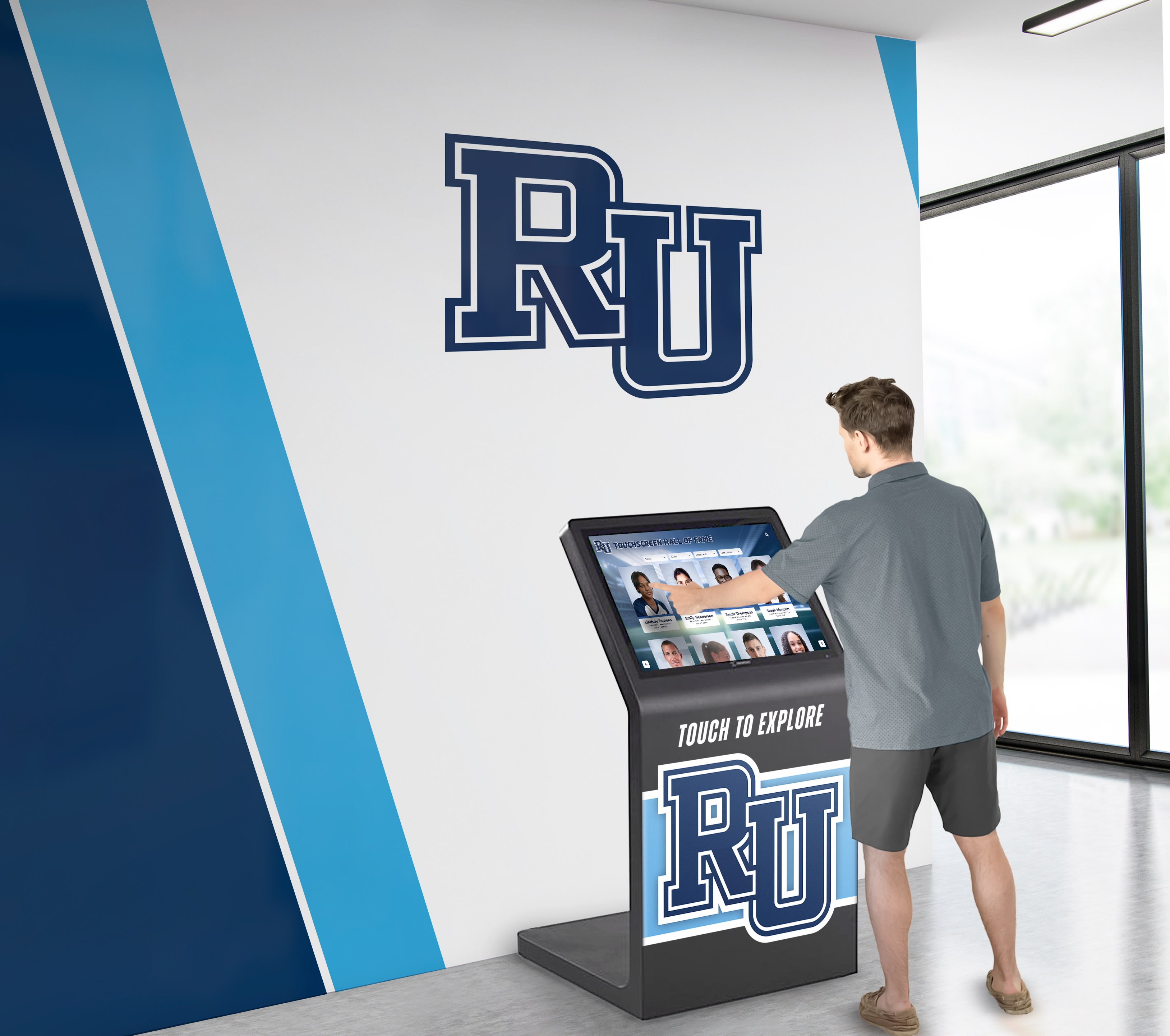
Accessible touchscreen displays serve all community members through inclusive design and WCAG compliance
Understanding WCAG 2.2 AA Accessibility Standards
Before exploring touchscreen-specific requirements, understanding the foundation of digital accessibility helps organizations make informed implementation decisions.
What Is WCAG 2.2?
WCAG stands for Web Content Accessibility Guidelines, technical standards developed by the World Wide Web Consortium (W3C) Web Accessibility Initiative. Version 2.2, published in October 2023, represents the most current accessibility guidance addressing modern technologies and user needs.
WCAG 2.2 builds on previous versions (2.0 and 2.1) with backward compatibility—content meeting 2.2 standards automatically satisfies earlier versions. The guidelines include 86 testable success criteria organized under four foundational principles:
Perceivable Information and user interface components must be presentable to users in ways they can perceive. This means content cannot be invisible to all senses—users must be able to see, hear, or otherwise detect content regardless of disabilities.
Operable User interface components and navigation must be operable. Users must be able to control interface elements through various input methods including keyboards, voice commands, switches, or assistive technologies beyond standard touch or mouse interaction.
Understandable Information and user interface operation must be understandable. Content should be readable and predictable, with clear navigation and input assistance that helps users avoid and correct mistakes.
Robust Content must be robust enough to work reliably with current and future assistive technologies. This requires clean code following established standards that screen readers, magnifiers, and other adaptive tools can interpret correctly.
What Does “Level AA” Mean?
WCAG defines three conformance levels representing increasing degrees of accessibility:
Level A (Minimum) The most basic accessibility features. Content meeting only Level A remains difficult for many people with disabilities to use. Organizations rarely aim for Level A alone as it provides inadequate accessibility.
Level AA (Standard) The recommended accessibility target balancing comprehensive access with realistic implementation. Level AA addresses the most common and significant barriers affecting people with disabilities. Most accessibility laws and policies worldwide reference WCAG 2.1 or 2.2 Level AA as the compliance standard.
Level AAA (Enhanced) The highest level of accessibility. While ideal, Level AAA includes requirements impractical or impossible for some content types. Organizations typically pursue Level AAA selectively for specific high-priority content rather than site-wide.
For touchscreen displays in schools and organizations, WCAG 2.2 Level AA represents the appropriate accessibility target—comprehensive enough to serve diverse communities while remaining achievable within reasonable budgets and technical constraints.
Organizations implementing interactive touchscreen displays in educational settings must prioritize accessibility from initial planning rather than treating compliance as an afterthought.
Legal Requirements and Compliance Deadlines
Accessibility represents both ethical commitment and legal obligation for many organizations:
Americans with Disabilities Act (ADA) The 2024 U.S. Department of Justice final rule establishes explicit requirements for state and local government digital content. Public entities with populations of 50,000 or more must comply with WCAG 2.1 Level AA by April 24, 2026. Smaller jurisdictions face an April 26, 2027 deadline.
While private schools and nonprofits fall outside this specific regulation, ADA Title III requirements apply to places of public accommodation. Courts increasingly interpret this to include digital content and interactive kiosks accessible to the public, making accessibility compliance a prudent legal strategy for all organizations regardless of federal mandate timing.
Section 508 Federal agencies and organizations receiving federal funding must meet Section 508 standards, which reference WCAG 2.0 Level AA. Updated guidance increasingly references WCAG 2.1 and 2.2 as technology evolves.
State and Local Laws Many states maintain accessibility laws exceeding federal minimums. California’s Unruh Civil Rights Act, New York’s state accessibility requirements, and numerous other jurisdictions establish specific digital accessibility mandates affecting schools, nonprofits, and private organizations operating within their borders.
International Standards Organizations serving global audiences should note that European Union EN 301 549, Canadian accessibility legislation, and accessibility laws in numerous other countries all reference WCAG Level AA as the compliance standard.
The trend is clear: WCAG 2.1/2.2 Level AA accessibility represents the emerging universal standard for digital content, including interactive touchscreen displays in public and institutional settings. Organizations planning touchscreen installations should build accessibility into core requirements rather than pursuing compliance retrofits later.

WCAG-compliant displays enable independent information access for visitors with diverse abilities
Why WCAG 2.2 AA Matters for Touchscreen Displays
Accessibility standards written primarily for websites apply equally to interactive touchscreen kiosks, digital recognition displays, and other touch-enabled installations in physical spaces.
Serving All Community Members Equitably
Schools and organizations serve diverse populations including people with disabilities. Inaccessible touchscreen displays create barriers that exclude significant community segments:
Visual Impairments Approximately 12 million Americans age 40 and older experience vision impairment, including 3 million with vision impairment after correction and 8 million with uncorrected visual impairment. This includes blindness, low vision, color blindness, and age-related vision changes.
Accessible touchscreen displays accommodate visual disabilities through screen reader compatibility, adjustable text sizing, sufficient contrast ratios, and alternative access methods like QR codes enabling smartphone access where assistive technologies already function.
Mobility Limitations Physical disabilities affecting arm reach, hand dexterity, or coordination impact touchscreen usability. Accessible implementations ensure appropriate mounting heights, large enough touch targets, alternatives to complex gestures requiring precise control, and keyboard navigation options for users with limited hand function.
Hearing Disabilities While less obviously relevant to visual displays, audio content and video presentations on touchscreens require captions and transcripts for deaf and hard-of-hearing users. Accessible design ensures multimedia content communicates effectively across all sensory modalities.
Cognitive Disabilities Clear navigation, consistent interfaces, plain language, and logical organization benefit users with cognitive disabilities, learning differences, and processing challenges. Accessible touchscreen design prioritizes intuitive interaction patterns requiring minimal instruction.
Organizations implementing digital hall of fame solutions for student recognition demonstrate authentic inclusivity by ensuring all community members can explore achievements and institutional history independently.
Legal Risk Mitigation
ADA lawsuits targeting inaccessible digital content increased dramatically in recent years. While website accessibility litigation receives most attention, physical interactive kiosks in public spaces face similar legal exposure.
Litigation Trends Annual ADA digital accessibility lawsuits topped 4,000 in recent years, with settlements frequently reaching $50,000-$100,000 plus ongoing monitoring costs and attorney fees. Organizations with inaccessible touchscreens in lobbies, atriums, and public spaces face similar risk as those with inaccessible websites.
Complaint-Based Enforcement Even absent litigation, disability rights complaints to the Department of Justice, state attorneys general, or civil rights offices trigger investigations requiring compliance documentation and potentially expensive remediation of inaccessible systems.
Proactive Compliance Building accessibility into initial touchscreen implementations costs far less than retrofitting compliance after installation or defending accessibility lawsuits. WCAG 2.2 AA compliance represents practical risk management protecting institutional resources and reputation.
Universal Design Benefits
Accessible design improves usability for everyone, not just people with disabilities:
Older Adults Aging affects vision, hearing, dexterity, and cognitive processing. Accessible touchscreens with adjustable text, high contrast, clear navigation, and intuitive interfaces serve older community members who represent significant institutional constituencies—alumni, donors, grandparents, and senior volunteers.
Temporary Limitations Broken arms, concussions, eye strain, and other temporary conditions affect touchscreen usability. Accessible design accommodates these situations through flexible interaction methods and robust interface options.
Environmental Factors Bright sunlight creates visibility challenges for any user. Noisy environments make audio content difficult to hear. Accessible design addressing these universal challenges benefits entire communities.
Mobile Device Integration QR codes enabling smartphone access to touchscreen content serve users preferring personal devices while simultaneously providing accessible alternatives for users with disabilities. This convergence of accessibility and convenience demonstrates how inclusive design creates broader value.
Schools implementing academic recognition programs through digital displays ensure all students and families can celebrate achievements when accessibility is built into core design.
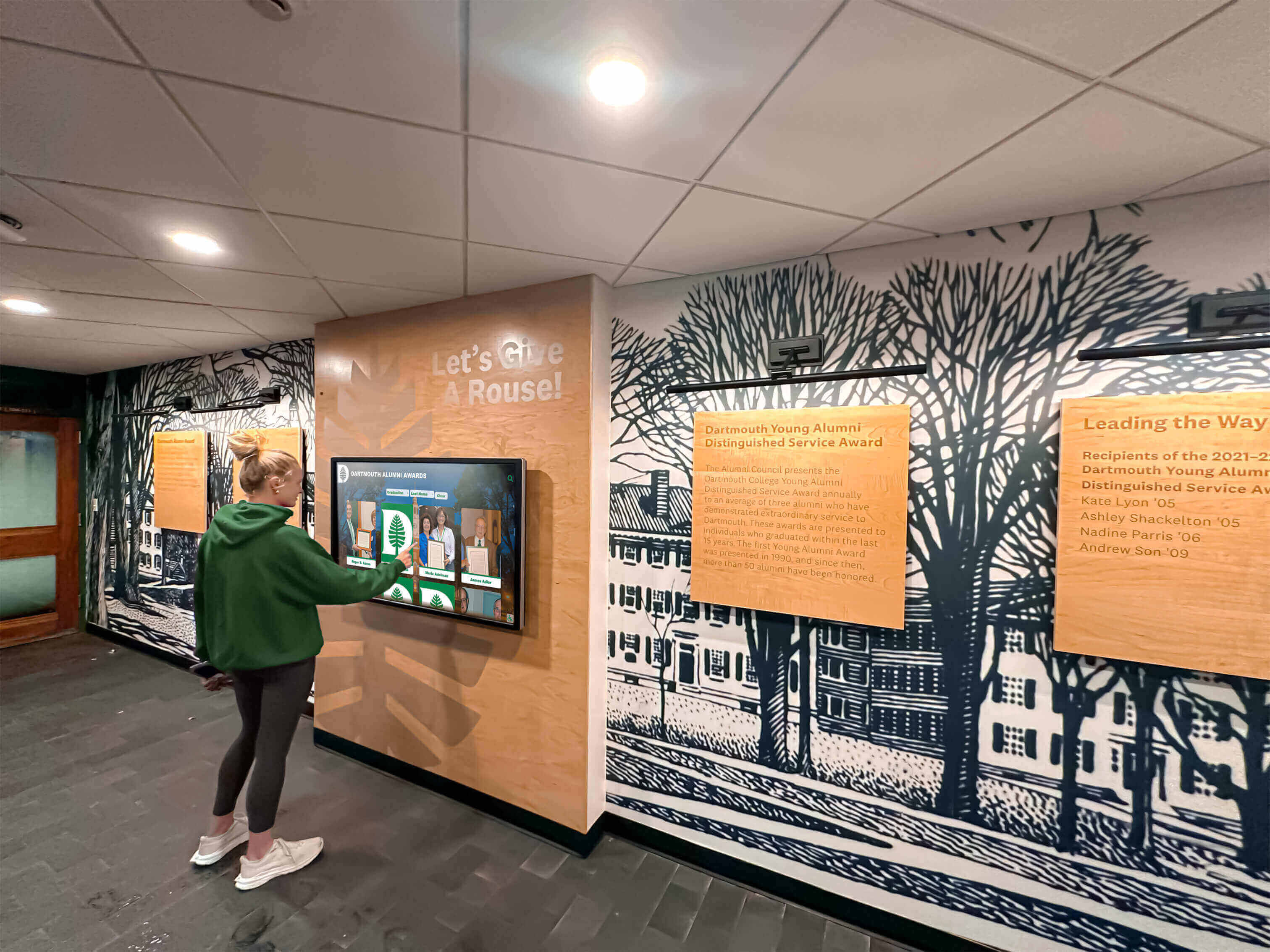
Accessible interfaces enable all students and visitors to engage independently with institutional content
WCAG 2.2 AA Requirements for Touchscreen Displays
Specific WCAG success criteria directly affect touchscreen display design, content, and interaction patterns. Understanding these requirements helps organizations evaluate vendor solutions and ensure compliance.
Perceivable Requirements
Content must be presentable to users in ways they can perceive through available senses and assistive technologies.
Text Alternatives (1.1.1 - Level A) All non-text content must have text alternatives. For touchscreens, this means:
- Alternative text descriptions for images, graphics, and icons
- Text equivalents for charts, diagrams, and data visualizations
- Descriptive labels for buttons and interactive elements
- Transcripts for audio-only content
- Audio descriptions or text alternatives for video content
Time-Based Media (1.2 - Level A and AA) Multimedia content requires specific accommodations:
- Captions for all video content with dialogue or important audio
- Audio descriptions for video content where visual information is essential to understanding
- Sign language interpretation for video content (Level AAA, not required for AA)
- Media alternatives providing equivalent information in accessible formats
Adaptable Content (1.3 - Level A and AA) Information and structure must be presented in different ways without losing meaning:
- Logical content order maintained in code and presentation
- Proper heading hierarchies organizing content semantically
- Form labels explicitly associated with input fields
- Content relationships conveyed through markup not just visual formatting
Distinguishable Content (1.4 - Level AA) Users must be able to see and hear content including separating foreground from background:
- Color contrast minimum 4.5:1 for normal text and 3:1 for large text
- Color not used as sole method of conveying information
- Text resizable up to 200% without loss of content or functionality
- Images of text avoided except logos and essential images
- Audio control for any audio playing automatically
Organizations implementing donor recognition displays for nonprofits must ensure biographical content, images, and multimedia elements all meet these perceivable requirements.
Operable Requirements
User interface components and navigation must be operable through various input methods.
Keyboard Accessible (2.1 - Level A) All functionality must be operable through keyboard interface:
- Complete keyboard navigation without requiring specific timings
- No keyboard traps where users cannot navigate away
- Keyboard shortcuts that don’t interfere with assistive technologies
- Character key shortcuts can be turned off, remapped, or only active when component has focus
For touchscreens, this often means providing alternative access through QR codes to mobile-optimized content where users’ assistive technologies already function, or implementing external keyboard connectivity for users who cannot use touch interfaces.
Enough Time (2.2 - Level A and AA) Users need adequate time to read and use content:
- No time limits on content reading or interaction, or adjustable timing
- Pause, stop, or hide moving, blinking, or auto-updating content
- Re-authentication does not cause data loss
Touchscreen attract loops and auto-advancing content must accommodate users needing more time through pause controls or complete navigation autonomy.
Seizures and Physical Reactions (2.3 - Level A and AA) Content must not trigger seizures or physical reactions:
- Nothing flashes more than three times per second
- Motion animation triggered by interaction can be disabled (2.2 success criterion)
Touchscreen video content, animations, and transitions must meet these requirements to avoid harming users with photosensitivity or vestibular disorders.
Navigable (2.4 - Level A and AA) Users must be able to navigate, find content, and determine location:
- Multiple ways to locate pages within a site (search, map, index)
- Descriptive page titles identifying purpose and context
- Logical focus order preserving meaning and operability
- Link purpose clear from link text alone or from context
- Multiple ways to find pages in a set
- Headings and labels describe topic or purpose
- Keyboard focus visible when interface receives focus
For touchscreen applications, clear navigation hierarchies, breadcrumb trails, home buttons, and obvious current location indicators meet these requirements.
Input Modalities (2.5 - Level A and AA) Functionality must be easier to operate through various inputs beyond touch:
- All functionality available via pointer also available via keyboard
- Pointer cancellation allowing users to abort accidental activations
- Labels in name matching visible text of buttons and controls
- Motion actuation for device motion or user motion can be disabled
- Target size minimum 44x44 CSS pixels (about 0.5 inches) for touch targets
This final requirement directly affects touchscreen button sizing and spacing. WCAG-compliant touchscreens provide sufficiently large, well-spaced interactive elements that users can activate reliably without error.
Organizations implementing interactive kiosk solutions for campus engagement must ensure intuitive navigation and appropriate touch target sizing for users with varied abilities.
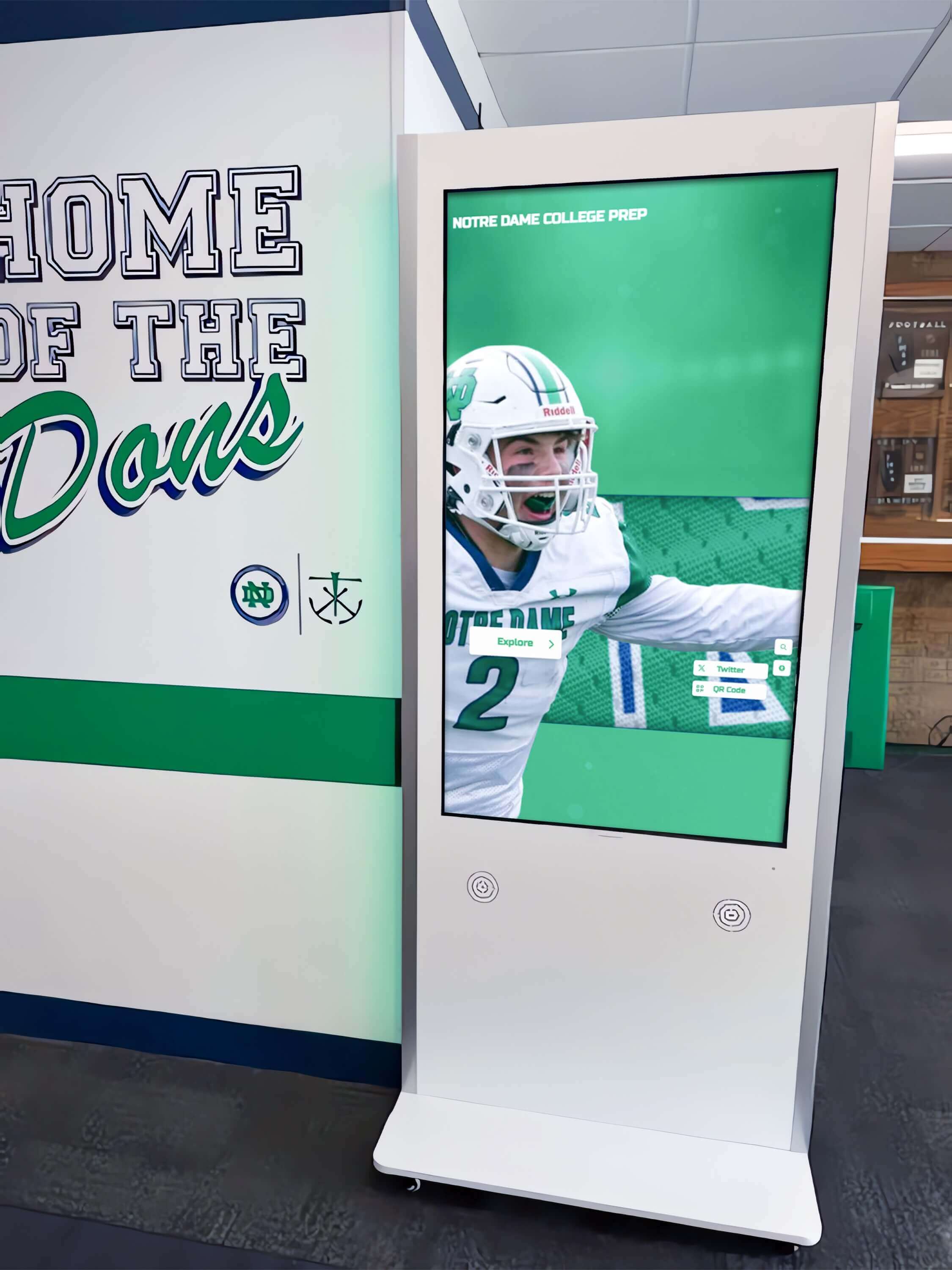
Proper touch target sizing and clear navigation make touchscreen displays usable for people with limited dexterity
Understandable Requirements
Information and operation of user interface must be understandable to diverse users.
Readable (3.1 - Level A and AA) Text content must be readable and understandable:
- Language of page identified in code
- Language of passages identified when content switches languages
- Unusual words, jargon, and abbreviations explained
- Reading level appropriate for audience (Level AAA, not required for AA)
For touchscreen biographical and informational content, this means clear writing at appropriate reading levels with technical terms explained when necessary.
Predictable (3.2 - Level A and AA) Web pages must appear and operate in predictable ways:
- Focus does not automatically change context
- Changing settings does not automatically change context unless user warned
- Navigation mechanisms consistent across pages
- Components with same functionality labeled consistently
Touchscreen interfaces should behave consistently—identical buttons should perform identical functions, navigation should remain in consistent locations, and interfaces should not surprise users with unexpected behaviors.
Input Assistance (3.3 - Level A and AA) Users must be helped to avoid and correct mistakes:
- Error identification when input errors detected
- Labels or instructions provided for user input
- Error suggestions provided when errors detected
- Error prevention for legal, financial, or data modification submissions
Touchscreen search functions, filtering interfaces, and any data collection forms must implement these error prevention and recovery features.
Robust Requirements
Content must be robust enough to work with current and future assistive technologies.
Compatible (4.1 - Level A and AA) Maximize compatibility with current and future user agents including assistive technologies:
- Valid HTML markup with complete tags and proper nesting
- Name, role, and value available for all user interface components
- Status messages available to assistive technologies without receiving focus
For touchscreen displays, this means properly structured content that screen readers can interpret when accessed via mobile QR codes, and potentially keyboard or switch access for users with physical disabilities.
Organizations implementing solutions like Rocket Alumni Solutions for accessible recognition displays benefit from purpose-built platforms where WCAG 2.2 AA compliance is engineered into core functionality rather than attempted through retrofitting.
Implementing WCAG 2.2 AA Accessible Touchscreens
Understanding requirements is only the first step. Successful accessible touchscreen implementations require systematic planning and execution addressing technology, content, and testing.
Accessible Hardware Selection
Physical touchscreen hardware must support accessible interaction:
Mounting Height and Reach ADA Standards for Accessible Design specify maximum reach ranges:
- Forward reach maximum: 48 inches from ground when unobstructed
- Side reach maximum: 48 inches from ground (54 inches when 10-inch maximum reach depth)
- Minimum unobstructed floor space: 30 x 48 inches for wheelchair approach
Touchscreen displays should mount with controls, buttons, and interactive areas within these reach ranges. For large displays, critical navigation elements and frequently-used controls should position lower while less-critical content can extend higher.
Display Characteristics Hardware specifications affecting accessibility:
- Anti-glare coatings reducing reflections in bright lighting
- High brightness (400-500 nits minimum) ensuring visibility
- Wide viewing angles accommodating various user positions and heights
- Matte finishes minimizing specular reflections
- Responsive touch technology requiring minimal pressure
Alternative Input Methods Truly accessible systems provide multiple interaction approaches:
- QR codes enabling smartphone access with users’ existing assistive technologies
- Companion web access for identical content via personal devices
- Potential keyboard connectivity for users unable to use touch interfaces
- Voice control options for hands-free operation (emerging capability)
Organizations planning touchscreen installations in educational environments must consider physical accessibility alongside software and content accessibility.
Accessible Software and Interface Design
Software platforms running on touchscreen hardware must implement WCAG requirements comprehensively:
Visual Design Requirements Interface design must meet perceivable standards:
- Text minimum 18pt (24px) for body content, larger for distance viewing
- Color contrast minimum 4.5:1 for normal text, 3:1 for large text (24px+)
- Interactive elements visually distinguished from static content
- Focus indicators visible when keyboard navigation used
- No information conveyed by color alone—always include text, icons, or patterns
Touch Target Specifications Interactive elements must accommodate varied dexterity:
- Minimum touch target size 44x44 pixels (approximately 0.5 inches)
- Adequate spacing between interactive elements preventing accidental activation
- Forgiving touch areas extending slightly beyond visible button boundaries
- Confirmation for destructive or irreversible actions
- Error recovery options for inadvertent selections
Navigation Architecture Logical, predictable navigation supports all users:
- Clear visual hierarchy indicating content importance
- Consistent navigation placement across all screens
- Breadcrumb trails showing current location in content structure
- Obvious “Home” or “Start Over” buttons accessible from anywhere
- Search functionality providing direct access to specific content
- Filtering options narrowing results systematically
Alternative Access Methods QR codes represent the most practical accessible alternative for touchscreens:
- QR code displayed prominently on screen or adjacent signage
- Mobile-optimized web content providing identical information
- Responsive design adapting to various device sizes
- Full keyboard navigation on mobile web version
- Screen reader compatibility through semantic HTML
- All multimedia content accessible with captions and descriptions
Purpose-built accessible touchscreen platforms like Rocket Alumni Solutions implement these requirements comprehensively, ensuring organizations achieve compliance without custom development or extensive retrofitting.

QR codes enable accessible smartphone access where users' assistive technologies already function effectively
Accessible Content Development
Software accessibility means little without accessible content:
Text Content Guidelines Written content must be understandable and screen-reader friendly:
- Plain language appropriate for audience
- Headings organizing content semantically (H1, H2, H3 hierarchy)
- Short paragraphs and sentences for easier comprehension
- Important information not buried in dense text blocks
- Technical terms explained on first use
- Active voice and clear subject-verb-object structure
Image Accessibility Visual content requires text alternatives:
- Descriptive alternative text for images conveying meaningful information
- Empty alt text (alt="") for purely decorative images
- Complex images supplemented with long descriptions
- Text alternatives describing data visualization and chart information
- Recognizable icons with text labels, not icons alone
Multimedia Accessibility Video and audio content must accommodate sensory disabilities:
- Captions for all spoken dialogue and important sounds
- Transcripts providing text version of audio content
- Audio descriptions narrating important visual information
- Player controls with accessible keyboard operation
- Volume controls and pause/play functionality clearly available
Biographical and Historical Content Recognition content should follow accessibility best practices:
- Consistent biographical format across all profiles
- Dates, locations, and facts clearly presented
- Photo captions identifying subjects
- Achievement descriptions providing context for significance
- Historical information organized chronologically
- Search-friendly text enabling keyword discovery
Organizations implementing digital memorial and tribute displays must ensure memorial content remains accessible so all community members can honor and remember honored individuals.
Accessibility Testing and Validation
Confirming WCAG compliance requires systematic testing:
Automated Testing Tools Software tools identify many accessibility issues:
- WAVE (Web Accessibility Evaluation Tool) for web-based content
- axe DevTools for component-level accessibility testing
- Color contrast analyzers verifying sufficient contrast ratios
- Markup validators checking HTML structure
- Lighthouse accessibility audits in Chrome DevTools
Automated tools catch approximately 30-40% of accessibility issues—essential but insufficient for comprehensive evaluation.
Manual Testing Procedures Human evaluation identifies problems automation misses:
- Keyboard-only navigation testing all functionality
- Screen reader testing with JAWS, NVDA, or VoiceOver
- Text resizing to 200% checking layout preservation
- Mobile device testing of QR code access
- Focus order verification for logical progression
- Color contrast verification in actual lighting conditions
- Touch target size measurement on physical hardware
User Testing with People with Disabilities The most reliable accessibility validation:
- Recruit testers representing diverse disabilities
- Observe real users attempting typical tasks
- Document barriers and usability challenges
- Prioritize issues based on frequency and severity
- Implement fixes and retest with same users
- Compensate accessibility testers appropriately for expertise
Organizations should budget 15-25 hours of accessibility testing per touchscreen implementation—more for complex applications with extensive content and multimedia elements.
Benefits of Accessible Touchscreen Displays Beyond Compliance
While legal compliance motivates many organizations, accessible design creates value extending far beyond avoiding lawsuits.
Broader Audience Reach
Accessible touchscreens serve more community members:
- People with disabilities who otherwise face barriers
- Older adults with age-related sensory and motor changes
- Non-native language speakers benefiting from clear, simple content
- People with temporary injuries or situational limitations
- Users in challenging environmental conditions
- Everyone benefiting from clear navigation and intuitive design
Research consistently demonstrates accessible design improves usability for all users, not just those with disabilities. This “curb cut effect” means accessibility investments benefit entire communities.
Enhanced Institutional Reputation
Accessible facilities communicate values:
- Authentic commitment to diversity, equity, and inclusion
- Thoughtful design considering all stakeholders
- Legal sophistication understanding regulatory requirements
- Technical excellence implementing modern standards
- Community leadership modeling best practices
Organizations with accessible touchscreen displays demonstrate that inclusion matters beyond policy statements—these institutions invest resources ensuring all community members participate fully.
Reduced Long-Term Costs
Accessibility built into initial implementations costs far less than retrofitting:
- Compliance issues identified during development, not post-launch
- No expensive remediation projects retrofitting accessibility
- Legal risk mitigation preventing costly settlements
- Future-proof design accommodating evolving assistive technologies
- Content standards preventing accessibility regressions
Organizations implementing platforms like Rocket Alumni Solutions with built-in WCAG 2.2 AA compliance avoid ongoing accessibility challenges through systematically accessible foundations.
Improved User Experience for Everyone
Accessible design principles benefit all users:
- Clear navigation reduces confusion
- High contrast improves readability
- Large touch targets reduce errors
- Logical organization helps information discovery
- Multiple access methods accommodate preferences
- Plain language improves comprehension
User experience and accessibility converge—practices making touchscreens accessible simultaneously make them more usable and enjoyable for everyone.
Educational institutions implementing comprehensive digital recognition for multiple programs ensure accessibility enables all students, families, and community members to celebrate achievements across athletics, academics, and activities.
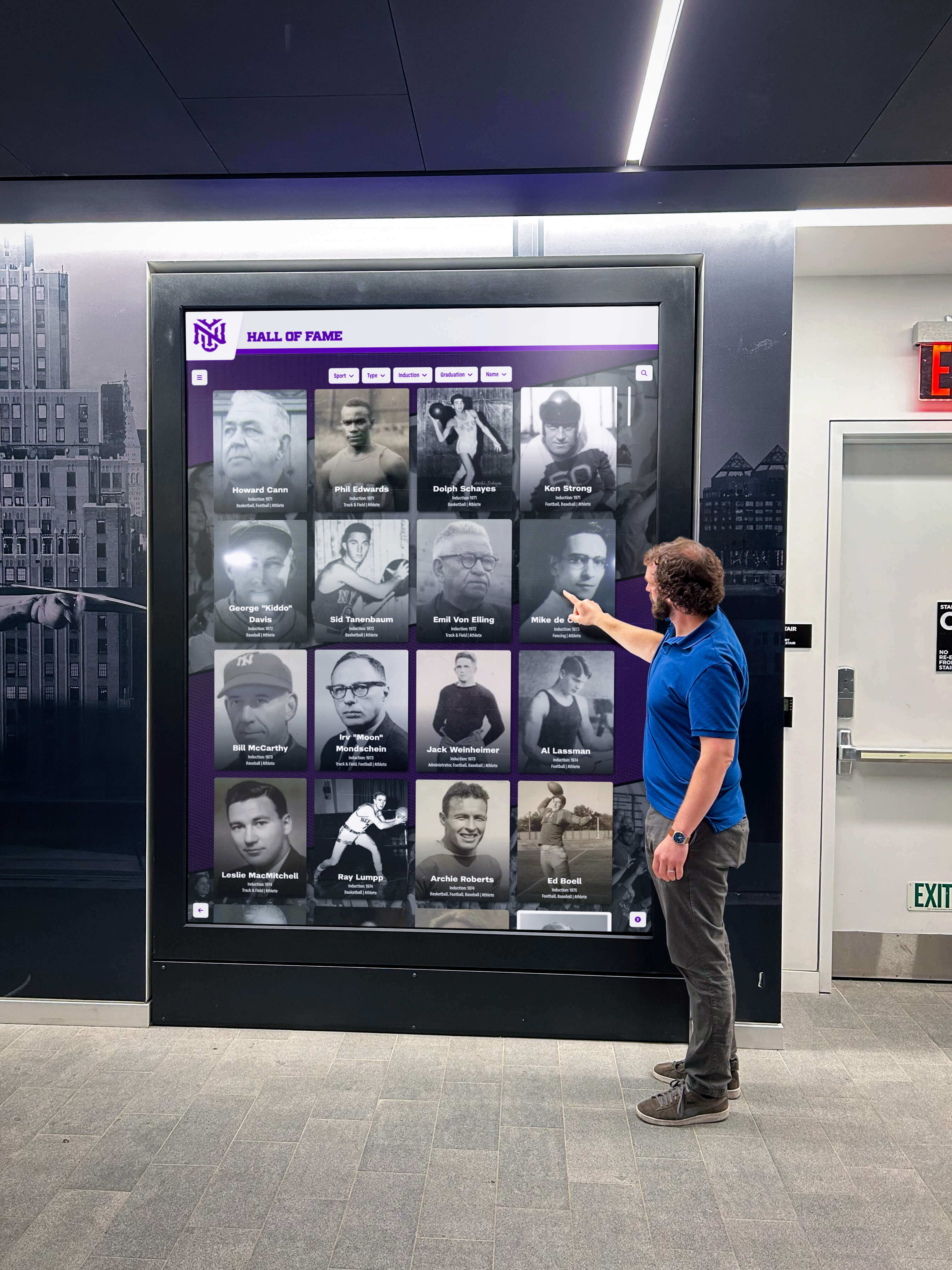
Accessible design serves diverse community members across ages, abilities, and technical experience
Common Accessibility Challenges and Solutions
Organizations implementing touchscreen displays frequently encounter specific accessibility obstacles. Understanding these challenges and proven solutions accelerates successful accessible implementations.
Challenge: Touchscreen-Only Interaction
Many touchscreen kiosks provide no alternative to touch interaction, creating insurmountable barriers for blind users and people with limited hand function.
Solution: QR Code Alternative Access Display QR codes on touchscreen attract loops and adjacent signage, directing users to mobile-optimized web versions of content. This approach leverages users’ existing assistive technologies—screen readers, voice control, switch access—already configured on personal smartphones and tablets.
QR codes simultaneously serve multiple accessibility needs while providing convenient access for all users preferring personal devices over public touchscreens.
Challenge: Insufficient Color Contrast
Touchscreen interfaces often use low-contrast color schemes that appear visually appealing but fail WCAG requirements, making content illegible for users with low vision or color blindness.
Solution: Contrast Testing and Correction Use color contrast analyzers during design to verify all text meets minimum 4.5:1 contrast ratios (or 3:1 for large text 24px+). When insufficient contrast exists, adjust text color, background color, or both until ratios meet standards. Design systems should establish pre-approved color combinations meeting contrast requirements, simplifying ongoing compliance.
Challenge: Small Touch Targets
Interface designs ported from desktop or mobile often include buttons and interactive elements smaller than the 44x44 pixel WCAG requirement, creating activation difficulties for users with limited dexterity, tremors, or large fingers.
Solution: Touch Target Standards and Spacing Establish minimum touch target size standards (0.5 inch/44 pixel minimum) during design phases. Ensure adequate spacing between interactive elements so users don’t accidentally activate adjacent buttons. Test touch interfaces on actual hardware at installation viewing distances and angles, not just on design workstations.
Challenge: Missing Alternative Text
Images, icons, and graphics without alternative text create information gaps for screen reader users accessing content via QR codes.
Solution: Alt Text Workflow and Review Implement content management workflows requiring alternative text for all uploaded images. Train content administrators on effective alt text writing—describe meaningful information concisely rather than simply stating “image” or “photo.” Review all biographical and recognition content ensuring proper alt text before publication.
Challenge: Auto-Advancing Content
Attract loops and slideshow content that automatically advances without user control create timing challenges for users with cognitive disabilities or slow reading speeds.
Solution: User-Controlled Navigation Provide pause controls for any auto-advancing content. Default to static attract loops inviting interaction rather than slideshows cycling through content. When carousels or slideshows are necessary, ensure manual navigation controls (previous/next buttons) and sufficient time for reading before auto-advancement.
Challenge: Complex Navigation Architecture
Over-complicated menu structures and deep content hierarchies confuse users, particularly those with cognitive disabilities or unfamiliarity with touchscreen technology.
Solution: Simplified, Tested Navigation Limit navigation depth to 3-4 levels maximum. Provide clear visual hierarchies and breadcrumb trails showing current location. Include prominent “Home” or “Start Over” buttons accessible from any location. Test navigation with diverse users including students, older adults, and people with cognitive disabilities. Refine based on observed confusion points.
Organizations selecting purpose-built touchscreen platforms for institutional recognition benefit from accessibility expertise built into software design and ongoing updates maintaining compliance as standards evolve.
Selecting Accessible Touchscreen Solutions
Choosing the right touchscreen platform significantly affects accessibility compliance ease and success. Not all vendors prioritize accessibility equally.
Questions to Ask Vendors
When evaluating touchscreen solutions, ask specific accessibility questions:
WCAG Compliance
- Does your solution comply with WCAG 2.2 Level AA standards?
- Have you conducted accessibility testing and audits? May we see results?
- Do you provide VPAT (Voluntary Product Accessibility Template) documentation?
- How do you handle accessibility updates as WCAG guidelines evolve?
- What accessibility expertise exists on your development team?
Alternative Access Methods
- What alternatives to touch interaction do you provide?
- Do you offer QR code access to mobile-optimized content?
- Is the mobile version fully accessible with screen readers?
- Can users access all touchscreen content via smartphones?
- How do you ensure parity between touchscreen and mobile experiences?
Design and Content Accessibility
- Do your templates meet color contrast requirements?
- What touch target sizes do your interfaces use?
- How do you handle alternative text for images?
- Do your video players support captions and transcripts?
- Is keyboard navigation supported for all functionality?
Testing and Validation
- What automated testing tools do you use?
- Do you conduct screen reader testing?
- Have users with disabilities tested your solutions?
- What user testing documentation can you provide?
- How do you handle accessibility issues discovered post-launch?
Support and Training
- What training do you provide on creating accessible content?
- How do you help administrators maintain accessibility?
- What ongoing support ensures continued compliance?
- Do you provide accessibility documentation and guidelines?
- What happens if accessibility issues arise after implementation?
Vendors with genuine accessibility commitments provide detailed, confident answers. Vague responses or dismissive attitudes signal accessibility challenges ahead.
Red Flags Indicating Accessibility Problems
Watch for warning signs during vendor evaluation:
- No mention of WCAG or accessibility in marketing materials
- Claims of “fully accessible” without documentation or specifics
- No VPAT available or refusal to provide accessibility documentation
- Flash, Java, or other outdated technologies requiring plugins
- No alternative to touch-only interaction
- Mobile version that differs significantly from touchscreen content
- Templates with low-contrast color schemes
- Small interactive elements and buttons
- No alt text fields in content management system
- No caption support for video content
- Automated web accessibility overlays as primary accessibility strategy
Organizations should prioritize vendors with demonstrated accessibility expertise, WCAG 2.2 AA compliance documentation, and accessible-by-default design rather than attempting to retrofit accessibility onto inaccessible platforms.
Purpose-Built Accessible Solutions
Platforms designed specifically for institutional recognition and digital displays often implement accessibility more comprehensively than general-purpose digital signage tools:
Rocket Alumni Solutions for Accessible Recognition Purpose-built for schools and organizations, Rocket Alumni Solutions engineers WCAG 2.2 AA compliance into core functionality:
- Template designs meeting color contrast requirements by default
- Touch target sizing appropriate for accessibility standards
- QR code mobile access providing screen reader compatibility
- Cloud-based content management with alt text workflows
- Proper HTML semantic structure supporting assistive technologies
- Responsive mobile design accommodating various devices
- Regular accessibility updates maintaining current standards
- Professional implementation support ensuring compliance
- Accessibility documentation and VPAT available
Organizations prioritizing accessibility should strongly consider purpose-built solutions over attempting to adapt general digital signage platforms to recognition applications.
Conclusion: Accessibility as Foundation for Inclusive Touchscreen Experiences
WCAG 2.2 AA accessibility compliance represents far more than legal obligation—it embodies fundamental commitment to serving all community members equitably through inclusive design that removes barriers rather than creating them.
Schools and organizations implementing accessible touchscreen displays in 2026 recognize that digital recognition, interactive kiosks, and institutional communication systems must welcome every visitor regardless of abilities. Blind donors deserve to explore recognition content through screen readers. Wheelchair users need touchscreen controls within reach. People with limited dexterity require sufficiently large buttons. Deaf visitors need captions for multimedia content. Everyone benefits from clear navigation, readable text, and intuitive interfaces.
Accessibility built into initial touchscreen implementations costs far less than retrofitting compliance later while simultaneously improving usability for all users. The convergence of accessibility and user experience means investments in WCAG compliance deliver value throughout communities—not just to people with disabilities, though serving them equitably matters most.
Organizations planning touchscreen installations should:
- Prioritize vendors with demonstrated WCAG 2.2 AA compliance
- Ensure QR code mobile access provides alternative to touch-only interaction
- Test accessibility with diverse users including people with disabilities
- Train content administrators on accessible content creation
- Establish ongoing accessibility maintenance and review processes
- Document accessibility commitments and compliance for accountability
The trend toward digital transformation in schools, nonprofits, and institutions creates unprecedented opportunities for engaging visitors through interactive technology. These same opportunities risk creating new barriers if accessibility remains afterthought rather than foundation.
2026 marks a pivotal moment as federal accessibility requirements take effect for many public entities and awareness spreads throughout educational and nonprofit sectors. Organizations implementing touchscreen displays this year and beyond should embrace accessibility as non-negotiable requirement—ensuring every community member can independently explore achievements, discover information, celebrate supporters, and connect with institutional history through genuinely welcoming, inclusive digital experiences.
Your touchscreen displays represent your institution’s values. Accessible implementations demonstrate authentic commitment to welcoming all community members. Inaccessible displays communicate—unintentionally but clearly—that some people matter less than others. The choice is clear: build accessibility into every digital installation from the start, ensuring touchscreens serve all visitors equally while complying with both legal requirements and moral imperatives for genuine inclusion.
Ready to explore WCAG 2.2 AA accessible touchscreen solutions for your school or organization? Discover purpose-built platforms designed for accessibility compliance with comprehensive support ensuring your digital recognition displays serve all community members through genuinely inclusive design.
Sources:
- 2026 WCAG & ADA Website Compliance Requirements & Standards
- WCAG 2 Overview | Web Accessibility Initiative (WAI) | W3C
- ADA Title II Digital Accessibility 2026: WCAG 2.1 AA - SDET Tech
- WCAG 2.2: What You Need to Know in 2026 - accessiBe
- State and Local Governments: First Steps Toward Complying with the Americans with Disabilities Act Title II Web and Mobile Application Accessibility Rule | ADA.gov