A recognition touchscreen content visibility test helps school athletic directors, recognition program administrators, and IT staff understand whether the CSS property content-visibility: auto can reduce the browser’s rendering work on a scrollable hall-of-fame portrait gallery — and whether that optimization creates any gaps in find-in-page search, keyboard navigation, or assistive technology access that would prevent visitors from reaching any honored athlete’s profile.
School athletic halls of fame grow over decades. A program that began with twenty inductees may now hold three hundred. When a recognition touchscreen displays all of those profiles as a single scrollable gallery — portrait cards stacked in sections by sport, decade, or graduation year — the browser must lay out and render every section at page load, regardless of whether the visitor ever scrolls to see them. On a dedicated kiosk device with modest computing hardware, that front-loaded rendering work can affect initial page display and scroll responsiveness. The content-visibility: auto property instructs supporting browsers to defer layout and rendering for off-screen sections until the visitor scrolls close enough to need them.
This test procedure verifies that behavior, documents what does and does not change for off-screen profiles, and establishes acceptance criteria an athletic program can apply before a content-visibility configuration change goes live on a recognition touchscreen.
If your hall-of-fame gallery runs on a web-based recognition platform and you want to know whether content-visibility: auto is appropriate for your portrait sections, here is the direct answer: the property reduces browser rendering work for off-screen content in browsers that support it, does not affect how quickly portrait images load over the network, does not remove profiles from the page, and requires explicit testing to confirm that off-screen athlete profiles remain reachable by keyboard users and screen readers. Run the steps in this guide on your actual kiosk hardware before applying any content-visibility change to a live display.
This test is distinct from LCP fetch-priority optimization, which addresses how quickly the browser requests above-the-fold images. It is also separate from the physical preservation work — including climate management for mounted portrait displays — described in resources like Trophy Case Humidity Control: Protect School Awards, Photos, Jerseys, and Documents.

A long hall-of-fame gallery presents every portrait section to the browser at load time — content-visibility:auto defers rendering work for sections the visitor has not yet scrolled near, without removing those profiles from the page
Three Mechanisms That Affect Gallery Rendering — and Why They Are Not Interchangeable
Before running a recognition touchscreen content visibility test, it is worth distinguishing content-visibility: auto from two related-sounding mechanisms that athletic recognition program staff sometimes conflate with it. Each mechanism targets a different bottleneck.
1. CSS content-visibility: auto (Rendering Work Deferral)
content-visibility: auto instructs the browser to skip layout, style recalculation, and paint for any portrait section that is not near the viewport. The profiles remain in the HTML document; the browser simply does not perform the visual calculation work until the section is close enough to matter. As described in the MDN CSS content-visibility reference, the property applies layout and style containment automatically when an element is skipped, which means the section’s children do not participate in layout calculations that could affect other parts of the page. This is a browser rendering optimization, not a network optimization and not a DOM manipulation.
2. Image Lazy Loading (Network Request Deferral)
The loading="lazy" attribute on an <img> element tells the browser to delay the network request for that image until the image is near the viewport. Lazy loading reduces the number of network connections opened at page load and reduces how much data is transferred before the visitor sees the first portrait. It does not reduce rendering work for the surrounding portrait section — the browser still lays out the containing elements even if the image itself has not loaded yet. In a long athletic portrait gallery, lazy loading and content-visibility: auto address different bottlenecks and can be used together.
3. DOM Virtualization (Node Removal)
Virtualization frameworks remove portrait nodes from the DOM entirely when they are far outside the viewport and recreate them as the visitor scrolls near them. This approach most aggressively reduces the browser’s DOM size and rendering cost, but it breaks browser find-in-page for any profile not currently in the DOM, and it can complicate screen reader access because profiles outside the current virtual window do not exist in the document tree. For school athletic halls of fame where community members specifically search for a particular inductee by name, browser find-in-page reliability is a meaningful requirement. Virtualization is a different tradeoff from content-visibility: auto, not an equivalent alternative.
Understanding which mechanism you are configuring prevents misdiagnosis when a test result is unexpected.
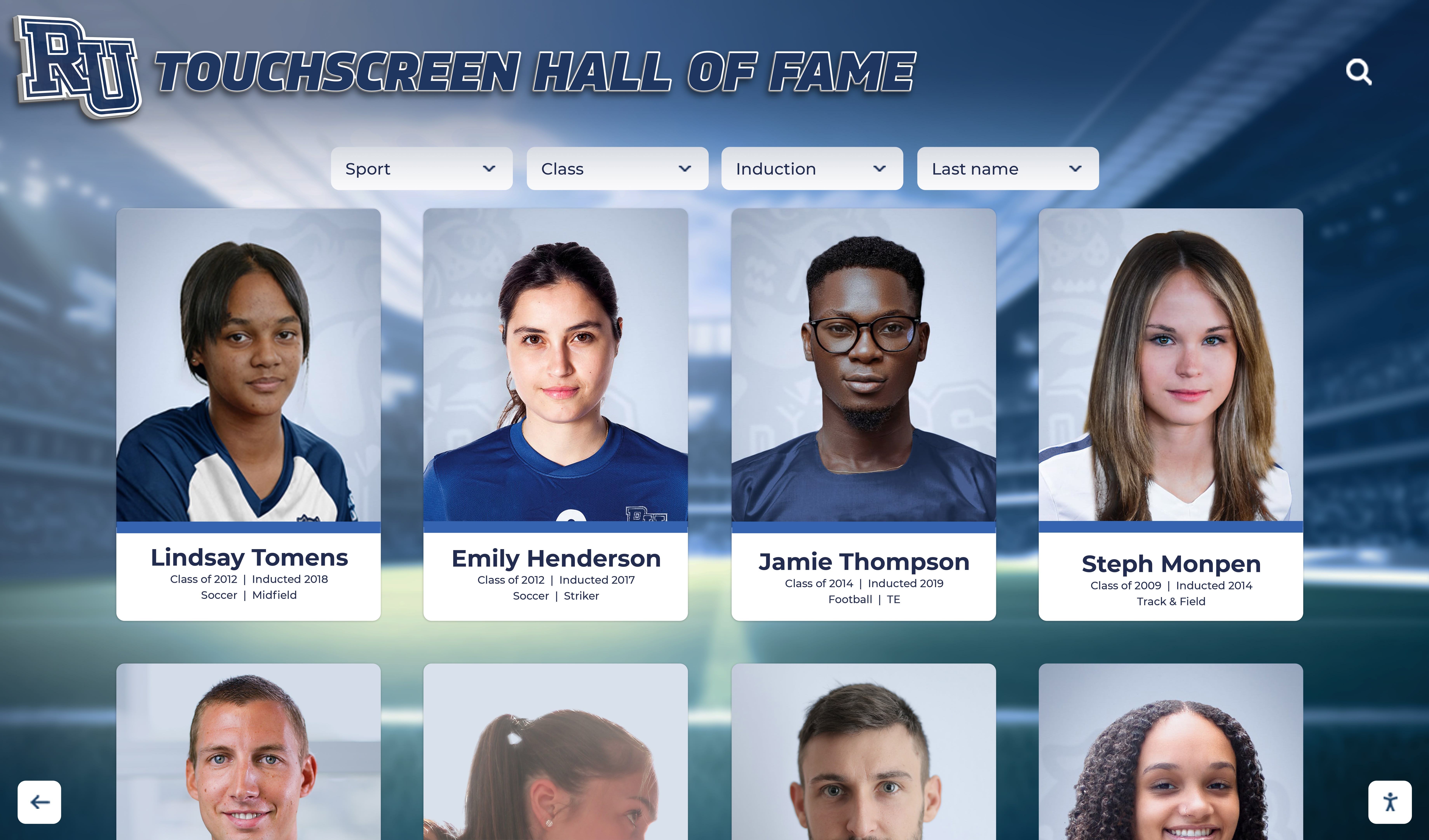
Portrait card galleries organized by sport or year can contain dozens of individual sections — testing rendering deferral confirms that optimization does not affect the experience of visitors navigating to any specific inductee's profile
Preparing the Gallery HTML for the Test
Before running measurements, apply content-visibility: auto at the portrait-section level — not at the individual card level. Each distinct scrollable section of the gallery (for example, each sport’s group of inductees, or each graduating class) should be its own element receiving the property. Applying it to individual cards rather than sections reduces the practical benefit, because the browser must still process a large number of small elements instead of a smaller number of grouped sections.
A minimal CSS addition looks like this:
.portrait-section {
  content-visibility: auto;
  contain-intrinsic-size: auto 800px;
}
The contain-intrinsic-size value is addressed in a dedicated section below. Apply the CSS change in a test environment or a development copy of the recognition gallery before touching any production display.
Run the full test procedure twice: once against the baseline gallery without the property, and once with it applied. Recording measurements from both states lets IT staff and athletic directors evaluate whether the change produces a meaningful improvement on the specific kiosk hardware in use, rather than relying on assumptions based on general benchmarks.
Recognition Touchscreen Content-Visibility Test: Step-by-Step Procedure
The following steps apply to a web-based hall-of-fame portrait gallery running in a Chromium-based browser, which is the most common kiosk browser environment for school recognition displays. For other browsers, note variations in step 6.
1. Record the baseline hardware and browser version. Open the browser’s developer tools on the kiosk device (or on a representative device with equivalent hardware). Note the browser name, version, and the device’s CPU model and available RAM. Content-visibility effects are hardware-dependent; the same CSS may produce a measurable improvement on a low-spec media player and a negligible one on a high-spec workstation. Recording this context ensures that test results are interpreted relative to the actual deployment environment.
2. Load the gallery without content-visibility and open the Performance panel.
With the baseline gallery loaded (no content-visibility: auto applied), open the browser DevTools Performance panel. Click the record button, scroll slowly from the top of the gallery to the bottom at a pace that approximates a visitor’s browsing speed, then stop recording. Note the total scripting, rendering, and painting time in the summary. Screenshot or export the trace.
3. Apply content-visibility:auto and repeat the Performance panel recording.
Switch to the test version of the gallery with content-visibility: auto applied to each portrait section. Repeat the same slow-scroll recording. Compare the rendering and painting time figures from step 2 to these new figures. Note whether the initial page load trace shows a reduction in work before the first scroll event — this is the early rendering deferral effect described in the MDN content-visibility reference. Do not treat any percentage change in these figures as a guaranteed outcome for production use; the numbers are specific to the test device and gallery size.
4. Test browser find-in-page against off-screen athlete profiles.
With the gallery loaded at the top of the page, use the browser’s built-in find-in-page function (Ctrl+F or Cmd+F) to search for the last name of an inductee whose portrait section is well below the current viewport — an athlete who would not be visible unless the visitor scrolled at least halfway through the gallery. A correctly behaving browser should scroll to that athlete’s section and highlight the matching text, even though the section was in the skipped rendering state. Record whether find-in-page locates the athlete. If it does not, content-visibility: auto is not compatible with this gallery’s find-in-page requirement in the tested browser version, and the change should not be deployed on that browser.
5. Test keyboard focus traversal into off-screen sections. Starting at the top of the gallery, tab through focusable elements — links within portrait cards, interactive buttons, or named anchor targets — without using the mouse. Continue tabbing past the visible sections and into sections that were in the skipped rendering state. Verify that focus moves into those sections, that the browser scrolls them into view as focus arrives, and that no portrait section is silently skipped in the tab order. A portrait section that receives focus while in the skipped state must be rendered and revealed by the browser; confirm this happens for sections at multiple scroll depths in the gallery.
6. Test assistive technology access to off-screen profiles.
Connect or enable a screen reader (NVDA, JAWS, or VoiceOver depending on the kiosk OS). Navigate the gallery using the screen reader’s virtual cursor or heading navigation. Move past the visible sections and into sections that would be in the skipped rendering state in a sighted browser session. Confirm the screen reader announces athlete names, sports, and recognition details from sections at every scroll depth — not only from sections currently in or near the viewport. Record which profiles are announced and which, if any, are not reachable. As noted in the MDN content-visibility reference, content-visibility: auto differs from content-visibility: hidden in that it is designed to allow access tools to reach off-screen content; however, real-world behavior depends on the browser and assistive technology version in use. Test explicitly — do not assume that support is complete. Meaningful athlete profiles must not be hidden from the accessibility tree in the production configuration.
7. Compare scroll performance between baseline and test versions.
With both versions loaded on the kiosk device, scroll from top to bottom of each at the same pace. Note any visible difference in frame smoothness, particularly when entering sections that were previously off-screen. Jank or hesitation as off-screen sections are rendered on demand can occur if individual portrait sections contain many high-resolution images or complex layout; if this happens, reducing the section size (splitting a large section into smaller groups) or adjusting contain-intrinsic-size may reduce the symptom.
8. Document results for each test step and both states. Record the baseline and test-version results for steps 2 through 7 in the acceptance table in the next section.
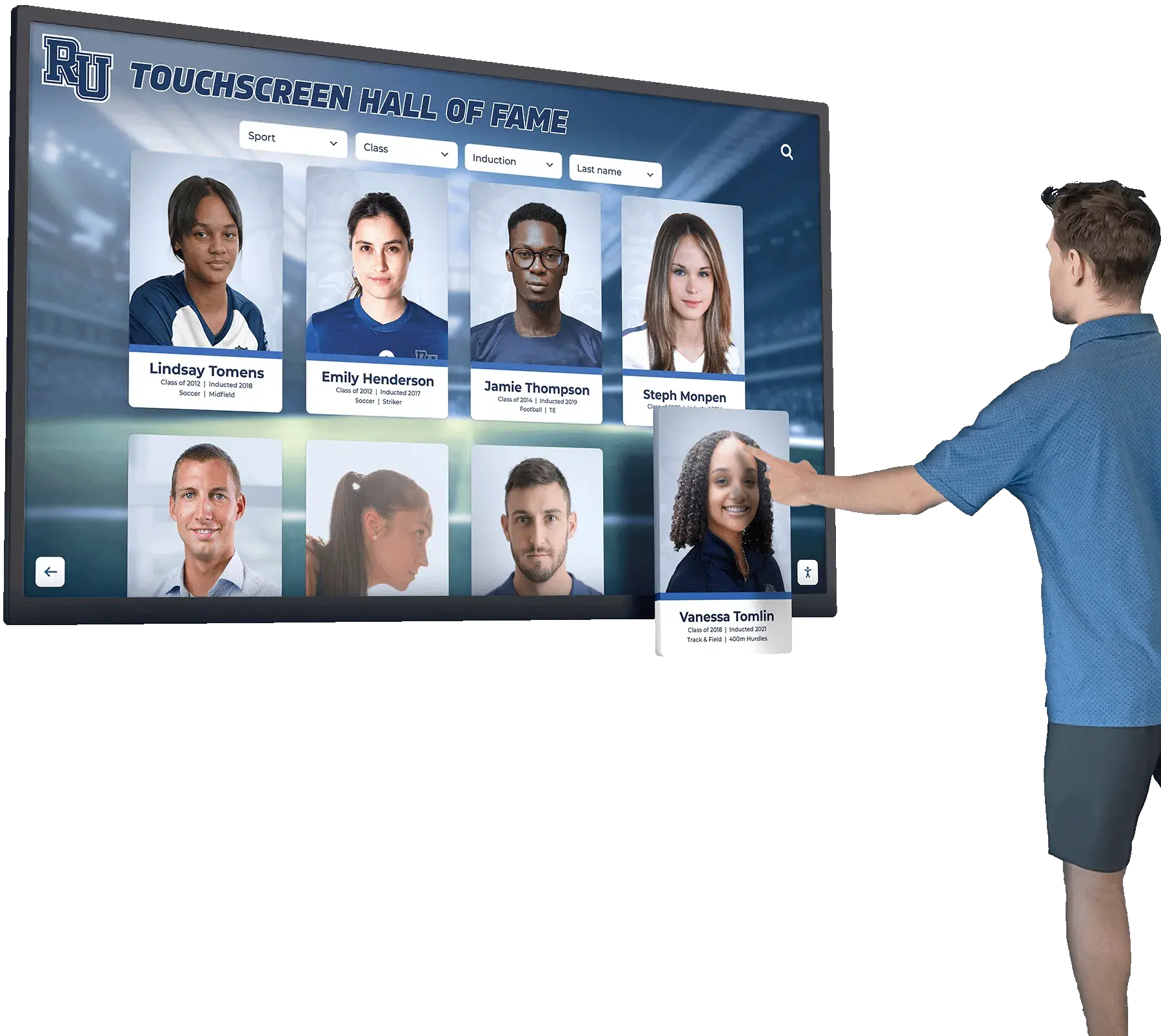
Every athlete profile in the gallery must remain reachable via keyboard and assistive technology regardless of scroll position — testing this explicitly, rather than assuming it from CSS property documentation, is part of a responsible content-visibility deployment
Find-in-Page, Keyboard Focus, and Assistive Technology: What Changes and What Does Not
These three access paths behave differently from what sighted, mouse-driven browsing shows, and all three require separate verification.
Find-in-page. In current versions of Chromium-based browsers, the find-in-page function searches the entire document text, including text in elements that have content-visibility: auto applied and are currently in the skipped rendering state. When a match is found in a skipped section, the browser reveals that section before highlighting the result. This means an inductee searched by name should be locatable regardless of where in the gallery their portrait section falls. However, this behavior is a browser-level implementation detail that may not apply in all browser versions or environments. Always verify it on the specific browser version running on the kiosk.
Keyboard focus. Keyboard focus management is well-specified for content-visibility: auto. When focus moves to an element inside a skipped section — via Tab key, a programmatic focus() call, or an anchor link — the browser is required to reveal that section before focus arrives. This means that keyboard users should be able to tab into any portrait card in the gallery, and the section containing that card should scroll into view as focus enters it. Test this by tabbing through the entire gallery in the test environment; any section that fails to reveal itself on focus is a defect in the implementation, not an expected limitation of the property.
Assistive technology. Screen reader behavior is the dimension that requires the most explicit testing. The content-visibility: auto property is designed so that off-screen content remains present in the accessibility tree — a key distinction from content-visibility: hidden, which removes content from the tree entirely. In practice, screen reader access to skipped sections depends on both the browser’s accessibility tree implementation and the screen reader’s navigation model. Virtual-cursor navigation in some screen readers reads through the DOM sequentially and will encounter off-screen portrait sections even if they are in the skipped rendering state. Other navigation modes (heading jump, landmark navigation, link list) may behave differently. Test the specific screen reader you expect visitors to use, and test it on the same browser and OS version deployed on the recognition kiosk.
For hall-of-fame programs whose digital archives are also maintained in external systems — including the kind of file-integrity workflows described in Athletic Archive Bit Rot Detection: A Fixity and Recovery Checklist — the accessibility of every profile in the live display is a parallel concern to the integrity of archived files. Both represent commitments to preserving the full record of honored athletes.
Stable Sizing with contain-intrinsic-size
When a portrait section is in the skipped rendering state, the browser has not performed the layout work that would determine the section’s height. Without a declared placeholder height, the browser collapses all skipped sections to zero height. The result is a scrollbar that appears to represent a full-length gallery but actually shrinks as the visitor scrolls down and sections render to their real dimensions — a disorienting experience for anyone trying to navigate to a specific part of the gallery by scroll position.
The contain-intrinsic-size property addresses this by providing a placeholder dimension that the browser uses for the skipped section’s height in layout calculations. The value auto 800px instructs the browser to use 800px as the intrinsic height for sections that have never been rendered, and to cache the actual rendered height for sections the visitor has scrolled past, falling back to 800px for any section that has not yet been rendered. The auto keyword in this context means: use the last-known real size if available; otherwise use the provided fallback value.
Choosing an appropriate fallback value requires knowing approximately how tall each portrait section will be when rendered. A section containing twelve portrait cards arranged in a three-column grid at a typical card height will have a different intrinsic height than a section containing four portrait cards in a single column. Measure actual rendered section heights in the baseline version before settling on the contain-intrinsic-size fallback. A fallback value that is too small will cause the scrollbar to grow as the visitor scrolls down (as rendered sections turn out taller than predicted); too large will cause it to shrink. Neither is a rendering error, but both affect perceived scroll behavior.
For athletic halls of fame that display a consistent portrait card size and grid layout, a measured fallback value provides a reasonable scroll experience in the skipped state. Document the chosen value alongside the CSS change so that future IT staff who adjust portrait card dimensions know to revisit it.
Acceptance Criteria Table
Record results from both the baseline and content-visibility configurations. Proposed pass criteria for school athletic programs are noted; these are operational criteria for the recognition program, not official browser or accessibility standards.
| Test Dimension | How to Measure | Proposed Pass Criterion | Baseline Result | Content-Visibility Result |
|---|---|---|---|---|
| Initial page rendering time | DevTools Performance panel — time to first stable layout on gallery load | Result with content-visibility is equal to or less than baseline; no regression | ||
| Scroll frame smoothness | DevTools frame rate during slow full-gallery scroll; visual observation for jank | No visible hesitation when entering off-screen sections; frame rate comparable to baseline | ||
| Find-in-page: off-screen inductee name | Search for a name in the lower 25% of the gallery; confirm match is found and highlighted | Match found and highlighted; section scrolled into view; no false "not found" result | ||
| Keyboard focus: full gallery traversal | Tab through all focusable elements in the gallery without using mouse; confirm no section is skipped | Every portrait section receives focus in order; skipped sections reveal themselves as focus arrives | ||
| Screen reader access: off-screen profiles | Navigate gallery with screen reader virtual cursor; confirm athlete names and profiles are announced in all sections | Every inductee profile announced; no profiles silently absent from AT navigation | ||
| Scroll stability (contain-intrinsic-size) | Observe scrollbar thumb size and position during a full-gallery scroll | Scrollbar does not grow or shrink significantly during scroll; no visible scroll jump |
Any test dimension that produces a worse result with content-visibility: auto than without it is a reason to either adjust the implementation (section grouping, contain-intrinsic-size value) or to not deploy the change. The optimization is not warranted if it creates access gaps for visitors who rely on find-in-page to locate a specific inductee by name, or for visitors who use keyboard or screen reader navigation.
When your athletic program is evaluating digital recognition display platforms, the range of tools available to schools — from touchscreen hall-of-fame systems to digital donor walls — is outlined in resources like 10 Best Hall of Fame Tools: Athletics, Donors, Arts, History.

The acceptance criteria table should be completed against the actual kiosk hardware and browser version — not against a development workstation, which may not reflect the rendering conditions a low-spec media player encounters with a large portrait gallery
Browser Support and Baseline Behavior
content-visibility: auto is supported in current versions of Chrome and Chromium-based browsers, including Microsoft Edge. Firefox added support in version 125. Safari introduced initial support but behavior in edge cases — particularly around find-in-page and accessibility tree integration — should be verified on the specific Safari version in use. Older versions of any browser may not support the property at all.
When a browser does not support content-visibility: auto, the property is ignored and the gallery renders with standard behavior — all sections laid out and painted at load time, with no deferral. This graceful degradation means applying the property does not break the gallery in unsupported browsers; it simply has no effect. IT staff deploying the optimization on a kiosk should confirm the kiosk browser supports the property by checking the browser version against current compatibility documentation before evaluating any performance impact.
For schools maintaining multiple recognition displays across a building — a lobby kiosk, a gymnasium entrance panel, and corridor portrait boards — each display may run a different browser version depending on its hardware age and update schedule. Run the test procedure on each distinct browser version in your deployment.
For older displays still relying on physical portrait boards alongside a digital hall of fame, the transition context is addressed in detail at Digital Trophy Case: Why Schools Are Making the Switch in 2025.
Coordination with Other Recognition Display Tests
The content-visibility test addresses browser rendering behavior and should be treated as one layer in a broader display validation process. It sits alongside — and does not replace — network performance validation, accessibility conformance testing, and hardware acceptance checks.
Run this test after:
- Confirming the gallery loads correctly on the kiosk network without content-visibility applied (baseline)
- Verifying that portrait images are correctly lazy-loaded with
loading="lazy"on all<img>elements (separate from the rendering test)
Run this test before:
- Completing any formal accessibility review of the recognition gallery, since the content-visibility configuration affects what assistive technology reaches
- Announcing or launching a new inductee class, so that any access gap is caught before the public event
For recognition programs that announce new inductees through formal channels — including the communications workflows described in Hall of Fame Press Release: Announcement Template for New School Inductees and Digital Profiles — having the digital gallery accessible and fully tested before the announcement ensures the display matches the program’s public commitment.
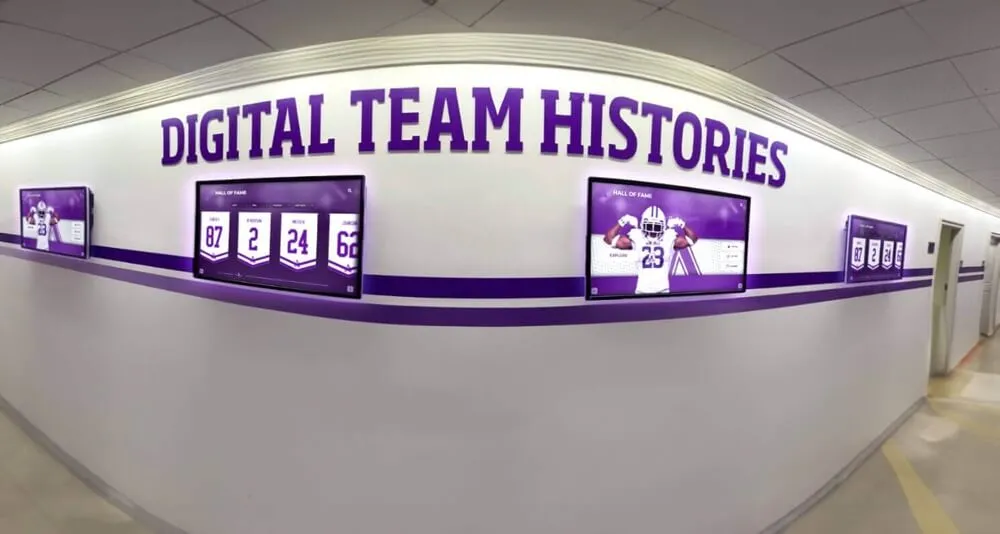
Multi-section digital recognition galleries in hallways and corridors accumulate rendering work proportional to the number of sections — verifying that content-visibility:auto improves this without reducing access for any visitor is the core goal of the test procedure
Frequently Asked Questions
Does content-visibility: auto hide athlete profiles from screen readers?
content-visibility: auto is designed to keep off-screen content accessible to assistive technology — this is a documented distinction from content-visibility: hidden, which does remove content from the accessibility tree. However, the actual behavior depends on the screen reader and browser version in use. Some screen reader navigation modes will access all document content regardless of rendering state; others may encounter limitations. Step 6 of the test procedure verifies this explicitly for the specific tools deployed on the recognition kiosk. Do not assume AT access is unaffected without testing.
Is this the same as setting loading=“lazy” on portrait images?
No. loading="lazy" on an <img> element defers the network request for that image until the image is near the viewport. It does not affect the browser’s layout or rendering work for the surrounding portrait section. content-visibility: auto defers the rendering work for the entire portrait section, including its layout calculation, but does not affect when the browser requests the images inside it. In a large portrait gallery, using both together addresses different bottlenecks: lazy loading reduces early network traffic, and content-visibility: auto reduces early rendering work.
What if the test shows no rendering improvement on our kiosk?
A small or unmeasurable improvement is a valid result, not a failure. content-visibility: auto is most likely to produce a noticeable improvement on lower-spec devices with a very large number of portrait sections (hundreds rather than dozens). On higher-spec hardware or with a moderately sized gallery, the browser’s rendering pipeline may already handle all sections quickly enough that the deferral makes no practical difference in frame rate or initial load time. In that case, the property still does no harm (assuming the access tests pass), but there is no reason to deploy it for a performance benefit that does not exist on the target hardware.
What is the difference between content-visibility: auto and DOM virtualization?
Virtualization removes portrait nodes from the DOM entirely when they are outside the virtual window and recreates them as the visitor scrolls near. Because those nodes do not exist in the document, browser find-in-page cannot locate names in them, and screen readers cannot navigate to them until they are recreated. content-visibility: auto keeps all portrait sections in the DOM and the accessibility tree at all times — it only defers the visual rendering work. For a school hall-of-fame gallery where visitors specifically search for an inductee by name, content-visibility: auto is the more compatible approach; virtualization creates tradeoffs that require careful handling to avoid making profiles unreachable.
How do we choose the contain-intrinsic-size fallback value?
Measure the actual rendered height of representative portrait sections in the baseline gallery (without content-visibility applied). Open DevTools, inspect a typical sport section or class-year section, and record its offsetHeight. Use that measured value as the fallback in contain-intrinsic-size: auto <measured-height>px. If portrait sections vary significantly in height (a basketball section with twenty inductees versus a golf section with four), use the median height as the fallback, or apply different contain-intrinsic-size values to different section types if the platform’s CMS allows section-level class assignment. Document the measured value so future IT staff know why that number was chosen.
Does this test need to be repeated after the recognition CMS is updated?
Run the content-visibility test again after any CMS update that changes how portrait sections are structured in the HTML — for example, a platform update that wraps each sport section in a new container element, changes portrait card markup, or alters the CSS applied to gallery sections. These structural changes may affect how contain-intrinsic-size size calculations work, how find-in-page locates text within sections, or how keyboard focus traverses the updated DOM. Treat a CMS structural update as an indication to re-run steps 4, 5, and 6 at minimum.
Looking for a recognition display platform designed for school athletic programs? Rocket Alumni Solutions provides interactive hall-of-fame, athlete profile, and donor recognition systems for schools nationwide, with content management tools built for the workflows athletic directors and archival staff actually use. Request a Rocket Alumni Solutions demo to see how the platform handles portrait galleries, long inductee archives, and accessibility requirements for school recognition displays.