Intent: diagnose — this guide walks school IT coordinators through a recognition display USB selective suspend test to identify and eliminate the power management setting that causes intermittent touchscreen disconnects on hall-of-fame kiosks, donor walls, and athletic record boards.
USB selective suspend is a Windows power management feature that automatically cuts power to idle USB ports to conserve energy. On a back-office workstation, the behavior is harmless. On a recognition display mounted in a school lobby and driven by a dedicated media PC, it causes the touchscreen controller — connected to the host via USB — to lose enumeration after a period of screen inactivity. The display continues to show content correctly because the video signal is unaffected, but touch stops responding until someone physically disconnects and reconnects the USB cable or reboots the media PC. For a recognition kiosk that should operate unattended through an entire school day, this failure pattern is a persistent problem that standard reboots do not solve because the OS re-applies the power setting at startup. Running a structured selective suspend test takes under 30 minutes, confirms whether the setting is the root cause, and produces a documented fix that survives future OS updates and policy changes.
The quick answer: open Device Manager, locate the USB root hub associated with the touchscreen controller, right-click, choose Properties, go to the Power Management tab, and uncheck “Allow the computer to turn off this device to save power.” Then open Power Options, find the USB selective suspend setting in the current power plan, and set it to Disabled. Run a 20-minute sustained playback test to confirm touch remains responsive throughout. If touch still drops, the root cause is likely a different USB power policy or a hub firmware issue — the troubleshooting table below covers both.
This procedure applies to recognition displays using a USB-connected touchscreen overlay, including wall-mounted hall-of-fame kiosks, freestanding donor wall screens, and athletic record boards driven by a dedicated Windows media PC. The test sequence is the same for 55-inch lobby installations and 86-inch corridor recognition walls.
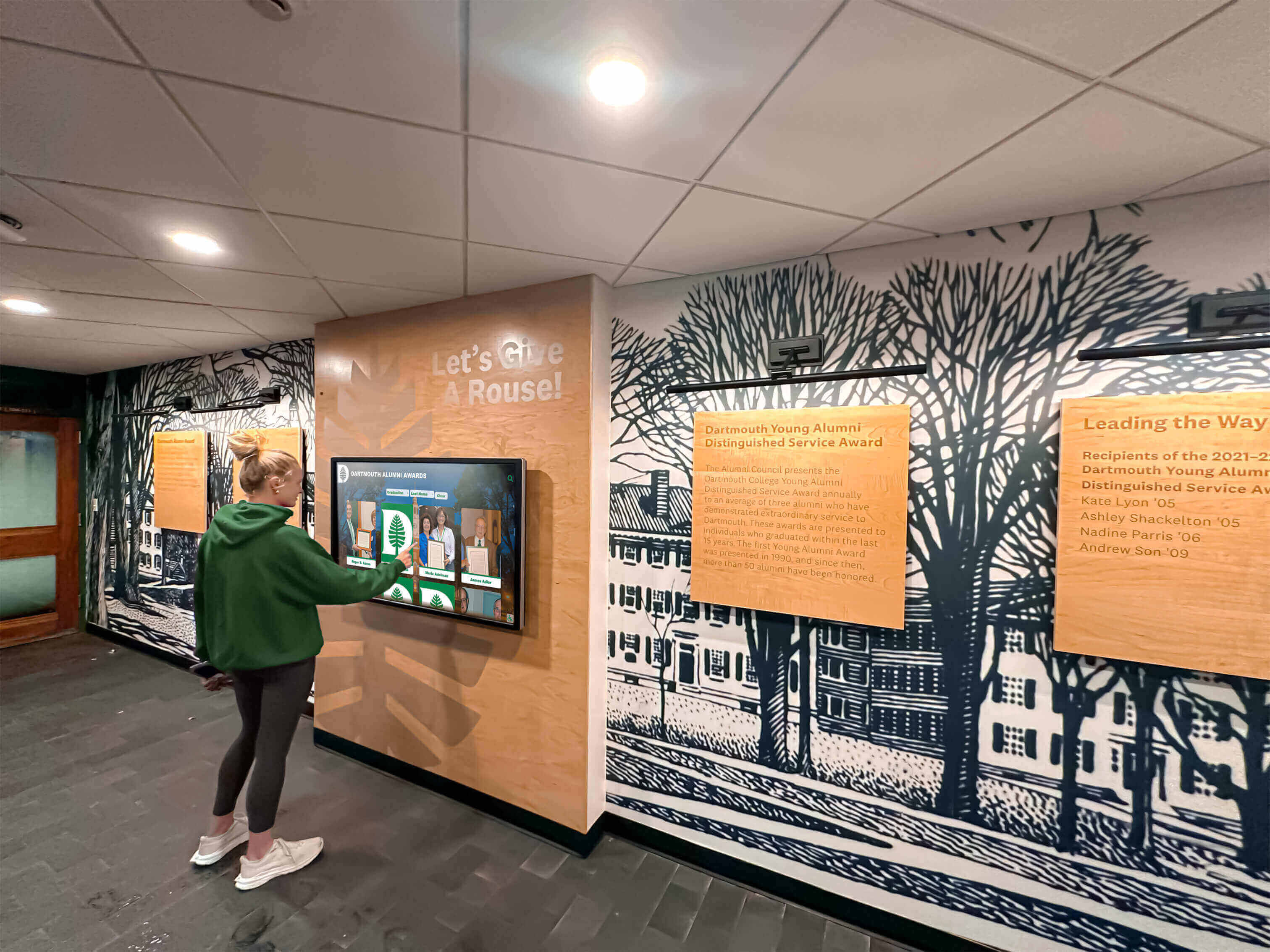
A touchscreen that stops responding after several minutes of inactivity is a common sign of USB selective suspend cutting power to the touch controller
Why USB Selective Suspend Causes Touch Disconnects on Recognition Displays
A recognition kiosk in a school lobby functions differently from a workstation with an active user. Between visitors, the display may sit idle for 10 to 30 minutes while content plays automatically. The operating system interprets the absence of user input as device inactivity and applies USB power reduction policies accordingly. The touchscreen controller — a USB Human Interface Device (HID) from the display manufacturer — qualifies as an idle USB device, and Windows suspends it.
Three behaviors distinguish a selective suspend disconnect from other touch failures:
The display image is unaffected. Video is delivered through HDMI, DisplayPort, or USB-C Alt Mode — a signal path that does not involve the USB HID connection. When selective suspend cuts the touch controller, the athlete photos, award records, and program highlights playing on screen remain visible. A visitor approaching the display sees content they want to interact with and finds a screen that does not respond to taps. This combination — working image, dead touch — is the diagnostic signature of a USB power event rather than a display panel failure or software crash.
The disconnect happens after idle periods. If a student or parent uses the kiosk and touch works correctly, then the display sits unattended for 15 to 20 minutes and touch stops working, the timing points to a power management timeout rather than a hardware fault. USB selective suspend is typically triggered after 2 to 15 minutes of hub inactivity, depending on the power plan setting. Schools that have adjusted screen brightness or display timeout settings without reviewing USB power settings often see this pattern appear or worsen after a configuration change.
A USB reconnect restores touch immediately. Unplugging and replugging the USB cable that connects the touchscreen controller to the media PC restores touch function without any reboot. This confirms the USB device itself is functional — the operating system simply suspended it and has not re-enumerated it. Recognizing this behavior early prevents unnecessary display replacements or content platform reinstallations that do not address the actual cause.
The problem is especially visible on recognition displays that cycle through athletic award archives and seasonal recognition highlights during school hours when visitors arrive unpredictably and the kiosk must be ready to respond at any moment.
How USB Selective Suspend Works
USB selective suspend is defined in the USB specification as a mechanism for a USB host controller to reduce power to individual USB devices or ports independently, without suspending the entire system. Windows implements it at two levels:
Device-level: Each USB device driver can request that Windows suspend the device after an idle timeout. The power management tab in Device Manager controls this per device.
Host controller level: The Windows power plan includes a global USB selective suspend setting. When this is enabled, Windows may apply selective suspend to USB root hubs regardless of individual device driver preferences.
For selective suspend to be fully disabled for a recognition display’s touch controller, both levels must be addressed. Disabling one but not the other commonly results in the problem returning after a power plan reset, a Windows Update, or a Group Policy refresh pushed from a school district’s IT management system. This is why a structured test that confirms both settings — and documents them — produces a more durable fix than a single-setting change made without documentation.
Tools Required
| Tool | Use | Notes |
|---|---|---|
| Windows Device Manager | Identify USB root hubs and touch controller devices; adjust per-device power settings | Win + X → Device Manager; requires administrator account on the media PC |
| Windows Power Options (Control Panel) | Locate and change the USB selective suspend plan setting | Control Panel → Power Options → Change plan settings → Change advanced power settings |
| powercfg command-line tool | Export current power plan settings to a text file; confirm USB selective suspend status | Run in an elevated (administrator) Command Prompt: powercfg /export and powercfg /query |
| USBDeview or similar USB enumeration utility (optional) | Monitor USB device connect/disconnect events in real time during the sustained test | Free utility; shows timestamp of enumeration changes without requiring Device Manager to remain open |
| Recognition display content platform | Run the standard content loop during the sustained test | Use the actual production content — athlete portraits, award records, transition animations — not a static image |
| Timer or stopwatch | Track idle periods during the sustained test | The test includes a deliberate 20-minute no-touch idle period to trigger the failure under controlled conditions |
Pre-Test: Reproduce the Failure First
Before changing any settings, reproduce the disconnect under controlled conditions. Confirming that the failure occurs before applying the fix is the only way to verify the fix worked.
- Log in to the media PC with an administrator account. Close all applications except the recognition display content platform.
- Start the content loop and let the display run for 20 minutes without touching the screen or moving the mouse.
- After 20 minutes, attempt to tap the recognition display screen. If touch responds normally, selective suspend may not be the root cause — the idle period is too short to trigger the timeout. Extend to 30 minutes and repeat.
- If touch does not respond after the idle period, confirm by tapping again in three different locations. If none register, open Device Manager while the failure is active and look for any yellow warning icon or missing device under Human Interface Devices. The touch controller may appear as “Unknown Device” or may be absent entirely during suspension.
- Unplug the USB cable from the media PC, wait 5 seconds, and reconnect. Tap the screen to confirm touch is immediately restored. This confirms the USB device itself is functional and the disconnect is caused by a power management event, not hardware failure.
Document the idle time that triggered the failure — this becomes the benchmark for the sustained test at Step 5.
Reproducing the disconnect before making changes confirms that selective suspend is the actual cause and gives a clear benchmark for the post-fix verification test
Recognition Display USB Selective Suspend Test Checklist
Step 1: Identify the Touch Controller in Device Manager
Mapping the touch controller to its parent USB root hub is necessary before adjusting power settings, because Device Manager lists multiple USB root hubs and the power management tab must be changed on the correct one.
- Open Device Manager (Win + X → Device Manager).
- Expand the Human Interface Devices section. Look for a device labeled with the display manufacturer’s name, “HID-compliant touch screen,” or “USB Input Device.” If the label is generic, right-click and select Properties, then navigate to the Details tab and read the Hardware IDs — the vendor ID (VID) can be matched to the display manufacturer’s USB vendor listing.
- Note the device name exactly as it appears in Device Manager.
- In Device Manager, expand the Universal Serial Bus controllers section. Right-click each USB Root Hub entry and select Properties. On the Power tab or the Power Management tab, review which hub reports connected devices. Matching the touch controller’s location to its parent root hub identifies the correct root hub to adjust in Step 2.
- Alternatively, open an elevated Command Prompt and run:
pnputil /enum-devices /class HIDClassto list all HID devices with their instance paths. The path format includes the USB port chain that connects the device to its root hub.
Record the exact device name and the parent USB root hub identifier. Both are needed for Steps 2 and 3.
Pass criteria: Touch controller identified by name and hardware ID; parent USB root hub identified.
Step 2: Check Current USB Selective Suspend State
Before changing settings, record the current state so the change can be verified and documented.
- Open an elevated Command Prompt and run:
powercfg /query SCHEME_CURRENT SUB_USB. This returns the current USB selective suspend setting for the active power plan. - In the output, locate the setting labeled USB selective suspend setting. The value 0x00000001 means selective suspend is enabled (suspend is allowed). The value 0x00000000 means it is disabled (suspend is not allowed).
- Open Power Options in Control Panel (search “Power Options” from the Start menu). Click Change plan settings next to the active plan, then click Change advanced power settings. In the Advanced Settings window, expand USB settings → USB selective suspend setting. Confirm the value shown here matches the powercfg output.
- Open Device Manager, expand Human Interface Devices, right-click the touch controller, and select Properties. Go to the Power Management tab. Check whether “Allow the computer to turn off this device to save power” is currently checked. Record the state.
Document all three current states — powercfg value, Power Options GUI value, and Device Manager per-device setting — before proceeding to Step 3.
Pass criteria: All three current settings documented; active power plan identified by name.
Step 3: Disable USB Selective Suspend at the Power Plan Level
Change the global USB selective suspend setting in the Windows power plan to prevent Windows from suspending any USB device on this host, regardless of individual driver requests.
- In Power Options → Change plan settings → Change advanced power settings, expand USB settings → USB selective suspend setting.
- Change the value to Disabled for both the “On battery” and “Plugged in” states. Even if the media PC is always plugged in, changing both states prevents the setting from applying if the system detects a power state change.
- Click Apply, then OK.
- Verify the change: in an elevated Command Prompt, run
powercfg /query SCHEME_CURRENT SUB_USBagain and confirm the value now reads 0x00000000 for the selective suspend setting. - Note the power plan name. If the school’s Group Policy management system periodically resets power plan settings — common in district-managed Windows environments — the plan name becomes important for the documentation note at Step 6, where the IT coordinator should record which power plan was modified and flag it for Group Policy review.
Pass criteria: powercfg output confirms USB selective suspend disabled (0x00000000) in the active power plan.
Step 4: Disable Per-Device Power Management for the Touch Controller
The power plan setting in Step 3 controls host-level USB suspend policy. The per-device setting in Device Manager controls whether the device driver can independently request suspension. Both must be disabled.
- Open Device Manager and expand Universal Serial Bus controllers.
- Right-click each USB Root Hub entry and select Properties. Go to the Power Management tab. Uncheck “Allow the computer to turn off this device to save power.” Click OK. Repeat for every USB root hub listed — recognition display installations commonly have two to four root hubs, and the touch controller’s parent hub may not be the first one listed.
- Expand Human Interface Devices. Right-click the touch controller device identified in Step 1 and select Properties. Go to the Power Management tab. Uncheck “Allow the computer to turn off this device to save power.” Click OK.
- If the touch controller appears under a USB hub rather than directly under a root hub, also open the Properties for that intermediate hub and uncheck the Power Management setting.
- Verify: right-click each modified device again and confirm the Power Management tab reflects the unchecked state. Changes take effect without a reboot, but a reboot after Step 4 confirms the settings persist through the OS initialization sequence.
Reboot the media PC now. After restart, confirm the Device Manager power management settings are still unchecked — group policy or driver reinstallation can reset them in some district-managed environments.
Pass criteria: USB root hub(s) and touch controller show Power Management setting unchecked; settings persist after reboot.
Step 5: Run a 20-Minute Sustained Idle Test
After applying both settings, reproduce the original test conditions to confirm the fix is effective.
- Restart the recognition display content platform and begin the standard content loop — the same athlete portrait archive, award record scroll, and program history content that runs during a normal school day.
- Do not touch the screen or move the mouse for the full idle duration that triggered the failure in the pre-test. If the pre-test failure appeared after 20 minutes, run the idle period for 25 minutes to add margin.
- If using USBDeview or a similar USB monitoring utility, leave it open and visible on a secondary monitor or an IT coordinator’s laptop via remote session. Watch for any USB disconnect/reconnect events logged during the idle period. A clean log with no events confirms the controller is staying enumerated.
- At the end of the idle period, tap the screen in three locations and confirm touch registers each time. Tap the screen edges as well as the center — some recognition display navigation controls are placed at the perimeter, and edge response is as important as center response for interactive hall-of-fame navigation and profile browsing.
- Run the content platform through a full content cycle after touch is confirmed — scroll through athlete categories, open a profile record, return to the main menu — to confirm the content application responds correctly to touch input after the idle period.
Pass criteria: Touch remains responsive after the full idle period; USB monitoring log shows no disconnect events; content platform responds to all navigation gestures.
Step 6: Record Results and Make a Go / No-Go Decision
Document the full test sequence before closing the media PC’s administrator session.
| Test Item | Setting / Requirement | Before Fix | After Fix | Pass / Fail | Tested By | Date |
|---|---|---|---|---|---|---|
| Touch controller identified | Device name and hardware ID documented | N/A | ||||
| USB selective suspend — power plan | powercfg value = 0x00000000 (Disabled) | |||||
| USB root hub — Power Management tab | "Allow computer to turn off" unchecked on all hubs | |||||
| Touch controller — Power Management tab | "Allow computer to turn off" unchecked | |||||
| Settings persist after reboot | Power Management settings confirmed post-reboot | |||||
| 20-minute idle test — touch response | Touch registers in 3+ locations after full idle period | Fail | ||||
| 20-minute idle test — USB log clean | No USB disconnect events logged during idle period | |||||
| Content navigation after idle | All navigation gestures register; content platform responds |
Go / No-Go rule: All eight items must show a passing result before the media PC is returned to unattended operation. A passing pre-fix failure combined with a passing post-fix idle test is the documented evidence that selective suspend was the root cause and the fix is effective. Without the pre-fix test, the post-fix passing result cannot be attributed to the configuration change with confidence.
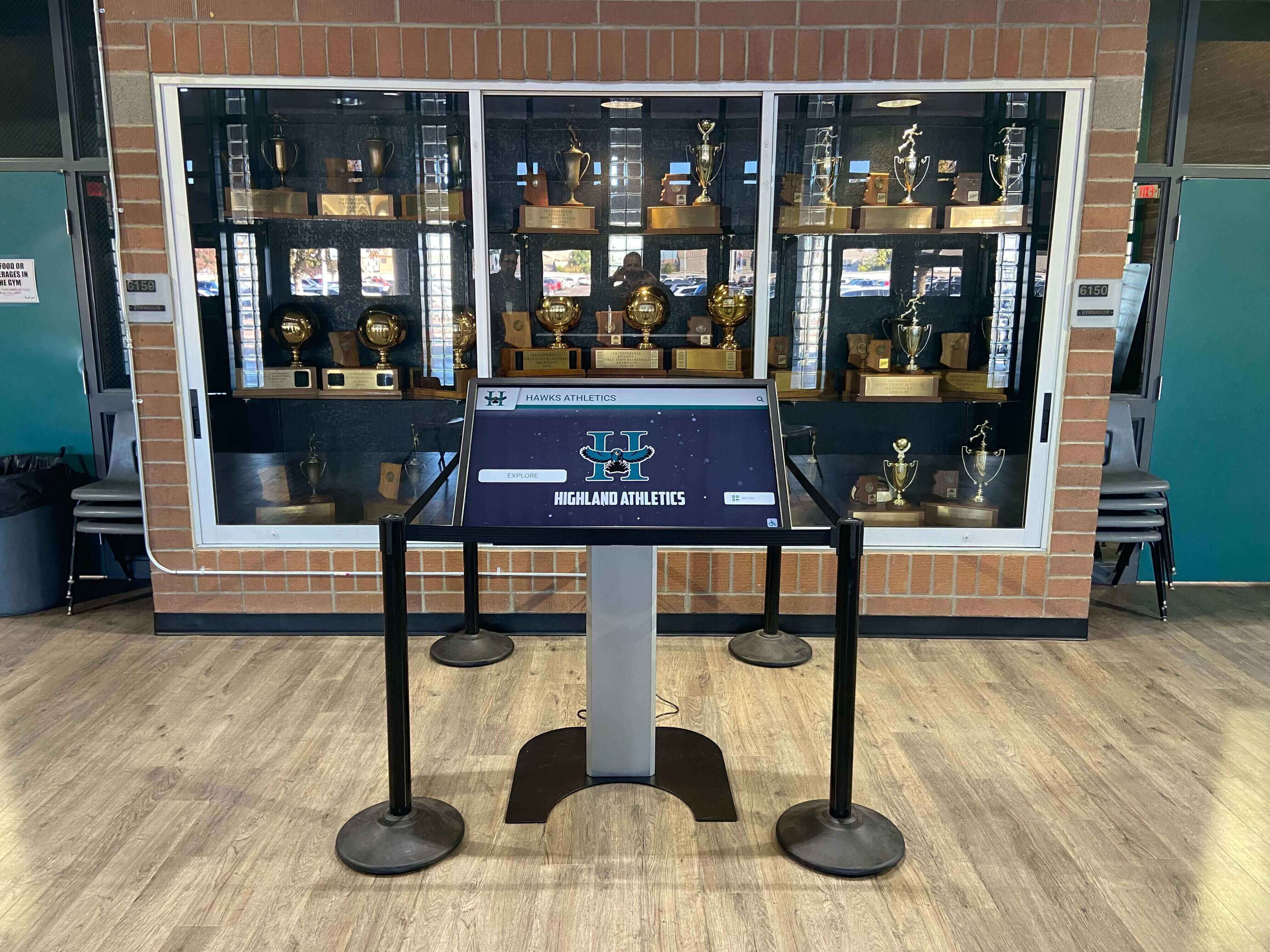
A completed selective suspend test record gives future IT staff a documented baseline — essential for any recognition display that needs to operate unattended through a full school day
Troubleshooting: When the Test Still Fails After Disabling Selective Suspend
| Symptom | Probable Cause | Resolution |
|---|---|---|
| Touch still drops after 20-minute idle; USB log shows no disconnect events | Content platform application has entered a frozen state unrelated to USB; this is a software issue, not a USB power event | Enable the content platform's watchdog or auto-restart feature if available; contact the platform vendor to review application-level timeout settings |
| Power Management tab absent from USB root hub Properties | Group Policy has removed per-device power management controls for standard users; or the USB driver is a generic Microsoft HID driver that does not expose Power Management | Use powercfg at the plan level (Step 3) and coordinate with district IT to verify Group Policy USB power settings; check USB root hub driver version and update if the manufacturer provides a native driver |
| Settings revert to defaults after each Windows Update or Group Policy refresh | District Group Policy is enforcing a specific power plan and overriding local changes | Work with district IT to create a GPO exception for the recognition display media PC, or to modify the enforced power plan template to include USB selective suspend disabled; document the PC name and OU for the IT request |
| Touch disconnects at exactly the same time as the display dims or enters sleep | Display sleep or screensaver timeout is applying a USB port power-off at the host controller level, separate from selective suspend | Set the display sleep timer and screensaver to "Never" in Windows Display Settings; also check the recognition display hardware's built-in OSD sleep timer and disable it or set it to maximum |
| Touch disconnects intermittently with no pattern (random timing, not after idle) | USB cable fault, loose connector, or marginal USB hub that drops power transiently under thermal load | Swap the USB cable with a known-good replacement; if the touch controller connects through a USB hub, connect it directly to a root hub port on the media PC; inspect the cable for damage near the connector |
| Touch drops only during high content transition loads (video playback, animation sequences) | Media PC CPU or GPU load peaks are causing USB host controller to throttle, briefly suspending USB ports under combined processing load | Reduce content transition complexity; upgrade media PC RAM or storage if the platform is running near resource limits; check for background processes consuming CPU during content playback |
| powercfg command reports no USB settings visible in query output | Custom power plan has hidden the USB selective suspend subgroup, or an OEM power utility has replaced the standard Windows power plan | Create a new High Performance power plan from the Windows default and apply it; the High Performance template sets USB selective suspend to Disabled by default on most Windows versions |
Post-Fix Steps Before Returning to Unattended Operation
After all test items pass, complete these steps before removing administrator access and returning the display to normal operation:
Export and save the current power plan. In an elevated Command Prompt, run
powercfg /export "C:\DisplayPowerPlan.pow"and store the exported file in the school’s IT documentation folder alongside the display’s serial number and network configuration. This file can restore the correct settings if a future update resets the power plan.Document the Group Policy status. Note whether the media PC is domain-joined and which OU (organizational unit) it belongs to. If Group Policy applies power plan settings in this environment, flag the display PC for a GPO review with district IT so the selective suspend setting is not silently re-enabled. Schools that maintain detailed digital hall-of-fame profile records and historical documentation benefit from the same discipline applied to their IT infrastructure documentation.
Label the USB cable and port. Mark the USB cable that connects the touchscreen controller to the media PC with the display identifier and test date. If the cable is replaced in the future, the power management settings must be re-verified — the fix applies to the host port configuration, not the cable itself.
Schedule a follow-up check at 30 days. A single passing idle test confirms the fix worked at one point in time. At 30 days, repeat the 20-minute idle test to confirm that no Windows Update, driver update, or Group Policy refresh has re-enabled selective suspend. Add this check to the recognition display’s maintenance calendar alongside any existing tasks for content updates and hardware inspection.
Train relevant staff. If the athletic director, alumni coordinator, or front-office staff are the first people to notice when a display stops responding to touch, brief them on the restart procedure for the media PC (not just the display power button) and the IT contact path. For programs that use the display for academic achievement awards ceremonies and alumni engagement events, a brief staff awareness note about the touch disconnect symptom prevents a service call from being delayed because a non-IT staff member assumed the display panel had failed.
USB Selective Suspend Testing for Multi-Display Installations
Schools running recognition displays in multiple locations — an athletics corridor, a lobby donor wall, and a class reunion display suite — should treat each media PC as an independent configuration that requires its own test, even if all media PCs were provisioned from the same image.
OS imaging tools reproduce the power plan settings at the time the image was created, but Group Policy, Windows Update, and OEM driver installations can diverge across devices after imaging depending on installation timing, network availability, and hardware differences. A USB root hub driver that exists on one media PC model may not be present on another if the hardware uses a different USB host controller chip.
For the most reliable results across a multi-display deployment:
- Run the full selective suspend test on each media PC individually. Do not assume a passing result on one carries over to other units.
- Use a consistent power plan name across all display PCs and document the plan name in each device’s configuration record.
- If the school’s Group Policy environment allows it, create a single GPO that applies USB selective suspend disabled to all display PCs by OU, so the setting survives any future Windows Update or re-imaging without requiring individual remediation.
- Include the selective suspend check in the acceptance criteria for any future display provisioning, re-imaging, or software update deployment.
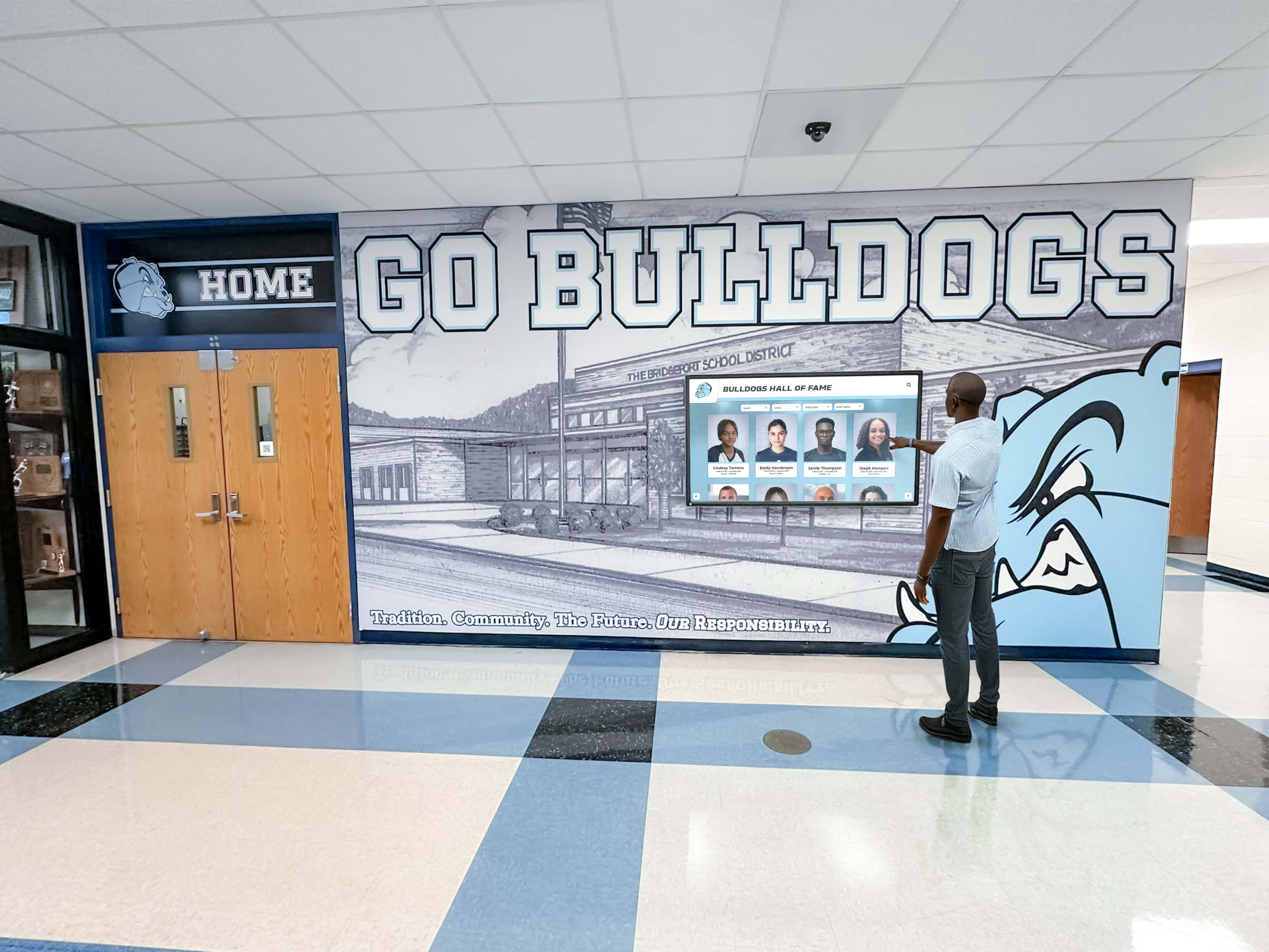
Multi-display schools should test and document each media PC independently — the same image does not guarantee the same power plan state after deployment
How This Fix Relates to a Broader Recognition Display Reliability Program
Disabling USB selective suspend addresses one specific failure mode. A recognition display that operates reliably through an entire school year requires a broader set of commissioning and maintenance practices. The selective suspend fix fits into this larger picture alongside:
- Cable integrity verification — a touchscreen controller connected by a damaged USB cable may pass initial tests and fail intermittently under thermal load. A continuity test on the USB cable rules out hardware as the cause before power settings are adjusted.
- Display firmware updates — some recognition display manufacturers have released firmware updates that address USB controller enumeration stability. Check the manufacturer’s support page for the display model and update firmware before performing the selective suspend test, to avoid spending time diagnosing a problem that a firmware update resolves directly.
- Content platform compatibility — recognition display software platforms that run in a dedicated kiosk mode may apply their own USB device management policies on top of Windows settings. Confirm with the platform vendor whether the kiosk application modifies USB power management settings during installation or startup, and whether any vendor-recommended settings conflict with the selective suspend fix applied here.
Schools planning athletic banquet recognition events and seasonal award programs that depend on a kiosk display operating reliably in front of families and program guests benefit most from addressing all three areas before a high-visibility event rather than during one.
Frequently Asked Questions
What exactly is USB selective suspend and why is it on by default?
USB selective suspend is a Windows power management feature defined in the USB specification that allows the operating system to cut power to individual USB devices or ports when they appear idle. It is enabled by default in most Windows power plans because it reduces energy consumption on laptops and workstations where USB peripherals are frequently disconnected and the host system needs to conserve battery life. For a recognition display kiosk running on a plugged-in dedicated media PC, the energy saving is negligible and the risk of suspending the touchscreen controller is not acceptable — which is why the recognition display USB selective suspend test addresses the setting directly rather than accepting the default.
Is it safe to disable USB selective suspend entirely?
For a dedicated recognition display media PC that is always plugged in and running a fixed content loop, disabling USB selective suspend across all USB ports is the appropriate configuration. The setting was designed for mobile devices that share USB ports between many different peripherals. On a fixed kiosk with a single USB-connected touch controller that must stay enumerated at all times, the power savings from selective suspend are not relevant, and the risk of a touch disconnect at a high-visibility recognition moment is not acceptable. Disabling the setting does not cause harm to the connected device or the media PC.
How do I know if Group Policy is re-enabling selective suspend after I disable it?
Run powercfg /query SCHEME_CURRENT SUB_USB in an elevated Command Prompt after a Group Policy refresh or Windows Update and compare the value to the documented post-fix state. If the value has changed back to 0x00000001, Group Policy is overriding the local setting. The long-term solution is to work with district IT to create a GPO exception for the recognition display’s media PC, or to add USB selective suspend disabled to the district’s standard kiosk power plan template.
Does this fix apply to recognition displays that use USB-C for video and touch?
A USB-C display that carries touch data over the USB 2.0 lanes within the USB-C cable (common in USB-C Alt Mode installations) is still presenting a USB HID device to the host OS. The selective suspend settings in Device Manager and Power Options apply to that HID device regardless of whether it arrives over a traditional USB-A cable or through USB-C Alt Mode. Follow the same test sequence — locate the touch controller under Human Interface Devices, identify the parent USB root hub, and disable the Power Management setting at both levels.
Our recognition display worked fine for six months and then started dropping touch — why would selective suspend cause a problem that developed over time?
Several factors cause selective suspend disconnects to appear months after initial installation. A Windows Update may have changed the power plan or reset the USB selective suspend setting to its default. A content platform update may have modified kiosk application startup behavior, changing the pattern of USB activity that determines when the host considers the controller idle. A USB hub or root hub driver update may have changed the hub’s response to selective suspend requests. Running the pre-test from this guide — reproducing the disconnect and confirming a USB reconnect restores touch — confirms the cause and applies regardless of when the problem started.
Does disabling selective suspend affect other USB devices connected to the media PC, like a keyboard or mouse?
Disabling USB selective suspend at the power plan level applies to all USB devices on the host. For a dedicated recognition display kiosk, this is typically not a problem because the only USB devices are the touchscreen controller and, occasionally, a USB Ethernet adapter or USB storage device for content updates. Administrative tasks like content management are usually performed remotely through the cloud-based content management system rather than with a locally connected keyboard, so the minor power difference from keeping a keyboard enumerated permanently is not relevant.
Should we document this fix somewhere accessible to future IT staff?
Yes. The test record from Step 6, the exported power plan file from the post-fix steps, and a note about the Group Policy environment should all be stored in the school’s IT documentation system alongside the display’s serial number and network configuration. Recognition programs that maintain ongoing records of athlete profiles, award history, and program milestones benefit from the same record-keeping discipline applied to the technical infrastructure that runs those programs. A future IT coordinator who inherits the display will find the fix faster with a documented baseline than by starting from scratch.
A recognition display USB selective suspend test adds under 30 minutes to a school IT maintenance session and permanently addresses the most common cause of intermittent touchscreen disconnects on hall-of-fame kiosks and athletic record boards. Reproduce the failure first, disable selective suspend at both the power plan and the per-device level, then run the 20-minute idle test to confirm the fix holds. Document every setting change and export the corrected power plan before returning the display to unattended operation — this record saves significant diagnostic time the next time a Windows Update or Group Policy refresh reaches the display.
Looking for a recognition display partner that manages the full technical setup — hardware, software, and ongoing reliability — for your school’s hall of fame or athletic record board? Rocket Alumni Solutions handles the complete installation and configuration process, including touch reliability settings, so your recognition kiosk operates correctly throughout the school year without requiring IT intervention. Request a demo to learn how their managed approach keeps your recognition display running reliably from day one.