Intent: demonstrate — this checklist walks school IT coordinators and network administrators through recognition display TCP keepalive configuration to ensure that hall-of-fame kiosks, donor wall screens, and athletic record boards detect and recover from silent dead connections to their cloud content management systems faster than the operating system’s default two-hour detection window.
TCP keepalive is a mechanism built into the TCP/IP stack that periodically probes an idle connection to confirm the remote endpoint is still reachable and the path between them is intact. Without a properly configured keepalive interval, a recognition display can hold a TCP connection that has been silently broken — by a NAT session expiry, a firewall idle-timeout reset, an upstream router reboot, or a brief WAN outage — without any application-layer error. The display continues to show its last-loaded content and appears healthy from the hallway. The CMS management portal may even show the display as online if the cloud-side connection state has not timed out yet. Only after the OS eventually detects the dead session — sometimes two hours later on default settings — does the display attempt to reconnect, pull fresh content, and return to a known-good state. For recognition displays showing time-sensitive athletic updates, daily honor roll announcements, or academic achievement award content, a two-hour stale-content window is not acceptable.
The quick answer: TCP keepalive on a recognition display media PC should be configured so that a dead connection is detected within two to five minutes rather than two hours. On Linux, set net.ipv4.tcp_keepalive_time to 60–120 seconds, net.ipv4.tcp_keepalive_intvl to 15 seconds, and net.ipv4.tcp_keepalive_probes to 5. On Windows, set KeepAliveTime to 60,000–120,000 milliseconds and KeepAliveInterval to 15,000 milliseconds in the HKLM TCP/IP parameters registry key, then reboot. Verify the change by confirming the CMS portal shows the display reconnecting within the expected window after a simulated network interruption, not two hours later.
This procedure applies to recognition displays running Windows 10/11 or Linux connected to school networks with managed routers, NAT firewalls, or stateful inspection appliances that impose idle-session timeout policies shorter than the OS default TCP keepalive window.
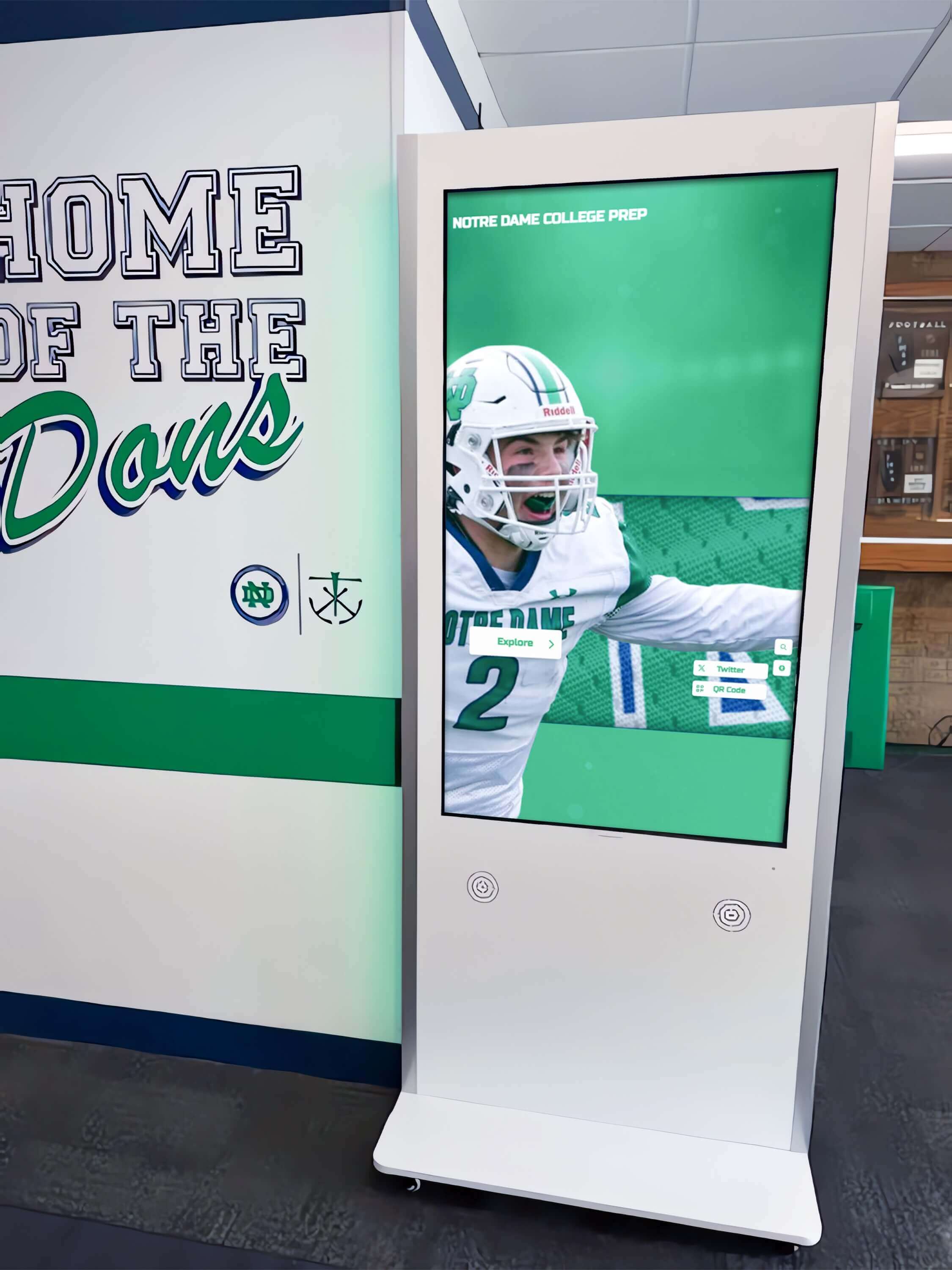
A hall-of-fame kiosk running on a school network with NAT timeout policies shorter than the OS default TCP keepalive interval will hold a dead connection silently, showing stale recognition content until the OS finally detects the broken session
What Is TCP Keepalive?
TCP keepalive is an optional feature of the Transmission Control Protocol defined in RFC 9293 that allows an endpoint to send small probe packets on an idle TCP connection to verify that the connection is still alive and the remote endpoint is still reachable. If the remote endpoint does not respond to a configured number of consecutive probes, the local OS declares the connection dead, tears it down, and notifies the application.
TCP keepalive operates at the OS network stack level, below the application. It runs independently of any application-layer heartbeat or ping mechanism the CMS software may use. Three OS parameters control keepalive behavior:
tcp_keepalive_time (Linux) / KeepAliveTime (Windows) — The number of seconds a TCP connection must be idle before the OS begins sending keepalive probes. The default on most Linux distributions and Windows versions is 7,200 seconds — two hours. This default exists because keepalive was originally designed for long-lived server connections where occasional multi-hour idle periods are normal. For a display-to-CMS connection where content sync activity keeps the connection moderately active, the idle timer may reset frequently. But after school hours, when the display is in sleep mode or showing a static scheduled content loop with no sync activity, the connection can remain genuinely idle for hours — long enough for the school’s NAT device to expire its session table entry.
tcp_keepalive_intvl (Linux) / KeepAliveInterval (Windows) — The number of seconds between successive keepalive probes once the initial tcp_keepalive_time idle window has passed. Linux default: 75 seconds. Windows default: 1 second. A 75-second interval means that after the two-hour initial idle window, individual probes are sent every 75 seconds. With 9 default probes (tcp_keepalive_probes), the total detection window is 2 hours + (75 × 9) = approximately 2 hours and 11 minutes.
tcp_keepalive_probes (Linux) — The number of consecutive unanswered probes before the connection is declared dead. Linux default: 9. Windows does not expose a separate probe count in the same registry location — Windows behavior varies by version and SKU. The total detection time on Linux under default settings: 7,200 + (75 × 9) = 7,875 seconds, approximately 2 hours and 11 minutes.
Why the Default Window Is Too Long for Recognition Displays
Most school networks use stateful NAT or stateful firewall appliances between the campus LAN and the WAN. These appliances track active TCP sessions in a session state table. The session table has finite capacity, and idle sessions are expired after a configurable timeout. Common school-grade firewall platforms expire idle TCP sessions after 30 minutes to 3 hours — often 1,800 seconds (30 minutes) for non-interactive sessions. When the NAT appliance expires a session table entry for a display’s CMS connection, the display’s OS still believes the TCP connection is alive. The CMS server may also believe the connection is alive. But any packet the display sends is silently dropped by the NAT device — it has no session entry to translate and forward the packet. The result is a TCP connection that both endpoints consider open but that cannot carry any data.
With a 7,200-second keepalive time and a 1,800-second NAT idle timeout, a recognition display can hold a dead connection for up to two hours before detecting it — and the detection only happens if the connection has been idle long enough to reach the keepalive probe phase. If the display’s application layer sends occasional keep-alive style HTTP requests that reset the OS idle timer without actually traversing the expired NAT session, the detection can be delayed indefinitely. Schools managing recognition display content through a cloud CMS benefit from reliable data integrity and display uptime — silent dead connections are the most common cause of unexplained stale content without any visible error on the display.
Application-Layer Keepalive vs. OS-Level TCP Keepalive
Many CMS platforms use application-layer keepalive mechanisms — WebSocket ping/pong frames, periodic HTTP polling, or proprietary heartbeat packets — to detect dead connections independently of the OS TCP keepalive setting. Application-layer keepalive often has shorter intervals than the OS default and provides CMS-specific reconnection logic. However, application-layer keepalive is only effective if the application is actively running and sending heartbeat packets. A display whose CMS client process has entered a low-activity polling state or whose scheduled content loop generates no new CMS requests can go long periods without triggering the application-layer heartbeat, leaving detection to the OS TCP keepalive mechanism. Configuring OS-level TCP keepalive provides a network-stack safety net that operates regardless of the application’s current activity level.
Why TCP Keepalive Matters for School Recognition Displays
Recognition displays operate in conditions that make silent dead connection detection particularly important.
Displays run unattended during off-peak hours. A recognition display in a school lobby is fully operational at 7:00 AM before staff arrive and may continue running until 10:00 PM for evening events. During afternoon off-peak hours, CMS sync activity is low. The display is showing a pre-loaded content loop with no new network requests. The idle timer is running. If the NAT device expires the session during this window, the display enters a stale-content state that no one notices until the first visitor arrives for an evening athletic event and sees the wrong date’s content on the academic recognition program display.
School NAT devices have shorter idle timeouts than enterprise firewalls. School-grade routers and UTM appliances commonly configure UDP idle timeouts of 30 seconds and TCP idle timeouts of 1,800 to 3,600 seconds. Enterprise-grade firewall platforms used in corporate environments often have longer defaults. A school IT team that sets up a recognition display using the same TCP keepalive values that worked at a corporate pilot site may find the display loses its CMS connection more frequently at the school because the school’s NAT has a shorter session timeout.
CMS reconnection after a detected dead connection takes time. When the OS finally detects a dead TCP connection and tears it down, the CMS application must re-establish its connection, re-authenticate, and re-sync content. This reconnection window can take 30 to 90 seconds depending on the CMS platform, network conditions, and authentication mechanism. If the display is showing an honor roll announcement or a live athletic schedule when the reconnection happens, the screen may go blank briefly. A keepalive configuration that detects the dead connection immediately when it occurs — rather than two hours later — ensures that reconnection happens at a low-visibility moment rather than during a high-traffic viewing period.
Summer network changes reset baseline configuration. Schools that replace NAT appliances, upgrade firewall firmware, or reconfigure security policies over the summer may inadvertently change the idle session timeout values that the display’s keepalive interval was calibrated against. An IT team that configured TCP keepalive at 300 seconds the previous school year may find that a summer firewall upgrade changed the NAT idle timeout from 1,800 seconds to 600 seconds — shorter than the OS-level keepalive time — causing more frequent dead-connection events than before. Documenting both the keepalive settings and the NAT idle timeout in the display’s commissioning record gives IT staff the reference they need to recalibrate after any summer network change.
Recognition programs serve public visitors who notice display quality. Schools that maintain hall-of-fame academic decathlon highlights and scholar recognition content on lobby displays for visiting families and community members have a reputational stake in display reliability. A display showing two-hour-old content during a school open house or a 50th reunion event reflects on the school’s investment in its recognition program as much as the content itself.
TCP Keepalive Decision Tree for Recognition Display Ports
Use this decision tree before the detailed checklist to identify the most critical configuration gap.
1. What OS does the recognition display run?
- Windows 10/11 → proceed to Windows-specific steps in the checklist; registry values control keepalive
- Linux (Ubuntu, Debian, Raspbian, or embedded) → proceed to Linux-specific steps; sysctl controls keepalive
- Embedded or proprietary OS (commercial media player) → check vendor documentation for keepalive configuration; some embedded players expose keepalive settings in their management UI; others have fixed values that cannot be changed at the OS level
↓
2. What is the current tcp_keepalive_time (Linux) or KeepAliveTime (Windows) set to?
- Default (7,200 seconds / 7,200,000 ms) → two-hour detection window; reduce to 60–120 seconds for recognition display environments
- Already reduced to under 300 seconds → continue; confirm the interval and probe count are also set appropriately
- Unknown → run the show-current-settings command in Step 1 of the checklist before making any changes
↓
3. What is the school’s NAT idle TCP session timeout?
- Known and under 1,800 seconds (30 minutes) → set
tcp_keepalive_timeto no more than 80% of the NAT timeout so probes keep the session alive before it expires - Unknown → run Step 2 of the checklist to identify the NAT timeout before setting keepalive values; a keepalive time longer than the NAT timeout defeats the purpose
- No NAT (direct routed connection or explicit bypass) → the dead-connection risk is lower; OS default may be acceptable; continue
↓
4. Does the CMS application have its own application-layer keepalive or heartbeat?
- YES, with interval under 60 seconds → application-layer keepalive is already faster than the OS; OS-level TCP keepalive provides a belt-and-suspenders backup; set OS keepalive to 120 seconds as a safety net
- YES, with interval over 60 seconds or unknown → OS-level keepalive should be set shorter than the application keepalive interval; OS acts as fallback
- NO → OS-level TCP keepalive is the only dead-connection detection mechanism; set aggressively: 60 seconds keepalive time, 10-second interval, 5 probes
↓
5. Has the configuration been tested by simulating a network interruption?
- NO → complete Steps 5 and 6 of the checklist before releasing the display to unattended operation
- YES and the display reconnected within the expected window → document the result and proceed
↓
6. Result: TCP keepalive configuration is validated — document settings in the display’s commissioning record
Tools Required
| Tool | Use | Notes |
|---|---|---|
| Display media PC (SSH or direct console access) | Read current TCP keepalive parameters; apply new sysctl values (Linux) or registry values (Windows); confirm changes after reboot | Administrative access required; on Linux, root or sudo privilege required to write to /proc/sys/net/ipv4/ and /etc/sysctl.conf; on Windows, administrator account required for registry edits |
| School network firewall or UTM management console | Confirm the NAT idle TCP session timeout configured on the appliance serving the display VLAN; compare to the planned tcp_keepalive_time value | Read-only access is sufficient; the goal is to confirm the NAT timeout, not change it; check the policy or session table settings under NAT or firewall rules for the display VLAN |
| CMS management portal | Confirm the display shows online with a current synchronization timestamp before testing; monitor the display's connection status during the simulated interruption; verify reconnection within the expected window | The CMS portal is the application-layer confirmation that OS-level keepalive changes are working; a technical TCP keepalive configuration change that does not improve CMS reconnection time has not solved the problem |
| Network packet capture tool (optional, for advanced validation) | Capture TCP keepalive probe packets from the display to confirm the configured timing values are being applied correctly by the OS | Wireshark on the display PC or a mirror port capture on the access switch; filter for tcp.analysis.keep_alive in Wireshark; optional but provides definitive confirmation of the configured keepalive interval |
| Managed switch CLI access (for simulated interruption test) | Temporarily shut down the display's access port to simulate a network interruption without physically disconnecting the cable; re-enable the port to simulate restoration | Used in Step 5; interface <port-id> → shutdown → wait the keepalive window → no shutdown; confirm the display's OS detects the dead connection and the CMS reconnects within the expected window |
| Stopwatch or timer | Measure elapsed time from simulated interruption to CMS reconnection in the portal; compare to the theoretical detection window (keepalive time + interval × probes) | Critical for confirming the configured values produce the expected detection time; without timing, a "it reconnected eventually" result does not distinguish a 5-minute window from a 90-minute one |
Pre-Test: Document the TCP Keepalive Baseline
Before changing any values, record the current TCP keepalive state and network environment so each test step has a specific expected result.
On a Linux display PC, read the current keepalive parameters:
sysctl net.ipv4.tcp_keepalive_time
sysctl net.ipv4.tcp_keepalive_intvl
sysctl net.ipv4.tcp_keepalive_probes
Record all three values. Default outputs are typically
7200,75, and9.On a Windows display PC, open PowerShell as administrator and read the current keepalive values from the registry:
Get-ItemProperty -Path "HKLM:\SYSTEM\CurrentControlSet\Services\Tcpip\Parameters" | Select-Object KeepAliveTime, KeepAliveIntervalIf no values are returned, Windows is using its compiled defaults:
KeepAliveTime = 7200000(2 hours in milliseconds),KeepAliveInterval = 1000(1 second).Log into the school’s firewall or NAT management console and record the idle TCP session timeout for the display VLAN. If the value is unavailable from the console, use a packet capture later to measure it empirically.
Log into the CMS management portal and record the display’s current status and last synchronization timestamp. This is the application-layer baseline before any changes.
Check whether the CMS application has a documented application-layer heartbeat interval. Review the CMS documentation or support resources for heartbeat, ping, or keepalive settings. Record the value if found.
Record all five items before beginning Step 1 of the checklist.

Recording baseline TCP keepalive values and the school's NAT session timeout before making changes ensures that each configuration step can be verified against a known starting point and a specific target detection window
Recognition Display TCP Keepalive Configuration Checklist
Step 1: Read the Current Keepalive Settings on the Display OS
Confirm the exact current values before making any changes.
Linux:
sysctl net.ipv4.tcp_keepalive_time net.ipv4.tcp_keepalive_intvl net.ipv4.tcp_keepalive_probes
Expected output on an unconfigured system:
net.ipv4.tcp_keepalive_time = 7200
net.ipv4.tcp_keepalive_intvl = 75
net.ipv4.tcp_keepalive_probes = 9
Total detection window = 7200 + (75 × 9) = 7,875 seconds ≈ 2 hours 11 minutes.
Windows (PowerShell, administrator):
$params = Get-ItemProperty "HKLM:\SYSTEM\CurrentControlSet\Services\Tcpip\Parameters"
Write-Output ("KeepAliveTime: " + $params.KeepAliveTime)
Write-Output ("KeepAliveInterval: " + $params.KeepAliveInterval)
If the registry keys do not exist, the OS is using compiled defaults (7,200,000 ms idle time, 1,000 ms interval, 10 probes on most Windows versions).
Pass criteria: Current keepalive values are documented; total detection window is calculated and recorded.
Step 2: Determine the NAT Idle TCP Session Timeout
Identify the idle TCP session timeout configured on the network appliance between the display and the CMS server. The TCP keepalive time must be shorter than this value so that probes reach the CMS server before the NAT session expires.
- Log into the school’s firewall, UTM, or router management console.
- Locate the session or connection timeout settings. Common locations:
- Cisco ASA / Firepower:
Configuration > Firewall > Advanced > Connection Settings— look for TCP Idle Timeout - Palo Alto Networks:
Network > Network Profiles > Zone ProtectionorDevice > Setup > Session— look for session timeouts - pfSense / OPNsense:
Firewall > Settings > Advanced— look for TCP state timeout under Firewall Maximum States - SonicWall:
Network > ZonesorFirewall > Advanced— look for TCP Connection Inactivity Timeout - Ubiquiti UniFi:
Settings > Security > Firewallor USG configuration — look for conntrack timeout values
- Cisco ASA / Firepower:
- Record the TCP idle timeout value in seconds. If the value is not accessible or the platform does not expose it, use 1,800 seconds (30 minutes) as a conservative planning assumption for school-grade appliances.
- Calculate the target
tcp_keepalive_time: set it to no more than 75% of the NAT TCP idle timeout. If the NAT timeout is 1,800 seconds, set keepalive time to 1,350 seconds or less. For maximum reliability, use 60–120 seconds on all recognition display installations regardless of NAT timeout — the small amount of keepalive probe traffic generated at 60-second intervals is negligible for a single display connection.
Pass criteria: NAT TCP idle timeout documented or planning assumption recorded; target tcp_keepalive_time value calculated.
Step 3: Configure TCP Keepalive on a Linux Display PC
Apply the new keepalive settings to reduce the dead-connection detection window.
Apply immediately (active for current session only; does not persist across reboot):
sudo sysctl -w net.ipv4.tcp_keepalive_time=60
sudo sysctl -w net.ipv4.tcp_keepalive_intvl=15
sudo sysctl -w net.ipv4.tcp_keepalive_probes=5
Total detection window with these values: 60 + (15 × 5) = 135 seconds ≈ 2 minutes 15 seconds.
Make persistent across reboots:
Add to /etc/sysctl.conf or create a new file at /etc/sysctl.d/99-recognition-display-keepalive.conf:
net.ipv4.tcp_keepalive_time = 60
net.ipv4.tcp_keepalive_intvl = 15
net.ipv4.tcp_keepalive_probes = 5
Apply without rebooting: sudo sysctl --system
Verify the values are active:
sysctl net.ipv4.tcp_keepalive_time net.ipv4.tcp_keepalive_intvl net.ipv4.tcp_keepalive_probes
Note on existing connections: TCP keepalive parameters apply to new connections established after the sysctl values are changed. Existing TCP connections established before the change continue to use the keepalive values that were in effect when those connections were created. To apply the new keepalive values to the CMS connection, restart the CMS application or reboot the display PC after applying the sysctl changes.
Pass criteria: sysctl output confirms the three keepalive parameters reflect the new values; configuration persists in /etc/sysctl.d/; display PC restarted or CMS application restarted to apply values to the CMS connection.
Step 4: Configure TCP Keepalive on a Windows Display PC
Windows exposes KeepAliveTime and KeepAliveInterval as DWORD values under HKLM\SYSTEM\CurrentControlSet\Services\Tcpip\Parameters. There is no separate probe count registry value for most Windows desktop versions — Windows uses a fixed probe count of 10.
Apply via PowerShell (administrator):
# Set KeepAliveTime to 60,000 ms (60 seconds)
Set-ItemProperty -Path "HKLM:\SYSTEM\CurrentControlSet\Services\Tcpip\Parameters" `
  -Name "KeepAliveTime" -Value 60000 -Type DWord

# Set KeepAliveInterval to 15,000 ms (15 seconds)
Set-ItemProperty -Path "HKLM:\SYSTEM\CurrentControlSet\Services\Tcpip\Parameters" `
  -Name "KeepAliveInterval" -Value 15000 -Type DWord
With 10 probes at 15-second intervals, total detection window: 60 + (15 × 10) = 210 seconds ≈ 3 minutes 30 seconds.
Verify the values were written:
Get-ItemProperty "HKLM:\SYSTEM\CurrentControlSet\Services\Tcpip\Parameters" |
  Select-Object KeepAliveTime, KeepAliveInterval
Reboot the display PC. Windows TCP keepalive registry changes require a full reboot to take effect for all applications. Unlike Linux sysctl changes, Windows does not apply registry TCP parameters dynamically to running processes.
Pass criteria: Registry values confirmed with PowerShell; display PC rebooted; CMS application confirmed reconnected after reboot.
Step 5: Simulate a Network Interruption and Measure Detection Time
With the new keepalive values applied, simulate a network interruption and measure how quickly the display detects the dead connection and the CMS reconnects.
- Confirm the display is currently online in the CMS management portal. Note the last synchronization timestamp.
- Log into the access switch and shut down the display’s access port:
interface <port-id> shutdown - Start a timer.
- Wait for a period longer than the configured keepalive window (for 60-second keepalive time + 15-second interval × 5 probes = 135 seconds, wait at least 180 seconds to give the OS time to complete the detection cycle).
- Re-enable the port:
interface <port-id> no shutdown - Monitor the CMS management portal and record the time from port re-enablement to the display showing back online with a current synchronization timestamp. This is the reconnection time.
- On the display PC, check the system log or CMS application log for the connection loss event and the reconnection timestamp. On Linux:
journalctl -fduring the test. On Windows: Event Viewer → System log → look for network adapter events.
Alternative simulation method if switch CLI access is not available during the test: Unplug the display’s Ethernet cable from the wall jack or switch port, wait the full keepalive detection window, then reconnect the cable. The effect is identical from the TCP keepalive perspective — the OS cannot send probes because the link is down, and when the link returns the OS discovers the connection is dead and reconnects.
Pass criteria: CMS portal shows the display reconnecting within the expected detection window (keepalive time + interval × probes + reconnection time ≤ 5 minutes with the recommended values); reconnection occurs without manual intervention.
Need to know which TCP keepalive and network configuration settings your recognition display CMS requires? Rocket Alumni Solutions provides school IT teams with documented network requirements — including recommended keepalive intervals, NAT timeout compatibility guidance, and VLAN configuration — for every recognition display they deploy. Schedule a demo to see how their managed deployment approach handles network configuration details upfront.
Step 6: Validate with a Packet Capture (Optional Advanced Step)
For installations where the simulated interruption test in Step 5 is inconclusive — because the CMS application has its own reconnection logic that masks the OS keepalive behavior — use a packet capture to confirm the OS is sending keepalive probes at the configured interval.
On a Linux display PC, install Wireshark or tcpdump if not present:
sudo apt install tcpdumpStart a capture on the network interface, filtering for the CMS server IP:
sudo tcpdump -i eth0 -n host <CMS-server-IP> -w /tmp/keepalive-test.pcapLeave the display idle (no manual CMS interactions) for at least 90 seconds after the
tcp_keepalive_timehas elapsed.Stop the capture and open it in Wireshark. Filter for
tcp.analysis.keep_aliveto show only keepalive probe packets. Confirm:- The first keepalive probe appears approximately
tcp_keepalive_timeseconds after the last data packet on the connection - Subsequent probes appear at
tcp_keepalive_intvlsecond intervals - The total number of probes before the connection is declared dead matches
tcp_keepalive_probes
- The first keepalive probe appears approximately
On a Windows display PC, Wireshark for Windows with the same filter provides equivalent visibility. Alternatively, use the built-in
netsh trace startand analyze with Message Analyzer or convert to a pcap for Wireshark.
Pass criteria: Wireshark shows keepalive probe packets from the display PC to the CMS server at the configured interval; probes match the configured count before connection teardown.
Step 7: Document Results and Record in the Commissioning File
Record the full TCP keepalive configuration test before the display enters unattended operation.
| Test Item | Expected Result | Actual Result | Pass / Fail | Tested By | Date |
|---|---|---|---|---|---|
| Baseline keepalive values read from OS | Values documented before any changes; baseline detection window calculated | ||||
| NAT TCP idle session timeout confirmed | NAT timeout documented or planning assumption recorded; target keepalive time calculated as ≤ 75% of NAT timeout | ||||
| Keepalive parameters applied to display OS | Linux: sysctl confirms new values and sysctl.d file created. Windows: registry values confirmed; PC rebooted | ||||
| Configuration persists across reboot | After reboot, sysctl (Linux) or registry query (Windows) confirms keepalive values are still set to the configured values, not OS defaults | ||||
| Simulated interruption test passed | CMS portal shows display reconnecting within the expected detection window; reconnection occurs without manual intervention | ||||
| Packet capture validation (if performed) | Wireshark confirms keepalive probes at configured interval and probe count | ||||
| Keepalive settings documented in commissioning record | OS type, keepalive time, interval, probe count, NAT timeout, and simulated interruption result all recorded in the display's asset file |
Go / No-Go rule: The simulated interruption test (Step 5) must pass with the display reconnecting within the expected window before the display enters unattended operation. A display whose keepalive configuration has not been tested may hold a silent dead connection for hours — long enough to show stale recognition content to every visitor who passes the display during a busy school event.
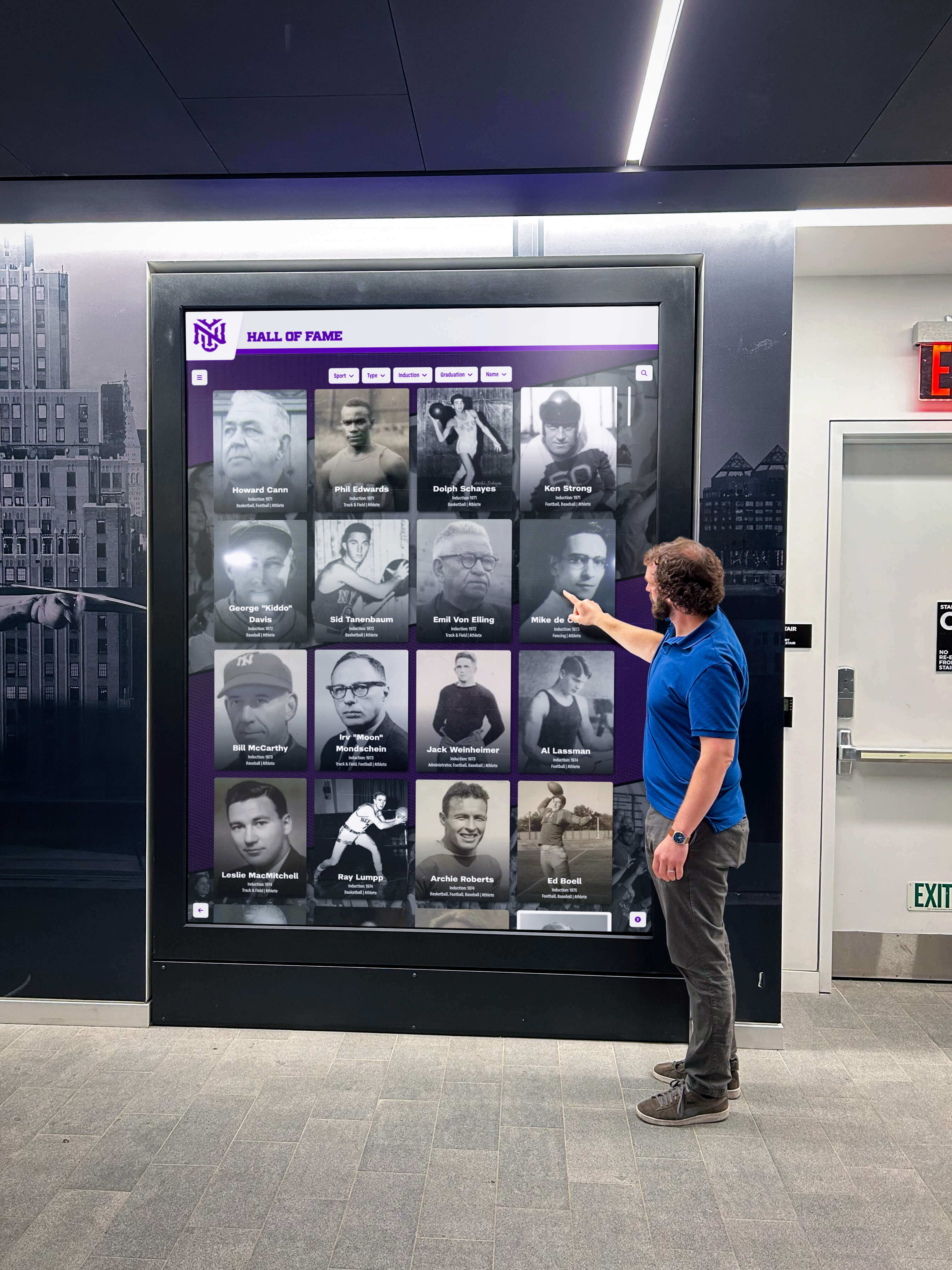
A completed keepalive configuration record documents the OS parameters, NAT timeout value, and measured reconnection time — the reference IT staff need to verify nothing changed after a summer firewall upgrade or network policy update
Troubleshooting: Common TCP Keepalive Configuration Failures
| Symptom | Probable Cause | Resolution |
|---|---|---|
| Display shows stale content for hours without reconnecting; CMS portal shows the display as online during the stale period | NAT idle timeout is shorter than the OS TCP keepalive time; the NAT device has silently expired the session before OS keepalive probes begin; CMS server-side connection state has not yet timed out so the portal shows the display online even though the network path is dead | Reduce tcp_keepalive_time to a value shorter than the NAT idle timeout. Use 60 seconds as a safe starting point — this is well below any school-grade NAT idle timeout and eliminates the race condition between the OS keepalive timer and the NAT session expiry. Restart the CMS application or reboot the display after the change to apply the new keepalive time to the active CMS connection |
| Linux: keepalive values are set correctly in sysctl.conf but reset to defaults after reboot | The sysctl.conf file is being overridden by a later-loading sysctl.d configuration file or by the CMS application's own startup script that resets TCP parameters; file permission issue preventing the conf file from being read at boot | Place the keepalive settings in /etc/sysctl.d/99-recognition-display-keepalive.conf — a numerically high filename is loaded last and overrides earlier files. Check for conflicting files: grep -r tcp_keepalive /etc/sysctl*. After each reboot, confirm values with sysctl net.ipv4.tcp_keepalive_time |
| Windows: keepalive registry values are set but the display still takes hours to detect a dead CMS connection | Registry changes were applied but the display was not rebooted; Windows TCP keepalive registry parameters require a full reboot to take effect; existing connections established before the reboot continue to use the previous keepalive values | Reboot the display PC after setting registry values. Verify after reboot with the PowerShell Get-ItemProperty command. If values are correct after reboot and detection is still slow, confirm the CMS application is using system TCP sockets (not a custom transport layer with its own keepalive settings) and check whether the CMS vendor provides specific TCP keepalive guidance |
| Keepalive probes are being sent by the OS but the CMS server is not responding; connection is torn down every 60–135 seconds and the CMS reconnects immediately — acceptable functionally, but reconnection causes brief content interruptions | The CMS server or an intermediate proxy is silently discarding keepalive probe ACKs rather than responding, causing the OS to exhaust its probe count and tear down the connection; or the CMS server has its own idle timeout shorter than the display's keepalive time | Investigate whether the CMS platform uses a load balancer or reverse proxy with its own idle connection timeout shorter than the display's keepalive time. If the proxy times out the backend connection while the display's OS keepalive is still running, the connection is dead on the server side before the display detects it. Contact the CMS vendor to confirm their recommended keepalive settings — most cloud CMS platforms document a maximum idle timeout for their connection endpoints |
| Display is reconnecting every 60 seconds even when the network is healthy; CMS portal shows frequent brief offline events | tcp_keepalive_time is set too short relative to the CMS server's idle connection timeout; keepalive probes are arriving at the CMS server after the server has already closed the connection on its side; or the CMS application layer misinterprets a keepalive ACK as a normal packet and resets its own session timer, creating a conflict | Increase tcp_keepalive_time to 120 or 300 seconds — still much shorter than the 7,200-second default but long enough to avoid conflicting with CMS server-side idle timeouts that may have minimums of 60–90 seconds. Check CMS documentation for minimum recommended keepalive time |
| TCP keepalive probes are being sent but the NAT device is still expiring the session before the probes keep it alive | Keepalive probe packets are not traversing the NAT device because the session entry has already been removed; the display sends a probe, the NAT device has no state entry to translate it, and the probe is silently dropped | This is the core symptom of a keepalive time that is too long relative to the NAT idle timeout. Reduce tcp_keepalive_time to 50–60% of the NAT idle timeout. If the NAT idle timeout cannot be determined, set keepalive time to 60 seconds — this is short enough to keep the NAT session alive on all common school-grade appliances. Confirm by running the simulated interruption test with a timer shorter than the NAT timeout period and verifying that the CMS stays connected |
| Embedded or commercial media player cannot be configured for TCP keepalive; keepalive time is fixed by the vendor firmware | Proprietary embedded OS does not expose TCP keepalive parameters; the vendor has set fixed values that cannot be changed without a firmware modification | Contact the CMS or hardware vendor for their keepalive settings and whether a firmware update changes them. As a workaround, configure the school's NAT or firewall to extend the idle TCP session timeout for the display VLAN to at least 3× the vendor's fixed keepalive time. Alternatively, if the CMS platform supports configurable application-layer heartbeat intervals, reduce the heartbeat interval to 30–60 seconds at the application layer — this resets the NAT session timer more frequently than the OS-level keepalive, preventing session expiry even when the OS keepalive time cannot be changed |
Post-Test Steps Before Returning to Unattended Operation
After all test items pass, complete these steps before closing the commissioning session.
Persist the configuration. On Linux, confirm the keepalive settings file exists in
/etc/sysctl.d/and will survive an OS update. On Windows, confirm the registry values are present and the PC was rebooted. A configuration applied only to the running kernel state is lost on the next reboot — an easily overlooked failure mode that goes undetected until the first extended school holiday brings the display to the two-hour-stale-content state the configuration was designed to prevent.Record the NAT timeout alongside the keepalive settings. The keepalive configuration is only meaningful in relation to the NAT idle timeout it was calibrated against. If the school upgrades its firewall or changes its session timeout policy, IT staff need to know both values to recalibrate. Schools that document their recognition display network configuration — including VLAN assignments, NAT policies, and keepalive values — alongside hall-of-fame display asset records create a single reference point for any IT staff member who inherits the system.
Add the keepalive configuration to the port commissioning record. The TCP keepalive settings belong in the same commissioning document as the switch port security configuration, PortFast settings, and VLAN assignment. A display whose OS keepalive settings are not documented may be re-imaged or replaced during summer without the new installation inheriting the correct keepalive values.
Confirm CMS synchronization is current after the simulated interruption test. After the reconnection test in Step 5, open the CMS management portal and verify the display’s content is fully synchronized with the latest updates. A reconnection event resets the TCP connection but the CMS may take an additional 30–90 seconds to complete a full content sync. Do not close the commissioning session until the CMS portal shows a current synchronization timestamp, not just a connection status.
Schedule a post-summer re-verification. Add a note to the school’s IT maintenance calendar to verify TCP keepalive settings on every recognition display PC at the start of each school year, particularly after any OS re-image, hardware replacement, or firewall policy update. Schools that refresh their 10-year reunion recognition content and alumni milestone features before major events also benefit from a pre-event keepalive verification to ensure the display is in its best-connected state for visiting guests.
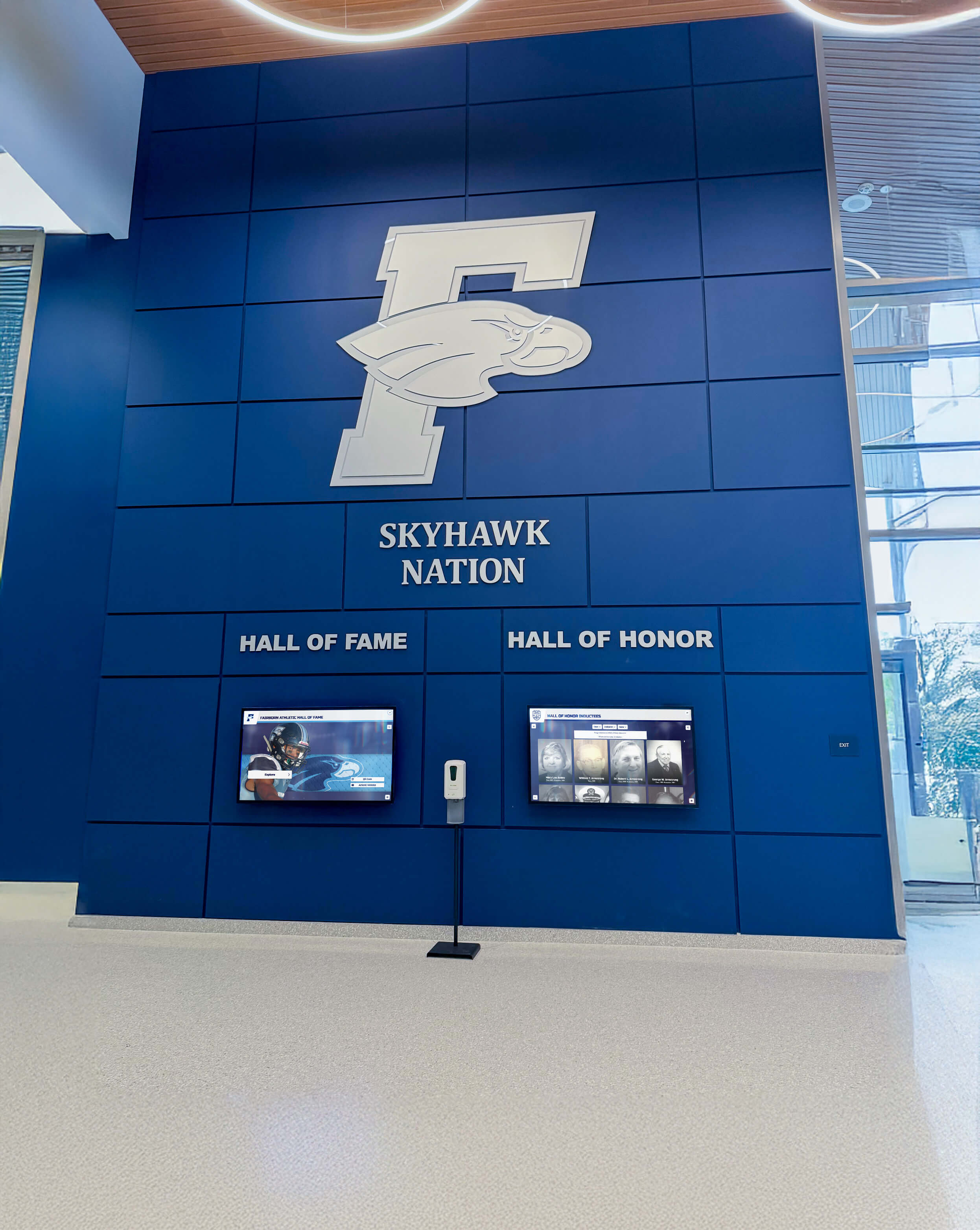
Recording the keepalive configuration in the display's commissioning document allows IT staff to restore the correct OS settings after any summer re-imaging without re-running the full detection window calibration
TCP Keepalive Considerations for Multi-Display School Installations
Schools running recognition displays across multiple locations face additional keepalive considerations that go beyond a single display configuration.
Each display OS instance must be configured independently. A keepalive configuration applied to one display media PC does not propagate to other display PCs on the same network. Schools that deploy recognition hall-of-fame displays in the main lobby, the athletics corridor, and the administration wing — each running a separate media PC — must configure and verify the keepalive settings on each PC independently. Using a configuration management tool such as Ansible (Linux) or Group Policy (Windows domain) to apply keepalive settings centrally reduces the risk of individual displays being missed during commissioning.
Different display VLAN segments may have different NAT policies. Schools with segmented networks — separate VLANs for athletics, administration, and general student areas — may apply different firewall policies with different idle timeout values to each VLAN. A keepalive time of 60 seconds calibrated against a 1,800-second NAT timeout on the lobby VLAN may be unnecessarily short on an administration VLAN with a 3,600-second timeout, or dangerously long on a student VLAN with a 600-second timeout. Check the NAT idle timeout for each display’s VLAN independently rather than assuming the same policy applies across all display locations.
Embedded display players with fixed keepalive values require the NAT workaround. Schools that deploy a mix of Windows or Linux media PCs and commercial embedded players in different locations cannot apply a uniform OS-level keepalive configuration if some players do not support it. For embedded players, the NAT-side workaround — extending the idle TCP session timeout to at least 3× the embedded player’s fixed keepalive time — is the only available mitigation without a firmware change. Document which display locations use embedded players and which use configurable OS environments so the NAT policy change is applied to the correct display VLAN.
Summer re-imaging resets all OS TCP parameters to defaults. When IT staff re-image a display media PC during summer maintenance — to apply OS updates, remove accumulated state, or replace a failing drive — the new OS image ships with default TCP keepalive values of 7,200 seconds. Unless the keepalive configuration is part of the re-image baseline or is applied immediately after re-imaging from the commissioning record, the display enters the new school year with the two-hour detection window that the original configuration was designed to eliminate. Schools that maintain comprehensive digital hall-of-fame programs with reliable uptime expectations need the keepalive configuration to survive OS refresh cycles.
Firewalls updated during summer may change idle timeout policies. A firewall firmware upgrade, a UTM platform replacement, or a district-wide security policy update can silently change NAT idle timeout values from their documented values. A display whose keepalive time was calibrated at 60 seconds against a 1,800-second NAT timeout continues to function correctly even if the NAT timeout changes — as long as the new NAT timeout is longer than the keepalive time. But if the new NAT timeout is shorter than 60 seconds (unlikely but possible on high-security segmented networks), the keepalive probes cannot keep the session alive, and the display will experience frequent reconnections. Post-summer re-verification should confirm the NAT idle timeout value alongside the OS keepalive settings.
Schools hosting reunion events and alumni programming need pre-event verification. Schools that activate historical recognition content for events such as 50th reunion programming often bring displays to venues or switch displays to event-specific content playlists weeks before the event. Running a quick keepalive verification — confirming the OS settings are still correct and the simulated interruption test still passes within the expected window — before a high-visibility event reduces the risk of a stale-content embarrassment on the event day.
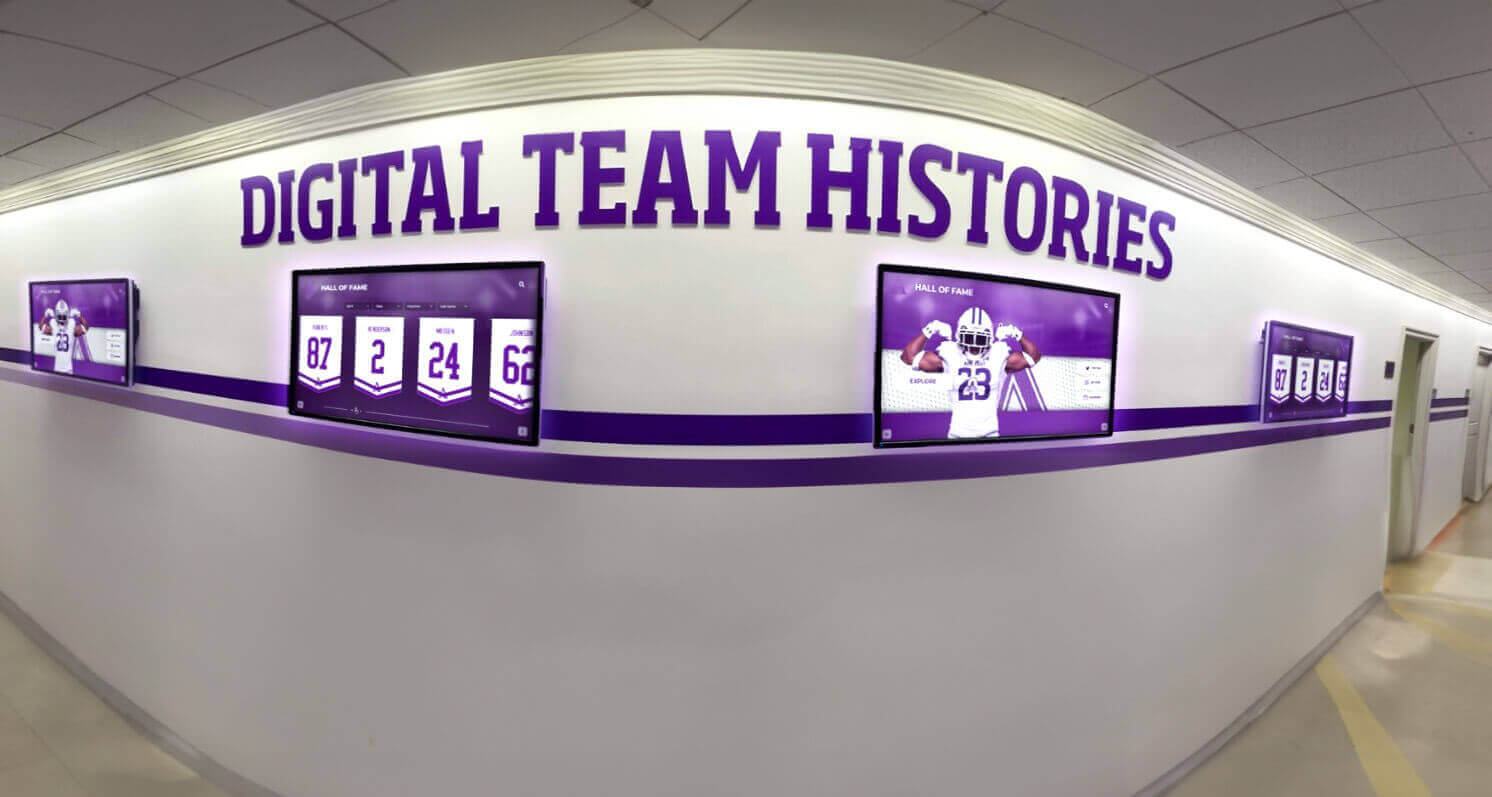
Schools running recognition displays across multiple hallways and VLANs should verify keepalive settings independently on each display PC and confirm the NAT idle timeout for each VLAN segment — a single firewall policy does not always apply uniformly across all display locations
Frequently Asked Questions
Does TCP keepalive add meaningful traffic overhead to the school network?
No. TCP keepalive probes are minimal — each probe is a single TCP segment with no data payload, typically 54–66 bytes including Ethernet, IP, and TCP headers. At a 60-second keepalive time with 15-second intervals, a recognition display sends at most one probe per minute during idle periods. The bandwidth consumed is under 1 kilobit per minute — negligible on any school network connection. The probe frequency is also self-limiting: once the CMS connection is actively sending content-sync traffic, the idle timer resets and probes are not sent.
If the CMS application has its own heartbeat, do I still need to configure OS-level TCP keepalive?
Both layers provide complementary protection. The CMS application heartbeat operates at the application layer and is subject to the behavior of the CMS process — if the application is frozen, hung, or in a low-power sleep state, its heartbeat may stop while the OS TCP stack continues running. OS-level TCP keepalive provides a network-stack safety net that is independent of the application process state. Configuring both gives the display two independent mechanisms to detect a dead connection, which is appropriate for an unattended device in a public location.
Will reducing the TCP keepalive time affect the recognition display’s performance or battery life?
For a wired display media PC running on AC power, the keepalive overhead is negligible. For embedded players with power management features, very short keepalive intervals — under 10 seconds — could prevent the NIC from entering low-power idle states during extended off-hours periods. The recommended 60-second keepalive time is short enough to catch dead connections within a reasonable window and long enough that the NIC can briefly reduce power between probes. Battery-powered displays — rare in school recognition installations — should use 120 seconds or longer to balance detection speed against power consumption.
Does TCP keepalive work when the display is behind a school proxy server?
It depends on whether the proxy is transparent or explicit. A transparent proxy at Layer 4 (TCP) passes keepalive probes through to the CMS server without terminating them, so OS-level keepalive works end-to-end. An explicit HTTP proxy that terminates the TCP connection at the proxy level — establishing a separate connection to the CMS server — means the OS keepalive probes test the display-to-proxy connection, not the proxy-to-CMS connection. In this case, the proxy’s own keepalive and idle timeout settings determine how quickly a dead proxy-to-CMS connection is detected. Check with the school’s network administrator whether the display’s CMS traffic is passing through an explicit terminating proxy.
How does TCP keepalive interact with TLS-encrypted CMS connections?
TCP keepalive probes are sent at the TCP layer and do not carry TLS payload. A TLS-encrypted CMS connection uses TLS for application data but the underlying TCP connection — including keepalive probes — operates below TLS. From the keepalive perspective, TLS is transparent: the OS sends a TCP keepalive probe, the remote endpoint’s TCP stack acknowledges it, and the TLS session continues unaffected. Keepalive probes do not trigger TLS renegotiation and do not cause the TLS session to reset.
What should I check if the display reconnects frequently even after configuring a longer keepalive time?
Frequent unexpected reconnections with a properly configured keepalive time usually indicate a cause other than the OS keepalive mechanism — typically an application-layer timeout at the CMS server, a proxy idle timeout, or an intermittent physical layer issue (flapping switch port, marginal cable) causing TCP RST packets rather than silent session expiry. Check the CMS application logs and the school network’s switch port event log for the display port. Frequent TCP RST packets arriving at the display are a sign that the remote endpoint is actively closing the connection, which requires investigating the server-side or proxy-side timeout configuration rather than the OS keepalive settings.
Should I configure TCP keepalive differently for displays that run 24 hours versus displays on a scheduled power cycle?
For displays on a scheduled power cycle — powering on at 7:00 AM and off at 10:00 PM — the TCP connection is re-established fresh at each power-on, resetting all keepalive timers. The dead-connection risk period is concentrated during the continuous on-hours window. A 60-second keepalive time is appropriate. For displays running 24 hours — common in gymnasiums or lobbies monitored by overnight security staff — the dead-connection risk extends through overnight low-activity periods where CMS sync traffic may be minimal. A 60-second keepalive time covers both scenarios; the slightly higher probe frequency during overnight hours is harmless.
A recognition display’s cloud CMS connection is only reliable if the operating system detects broken connections quickly enough to reconnect and serve current content before visitors notice the stale state. Running a recognition display TCP keepalive configuration test at commissioning — checking the NAT idle timeout, setting the OS keepalive time shorter than that timeout, and verifying the simulated-interruption reconnection window — closes the gap between the OS default two-hour detection window and the two-to-five-minute window appropriate for unattended school recognition displays in public hallways and event spaces. Document the configured keepalive values, the NAT timeout they were calibrated against, and the measured reconnection time in the display’s commissioning record. Repeat the verification after any summer re-imaging, firewall upgrade, or OS update that could reset the keepalive parameters to their defaults.
Looking for a recognition display solution that comes with documented network configuration requirements — including CMS connection keepalive guidance, VLAN assignments, and ongoing remote monitoring — so your school’s hall-of-fame or athletic record board stays connected and current throughout the school year? Rocket Alumni Solutions deploys touchscreen recognition displays for schools with complete network readiness documentation and remote CMS support, so IT teams and athletic directors spend time on their programs rather than troubleshooting silent connection failures. Request a network-ready recognition display demo to see how Rocket Alumni Solutions makes deployment straightforward for school IT teams and program administrators.