Intent: demonstrate — this guide walks school AV teams, IT coordinators, and facilities staff through a recognition display refresh rate test so every motion sequence — championship highlight reels, scrolling alumni rosters, and award ceremony clips — plays without judder, stutter, or tearing before a touchscreen hall of fame, donor wall, or athletic record board is accepted for installation.
A refresh rate test confirms that the display’s panel refreshes at its rated frequency under real operating conditions and that the content delivery chain — media player, cables, and display settings — delivers frames at the correct cadence. A panel that passes a static image check can still exhibit visible motion problems when a video clip runs: a 60 Hz display pushed into a mismatched frame-rate mode may produce judder on slow pans, tearing on fast highlights, or stuttering transitions between recognition cards. Running a structured motion check before the installer leaves and before acceptance paperwork is signed costs roughly 45 to 60 minutes and eliminates the most common source of post-launch complaints about video quality on school recognition displays.
The quick answer: play a combination of scrolling text, full-motion video, and slide transitions on the display at its intended installation location, under its installed content management system and media player, and observe motion quality from the standard visitor viewing distance. Document the results before signing acceptance. Any persistent judder, tearing, or stuttering on motion content warrants investigation and resolution before the display goes public.
This procedure applies to wall-mounted and kiosk-style recognition displays driven by embedded media players, external PCs, or cloud-based content management platforms. It is hardware-neutral and works for 55-inch lobby screens through 86-inch athletic hallway installations.
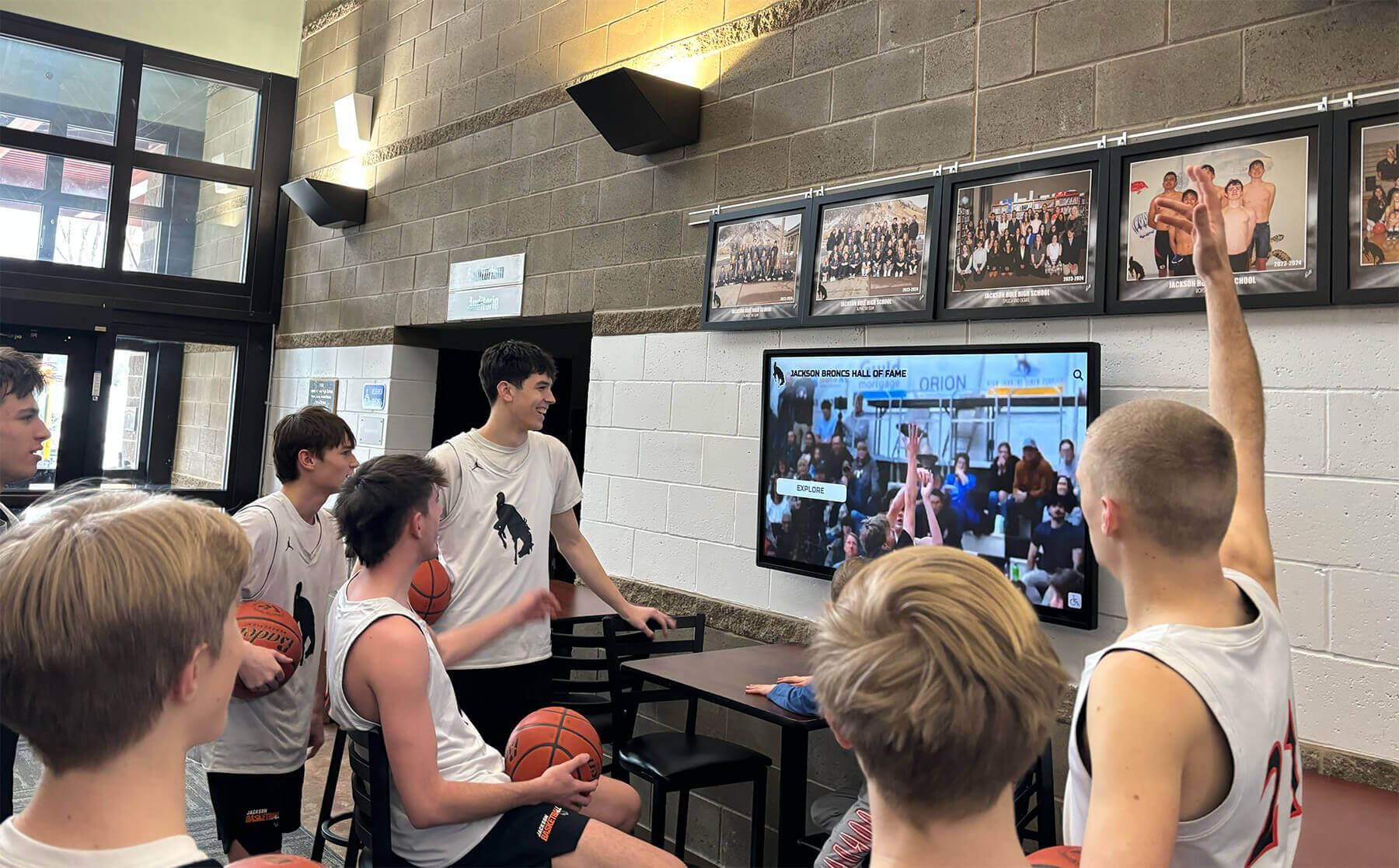
Video highlights and scrolling alumni rosters are among the first motion sequences visitors notice — testing them before go-live prevents public-facing motion quality failures
Why Refresh Rate Matters for Recognition Displays
Static recognition content — portrait photos, award plaques, name lists — tolerates a wide range of display conditions. Motion content does not. Three characteristics of school recognition programs make refresh rate testing especially important.
Video highlights are high-stakes. Championship reels, senior tribute videos, and ceremony clips are the content families most want to see and remember. A judder artifact on a slow pan across the scoreboard, or a tear artifact during a fast cut, undermines the emotional impact of content that may have taken weeks to produce. Recognition programs that invest in video-driven alumni and award recognition content — including concert and performance tributes — require a display chain verified to deliver that content cleanly.
Scrolling text is a persistent motion test. Many recognition platforms use smooth-scroll or ticker-style displays for donor rolls, honor roll lists, and record-board updates. A display with frame-timing inconsistency produces text that visually stutters even when the underlying scroll speed is constant — an effect that looks like a software bug to visitors but originates in the display hardware or settings.
Transitions run continuously. Content management systems rotate between recognition cards, sections, or categories on automatic timers. A recognition display may execute hundreds of slide transitions per day. A transition that takes 500 milliseconds at 60 Hz will stutter visibly if the display drops to 24 Hz behavior during low-brightness idle states, a behavior some commercial panels exhibit to reduce power consumption.
Understanding these failure modes before installation day gives AV teams the vocabulary to diagnose problems quickly and communicate effectively with display vendors.
Before You Begin: Refresh Rate Fundamentals
A display’s refresh rate is the number of times per second it redraws the image on screen, measured in Hertz (Hz). Most commercial school recognition displays are rated at 60 Hz, meaning the panel redraws 60 times per second. Some higher-specification panels offer 120 Hz.
A refresh rate specification alone does not guarantee smooth motion. Three additional factors determine whether motion content plays correctly:
Frame rate alignment. The content source — media player, PC, or content management platform — must deliver frames at a rate that divides evenly into the display’s refresh rate. A 30 fps video plays cleanly on a 60 Hz display (each frame shown twice). A 24 fps video on a 60 Hz display without 3:2 pulldown correction introduces a characteristic judder because 60 does not divide evenly by 24.
Display mode consistency. Some commercial displays switch between refresh rates based on ambient light sensors, content type detection, or power-saving settings. A display that runs at 60 Hz under normal observation but drops to a lower effective rate when the media player sends a low-activity signal will exhibit motion problems that appear intermittent and are difficult to diagnose after installation.
Cable and signal integrity. HDMI 2.0 and DisplayPort 1.4 carry the refresh rate as part of the signal handshake. A marginal cable or an incompatible signal path can cause the display to negotiate a lower refresh rate or an incorrect mode — sometimes silently, without any on-screen notification. Schools that have already completed a cable continuity check as part of their installation process reduce this risk, but the refresh rate test independently verifies that the negotiated mode is correct.
Tools Required
| Item | Purpose | Notes |
|---|---|---|
| Display information screen (OSD) | Read the active refresh rate reported by the panel | Access via the display’s menu button; look for “Source Info,” “Picture Info,” or “Signal Info” |
| Media player or PC (the one being installed) | Drive the test content | Do not use a laptop brought to the site — test with the actual production source device |
| Test video files (motion-rich) | Verify frame rate under real content | 30 fps and 60 fps clips recommended; 24 fps clip recommended if the platform will show film-sourced content |
| Scrolling text or ticker content | Verify smooth horizontal and vertical scroll | Most recognition CMS platforms include a scrolling demo or can set a donor scroll to run continuously |
| Transition-heavy content sequence | Verify slide and section transitions | Configure the CMS to advance slides at a 2-to-3-second interval for continuous transition observation |
| Phone with video camera (60 fps) | Record motion artifacts for documentation | Slow-motion playback at 240 fps reveals judder that is borderline at real speed |
| Display OSD access | Confirm active refresh rate, color mode, and motion enhancement settings | Needed for Steps 1 and 2 |
Pre-Test Configuration
Before running motion content, confirm the display is configured correctly. Incorrect settings account for the majority of refresh rate problems observed during school installations.
Step 1: Read the active refresh rate from the display OSD.
Power on the display with the production media player connected and outputting signal. Open the display’s OSD (on-screen display) menu — typically accessed via a button on the display’s control panel or a remote — and navigate to Source Info, Picture Info, or Signal Info. Confirm the panel reports the rated refresh rate (typically 60 Hz) and not a fallback rate such as 30 Hz or 50 Hz.
A 50 Hz reading on a display rated for 60 Hz indicates the media player or PC is configured for a PAL-region output setting. This commonly occurs when a content management device is configured with a European regional default. Correct the output settings in the source device’s display or resolution control panel before proceeding.
A 30 Hz reading at 4K resolution indicates the HDMI cable or port is limited to HDMI 1.4 bandwidth. HDMI 2.0 is required for 4K at 60 Hz. If the source and display both support HDMI 2.0 but the panel reports 30 Hz, check that both the source port and display port are labeled HDMI 2.0 (some displays have one HDMI 2.0 port and additional HDMI 1.4 ports), and that the cable has been verified for HDMI 2.0 bandwidth.
Step 2: Disable motion enhancement processing.
Many commercial displays include motion enhancement features — marketed under names such as Auto Motion Plus, MotionFlow, TruMotion, or Smooth Motion — that use frame interpolation to artificially increase the apparent frame rate. These features can create a “soap opera effect” that makes cinematic video content look unnatural, and more importantly for recognition displays, they can introduce frame artifacts on scrolling text and slide transitions.
Disable all motion enhancement settings in the display OSD before running the test. The test evaluates the display’s native refresh rate behavior, not the output of post-processing algorithms. Schools that plan to use motion enhancement features in production should run a second test pass with those features enabled and compare results.
Step 3: Confirm power-saving modes are disabled.
Set the display to its normal operating brightness (not an eco mode), and disable any ambient light sensor adjustments. Some panels reduce backlight output and simultaneously reduce the effective refresh rate in eco modes. Verify that the display is in the same power state during the test as it will be during normal school-hours operation.
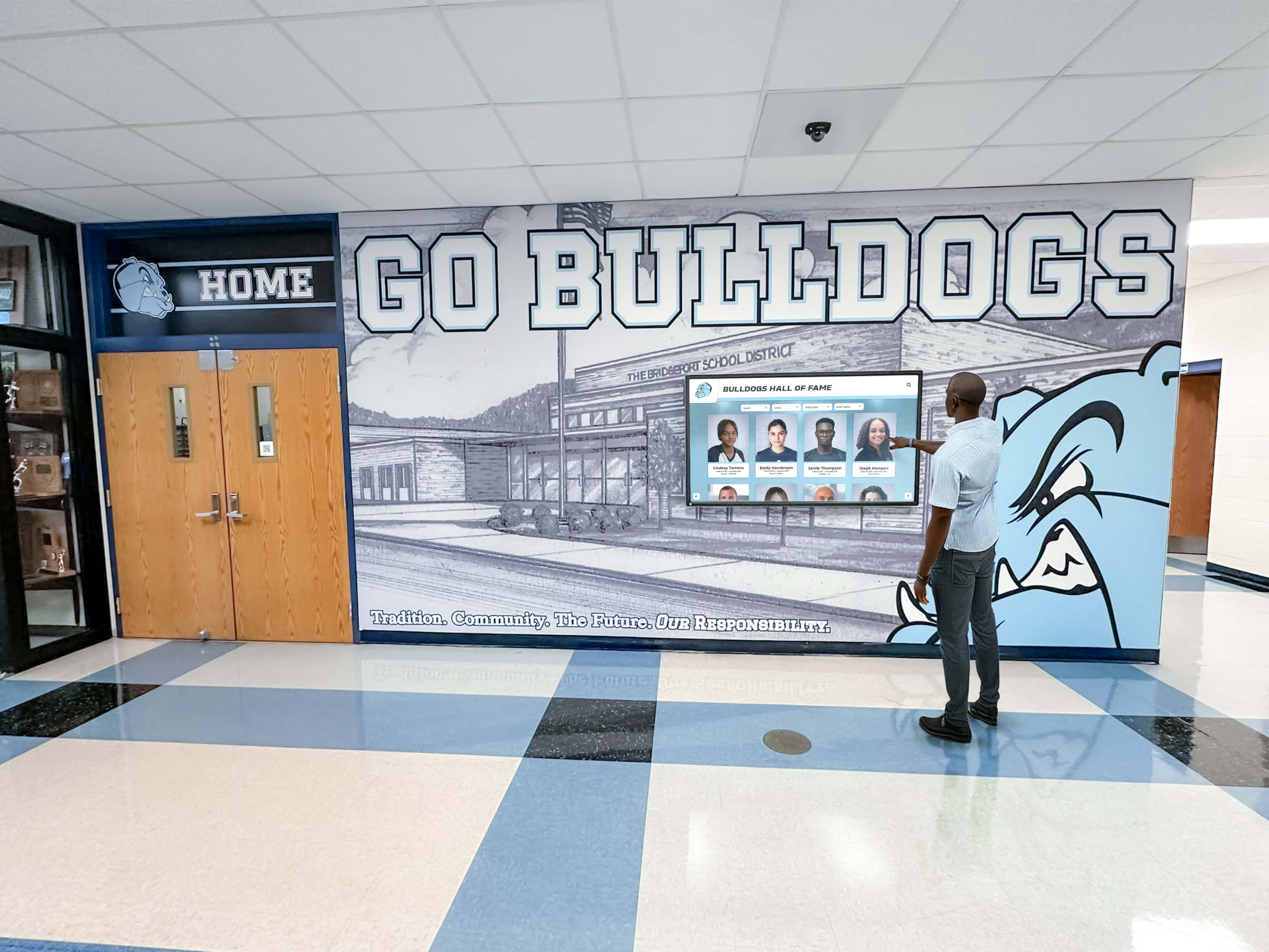
Running the test with the production media player and CMS — not a test laptop — verifies the actual signal chain the display will use every day
Recognition Display Refresh-Rate Test Procedure
Step 3: Scrolling Text Test
Scrolling text is the most sensitive practical test for refresh rate consistency because the human eye tracks motion in a straight line and notices deviation from uniform velocity immediately.
Procedure:
Configure the recognition CMS or media player to display a continuous horizontal or vertical scroll of text — a donor roll, honor roll, or record list works well — at a moderate scroll speed. Run the scroll continuously for at least 60 seconds while observing from the standard visitor viewing distance (6 to 10 feet for a hallway kiosk; 10 to 15 feet for a lobby display).
Look for:
- Stuttering: text that appears to pause briefly and then jump forward, repeating at regular intervals
- Micro-judder: text that appears to vibrate slightly rather than gliding smoothly, visible when tracking a specific letter
- Speed inconsistency: text that accelerates and decelerates visibly rather than maintaining uniform velocity
Record your observations in the tracking table in Step 6.
Pass criteria: Text scrolls at uniform velocity with no visible stuttering or direction changes from standard viewing distance.
Step 4: Full-Motion Video Test
Play a video clip representative of the recognition content the display will show: a sports highlight reel, a ceremony clip, or a tribute video. If no school-specific video is available, a nature or sports clip from a streaming service works for testing purposes — the test evaluates motion quality, not content relevance.
Run two clips:
- A 30 fps clip (the most common frame rate for school-produced video and broadcast sports highlights)
- A 60 fps clip if the platform will show content shot at 60 fps (increasingly common with smartphones and action cameras)
If the platform will show any 24 fps content (film transfers, archival footage), include a 24 fps clip as a third test.
During each clip, observe:
- Camera pans: a slow horizontal pan across a stadium or field should appear smooth and continuous. Judder on slow pans indicates a frame rate mismatch between the source and display.
- Fast motion: a player running across the frame should appear as controlled motion blur, not as discrete stacked images (which indicates the display is not refreshing fast enough for the content frame rate)
- Title cards: text overlaid on video — athlete names, event titles, scores — should remain legible during motion sequences, not blur into illegibility
Pass criteria: Camera pans are smooth; fast motion appears as controlled blur rather than stutter; text overlays remain legible during motion.
Step 5: Slide Transition Test
Configure the content management system to cycle through recognition cards, sections, or categories at a 2-to-3-second interval and observe the transition animations continuously for at least 90 seconds.
Common transition types to evaluate:
- Crossfade (dissolve): one slide fades out as the next fades in; look for brightness dip in the middle of the transition
- Slide wipe: content slides horizontally or vertically; look for tearing (a horizontal line where the old and new frames appear simultaneously)
- Zoom or scale: content zooms in or out; look for any keyframe stepping rather than continuous motion
Tearing — a horizontal discontinuity where the upper portion of the screen shows the new frame and the lower portion shows the old frame — indicates a V-sync (vertical synchronization) issue between the source device and display. Tearing during transitions is rarely a panel defect; it most commonly indicates the source device needs V-sync enabled in its display or GPU settings.
Pass criteria: Transitions complete without visible tearing, brightness dips, or keyframe stepping at standard viewing distance.
Step 6: Record Results and Make a Go / No-Go Decision
Document the result of each motion test before the display is accepted. This record serves as the baseline for any future motion quality complaints and as evidence in warranty discussions if problems emerge after the acceptance window.
| Test | Content Type | Active Refresh Rate (from OSD) | Motion Enhancement | Result | Observed Issue | Tested By | Date | Action |
|---|---|---|---|---|---|---|---|---|
| OSD Refresh Rate Confirm | N/A (settings check) | 60 Hz | Disabled | Pass | None | Cleared for motion tests | ||
| Scrolling Text | Donor scroll (CMS) | 60 Hz | Disabled | Pass | None | Cleared | ||
| Video — 30 fps | Sports highlight clip | 60 Hz | Disabled | Fail | Judder on slow pan | Investigate frame rate source settings | ||
| Video — 60 fps | Action camera clip | 60 Hz | Disabled | Pass | None | Cleared | ||
| Slide Transitions | CMS recognition cards | 60 Hz | Disabled | Pass | None | Cleared |
Go / No-Go rule: A display passes when all motion tests at standard viewing distance show smooth, artifact-free motion with no persistent judder, tearing, or stuttering. A single test failure — particularly on the video or scrolling text — must be investigated and resolved before acceptance. Document the corrective action taken and re-run the failing test to confirm resolution.
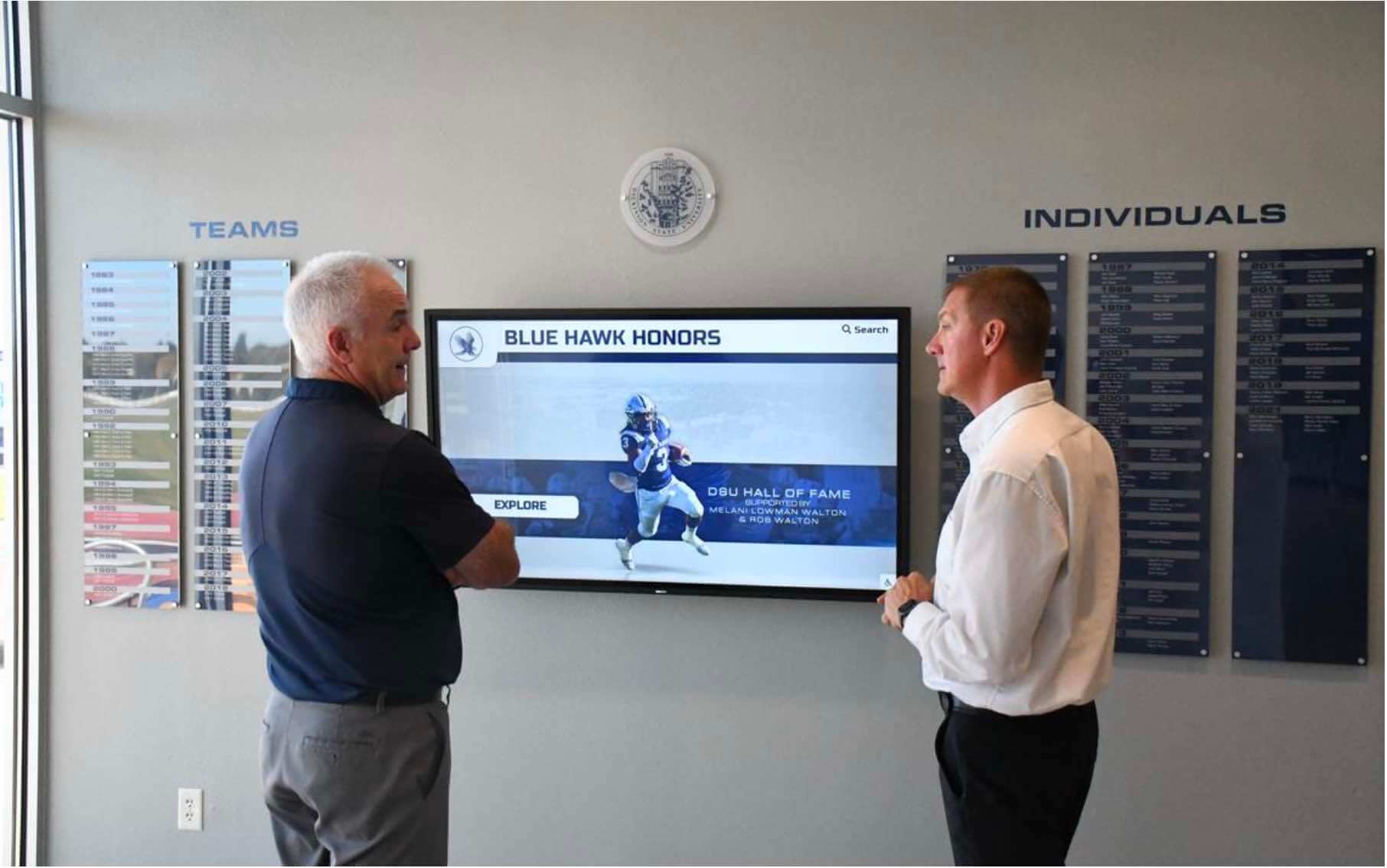
A two-person test team — one managing content playback, one observing from visitor distance — catches motion artifacts that a solo inspector may overlook
Motion Problem Diagnosis Table
When a test step fails, use this table to identify the most likely cause and corrective action before escalating to the vendor.
| Observed Problem | Most Likely Cause | First Corrective Action | Escalate If |
|---|---|---|---|
| Judder on slow camera pans (30 fps video) | 24 fps or 23.976 fps video file being played on 60 Hz display without 3:2 pulldown correction | Confirm source video is actually 30 fps using a media info tool; if 24 fps, enable 3:2 pulldown or Cinematic mode in the media player settings | Judder persists with confirmed 30 fps source; suggests display or driver issue |
| Tearing on slide transitions | V-sync disabled on source device GPU or media player | Enable V-sync in the source device's display settings or GPU control panel; some media players have a separate "sync to display" setting | Tearing persists with V-sync enabled; check HDMI mode (HDMI 2.0 required for 4K 60 Hz) |
| Stuttering scrolling text | Frame timing inconsistency from content management software; or display refresh rate mismatch (50 Hz vs. 60 Hz) | Confirm OSD shows 60 Hz; verify source device regional settings are not set to PAL (50 Hz); update CMS software to latest version | Stuttering visible on multiple content types with confirmed 60 Hz OSD; may indicate panel defect |
| OSD reports 30 Hz at 4K | HDMI 1.4 cable or port in use (1.4 supports only 4K at 30 Hz) | Replace cable with HDMI 2.0 certified cable; confirm source and display ports are both HDMI 2.0 | OSD still reports 30 Hz after cable replacement; check source device GPU HDMI port version |
| Periodic stutter every 3–5 seconds | Display power-saving mode reducing refresh rate during low-motion intervals between content changes | Disable all eco and ambient sensor modes; set display to manual brightness; check for "HDPC" or "signal auto-detect" settings that may cause display to re-handshake | Stutter persists with all power-saving disabled; document interval and escalate to vendor |
| Motion enhancement artifacts (soap opera effect) | Frame interpolation (motion enhancement) enabled in display OSD | Disable all motion smoothing, TruMotion, MotionFlow, or equivalent settings; re-run test | N/A — this is a settings issue, not a defect |
Viewing Conditions for Motion Testing
Motion artifacts are more or less visible depending on observation conditions. This table summarizes optimal setup for each test type.
| Test | Room Lighting | Viewing Distance | Warm-Up Required | Phone Video Helpful |
|---|---|---|---|---|
| Scrolling text | Match installed conditions | Standard visitor distance | Yes (15 min) | Yes — record at 60 fps for slow-motion review |
| 30 fps video | Match installed conditions | Standard visitor distance | Yes (15 min) | Yes — slow motion reveals judder on pans |
| 60 fps video | Match installed conditions | Standard visitor distance | Yes (15 min) | Optional |
| Slide transitions | Match installed conditions | Standard visitor distance | Yes (15 min) | Yes — tearing artifacts are clear in video |
| OSD settings check | Any | Close (to read OSD text) | No | Yes — photograph OSD screen for documentation |
Pass, Escalate, or Investigate: Decision Framework
Pass — Accept the motion performance. All tests show smooth motion at standard viewing distance with no persistent artifacts. The OSD confirms the rated refresh rate. Sign acceptance paperwork, photograph the display running motion content, and file the completed motion test record alongside the cable continuity records, network documentation, and panel uniformity records in the school’s installation documentation package.
Investigate before accepting. One or more tests show artifacts that may have a correctable software or settings cause. Run through the diagnosis table, apply corrective actions, and re-run the failing test. Document the corrective action taken and the re-test result. Schools building recognition programs that span decades — halls of fame, donor walls, and athletic archives — need installation records that reflect what was actually corrected and how, not just a binary pass/fail. Alumni recognition programs that plan multi-year content growth benefit from detailed installation records that new staff and facilities coordinators can interpret without access to the original installer.
Escalate to vendor. Motion artifacts persist after all corrective actions. Document specific failing tests with phone video recordings, note the settings state (refresh rate from OSD, all motion enhancement disabled, V-sync enabled), and communicate in writing with the vendor before signing acceptance paperwork. Schools that skip this step have no recourse once the installer is gone and the acceptance window closes.
Most installations from established display vendors pass the motion test on the first attempt. The value of this structured procedure is that it identifies the minority of installations where a settings misconfiguration or marginal component would create ongoing motion quality complaints after go-live.
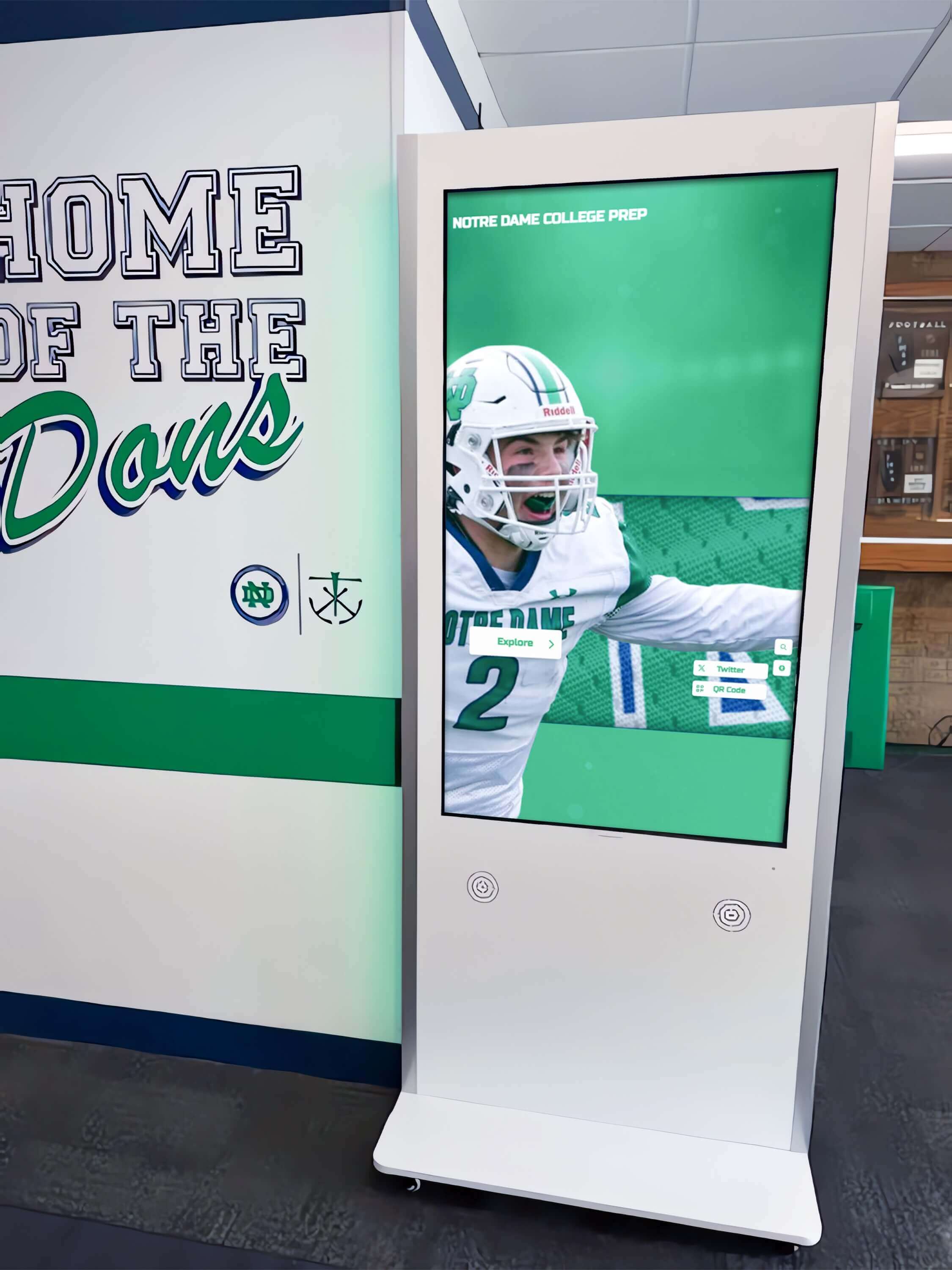
Kiosk-format displays may use embedded media players with separate refresh rate settings from the display panel — verify both during the OSD check
Refresh Rate Testing for Multi-Display Installations
Schools installing recognition display arrays — athletics hallways with a series of record boards, donor corridors with multiple panels, or lobby triptychs — face an additional motion quality concern beyond single-panel performance: inter-panel synchronization.
When multiple displays show different segments of a scrolling list, a video spanning all panels, or synchronized slide transitions, any difference in refresh rate or frame timing between panels produces visible discontinuity at the seam. A donor scroll that appears smooth on each panel individually may appear to jump or stutter where adjacent panels meet if those panels are not synchronized.
For multi-display setups, add two steps:
After passing individual panel tests, display content that spans all panels simultaneously — a widescreen video or a continuous-scroll text block — and observe the seams between panels from the standard visitor viewing distance.
Confirm that all panels in the array are receiving signal from the same source, synchronized to the same refresh rate. Panels driven from different outputs of the same media player may have per-output frame timing differences if the GPU is not configured for synchronized output.
Schools comparing traditional versus digital display configurations for athletics hallways and trophy corridors will find that multi-panel digital installations require coordination steps that single-panel setups do not — and that documenting this configuration at installation protects against problems when the source device is replaced or reconfigured years later.
Coordinating the Test with Your Installation Team
Most professional installation teams expect an acceptance test that includes motion verification. Request the following from your installation coordinator before installation day:
- Confirmation that the media player or embedded PC has been updated to the latest firmware and graphics driver before installation
- The specific HDMI or DisplayPort version used for the signal path, and verification that the cable is rated for that version
- Written documentation of the display’s factory OSD settings — refresh rate, color temperature, brightness — as a baseline for future service calls
- If the platform uses a cloud-based CMS, confirmation that the content delivery and rendering pipeline has been tested at the installation site with a live internet connection
Schools implementing recognition programs that include staff appreciation and recognition content alongside athletic archives often find that the content delivered on recognition displays spans a wide range of frame rates and production qualities. A motion test that covers 24, 30, and 60 fps clips prepares the display chain for the full range of content the school will eventually add.
Hall of fame search and relevance testing frameworks used to verify content quality at launch share the same principle as this refresh rate test: structured, documented verification during the acceptance window costs far less than diagnosing and resolving problems after go-live.
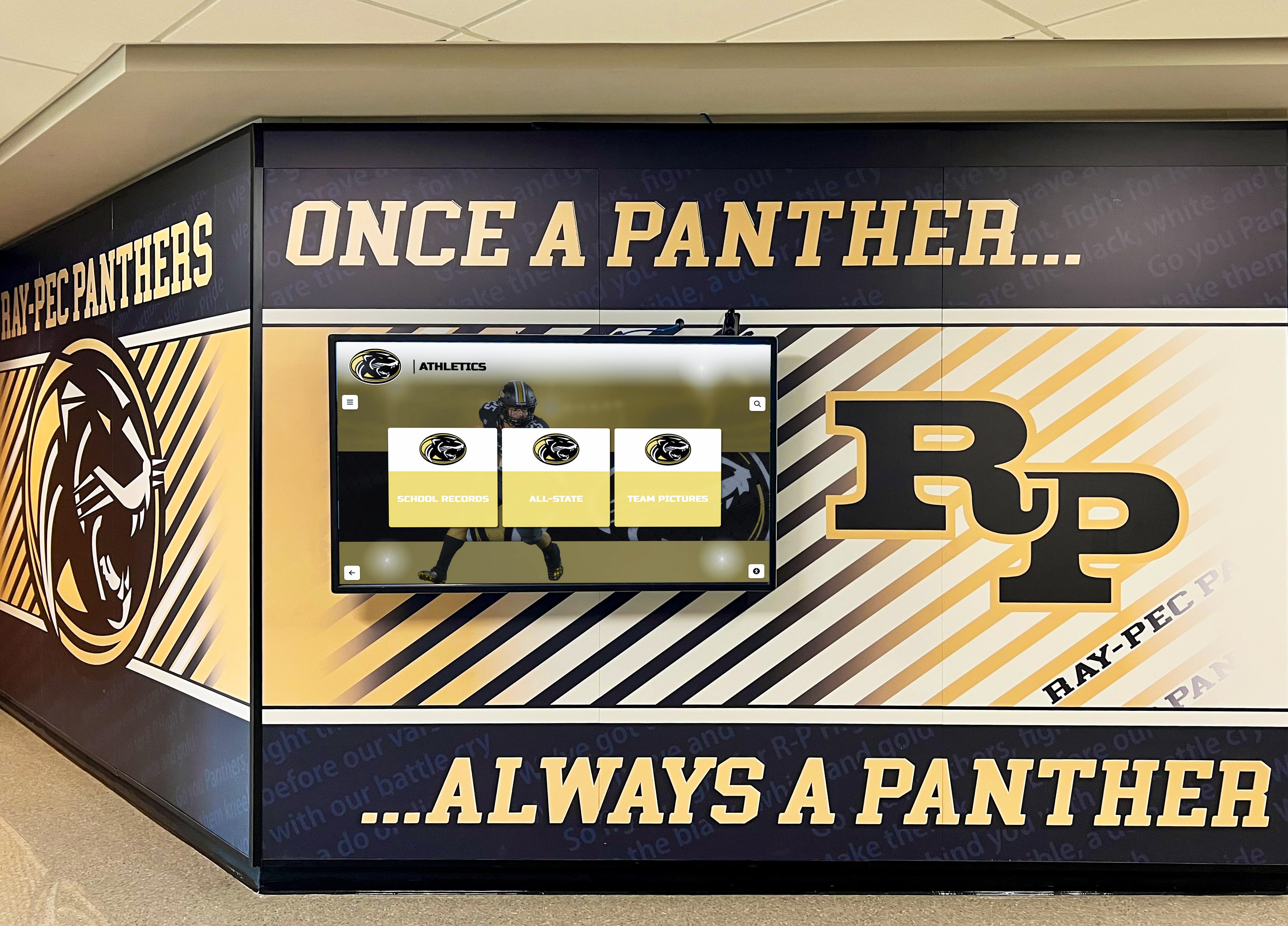
Motion test results should be stored alongside the display's serial number, network configuration, and cable documentation as a permanent installation record
Frequently Asked Questions
How long does a recognition display refresh rate test take?
Allow 45 to 60 minutes for the full procedure, including the pre-test configuration steps, the four motion tests, and documentation. The OSD check and settings configuration take roughly 10 to 15 minutes; each motion test takes 5 to 10 minutes of observation plus documentation time. Multi-display installations scale proportionally — a three-panel hallway installation typically requires 2 to 2.5 hours including the inter-panel synchronization check.
Can we test motion quality using a laptop borrowed for the day instead of the installed media player?
No. The refresh rate test must use the actual production source device — the embedded media player, dedicated PC, or streaming device that will drive the display every day. A laptop may produce a different signal path, HDMI version, or frame rate negotiation than the production device, producing test results that do not reflect the actual installation. Testing with a substitute source device and then swapping in the production device after acceptance passes shifts risk back to the school.
Our display is rated at 60 Hz — does that guarantee smooth 30 fps video?
A 60 Hz panel is compatible with 30 fps video (each frame is displayed twice), but the rated refresh rate does not guarantee that the source device is configured to output 60 Hz, that the cable supports the required bandwidth, or that the display is not in a power-saving mode that reduces effective refresh. The OSD check in Step 1 confirms the actual active refresh rate — the rated specification alone does not.
What is the difference between judder and stutter?
Judder is a periodic variation in frame display duration caused by a mismatch between the source frame rate and the display refresh rate (for example, 24 fps content on a 60 Hz display). It appears as irregular motion on slow pans — the image appears to slip and catch. Stutter is a more abrupt pause-and-jump pattern caused by dropped or delayed frames from the source device, typically a software or processing load issue rather than a frame rate mismatch. Both produce visible motion problems but have different corrective actions: judder requires frame rate alignment; stutter requires source device optimization.
Should we repeat the motion test after the display has been in service for six months?
A periodic motion test is useful for displays that have received firmware or CMS software updates, or that have had their source device replaced or reconfigured. Updates can reset display settings — including motion enhancement features — to factory defaults, reintroducing problems that were corrected at installation. A brief scroll and video check after any significant software update confirms settings are still in the correct state.
Does a booster club or parent organization need to understand refresh rate testing?
Booster organizations that fund recognition display installations — through dedicated accounts similar to those outlined in booster club financial management guidance — benefit from knowing that a structured acceptance test was completed before the school accepted the display. The test record provides documented evidence that the school received a functioning installation, which matters for internal financial accountability and vendor warranty discussions. Booster leaders do not need to conduct the test themselves; they should confirm that the school’s AV team or facilities coordinator completed and documented it.
Our vendor says motion issues are within specification — how do we respond?
Request the written specification document stating the acceptable motion performance limits for the specific panel model. If the vendor cannot provide written specifications, note that in your documentation. For a recognition display used in a public-facing school environment, a visible motion artifact during video highlights or scrolling donor rolls is not an acceptable operating condition regardless of technical specification compliance — it is a quality problem that affects the school’s recognition program. Document your observations with phone video recordings and escalate in writing if the vendor declines to resolve the issue.
A recognition display refresh rate test adds under an hour to a school installation and permanently reduces the risk of motion quality complaints after go-live. Confirm the active refresh rate from the OSD, disable motion enhancement processing, run scrolling text and video clips from the installed source device, observe slide transitions, and document every result before signing acceptance. Any corrective action taken — a V-sync setting, a cable swap, a regional output correction — should be recorded alongside the passing re-test result. The motion test record belongs in the same documentation package as the cable continuity record, the network configuration notes, and the panel uniformity findings: together they give any future IT coordinator or AV technician a complete picture of how the display was commissioned.
Looking for a recognition display partner that commissions hardware to a documented standard before go-live? Rocket Alumni Solutions installs and configures interactive recognition platforms — hall of fame displays, athletic record boards, donor walls — with installation teams that verify motion quality, signal integrity, and content delivery as part of a structured acceptance process. Request a demo to learn how their managed installation approach compares to self-directed display acceptance.