A school recognition display that stutters during multi-stream playback may not need more bandwidth — it may need its network processing spread across more CPU cores. Intent: demonstrate — this guide walks school IT coordinators through a recognition display receive-side scaling check: the structured process of confirming that receive-side scaling (RSS) is enabled and correctly configured on the display PC’s network adapter so that incoming packet processing for concurrent video streams, live athlete data feeds, and interactive touch content is distributed across multiple CPU cores rather than queued to a single core, which commonly causes frame drops and delayed CMS sync even when total CPU utilization appears low.
Receive-side scaling is a NIC driver optimization available in Windows and most Linux distributions. Without it, every incoming packet for the recognition display — regardless of which stream it belongs to — arrives in a single hardware receive queue and is processed by whichever CPU core owns that queue’s interrupt. On a display rendering four concurrent video panels alongside a live athlete record feed, this creates a situation where one core may be saturated while adjacent cores remain largely idle. The symptoms look like a bandwidth problem, but bandwidth monitoring shows the link well within capacity.
The quick answer: open PowerShell as Administrator on the display PC and run Get-NetAdapterRss. Confirm that the Ethernet adapter shows Enabled: True and NumberOfReceiveQueues: 2 or higher. Then, while playing back a multi-stream media test, open Task Manager’s CPU view in logical-processor layout and confirm that CPU load is distributed across cores rather than concentrated on a single core. If one core approaches 90% while others remain at 10–20% during network-intensive content, RSS is not distributing load. Enabling RSS in Device Manager — or via Enable-NetAdapterRss in PowerShell — typically resolves the symptom within seconds of the driver change taking effect, without requiring a restart.
This procedure applies to any Windows-based recognition display PC running Windows 10 or Windows 11, and to Linux-based media players using NIC drivers with RSS support. Hardware vendor and driver version determine the specific configuration options available.
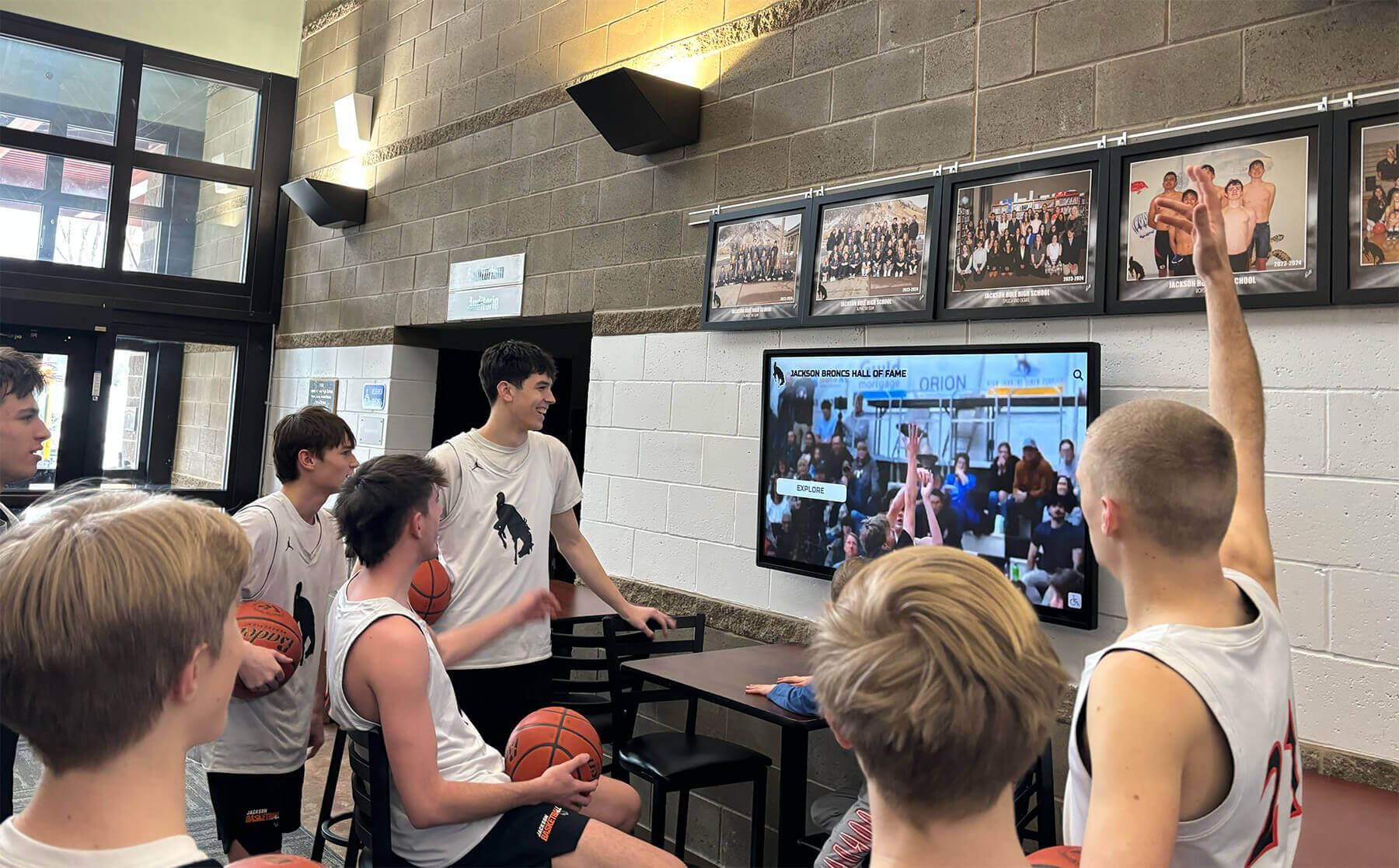
A recognition display rendering game highlights, athlete records, and live data feeds concurrently is a multi-stream workload that benefits directly from receive-side scaling distributing packet processing across available CPU cores
What Is Receive-Side Scaling and Why It Matters for Recognition Displays
Receive-side scaling (RSS) is a hardware and driver mechanism that allows a NIC to maintain multiple receive queues — each serviced by a different CPU core — and distribute incoming packets across those queues using a hash of the packet’s source and destination IP address and port. The effect is that packets from different network connections, or different streams within a connection, are handled by different cores in parallel rather than processed sequentially by one core.
Why recognition displays are particularly affected. A modern school recognition display pulling content from a cloud CMS commonly makes multiple simultaneous TCP connections: one or more for video stream delivery (athlete highlight clips, ceremony recordings), one for live data updates (record boards, academic honor lists), and one for the platform’s heartbeat and management channel. In normal browsing or document work, these connections arrive with gaps that allow a single core to service them without falling behind. In sustained multi-stream playback — especially 1080p or 4K video panels running alongside a live data feed — the incoming packet rate is high enough and continuous enough that a single core processing all of it may struggle to keep pace. The result is frame drops on the video panels, delayed data refreshes on the record board, and occasionally degraded touch response as the core handling network receives competes with the rendering thread.
The misleading CPU average. Because the bottleneck is single-core saturation rather than overall CPU overload, the total CPU utilization percentage in Task Manager may read 15–25% while the display is visibly stuttering. This misleads IT staff into looking for bandwidth problems — and finding none, since link utilization is well within capacity — rather than examining per-core distribution. Enabling the Task Manager CPU view in logical-processor layout, or using Performance Monitor’s per-CPU interrupt counters, reveals the asymmetry immediately.
Schools supporting recognition programs that deliver large athletic media files alongside dynamic record feeds are most likely to encounter this failure mode, particularly on display PCs with multi-core processors paired with a NIC driver that ships with RSS disabled by default.
Symptoms That Point to an RSS Configuration Problem
| Symptom | RSS Not Distributing Load | Other Possible Cause | Distinguishing Check |
|---|---|---|---|
| Video panels stutter or drop frames during sustained playback | Yes — single core saturated; packet queue backs up | Insufficient bandwidth, GPU driver issue | Open Task Manager CPU view in logical-processor layout during playback; look for one core near 100% while others are lightly loaded |
| Total CPU utilization is low (under 30%) but display is sluggish | Yes — single-core bottleneck hidden by the average | Disk I/O, storage bottleneck | Switch to per-core CPU view; confirm load is uneven across cores |
| CMS data feed refreshes are delayed or irregular during video playback | Possible — data connection packets queued behind video packets on the same core | CMS server latency, DNS timeout | Pause video playback and observe whether data feed refreshes normalize; if yes, the issue is CPU receive-path contention rather than server latency |
| Touch input response is sluggish while streams are playing | Possible — receive interrupt processing on the saturated core delays UI thread scheduling | GPU rendering load, insufficient RAM | Reduce stream count to one and retest touch response; improvement indicates CPU core contention from network receives rather than a rendering bottleneck |
| NIC shows high interrupt rate concentrated on a single CPU | Yes — all NIC interrupts directed to CPU0 or the assigned interrupt core | Not typical — interrupt concentration on one core is characteristic of RSS disabled or misconfigured | Run Get-NetAdapterRss in PowerShell; confirm RSS is enabled and NumberOfReceiveQueues is greater than 1 |
| Symptom appears only with four or more concurrent streams, not with one or two | Yes — single core handles low stream counts but saturates at higher counts | Bandwidth limit at higher stream counts | Monitor per-core CPU during a two-stream and a four-stream test; if one core rises sharply while others stay flat, the bottleneck is receive-path processing rather than available bandwidth |
The most diagnostic indicator is a Task Manager CPU view that shows one core at or near 100% during multi-stream playback while adjacent cores remain at 10–30%. This pattern is nearly unique to receive-path CPU concentration and is not produced by rendering load alone, since GPU-accelerated video decoding distributes decode work differently across the processor.
Before and After: What the RSS Check Should Show
This table summarizes the observable changes IT staff can expect when RSS is correctly enabled and configured after a period of running without it. Ranges reflect what is typically observable in display PC environments — specific numbers depend on hardware, driver version, and stream count.
| Metric | Before RSS Enabled (Single Queue) | After RSS Enabled (Multi-Queue) |
|---|---|---|
| Peak utilization on the busiest CPU core during multi-stream playback | Commonly near or above 90% on the NIC interrupt core | Distributed; no single core typically dominates for the same stream count |
| Overall (average) CPU utilization | Appears low (15–25%) despite visible stuttering | Remains similar in total; the misleading low average resolves alongside the symptoms |
| Video frame continuity across all panels | Frame drops observed at peak stream count | Continuous playback across all panels at the same stream count |
| NIC interrupt distribution (visible in Performance Monitor) | Concentrated on one CPU (CPU0 or the assigned interrupt core) | Distributed across the RSS queue count (commonly 4–8 queues on modern NICs) |
| CMS data feed refresh timing | Irregular; delays of 30+ seconds observed during heavy video playback | Consistent with the configured CMS refresh interval |
| Touch input response time | Elevated lag during video playback peaks | Normal; touch handler scheduling no longer competes for the NIC interrupt core |
| Display CMS "last seen" timestamp in management portal | May show gaps corresponding to heavy-playback periods | Consistent; CMS heartbeat no longer delayed by receive-path congestion |
Schools deploying interactive touchscreen recognition displays that rely on multi-touch accuracy during visitor interactions will find that resolving the RSS configuration is a prerequisite for reliable simultaneous input and media playback, since both compete for CPU scheduling when a single-queue NIC driver monopolizes one core.
Tools Required for the RSS Check
| Tool | Purpose in the RSS Check | Notes |
|---|---|---|
| Windows Task Manager (Performance tab, CPU view) | Observe per-core CPU utilization during multi-stream playback to identify single-core saturation | Right-click the CPU graph and select "Change graph to → Logical processors" to see individual core utilization; available in Windows 10 and Windows 11 |
Windows PowerShell (Get-NetAdapterRss) | Confirm whether RSS is enabled on the display NIC and retrieve queue count, base CPU, and max CPU settings | Run as Administrator; output includes Enabled, NumberOfReceiveQueues, and BaseProcessorNumber |
| Device Manager → Network Adapter → Advanced Properties | Enable or disable RSS and adjust queue count in the NIC driver settings | Property name varies by vendor: Intel NICs use "Receive Side Scaling"; Realtek may use "RSS Queues"; Broadcom uses "RSS" |
| Windows Performance Monitor (perfmon) | Monitor per-CPU interrupt rates to confirm NIC interrupts are distributed across cores after enabling RSS | Add the counter "Processor → % Interrupt Time" for each logical processor; concentrated interrupt time on one CPU confirms RSS is not active |
| Multi-stream media test content | Reproduce the production stream count during the check — typically four or more concurrent HD video sources alongside a live data feed | Use the CMS platform's preview or test mode; the check is not reproducible with a single stream and should match the display's normal operating stream count |
| CMS management portal | Confirm display connectivity and last-seen timestamps before and after the RSS configuration change | A display showing irregular "last seen" timestamps during heavy playback and consistent timestamps after enabling RSS provides direct before/after evidence of the improvement |
How to Perform the Recognition Display Receive-Side Scaling Check
Step 1: Confirm RSS Support and Current Status on the NIC
Before adjusting any settings, determine whether RSS is available on the display’s NIC and whether it is currently enabled.
- Open PowerShell as Administrator on the display PC.
- Run:
Get-NetAdapterRss
Locate the Ethernet adapter serving the display. Review the following fields:
Enabled:Truemeans RSS is active;Falsemeans it is disabled in the driver.NumberOfReceiveQueues: How many queues are configured. A value of1means all receives go to a single queue — no distribution is occurring even if RSS appears enabled.BaseProcessorNumberandMaxProcessorNumber: The CPU range RSS is permitted to use. If both equal0, all queues land on CPU0 regardless of the queue count.
If
EnabledisFalse, orNumberOfReceiveQueuesis1, proceed to the enabling steps in the remediation section. If RSS shows enabled with multiple queues, continue to Step 2 to verify that load distribution is occurring in practice.
Pass criteria: Enabled: True and NumberOfReceiveQueues: 2 or higher, with BaseProcessorNumber less than MaxProcessorNumber.
Step 2: Establish a Baseline Per-Core CPU Reading at Rest
Before starting any media playback, record a baseline for comparison.
- Open Task Manager, navigate to the Performance tab, and click CPU. Right-click the CPU graph and select “Change graph to → Logical processors.”
- Allow the display to idle for 60 seconds while connected to the network but not actively rendering heavy content.
- Note the utilization on each logical processor. Confirm no single core exceeds 20% at rest. Document this range as the baseline for the comparison in Step 3.
Pass criteria: No single core above 20% at rest; utilization is broadly even across all cores.
Step 3: Measure Per-Core CPU Utilization During Multi-Stream Playback
Reproduce the display’s normal operating load and observe per-core CPU distribution.
- Start the CMS platform or playback system and configure it to render the maximum number of simultaneous streams the display normally shows — typically four to six panels of 1080p video alongside a live data feed.
- Allow the streams to run for at least two minutes to reach steady state.
- In the Task Manager CPU view, observe whether any single logical processor climbs to 80–90% while the CPU average remains below 40%, with other cores staying flat.
- Open Performance Monitor and add the counter “Processor → % Interrupt Time” for each logical processor. A healthy RSS configuration distributes interrupt time across multiple CPUs. Interrupt time concentrated on one CPU — typically CPU0 — confirms RSS is inactive or misconfigured regardless of what
Get-NetAdapterRssreports.
Pass criteria: No single core above 60% during multi-stream playback; interrupt time distributed across at least two CPU cores.
Step 4: Verify RSS Queue Assignment Range
A NIC may show RSS as enabled but restrict all queues to a narrow CPU range, limiting the practical benefit.
- Run the following PowerShell command to see the full RSS configuration:
Get-NetAdapterRss | Format-List -Property Name, Enabled, NumberOfReceiveQueues, BaseProcessorNumber, MaxProcessorNumber
- Confirm that
BaseProcessorNumberandMaxProcessorNumberspan at least four logical processors — for example, base 0 and max 7 on an 8-core system. - If
MaxProcessorNumberequalsBaseProcessorNumber, all RSS queues are pinned to a single core, negating the benefit of multi-queue configuration. Adjust the range using:
Set-NetAdapterRss -Name "<adapter name>" -BaseProcessorNumber 0 -MaxProcessorNumber 7
Replace <adapter name> with the exact adapter name from Get-NetAdapter and MaxProcessorNumber with the highest logical processor index available on the display PC.
Pass criteria: RSS queue CPU range spans at least four logical processors; BaseProcessorNumber is strictly less than MaxProcessorNumber.
Step 5: Verify CMS Connectivity Stability During Multi-Stream Playback
After confirming per-core CPU distribution, verify that the CMS can maintain its connection throughout heavy playback.
- With multi-stream playback running at the same stream count used in Step 3, open the CMS management portal.
- Confirm the display shows as “online” or “connected” continuously for at least five minutes without dropping and reconnecting.
- If the CMS portal shows the display intermittently disconnecting during the test, and the per-core CPU check from Step 3 identified single-core saturation, enabling RSS should resolve both symptoms simultaneously since the bottleneck preventing CMS heartbeats from being processed promptly is the same receive-path congestion causing video stuttering.
Pass criteria: Display shows continuously online in the CMS for at least five minutes at full stream count.

Interactive recognition displays that accept touch input while rendering multiple media streams need receive-side scaling to keep packet processing from monopolizing a single CPU core and degrading both video playback and touch responsiveness at the same time
Enabling and Tuning RSS on the Display PC
If the check in Steps 1–5 identifies RSS as disabled or misconfigured, apply the following remediation.
Via Device Manager (GUI):
- Open Device Manager on the display PC.
- Expand “Network adapters” and double-click the Ethernet adapter serving the display.
- Select the “Advanced” tab.
- Locate the “Receive Side Scaling” property (exact name varies by NIC vendor: Intel uses “Receive Side Scaling,” Realtek may list it as “RSS Queues,” and Broadcom uses “RSS”). Set the value to “Enabled.”
- Locate “RSS Queues” or “Number of RSS Queues” and set the value to the maximum the adapter supports — commonly 4 or 8 on modern NICs.
- Click OK. The NIC driver reinitializes briefly; existing connections re-establish within a few seconds.
Via PowerShell (recommended for consistency across multiple display PCs):
Enable-NetAdapterRss -Name "<adapter name>"
Set-NetAdapterRss -Name "<adapter name>" -NumberOfReceiveQueues 4
After applying the change, repeat Step 3 to confirm per-core CPU distribution has improved. The change takes effect immediately without a system restart on most Windows NIC drivers.
Linux media players. On Linux, RSS queue count is managed through the ethtool utility. To check current queue configuration:
ethtool -l <interface name>
To set the number of combined queues:
ethtool -L <interface name> combined 4
Confirm driver support with ethtool -i <interface name> — drivers such as e1000e (Intel) and bnx2 (Broadcom) support RSS on most distributions. The change persists until the next reboot unless added to a network interface startup script.
Schools deploying recognition displays that carry diverse content programs — drill team highlights, academic recognition, and arts showcases — benefit from a display PC configured for maximum receive-path efficiency, since each content type adds concurrent streams to the playback load.
See how a cloud-managed recognition platform delivers multi-stream content to school displays. A live demonstration shows how Rocket Alumni Solutions handles concurrent video, live data, and interactive content across hall-of-fame kiosks and athletic record boards in real school deployments.
Preventing RSS Regressions After Driver Updates
A one-time RSS check resolves the immediate problem. Three practices prevent it from recurring after driver updates or hardware changes.
Pin the RSS configuration in a startup script. NIC driver updates can reset RSS settings to driver defaults — which may include disabling RSS or reducing the queue count. A PowerShell script scheduled as a Task Scheduler entry triggered at startup with SYSTEM privileges, calling Enable-NetAdapterRss and Set-NetAdapterRss with the desired queue count, ensures the configuration survives driver updates automatically.
Add an RSS queue check to the display commissioning checklist. Schools that run commissioning procedures for new display installations should include Get-NetAdapterRss as a standard item alongside VLAN verification and CMS enrollment. Documenting the expected output — enabled, 4+ queues, correct CPU range — in the commissioning record provides a baseline for future troubleshooting and ensures new hardware is not deployed with RSS at its default-disabled state.
Monitor single-core CPU utilization as an ongoing signal. The school’s device management platform or network monitoring tool can be configured to alert when any single CPU core on a display PC sustains above 80% for more than 30 seconds during school hours. This alert fires for single-core bottlenecks regardless of cause — RSS regression, a runaway process, or a driver conflict — and surfaces the issue before it produces content degradation visible to visitors.
RSS in Context: Related Checks for School Recognition Display Networks
RSS addresses the CPU receive-path bottleneck. Several related checks address adjacent aspects of multi-stream media delivery.
TCP window scaling. RSS distributes incoming packet processing across cores; TCP window scaling controls how large the receive window can grow to sustain high-throughput connections. Schools reviewing TCP window scaling configuration for large athletic media delivery alongside an RSS check often resolve multi-stream delivery problems comprehensively in a single maintenance session.
Network segmentation and VLAN isolation. RSS optimizes how packets are processed after they arrive at the display PC. If the display is on the wrong VLAN or the switch port is misconfigured, packets may not arrive reliably regardless of RSS state. Schools managing athletic eligibility and award records on recognition displays should treat RSS and VLAN configuration as independent but complementary checks within the same IT audit cycle.
Content variety and stream count. Recognition displays serving diverse programs — employee recognition walls, intramural sports achievements, year-in-review content, and art class gallery highlights — tend to run the highest simultaneous stream counts since each program type delivers its own media assets concurrently. These displays benefit most from a complete receive-path optimization that combines RSS, TCP window scaling, and correct VLAN isolation as a package.
Frequently Asked Questions
What is receive-side scaling on a recognition display PC?
Receive-side scaling (RSS) is a NIC driver feature that maintains multiple receive queues — each handled by a different CPU core — and routes incoming packets to queues using a hash of source and destination IP address and port. On a recognition display, this means packets from different video streams or data feeds can be processed in parallel across CPU cores rather than in a single queue on one core, preventing the single-core saturation that causes frame drops and delayed CMS updates during multi-stream playback.
Will enabling RSS interrupt the recognition display’s live content?
The NIC driver briefly reinitializes when RSS settings change, which typically interrupts active TCP connections for a few seconds. The CMS platform reconnects automatically within 5–10 seconds and content playback resumes. Scheduling the change during a low-traffic period — early morning or outside school hours — is advisable if the display serves a visible lobby or hallway. RSS changes do not require a full system restart on most Windows NIC drivers.
How many RSS queues should a recognition display be configured to use?
A common starting point is 4 RSS queues, which matches the core count of many display PCs and distributes a 4-stream media workload evenly. NIC drivers often support up to 8 or 16 queues. Setting the queue count to roughly half the display PC’s logical processor count leaves capacity for rendering and UI threads alongside the network receive queues. The per-core CPU check in Step 3 provides direct feedback on whether the configured queue count is sufficient for the display’s specific stream load.
Does RSS configuration affect the display’s touch accuracy or responsiveness?
Not directly — RSS is a network driver setting that affects packet processing. However, because single-core CPU saturation from network receive processing can delay the scheduling of UI and touch input handling threads that share CPU time with the saturated core, resolving RSS often produces a noticeable improvement in touch responsiveness during heavy media playback. The per-core CPU check confirms whether the receive-path bottleneck is the correct root cause before any configuration changes are made.
What if the NIC driver does not expose an RSS option in Device Manager?
Some older or lower-end NICs do not support RSS at the hardware level, and their drivers will not expose an RSS property in Device Manager. Get-NetAdapterRss will either show Enabled: False with no way to enable it, or return no output for the adapter. The remediation in this case is to add a supported NIC — Intel I-series and Pro/1000 adapters support RSS on most Windows versions — either as a PCIe add-in card or by replacing the display PC with hardware that includes a capable integrated NIC. Schools purchasing new display hardware should include RSS support as a NIC specification requirement.
Does this check apply to recognition displays connected via Wi-Fi?
RSS applies primarily to Ethernet NIC drivers. Wireless drivers implement their own receive-path management that differs from the wired RSS model. School recognition displays experiencing multi-stream stuttering over Wi-Fi should investigate wireless driver settings — interrupt moderation, number of spatial streams, 5 GHz or 6 GHz band steering — as the analogous configuration area. Wired Ethernet is strongly recommended for recognition displays running multi-stream media: it provides consistent throughput, deterministic latency, and full RSS driver support that Wi-Fi adapters cannot match for sustained 4-to-6-stream playback workloads.
Choosing a Recognition Display Platform Built for Multi-Stream Delivery
The network and driver optimizations described in this guide address how the display PC processes incoming data. The content platform delivering that data also plays a significant role: platforms purpose-built for school recognition environments manage stream count, resolution scheduling, and delivery timing with display PC resources in mind, and provide IT staff with visibility into connectivity status without requiring manual checks of Task Manager or switch logs.
Rocket Alumni Solutions provides cloud-managed interactive recognition displays for schools — hall-of-fame kiosks, athletic record boards, and donor recognition walls — with a CMS that delivers content efficiently and shows IT coordinators real-time connectivity status for every enrolled display. Schools that have completed an RSS check and want to confirm how a fully configured display handles multi-stream content in a production school environment can request a live demonstration.
Confirm your recognition display handles multi-stream content reliably. Schedule a live demonstration of the Rocket Alumni Solutions cloud-managed platform for school halls of fame, athletic record boards, and donor recognition walls.
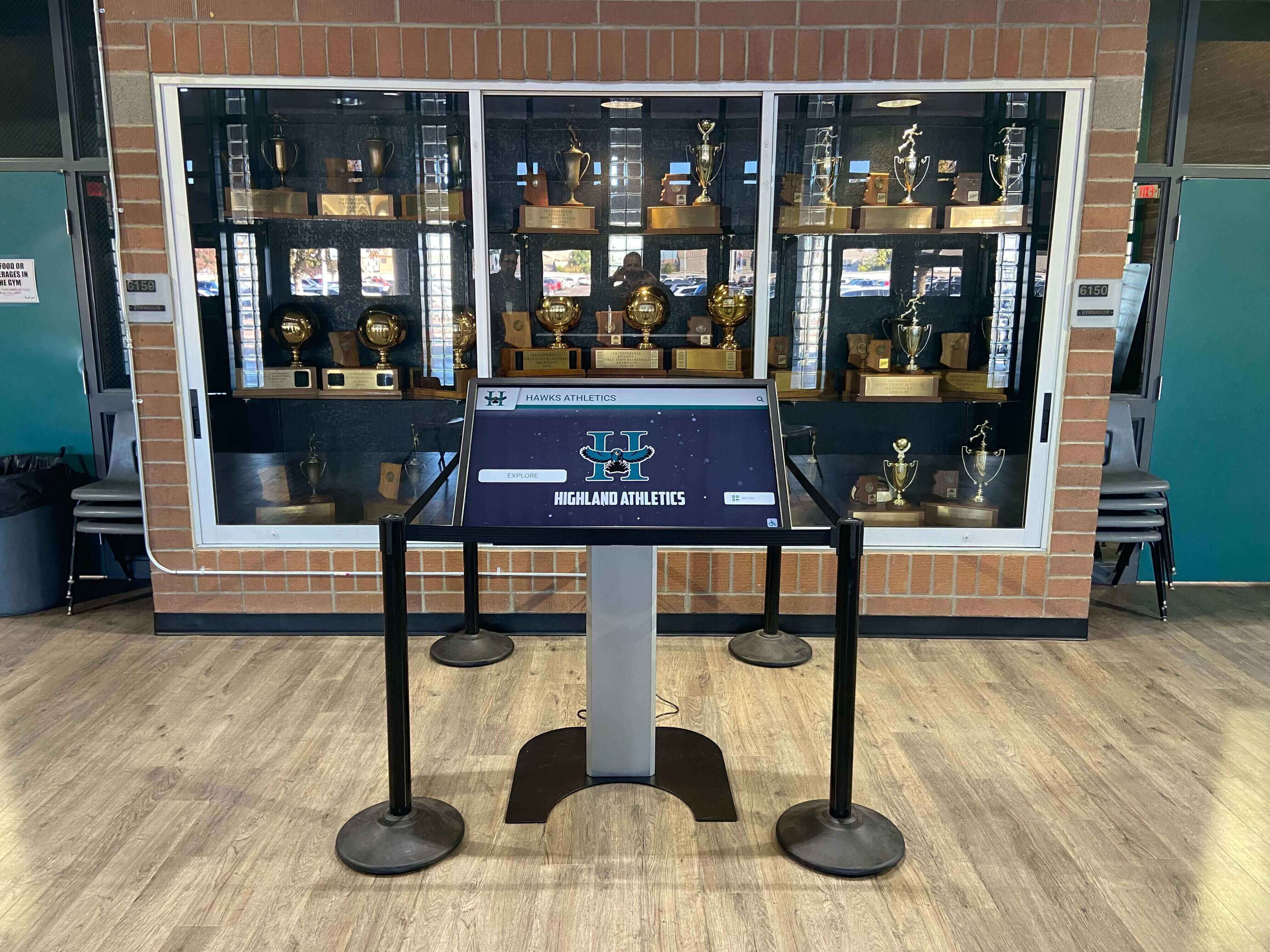
A recognition display confirmed through an RSS check can handle simultaneous highlight video panels, live data feeds, and visitor touch interactions without the single-core CPU saturation that causes visible content degradation during peak multi-stream playback