A hall-of-fame kiosk that stops updating is often a VLAN problem, not a hardware problem. Intent: demonstrate — this guide walks school IT coordinators, network administrators, and facilities managers through a school recognition display native VLAN mismatch audit: the structured process of comparing the native VLAN configured on each switch port serving a recognition kiosk against the expected value, identifying mismatches that silently place the display on the wrong network segment, and correcting them before a content outage affects the athletic director, alumni coordinator, or recognition program.
A native VLAN mismatch is particularly deceptive because it produces no obvious error at the switch or on the display. The kiosk powers on, its operating system completes its boot sequence, and the network adapter shows a connected link — yet the device ends up on the wrong VLAN, receives an IP address from the wrong DHCP scope, and cannot reach the cloud content management system (CMS) that delivers updated athlete records, award histories, and seasonal content. From the hallway, the display appears to be working. From the CMS dashboard, the device shows offline. And from the IT helpdesk queue, the symptom looks identical to a failed network card, a bad cable, or a disconnected switch port.
The quick answer: for every switch port serving a school recognition display, confirm whether the port is configured as an access port or a trunk port. On an access port, there is no native VLAN to audit — only the access VLAN assignment matters. On a trunk port (which a recognition display access port should almost never be), the native VLAN must match on both ends of the trunk link and must correspond to the intended display VLAN. If the port is a trunk with a mismatched or unintended native VLAN, untagged traffic from the display will land on the wrong segment. The remediation is almost always to reconfigure the port as a proper access port on the display VLAN.
This audit procedure applies to any school running managed switch infrastructure — Cisco IOS, Aruba/HPE ProCurve, Juniper EX, Ubiquiti UniFi — and any recognition display connected by Ethernet, regardless of display size or vendor.

A recognition display that cannot reach its cloud CMS serves stale content silently — a native VLAN mismatch audit identifies the root cause in minutes rather than hours of cable-swapping and hardware replacement
Symptoms That Point to a Native VLAN Mismatch
Native VLAN mismatches produce a distinctive cluster of symptoms that distinguish them from other connectivity failures. Recognizing the pattern guides IT staff toward the switch configuration rather than the display hardware.
| Symptom | Native VLAN Mismatch | Other Possible Cause | Distinguishing Check |
|---|---|---|---|
| Display CMS shows device "offline" despite link light on | Yes — display on wrong VLAN, cannot reach CMS host | DNS failure, firewall rule, CMS outage | Check DHCP lease: is the display IP in the expected subnet? |
| Display receives IP in unexpected subnet (e.g., 10.1.1.x instead of 10.40.0.x) | Yes — display on wrong VLAN, receiving DHCP from wrong scope | DHCP scope misconfiguration | Compare switch port VLAN assignment to expected display VLAN ID |
| Content on display is weeks or months stale | Yes — CMS sync was lost at some point without detection | CMS publish error, content workflow issue | Check CMS dashboard for last-seen timestamp on the display device |
| Ping from IT workstation to display IP fails intermittently | Possible — trunk port native VLAN mismatch causes frame-tagging confusion | Firewall ACL, wireless interference | Run `show interfaces trunk` on the switch; verify native VLAN on both sides of any trunk link in the path |
| CDP/LLDP neighbor mismatch warning in switch log | Yes — Cisco IOS and many switches log native VLAN mismatch detected via CDP | Not applicable — this warning is native VLAN-specific | Check switch syslog for "native VLAN mismatch detected on trunk" messages |
| Display reachable only immediately after reboot, then connectivity drops | Possible — display boots on correct VLAN from cached config, but ARP/routing inconsistencies emerge after lease renewal | DHCP lease time issue, power-saving feature | Compare VLAN assignment before and after a manual DHCP release-renew on the display |
A native VLAN mismatch warning in the switch syslog is the most direct indicator: Cisco IOS logs %CDP-4-NATIVE_VLAN_MISMATCH: Native VLAN mismatch discovered on <interface> whenever CDP detects a mismatch between trunk peers. This message alone confirms the issue and identifies the affected interface without any additional testing.
What Is the Native VLAN and How Mismatches Occur
Understanding the native VLAN concept precisely is necessary to audit it correctly.
IEEE 802.1Q and the native VLAN. When two managed switches exchange traffic over a trunk link, each Ethernet frame carries a 4-byte 802.1Q tag identifying which VLAN the frame belongs to. The native VLAN is the one exception: frames belonging to the native VLAN are transmitted untagged across the trunk. On the receiving end, any untagged frame arriving on a trunk port is assumed to belong to that port’s native VLAN. If the two switches disagree about which VLAN is native — one says VLAN 1, the other says VLAN 40 — untagged frames hop from one VLAN into the other. This is the mismatch condition.
The default native VLAN trap. Most managed switches ship with VLAN 1 as the native VLAN on all trunk ports. Schools that create a dedicated recognition display VLAN (such as VLAN 40) correctly assign the display’s access port to VLAN 40 — but if the uplink trunk from that access switch to the distribution switch was never explicitly configured to use VLAN 40 as the native VLAN (and it rarely should be), the trunk carries untagged frames on VLAN 1 on one end and VLAN 40 on the other. Recognition display traffic that reaches the trunk as untagged — because the access port was accidentally configured as a trunk — gets retagged to VLAN 1 on the other side and lands on the staff or management network.
How a display port becomes a trunk by accident. The most common root cause is a configuration template applied during a switch refresh or summer network maintenance project. If the template configures all downlink ports as trunks (a common pattern for ports that might serve IP phones or other tagged-VLAN-aware devices), and the recognition display port is included without an exception, the display gets a trunk port instead of an access port. A trunk port with a mismatched native VLAN places the display on the wrong VLAN for untagged traffic — silently.
Schools deploying digital recognition displays alongside athletic murals and trophy cases often commission the display hardware at a different time from the network infrastructure changes that support it — creating a window where port configuration templates applied during network work do not account for the finalized display VLAN assignment.
Recognition display ports accidentally configured as trunk ports — rather than access ports — are the most common source of native VLAN mismatches in school network environments
Tools Required for the Audit
| Tool | Purpose in the Audit | Notes |
|---|---|---|
| Managed switch CLI or web interface | Run show commands to retrieve native VLAN and port-mode values for each display port | Requires read-only or administrator access; CLI commands vary by vendor (Cisco IOS, Aruba OS, Juniper EX, UniFi) |
| Switch syslog or event log | Check for CDP/LLDP native VLAN mismatch warning messages that identify affected interfaces | Accessible via the switch management interface or a centralized syslog server if deployed; Cisco logs the specific interface and neighbor in the CDP mismatch message |
| DHCP server lease table | Confirm each display's IP address falls in the expected subnet for the display VLAN | An IP outside the expected subnet is the fastest indicator that the display is on the wrong VLAN |
| Network diagram with VLAN-to-subnet mapping | Reference document listing the expected VLAN ID and subnet for each recognition display location | Create this document during the audit if it does not already exist — it becomes the baseline for future troubleshooting and is required for the switch-port comparison table |
| CMS platform administrator account | Verify each display appears online in the CMS dashboard after configuration is corrected | A display showing "online" in the CMS management portal confirms end-to-end connectivity including CMS authentication, not just local network reachability |
| Display inventory list | List of every recognition display location with its switch name, port number, and expected VLAN ID | Schools with multiple displays — lobby kiosk, corridor athletic record board, cafeteria donor wall — need to audit each port separately; the inventory ensures none are missed |
Switch-Port Comparison Table: Configured vs. Expected Values
Before running any CLI commands, build a comparison table that documents the expected configuration for every recognition display switch port alongside the values actually found on the switch. This table is the core deliverable of the audit — it makes mismatches visible at a glance and serves as a commissioning record after remediation.
| Display Location | Switch / Port | Expected Port Mode | Expected VLAN | Configured Port Mode | Configured Native VLAN | Configured Access VLAN | Mismatch? | Action |
|---|---|---|---|---|---|---|---|---|
| Main lobby kiosk | SW-ACCESS-1 / Gi0/3 | Access | VLAN 40 | Access | N/A | VLAN 40 | No | None — pass |
| Athletic corridor board | SW-ACCESS-1 / Gi0/7 | Access | VLAN 40 | Trunk | VLAN 1 | N/A | Yes | Reconfigure as access port, VLAN 40 |
| Cafeteria donor wall | SW-ACCESS-2 / Gi0/12 | Access | VLAN 40 | Access | N/A | VLAN 1 | Yes | Change access VLAN from 1 to 40 |
| Gymnasium trophy display | SW-GYM-1 / Gi0/2 | Access | VLAN 40 | Access | N/A | VLAN 40 | No | None — pass |
| Alumni hallway screen | SW-GYM-1 / Gi0/5 | Access | VLAN 40 | Trunk | VLAN 40 | N/A | Yes | Reconfigure as access port; trunk on end-device port is incorrect regardless of native VLAN value |
The table above illustrates three distinct failure modes:
- Row 2 (Athletic corridor board): Port is a trunk with native VLAN 1. The display’s untagged frames land on VLAN 1 — the staff or management network — instead of VLAN 40.
- Row 3 (Cafeteria donor wall): Port is an access port but assigned to VLAN 1 rather than VLAN 40. This is not technically a “native VLAN mismatch” but produces identical symptoms — the display ends up on the wrong segment.
- Row 5 (Alumni hallway screen): Port is a trunk with native VLAN 40. Even though the native VLAN matches the intended display VLAN, a trunk port on an end-device connection is incorrect — the display receives untagged traffic as VLAN 40, but other VLANs are also potentially reachable, violating the isolation goal and creating a security risk.
Schools managing recognition programs for athletics, academics, and donors across multiple display locations should run this comparison table as a scheduled item every time a switch is replaced, a firmware update is applied, or a configuration template is pushed to access layer switches.
Audit Procedure: School Recognition Display Native VLAN Mismatch Audit
Step 1: Retrieve the Expected Configuration for Each Display Port
Before connecting to the switch, document the expected VLAN assignment for each recognition display port.
- Open the school’s network documentation or VLAN register. If none exists, create one now as a prerequisite for this audit.
- For each display location, record: the switch hostname, the physical port number (or interface identifier), and the VLAN ID assigned to recognition display traffic.
- Confirm the expected VLAN is an access VLAN assignment — not a native VLAN. A recognition display should connect to an access port on the display VLAN, not to a trunk port.
- Note the subnet and default gateway IP associated with the display VLAN. These values allow you to validate the DHCP check in Step 4 without needing to access the switch again.
Pass criteria: A completed reference table with expected port mode (access), expected VLAN ID, and expected IP subnet for every display location.
Step 2: Check the Switch Syslog for CDP/LLDP Native VLAN Mismatch Warnings
Before running per-port commands, a syslog check identifies any active mismatches instantly.
- Log in to the switch CLI or management interface.
- On Cisco IOS, run:
show log | include NATIVE_VLAN - Look for entries of the form:
%CDP-4-NATIVE_VLAN_MISMATCH: Native VLAN mismatch discovered on GigabitEthernetX/X (X), with <neighbor> GigabitEthernetX/X (X). - Any interface listed in a CDP mismatch warning requires immediate investigation in Step 3.
- On Aruba/HPE, run:
show log | include vlanand look for LLDP or CDP mismatch events. - On Juniper EX, review the system log:
show log messages | match "native vlan"
Pass criteria: No active CDP/LLDP native VLAN mismatch warnings in the switch syslog for any port in the path between an access switch and its uplink distribution switch.
Step 3: Verify Port Mode and VLAN Assignment for Each Display Port
For each switch port identified in Step 1, retrieve the configured port mode and VLAN values.
Cisco IOS / IOS-XE:
show interfaces GigabitEthernetX/X switchport
In the output, confirm:
Administrative Mode: static access(nottrunkordynamic)Access Mode VLAN: <expected VLAN ID>Trunking Native Mode VLAN: <value>— if the port is in access mode, this field is present but irrelevant; if the port is in trunk mode, this field is the problem
show interfaces trunk
Scan the output for any port that serves a recognition display. A display port should not appear in this list. If it does, the port is in trunk mode and must be reconfigured.
Aruba / HPE ProCurve:
show vlans ports <port-number> detail
Confirm the port is in Untagged mode on the display VLAN and does not appear as a tagged member of any other VLAN.
Juniper EX:
show ethernet-switching interface ge-0/0/X
Confirm Interface mode: access and VLAN members: <expected VLAN name>.
Ubiquiti UniFi:
In the UniFi Network controller, navigate to Devices → the access switch → Ports. Locate the display port and confirm the Port Profile is set to the recognition display network profile (access port on the correct VLAN), not a trunk or all-VLAN profile.
Record the actual configured values in the comparison table from the pre-audit step.
Pass criteria: Port mode = access; access VLAN = expected display VLAN ID; port does not appear in the trunk output.
Step 4: Verify the Display Receives a DHCP Address in the Expected Subnet
On the recognition display’s media PC or embedded player, confirm the assigned IP address matches the expected subnet for the display VLAN.
- Open a Command Prompt or PowerShell window on the display device and run
ipconfig /all(Windows) orip addr show(Linux). - Locate the Ethernet adapter’s IPv4 address. Confirm it falls within the subnet documented in Step 1 for the display VLAN — for example, 10.40.0.x for VLAN 40 with subnet 10.40.0.0/24.
- If the display holds an address in the wrong subnet — or a 169.254.x.x APIPA address indicating DHCP failure — the port VLAN assignment is almost certainly incorrect. Cross-reference with the switch output from Step 3.
- From the DHCP server, confirm the display’s MAC address is listed with a lease in the correct scope. This confirms the DHCP server correctly served the request based on the VLAN relay agent information.
Pass criteria: Display IP address falls within the expected subnet for the documented display VLAN.
Step 5: Verify CMS Connectivity from the Display
After confirming the display is on the correct VLAN and has the correct IP address, verify it can reach the CMS platform.
- From the display device, open a browser or run a
curlcommand to the CMS hostname or IP address used for content synchronization. - Confirm the request succeeds (HTTP 200 or equivalent). A timeout or connection refused on this step — after confirming the IP subnet is correct — points to a firewall rule or DNS issue rather than a VLAN problem.
- In the CMS management portal, confirm the display appears as “online” or “connected.” A display listed as “last seen: [date far in the past]” confirms that the VLAN mismatch had been silently interrupting content sync.
Pass criteria: CMS connectivity succeeds; display shows “online” in the CMS dashboard.
The CMS "online" status confirms end-to-end connectivity — DHCP address, routing, DNS, and CMS authentication — and is the definitive pass criterion for the native VLAN mismatch audit
Remediation Sequence for Native VLAN Mismatches
When a mismatch is identified, apply the following remediation in order. Do not skip steps.
Step R1: Confirm the intended VLAN before making changes. Verify with the network administrator that the expected display VLAN ID is correct and that DHCP, inter-VLAN routing, and firewall rules are in place for that VLAN. Reconfiguring a port to a VLAN that has no routing or DHCP will produce the same symptoms as the mismatch.
Step R2: Reconfigure the port to access mode on the correct VLAN.
Cisco IOS example:
interface GigabitEthernetX/X
 switchport mode access
 switchport access vlan 40
 spanning-tree portfast
 spanning-tree bpduguard enable
no shutdown
The spanning-tree portfast and bpduguard enable additions are best practice for any access port serving an end device — they ensure the port reaches forwarding state quickly at boot and protect against accidental loops. Schools running network audits across multiple recognition display locations should apply these settings consistently.
Step R3: Confirm the port change took effect.
Run show interfaces GigabitEthernetX/X switchport and verify Administrative Mode: static access and Access Mode VLAN: 40.
Step R4: Trigger a DHCP renewal on the display.
On the display device, run ipconfig /release followed by ipconfig /renew (Windows) to release the incorrect lease and obtain a new address from the correct DHCP scope. Confirm the new IP falls in the expected subnet.
Step R5: Confirm CMS connectivity and update the comparison table.
Repeat Step 5 from the audit procedure. Mark the row in the comparison table as “remediated” with the date. Log the configuration change in the switch’s change-management record.
Step R6: Clear the CDP/LLDP mismatch from the syslog (optional).
On Cisco IOS, run clear logging to flush the log if the CDP mismatch warning was the initial indicator. Re-run show log | include NATIVE_VLAN to confirm no new mismatch warnings appear after the port reconfiguration.
Preventing Future Mismatches
A one-time audit removes existing mismatches. Preventing them from re-occurring requires process changes.
Standardize on an access-port template for all display ports. Most managed switches support per-port configuration templates or interface range commands. Create a named template or macro that configures access mode, the display VLAN, PortFast, and BPDU Guard — and apply it to all display ports by interface range during switch configuration. Any future replacement switch gets the same template applied as part of the commissioning checklist.
Add a native VLAN check to the annual network audit. Schools that run annual or semester-start network reviews for their digital programs — including digital hall-of-fame search and database integrity checks — should include a native VLAN mismatch scan as a line item. Running show interfaces trunk and show log | include NATIVE_VLAN takes under five minutes per switch and catches any regressions from summer network maintenance before the school year begins.
Monitor DHCP lease subnets as a proxy indicator. Configure an alert in the school’s network monitoring system or DHCP server to flag any device with a recognized display MAC address that receives an address outside the expected display VLAN subnet. This alert fires within minutes of a VLAN misconfiguration and does not require active switch log monitoring.
Document the display VLAN assignment per port in the CMS and in the switch configuration comment. Cisco IOS allows a description field on each interface. Setting description RECOGNITION-DISPLAY-VLAN40-LOBBY on the display port makes the intent of the configuration visible to any engineer who reviews the switch during a maintenance window, reducing the chance that a configuration template refresh overwrites the access port setting without noticing the description.
A descriptive label on the switch port — such as "RECOGNITION-DISPLAY-VLAN40-LOBBY" — makes the intended configuration visible to every engineer who reviews the switch, reducing accidental overwrites during maintenance windows
Recognition Display Reliability Beyond VLAN Configuration
A correctly configured VLAN eliminates one category of connectivity failure. Schools maintaining robust recognition programs across athletics, academics, and donor recognition should review the full network stack for their display infrastructure.
mDNS and service discovery. If recognition displays need to respond to local service discovery queries — for example, if the school’s recognition platform uses mDNS for on-network device enrollment — confirm that mDNS proxy or gateway forwarding is configured for the display VLAN. A display isolated on VLAN 40 will not respond to mDNS queries originating from VLAN 10 unless the network specifically permits cross-VLAN mDNS. Schools working through recognition display mDNS service discovery configuration often discover that the native VLAN audit and the mDNS audit surface related issues.
Network baseline and bufferbloat. After correcting VLAN configuration, confirm that the display VLAN delivers the sustained throughput needed for content delivery — particularly for displays that render high-resolution athlete photography, highlight video clips, or dynamic award histories. Schools supporting broader recognition event programming across multiple display types benefit from a documented network baseline for the display VLAN.
Content platform reliability. Network correctness is necessary but not sufficient. The cloud CMS delivering content to the recognition display must also be configured to accept and retain the device registration. Schools deploying recognition programs for National Merit scholars, academic award winners, and donor acknowledgment alongside athletic recognition need the CMS to serve all program types reliably — which requires a stable, correctly VLAN-assigned display to maintain the enrollment.
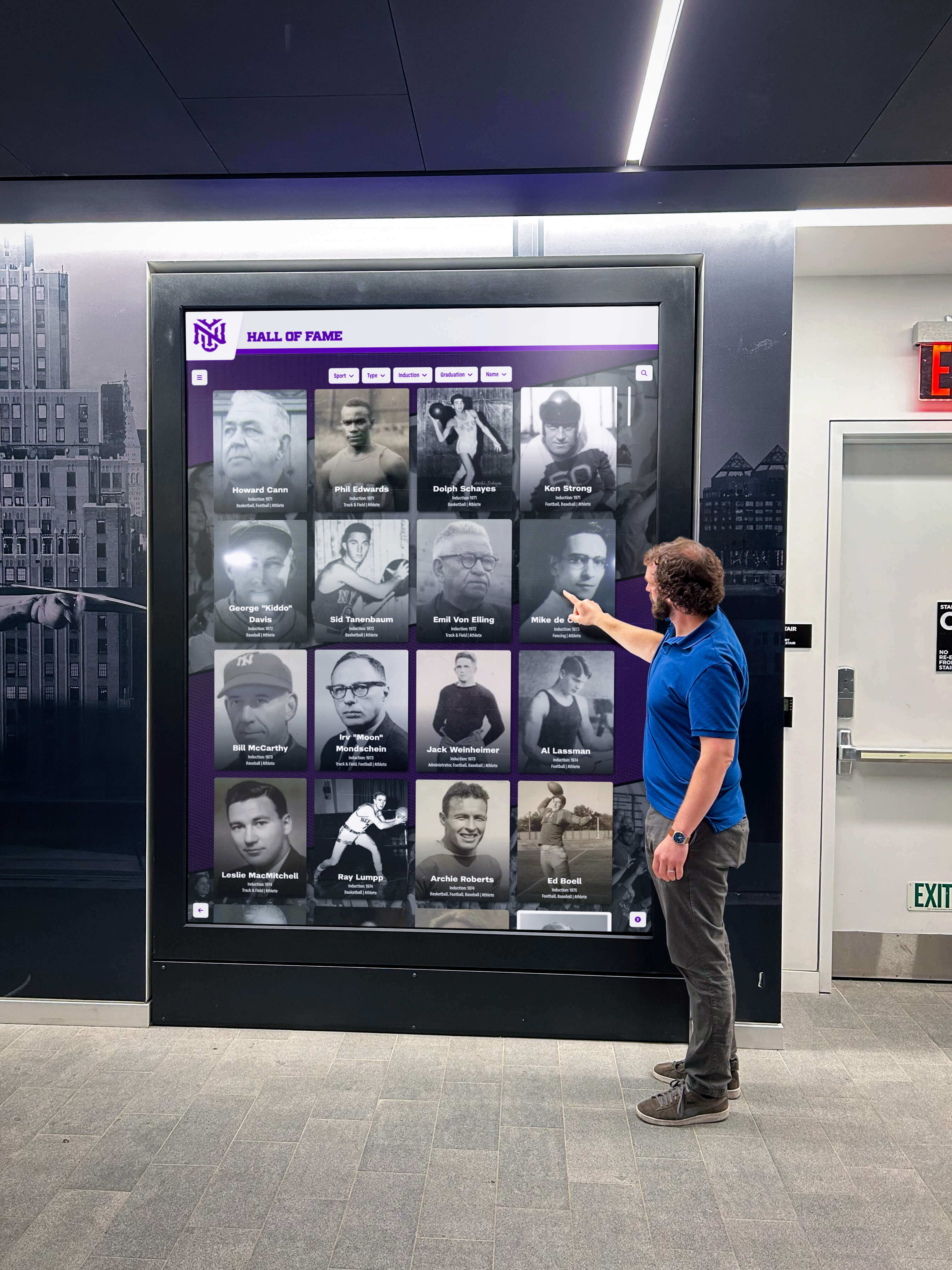
Interactive recognition displays in school lobbies serve visitors, parents, community members, and prospective students — a stale or offline display created by a native VLAN mismatch undermines the recognition program's impact for all of them
Frequently Asked Questions
What is the difference between a native VLAN mismatch and an access VLAN misconfiguration?
A native VLAN mismatch specifically refers to trunk ports where the two endpoints disagree about which VLAN carries untagged frames. An access VLAN misconfiguration is a simpler error where an access port is assigned to the wrong VLAN ID. Both produce the same symptom — the display lands on the wrong network segment — but the diagnostic commands and corrections differ. show interfaces trunk reveals native VLAN mismatches on trunk ports; show interfaces switchport reveals access VLAN assignment errors. A thorough audit checks both.
Should a recognition display switch port ever be configured as a trunk?
In almost all school deployments: no. A recognition display is an end device — a Windows or Linux media PC, or an embedded player — that does not understand or require 802.1Q VLAN tagging. It connects to an access port that carries traffic for one VLAN. Trunk ports are for switch-to-switch and switch-to-router connections. The only scenario where a display might legitimately connect to a trunk port is if the display hardware includes multiple network-isolated functions (such as a dedicated management interface on a separate VLAN), which is rare. When in doubt, configure an access port.
How do I find which switch port a recognition display is connected to?
If physical cable labels are not available, several methods work. From a switch with CDP enabled, run show cdp neighbors detail — the display’s media PC will appear as a neighbor if its OS has a CDP or LLDP stack. Alternatively, retrieve the display’s MAC address (ipconfig /all on Windows, ip link show on Linux) and search the switch MAC address table: show mac address-table | include <MAC>. The resulting port number identifies which interface to audit.
How often should schools run a native VLAN mismatch audit?
Run the full audit at initial display commissioning, after any summer network refresh, after switch replacement, and after any configuration template push that touches access switches serving display locations. A lightweight quarterly check — show log | include NATIVE_VLAN on each access switch — takes under a minute per switch and catches any regressions introduced by ongoing network maintenance. Schools that maintain recognition hall-of-fame programs across graduation cycles and multi-year athletic seasons benefit from making this check a standing item on the IT team’s back-to-school checklist.
What if the display VLAN itself has no inter-VLAN routing to the internet?
A correctly configured access port on the display VLAN does not guarantee internet connectivity — only that the display is on the right local segment. Confirm inter-VLAN routing exists from the display VLAN to the school’s internet uplink, and that the firewall or ACL policy permits HTTPS outbound from the display VLAN to the CMS platform’s IP addresses or domain. The VLAN mismatch audit addresses layer 2 placement; the firewall and routing audit addresses layer 3 reachability.
Choosing a Recognition Display Platform That Stays Connected
The network audit described in this guide is a technical investment in the reliability of a recognition program. Schools and districts that have already done the foundational work to segment their networks, document VLAN assignments, and commission displays correctly are well-positioned to benefit from a cloud-managed recognition platform that delivers consistent content updates, responsive touch interactions, and remote monitoring visibility without requiring on-site IT intervention for content changes.
Rocket Alumni Solutions provides cloud-managed interactive recognition displays purpose-built for schools — including hall-of-fame kiosks, athletic record boards, and donor recognition walls — with a remote CMS that IT coordinators can monitor for display connectivity status without accessing the school network directly. For IT teams that have completed a VLAN mismatch audit and want to confirm that the recognition platform they deploy will remain online and current throughout the school year, a live demonstration shows exactly how the platform handles content delivery, device registration, and connectivity monitoring.
Confirm your recognition displays stay online and current. Schedule a live demonstration of the Rocket Alumni Solutions cloud-managed platform for school halls of fame, athletic record boards, and donor recognition walls.
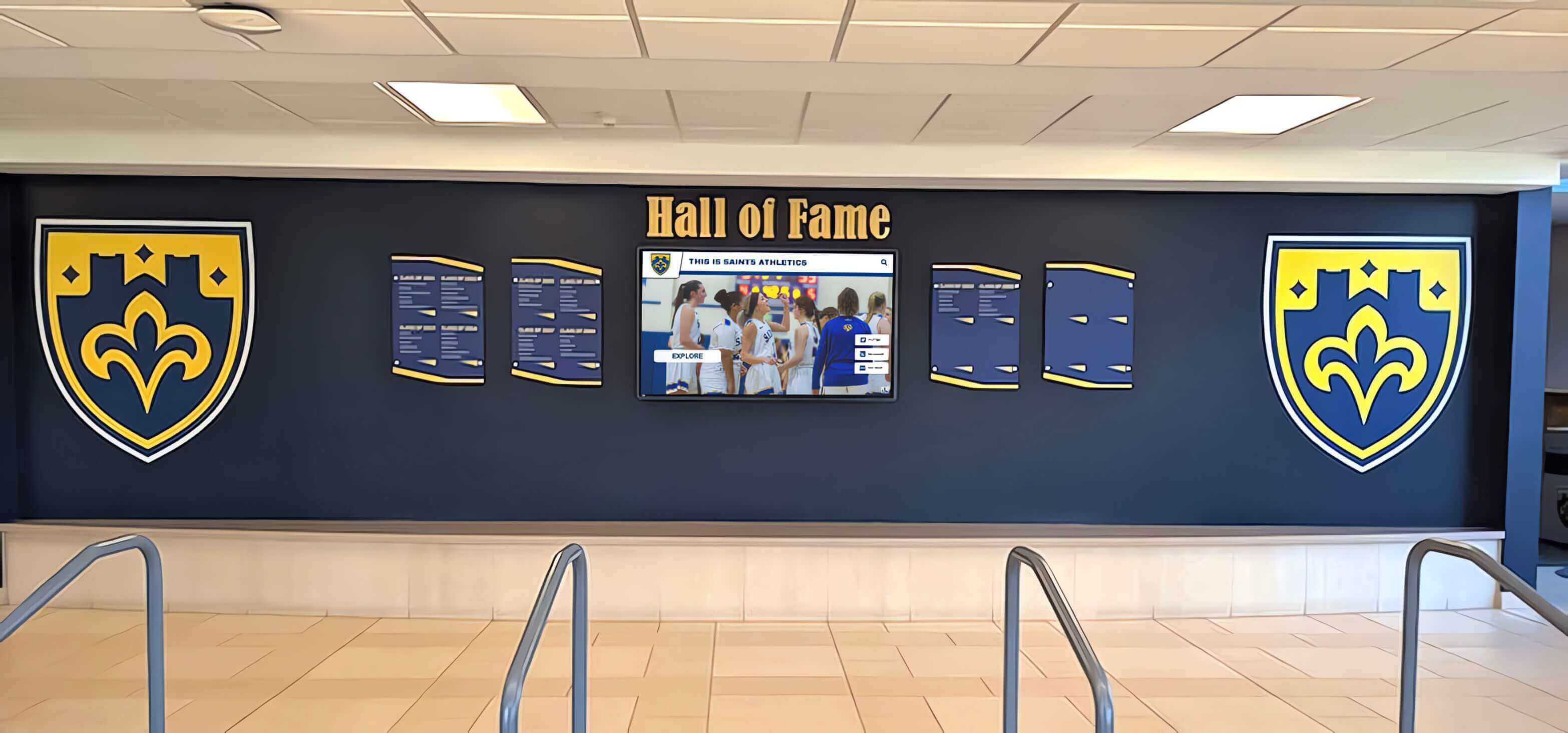
Cloud-managed recognition displays with IT-visible connectivity monitoring give school administrators and IT staff the confidence that a native VLAN mismatch — or any other network event — will surface as an alert rather than as stale content discovered by a visitor