Intent: demonstrate — this checklist walks school IT coordinators and network administrators through touchscreen display DNSSEC validation testing to confirm that a hall-of-fame kiosk, donor wall screen, or athletic record board resolves its cloud content management system (CMS) addresses through a DNS path that performs cryptographic signature verification — protecting the display from DNS spoofing attacks that could silently redirect it to a fraudulent server.
A recognition display is an unattended, fixed-purpose device that issues DNS queries for its cloud CMS hostname every time it synchronizes athlete profiles, award records, and program announcements. If the school’s DNS infrastructure does not validate DNSSEC signatures — or if a content filter intercepts DNS traffic and strips DNSSEC security flags — the display becomes vulnerable to DNS cache poisoning. In a cache poisoning attack, a forged DNS response substitutes a malicious server’s IP address for the legitimate CMS host, allowing an attacker to collect authentication credentials from the display device without producing any visible on-screen error. Running a structured DNSSEC validation test before the display enters unattended operation confirms that the DNS path is cryptographically authenticated end-to-end.
The quick answer: query the display’s configured DNS resolver for DNSKEY records on a known-signed domain, confirm the resolver sets the Authentic Data (AD) flag on validated responses, verify that a deliberately invalid DNSSEC chain causes a SERVFAIL response rather than silently returning forged data, and confirm the CMS platform’s hostname resolves correctly through the same validating path. If any check fails, the DNS resolver assignment, content filter DNSSEC bypass configuration, or resolver validation settings need correction before the display enters unattended operation.
This procedure applies to recognition displays running Windows or Linux on dedicated media PCs, embedded media players, and kiosk-grade appliances. The test sequence is the same whether the installation is a 55-inch lobby screen or an 86-inch corridor recognition wall.

A recognition display that reaches its cloud CMS through an unvalidated DNS path is silently vulnerable to DNS spoofing — DNSSEC validation testing closes that gap before the program goes live
What Is DNSSEC?
DNSSEC (Domain Name System Security Extensions) is a suite of IETF specifications — principally RFC 4033, RFC 4034, and RFC 4035 — that adds cryptographic authentication to DNS responses. Standard DNS has no mechanism to verify that a response came from an authoritative source and was not modified in transit. DNSSEC addresses this by having zone operators sign their DNS records with private keys; resolvers that perform DNSSEC validation verify those signatures against publicly distributed public keys before returning results to clients.
DNSSEC introduces five primary resource record types used in validation:
- DNSKEY — contains the public key that signs records in a zone
- RRSIG — a digital signature over a set of DNS records in the same zone
- DS (Delegation Signer) — a hash of a child zone’s DNSKEY, stored in the parent zone to link the chain of trust downward
- NSEC / NSEC3 — prove the authenticated non-existence of a DNS name, preventing an attacker from fabricating NXDOMAIN responses
- A or AAAA record + RRSIG — the actual address record returned to the client, paired with its signature
The chain of trust runs from the DNS root zone (signed by ICANN) through TLD zones (.edu, .org, .com) to individual domain zones. A validating resolver follows DS records from parent to child zones and verifies each RRSIG against the corresponding DNSKEY. If any signature in the chain is missing, expired, or invalid, the resolver returns a SERVFAIL response rather than passing along potentially forged data.
DNSSEC authenticates DNS responses — it does not encrypt them. DNS-over-HTTPS (DoH) and DNS-over-TLS (DoT) address encryption; DNSSEC addresses integrity and authenticity. Both properties matter for unattended recognition displays, but DNSSEC validation is the check that prevents forged address resolution from reaching the display’s CMS client in the first place.
Why DNSSEC Validation Matters for School Recognition Displays
A hall-of-fame kiosk, donor wall display, or athletic record board installed in a school lobby has three characteristics that make DNS-layer integrity particularly important.
The display operates unattended. No staff member is watching the screen for signs of anomalous behavior during most operating hours. A display redirected by a DNS poisoning attack to a fraudulent CMS server would continue appearing normal — the kiosk renders whatever content the attacker’s server provides. Schools that run comprehensive academic and athletic recognition programs for student-athletes and award recipients depend on the integrity of the content their displays show to students, parents, and community visitors.
The display holds CMS authentication credentials. Most cloud recognition platforms require the display device to authenticate to the CMS using a device token, API key, or account credential stored on the media PC. If DNS is poisoned and the display connects to an attacker-controlled server, those credentials are transmitted to an unauthorized endpoint — an exposure that requires credential rotation, potential notification of affected individuals, and remediation that interrupts the recognition program.
School networks frequently use DNS forwarders and content filters. Many school networks route DNS queries through a content filtering proxy rather than querying upstream resolvers directly. Depending on the product and configuration, some content filters strip DNSSEC-related flags from DNS responses before forwarding them to client devices, effectively disabling validation even when the upstream resolver supports it. Programs that use interactive displays to recognize scholar-athletes and academic achievement teams on shared school networks should confirm that the DNS path serving the recognition display preserves DNSSEC validation rather than quietly removing it.
DNSSEC Validation Decision Tree
Use this decision tree to determine whether the display’s DNS configuration requires corrective action before proceeding to the detailed checklist.
1. Identify the DNS resolver the display will use (from DHCP assignment or static configuration)
↓
2. Does that resolver support DNSSEC validation?
- NO → configure the display to use a validating resolver (see Step 1 of the checklist) and restart at the top
- YES → continue
↓
3. Does the resolver set the AD flag on responses from DNSSEC-signed zones?
- NO → the resolver is DNSSEC-aware but not validating; check the resolver’s validation configuration or switch to a validating resolver
- YES → continue
↓
4. Does the resolver return SERVFAIL for a broken DNSSEC chain (test domain: dnssec-failed.org)?
- NO → a content filter or upstream forwarder is stripping DNSSEC validation; investigate the DNS forwarder chain
- YES → continue
↓
5. Does the CMS platform’s hostname resolve correctly (A record returned, no SERVFAIL)?
- SERVFAIL → the CMS domain may have a broken DNSSEC chain; contact the CMS provider to investigate their DNS signing configuration; as a temporary diagnostic step only, query the CMS hostname against a non-validating resolver to confirm the A record exists
- A record returned → continue
↓
6. Result: DNSSEC validation is intact for this display — proceed to the full checklist to test each step and record results
Tools Required
| Tool | Use | Notes |
|---|---|---|
| Windows PowerShell (display media PC) | Run Resolve-DnsName queries to test DNSKEY retrieval, AD flag behavior, and SERVFAIL enforcement on the configured resolver | Available by default on Windows 10 and Windows 11; no additional software required for basic DNSSEC testing from the display device |
Command Prompt with nslookup (display media PC) | Query specific DNS record types (DNSKEY, DS) against the configured or an alternate resolver for comparison | Available on all Windows versions; useful for quick resolver comparison tests when PowerShell is restricted by group policy |
dig utility (Linux or embedded OS display) | Full DNSSEC query output including response flags, RRSIG records, and SERVFAIL confirmation with complete diagnostic detail | Included in most Linux distributions via the bind-utils or dnsutils package; provides the most readable DNSSEC diagnostic output of any command-line tool |
| Verisign DNSSEC Debugger or ICANN DNSSEC Analyzer (online) | Check whether the CMS platform's domain is DNSSEC-signed; visualize the chain of trust from the root zone to the CMS domain | Available at dnssec-analyzer.verisignlabs.com; does not require software installation; useful for confirming CMS provider signing status from any networked browser |
| School network diagram or DNS documentation | Identify the DNS resolver IPs assigned to the display VLAN; confirm whether a content filter intercepts DNS queries before they reach the upstream resolver | DNS resolver IPs are documented in the DHCP scope configuration for the display VLAN; content filter documentation identifies which DNS ports and protocols are proxied |
| CMS administrator account | Confirm the display appears online in the CMS management portal after DNS validation testing; verify content synchronization timestamp | DNS-layer validation confirms address integrity; CMS portal status confirms application-layer connectivity is also intact after the full test |
Pre-Test: Document the Expected DNS Configuration
Before testing DNSSEC validation, record the baseline DNS configuration for the display so each test step has a clear pass criterion.
- Run
ipconfig /all(Windows) orcat /etc/resolv.conf(Linux) on the display media PC. Record the DNS server IPs assigned to the display. - Identify whether those IPs correspond to an internal school DNS server, a district resolver, or a public resolver such as Google Public DNS (8.8.8.8) or Cloudflare (1.1.1.1).
- Confirm whether the school’s network uses a DNS content filter or proxy. Ask the network administrator whether DNS queries from the display VLAN are intercepted and forwarded through a filtering service such as Cisco Umbrella, Palo Alto DNS Security, or a hardware appliance in the school’s server room.
- Record the CMS platform’s hostname — the domain name the display uses for content synchronization.
- Note the test domain names that will be used to validate DNSSEC behavior:
dnssec-failed.org(a domain with an intentionally broken DNSSEC chain, widely used as a public DNSSEC validation test resource) andiana.org(a DNSSEC-signed domain maintained by IANA that reliably returns RRSIG records and an AD flag from validating resolvers).
Record all five items before beginning Step 1.
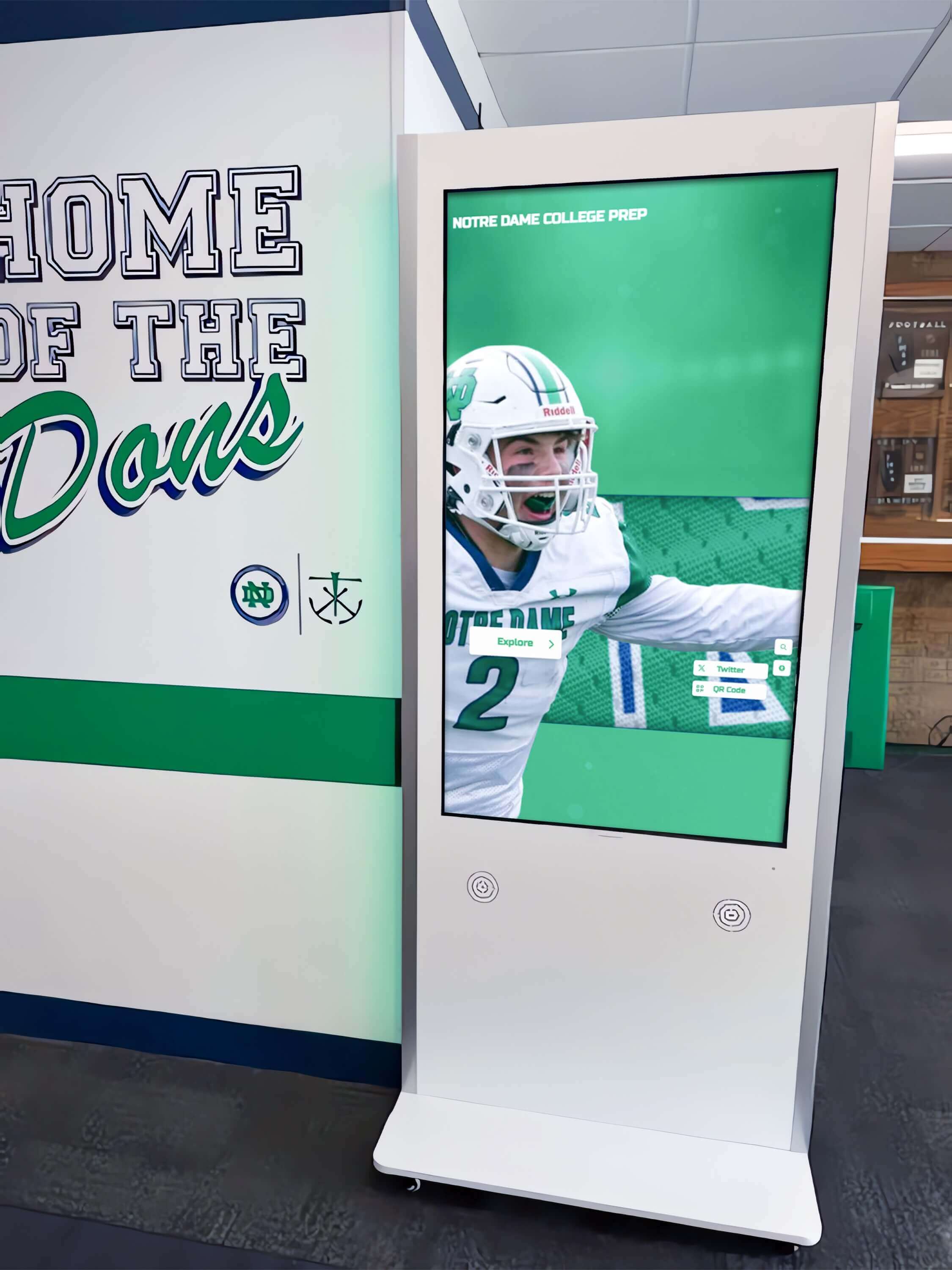
Documenting the DNS resolver IPs, content filter configuration, and CMS hostname before beginning the test gives each step a clear pass criterion and speeds troubleshooting if any check fails
Touchscreen Display DNSSEC Validation Checklist
Step 1: Identify and Confirm the Display’s DNS Resolver
Confirm that the DNS resolver assigned to the display is known and documented before testing DNSSEC validation on that resolver.
- On the display media PC, open PowerShell and run:
ipconfig /all - In the output, locate the DNS Servers line under the active Ethernet adapter. Record each IP listed.
- Compare the listed IPs against the school’s documented DNS infrastructure. Confirm whether each IP is a school-managed resolver, a district resolver, or a public resolver.
- If the display is assigned a public resolver (8.8.8.8, 1.1.1.1, or 9.9.9.9), note that these resolvers perform DNSSEC validation by default. If the display is assigned an internal school resolver, validation capability depends on that resolver’s configuration — which Steps 2 through 4 will test.
- If the DNS resolver IPs are unknown or unrecognized — for example, an IP in the school’s server subnet that does not match any documented DNS server — consult the network administrator before proceeding. An undocumented resolver may be a content filter appliance that intercepts DNS without performing DNSSEC validation.
Pass criteria: DNS resolver IPs identified and matched to a known resolver in the school’s network documentation.
Step 2: Confirm the Resolver Retrieves DNSKEY Records from Signed Zones
Test whether the resolver can retrieve DNSSEC public key records from a known-signed domain. This confirms the resolver communicates with upstream DNSSEC-aware authoritative servers and is not stripping DNSSEC record types before returning results.
- From the display’s PowerShell prompt, run:
Resolve-DnsName -Name iana.org -Type DNSKEY
A passing result returns one or more DNSKEY records. A failing result returns an error or empty output.
- On a Linux or embedded display, run:
dig @<resolver_ip> iana.org DNSKEY +dnssec
A passing result shows DNSKEY records in the answer section and RRSIG records confirming the keys are signed by the parent zone.
- If no DNSKEY records are returned, the resolver is either not forwarding DNSSEC-related record types or is not reaching a DNSSEC-capable upstream server. Check the resolver’s DNS forwarder configuration and confirm it forwards DNSSEC record types (DNSKEY, type 48) without stripping them.
Pass criteria: DNSKEY records returned for iana.org; no error response.
Step 3: Confirm the Resolver Sets the Authenticated Data (AD) Flag
The AD flag in a DNS response header indicates the resolver has validated the DNSSEC signatures for the returned records. This is the primary indicator that DNSSEC validation is active and being applied to responses the display receives.
- On a Linux display, run:
dig @<resolver_ip> +dnssec iana.org A
In the response header line (;; flags:), look for the ad flag. A result showing flags: qr rd ra ad; indicates the resolver validated the DNSSEC chain and is asserting the response is authentic.
- On Windows PowerShell without dig installed, run:
Resolve-DnsName -Name iana.org -DnssecOk
Look for RRSIG records in the output alongside the A record. If the configured resolver is a validating resolver, RRSIG records will appear in the output when the DO (DNSSEC OK) bit is set in the query.
- If the AD flag is absent on a Linux query, or if no RRSIG records appear on a Windows query, the resolver is not performing validation. This may mean the resolver is configured as a caching-only forwarder without validation enabled, or a content filter is stripping the AD bit from forwarded responses before they reach the display.
Pass criteria: AD flag present in dig output (flags: qr rd ra ad); or RRSIG records present alongside the A record in Resolve-DnsName output.
Step 4: Test DNSSEC Validation Enforcement with a Broken Chain
The most definitive test of DNSSEC validation is querying a domain with a deliberately invalid DNSSEC signature. A resolver that performs validation must return SERVFAIL rather than the address record, because the signature verification step failed and the response cannot be trusted.
- From the display’s PowerShell prompt, run:
Resolve-DnsName -Name dnssec-failed.org
A validating resolver returns an error (DNS name could not be found). A non-validating resolver returns an IP address.
- On Linux, run:
dig @<resolver_ip> dnssec-failed.org A
A validating resolver returns status: SERVFAIL with no answer section. A non-validating resolver returns status: NOERROR with an A record in the answer section.
If the resolver returns an A record for
dnssec-failed.org— a domain with an intentionally broken DNSSEC chain — DNSSEC validation is not being enforced on this DNS path. This is a failure condition. Common causes include: the resolver is configured as a non-validating forwarder; a content filter in the DNS path is removing validation flags; or the resolver’s DNSSEC validation feature is disabled in its configuration.Document the exact response received (SERVFAIL status or A record returned). This result is the single most important indicator of whether the display’s DNS path enforces DNSSEC.
Pass criteria: SERVFAIL returned by dig, or DNS resolution error returned by Resolve-DnsName, for dnssec-failed.org.
Step 5: Confirm Valid DNSSEC Chains Resolve Correctly
After confirming broken chains are rejected, confirm that valid DNSSEC signatures are accepted and the resolver does not incorrectly block legitimate signed domains. A resolver misconfigured with overly strict validation or an outdated root trust anchor may produce SERVFAIL for valid signed domains, which could break CMS connectivity if the CMS provider’s domain is DNSSEC-signed.
- From the display’s PowerShell, run:
Resolve-DnsName -Name iana.org
A passing result returns an A record with no errors. A SERVFAIL here on a resolver that correctly rejected dnssec-failed.org in Step 4 suggests the resolver’s trust anchor or validation configuration is inconsistent.
- On Linux, run:
dig @<resolver_ip> +dnssec iana.org A
A passing result returns status: NOERROR with an A record, RRSIG record, and AD flag set in the flags line.
- Also test
cloudflare.com, a widely deployed DNSSEC-signed domain:Resolve-DnsName -Name cloudflare.com(Windows) ordig @<resolver_ip> +dnssec cloudflare.com A(Linux). Both should return A records with no SERVFAIL.
Pass criteria: A records returned for iana.org and cloudflare.com; no SERVFAIL on valid signed domains.
Step 6: Confirm the CMS Platform’s Domain Resolves Correctly
Verify that the specific CMS hostname the display uses for content synchronization resolves to a valid A record through the display’s configured validating resolver.
- From the display’s PowerShell, run:
Resolve-DnsName -Name <CMS_hostname>
Record the A record (IP address) returned.
- On Linux, run:
dig @<resolver_ip> +dnssec <CMS_hostname> A
Note whether an RRSIG record appears alongside the A record. If it does, the CMS provider’s domain is DNSSEC-signed and the resolver is validating the signature. If only an A record appears without an RRSIG, the CMS domain is not DNSSEC-signed — this is common and not a failure condition on the display’s side.
If the CMS hostname returns SERVFAIL, check the CMS domain’s DNSSEC signing status using the Verisign DNSSEC Debugger or ICANN DNSSEC Analyzer. A SERVFAIL from a validating resolver for the CMS domain indicates the CMS provider has a broken DNSSEC configuration — this requires outreach to the CMS provider, not a reconfiguration of the display.
Confirm the A record IP returned matches the expected CMS server IP if it is documented. A mismatch warrants investigation before deployment.
Pass criteria: CMS hostname resolves to a valid A record; no SERVFAIL; returned IP matches documented CMS server address if known.
Step 7: Record Results and Make a Go / No-Go Decision
Document the full DNSSEC validation test before releasing the display to unattended operation.
| Test Item | Expected Result | Actual Result | Pass / Fail | Tested By | Date |
|---|---|---|---|---|---|
| DNS resolver IPs identified | Resolver IPs matched to known school DNS infrastructure | ||||
| DNSKEY retrieval — iana.org | DNSKEY records returned; no error | ||||
| AD flag — iana.org A query | AD flag set in dig output or RRSIG records present in Resolve-DnsName output | ||||
| Broken chain rejection — dnssec-failed.org | SERVFAIL or DNS resolution error | ||||
| Valid chain acceptance — iana.org | A record returned; no SERVFAIL | ||||
| Valid chain acceptance — cloudflare.com | A record returned; no SERVFAIL | ||||
| CMS hostname resolution | A record returned; IP matches expected CMS server |
Go / No-Go rule: All seven items must show a passing result before the display enters unattended operation. A display that fails the AD flag test or the broken-chain SERVFAIL test is operating on an unvalidated DNS path — it should not be placed in an unattended public location until the resolver configuration or content filter settings are corrected.
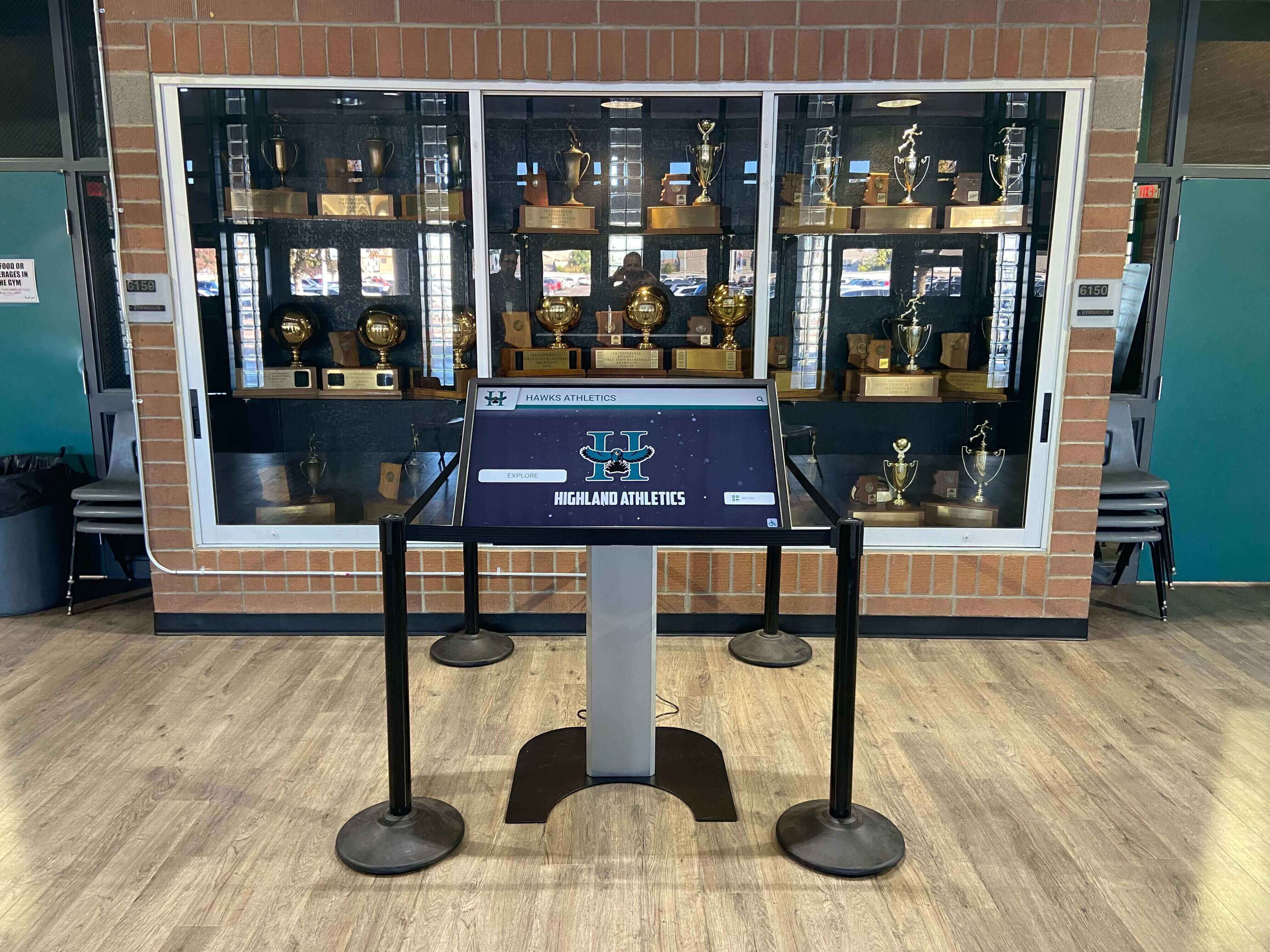
A completed DNSSEC validation record gives future IT staff a documented DNS security baseline and speeds troubleshooting if a content filter update breaks validation after a network change
Command and Output Reference Table
The following table summarizes the key test commands and their expected outputs for a display served by a validating DNS resolver. Use this as a quick reference during the checklist or when diagnosing a failed step.
| Command | Platform | Expected Output (Validating Resolver) | Interpretation |
|---|---|---|---|
Resolve-DnsName -Name iana.org -Type DNSKEY | Windows PowerShell | One or more DNSKEY records returned in output | Resolver retrieves DNSSEC public key records; communicates with DNSSEC-aware upstream servers |
Resolve-DnsName -Name iana.org -DnssecOk | Windows PowerShell | A record plus RRSIG record visible in output | Resolver returns DNSSEC signatures alongside address records when DO bit is set in query |
Resolve-DnsName -Name dnssec-failed.org | Windows PowerShell | Error: DNS name could not be found (no IP returned) | Resolver validates DNSSEC; rejects intentionally broken chain — validation is active |
dig @<resolver_ip> +dnssec iana.org A | Linux / embedded OS | ;; flags: qr rd ra ad; — A record and RRSIG in answer section | AD flag confirms resolver validated the DNSSEC chain; RRSIG confirms signed record returned |
dig @<resolver_ip> dnssec-failed.org A | Linux / embedded OS | ;; ->>HEADER<<- ... status: SERVFAIL — no answer section | Resolver correctly returns SERVFAIL for broken DNSSEC chain — validation is enforced |
dig @<resolver_ip> +dnssec cloudflare.com A | Linux / embedded OS | status: NOERROR — A record and RRSIG in answer; AD flag set | Valid DNSSEC chain accepted and authenticated; resolver does not over-reject signed domains |
nslookup -type=DNSKEY iana.org <resolver_ip> | Windows CMD | DNSKEY records listed in the Non-authoritative answer section | Basic DNSKEY retrieval confirmed; resolver forwards DNSSEC record types without stripping them |
Troubleshooting: Common DNSSEC Validation Failures
| Symptom | Probable Cause | Resolution |
|---|---|---|
| No DNSKEY records returned for iana.org | Content filter strips DNSKEY record types before returning the DNS response to the display; or the school resolver is not forwarding DNSSEC record types to its upstream | Test a public DNSSEC-validating resolver directly: dig @8.8.8.8 iana.org DNSKEY. If DNSKEY records appear, the school resolver or content filter is stripping them. Contact the content filter administrator to allow DNSKEY record type (type 48) through the DNS proxy |
| AD flag absent even though DNSKEY records are returned | Resolver retrieves DNSSEC records but does not perform validation; it is configured as a non-validating forwarder that passes DNSSEC data without checking signatures | Enable DNSSEC validation on the school's resolver: dnssec-validation auto; in BIND 9 named.conf, or module-config: "validator iterator" in Unbound. Alternatively, configure the display VLAN DHCP scope to assign a public validating resolver such as 8.8.8.8 or 9.9.9.9 |
| dnssec-failed.org returns an A record instead of SERVFAIL | A content filter or forwarder in the DNS path is bypassing or stripping DNSSEC validation results before forwarding the response; the resolver is configured as a non-validating forwarder | Confirm by querying a known-validating resolver directly from the display: dig @8.8.8.8 dnssec-failed.org A should return SERVFAIL. If it does, the school resolver or filter is the bypass point. Reconfigure the forwarder chain to preserve validation, or assign a public validating resolver to the display VLAN |
| CMS hostname returns SERVFAIL with a validating resolver active | The CMS provider's domain has a broken or expired DNSSEC chain; a DS record in the parent zone does not match the current DNSKEY in the CMS domain, or an RRSIG record has expired and was not renewed | Verify using the Verisign DNSSEC Debugger or ICANN DNSSEC Analyzer. If a broken chain is confirmed, contact the CMS provider — they must update their DNSKEY or DS records. As a temporary diagnostic step only, query the CMS hostname against a non-validating resolver to confirm the A record exists and the CMS server is otherwise reachable |
| AD flag present for iana.org but absent for cloudflare.com | Resolver validates some zones but not others; may have a local configuration override that bypasses validation for specific domains or applies inconsistent trust anchor settings | Check the resolver's trust anchor configuration. A correctly configured DNSSEC resolver uses the root zone trust anchor published by IANA and derives trust for all signed zones through the chain — it should not require per-domain configuration. Remove any local overrides that disable validation for specific second-level domains |
| dig not available on the Windows display media PC | dig is a standard Linux utility and is not included in the default Windows installation | Use PowerShell's Resolve-DnsName as the primary test tool. Alternatively, install BIND for Windows (from ISC, which includes dig) or use Windows Subsystem for Linux (WSL) if present. The nslookup command in Windows CMD can perform basic DNSKEY queries as a fallback for Step 2 |
| Validation passes at commissioning but CMS connectivity fails weeks later | Content filter policy updated and began stripping DNSSEC flags; resolver software update changed validation configuration; CMS provider's RRSIG records expired and were not renewed before the display tried to synchronize | Re-run Steps 3 and 4 (AD flag and SERVFAIL tests) after any content filter policy update or resolver software update. Confirm the CMS provider has automated RRSIG renewal — RRSIG records issued with 30-day validity periods are common; if the provider's signing infrastructure fails to re-sign, the domain breaks for all validating resolvers simultaneously |
Post-Test Steps Before Returning to Unattended Operation
After all test items pass, complete these steps before closing the commissioning session.
Save the resolver configuration. Document the DNS server IPs assigned to the display (from
ipconfig /alloutput) alongside the display’s serial number, physical location, and assigned VLAN. If the DHCP scope is later updated and the resolver changes, this record establishes when the change occurred and what was tested.Record the test domain results. Save the full output of the
dnssec-failed.orgSERVFAIL test and theiana.orgAD flag test as part of the commissioning record. Schools that run ongoing hall-of-fame recognition programs and year-round athletic record boards benefit from a documented DNS security baseline they can compare against if content synchronization fails after a future network change.Note the CMS domain’s DNSSEC signing status. If the CMS hostname is DNSSEC-signed (confirmed by the presence of RRSIG records in the Step 6 dig output), record this alongside the CMS hostname. If the CMS provider does not currently sign their domain, note this as a known condition — the display is protected by the resolver’s outbound validation for all other DNS queries but does not receive the additional authentication that a signed CMS zone would provide.
Schedule a follow-up validation check. Run Steps 3 and 4 (AD flag and SERVFAIL tests) again after any of the following events: content filter policy update, school DNS resolver software update, transition to a new CMS platform, or network segment redesign. Schools that publish new athletic award records and seasonal program announcements throughout the year need reliable CMS connectivity that extends through the full school year, not just at initial commissioning.
Verify DNS behavior persists after a media PC reboot. DHCP lease renewals and NIC driver initialization can occasionally result in different DNS behavior after a cold boot compared to during an active commissioning session. After completing the checklist, restart the display media PC and re-run the
dnssec-failed.orgSERVFAIL test to confirm validation remains active after a full boot cycle before leaving the display in unattended operation.

Rebooting the display media PC after completing the checklist and re-running the SERVFAIL test confirms DNSSEC validation persists through a full boot cycle before the display goes unattended
DNSSEC Considerations for Multi-Display Installations
Schools running recognition displays in multiple locations — a main lobby hall-of-fame wall, an athletics corridor record board, and a donor recognition screen in the administrative wing — may serve those displays from different access switches, different DHCP scopes, or different content filter policy zones. Do not assume that a passing DNSSEC validation result on one display applies to all others.
For multi-display deployments, run Steps 1 through 6 on each display independently. Pay particular attention to:
Different DHCP scopes assigning different resolver IPs. A display in the gymnasium served by a different access switch may receive a different DNS resolver than a display in the main lobby. Each resolver must be independently confirmed as validating — the test cannot be generalized from one physical location to another.
Content filter policy differences by network zone. Some schools apply different content filter policies to different VLANs. A recognition display VLAN that bypasses the primary content filter may have unrestricted access to public resolvers, while a display on a more restricted VLAN may route all DNS through a filtering proxy that strips DNSSEC validation flags. Test the actual DHCP-assigned resolver from each display’s location, not the resolver documented as intended for that zone.
Static DNS overrides on media PCs. Some media PC images or CMS client applications set a static DNS resolver address that overrides the DHCP-assigned value. Confirm the resolver being used in the test matches the resolver the display will actually use in unattended operation by checking ipconfig /all on each media PC individually before beginning the checklist.
Schools that maintain digital hall-of-fame tools and recognition displays across multiple building locations benefit from running the full DNSSEC checklist on each display independently at commissioning rather than relying on a single representative test from one location.
Frequently Asked Questions
What DNS resolvers perform DNSSEC validation by default?
Several widely used public resolvers validate DNSSEC by default: Google Public DNS (8.8.8.8 and 8.8.4.4), Cloudflare (1.1.1.1 and 1.0.0.1), and Quad9 (9.9.9.9). Quad9 specifically positions around security — it enables DNSSEC validation and blocks known malicious domains by default. School-managed resolvers running BIND 9 or Unbound can be configured for DNSSEC validation; the feature is not enabled by default in all software distributions. ISP-provided resolvers vary — some validate, some do not. The test procedure in this checklist confirms validation behavior regardless of the resolver source.
Does DNSSEC protect the data transmitted between the display and the CMS?
No. DNSSEC authenticates the DNS resolution step — it confirms the IP address resolved for the CMS hostname is the correct one, not a forged substitute. It does not encrypt or authenticate data transmitted over the connection after the address is resolved. HTTPS (TLS) provides that protection. Both are important for recognition displays: DNSSEC ensures the display connects to the legitimate CMS server, and HTTPS ensures the data in transit cannot be read or modified by a network observer. A recognition display that correctly implements DNSSEC-validated DNS and HTTPS to the CMS has closed the two primary network-layer attack vectors.
What happens if the school’s DNS content filter breaks DNSSEC validation?
If a DNS content filter intercepts DNS queries and returns responses without DNSSEC validation, the display operates on an unvalidated DNS path. Most modern school content filtering platforms support DNSSEC-aware forwarding — if a specific platform strips DNSSEC flags, the options include: configuring the filter to preserve DNSSEC data on the display VLAN; assigning the display VLAN a public DNSSEC-validating resolver that bypasses the school content filter (with firewall rules permitting port 53 outbound to that resolver); or configuring the display to use DNS-over-HTTPS to a public validating resolver, bypassing the traditional DNS path entirely. Each approach has different network policy implications — consult the network administrator before changing the DNS path for the display VLAN.
Does the CMS provider’s domain need to be DNSSEC-signed for this test to matter?
No. DNSSEC validation testing confirms that the resolver validates signatures for domains that are signed — it does not require the CMS domain specifically to be signed. A CMS domain that is not DNSSEC-signed will resolve normally through a validating resolver; it simply does not have RRSIG records in the response. The critical protection comes from the resolver rejecting forged responses for any signed domains the display queries during authentication and content delivery flows. If the CMS provider does sign their domain (verifiable using the Verisign DNSSEC Debugger), the display gains an additional layer of authentication for the most important DNS query it makes each sync cycle.
How often should the DNSSEC validation test be repeated?
Run the full checklist at commissioning and after any of the following: DNS resolver change from a DHCP configuration update or intentional reconfiguration, content filter software update, new school network design or VLAN renumbering, or a reported CMS content synchronization failure not explained by standard connectivity tests. Schools running active hall-of-fame recognition programs should include a brief DNSSEC spot-check — the dnssec-failed.org SERVFAIL test from the display — in their annual display commissioning routine at the start of each school year, particularly after summer network maintenance that may have altered resolver assignments or content filter policies.
What does DNSSEC not protect against?
DNSSEC does not protect against: attacks that occur after DNS resolution, such as man-in-the-middle attacks on the HTTPS connection itself (HTTPS/TLS addresses that layer); compromised authoritative DNS servers for a signed zone, where an attacker controlling the authoritative server can issue valid signatures; configuration errors or key management failures by the domain operator that cause their own domain to break; or attacks that target the display device directly through the local network rather than through the DNS layer. DNSSEC is one layer in a defense-in-depth security approach for recognition displays. Schools that manage digital award and recognition systems alongside student records should treat DNS security as one component of a broader review that also covers HTTPS certificate validation, device hardening, network isolation, and CMS access control policies.

The DNS security baseline documented during DNSSEC commissioning testing supports faster troubleshooting if content synchronization issues arise after a network change during the school year
A recognition display’s DNS security posture is rarely visible to program administrators until something goes wrong. Confirming that the display’s configured DNS resolver performs DNSSEC validation — and that validation is not bypassed by a content filter in the DNS path — takes under 30 minutes per display and produces a documented record that supports future troubleshooting. Query for DNSKEY records, confirm the AD flag is set on validated responses, verify that a broken DNSSEC chain returns SERVFAIL, and confirm the CMS hostname resolves correctly through the same validating path. Record every result before releasing the display to unattended operation.
Looking for a recognition display partner that manages the complete deployment — cloud CMS, network requirements, and ongoing configuration — for your school’s hall of fame or athletic record board? Rocket Alumni Solutions handles installation, configuration, and remote management so your recognition display operates reliably throughout the school year without requiring repeated IT intervention. Schedule a demo to see how their managed approach simplifies display deployment for school IT teams.