Intent: demonstrate — this checklist walks school IT coordinators and network administrators through a school recognition display DNS TTL validation checklist to confirm that DNS caching behavior on the school network will not delay or prevent a hall-of-fame kiosk, donor wall screen, or athletic record board from resolving an updated cloud content management system (CMS) hostname after a service migration, IP address change, or provider transition.
DNS TTL (Time-to-Live) is the value, in seconds, that an authoritative DNS server assigns to each record it publishes. When a resolver — whether the school’s internal DNS server, a content filter, or a public resolver — caches a response, it holds that answer for the duration of the TTL before querying the authoritative server again. For a recognition display, this caching window determines how long the device continues sending traffic to an old CMS endpoint after the CMS provider updates their DNS records. A TTL that was appropriate during normal operation can become a multi-hour outage risk on the day the school changes CMS providers, migrates to a new server, or completes a network infrastructure upgrade that moves the CMS behind a new IP address. Running a structured DNS TTL validation test — before any planned CMS endpoint change — confirms how long the school network’s resolvers will cache the current record and establishes the pre-migration TTL reduction window needed to ensure recognition display outages are measured in minutes, not hours.
The quick answer: query the CMS hostname against the authoritative name server to confirm the record’s published TTL, then query the same hostname against the school’s DNS resolver to confirm the resolver returns a counting-down cached TTL rather than a static or inflated value. Test that the display’s media PC re-resolves the hostname once the cached TTL reaches zero, and confirm that the school’s content filter or DNS proxy does not enforce a minimum cache TTL that overrides shorter values the CMS provider publishes before a migration. If the resolver caches at a longer duration than the authoritative TTL — common when content filters cap TTL values — account for the longer flush window in any CMS migration plan. Document all TTL values and resolver behaviors before any CMS endpoint change so the IT team and CMS provider can coordinate timing effectively.
This procedure applies to recognition displays running Windows 10/11 or Linux on dedicated media PCs, embedded media players, and kiosk-grade appliances. The checklist is relevant whenever the school is planning a CMS hostname change, IP address migration, or cloud provider transition — and is equally useful as an annual commissioning step to confirm that DNS caching behavior matches what IT documentation expects for the display VLAN.
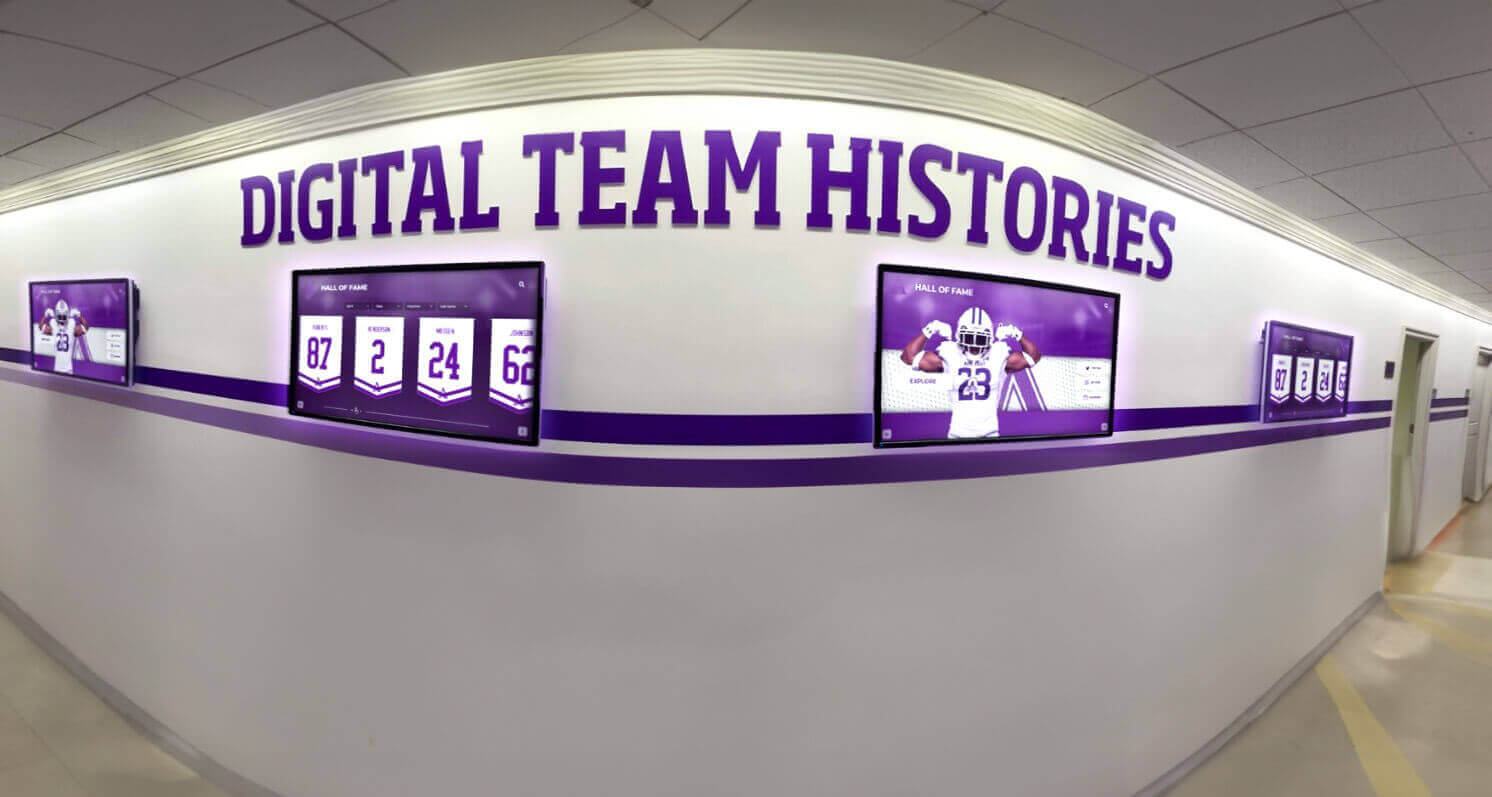
A recognition display that caches an outdated CMS hostname resolution will continue sending requests to an old server long after the provider has updated their DNS records — TTL validation before a migration prevents this silent connectivity gap
What Is DNS TTL?
DNS TTL (Time-to-Live) is an integer value, measured in seconds, that is published alongside every DNS resource record — A records, CNAME records, MX records, and others. When a DNS resolver receives a query response from an authoritative name server, it stores (caches) that response and serves it to subsequent queries for the same name without contacting the authoritative server again — until the TTL reaches zero and the cached entry expires. At that point, the resolver sends a fresh query to the authoritative server, fetches the current record and its new TTL, and begins caching the updated response.
For a recognition display, the most relevant records are:
- A record — maps the CMS platform’s hostname (for example,
cms.recognitionplatform.example) to an IPv4 address. This is the record the display queries at every content synchronization cycle. The TTL on this record controls how long a cached IP address remains in use after the CMS provider changes the server’s IP. - CNAME record — an alias that points one hostname to another. Many cloud CMS platforms use CNAMEs that resolve through multiple steps — the final A record’s TTL governs caching, but each CNAME in the chain has its own TTL that also matters.
- SOA record — the Start of Authority record for a DNS zone contains a Minimum TTL field that authoritative servers can use as a floor for negative caching (NXDOMAIN responses). This value is distinct from the TTL on individual records but can affect how long a “hostname not found” response is cached if a migration leaves the old hostname active briefly after the new one is propagated.
TTL values commonly encountered in recognition display deployments range from 300 seconds (5 minutes), which allows a provider to push a change that resolves across most resolvers within a few minutes, to 86400 seconds (24 hours), which is suitable for stable records but creates long flush delays if that record must be updated urgently. Many cloud CMS platforms set default TTLs of 3600 seconds (1 hour) or 1800 seconds (30 minutes) for their platform hostnames.
Two behaviors shape how TTL affects a recognition display in practice:
Resolver-side TTL capping. Some DNS resolvers and content filtering proxies enforce a minimum or maximum TTL regardless of what the authoritative server publishes. A content filter configured with a minimum TTL of 300 seconds will serve any record for at least 5 minutes even if the authoritative server publishes a TTL of 60 seconds. Conversely, a resolver with a maximum TTL cap of 3600 seconds will not cache a 24-hour record for more than an hour. The checklist in this document tests both behaviors because they affect the actual flush timeline during a CMS migration — which may differ from the published authoritative TTL.
Negative caching. When a resolver queries a hostname that does not exist, the NXDOMAIN response is also cached for a duration determined by the SOA record’s Minimum TTL field (typically 300–3600 seconds). If a CMS hostname is renamed or decommissioned, the display may cache a “not found” result for minutes to hours, causing content synchronization failures that appear identical to network connectivity failures.
Why DNS TTL Matters for School Recognition Displays
A hall-of-fame kiosk, donor wall display, or athletic record board installed in a school lobby issues DNS queries for its CMS hostname at every content synchronization cycle — frequently every few minutes for displays configured to pick up new athlete inductee records or award updates automatically. The CMS endpoint is the single most important hostname the display resolves. When that hostname changes, the TTL on the outgoing record determines how long every resolver in the DNS path continues directing the display to the old server.
CMS endpoint migrations are the highest-risk TTL scenario for recognition displays. Schools that change CMS providers, move a CMS to a new cloud region, or consolidate multiple recognition systems onto a single platform must coordinate DNS record changes with the TTL window already cached by each resolver on the path between the display and the authoritative server. A display whose DNS resolver cached the old CMS hostname with a 24-hour TTL two hours before the migration began will continue resolving the old IP for 22 more hours — even after the authoritative server is updated and the new IP is fully live. Schools that maintain year-round athletic recognition and award archives on their recognition displays cannot tolerate day-long outages caused by unplanned DNS caching behavior.
Schools commonly change network infrastructure during summer. Firewall replacements, ISP transitions, and VLAN redesigns that occur during summer maintenance often result in the CMS platform being accessed through a different public IP address — sometimes even a different hostname — when the new network topology is activated. If the IT team does not account for DNS TTL flush times before activating the new network path, displays that are powered on for summer sports camps or preview events may resolve the old IP and fail to connect to the CMS for the duration of the cached TTL. Schools that support summer athletic programs and youth recognition events alongside their main-year recognition programs need DNS changes to propagate within a predictable, manageable window.
Content filter DNS proxies can extend TTLs unpredictably. Many school networks route DNS queries through a content filtering appliance that performs DNS-based content classification and blocking. These appliances often cache DNS responses independently from the upstream resolver, sometimes adding a local cache TTL that is longer than the authoritative record’s TTL. A school’s content filter configured with a 1-hour minimum TTL will continue serving a cached CMS IP address for up to an hour after the authoritative TTL has expired and the upstream resolver has fetched the updated record — extending the effective migration window beyond what the CMS provider or IT team expects. Testing the content filter’s actual caching behavior — not just the authoritative TTL — is essential for accurate migration planning.
Short TTLs intended to facilitate rapid changes can create problems on some school networks. When a CMS provider reduces their record’s TTL to 60 seconds before a planned migration, this triggers frequent DNS re-queries from every display on the school network. On a school network where DNS queries from the display VLAN are subject to rate limiting — or where the content filter’s DNS proxy does not efficiently handle high query rates — rapid TTL expiry can introduce latency spikes in DNS resolution that delay content synchronization. Confirming the school network handles short-TTL re-query rates without error before a migration window prevents a planned low-TTL window from creating unexpected load issues.
Recognition program continuity depends on predictable DNS behavior after inductee announcements. Schools often time hall-of-fame announcements to coincide with athletic banquets, graduation ceremonies, or school opening days. When new inductees are added to a CMS that has recently changed endpoints, a cached old-CMS IP can cause the recognition display to show outdated content — missing newly added athlete profiles, updated award counts, or fresh championship records — while the school community is actively watching the screen. Schools that invest in interactive athletic hall-of-fame displays and digital recognition programs expect content changes to propagate within minutes of being published, which requires the DNS layer to resolve the current CMS endpoint without delay.
DNS TTL Validation Decision Tree
Use this decision tree to identify the most likely gap in DNS caching behavior before running the full checklist.
1. Do you know the published TTL for the CMS hostname on the authoritative name server?
- NO → run Step 1 and Step 2 of the checklist to retrieve the authoritative TTL before proceeding
- YES → record the value and continue
↓
2. Does the school’s DNS resolver return a counting-down TTL (not a fixed or reset value) for the CMS hostname?
- NO → the resolver is resetting TTL to a local default on each cache hit; identify whether a content filter or proxy is overriding the authoritative TTL; run Step 3
- YES → continue
↓
3. Is the cached TTL at the school resolver equal to or shorter than the authoritative TTL?
- SHORTER → the content filter or proxy is capping TTLs at a lower maximum; this is common and generally acceptable; document the effective cached TTL
- EQUAL → resolver is honoring the authoritative TTL exactly; continue
- LONGER → resolver is extending TTLs beyond the authoritative value; this is rare and should be investigated; a misconfigured resolver or proxy may be serving stale records
↓
4. Does the display’s media PC re-resolve the CMS hostname once the cached TTL reaches zero?
- NO → the OS or a local DNS cache is holding the record beyond the resolver’s TTL; check Windows DNS Client service caching and negative cache settings; run Step 4
- YES → continue
↓
5. Has the CMS provider confirmed they can reduce the authoritative TTL to 300 seconds or fewer at least one TTL-window before any planned migration?
- NO → contact the CMS provider to confirm TTL reduction capability; document the current TTL and the lead time required for pre-migration TTL reduction
- YES → proceed to the full checklist to document all TTL behaviors and confirm the migration flush window
Tools Required
| Tool | Use | Notes |
|---|---|---|
| Windows PowerShell (display media PC) | Run Resolve-DnsName queries to retrieve cached TTL values from the assigned resolver; confirm TTL countdown behavior; test re-resolution after cache expiry | Available by default on Windows 10 and 11; Resolve-DnsName -Name <hostname> | Select-Object Name, TTL returns the TTL the resolver reports for a cached record |
dig utility (Linux or embedded OS display) | Query authoritative TTL directly with +norecurse flag against the authoritative name server; confirm cached TTL countdown at the school resolver; test negative caching duration | Included in most Linux distributions via bind-utils or dnsutils; provides the most detailed TTL diagnostic output, including answer section TTL per record and response flags |
nslookup (Windows CMD) | Retrieve TTL values from specific resolvers; query against the authoritative name server directly to confirm the published TTL without resolver caching influence | Available on all Windows versions; use nslookup -type=A -debug <hostname> <nameserver-ip> to see the TTL alongside the A record in the debug output |
| School network DNS documentation | Identify the DNS resolver IPs assigned to the display VLAN; confirm whether a content filter intercepts DNS; identify the authoritative name server for the CMS platform's domain | Resolver IPs are documented in the DHCP scope configuration for the display VLAN; content filter documentation identifies whether DNS is proxied and whether a local TTL cap is applied |
| CMS provider contact or DNS management panel | Confirm the authoritative TTL currently published for the CMS hostname; request TTL reduction before a planned migration; verify the new hostname and IP address that will be used after the migration | Required for migration planning steps; the CMS provider must confirm they can reduce TTL at least one full current-TTL window before the migration to ensure all resolvers flush the old record |
| CMS management portal | Confirm the display appears online after each TTL expiry test; verify the last content synchronization timestamp to confirm the correct endpoint is being reached after re-resolution | Application-layer confirmation that the display is reaching the correct CMS server — not a substitute for DNS-layer TTL checks but confirms end-to-end success after the cached TTL expires and the display re-resolves |
Pre-Test: Document the Expected DNS Configuration
Before running the DNS TTL validation checklist, record the baseline DNS configuration for the display so each test step has a clear pass criterion.
- On the display media PC, run
ipconfig /all(Windows) orcat /etc/resolv.conf(Linux). Record the DNS server IPs assigned to the display NIC. - Confirm whether those IPs correspond to a school-managed internal resolver, a district resolver, or a public resolver. Ask the network administrator whether DNS queries from the display VLAN pass through a content filter or DNS proxy before reaching an upstream resolver.
- Record the CMS platform’s hostname — the fully qualified domain name (FQDN) the display uses for content synchronization. This is the hostname whose TTL the checklist will validate.
- Identify the authoritative name server for the CMS platform’s domain. On Windows, run:
nslookup -type=NS <cms_domain>. On Linux, run:dig NS <cms_domain>. Record the NS hostnames returned. These are the authoritative servers you will query directly in Step 1 to retrieve the published TTL without caching influence. - Ask the CMS provider or confirm via DNS management panel: what is the current TTL configured on the CMS hostname’s A record or CNAME? Record this value in seconds. If the provider reports the value in hours, convert it (1 hour = 3600 seconds; 24 hours = 86400 seconds).
- If a planned CMS migration is the trigger for this checklist, record the scheduled migration date and time, the new hostname or IP address the display will use after the migration, and the TTL reduction window the CMS provider requires before the migration (typically: reduce TTL to 300 seconds at least one current-TTL-window before the migration begins).
Record all six items before beginning Step 1.
Recording the display's DNS resolver, content filter path, and the authoritative TTL before beginning the checklist gives each step a clear pass criterion and speeds root-cause diagnosis when a result does not match expectations
School Recognition Display DNS TTL Validation Checklist
Step 1: Query the Authoritative TTL for the CMS Hostname
Retrieve the TTL published by the CMS platform’s authoritative name server — bypassing any resolver-side caching — to establish the baseline TTL value all subsequent steps will compare against.
- Identify one of the authoritative name servers for the CMS platform’s domain (from the pre-test
nslookup -type=NSordig NSquery). - On Windows, run:
nslookup -type=A -debug <CMS_hostname> <authoritative_nameserver_ip>
In the debug output, locate the ttl field in the answer section. This value is the TTL as published on the authoritative server — it is not influenced by resolver caching.
- On Linux, run:
dig @<authoritative_nameserver_ip> <CMS_hostname> A
In the ANSWER SECTION, the number in the second column is the TTL in seconds. For example: cms.example.com. 3600 IN A 203.0.113.10 — the TTL is 3600 seconds.
- If the CMS hostname is a CNAME, the CNAME record will appear in the ANSWER SECTION with its own TTL, followed by the A record it resolves to with its TTL. Record both TTL values — the shorter of the two governs how quickly the full resolution chain refreshes.
- Record the authoritative TTL value. This is the maximum time a properly configured resolver should cache this record. Any resolver returning a TTL longer than this value is either caching a previously fetched record that has not yet expired, or is overriding the authoritative TTL with a locally configured maximum.
Pass criteria: Authoritative A record (or CNAME chain) TTL retrieved and recorded; value matches or is close to what the CMS provider reported in the pre-test documentation.
Step 2: Query the CMS Hostname Against the School’s DNS Resolver
Confirm that the school’s resolver can resolve the CMS hostname and record the TTL it returns — this is the cached TTL as the display’s media PC will see it.
- On the display media PC, open PowerShell and run:
Resolve-DnsName -Name <CMS_hostname> | Select-Object Name, TTL, IPAddress
Record the TTL value returned. This is the remaining cached TTL at the school resolver at the moment the query was issued.
- On Linux, run:
dig @<school_resolver_ip> <CMS_hostname> A
Record the TTL in the ANSWER SECTION.
Immediately run the same query a second time and note whether the TTL value decreased by approximately the number of seconds between the two queries. A counting-down TTL confirms the resolver is honoring the authoritative TTL and not resetting it on each cache hit.
Compare the TTL returned by the school resolver to the authoritative TTL from Step 1:
- Equal to or less than the authoritative TTL — the resolver is honoring the published TTL; this is the expected result
- Longer than the authoritative TTL — the resolver is serving a stale cached record, or a content filter is extending the TTL beyond the authoritative value; investigate the resolver’s maximum TTL configuration or the content filter’s DNS caching settings
- Fixed value that does not count down — the resolver or a DNS proxy is resetting the TTL to a local default on each cache hit; this behavior is non-standard and should be investigated before planning any migration that relies on predictable TTL flush windows
Pass criteria: School resolver returns a TTL equal to or less than the authoritative TTL; TTL decreases on successive queries (counting down); no fixed or reset TTL observed.
Step 3: Confirm the Content Filter or DNS Proxy Does Not Cap or Override the TTL
Verify that any content filter or DNS proxy in the DNS path between the display and the upstream resolver is not enforcing a minimum or maximum TTL that overrides the authoritative value in ways that would extend the flush window beyond what the IT team and CMS provider have planned for.
Compare the TTL returned by the school resolver (Step 2) to the authoritative TTL (Step 1). If the returned TTL is significantly shorter than the authoritative TTL — for example, the authoritative TTL is 3600 seconds but the resolver returns 300 seconds — the content filter or proxy is enforcing a maximum TTL cap. Document the effective maximum.
Ask the network administrator: does the school’s content filter or DNS proxy have a configured maximum TTL? Common filter products (Cisco Umbrella, Palo Alto DNS Security, DNS appliances from Barracuda or Forcepoint) often default to a maximum cached TTL of 15 minutes to 2 hours regardless of the authoritative record’s TTL. Locate this setting in the content filter’s DNS policy configuration and record the value.
To test whether a minimum TTL is being enforced: if the CMS provider can temporarily reduce the authoritative TTL to 60 seconds for a test window, query the school resolver immediately after the provider makes the change. If the resolver returns a TTL of 300 seconds or longer for a record whose authoritative TTL is 60 seconds, a minimum TTL floor is active.
Document the effective TTL floor and ceiling enforced by the school’s DNS path. These values — not the authoritative TTL alone — determine the actual flush window for any CMS migration. Schools planning a migration timed to a hall-of-fame ceremony, athletic award night, or school opening day need an accurate flush window so the migration can be scheduled with sufficient lead time. Schools that maintain academic recognition boards alongside athletic displays for honor graduates and scholarship recipients need content to propagate reliably on the day of an announcement — a DNS flush window that is longer than expected can undermine that timing.
Pass criteria: Content filter or proxy TTL override behavior identified and documented; effective TTL floor (minimum cache time) and ceiling (maximum cache time) recorded for migration planning.
Step 4: Test TTL Expiry and Re-Resolution from the Display Media PC
Confirm that the display’s operating system re-queries the DNS resolver — and the resolver re-queries the authoritative server — when the cached TTL reaches zero.
- Note the current cached TTL returned by the school resolver for the CMS hostname (from Step 2). Wait for a duration slightly longer than this TTL value, then re-query the resolver for the CMS hostname. On Windows:
Resolve-DnsName -Name <CMS_hostname>
On Linux:
dig @<school_resolver_ip> <CMS_hostname> A
If the cached entry has expired, the resolver should fetch a fresh record from the authoritative server — the TTL in the response should be close to the full authoritative TTL value (not a small number near zero).
- To test re-resolution from the display’s OS-level DNS cache (separate from the resolver’s cache): on Windows, the DNS Client service maintains its own cache independent of the resolver. To flush the Windows DNS cache and observe re-resolution behavior, run:
ipconfig /flushdns
Then immediately re-query the CMS hostname. After flushing, the display’s Windows DNS Client issues a fresh query to the resolver. If the resolver still has the record cached, the OS receives the resolver’s cached TTL. If the resolver’s cache has also expired, both the resolver and the OS issue fresh queries — end-to-end re-resolution.
On Linux, the OS typically does not maintain a separate DNS cache unless
systemd-resolvedornscdis running. Confirm the service state withsystemctl is-active systemd-resolvedand, if active, flush thesystemd-resolvedcache withresolvectl flush-cachesbefore testing re-resolution.After any flush and re-query, confirm the display’s media PC receives the correct CMS IP address — either the same IP (if the CMS hostname has not changed) or the updated IP (if the test is being run after a migration). Confirm the IP in the CMS management portal matches the IP being returned by the resolver.
Pass criteria: Display media PC re-resolves the CMS hostname after the cached TTL expires; resolver fetches a fresh authoritative record; returned IP matches the expected CMS server address.
Step 5: Validate the Pre-Migration TTL Reduction Procedure
Confirm that the CMS provider can reduce the authoritative TTL to an acceptably short value — and that the school’s resolver and content filter will honor the reduced TTL — before any planned CMS endpoint change.
Confirm with the CMS provider: can they reduce the authoritative TTL on the CMS hostname to 300 seconds (5 minutes) at least one full current-TTL-window before the planned migration? For example, if the current TTL is 3600 seconds, the provider must reduce the TTL at least 3600 seconds (1 hour) before the migration begins. This ensures that by the time the migration starts, all resolvers will have fetched — and cached — the short 300-second TTL record, and will be forced to re-query the authoritative server every 5 minutes.
If the content filter enforces a maximum TTL cap (identified in Step 3) that is longer than 300 seconds — for example, a 900-second (15-minute) cap — the effective flush window after the migration is not 300 seconds but 900 seconds. Use the content filter’s maximum TTL cap as the flush window for planning purposes.
After the provider reduces the authoritative TTL to 300 seconds (or a similarly short value in a test scenario), query the school resolver again after waiting for the original cached TTL to expire. Confirm the resolver now returns a TTL close to 300 seconds rather than the old long TTL. This confirms the resolver fetched the updated short-TTL record after the original cached entry expired.
Document the effective pre-migration TTL reduction window — the time from when the provider reduces the authoritative TTL to when the last resolver on the path to the display begins honoring the short TTL:
- If the school’s content filter enforces a 1-hour maximum TTL: the effective window is max(1 hour, original_authoritative_TTL)
- If the school resolver honors the authoritative TTL without capping: the effective window is the original authoritative TTL
Schools that plan recognition program content updates around athletic and academic awards seasons need a DNS migration plan that accounts for the real flush window — not an assumed one — so that the display shows current content when the community is actively engaged.
Pass criteria: CMS provider confirms TTL reduction capability; school resolver is observed serving the reduced TTL after the original cached entry expires; effective flush window documented for migration planning.
Step 6: Confirm Negative Caching Behavior
Verify how long a “hostname not found” (NXDOMAIN) response is cached by the school resolver, so the IT team knows the recovery window if a CMS hostname is temporarily unavailable or mis-configured during a migration.
- Query the SOA record for the CMS platform’s domain to identify the Minimum TTL field — the value that governs how long NXDOMAIN responses are cached by resolvers for that domain’s names:
dig SOA <cms_domain>
In the ANSWER SECTION, the SOA record format is: <domain> <ttl> IN SOA <primary_ns> <admin_email> <serial> <refresh> <retry> <expire> <minimum>. The last field is the Minimum TTL, in seconds.
Document the Minimum TTL value. If the CMS hostname is temporarily removed or mis-configured during a migration — for example, if the old A record is deleted before the new one is live — a NXDOMAIN response may be cached by the school resolver for this duration. During that window, the display’s DNS queries for the CMS hostname will receive a “not found” response from the resolver’s negative cache even after the authoritative server is corrected.
Confirm the content filter or proxy does not cache NXDOMAIN responses for longer than the SOA Minimum TTL. Some DNS appliances cache negative responses for a fixed period regardless of the authoritative SOA value.
If the SOA Minimum TTL is longer than 60 seconds, advise the CMS provider that there is a negative caching risk if the hostname is removed and then re-added during a migration window. The recommended migration approach is to add the new record (and verify it resolves) before removing the old record — avoiding any window where the hostname returns NXDOMAIN.
Pass criteria: SOA Minimum TTL identified and documented; negative caching window confirmed to be within an acceptable range for the planned migration window; migration approach accounts for negative caching risk.
Step 7: Record Results and Make a Go / No-Go Decision
Document the full DNS TTL validation test before any planned CMS migration or before releasing the display to the annual recognition program schedule.
| Test Item | Expected Result | Actual Result | Pass / Fail | Tested By | Date |
|---|---|---|---|---|---|
| Authoritative TTL retrieved for CMS hostname | A record TTL confirmed from authoritative name server; value matches CMS provider documentation | ||||
| School resolver returns counting-down TTL | Resolver TTL equal to or less than authoritative TTL; TTL decreases on successive queries | ||||
| Content filter TTL cap or floor identified | Effective maximum and minimum TTL documented; no unexplained TTL extension beyond authoritative value | ||||
| Display re-resolves after TTL expiry | OS and resolver re-query authoritative server after cached TTL reaches zero; updated IP returned correctly | ||||
| Pre-migration TTL reduction procedure validated | Provider confirms TTL reduction capability; reduced TTL honored by school resolver after original cache expires; effective flush window documented | ||||
| Negative caching (NXDOMAIN) window identified | SOA Minimum TTL recorded; content filter negative caching behavior confirmed; migration approach accounts for NXDOMAIN window |
Go / No-Go rule for planned migrations: All six items must show a passing result and the effective flush window must be documented before scheduling a CMS endpoint change. A display entering a migration window without a known flush window may experience a connectivity gap that is significantly longer than the IT team planned — and that gap will be silent from the CMS provider’s perspective, since the new server is live and functioning for all resolvers that have already flushed.
A completed DNS TTL validation record documents the authoritative TTL, resolver caching behavior, content filter TTL caps, and effective migration flush window — giving the IT team the information needed to schedule CMS endpoint changes without recognition program downtime
Quick Reference: DNS TTL Values and Their Implications for Recognition Displays
| Authoritative TTL | Common Use Case | Migration Flush Window | Pre-Migration Reduction Lead Time Needed |
|---|---|---|---|
| 60–300 seconds (1–5 min) | CMS providers preparing for a migration; CDN failover records | Under 5 minutes (subject to content filter TTL floor) | No pre-reduction needed if already at this value; confirm content filter honors it |
| 1800 seconds (30 min) | Cloud CMS platform default; common for SaaS recognition platforms | Up to 30 minutes | Reduce TTL at least 30 minutes before migration starts; allow 30-minute flush window after IP change |
| 3600 seconds (1 hour) | Standard A record default; widely used for stable cloud endpoints | Up to 1 hour | Reduce TTL at least 1 hour before migration; plan for 1-hour flush window |
| 14400 seconds (4 hours) | Conservative TTL for on-premises servers or infrequently changed records | Up to 4 hours | Reduce TTL at least 4 hours before migration; note that some displays may experience extended outages |
| 86400 seconds (24 hours) | Static hosting, rarely-changed endpoints, some legacy DNS configurations | Up to 24 hours | Reduce TTL at least 24 hours before migration; this is the highest-risk TTL for unplanned endpoint changes |
Troubleshooting: Common DNS TTL Validation Failures
| Symptom | Probable Cause | Resolution |
|---|---|---|
| School resolver returns a TTL longer than the authoritative TTL | Content filter or DNS proxy is caching the record with a locally extended TTL; or the resolver has a configured maximum TTL that exceeds the authoritative record's value | Check the content filter's DNS caching settings for a maximum TTL override. If the filter enforces a maximum TTL of, for example, 2 hours, the resolver cannot serve the record with a TTL below that floor. Document the effective maximum TTL and use it as the migration flush window rather than the authoritative TTL. Contact the content filter administrator to confirm whether the maximum TTL can be lowered for the display VLAN |
| Resolver TTL does not count down — returns the same value on repeated queries | A DNS proxy between the display and the upstream resolver is resetting the TTL to a fixed local value on each response; this is non-standard behavior but observed in some school content filter appliances and DNS interception proxies | Query a public resolver directly from the display: Resolve-DnsName -Name <CMS_hostname> -Server 8.8.8.8 (Windows) or dig @8.8.8.8 <CMS_hostname> (Linux). If the public resolver returns a counting-down TTL but the school resolver returns a fixed value, the school's content filter or proxy is resetting TTLs. Report the behavior to the content filter administrator and determine whether the display VLAN can be exempted from TTL reset behavior |
| Display does not re-resolve the CMS hostname after the cached TTL expires | Windows DNS Client service is caching the record beyond the resolver's TTL; the Windows DNS Client applies its own local caching layer above the resolver cache, which can hold records for longer than the resolver's advertised TTL in some configurations | Run ipconfig /flushdns on the display media PC to clear the Windows DNS Client cache, then re-query the CMS hostname. If the display resolves correctly after the flush, the Windows DNS Client caching is extending the effective TTL. Check the Windows DNS Client service configuration in the registry: HKLM\SYSTEM\CurrentControlSet\Services\Dnscache\Parameters\MaxCacheTtl. Lowering this value forces the OS to re-query the resolver sooner |
| After a CMS migration, the display resolves the old IP for longer than the expected flush window | The authoritative TTL was not reduced before the migration, or the content filter is enforcing a maximum TTL that extends the cache beyond the short authoritative TTL the provider set; displays are still being served the old record from resolver or proxy cache | Confirm whether the CMS provider reduced the authoritative TTL before the migration and when. Confirm whether the school content filter is enforcing a maximum TTL that exceeds the reduced value. On Windows, run ipconfig /flushdns and then immediately test CMS connectivity. If the display reaches the new CMS after the flush, the issue is resolver or proxy caching — the display will recover naturally as each cache layer expires. Document the observed recovery time and use it to update the migration flush window estimate for future migrations |
| CMS hostname returns NXDOMAIN during a migration window | The old A record was deleted before the new record was propagated; the display is caching a NXDOMAIN response for the duration of the SOA Minimum TTL; content synchronization fails with "DNS resolution failed" rather than a connection timeout | Confirm with the CMS provider that the new record is live and the authoritative server returns an A record for the new hostname. Wait for the SOA Minimum TTL (identified in Step 6) to expire, then run ipconfig /flushdns on the display and test re-resolution. For future migrations, advise the CMS provider to add the new record and allow it to propagate before removing the old record — this avoids any window where the hostname returns NXDOMAIN |
| TTL reduction before a migration takes longer than expected to propagate to all resolvers | The original long TTL had already been cached by some resolvers before the reduction was applied; those resolvers will not honor the shorter TTL until their current cached entry expires at the old long TTL value; the reduction only applies to resolvers that re-query the authoritative server after the change | The TTL reduction must be applied at least one full original-TTL-window before the migration. If the original TTL was 3600 seconds, reducing it at T-minus 30 minutes is insufficient — resolvers that cached the record at T-minus 60 minutes still have 30 minutes of cache remaining. Plan the TTL reduction timing based on the original authoritative TTL, not the reduced value |
Post-Test Steps Before a Planned CMS Migration
After all test items pass, complete these steps before scheduling a CMS endpoint change.
Document the effective flush window. Record the longer of: (a) the authoritative TTL at the time the checklist was run, and (b) the content filter’s maximum TTL cap. This is the flush window — the time from when the CMS provider publishes the new A record until all resolvers in the display’s DNS path have fetched the updated record. Schedule the migration so the recognition program’s operating hours are not in the middle of this flush window.
Coordinate the TTL reduction with the CMS provider. Request that the CMS provider reduce the authoritative TTL to 300 seconds or fewer at least one full original-TTL-window before the migration. Document the provider’s confirmation and the scheduled time for the TTL reduction. Schools that publish multi-sport athletic recognition and hall-of-fame content on their displays throughout the year should treat a CMS migration as a scheduled maintenance event with the same lead-time planning as a network equipment change.
Schedule the migration outside recognition program peak hours. Even a 5-minute flush window represents a period during which the display may show stale content or fail to synchronize. For schools that time inductee announcements or award updates to athletic banquets, graduation ceremonies, or school open houses, scheduling the migration the night before — with the flush window completing before the event — ensures the display shows current content when the audience is present. Schools maintaining yearbook-style recognition archives and cumulative athletic records on their displays benefit from migrations that are invisible to the school community.
Create a DHCP reservation for the display’s MAC address if not already in place. A static DNS reservation does not affect TTL behavior, but ensuring the display retains a consistent IP address simplifies the network-side troubleshooting log if the CMS migration coincides with a DHCP renewal that changes the display’s IP. A stable display IP makes it easier to isolate DNS caching issues from IP address assignment issues in post-migration logs.
Re-run Steps 1 and 2 after the migration completes. After the CMS provider updates the A record to the new IP, query the authoritative server directly to confirm the new record is live, then query the school resolver to confirm the resolver is returning the new IP (once the old cached entry has expired). Verify the CMS management portal shows the display as online with a current synchronization timestamp. These three checks confirm end-to-end resolution of the new CMS endpoint.
Planning a CMS migration or looking for a recognition display solution that coordinates endpoint changes with your school IT team? Rocket Alumni Solutions provides complete deployment support — including DNS configuration guidance, CMS endpoint management, and ongoing remote monitoring — so recognition display transitions are planned around your school’s schedule rather than your network’s flush window. Request a demo to see how their managed approach handles CMS migrations for school IT teams.
Multi-Display Considerations for DNS TTL Validation
Schools running recognition displays in multiple locations — a main lobby hall-of-fame wall, an athletics corridor record board, and a donor recognition screen in the administrative wing — may serve those displays from different access switches, different VLANs, and different content filter policy zones. Do not assume that a passing DNS TTL validation result for one display location applies to all others.
Different VLANs may be served by different DNS resolvers. A display in the gymnasium served by a dedicated display VLAN may receive a different DNS resolver via DHCP than a display in the main lobby on a general AV VLAN. If those resolvers have different maximum TTL configurations — for example, one is a public validating resolver with no TTL cap and the other is a school content filter with a 1-hour maximum TTL — the flush windows for a CMS migration will differ between locations. Run Step 2 and Step 3 independently for each display location before finalizing the migration flush window.
Content filter policy zones may apply different TTL caps to different segments. Schools with differentiated content filter policies — strict filtering for student device VLANs, more permissive policies for dedicated AV or display VLANs — sometimes apply different DNS caching settings per zone. A display that is on a policy zone with a longer TTL cap will take longer to flush an old CMS IP than a display on a zone with a shorter cap. Document the TTL cap for each display’s policy zone independently.
Windows DNS Client cache behavior can vary by media PC image. Different media PC hardware models, OS versions, or CMS client software packages may configure the Windows DNS Client service differently — some CMS client installers modify DNS cache TTL parameters as part of their installation. Check the Windows DNS Client cache settings (MaxCacheTtl registry value) on a representative media PC from each display location to confirm that the OS-level caching behavior is consistent with what the checklist assumed.
Staggered migration monitoring across multiple locations. After a CMS migration, monitor the CMS management portal for each display individually rather than assuming all displays will flush and re-resolve at the same time. Displays on different VLANs with different resolver TTL caches will reconnect to the new CMS endpoint at different times within the flush window. A display that appears offline in the CMS portal 30 minutes after a migration but before its flush window has elapsed is not experiencing a migration failure — it is still working through its cached old-IP resolution. Schools managing recognition display programs across multiple buildings and campuses benefit from a per-display migration monitoring checklist that documents each display’s expected flush time based on the TTL validation results from its specific location.
Frequently Asked Questions
What is the most common DNS TTL mistake schools make before a CMS migration?
The most common mistake is not reducing the authoritative TTL far enough in advance of the migration. If the CMS hostname has a 24-hour TTL and the school reduces it to 300 seconds one hour before the migration, resolvers that cached the record within the previous 23 hours will still serve the old IP for up to 23 more hours. The TTL reduction must be applied at least one full original-TTL-window before the migration begins — for a 24-hour TTL record, that means reducing it 24 hours in advance and allowing all resolvers to fetch the short-TTL record before the migration starts.
Does flushing the Windows DNS cache on the display media PC guarantee the display reconnects to the new CMS immediately?
No. Flushing the Windows DNS Client cache (ipconfig /flushdns) removes the OS-level cached record, but the display’s next DNS query will still be served by the school resolver — which may still have the old IP cached. If the school resolver’s cache has not expired, the display will receive the old IP again after the flush. To fully flush the resolution chain, the school resolver’s cache must also expire. If the resolver is a Windows Server DNS service, administrators can flush the server-side cache from the DNS Manager console or via Clear-DnsServerCache in PowerShell. If the resolver is a managed appliance, consult the device documentation for cache flush procedures.
Should the school’s display VLAN use a public DNS resolver to avoid content filter TTL issues?
Using a public resolver (such as 8.8.8.8 or 9.9.9.9) on the display VLAN bypasses the school content filter’s DNS proxy and eliminates content filter TTL capping as a variable. However, it also removes DNS-based content filtering protection for the display and may require explicit firewall rules permitting port 53 outbound from the display VLAN to the public resolver IPs. Whether this trade-off is appropriate depends on the school’s network security policy. A middle-ground approach — using the school’s resolver for most queries but configuring the display VLAN’s DHCP scope to assign a public resolver only as a secondary fallback — preserves content filter coverage for most queries while providing a fallback path if the school resolver has an outage.
How does DNS TTL interact with HTTPS certificate validation on the recognition display?
DNS TTL and HTTPS certificate validation are separate mechanisms, but they interact during a CMS migration. If the old CMS IP address is no longer serving valid HTTPS connections after the migration — for example, because the SSL certificate is tied to the new server only — a display that resolves the old IP will encounter an HTTPS certificate error rather than a successful content sync. This error may look identical to a general connectivity failure in the CMS portal, making it harder to diagnose without checking the display’s DNS resolution state. During a migration, confirm both that the old server is decommissioned only after all resolvers have flushed, or that the old server continues serving valid HTTPS responses until the flush window closes.
How long should the IT team keep the old CMS server running after a migration?
The old CMS server (or the old IP address) should remain accessible — ideally returning a valid but empty or redirect response — for at least the length of the longest flush window across all display locations. This prevents HTTPS certificate errors for displays that are still resolving the old IP during the flush period. As a practical guideline: keep the old server active for at least 24 hours after a migration, regardless of the authoritative TTL, to account for any resolver that may have cached a long TTL shortly before the TTL reduction was applied.
What should IT document in the commissioning record for DNS TTL?
At commissioning, the DNS TTL commissioning record should include: the CMS hostname, the authoritative A record TTL (and CNAME TTL if applicable), the DNS resolver IPs assigned to the display, the effective TTL returned by the school resolver, any content filter TTL cap or floor identified during Step 3, the SOA Minimum TTL for negative caching, and the calculated effective migration flush window. This record gives future IT staff the information needed to plan a CMS endpoint change without re-running the full checklist — and gives the CMS provider the TTL reduction lead time they need to schedule their DNS change correctly.

Schools running recognition displays at multiple locations must validate DNS TTL and resolver caching behavior independently at each display — a passing result at one location does not confirm the flush window or content filter TTL cap at any other location
A recognition display’s reliability through a CMS endpoint change depends on the IT team knowing — before the migration — exactly how long each resolver in the DNS path will cache the old record. Running this school recognition display DNS TTL validation checklist at commissioning and before any planned CMS endpoint change confirms the authoritative TTL, the school resolver’s caching behavior, and the content filter’s effective TTL cap, and establishes the accurate migration flush window the IT team and CMS provider need to coordinate timing. Document every result before scheduling a migration, and re-run Steps 1 and 2 after the migration completes to confirm the display is resolving the updated endpoint.
Looking for a recognition display partner that coordinates DNS configuration, CMS migrations, and ongoing remote monitoring with your school IT team? Rocket Alumni Solutions deploys hall-of-fame and athletic recognition displays for schools with complete network guidance and managed support throughout the school year. Request a demo to see how Rocket Alumni Solutions handles CMS endpoint changes so your recognition program stays on schedule.