Intent: demonstrate — this checklist walks school IT coordinators and network administrators through a school recognition display DNS search suffix configuration audit to confirm that a managed hall-of-fame kiosk, athletic record board, or donor recognition touchscreen can resolve internal content hostnames by short name — without requiring the full qualified domain on every lookup — so the display stays connected to its cloud content management system (CMS) across DHCP lease renewals, MDM policy updates, and seasonal network changes.
A DNS search suffix (sometimes called a DNS search domain or domain search list) is a domain name that an operating system automatically appends to any unqualified hostname before issuing a DNS query. When a managed recognition display kiosk is configured with the school’s internal search suffix — for example, athletics.school.edu — it can resolve short hostnames such as cms or content-server to their fully qualified equivalents (cms.athletics.school.edu) without requiring explicit full-domain entries in every application config file. On school networks where the CMS, NTP time server, proxy, and content filter are all addressed by internal short names, a missing or incorrect search suffix causes silent resolution failures that appear identical to network outages. Running a structured DNS search suffix audit before a new display goes live — and again after any DHCP scope change, MDM policy update, or network redesign — confirms the kiosk resolves every required hostname correctly.
The quick answer: retrieve the DNS search suffix currently assigned to the display’s network adapter using ipconfig /all (Windows) or resolvectl status (Linux), confirm it matches the DHCP scope option 15 or option 119 value configured for the display VLAN, verify that any MDM or Group Policy DNS suffix override does not conflict with or replace the DHCP-delivered value, and test that the display resolves the CMS hostname and any other internal short names required for content synchronization. If the display is on a dedicated display VLAN with no MDM DNS policy applied, the DHCP scope is the single source of truth — check it first.
This procedure applies to recognition displays running Windows 10/11 or Windows IoT LTSC on dedicated media PCs, Android-based kiosk appliances managed through a mobile device management (MDM) platform, and Linux-based embedded media players. The checklist is relevant at initial commissioning, after any DHCP scope redesign, after an MDM policy change that includes network configuration profiles, and after a CMS platform migration that introduces new internal or short hostnames.

A school recognition display that cannot resolve its CMS hostname fails silently — the screen continues running but stops updating athlete profiles, award records, and program announcements until DNS configuration is corrected
What Is a DNS Search Suffix?
A DNS search suffix is a domain name string that an operating system appends to an unqualified hostname (a hostname with no dots) when a DNS query returns no result for the bare name. The goal is to allow users and applications to reference internal resources by short name — typing cms rather than cms.athletics.school.edu — while still resolving to the correct fully qualified domain name (FQDN).
When an application on a managed kiosk issues a DNS lookup for cms, the resolver works through the configured search list in order:
- Query for
cmsas-is → NXDOMAIN (no such host) - Append first suffix: query for
cms.athletics.school.edu→ returned A record → resolution succeeds
The search suffix list can contain multiple entries. A typical school network might include both the athletics subdomain and the broader school domain: athletics.school.edu, school.edu. The OS tries each suffix in order until a positive result is returned or the list is exhausted.
DNS search suffix delivery mechanisms relevant to school recognition display deployments:
- DHCP option 15 — carries a single domain name that the DHCP client uses as the primary DNS suffix for the adapter. Most Windows DHCP clients interpret this as the primary connection-specific DNS suffix.
- DHCP option 119 — defined in RFC 3397, carries a list of domain names to use as the search list. Supported by Windows 10/11, Android 8+, and most Linux distributions. Option 119 takes precedence over option 15 on clients that support both.
- Group Policy (Windows) — Computer Configuration → Administrative Templates → Network → DNS Client → DNS Suffix Search List. A GPO value overrides DHCP-delivered suffixes on domain-joined Windows machines. MDM equivalents apply the same override on Intune-managed devices.
- MDM network profile (Android/Windows) — Wi-Fi and Ethernet profiles pushed through MDM platforms (Intune, Jamf, Mosyle, Meraki MDM) can include a domain search list that overrides DHCP option values.
- Static OS configuration — manually entered in Windows Network Adapter DNS settings or in
/etc/resolv.conf(Linux). Highest precedence; survives DHCP lease renewals and MDM profile updates if not cleared by MDM policy.
For an unattended managed kiosk, DHCP delivery is the most operationally reliable mechanism — it updates automatically when the DHCP scope is changed and does not require MDM re-enrollment. However, if an MDM profile or GPO is in place, it will override DHCP unless explicitly configured to append rather than replace.
Why DNS Search Suffix Matters for School Recognition Displays
A hall-of-fame kiosk, donor wall touchscreen, or athletic record board is a fixed-purpose appliance that must maintain a continuous connection to its cloud CMS. On many school networks, the CMS endpoint is an internal hostname, a proxied content delivery address, or a split-DNS name that resolves differently inside the campus network than it does over the public internet. All three scenarios depend on the display resolving the correct hostname — which in turn depends on the DNS search suffix pointing to the right internal domain.
Internal CMS endpoints require the correct suffix to resolve. Schools that host their recognition display CMS on internal servers or behind a split-DNS proxy often assign the CMS a short hostname under the school’s internal domain — for example, recognition-cms or halloffame-content. A managed kiosk on the display VLAN resolves these names correctly only when its DNS search suffix includes the appropriate internal domain. Without it, the display issues a query for the bare hostname, receives NXDOMAIN, and fails to connect to the CMS — producing a content freeze that looks identical to a network outage.
DHCP scope changes during summer infrastructure work silently break the search suffix. School IT teams frequently reorganize DHCP scopes, rename VLANs, or change the domain structure during summer maintenance windows when fewer devices are connected. A DHCP scope change that removes option 15 or updates option 119 with a new suffix value causes every display that renews its lease after the change to receive a different search list — or none at all. Displays that were online before the change retain their old cached suffix until the lease renews; displays that power on after the change use the new scope immediately. The result is inconsistent resolution behavior across displays that appear to be on the same network. School recognition programs that run year-round updates for athletic recognition and signing day announcements cannot afford silent DNS resolution gaps caused by untracked DHCP scope edits.
MDM-managed kiosks may receive conflicting DNS suffix policies. When a school manages recognition display hardware through an MDM platform, network configuration profiles deployed to the kiosk device can include a domain search list that silently replaces the DHCP-delivered suffix. An IT team that updates the DHCP scope to reflect a new internal domain but does not update the MDM Wi-Fi or Ethernet profile will find that MDM-managed kiosks continue using the old suffix from the profile — while unmanaged devices correctly receive the new suffix from DHCP. This divergence is difficult to diagnose without explicitly checking both the DHCP scope and the MDM network profile.
Kiosks moved to a different VLAN inherit the new VLAN’s search suffix. When a recognition display is physically relocated during a facility renovation — for example, moved from a gymnasium VLAN to a main-lobby VLAN — it receives a DHCP lease from the new scope. If the two VLANs have different DNS search suffixes (common when athletics and administrative networks use different internal domain structures), the relocated display may resolve some internal hostnames correctly and others not at all. A post-relocation DNS search suffix audit prevents this class of failure.
Content filter DNS proxies may strip or replace the search domain. Some school content filtering appliances intercept DNS queries from the display VLAN and forward them through a central proxy. Depending on configuration, the proxy may alter the search list returned to clients — either stripping option 119 from DHCP responses entirely or substituting a default suffix that does not include the athletics subdomain. Verifying the search suffix that actually reaches the display NIC — not just what the DHCP scope is configured to deliver — catches this filtering-side override. Pairing a correct DNS search suffix with a DNS-over-HTTPS policy for managed school kiosks provides an additional layer of resolution integrity on networks where cleartext DNS is filtered or intercepted.
Recognition program continuity depends on uninterrupted CMS connectivity. An athletic director who adds a new inductee to the hall-of-fame platform expects the lobby display to show the updated profile within minutes. A DNS search suffix misconfiguration that prevents the kiosk from resolving the CMS hostname breaks that update pipeline silently — the display continues cycling through its last successfully synchronized content while the CMS shows the new record as live. School programs that celebrate athletes on high-school lobby recognition displays depend on that pipeline remaining intact across network changes.
DNS Search Suffix Configuration Decision Tree
Use this decision tree to identify the most likely gap before running the full checklist.
1. Can the display resolve the CMS hostname as a short (unqualified) name?
- YES → a search suffix is present and working; proceed to Step 6 to document the current value
- NO → continue to question 2
↓
2. Does ipconfig /all (Windows) or resolvectl status (Linux) show a DNS Suffix Search List on the display NIC?
- NO → no search suffix is configured; check DHCP scope option 15/119 and MDM network profile
- YES → record the suffix list; continue to question 3
↓
3. Does the listed search suffix include the domain under which the CMS hostname is registered?
- NO → wrong suffix delivered; check whether DHCP scope or MDM profile is delivering an outdated or incorrect suffix
- YES → continue to question 4
↓
4. Is the display on a domain-joined Windows machine with a Group Policy DNS Suffix Search List applied?
- YES → GPO overrides DHCP; check GPO value in Group Policy Results (
gpresult /r) and compare to expected suffix list - NO → continue to question 5
↓
5. Is the display managed by an MDM platform with a Wi-Fi or Ethernet network profile that includes a domain search list?
- YES → MDM profile overrides DHCP; check the MDM-delivered network profile for the domain search list value
- NO → DHCP scope is sole source; run Steps 1–3 of the checklist to verify option 15/119 delivery
↓
6. Does the search suffix survive a DHCP lease renewal (release/renew cycle)?
- NO → the suffix is statically configured on the NIC and will not update when DHCP scope changes; evaluate whether static or dynamic configuration is preferred for this deployment
- YES → suffix delivery mechanism is working; complete Steps 7–9 to document and verify end-to-end resolution
Tools Required
| Tool | Use | Notes |
|---|---|---|
| Windows PowerShell (display media PC) | Retrieve current DNS suffix search list from the NIC with Get-DnsClientGlobalSetting; test unqualified hostname resolution with Resolve-DnsName; confirm suffix persists after lease renewal | Available by default on Windows 10/11; Get-DnsClientGlobalSetting | Select-Object -ExpandProperty SuffixSearchList returns the active search list regardless of delivery mechanism |
ipconfig /all (Windows CMD) | View the DNS Suffix Search List, connection-specific DNS suffix, and DNS server IPs assigned to each NIC on the display PC; confirm DHCP lease status and lease expiry time | Run from CMD or PowerShell; the "DNS Suffix Search List" field lists all search domains in order; the "Connection-specific DNS Suffix" shows option 15 separately from the full search list |
resolvectl status (Linux) | Show DNS Domain (search suffix) and DNS servers per network interface on systemd-resolved Linux displays; confirm suffix is applied to the correct interface | Available on Ubuntu 18+, Debian 10+, and most modern embedded Linux distributions; resolvectl status eth0 scopes output to a single interface; cat /etc/resolv.conf shows the search line for non-systemd-resolved systems |
| DHCP server management console | Inspect DHCP scope options for the display VLAN; confirm option 15 (domain name) and/or option 119 (DNS search list) values; verify the scope is active and the display IP range falls within the scope | Access via Windows DHCP Manager (Windows Server), Cisco ISE, Meraki Dashboard, or pfSense/OPNsense DHCP UI; confirm option 119 is encoded correctly — it uses RFC 3397 label compression, which some DHCP UI tools encode automatically and others require manual hex entry |
| MDM management console | Review network configuration profiles assigned to the kiosk device; identify whether any Wi-Fi or Ethernet profile includes a Domain Search List field; compare the profile value to the expected suffix | Intune: Device Configuration → Profiles → [profile name] → Configuration settings → Wi-Fi/Ethernet → Domain Search List. Jamf: Configuration Profiles → Network → DNS Settings → Search Domains. Export the profile to confirm the exact value delivered to the device |
Group Policy Results tool (gpresult /r) | Confirm whether a GPO DNS Suffix Search List is applied to the display PC and which GPO is the winning policy; identify whether the GPO value conflicts with the DHCP-delivered suffix | Run as Administrator on the display PC; the "DNS Client" section under Computer Settings shows the applied suffix list; compare the GPO-applied list to the DHCP scope option 119 value to identify conflicts |
nslookup or dig | Test unqualified name resolution to confirm the search suffix is being applied during actual DNS queries; test FQDN resolution to confirm the CMS hostname resolves correctly through the configured resolver | On Windows: nslookup cms — if the search suffix is working, nslookup will append it and return the resolved A record. On Linux: dig cms — the resolver appends search domains automatically when ndots threshold is met (default: query has fewer dots than ndots value) |
| CMS management portal | Confirm the display appears online and last-sync timestamp is current after search suffix configuration is validated; verify content updates published after the DNS change propagate to the display within the expected synchronization interval | Application-layer confirmation that DNS suffix configuration is correct end-to-end — not a substitute for DNS-layer checks but confirms successful connectivity after configuration changes |
Pre-Test: Document the Expected Search Suffix Configuration
Before running the checklist, record the baseline DNS search suffix configuration the display should have. Each checklist step compares actual behavior to this baseline.
- Identify the internal domain or subdomain under which the CMS platform’s internal hostname is registered. Ask the network administrator or CMS provider: what is the fully qualified hostname the display uses to reach the CMS? Break it into the hostname part (e.g.,
cms) and the domain suffix (e.g.,athletics.school.edu). The domain suffix portion is what the search list must contain. - Confirm whether multiple internal short names must resolve — for example, a CMS hostname, a content delivery server hostname, and an NTP time server hostname. If they are under different subdomains (e.g.,
cms.athletics.school.eduandntp.infra.school.edu), the search list must include bothathletics.school.eduandinfra.school.edu. - Identify the DHCP scope that serves the display VLAN. Record the scope’s option 15 value (if present) and option 119 value (if present). If neither is configured, note this — it is the most common root cause of missing search suffixes on managed displays.
- Identify whether the display PC is domain-joined or MDM-managed. For domain-joined Windows machines, check the Group Policy Object that applies to the display OU for a DNS Suffix Search List setting. For MDM-managed devices, identify the network profile assigned to the kiosk device enrollment group.
- Record the display’s current IP address, NIC name, and DNS resolver IPs from
ipconfig /allorresolvectl status. These confirm the device is on the correct VLAN and receiving DNS service from the expected resolver before any search suffix testing begins.
Record all five items before beginning Step 1.
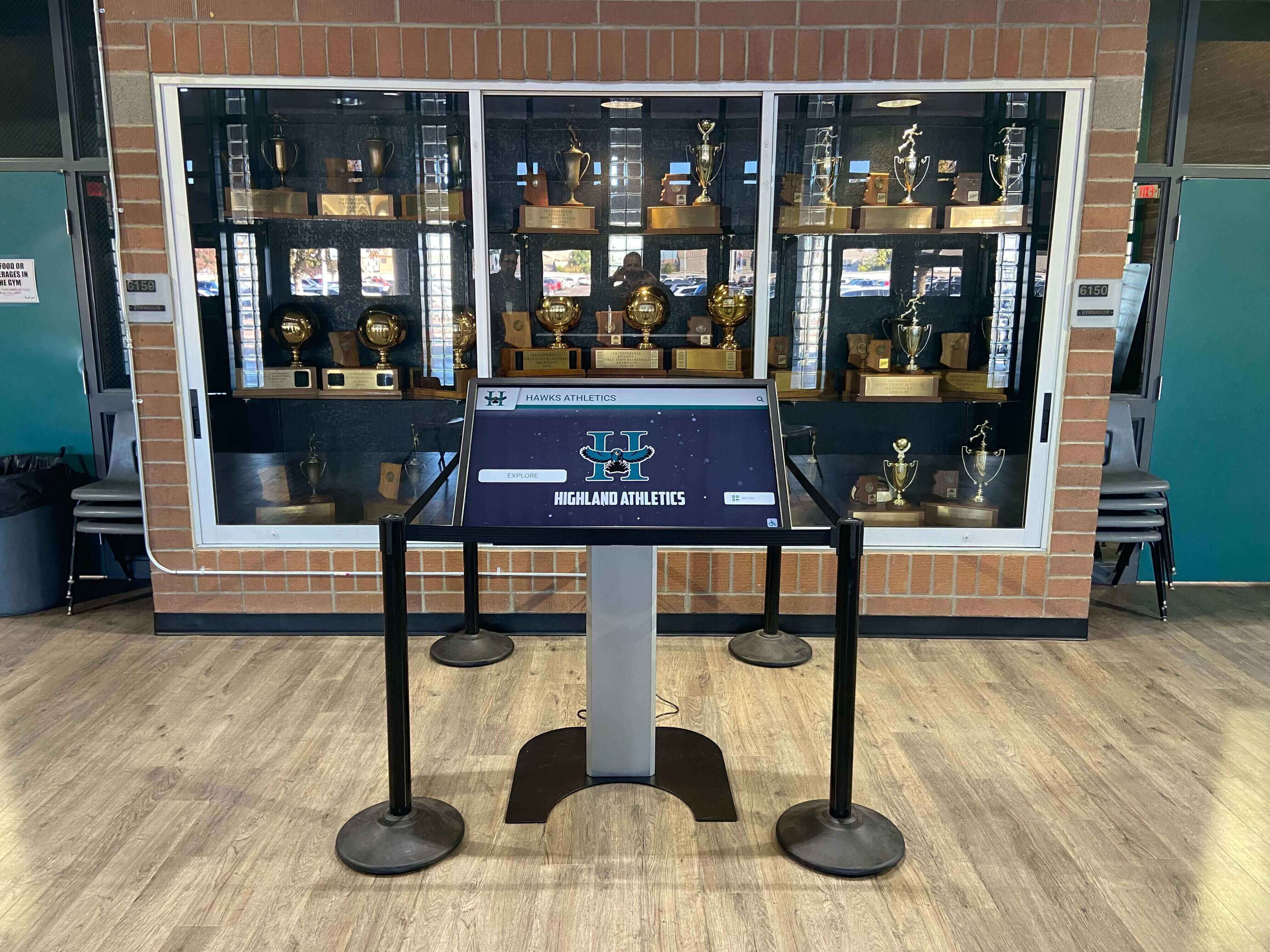
Recording the expected DHCP scope suffix values, MDM network profile settings, and Group Policy DNS overrides before testing gives each checklist step a clear pass criterion and reduces diagnosis time when results do not match expectations
School Recognition Display DNS Search Suffix Checklist
Step 1: Retrieve the Active DNS Search Suffix from the Display NIC
Confirm which DNS search suffix — if any — the display’s operating system is currently using for unqualified hostname resolution.
Windows:
- Open PowerShell as Administrator on the display PC.
- Run:
Get-DnsClientGlobalSetting | Select-Object -ExpandProperty SuffixSearchList
This returns the active search suffix list that Windows applies globally across all adapters.
- Also run:
ipconfig /all
In the output, locate the section for the display’s primary NIC (the Ethernet or Wi-Fi adapter connected to the display VLAN). Record:
- DNS Suffix Search List — the full ordered list of search domains
- Connection-specific DNS Suffix — the single domain name from DHCP option 15 (if present; may be blank)
- Compare the two outputs. If
Get-DnsClientGlobalSettingshows a list butipconfig /allshows a different or empty list, a GPO or MDM policy is overriding the DHCP-delivered value. Note the discrepancy.
Linux (systemd-resolved):
- Run:
resolvectl status
- Locate the section for the display’s primary interface (e.g.,
eth0orenp2s0). Record the DNS Domain line — this is the search suffix in use for that interface. - For non-systemd-resolved systems, run:
cat /etc/resolv.conf
The search directive lists the DNS search domains in order.
Pass criteria: A DNS Suffix Search List is present and includes the domain suffix under which the CMS hostname is registered. If the list is empty or missing, proceed to Step 2 to diagnose the source.
Step 2: Verify the DHCP Scope Delivers the Correct Search Suffix
Confirm that the DHCP scope serving the display VLAN is configured to deliver the expected search suffix via option 15 or option 119.
- Open the DHCP management console for the server or appliance managing the display VLAN scope (Windows DHCP Manager, Meraki Dashboard, pfSense, Cisco Prime, or equivalent).
- Navigate to the DHCP scope for the display VLAN subnet. Locate the Scope Options section.
- Check for option 15 (Domain Name). If present, record its value. This is a single domain name delivered as the connection-specific DNS suffix for the adapter.
- Check for option 119 (DNS Domain Search List). If present, record the list of domain names it contains. Option 119 takes precedence over option 15 on clients that support both (Windows 10/11, Android 8+, most modern Linux distributions).
- If neither option is configured, this is the root cause of the missing search suffix on the display. Configure option 15 with the primary internal domain and, if multiple subdomains are needed, option 119 with the full ordered list. Apply the change and proceed to Step 3 to force a lease renewal on the display.
- If option 119 is present but the display is not receiving it, check whether the content filter or DHCP relay agent on the display VLAN is stripping extended DHCP options. Some older DHCP relay configurations drop option 119 as an unrecognized vendor extension. In this case, option 15 is the fallback — configure it with the single most critical search domain.
Pass criteria: DHCP scope for the display VLAN includes option 15 or option 119 (or both) with values that match the expected search suffix list documented in the pre-test.
Step 3: Force a DHCP Lease Renewal and Confirm Suffix Delivery
Confirm that a lease renewal cycle delivers the search suffix correctly to the display NIC.
- On Windows, open a CMD window as Administrator and run:
ipconfig /release
ipconfig /renew
- On Linux, run (replacing
eth0with the interface name):
sudo dhclient -r eth0
sudo dhclient eth0
- After the renewal completes, run
ipconfig /all(Windows) orresolvectl status(Linux) again and confirm the DNS Suffix Search List now shows the expected values from the DHCP scope. - If the search suffix does not appear after a lease renewal, check whether a GPO or MDM profile is overriding it (Step 4). If neither is in place and the suffix still does not appear, capture a packet trace during the DHCP renewal (
wiresharkor Windowsnetsh trace) to confirm option 119 is present in the DHCP OFFER and ACK packets. - If the display is configured with a static IP address rather than DHCP, DNS search suffix delivery via DHCP does not apply. The suffix must be configured statically in the NIC DNS settings (Windows: Network Adapter Properties → IPv4 → DNS → Append these DNS suffixes) or in
/etc/resolv.conf(Linux). Document the static configuration and proceed to Step 5.
Pass criteria: After a DHCP lease renewal, the display NIC DNS Suffix Search List matches the values configured in the DHCP scope options.
Step 4: Check for GPO or MDM DNS Suffix Overrides
Confirm whether a Group Policy or MDM network profile is overriding the DHCP-delivered search suffix on the display PC.
Group Policy (domain-joined Windows):
- On the display PC, open a CMD window as Administrator and run:
gpresult /r
- In the output, locate the Computer Settings section. Look for DNS Client under Applied Group Policy Objects or under the list of applied settings. If a DNS Suffix Search List is listed, record the GPO name and the suffix values it applies.
- Compare the GPO-applied suffix list to the expected suffix list from the pre-test. If the GPO list is outdated, missing required suffixes, or replaces DHCP delivery entirely, coordinate with the domain administrator to update the GPO for the display machine OU.
- Note: when a GPO DNS Suffix Search List is applied, Windows ignores the DHCP option 119 and option 15 values for that adapter. The GPO value is the only source of truth on domain-joined machines with this policy applied.
MDM (Intune, Jamf, Meraki MDM):
- In the MDM console, navigate to the device configuration profile assigned to the kiosk enrollment group.
- Locate the network configuration profile (Wi-Fi or Ethernet profile) applied to the display. Check whether a Domain Search List or DNS Search Domains field is configured.
- Compare the MDM profile value to the expected search suffix list. If the value is outdated or incorrect, update the MDM network profile and push the updated configuration to the kiosk device group. After the profile update is applied, return to Step 1 to confirm the active search suffix on the display NIC reflects the corrected value.
Pass criteria: No GPO or MDM DNS suffix override is active, OR if an override is present, it delivers the correct search suffix list that includes the required internal domains.
Step 5: Test Unqualified Hostname Resolution
Confirm that the display OS successfully resolves the CMS short hostname using the configured search suffix.
- On Windows, open PowerShell and run:
Resolve-DnsName -Name cms
Replace cms with the actual short hostname of the CMS platform (the hostname portion before the first dot). If the search suffix is configured correctly, the resolver appends the suffix and returns the A record for the FQDN.
- On Windows CMD:
nslookup cms
If the result shows the resolved IP address for the CMS FQDN, the search suffix is working. If nslookup returns “can’t find cms: Non-existent domain,” the suffix is missing or incorrect.
- On Linux:
dig cms
Check whether the ANSWER SECTION contains a record. Note the QNAME in the answer — it will show the fully qualified name the resolver queried after appending the suffix.
Test each additional internal short hostname identified in the pre-test (NTP server, content delivery proxy, etc.) using the same method.
Also test FQDN resolution to confirm the resolver is functioning correctly regardless of the search suffix:
Resolve-DnsName -Name cms.athletics.school.edu
If FQDN resolution succeeds but short-name resolution fails, the search suffix is the isolated problem. If both fail, the resolver or network path has a separate issue.
Pass criteria: The display OS resolves the CMS short hostname to the correct IP address using the configured search suffix. All other internal short hostnames required for display operation also resolve correctly.
Step 6: Confirm CMS Connectivity After DNS Resolution
Verify that successful DNS search suffix resolution results in active CMS connectivity.
- Open the CMS management portal for the recognition display platform.
- Locate the display device in the device list or status dashboard. Confirm the status shows Online or Connected.
- Check the Last Sync or Last Content Update timestamp. Confirm it is recent (within the last content synchronization interval — typically 5–15 minutes for most recognition display CMS platforms).
- If the display is online in the CMS but the last sync timestamp is older than expected, check whether the content filter or proxy is blocking the CMS content delivery domain separately from the DNS hostname. DNS resolution and HTTP/HTTPS content delivery are separate — a correct DNS configuration does not guarantee unblocked content transfer.
- Publish a test content change in the CMS (for example, update a placeholder athlete record or add a test announcement). Confirm the change appears on the display within the expected synchronization window.
Pass criteria: Display shows Online status in CMS portal; last sync timestamp is current; test content change propagates to the display within the normal synchronization interval.
Step 7: Test Search Suffix Behavior After Display Restart
Confirm the DNS search suffix persists across a full display power cycle — the most common scenario for managed kiosk deployments that reboot overnight.
- Perform a clean OS restart on the display PC or kiosk appliance (not just a screen sleep or display power-off).
- After the device boots fully and reconnects to the network, run
ipconfig /all(Windows) orresolvectl status(Linux) again. - Confirm the DNS Suffix Search List matches the expected values documented in the pre-test.
- Re-run the short hostname resolution test from Step 5 to confirm resolution works immediately after boot — before any manual intervention.
- Check the CMS portal to confirm the display reconnects and syncs content after the restart without IT action.
Pass criteria: DNS search suffix is correctly configured after a cold restart; CMS connectivity is restored automatically within the expected startup and sync window.
Step 8: Document the Validated Configuration
Record the confirmed DNS search suffix configuration for the display in the school’s IT documentation system.
For each display, document:
- Display hostname and physical location
- IP address (static or DHCP-assigned range)
- VLAN assignment and DHCP scope name
- DNS search suffix list (in order) as delivered to the display NIC
- Source of the search suffix (DHCP option 15, option 119, GPO, MDM profile, or static NIC setting)
- DNS resolver IPs assigned to the display
- CMS hostname (short name and FQDN)
- Date of last DNS search suffix validation
- Any content filter or DHCP relay notes that affect option delivery
This documentation enables the next IT team member to diagnose DNS resolution issues without repeating the full audit, and allows the team to quickly identify which displays are affected when a DHCP scope or MDM profile change is planned.
For IT teams configuring the full DNS stack — including NTP synchronization alongside DNS search suffix — the recognition display NTP clock synchronization school IT checklist covers the time service configuration that recognition display CMS platforms depend on for accurate content scheduling.
DNS Search Suffix Verification Table
Run this table after completing the checklist steps. Each row is a pass/fail check. All rows should show Pass before the display enters unattended operation.
| Check | Method | Expected Result | Pass / Fail |
|---|---|---|---|
| DNS Suffix Search List present on display NIC | ipconfig /all or resolvectl status | Search list contains the internal domain suffix for the CMS hostname | |
| DHCP scope option 15 or option 119 configured for display VLAN | DHCP management console → Scope Options | Option 15 and/or option 119 present with correct domain values | |
| Search suffix survives DHCP lease renewal | ipconfig /release && ipconfig /renew → re-check ipconfig /all | Search list unchanged after lease renewal; correct suffixes present | |
| No GPO override delivering incorrect suffix | gpresult /r → DNS Client section | No GPO DNS Suffix Search List applied, OR GPO value matches expected suffix list | |
| No MDM profile override delivering incorrect suffix | MDM console → device network profile → Domain Search List | No MDM domain search list configured, OR MDM value matches expected suffix list | |
| CMS short hostname resolves correctly | Resolve-DnsName -Name cms or nslookup cms | Returns correct IP address for the CMS FQDN; no NXDOMAIN error | |
| All internal short hostnames resolve correctly | nslookup <hostname> for each internal short name in use | Each short name resolves to the expected IP via the configured search suffix | |
| Display shows Online in CMS portal | CMS management portal → device status | Status: Online; Last Sync timestamp within expected sync interval | |
| Test content change propagates to display | Publish test update in CMS → observe display within sync window | Content update appears on display within the platform's normal sync interval | |
| Search suffix persists after full device restart | Restart display → re-run ipconfig /all → test short name resolution | Search suffix present and CMS short hostname resolves correctly after boot |
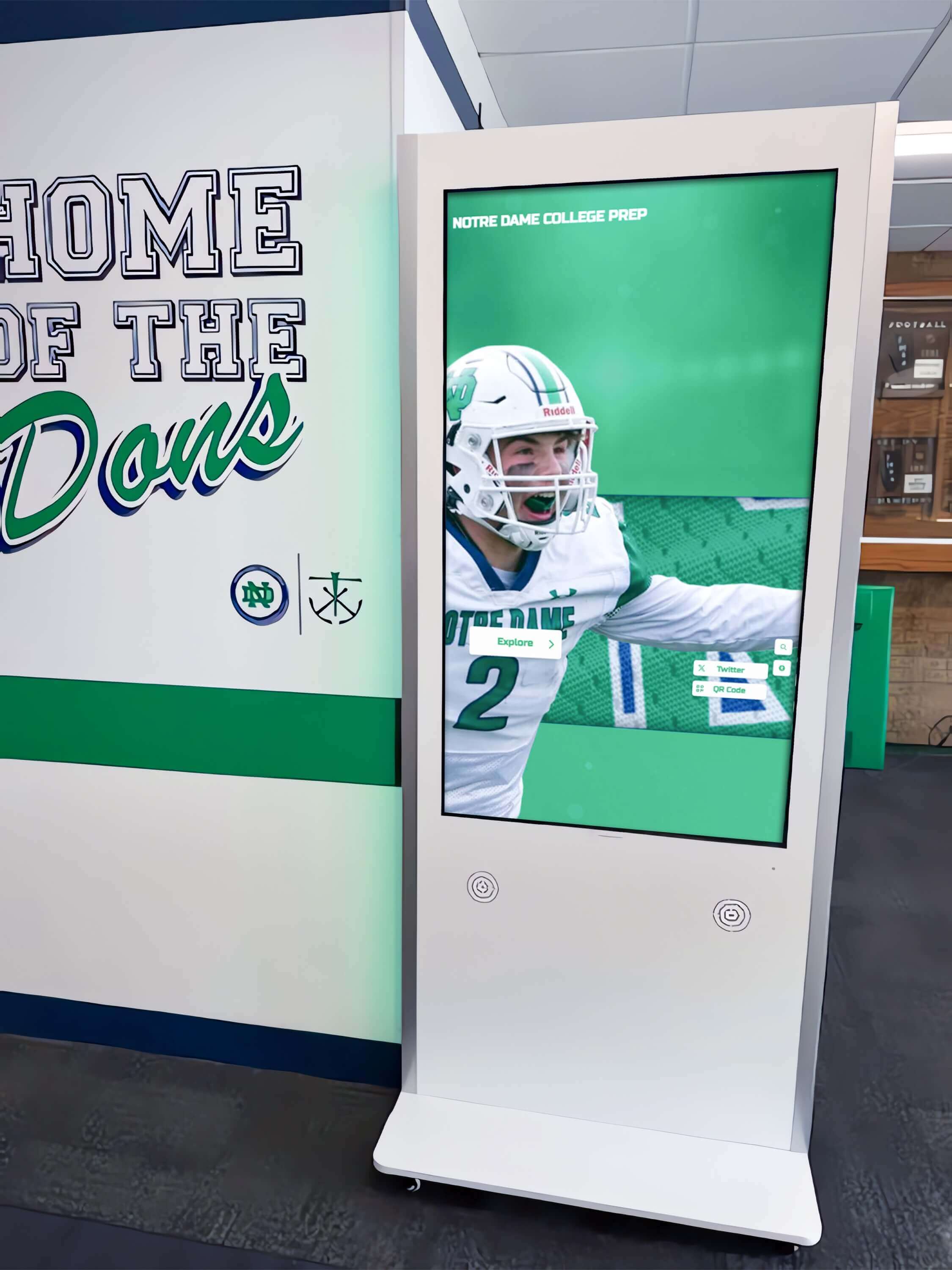
A completed verification table documents that each DNS resolution dependency — from DHCP scope delivery through CMS connectivity — was confirmed before the display entered unattended operation
Common Failure Patterns and Fixes
Symptom: Display resolves FQDNs but not short names. Root cause: Search suffix missing from the display NIC. Check DHCP scope option 15/119. If the scope lacks both options, add option 15 with the primary internal domain. After adding, force a lease renewal on the display and re-run Step 1.
Symptom: Search suffix present immediately after deployment but missing after a few days. Root cause: DHCP lease renewal is delivering a different scope — the display may be migrating between DHCP scopes due to an IP range boundary, or a second DHCP server on the network is responding with a scope that lacks option 15/119. Check for rogue DHCP servers using DHCP server snooping on the display VLAN switch.
Symptom: Search suffix is correct on most displays but wrong on one or two MDM-managed units. Root cause: Stale MDM network profile cached on specific devices. Force a MDM check-in and profile refresh on the affected devices. If the MDM console shows the profile as current, check whether the device enrollment group was updated to include the corrected network profile.
Symptom: nslookup cms returns an IP address, but the CMS portal shows the display as Offline.
Root cause: DNS resolution is working but HTTPS connectivity to the CMS is blocked by the content filter. The display is resolving the hostname but the HTTP/HTTPS traffic is blocked by URL filtering, certificate inspection, or firewall rules on the display VLAN. Check content filter logs for the display IP during a known content sync window.
Symptom: Short hostname resolves to an unexpected IP address.
Root cause: The search suffix is correct but the DNS resolver is returning a stale cached record for the FQDN — or a split-DNS misconfiguration is returning an external IP instead of the internal CMS address. Check the DNS resolver’s cache for the CMS FQDN using Resolve-DnsName -Name <FQDN> -Server <resolver_ip> and compare the returned IP to the expected internal address.
FAQ
What is a DNS search suffix and why does a school recognition display need one?
A DNS search suffix is a domain name that the operating system appends to short (unqualified) hostnames before issuing DNS queries. A managed recognition display kiosk needs a search suffix when the CMS platform, content delivery server, or internal proxy it connects to is addressed by a short hostname — for example, cms rather than cms.athletics.school.edu. Without the correct suffix, the display cannot resolve internal hostnames and loses CMS connectivity silently.
Should the search suffix be delivered via DHCP option 15 or option 119?
Use option 119 (DNS Domain Search List, RFC 3397) if the display needs to resolve hostnames under more than one internal subdomain — for example, athletics.school.edu and infra.school.edu. Option 119 carries an ordered list of multiple domain names. Use option 15 (Domain Name) as a fallback when the display VLAN infrastructure does not support option 119 (older DHCP relay agents may strip it) and only one search domain is needed. Configure both when possible — clients that support option 119 will use it; clients that do not will fall back to option 15.
Can a Group Policy DNS suffix override break a recognition display on a domain-joined machine?
Yes. When a GPO DNS Suffix Search List is applied to a domain-joined Windows machine, Windows ignores DHCP option 15 and option 119 for that adapter. If the GPO was configured for the school’s administrative domain and does not include the athletics or recognition subdomain, managed displays in the same domain will fail to resolve internal recognition CMS short names. The fix is to update the GPO for the display machine OU — not the DHCP scope — to include the required subdomain.
What happens to the DNS search suffix when a managed kiosk loses its Wi-Fi connection and reconnects?
On Windows, the search suffix is re-delivered with the DHCP lease when the adapter reconnects and obtains a new lease. If the display uses a static IP, the search suffix is preserved in the static NIC configuration and is not affected by disconnections. On MDM-managed devices, the MDM network profile delivers the domain search list as part of the Wi-Fi or Ethernet profile — it is applied when the profile is active, regardless of connection state changes.
How often should schools re-run this DNS search suffix checklist?
Run the full checklist at initial display commissioning, after any DHCP scope change on the display VLAN, after any MDM network profile update that includes DNS settings, after any network infrastructure redesign (VLAN renaming, firewall replacement, ISP transition), and when a display is physically relocated to a different network segment. An annual review as part of the school’s IT maintenance calendar also catches configuration drift that accumulates over time. Schools that maintain continuous ADA-accessible recognition display programs benefit from including DNS configuration checks in the same annual audit cycle as accessibility reviews.
Does the DNS search suffix affect how the CMS platform resolves — or only how the display resolves the CMS?
The DNS search suffix on the display affects only the display’s own hostname resolution — specifically, how the display OS resolves the CMS hostname at each content synchronization cycle. It does not affect how the CMS platform resolves external services or how other devices on the network resolve the CMS. The CMS platform has its own DNS configuration managed by the CMS provider or the school’s server administrator.
What if the display uses a hardcoded FQDN in the CMS application config rather than a short name?
If the CMS application is configured with a fully qualified domain name — for example, cms.athletics.school.edu — the DNS search suffix is not needed for that specific hostname. However, other components the display depends on (NTP server, proxy, content filter bypass, license server) may still be configured as short names at the OS or network level. Run Steps 1 and 5 of the checklist to confirm whether any short names remain in use even when the primary CMS hostname is a FQDN.
Can a misconfigured DNS search suffix cause the display to send content requests to the wrong server?
In rare cases, yes. If the search suffix causes a short hostname to resolve to an unexpected FQDN — for example, if cms resolves to cms.district.edu (a district-level CMS) instead of cms.athletics.school.edu (the school’s own CMS) — the display will authenticate against and synchronize content from the wrong server. This produces a content discrepancy that can be difficult to diagnose without checking both the DNS resolution and the CMS session logs. Always test that the resolved IP for each short hostname matches the expected CMS server address (Step 5, sub-step 5).
A complete DNS search suffix configuration — delivered reliably via DHCP, protected from MDM or GPO override conflicts, and verified end-to-end from short hostname resolution to CMS content sync — is the foundation that keeps a managed school recognition display connected to its content platform across every lease renewal, seasonal network change, and facility update the campus IT team makes throughout the year.
When your school is ready to evaluate the recognition display platform that connects to your existing network infrastructure, request a Rocket Alumni Solutions demo to see how the platform’s cloud CMS is configured to work within school IT environments.