Intent: demonstrate — this recognition display DisplayPort link-training test guide walks school IT coordinators, AV technicians, facilities managers, and athletic directors through identifying, isolating, and resolving signal-negotiation failures that produce blank screens, intermittent flicker, and unexpected resolution drops on hall-of-fame, donor wall, and athletic record board displays before the recognition program goes live for students, families, and community members.
DisplayPort link training is the handshake sequence that a source device — a media player, PC, or cloud content player — and a display panel negotiate every time a DisplayPort cable is connected or the source wakes from sleep. During link training, source and sink agree on lane count, link rate, voltage swing, and pre-emphasis level, then confirm signal quality before any video data flows. If any phase of link training fails or produces a marginal result, the display may show a blank screen, flash black intermittently, fall back to a lower resolution than the content requires, or disconnect and reconnect repeatedly. In a school hallway, these symptoms appear to visitors as a broken display — an impression that reflects on the recognition program regardless of its underlying cause.
The quick answer: a recognition display DisplayPort link-training test exercises the full signal-negotiation sequence between the installed media player and display — at the actual cable length, with the installed cable — and confirms that the negotiated lane count and link rate match the resolution and refresh rate the recognition content requires. Any failure mode — blank screen at boot, flicker under load, or silent resolution fallback — warrants cable replacement, driver update, or media player reconfiguration before the display is accepted.
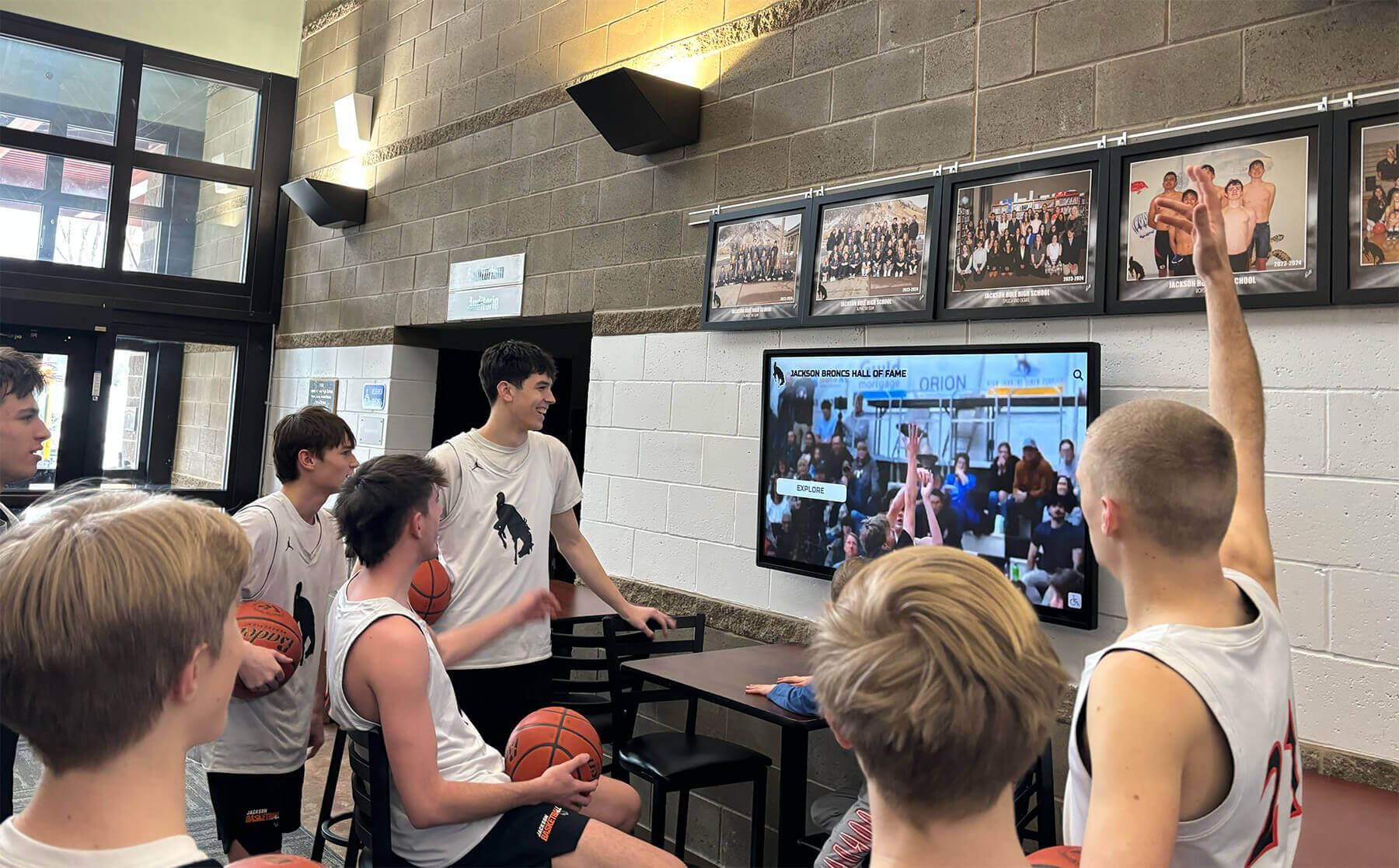
Recognition displays running athletic highlight videos depend on a clean DisplayPort link-training handshake at every boot — a marginal cable or misconfigured driver will not show an error message, it will simply deliver a blank or degraded image
What Is DisplayPort Link Training?
DisplayPort link training is a two-phase initialization protocol that runs automatically when a DisplayPort source connects to a display. Unlike HDMI, which negotiates a fixed set of signal parameters at connection time, DisplayPort actively tests and adjusts its physical layer during link training to achieve the highest reliable data rate on the specific cable and connection in use. The two phases are Clock Recovery and Channel Equalization.
Phase 1 — Clock Recovery (CR). The source sends a repeated training pattern at the requested link rate — HBR, HBR2, or HBR3, corresponding to approximately 8.1, 16.2, or 32.4 Gbps total bandwidth across four lanes. The display’s receiver locks its internal clock to the source’s transmission frequency. If the receiver cannot achieve clock lock at the requested rate — because the cable cannot carry the signal cleanly at that bandwidth — the source reduces the link rate and retries. A cable adequate for lower resolutions may fail clock recovery at the HBR3 rate required for a 4K 60 Hz recognition display.
Phase 2 — Channel Equalization (EQ). With clock recovery complete, source and sink negotiate voltage swing (signal amplitude) and pre-emphasis (high-frequency boost) for each lane individually. The goal is a reliable signal eye opening at the receiver — a measure of signal quality at the bit level. The source starts at a baseline voltage and pre-emphasis setting and adjusts based on feedback from the display until both sides confirm signal quality. If equalization cannot converge — because the cable has high insertion loss or the source’s output driver is misconfigured — link training fails, and the display produces a blank screen or falls back to the next lower link-rate tier.
Link-training failure modes visible in school installations:
- Blank screen at power-on: Link training fails completely during CR phase. The display backlight may illuminate (screen glows uniformly) but no image appears.
- Intermittent black flicker: Link training completes initially but marginal equalization causes periodic re-training events. The display briefly shows black before recovering the image.
- Silent resolution fallback: Link training succeeds at a lower rate (HBR instead of HBR2), reducing available bandwidth. A 4K 60 Hz request falls back to 1080p 60 Hz or 4K 30 Hz without any on-screen notification. Recognition content designed for a 4K display appears upscaled and soft.
- Repeated hot-plug detect events: The source repeatedly sees the display connect and disconnect, triggering continuous re-training. Operating systems log these as rapid display connection events; some platforms show a “Display connection interrupted” notification.
Link-Training Failure Symptoms on Recognition Displays
The following table maps link-training failure modes to their visible symptoms, likely causes, and the first diagnostic step. Use it alongside the test procedure to connect what you observe to the negotiation phase that failed.
| Symptom | Link-Training Phase | Likely Cause | First Diagnostic Step |
|---|---|---|---|
| Blank screen at boot, backlight on | Clock Recovery (Phase 1) or pre-CR handshake | Cable cannot support requested link rate; incompatible passive adapter; source GPU driver misconfigured | Swap cable with a known-good certified cable; confirm no passive DP-to-HDMI adapter is in the signal path |
| Intermittent black flicker (1–3 seconds, random) | Channel Equalization (Phase 2) — marginal convergence triggers periodic re-training | Cable too long for the link rate; poor insertion-loss specification; loose connector seating | Firmly reseat both connectors; measure cable length; replace with a rated active DP cable for runs over 3 meters |
| Resolution lower than content resolution | CR fallback — source reduced link rate to achieve clock recovery | Cable bandwidth insufficient for full link rate; source and display negotiated a lower common rate | Check display OSD for active resolution and refresh rate; compare to configured source output |
| Display disconnects and reconnects repeatedly | CR or EQ failure causing repeated hot-plug detect events | Marginal cable; source GPU power management resetting the link; display DPCD version mismatch | Disable GPU power management for the DP output in the source device's display driver; verify driver version |
| Image present but with horizontal banding or color artifacts | EQ marginal — data transmission errors after training completes | High lane error rate from inadequate equalization; cable damage causing intermittent bit errors | Inspect cable for kinks, sharp bends, or connector damage; replace cable and retest |
| Display works at 1080p but blank at 4K | CR failure at HBR2/HBR3 rate, success at HBR rate | Cable not rated for HBR2 or HBR3 bandwidth; source GPU port limited to HBR (DisplayPort 1.1) | Confirm cable packaging states HBR2 or DP 1.2 certification; confirm source GPU port version from driver properties |
Pre-Test Requirements
Before running the link-training test, confirm the physical installation is complete and the test will reflect actual service conditions.
Use the production cable. The link-training test must use the cable that will remain installed — the same length, same grade, routed the same way through the same conduit path. A short-loop test cable brought to the site for convenience masks insertion loss and cable quality problems that only appear at the full installed length.
Use the production source device. A borrowed laptop may have a different GPU, DisplayPort version, or driver than the installed media player. Test only with the device that will drive the display every day.
Confirm the display’s DisplayPort version. Open the display’s on-screen display (OSD) menu and navigate to Source Info, Signal Info, or Picture Info. Note the active input mode. Most commercial school recognition displays support DisplayPort 1.2 (HBR2) or DisplayPort 1.4 (HBR3). Confirm the source supports the same version.
Check the GPU driver version. On the source device, open the display adapter properties. Note the driver version and confirm it has been updated within the last six months. Outdated GPU drivers are a common cause of link-training failures because the driver’s retry and equalization parameters may not account for the specific panel model’s DPCD (DisplayPort Configuration Data) settings.
Confirm no passive adapters are in the path. A passive DisplayPort-to-HDMI adapter converts the signal at the connector level without active signal regeneration. Passive adapters typically support only HBR rates, capping bandwidth at approximately 8.1 Gbps — insufficient for 4K 60 Hz. Recognition displays requiring 4K 60 Hz must use either a native DisplayPort cable or an active adapter rated for the full link rate.
The Recognition Display DisplayPort Link-Training Test: Step-by-Step Procedure
This test requires two staff members: one managing the source device and recording results, the other observing the display from standard visitor distance. The full procedure takes approximately 60 to 90 minutes including documentation.
Step 1 — Establish a Cold-Boot Baseline
Power off both the display and source device completely. Wait 30 seconds. Power on the display first, then the source device. Observe the display during the full boot sequence.
What to watch for:
- A blank screen that persists beyond 30 seconds after the source begins outputting signal indicates a CR failure. The source is sending training patterns but the display’s receiver cannot lock.
- A brief flash of black during the first 5 to 10 seconds of source boot — then a stable image — is normal. This is the link-training handshake completing on first contact.
- Repeated brief flashes of black after the image stabilizes indicate marginal EQ — the link re-trains periodically because the initial equalization convergence was at the edge of the receiver’s acceptable window.
Record the cold-boot behavior before proceeding to the next step. A display that produces a prolonged blank period or repeated black flashes at cold boot fails this step regardless of eventual image recovery.
Step 2 — Read the Negotiated Link Parameters from the Display OSD
With the source device outputting a stable image, open the display OSD and navigate to Source Info or Signal Info. Record:
- Active resolution: Should match the content resolution configured in the source device’s display settings.
- Active refresh rate: Should match the configured refresh rate — typically 60 Hz for school recognition displays.
- Input label: Confirm “DisplayPort” is shown, not a fallback input such as HDMI or VGA.
A resolution lower than configured — 1080p when 4K was set — indicates a CR fallback. The source reduced the link rate to achieve clock recovery, and the available bandwidth dropped below what 4K 60 Hz requires. Recognition content authored for a 4K display will appear noticeably softer and may exhibit upscaling artifacts on a display running in fallback mode.
Step 3 — Test Resolution Stability Under Dynamic Content Load
Display a motion-rich content sequence — a sports highlight video, a scrolling donor roll, or a transition-heavy recognition card sequence — for a minimum of 10 minutes. Dynamic content loads the GPU’s output driver more heavily than a static test image and can expose marginal equalization that holds during a gray-field test but fails under real recognition content.
Observe for any black flash during content transitions or high-motion video sequences, any visible resolution change during complex scenes, and any color artifact that appears only during high-bit-rate content segments.
Schools developing digital hall-of-fame displays that showcase athletic history through video content are particularly dependent on stable link training under dynamic load — a hall of fame that flickers during a championship highlight reel undermines the emotional impact of recognition content that may have taken the coaching staff weeks to compile.
Step 4 — Test Sleep-Wake Link Re-Training
Configure the source device to enter sleep after 5 minutes of inactivity, or manually trigger the display to enter standby mode from the OSD power management menu. Wait for the display to enter sleep or standby state. Then wake the system by moving the mouse or pressing a key on the source device.
Observe the wake sequence carefully:
- The display should recover the image within 5 to 10 seconds. Recovery times over 15 seconds suggest a link-training re-training sequence requiring multiple retry attempts.
- A pattern of image → blank → image → blank → stable indicates marginal EQ requiring multiple training rounds to converge.
- A display that does not recover from sleep — remaining black or showing a “No Signal” message — has a power-management-driven link-training failure. The source GPU is not re-initiating training correctly after the power transition.
Sleep-wake reliability matters because most commercial recognition display installations use power-saving schedules that activate during non-school hours. A display that fails to recover from sleep during school opening will appear blank to the first visitors of the day — often students, coaches, or families who expect the hall-of-fame or donor wall to be available when they arrive.
Step 5 — Test Cable Stress Points
With the source outputting a stable image and a gray test field displayed full-screen, physically inspect the cable path at each stress point: the connector seating at the source GPU port, any bend radius within a conduit entry or behind a wall mount bracket, and the connector seating at the display’s DisplayPort input. At each stress point, gently flex or shift the cable within the range it would experience from normal installation settling or maintenance access, while observing the display for any black flash or image artifact.
A cable that produces a black flash under gentle flex has a shield continuity or conductor contact problem at that stress point. This is a cable-replacement finding — a cable that flashes under flex will continue to do so as the installation settles, potentially producing intermittent outages months after go-live when no one associates the symptom with the installation day cable path.
Step 6 — Extended Idle Link-Training Stability Test
With the recognition software’s home screen or a looping content playlist running, leave the display unattended for a minimum of 30 minutes while recording time-stamped observations at 5-minute intervals. Note any black flash events — their approximate duration and whether they coincide with content transitions, video clip boundaries, or scheduled playlist changes in the content management system.
Acceptance threshold: More than two link re-training events in 30 minutes is a failing result.
Alumni recognition programs and school archives that keep displays running in unattended lobbies and corridors throughout the school day require idle-period link stability — a blank screen that appears and resolves itself while no one is watching may go unreported, while the same event during a parent night or awards ceremony becomes a visible reliability failure that reflects on the program.
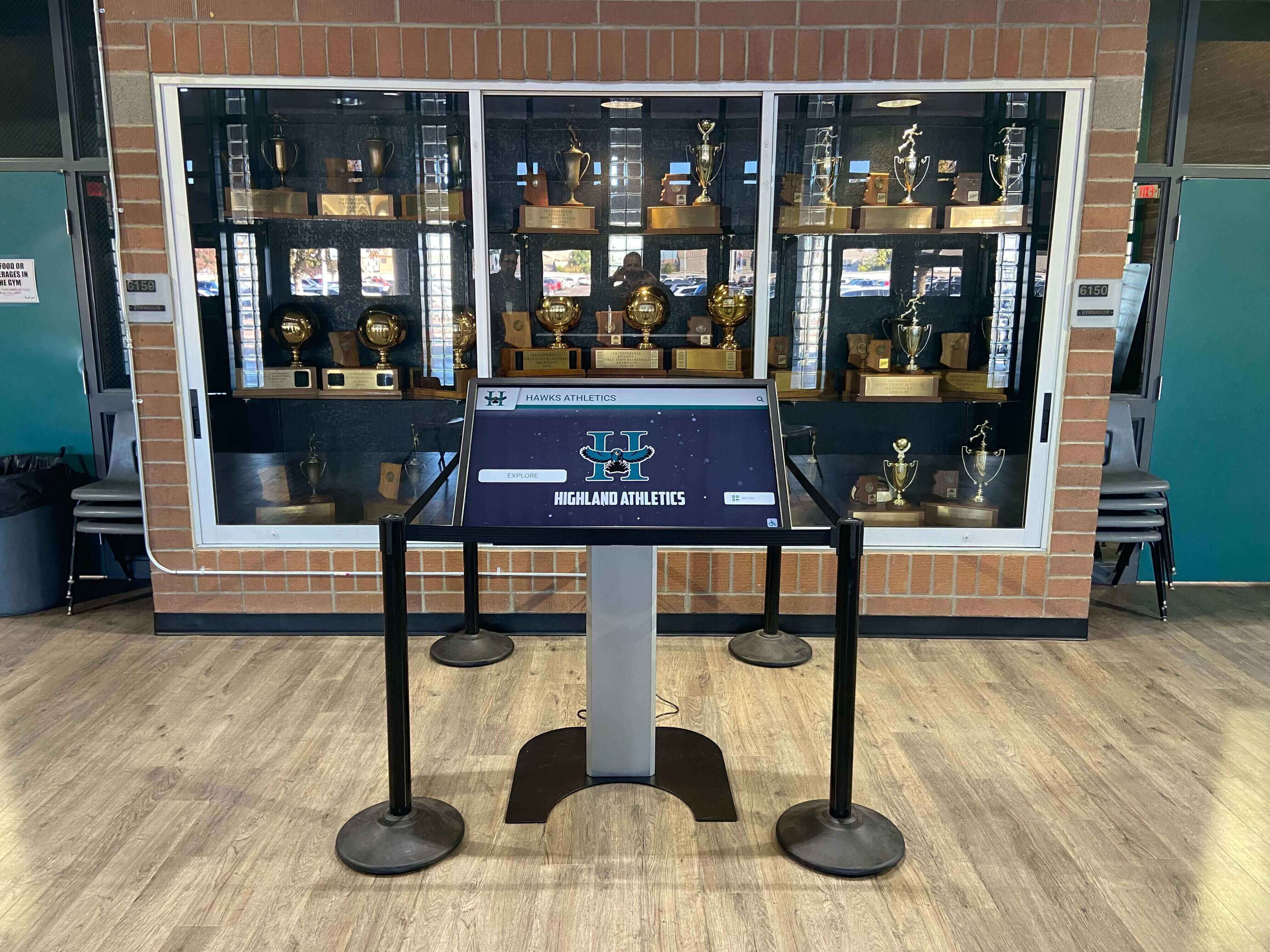
Trophy case and hallway recognition displays frequently operate unattended for hours — the 30-minute idle observation confirms the display's link training is stable under real operating conditions, not just during the supervised commissioning period
Link-Training Test Results Table
Document the result of each step before signing installation acceptance. This record becomes the baseline for any future link-training complaint and evidence in warranty discussions if problems emerge after the acceptance window.
| Test Step | Condition | Expected Result | Observed Result | Pass / Fail | Corrective Action | Tested By | Date |
|---|---|---|---|---|---|---|---|
| Step 1 — Cold-Boot Baseline | Cold power-on sequence | Stable image within 15 seconds of source output; no repeated black flashes after stabilization | |||||
| Step 2 — OSD Link Parameters | Stable source output | Active resolution and refresh rate match configured output; DisplayPort input confirmed | |||||
| Step 3 — Dynamic Content Load | 10-minute motion content sequence | No black flash events; no resolution change; no color artifacts | |||||
| Step 4 — Sleep-Wake Re-Training | Sleep/wake cycle | Image recovery within 10 seconds; no repeated blank-image cycling | |||||
| Step 5 — Cable Stress Test | Gentle flex at connector and bend points | No black flash or image artifact under gentle flex within service range | |||||
| Step 6 — Extended Idle Stability | 30-minute unattended observation | Fewer than two link re-training events in 30 minutes |
Acceptance rule: All six steps must pass before the display is accepted. A single step failure — particularly a cold-boot blank or a sleep-wake re-training failure — must be corrected and re-tested before the installer leaves the site. Document both the corrective action taken and the re-test result.
Corrective Actions for Common Link-Training Failures
Cable Replacement and Grade Selection
The most common corrective action for DisplayPort link-training failures in school recognition displays is cable replacement. DisplayPort cable performance is not uniformly regulated at retail: a cable sold as “DisplayPort 1.2” may or may not meet the insertion loss and crosstalk specifications required for reliable HBR2 transmission at the installed cable length. For runs up to three meters, a passive VESA-certified DisplayPort 1.4 cable with full foil-plus-braid shielding resolves most CR and EQ failures on 4K 60 Hz displays.
For cable runs over three meters — common when a media player is rack-mounted in a closet adjacent to a display alcove, or when the cable routes through ceiling plenum and down a wall cavity — a fiber-optic active optical cable (AOC) rated for DisplayPort 1.4 eliminates insertion loss as a variable entirely. AOC cables support link rates up to HBR3 at lengths of 10 meters and beyond without degradation. They cost more than passive copper cables but eliminate the class of link-training failures attributable to cable quality over longer runs.
GPU Driver Update
When a cable swap does not resolve the link-training failure, the GPU driver in the source device is the next candidate. Driver updates for recognition display media players are often deferred after initial deployment, and a driver that is 12 to 18 months old may lack link-training retry logic, equalization parameter tuning, or hot-plug detect handling improvements added in response to panel compatibility issues with newer display models. Update the GPU driver to the latest production release from the GPU manufacturer — not the version distributed through the operating system’s automatic update mechanism, which may be months behind the manufacturer’s direct release — and retest from Step 1.
School recognition programs that use scheduled display on/off cycles should test the sleep-wake sequence against the actual scheduled power cycle, not just a manual sleep trigger. A scheduled power cycle may use a different power-state path than a manual sleep event, and a display that wakes correctly from a manual sleep trigger may still fail to recover from a scheduled overnight power cycle managed by the content management platform.
Power Management Configuration
Sleep-wake re-training failures (Step 4) are most commonly resolved by adjusting power management settings on the source device. On Windows, open Device Manager, expand Display Adapters, right-click the GPU, select Properties, and navigate to Power Management. Disable the “Allow the computer to turn off this device to save power” option. Also confirm in the GPU control panel that the power profile is set to High Performance rather than Adaptive or Power Saver. These settings prevent the GPU from resetting its DisplayPort output driver during idle periods, which is the most common cause of wake failures on school recognition displays running scheduled power-save cycles.
Display Firmware Update
In cases where link-training failure persists after cable replacement and driver update, the display’s internal DPCD settings may not be compatible with the source GPU’s link-training implementation. DPCD is a register set in the display’s firmware that describes link-training capabilities and preferences. Incompatibilities between a source GPU’s training sequence and a display’s DPCD version can prevent EQ convergence even with a high-quality cable and a current driver. Check the display manufacturer’s support portal for firmware updates specific to the installed panel model and apply any available update before retesting.
DisplayPort vs. HDMI Paths for School Recognition Displays
Schools with existing HDMI infrastructure sometimes install active DisplayPort-to-HDMI adapters to bridge the signal path. The link-training test applies in these configurations: the adapter’s internal DisplayPort receiver must complete CR and EQ with the source GPU, and the HDMI signal delivered to the display is only as reliable as that internal negotiation. Run the full link-training test even when an active adapter is in the path — adapter quality varies significantly, and a marginal adapter produces the same blank-screen and fallback symptoms as a marginal cable.
Passive HDMI-to-DisplayPort adapters do not perform DisplayPort link training in either direction and are not recommended for 4K 60 Hz recognition displays. These configurations frequently produce exactly the blank-screen and resolution-fallback symptoms described in the failure mode table above and do not benefit from the corrective actions described for cable or driver issues.
If your installation uses an adapter, document the adapter model, its rated version (HBR, HBR2, or HBR3), and whether it is active or passive in the commissioning record alongside the link-training test results.
Schools building comprehensive digital recognition systems — athletic banners, donor walls, and hallway honor boards — benefit from a consistent native DisplayPort signal path that avoids adapter conversion and its associated compatibility variables.
Looking for a recognition platform that ships with pre-validated media players and display hardware? Rocket Alumni Solutions pairs each hall-of-fame and donor wall installation with source devices and display panels that have been tested together for DisplayPort compatibility before deployment — reducing on-site commissioning time and eliminating the link-training surprises that only appear at installed cable lengths. Request a demo to see how their pre-validated hardware approach works.
Connecting the Link-Training Test to the Full Commissioning Sequence
The DisplayPort link-training test verifies the signal-negotiation layer. It should run as part of a complete commissioning sequence because other commissioning parameters interact with link-training outcomes:
- Cable continuity test — confirm all conductor pairs in the DisplayPort cable are intact before running link-training tests. A broken or shorted conductor pair will fail link training, but the failure mode will not distinguish between a continuity fault and a bandwidth limitation without continuity verification first.
- Resolution and refresh rate verification — reading the negotiated parameters from the display OSD in Step 2 of this guide serves as the resolution verification step. Confirm the OSD-reported values match the source configuration.
- EMI interference test — radiated EMI from nearby ballasts, PA amplifiers, or HVAC equipment can disrupt DisplayPort differential signaling in the same way it disrupts HDMI signal paths. An installation that passes link training in a quiet building-systems state but fails during normal school operation may have an EMI coupling problem, not a cable quality problem.
- Refresh rate motion test — link training determines whether the negotiated link rate supports the required resolution and frame rate. The refresh rate motion test separately confirms that the content delivery chain produces the correct frame cadence at the negotiated link parameters.
- Touch accuracy test — for touchscreen recognition displays, confirm touch registration is accurate across the panel surface after link-training verification is complete. Some display models reset touch controller parameters as part of a link re-training event, and a marginal link-training result may produce intermittent touch accuracy drift.
School athletic archive programs that transfer decades of records, photos, and statistics into a digital recognition system invest significant effort in content quality — a link-training failure that presents that content on a blank or degraded display undermines the value of the content migration entirely, regardless of how carefully the records were compiled and organized.
Art gallery and display programs that use recognition touchscreens to showcase student artwork in high resolution are particularly sensitive to silent resolution fallbacks. A 4K display falling back to 1080p because of a link-training limitation will noticeably degrade the quality of high-resolution artwork presentations — and the source of the quality difference is rarely apparent to the art teacher or administrator responsible for the display.
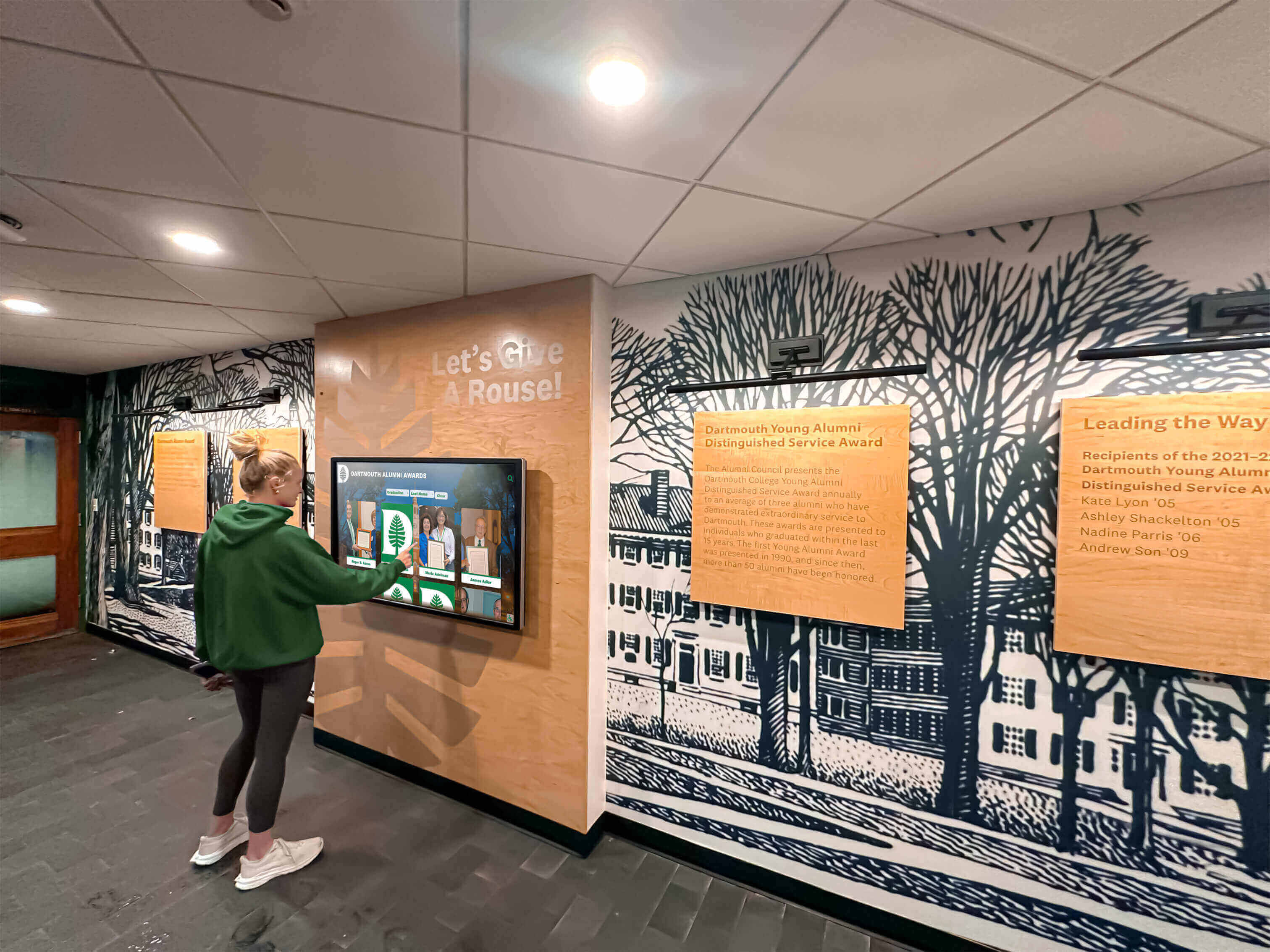
A student browsing recognition content should experience the display's full rated resolution — not a silent fallback to a lower mode caused by a marginal link-training negotiation between the media player and panel
Pre-Event DisplayPort Link-Training Recheck
Recognition displays face their most critical audiences at moments of community gathering: athletic banquets, hall-of-fame induction ceremonies, alumni weekends, championship celebrations, and capital campaign donor events. A pre-event recheck of DisplayPort link-training stability — running Steps 1, 2, 4, and 6 of this guide in a condensed 30-minute sequence — confirms that no change in the installation environment has degraded the link since initial commissioning.
Three categories of changes can degrade link-training performance between initial commissioning and a scheduled event without anyone touching the display or its source device:
Source device changes: A GPU driver update pushed automatically through the operating system’s update mechanism may change the link-training retry sequence or power management behavior. Confirm the driver version has not changed since commissioning, or if it has, retest the full sequence before the event.
Cable settling: A cable installed with adequate bend radius clearance may develop a sharper bend at a conduit entry point as the installation settles over weeks. A link-training test that passed with a comfortable cable path may begin exhibiting cold-boot marginal performance if the cable has been compressed against a bracket or pinched at a conduit edge during subsequent maintenance visits.
Display firmware updates: Some commercial display panels download and apply firmware updates automatically when connected to the network. A firmware update can change the display’s DPCD settings, altering link-training convergence behavior. If a display has updated firmware since commissioning, verify the negotiated link parameters from the OSD before a scheduled community event.
Debate team and academic achievement recognition boards that present student accomplishments at formal events — award assemblies, board presentations, community open houses — share the same pre-event recheck requirement as athletic hall-of-fame displays. A blank screen at a board of education meeting carries institutional consequences that far exceed the technical effort of a 30-minute pre-event link-training check.
Elementary and middle school recognition programs that use digital displays to celebrate student achievements at field day events, science fairs, and academic showcases depend on reliable video delivery at events where families are present and where institutional impressions form quickly and last.
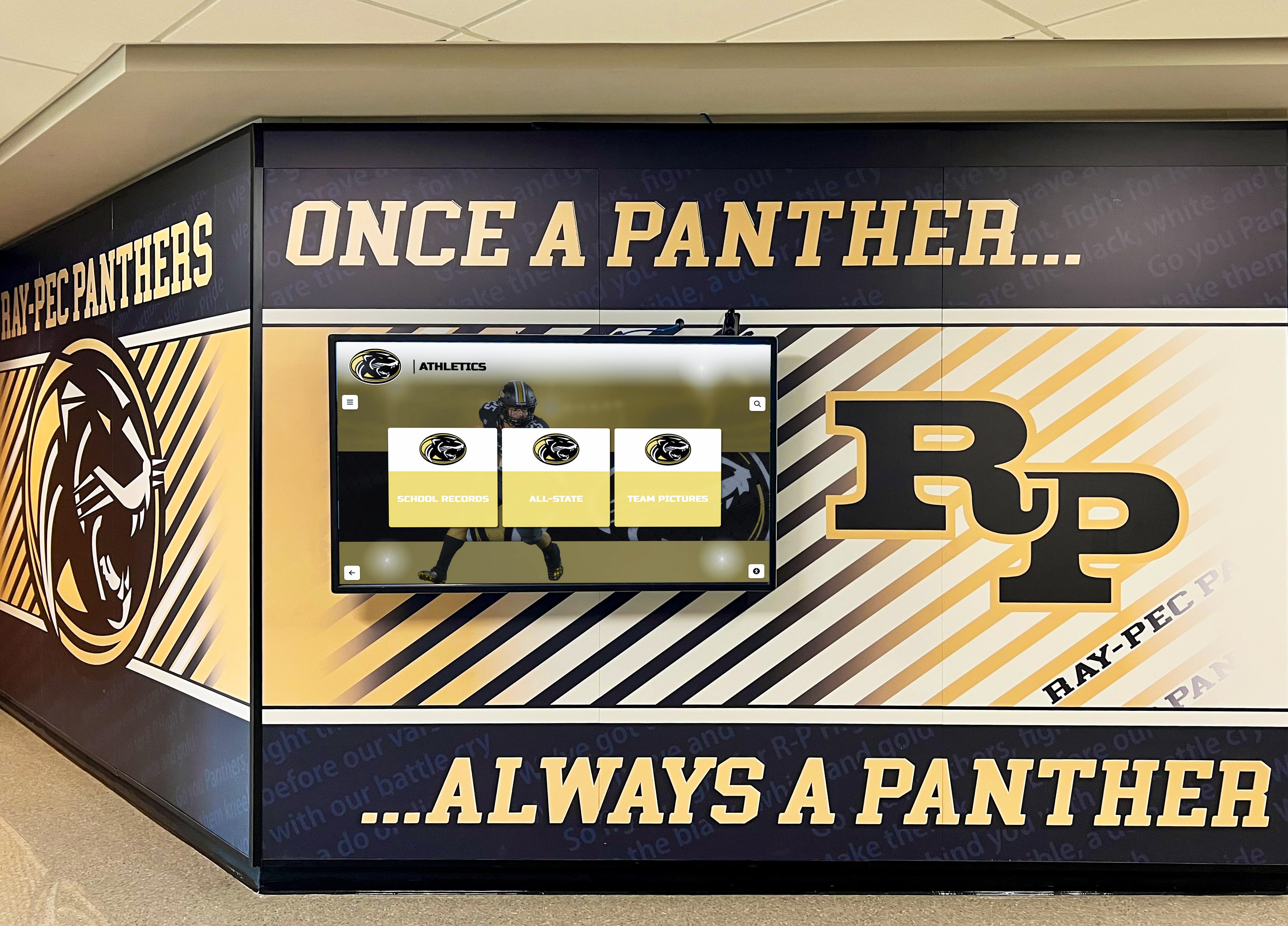
Pre-event link-training rechecks take 30 minutes and protect recognition programs from the blank-screen scenarios that appear most often at induction ceremonies, alumni events, and donor recognition receptions
Frequently Asked Questions
What causes a DisplayPort recognition display to show a blank screen when the source is outputting a signal?
A blank screen with an active backlight — the display illuminates uniformly but shows no image — most commonly indicates a Clock Recovery failure in DisplayPort link training. The source is sending training patterns at the requested link rate, but the display’s receiver cannot lock its clock to those patterns. The most common cause in school recognition display installations is a cable that cannot support the full HBR2 or HBR3 link rate required for the display’s configured resolution and refresh rate. Replacing the cable with a VESA-certified passive cable (for runs under 3 meters) or an active optical cable (for longer runs) resolves this failure in the majority of cases. If the blank screen persists after cable replacement, update the GPU driver on the source device and check the display manufacturer’s portal for panel firmware updates.
How can we tell if DisplayPort link training failed silently with a lower resolution instead of a blank screen?
Open the display’s OSD menu and navigate to Source Info or Signal Info. This screen reports the active resolution and refresh rate that the display is currently receiving. Compare the reported resolution to the resolution configured in the source device’s display settings. If the OSD reports a lower resolution — 1080p when 4K was set, or 4K 30 Hz when 4K 60 Hz was configured — link training completed a fallback negotiation. The source reduced its link rate to achieve Clock Recovery, and the resulting bandwidth was insufficient for the originally requested resolution. This condition requires a cable upgrade or GPU driver update; it does not resolve itself, and recognition content will appear visibly softer than designed on a display running in fallback mode.
Does DisplayPort link training affect touchscreen operation on a recognition display?
On most commercial touchscreen recognition panels, the touch digitizer communicates with the source device through a separate USB connection, not through the DisplayPort signal path. A DisplayPort link-training failure that produces a blank screen will not directly disable the touch controller — the display may still register touch events even when no image is visible. However, some display models coordinate touch controller initialization with DisplayPort link completion, and a display that repeatedly re-trains its link may reset the touch controller as part of each re-training event. If phantom touch events or touch registration errors appear after a link re-training cycle, check whether a touch controller reset is part of the display’s link-recovery behavior before investigating EMI or calibration causes.
How long does DisplayPort link training take, and how much delay at boot is normal?
A successful DisplayPort link-training sequence — clock recovery followed by channel equalization — typically completes in under two seconds. The visible effect at boot is a brief period where the display shows a dark or gray screen before the source image appears. A total blank period of 5 to 15 seconds at cold boot is normal on commercial recognition displays because the source device itself requires time to initialize the GPU, apply the configured output resolution, and begin outputting signal. A blank period over 30 seconds, or a blank period followed by an image and then another blank period before final stabilization, indicates link re-training retries and warrants the full test procedure described in this guide.
Should we use DisplayPort 1.2 or DisplayPort 1.4 cables for school recognition display installations?
For new recognition display installations at 4K 60 Hz, specify DisplayPort 1.4-rated cables (also described as HBR3 or 32.4 Gbps cables). A DisplayPort 1.4 cable is backward compatible with DisplayPort 1.2 and 1.1 source devices and displays, so it will not cause problems on older hardware. The benefit of specifying 1.4 cables for a current installation is margin: a cable rated for HBR3 performance at the installed length will carry HBR2 traffic with headroom, reducing the likelihood of marginal link-training behavior that develops as the cable ages or as connection quality changes with thermal cycling over the display’s operational lifetime.
What is the difference between a DisplayPort link-training failure and an HDCP handshake failure?
DisplayPort link training establishes the physical signal layer — it determines whether the cable can carry data at the requested rate. HDCP (High-bandwidth Digital Content Protection) is a separate software-layer handshake that occurs after link training succeeds, to authenticate that source and display are both authorized to transmit and receive protected content. A link-training failure produces a blank screen before any image appears. An HDCP failure typically produces a brief image that then goes blank, often with a specific on-screen error message. On school recognition displays showing school-produced content, HDCP failures are uncommon — but if a link-training fix resolves the blank screen and a new HDCP error message appears afterward, the original problem was the link-training failure, and the HDCP message is a separate matter to resolve in the content management platform’s output settings.
How often should the link-training test be repeated after initial commissioning?
A full link-training retest is appropriate after any GPU driver update on the source device, after any display firmware update, or after any physical change to the cable path — including maintenance visits that required moving the display or accessing the cable run. A condensed recheck (Steps 1, 2, 4, and 6) is appropriate before any high-visibility community event. An installation where no changes have occurred and no flicker or blank-screen symptoms have appeared does not require routine periodic retesting, but documenting the initial commissioning results gives any future IT coordinator or AV technician the baseline needed to interpret any future symptom that does appear.
A recognition display DisplayPort link-training test is a 60-to-90-minute procedure that verifies cold-boot behavior, negotiated link parameters, dynamic content stability, sleep-wake recovery, cable integrity, and idle-period reliability before a school hall-of-fame, donor wall, or athletic record board is accepted for community-facing operation. Completing it during commissioning — and documenting the negotiated resolution, cable grade, driver version, and any corrective actions taken — creates a baseline that supports both the acceptance decision and any future troubleshooting when a link-training symptom appears months after installation. The cost of identifying and resolving a link-training failure at commissioning is a cable replacement or a driver update. The cost of discovering it during a hall-of-fame induction ceremony is a blank screen in front of the honoree’s family, coaches, and community — a reliability failure the recognition program carries far longer than it takes to fix.
Ready to See a Recognition Display Done Right?
Rocket Alumni Solutions deploys interactive hall-of-fame, donor wall, and athletic record board touchscreens in schools nationwide — with structured commissioning processes that include DisplayPort link-training verification, cable grade confirmation, and resolution validation before any recognition display goes live for students, families, and community members.
Request a Demo