Intent: demonstrate — this checklist walks school IT coordinators and network administrators through a school recognition display DHCP Option 82 test to confirm that a hall-of-fame kiosk, donor wall screen, or athletic record board obtains the correct IP address, subnet, and gateway from the DHCP server even when the school network uses relay agent information (Option 82) to enforce location-based address assignment policies.
DHCP Option 82, defined in RFC 3046, is the Relay Agent Information option inserted by DHCP relay agents — typically Layer 3 switches or routers — when forwarding a client’s DHCP request to a centralized DHCP server. Each relay-forwarded request carries suboptions that identify the physical port the client connected to (Circuit ID, suboption 1) and the relay agent itself (Remote ID, suboption 2). The DHCP server uses these suboptions to assign an IP address from the correct pool, apply access policies, or restrict lease grants to known circuit IDs. When a recognition display is installed on a school network where Option 82-based policies are active, an incorrect relay configuration, an unexpected Option 82 value, or a DHCP server policy mismatch can prevent the display from obtaining any lease — or cause it to receive an IP address from the wrong subnet, putting it outside the network segment where its cloud content management system (CMS) traffic is permitted.
The quick answer: confirm the Layer 3 interface or VLAN SVI serving the display has ip helper-address pointing to the correct DHCP server; verify that ip dhcp relay information option is enabled and the relay policy is set to replace so each relay agent stamps its own circuit-ID on the request; confirm the DHCP server’s pool or class definition accepts requests carrying the relay agent’s circuit-ID format; and verify from the display media PC that the assigned IP, subnet mask, and default gateway match the expected values for the display’s VLAN. If the display receives no lease or receives an IP from the wrong subnet, the relay configuration, DHCP server pool definition, or Option 82 insertion policy requires correction before the display enters unattended operation.
This procedure applies to recognition displays running Windows 10/11 or Linux on dedicated media PCs, embedded media players, and kiosk-grade appliances installed on school networks where DHCP relay agents forward client requests to a centralized DHCP server — typically any network where displays are on a separate VLAN or building segment from the DHCP server itself. The test sequence is the same whether the installation is a 55-inch lobby hall-of-fame screen or an 86-inch corridor record board.
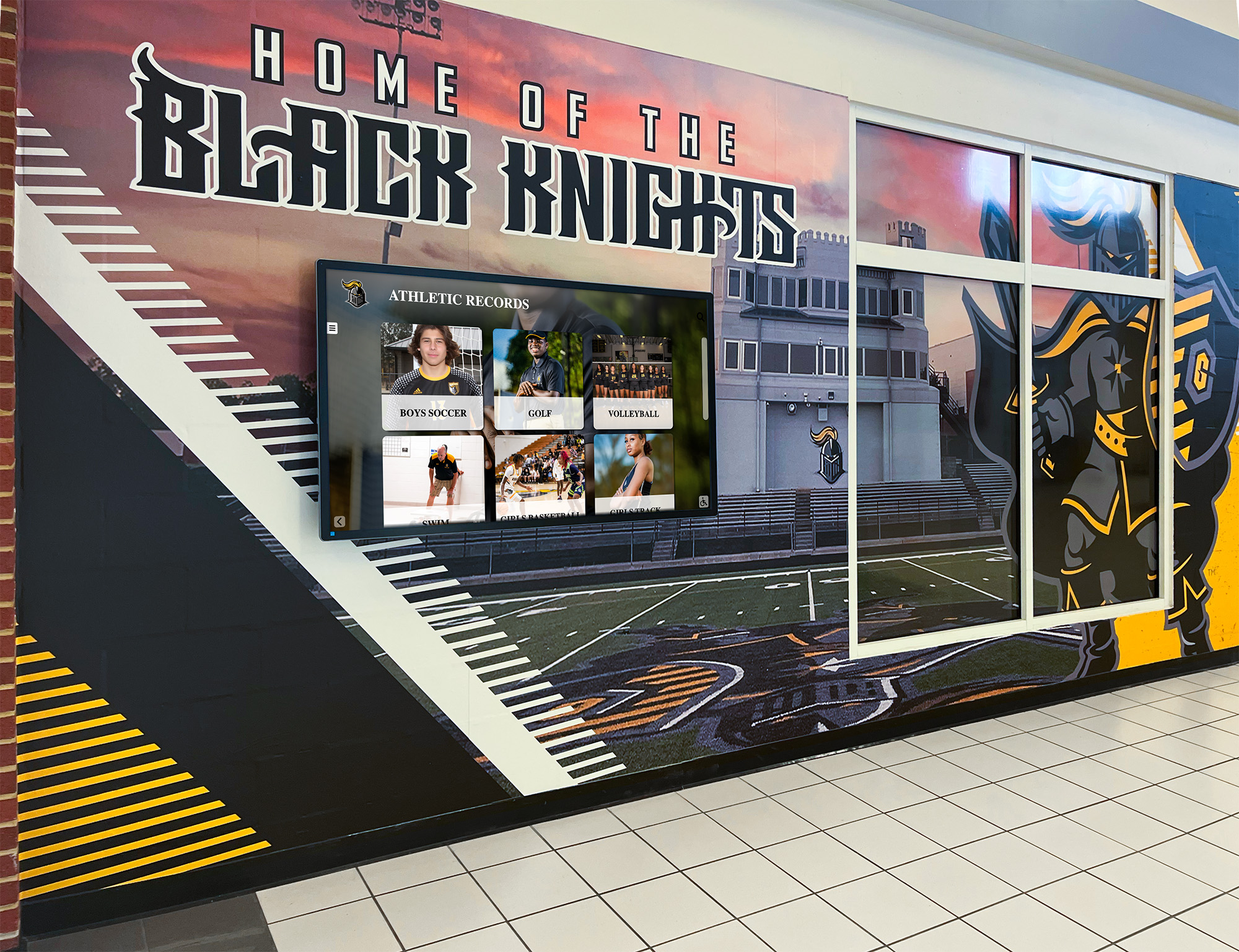
A recognition display that receives an IP address from the wrong DHCP pool — or fails to obtain a lease at all — due to an Option 82 policy mismatch will be unable to reach its cloud CMS and will go offline silently in the school hallway
What Is DHCP Option 82?
DHCP Option 82, formally titled the Relay Agent Information option, is a mechanism defined in RFC 3046 that allows DHCP relay agents to append information about a client’s network attachment point to the DHCP request before forwarding it to the server. This supplemental data lets the DHCP server make assignment decisions based on where the client is physically located on the network — not just the client’s MAC address or requested options.
When a recognition display powers on and broadcasts a DHCP DISCOVER packet, the packet travels as a Layer 2 broadcast within the display’s VLAN. The DHCP relay agent — typically the VLAN’s Layer 3 SVI (switched virtual interface) on a distribution switch or a router sub-interface — intercepts the broadcast, inserts Option 82, and forwards the modified request as a unicast packet to the centralized DHCP server. The DHCP server evaluates the request, selects the appropriate address pool based on the giaddr (gateway IP address) field or Option 82 suboptions, and sends a DHCPOFFER back through the relay agent. The relay agent strips Option 82 from the reply before forwarding it to the display — the display never sees Option 82 in the server’s response.
Option 82 contains two standardly used suboptions for school recognition display deployments:
Circuit ID (suboption 1) — A string identifying the physical port or interface the client is connected to on the relay agent. The format is vendor-defined; Cisco IOS uses a string that encodes the VLAN ID and the relay agent’s interface description (for example, Vlan20 on a distribution switch). Some switches use port-level granularity encoding the chassis slot and port number. The DHCP server can match against the Circuit ID to assign different subnets to different physical locations — useful for schools that want lobby displays on one network segment and gymnasium displays on another.
Remote ID (suboption 2) — A string identifying the relay agent itself, usually based on the switch’s MAC address or hostname. The Remote ID helps the DHCP server distinguish requests arriving from different relay agents in multi-building school deployments where the same VLAN range is reused in each building but served by a different access or distribution switch.
For recognition display network testing, three Option 82 behaviors are directly relevant:
1. Whether Option 82 insertion is enabled. Some relay agents insert Option 82 by default; others require explicit configuration. If the DHCP server has Option 82-based pool selection policies configured and the relay agent is not inserting Option 82, the server will not match the request to the correct pool and may refuse to grant a lease.
2. The relay agent’s Option 82 policy when a request arrives pre-tagged. In multi-hop relay environments — where a request passes through more than one relay agent — the second relay agent must decide whether to replace, preserve, or drop requests that already carry Option 82. The replace policy is the most appropriate for recognition display environments: the outermost relay agent’s circuit ID stamps the request and the DHCP server uses that to determine the display’s location.
3. Whether the DHCP server’s pool or class definition matches the relay agent’s Circuit ID format. A DHCP server configured with Option 82-based class definitions will only grant a lease if the incoming Circuit ID or Remote ID matches a defined class condition. A display installed on a port whose circuit ID does not match any DHCP class definition will receive no offer. This mismatch is the most common reason recognition displays fail to obtain leases on Option 82-enabled school networks.
Why DHCP Option 82 Matters for School Recognition Displays
A hall-of-fame kiosk, donor wall display, or athletic record board installed in a school lobby operates as a fixed-purpose device on a managed network. When that network uses Option 82-based DHCP policies, the display’s ability to obtain a lease and reach its CMS depends on the relay configuration being correct for the display’s specific port and VLAN.
Recognition displays are placed on controlled network segments with strict access policies. Many schools segment their networks to separate student devices, staff computers, IoT devices, and dedicated display hardware. The display VLAN typically has a narrowly defined firewall policy that permits outbound HTTPS traffic to the CMS cloud platform and blocks most other traffic. When Option 82-based DHCP policies enforce which devices receive addresses on which VLANs, a misconfigured relay can cause the display to receive an IP from the student VLAN or the IoT VLAN — where the firewall policy blocks the HTTPS traffic the display needs to reach its CMS. The display appears to have an IP address but cannot connect to its recognition content. Schools that invest in interactive digital recognition displays versus traditional physical displays rely on consistent network access to realize the content management flexibility that digital displays offer over static plaques.
DHCP relay is always required when the DHCP server is not on the display’s local VLAN. School networks almost universally use a centralized DHCP server — either a Windows Server DHCP service, an ISC DHCP server, or a router-based DHCP service — that is not directly connected to every display VLAN. The DHCP relay agent bridging those VLANs is the mechanism that gets DHCP requests to the server. If the relay configuration is absent from the display’s VLAN SVI or is pointing to the wrong DHCP server IP, the display’s DISCOVER packets are never forwarded and the display cannot obtain a lease regardless of Option 82 policy. Running the relay configuration test before troubleshooting Option 82 policy ensures the relay itself is working before investigating policy layer issues.
School networks commonly use Option 82 for location-aware address assignment. Schools with multi-building campuses — a main building, a gymnasium, a field house, and an administrative wing — often configure DHCP scopes that assign different subnets to each building. Option 82 Circuit ID or Remote ID values from the building’s distribution switch let the DHCP server identify which building the request originated from and assign an address from the correct scope. A recognition display installed in the gymnasium that receives its IP address from the main building’s scope — because the gymnasium distribution switch’s relay was configured pointing to the wrong scope — may be placed in a subnet where the gymnasium firewall permits no CMS traffic. Schools that maintain championship recognition and athletic achievement content on their hallway and gymnasium displays need that content to reach each screen, which requires the display at each location to be on the correct network segment.
Option 82 policies can change after summer network maintenance. When schools upgrade their distribution switches, migrate to a new DHCP server platform, or reconfigure their VLAN topology over summer, Option 82 circuit-ID formats often change. Cisco IOS circuit IDs are derived from the relay agent’s interface description — if a switch is replaced and the interface descriptions are not preserved exactly, the new switch generates different circuit IDs. A DHCP server that matched the old circuit-ID format no longer matches the new format, and displays on those VLANs receive no leases when they power on at the start of the school year. Running the DHCP Option 82 test at the start of each school year — after any summer network changes — confirms the relay agent’s circuit ID format still matches the DHCP server’s class definitions.
Incorrect subnet assignment silently breaks CMS connectivity. Unlike a complete lease failure — which the IT team can diagnose immediately because the display shows a network error — an incorrect subnet assignment gives the display a valid-looking IP address that simply cannot reach the CMS server. The display shows its last-loaded content, which may appear correct to a casual observer. The problem is only discovered when the recognition program staff notice content is not updating. Schools that run dual recognition display systems for both hall-of-fame inductees and active donors cannot afford silent connectivity failures that leave recognition content stale across multiple screens throughout a building.
DHCP Option 82 Compatibility Decision Tree
Use this decision tree to identify the most likely configuration gap before running the full checklist.
1. Does the display’s VLAN have a ip helper-address configured on the Layer 3 SVI?
- NO → the DHCP relay is absent; the display’s DISCOVER packets are not forwarded to the DHCP server; configure
ip helper-address <dhcp-server-ip>on the VLAN SVI and retest - YES → continue
↓
2. Does the display successfully obtain a DHCP lease (any IP address) after a cold boot?
- NO → the relay is not forwarding requests to the server, or the server is rejecting all requests from this relay; check helper-address IP, DHCP server reachability, and server logs before testing Option 82 policy
- YES, but IP is from the wrong subnet → Option 82 pool selection is likely absent or misconfigured on the DHCP server; continue to Step 3
- YES, and IP is from the correct subnet → Option 82 relay insertion is working; run the full checklist to document and confirm all steps
↓
3. Is ip dhcp relay information option enabled on the distribution switch?
- NO → Option 82 insertion is not configured; the DHCP server receives requests without relay agent data and cannot apply location-based pool selection; enable Option 82 insertion and retest
- YES → continue
↓
4. What is the relay agent’s Option 82 policy (ip dhcp relay information policy)?
drop→ requests arriving with existing Option 82 are dropped; problematic if a previous relay already tagged the packet; change toreplaceand retestkeep→ existing Option 82 is preserved unchanged; acceptable if only one relay hop exists; may send stale circuit IDs in multi-hop environmentsreplace→ each relay agent overwrites Option 82 with its own circuit ID; recommended for school recognition display environments- Unknown → run Step 2 of the checklist to check current policy configuration
↓
5. Does the DHCP server have a class or pool definition that matches the relay agent’s Circuit ID for the display’s VLAN?
- NO → the server has no matching class; all requests from this relay receive default scope assignment or are rejected; add a DHCP class definition matching the relay’s circuit ID format
- YES → continue
↓
6. Has the Option 82 configuration been verified with a packet capture or DHCP server log?
- NO → complete Steps 5 and 6 of the checklist before releasing the display to unattended operation
- YES and the circuit ID values match → document and proceed to the full checklist
Tools Required
| Tool | Use | Notes |
|---|---|---|
| Distribution switch CLI (SSH or console) | Verify relay configuration (show ip helper-address, show ip dhcp relay information), check Option 82 insertion state, and confirm relay policy on the VLAN SVI serving the display | Administrative access required; Cisco IOS syntax used as the reference throughout this checklist; Juniper EX and HP/Aruba ProCurve equivalents noted where they differ |
| DHCP server management console or log | Examine active lease table for the display's MAC address; verify the assigned IP, scope, and Option 82 suboption values the server received; check for rejected requests that carry unrecognized circuit IDs | Accessible from the school's DHCP server (Windows Server DHCP, ISC DHCP, or a router-based DHCP service); server-side logs show the Option 82 values as the server received them — essential for diagnosing circuit ID format mismatches |
| Windows PowerShell or CMD (display media PC) | Run ipconfig /all to capture the assigned IP, subnet mask, gateway, and DNS; run ipconfig /release and ipconfig /renew to trigger DHCP cycles without a physical reboot | Available on all Windows 10/11 media PCs; use to simulate power-cycle DHCP behavior and verify the assigned IP changes to the expected subnet after relay configuration corrections |
| Packet capture tool (Wireshark or tcpdump) | Capture DHCP traffic on the relay agent's uplink interface to confirm Option 82 is being inserted with the correct circuit-ID and remote-ID values; compare the circuit ID in the captured DISCOVER with the DHCP server's class definition | Optional but highly effective for circuit-ID format diagnosis; run a capture on a mirrored port or directly on the DHCP server's NIC to see requests as the server receives them; requires read access to a SPAN/mirror port or the DHCP server itself |
| Network documentation (VLAN map, DHCP scope definitions) | Identify the distribution switch, VLAN SVI, and DHCP server IP for the display's segment; confirm the DHCP pool or class definition expected for this VLAN; record the expected IP range and gateway for the display's location | Required before testing; knowing the intended IP range and the relay agent's interface description is prerequisite information for verifying that Option 82 circuit IDs match the DHCP server's class conditions |
| CMS management portal | Confirm the display appears online after each compatibility test step; verify the last content synchronization timestamp to confirm the correct IP assignment supports full CMS connectivity | Application-layer confirmation that the IP address assigned through the relay path supports CMS connectivity; not a substitute for the switch-side and server-side checks but confirms end-to-end success once the correct IP is assigned |
Pre-Test: Document the Expected DHCP Configuration
Before testing DHCP Option 82 compatibility, record the baseline network configuration for the display so each test step has a clear pass criterion.
- From the display media PC, run
ipconfig /all(Windows) orip addr show(Linux). Record the current IP address, MAC address of the network adapter, subnet mask, default gateway, and DNS server IPs. - Identify the distribution switch and the VLAN SVI that serves the display’s VLAN. This is the interface where the
ip helper-addressconfiguration and Option 82 relay settings reside. Confirm this information against the school’s network documentation. - Log into the distribution switch and run
show interfaces vlan <vlan-id>to confirm the SVI is up/up and the IP address matches the expected gateway for the display’s subnet. - Run
show ip dhcp relay information(Cisco IOS) to confirm whether Option 82 insertion is enabled globally and what the current relay information policy is set to. - From the DHCP server management console, identify the active scope or pool serving the display’s VLAN. Record the scope’s address range, default gateway, and DNS server settings. Note whether any class or policy conditions are applied to the scope that filter based on Option 82 suboptions.
- From the DHCP server’s active lease table, confirm whether the display’s MAC address currently has an active lease. Record the leased IP, scope name, and lease expiry time.
Record all six items before beginning Step 1 of the checklist.
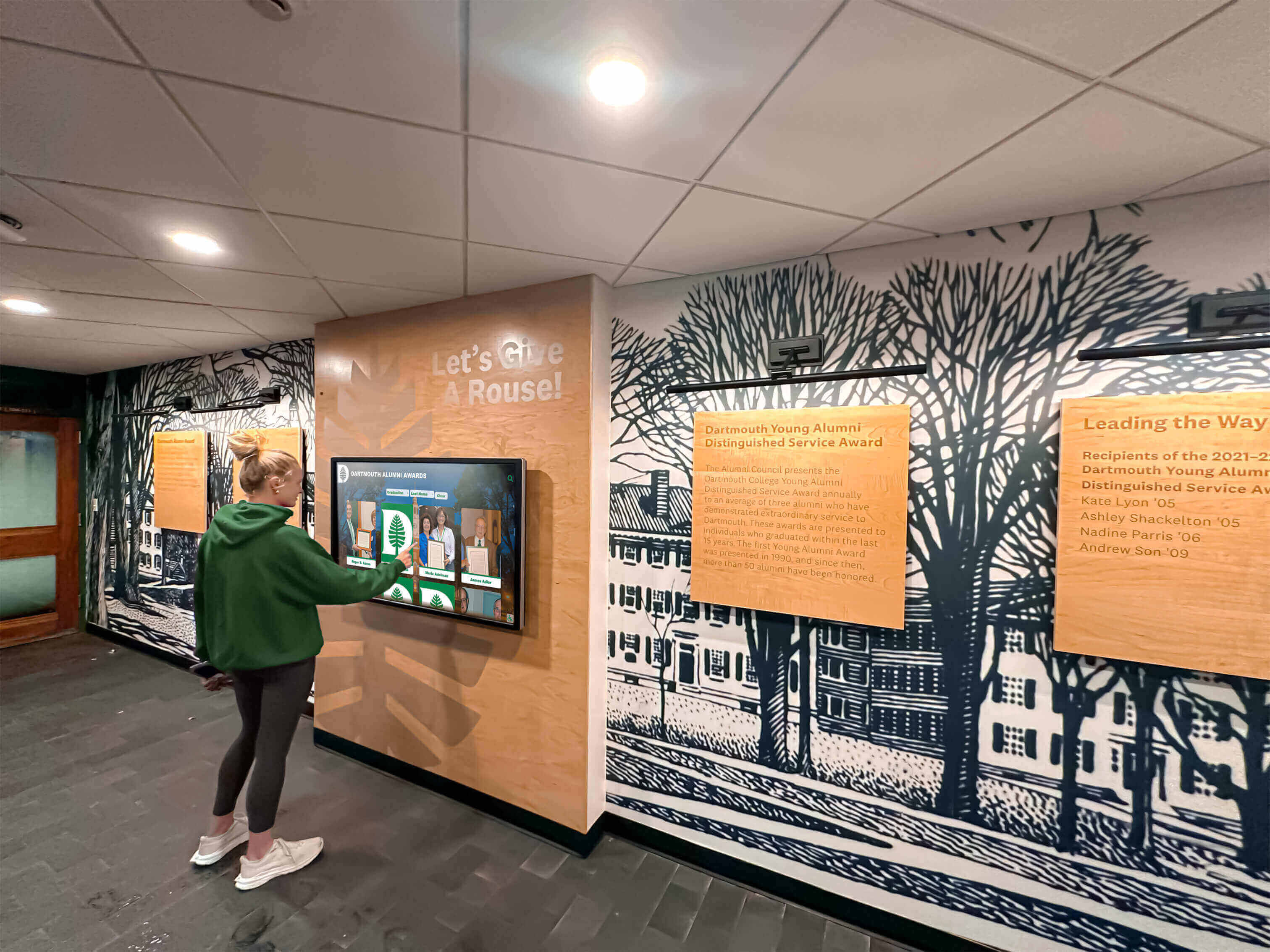
Recording the display's current IP assignment, the VLAN SVI gateway, and the DHCP server's active scope before testing gives each checklist step a clear expected result and identifies whether an observed IP address is from the correct pool
Recognition Display DHCP Option 82 Test Checklist
Step 1: Confirm the DHCP Relay Agent Is Configured on the Display VLAN
Verify that the Layer 3 SVI for the display’s VLAN has a DHCP helper address configured pointing to the school’s DHCP server.
- Log into the distribution switch via SSH or console connection.
- Run:
show running-config interface vlan <vlan-id>— substituting the display’s VLAN number. - In the output, look for a line of the form:
ip helper-address <dhcp-server-ip>. Confirm the IP address matches the school’s primary DHCP server. - If no
ip helper-addressis configured on the display’s VLAN SVI, DHCP DISCOVER packets from the display are never forwarded to the DHCP server — the display will receive no lease response regardless of any Option 82 configuration. Add the helper address in interface configuration mode:
interface vlan <vlan-id>
 ip helper-address <dhcp-server-ip>
- If the helper address IP is incorrect — pointing to a decommissioned DHCP server or the wrong server on a multi-server network — the display’s requests are forwarded but receive no response. Correct the IP and verify DHCP server reachability with a ping from the SVI interface before continuing.
- On Juniper EX, the relay configuration is set at the VLAN or routing-instance level under
[edit forwarding-options helpers bootp server <ip>]. On HP/Aruba ProCurve, useip helper-address <ip>in VLAN interface configuration.
Pass criteria: ip helper-address present on the display VLAN SVI; helper address points to the correct DHCP server IP; DHCP server is reachable from the SVI (verify with ping <dhcp-server-ip> source vlan <vlan-id>).
Step 2: Confirm Option 82 Relay Information State and Policy
Verify that Option 82 insertion is enabled at the correct scope and that the relay policy handles incoming Option 82 tags appropriately for the school’s network topology.
- On the distribution switch, run:
show ip dhcp relay information(Cisco IOS 15.x and later). Note the current state of relay information option insertion and the configured policy. - If Option 82 insertion is globally disabled and the DHCP server uses Option 82-based pool selection, enable insertion:
ip dhcp relay information option
- Check the current relay information policy. In the output of
show ip dhcp relay informationorshow running-config | include relay information policy, look for the policy line. The three options and their implications for recognition display deployments are:
ip dhcp relay information policy drop— requests arriving at the relay agent with existing Option 82 tags (from a prior relay hop) are dropped. Use this only when the network has a single relay hop and no prior relay agent adds Option 82. For single-hop school distributions,dropis safe; for multi-hop environments, it causes lease failures for displays behind a second relay agent.ip dhcp relay information policy keep— existing Option 82 is forwarded unchanged. Use when the innermost relay agent’s circuit ID should be preserved. Appropriate when the access switch (closer to the display) inserts Option 82 and the distribution switch should pass it through unmodified.ip dhcp relay information policy replace— existing Option 82 is overwritten with the current relay agent’s circuit ID and remote ID. Recommended when the distribution switch is the authoritative source of location information and should override any Option 82 a previous hop may have inserted.
- If the current policy does not match the DHCP server’s expectation (for example, the server’s class definitions reference the distribution switch’s circuit IDs but the policy is set to
keep, preserving an access-switch circuit ID that the server does not recognize), update the policy:
ip dhcp relay information policy replace
- After any policy change, trigger a DHCP release and renew from the display media PC:
ipconfig /releasefollowed byipconfig /renew. Note the IP address assigned and confirm it falls within the expected subnet range.
Pass criteria: ip dhcp relay information option enabled; relay policy matches the DHCP server’s expectation for the network topology; display obtains a lease after a policy change (if any was required).
Step 3: Verify the Display Obtains a Lease After a Cold Boot
Confirm that the relay agent successfully forwards the display’s DHCP DISCOVER — including Option 82 — and that the DHCP server responds with an offer in the correct address pool.
- From the display media PC, open PowerShell as administrator and run:
ipconfig /release
Wait five seconds, then run:
ipconfig /renew
This simulates the DHCP DISCOVER–OFFER–REQUEST–ACK exchange the display’s NIC performs at each power cycle.
- After
ipconfig /renewcompletes, confirm the assigned IP address falls within the expected subnet range for the display’s location. Runipconfigand compare the IPv4 Address field against the expected range recorded in the pre-test documentation. - If the display receives an IP from an unexpected subnet — for example, a default scope rather than the display’s dedicated VLAN scope — the DHCP server’s class or pool selection is not matching the Option 82 values the relay is sending. Proceed to Step 4.
- If the display receives no IP address and
ipconfig /renewtimes out, the relay is not delivering requests to the DHCP server, or the server is rejecting all requests from this relay. Check the DHCP server logs for the display’s MAC address. If no requests appear in the server logs, the relay configuration from Step 1 requires correction. - If possible, perform a full media PC reboot rather than a software lease release-renew to simulate the actual startup DHCP burst including all NIC initialization traffic.
Pass criteria: Display receives an IP address in the expected VLAN subnet within the ipconfig /renew timeout window (typically under 30 seconds on a responsive DHCP server).
Step 4: Check the DHCP Server for Option 82 Circuit ID Match
Verify that the circuit ID value the relay agent inserts matches the class or pool condition defined on the DHCP server, so the server assigns the IP from the correct scope.
- From the DHCP server management console, examine the active lease granted to the display’s MAC address. On Windows Server DHCP, the lease appears in the scope’s Address Leases node. On ISC DHCP, check
/var/lib/dhcpd/dhcpd.leasesfor the MAC address entry. - From the DHCP server’s event log or debug output, retrieve the Option 82 Circuit ID value the server received from the relay agent for the display’s most recent DHCP request.
- Windows Server DHCP: Enable DHCP server event logging (
Audit Log) and examine the DHCPREQUEST log entries. Option 82 values appear in the extended log fields if Windows Server DHCP logging is configured at theVerboselevel. - ISC DHCP: Enable
log-facility local7and setlog-level debugindhcpd.conf; the circuit-id value appears in the syslog output for each processed DISCOVER. - Cisco IOS DHCP server: Run
debug ip dhcp server packet(with caution on a production server — this generates significant log output); the RELAY-INFO line in the debug output shows the Option 82 hex values the server received.
- Windows Server DHCP: Enable DHCP server event logging (
- Compare the circuit ID value from the server log against the class or pool condition defined in the DHCP scope configuration.
- On Windows Server DHCP, Option 82-based policies are defined under DHCP Policies using
Relay Agent Informationconditions. Confirm theCircuit IDcondition value matches the circuit ID the relay is inserting. - On ISC DHCP, class definitions use
match if option agent.circuit-id = "<value>". Confirm the value in the class definition matches the circuit ID hex string from the debug log.
- On Windows Server DHCP, Option 82-based policies are defined under DHCP Policies using
- If the values do not match, update the class or pool condition on the DHCP server to match the relay agent’s circuit ID format — or update the relay agent’s interface description (which determines the circuit ID on Cisco IOS) to match the format the DHCP server expects.
Pass criteria: Option 82 Circuit ID value in the DHCP server’s log or lease record matches the class or pool condition defined for the display’s VLAN; no “no class match” or “lease rejected” entries appear in the server log for the display’s MAC address.
Step 5: Verify the Assigned IP, Subnet, and Gateway Are Correct
Confirm that the IP address, subnet mask, and default gateway the display receives from the DHCP server match the expected configuration for the display’s VLAN and physical location.
- On the display media PC, run
ipconfig /alland record: IPv4 Address, Subnet Mask, Default Gateway, and DNS Servers. - Compare each value against the pre-test documentation recorded before the checklist:
- IPv4 Address — must fall within the address range defined for the display’s VLAN scope, not a fallback default scope or a scope from a different building or segment.
- Subnet Mask — must match the subnet mask configured on the display VLAN SVI.
- Default Gateway — must match the IP address of the display VLAN’s SVI on the distribution switch. A display that receives an incorrect gateway IP cannot route any traffic off the local VLAN — including CMS traffic — even if its IP address is otherwise correct.
- DNS Servers — must include at least one DNS server reachable from the display VLAN. An incorrect DNS assignment prevents the display from resolving the CMS platform’s hostname, resulting in connection failures that appear identical to network connectivity failures.
- If any value does not match expectations, identify which DHCP scope the display received its lease from by comparing the IP address to the school’s scope documentation. If the IP is from a fallback default scope, Option 82 class matching is not working — return to Step 4 to diagnose the class condition.
- If the gateway IP is from a different VLAN’s SVI, the display’s request was matched to the wrong scope. Correct the DHCP server’s scope-to-class mapping.
Pass criteria: All four values (IP address, subnet mask, gateway, DNS) match the expected configuration for the display’s VLAN; IP falls within the correct scope’s address range.
Step 6: Verify Option 82 Behavior Survives DHCP Lease Renewal
Confirm that the relay agent correctly handles the DHCP REQUEST sent at lease renewal time, ensuring the display’s lease is renewed with the same correct IP and scope assignment.
- Note the current lease expiry time from the DHCP server’s active lease table for the display’s MAC address. The first DHCP REQUEST (renewal attempt, using unicast to the DHCP server) occurs at 50% of the lease duration — typically every 4 hours for an 8-hour display VLAN lease.
- If testing in a scheduled maintenance window, the IT team can shorten the display VLAN’s lease duration temporarily — for example, to 10 minutes — to accelerate the renewal cycle. On Cisco IOS DHCP server:
ip dhcp pool <name>thenlease 0 0 10(10-minute lease). Restore the normal lease duration after the test. - When the renewal REQUEST is sent, monitor the DHCP server log to confirm: the server received the REQUEST; Option 82 is present with the correct circuit ID; the server sent a DHCPACK (acknowledgment) rather than a DHCPNAK (negative acknowledgment). A DHCPNAK at renewal time forces the display to restart the full DISCOVER cycle.
- After the renewal completes, run
ipconfigon the display media PC and confirm the IP address and gateway are unchanged from the values assigned at Step 5. - Confirm the DHCP server’s active lease table shows the updated lease expiry time for the display’s MAC address.
Pass criteria: DHCP server log shows DHCPACK (not DHCPNAK) in response to the display’s renewal REQUEST; display retains the same IP address and gateway after renewal; lease expiry time updates in the server’s active lease table.
Step 7: Confirm Option 82 Does Not Conflict with DHCP Snooping on the Access Switch
Verify that Option 82 inserted by the distribution switch relay agent does not conflict with Option 82 that DHCP snooping on the access switch may also be inserting.
- Log into the access switch — the switch the display is directly connected to — and run:
show ip dhcp snooping - Check whether
DHCP snooping information option is enabledappears in the output. If DHCP snooping information option is enabled on the access switch, the access switch is also inserting Option 82 (its own circuit ID) into DHCP requests. - If both the access switch snooping and the distribution switch relay are inserting Option 82, the packet arriving at the distribution switch already contains Option 82. The distribution switch’s relay policy (
keep,replace, ordrop) determines what happens:replacepolicy: the distribution switch overwrites the access switch’s circuit ID with its own. The DHCP server sees the distribution switch’s circuit ID. This is the expected behavior if the DHCP server’s class definitions reference the distribution switch’s circuit IDs.keeppolicy: the access switch’s circuit ID passes through to the DHCP server unchanged. The DHCP server sees the access switch’s circuit ID. This is the expected behavior if the DHCP server’s class definitions reference port-level access switch circuit IDs.droppolicy: the distribution switch drops the DHCP request because it already contains Option 82. The display receives no lease. Ifdropis configured and the access switch is inserting Option 82, change the distribution switch relay policy toreplaceorkeep.
- Document which circuit ID format the DHCP server expects — access switch port-level or distribution switch VLAN-level — and confirm the relay and snooping configuration delivers that format.
Pass criteria: The relay policy on the distribution switch handles Option 82 from the access switch snooping without dropping packets; the DHCP server receives Option 82 with the circuit ID format its class definitions expect; the display obtains a lease in the correct scope.
Step 8: Record Results and Make a Go / No-Go Decision
Document the full DHCP Option 82 compatibility test before releasing the display to unattended operation.
| Test Item | Pass Criterion | Result (Pass / Fail / N/A) | Notes |
|---|---|---|---|
| DHCP relay configured on display VLAN SVI | ip helper-address present and pointing to correct DHCP server | ||
| Option 82 insertion enabled; policy set correctly | ip dhcp relay information option enabled; policy matches DHCP server expectations | ||
| Lease obtained after cold boot simulation | Display receives valid IP in expected VLAN subnet within ipconfig /renew timeout | ||
| DHCP server circuit ID match confirmed | Server log shows circuit ID matches class or pool condition; no lease rejection for display MAC | ||
| IP, subnet, gateway, DNS correct | All four values match expected VLAN configuration and scope documentation | ||
| Lease renewal with correct circuit ID | DHCPACK received at renewal; IP and gateway unchanged; lease expiry updated | ||
| Option 82 interaction with DHCP snooping resolved | Relay policy handles snooping-inserted Option 82 without drops; server receives correct circuit ID format |
Go / No-Go rule: All applicable items must show a passing result before the display enters unattended operation. A display that receives an IP from the wrong scope — even if it has a valid-looking IP address — should not be placed in an unattended public location until the relay configuration and DHCP server class definitions are corrected and the correct subnet assignment is confirmed.
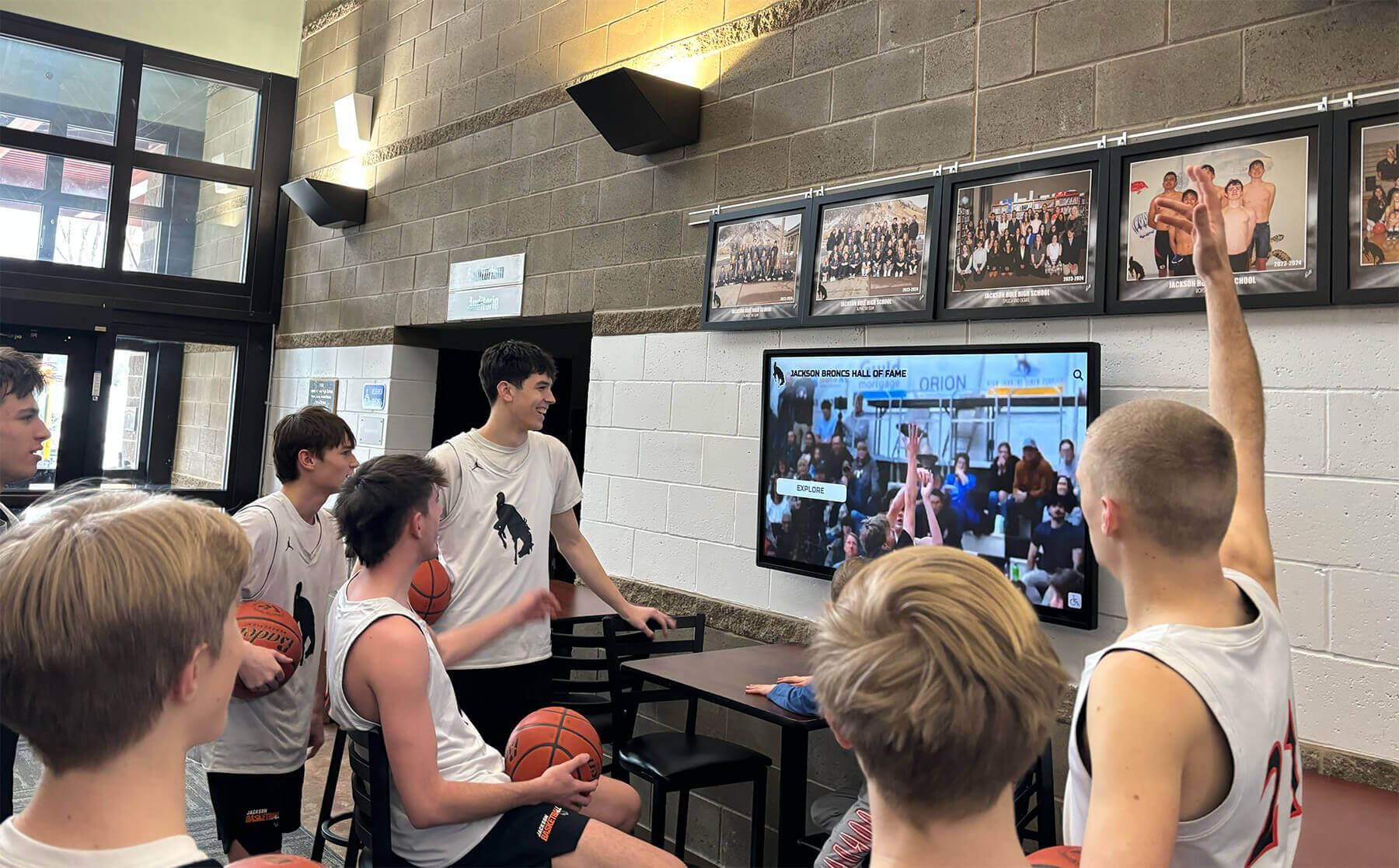
A completed DHCP Option 82 test record documents the relay configuration, circuit ID format, and DHCP server class match for each display location — giving IT staff a baseline for diagnosing future lease failures without re-running the full discovery process
Troubleshooting: Common DHCP Option 82 Compatibility Failures
| Symptom | Probable Cause | Resolution |
|---|---|---|
Display fails to obtain any IP address; ipconfig /renew times out | No ip helper-address on the display VLAN SVI, or helper address points to an unreachable DHCP server; DHCP DISCOVER packets are never forwarded | Confirm ip helper-address configuration on the VLAN SVI. Ping the DHCP server IP from the SVI (ping <dhcp-ip> source vlan <id>). If the server is unreachable, check routing between the distribution switch and the DHCP server segment. Add or correct the helper address and re-run ipconfig /renew |
| Display receives an IP from a default or unexpected scope, not the display-specific scope | Option 82 is not being inserted by the relay agent, or the DHCP server's class condition does not match the circuit ID the relay is inserting; server falls back to the default scope | Enable ip dhcp relay information option on the distribution switch if not already active. Use DHCP server debug logging to capture the circuit ID value the server actually receives from the relay. Compare against the class condition in the scope. Correct the class condition string to match the relay's circuit ID format exactly, including capitalization and encoding |
| Display receives no offer; DHCP server log shows requests arriving but no OFFER sent | DHCP server policy is configured to require Option 82 for this scope, but the relay agent is not inserting it; or the circuit ID does not match any defined class and the scope has "deny" as the default class action | Enable Option 82 insertion on the relay agent. If Option 82 is already enabled but the circuit ID does not match any class, add a catch-all class that accepts the relay's circuit ID or relax the scope's class matching policy. Review the DHCP server's scope class configuration to confirm whether unmatched requests are denied or assigned to a default pool |
| DHCP request dropped at the distribution switch; display receives no response | Distribution switch relay policy is set to drop, and the access switch DHCP snooping information option is inserting Option 82 before the request reaches the distribution switch relay; the distribution switch drops all pre-tagged requests | Change the distribution switch relay policy from drop to replace (ip dhcp relay information policy replace). This allows the distribution switch to overwrite the access switch's circuit ID with its own and forward the request to the DHCP server. Re-test lease acquisition after the policy change |
| Display obtains correct IP initially but renewal fails with DHCPNAK | DHCP server class condition uses the circuit ID to validate renewals, and the circuit ID format changed (for example, after a switch replacement or interface description change); renewal REQUEST carries a circuit ID that no longer matches the class condition | Use DHCP server logs to compare the circuit ID in the failing renewal REQUEST against the circuit ID in the original successful DISCOVER. If they differ, identify what changed in the relay agent configuration. Update the DHCP server's class condition to match the current circuit ID, or restore the interface description on the replacement switch to match the original format |
| Display receives correct IP but cannot reach the CMS; gateway is unreachable | DHCP server assigned the correct IP but the wrong default gateway — a gateway IP from a different scope or a stale scope definition pointing to a decommissioned router interface | Correct the default gateway option in the DHCP scope definition. Confirm the gateway IP matches the current SVI IP on the distribution switch for the display's VLAN. Run ping <gateway-ip> from the display media PC to verify gateway reachability after correcting the scope |
| Option 82 test passes in the server room but fails after the display is installed in the hallway | The display was tested on a different switch port or VLAN than its final installation location; the circuit ID for the hallway port's access switch or distribution port differs from the test environment's circuit ID | Re-run the full checklist at the display's final installation location and switch port. Do not assume a passing result from a test port generalizes to a different physical port — circuit IDs are port-specific. Document the circuit ID for the specific hallway port and confirm it matches the DHCP class condition before closing the installation |
Post-Test Steps Before Returning to Unattended Operation
After all test items pass, complete these steps before closing the commissioning session.
Save the switch configuration. On Cisco IOS, run
write memoryorcopy running-config startup-configto save theip helper-address,ip dhcp relay information option, and relay policy settings to the switch’s startup configuration. A switch reboot from a power loss would otherwise lose all configuration changes made during testing.Document the circuit ID value. Record the exact circuit ID string the relay agent inserts for the display’s VLAN — retrieved from the DHCP server log during Step 4. This string is the key matching value in the DHCP server’s class definition. If the distribution switch is ever replaced or its interface is renamed, the IT team can compare the new switch’s circuit ID against this record to identify class condition mismatches before the display fails to obtain a lease.
Create a DHCP reservation for the display’s MAC address. While DHCP Option 82 handles IP pool selection, a static DHCP reservation (MAC-to-IP binding) ensures the display always receives the same IP address from within its correct scope. This eliminates IP address churn in firewall rules, CMS device registration, and network monitoring tools. On Cisco IOS DHCP server: configure
host <display-ip> <subnet-mask>withhardware-address <display-mac>within the appropriate pool. On Windows Server DHCP: right-click the scope and select New Reservation.Confirm CMS connectivity from the display. Open the recognition display’s CMS management portal and confirm the display appears online and the last content synchronization timestamp reflects a current sync. Application-layer confirmation that the correct-scope IP supports full CMS connectivity is the final end-to-end verification of the test. Schools with digital hall-of-fame displays that rely on regular content updates need CMS sync confirmed at commissioning so recognition content updates reach the screen reliably from the first day of operation.
Looking for a recognition display solution that arrives pre-configured for common school network environments — including relay agent compatibility guidance and ongoing remote monitoring support? Rocket Alumni Solutions deploys hall-of-fame and athletic recognition displays for schools with full network configuration guidance and remote management support throughout the school year. Request a network-ready demo to see how their managed approach simplifies DHCP and relay configuration for school IT teams.
- Schedule a post-summer verification. Add a note to the school’s IT maintenance calendar to re-run Steps 3 and 4 (lease acquisition and circuit ID match) at the start of each school year after any summer network equipment replacement, DHCP server migration, or VLAN reconfiguration. Summer switch replacements change circuit IDs; summer DHCP server migrations can change class definitions. Schools that count on recognition displays being operational on opening day cannot afford to discover an Option 82 class mismatch when students and families arrive. Schools that maintain interactive recognition displays as a core part of their school traditions benefit from a documented annual commissioning checklist that covers network readiness alongside content verification.
Multi-Display Considerations for DHCP Option 82 on School Networks
Schools running recognition displays in multiple locations — a main lobby hall-of-fame wall, an athletics corridor record board, and a donor recognition screen in the administrative wing — may connect those displays to different access switches, different VLAN SVIs, or different distribution switches. Do not assume that a passing DHCP Option 82 compatibility result for one display location applies to all others.
Each display location generates a unique circuit ID. The circuit ID the relay agent inserts identifies the specific VLAN and interface (on Cisco IOS) or the specific port and remote switch MAC (on some other platforms). A display in the main lobby on VLAN 20 and a display in the gymnasium on VLAN 30 generate different circuit IDs. If the DHCP server’s scope or class definitions are only configured for one circuit ID, the other display will fall back to the default scope or receive no offer. Run the checklist independently for each display location and each VLAN.
Multi-building deployments may use per-building DHCP scopes. Schools with displays in separate buildings often define one DHCP scope per building, with different IP ranges, gateways, and DNS servers per scope. Option 82 Remote ID — derived from the relay agent’s MAC or hostname — helps the DHCP server route requests to the correct building’s scope. If two buildings share the same distribution switch as relay agent but have separate VLAN SVIs, the Remote ID is the same for both — differentiation must come from the Circuit ID (VLAN number or interface). Confirm the DHCP server’s class conditions for each building’s scope use Circuit ID conditions, not Remote ID conditions, when both buildings share a relay agent.
Staggered morning startup can expose relay capacity issues. If a school powers on multiple recognition displays simultaneously — using smart power strips, UPS outlet timers, or a scheduled wake-on-LAN sequence — multiple simultaneous DHCP DISCOVER packets may traverse the same relay agent at once. The relay agent processes these sequentially; under high DHCP load, initial requests may time out before the relay forwards them. If multiple displays fail to obtain leases after a simultaneous power-up but succeed when powered on individually, the DHCP server or relay agent’s processing rate is a constraint. Stagger the power-up schedule to give each display 30-60 seconds of separation from the previous one during the morning startup window.
Standardize the circuit ID format across all relay agents serving display VLANs. Schools that deploy recognition displays across multiple buildings benefit from a consistent interface description naming convention on all distribution switches — for example, DISPLAY-VLAN-<building>-<floor> — so that the circuit IDs generated by each relay agent follow a predictable pattern. This simplifies DHCP server class definition management: a single class with a wildcard or prefix match can cover all display VLANs across buildings without requiring a separate class entry per location. Schools managing hall-of-fame systems with ADA-accessible features across multiple buildings need their displays to be reliably online at each location, which requires consistent network configuration to be maintainable at scale.
Schools maintaining dual recognition display systems that span hall-of-fame inductees and active donor acknowledgment across multiple buildings should treat each display’s DHCP Option 82 relay path as an independent configuration item — passing one location’s checklist does not validate another location’s relay, scope assignment, or circuit ID class match.
Frequently Asked Questions
Does DHCP Option 82 affect the display after it has obtained a lease?
After the display obtains a DHCP lease and the lease is recorded on the DHCP server, Option 82 does not affect the display’s ongoing network traffic — DHCP Option 82 is only evaluated during DHCP message exchanges (DISCOVER, REQUEST, OFFER, ACK). Normal TCP/IP traffic between the display and the CMS is not affected by Option 82. However, lease renewals — which occur at the half-life of the lease duration — re-evaluate Option 82 if the DHCP server’s class conditions are applied to renewal requests as well as initial DISCOVERs. A circuit ID format change on the relay agent between the initial lease and the renewal can cause a DHCPNAK at renewal time, forcing the display to restart the full DISCOVER cycle and potentially obtain a different IP.
Is DHCP Option 82 insertion required on every school network?
No. Option 82 insertion is required only when the DHCP server uses Option 82-based class definitions or policies for scope selection or access control. On school networks where the DHCP server assigns IPs based only on the giaddr field (the relay agent’s IP address, which identifies the source VLAN without requiring Option 82), Option 82 insertion is optional. The test steps in this checklist identify whether Option 82 is actively required by the DHCP server configuration. If the display obtains a correct-scope IP without Option 82 (Step 3 passes), Option 82 insertion is not a requirement on that network. Document this finding in the commissioning record.
What format does Cisco IOS use for DHCP Option 82 Circuit ID?
On Cisco IOS with ip dhcp relay information option enabled, the default circuit ID format is a string encoding the VLAN number and the interface description of the SVI. For example, a VLAN SVI with description DISPLAY-LOBBY on VLAN 20 generates a circuit ID that includes the VLAN number and interface identifier. The exact hex encoding depends on the IOS version and platform. To see the exact circuit ID the relay is inserting, capture a DHCP DISCOVER packet on the DHCP server’s NIC with Wireshark and decode the BOOTP/DHCP layer — the Option 82 field is human-readable in Wireshark’s dissector. Alternatively, enable debug logging on the DHCP server and record the circuit ID value from the log. Use this exact string when defining class conditions on the DHCP server.
How does DHCP Option 82 interact with DHCP reservations?
DHCP reservations (MAC-to-IP bindings) and Option 82-based class conditions can coexist. The DHCP server evaluates Option 82 class conditions to select the correct scope, then looks up the reservation within that scope for the client’s MAC address. If both a class condition and a reservation are present, the class condition determines the scope and the reservation determines the IP within that scope. A reservation defined in the wrong scope — for example, a reservation in the default scope for a display that is assigned to a dedicated display scope via Option 82 — may not be applied correctly. Define reservations in the scope the display’s Option 82 class condition selects.
What happens if the school replaces the distribution switch during summer maintenance?
A new distribution switch may use different circuit IDs than the switch it replaces — specifically if the interface descriptions are not configured identically on the new switch, or if the new switch uses a different circuit ID encoding format. When the displays power on at the start of the school year, the relay agent inserts the new circuit IDs. If the DHCP server’s class conditions reference the old circuit ID format, the class conditions fail to match and displays fall back to the default scope or receive no offer. To prevent this, before powering on recognition displays after a switch replacement, log into the new switch and run a DHCP relay debug or capture to identify the new circuit ID format. Update the DHCP server’s class conditions to match before the first school day.
Can the IT team use packet capture instead of DHCP server debug logging to identify the circuit ID?
Yes. A packet capture on any interface that sees DHCP traffic between the relay agent and the DHCP server will show the Option 82 field in the DHCP request. Run tcpdump -i <interface> -n port 67 -w dhcp_capture.pcap on the DHCP server or on a network device with a SPAN port configured to mirror the relay’s uplink. Open the capture in Wireshark and expand the Bootstrap Protocol layer — the Option 82 Relay Agent Information field shows Circuit ID and Remote ID in readable form. This approach does not require enabling verbose debug logging on the DHCP server and is less disruptive on production server systems.
How often should the DHCP Option 82 test be repeated?
Run the full checklist at commissioning and after any of the following events: distribution switch replacement or firmware update, VLAN renumbering or SVI interface description change, DHCP server migration or platform replacement, scope definition changes, and any reported display lease failure not explained by physical connectivity. At minimum, run a spot-check of Steps 1 and 3 (relay configuration and lease acquisition) at the start of each school year after summer network maintenance. Schools that rely on continuous hall-of-fame and recognition display programs need the network layer verified as part of the annual commissioning routine so that recognition content reaches students and visitors reliably from the first day of the new school year.
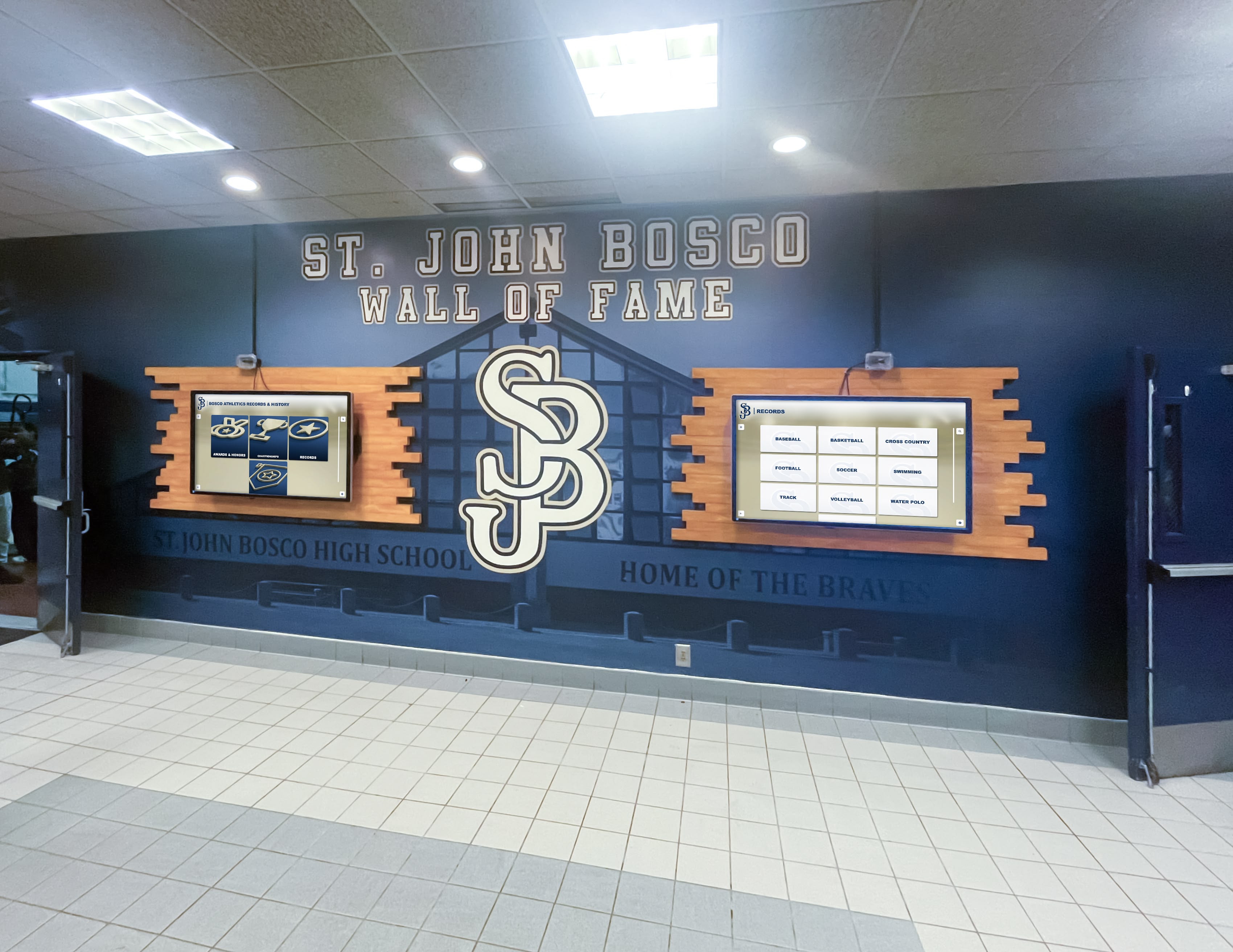
Schools running recognition displays at multiple locations must test DHCP Option 82 relay compatibility independently at each display — a passing result at one location does not validate the relay configuration, circuit ID, or scope assignment at any other location
A recognition display’s ability to obtain the correct IP address and reach its cloud CMS depends on the DHCP relay path working correctly at every layer — from the ip helper-address on the VLAN SVI, through the Option 82 circuit ID the relay inserts, to the DHCP server class condition that selects the correct scope. Running this school recognition display DHCP Option 82 test at commissioning — and revisiting it after summer network changes — confirms that each display receives a lease from the correct scope, with the correct gateway and DNS configuration, so its CMS content synchronization survives every power cycle and lease renewal through the school year. Document every result before the display enters the recognition program’s live schedule.
Interested in a recognition display solution that arrives with complete network configuration guidance — including DHCP relay compatibility documentation and ongoing remote monitoring support? Rocket Alumni Solutions deploys hall-of-fame displays and athletic recognition systems for schools with full IT support and remote management throughout the school year. Schedule a demo to learn how Rocket Alumni Solutions prepares your school’s recognition display for reliable network operation from opening day.