Intent: demonstrate — this guide walks school IT coordinators and athletic recognition program staff through an offline athletic recognition display storage quota review: how to read the browser’s current storage usage with navigator.storage.estimate(), how localStorage limits differ from the much larger IndexedDB and Cache API budgets, what best-effort and persistent storage mean in practice, how browsers handle QuotaExceededError, and what conditions trigger Safari’s proactive eviction of offline media.
Before caching additional athlete photos, highlight reels, or inductee profile assets on an offline-capable recognition display, check what the browser already holds and how close the origin is to its quota ceiling. A quota review takes a few lines of browser console code and prevents the display from silently dropping older cached media — or throwing a visible error — when new assets push usage past the origin limit.
The short answer for school IT: open browser developer tools on the recognition display device, paste navigator.storage.estimate().then(e => console.log(e)) into the console, and read the usage and quota fields in bytes. Divide usage by quota to see how full the origin’s storage bucket is before scheduling another media sync. Those numbers are estimates — the browser deliberately pads them to prevent fingerprinting — but they give a reliable read on how much headroom remains. If the display runs Safari or a WebView, also verify that the recognition platform staff interacted with the device within the past seven days, because Safari’s eviction policy removes script-created storage for origins that have had no user interaction in that window.
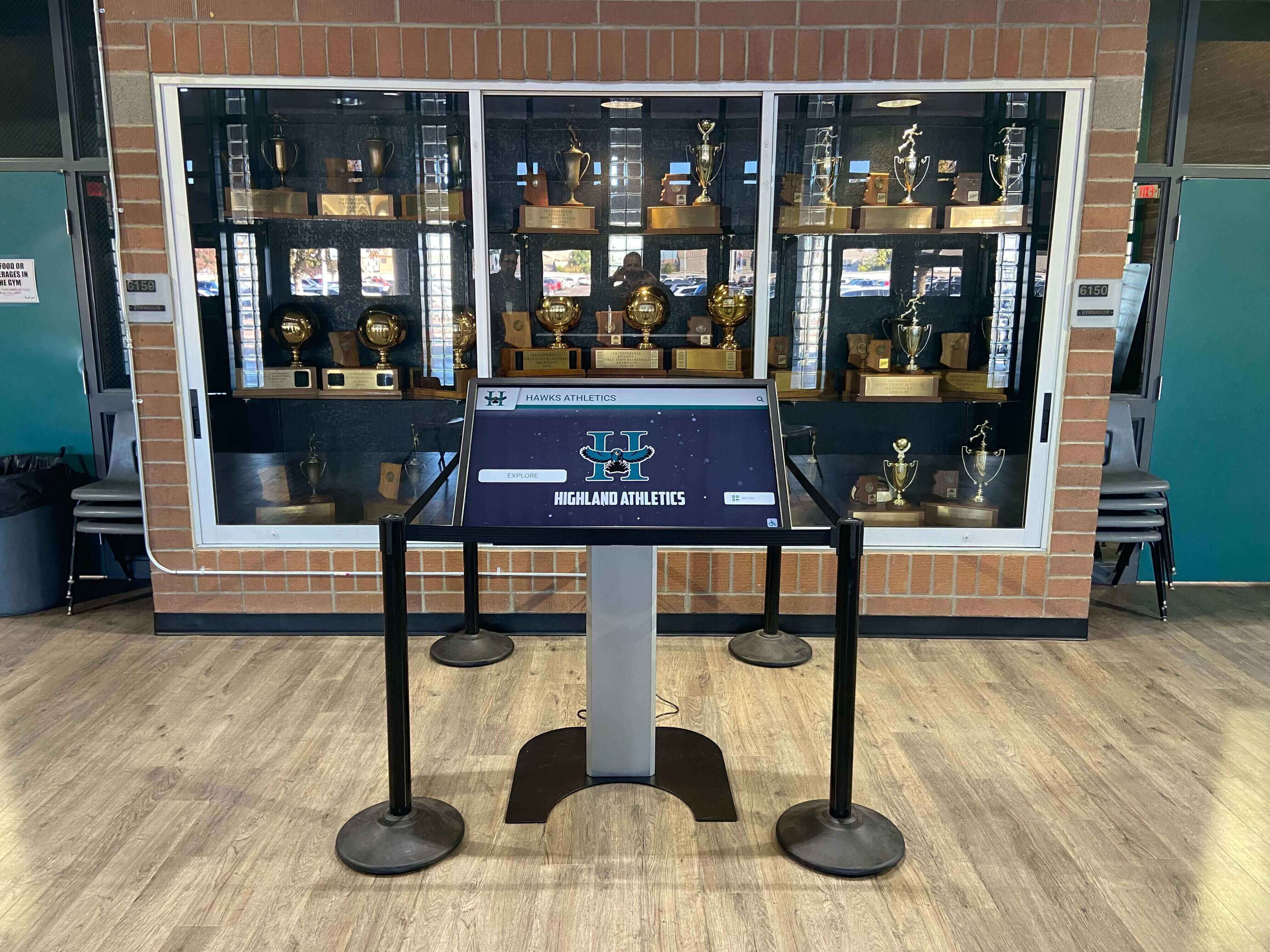
Recognition display kiosks that cache athlete photos and highlight video for offline use consume origin-level browser storage. Checking the quota estimate before adding new media prevents quota overruns and unplanned eviction of existing cached assets.
Why Offline Storage Quota Matters for Athletic Recognition Displays
Athletic recognition displays increasingly operate in an offline-capable mode. A service worker registers during the initial page load, caches athlete portrait images, inductee profile data, and sometimes short highlight clips into the browser’s Cache API, and serves those assets from the local device when the school’s network is interrupted. This approach keeps the display presenting content during a Wi-Fi outage rather than showing a blank screen or error page.
The trade-off is that offline caching consumes real device storage, and every browser enforces a per-origin quota. When that quota is exhausted, the browser throws a QuotaExceededError rather than writing more data. For a recognition display, that error typically means the service worker silently fails to cache the newest athlete photos — leaving the display running an inconsistent mix of online-served current content and offline-served older assets, with no visible warning to program staff.
A storage quota review before any significant media addition — a new class of inductees, a school-year refresh of the photo archive, or a first-time addition of video highlights — is a routine maintenance step. It takes minutes and prevents content gaps that can persist for weeks if nobody notices the cache failure.
How navigator.storage.estimate() Works — and What It Does Not Guarantee
The Storage API exposes navigator.storage.estimate(), a promise-based method that returns two fields:
usage: estimated bytes the origin is currently using across IndexedDB, Cache API, and the Origin Private File System (OPFS)quota: estimated bytes available to the origin under the browser’s current quota rules
Both values are estimates. The MDN documentation notes that browsers deliberately pad quota figures to prevent third-party sites from fingerprinting device disk capacity by reading precise storage values. The quota figure reflects the browser’s allocation based on total disk size — not free disk space. A device with a 500 GB drive and only 10 GB free may still report a large quota because the quota is calculated from total capacity.
The quota belongs to the origin — the combination of scheme, hostname, and port. https://recognition.schoolname.org and https://recognition.schoolname.org/athletes/2024 share the same quota bucket. Every asset cached by a service worker running on that origin draws from the same pool.
navigator.storage.estimate() does not:
- Guarantee any specific amount of free disk space on the device
- Reserve storage for future writes
- report the quota for localStorage or sessionStorage (those have separate, lower limits)
- Provide exact counts — if the platform caches files across multiple database stores, the usage figure may not perfectly match a manual sum of individual assets
To run the check on a recognition display:
// Paste into browser console on the kiosk device
navigator.storage.estimate().then(function(estimate) {
  var usedMB = (estimate.usage / 1048576).toFixed(1);
  var quotaMB = (estimate.quota / 1048576).toFixed(1);
  var pct = ((estimate.usage / estimate.quota) * 100).toFixed(1);
  console.log('Used: ' + usedMB + ' MB of ' + quotaMB + ' MB (' + pct + '%)');
});
This gives IT staff a single-line summary of origin storage state before a media sync.
localStorage and sessionStorage: Separate Small Limits
localStorage and sessionStorage are not part of the quota reported by navigator.storage.estimate(). They are Web Storage mechanisms governed by a separate, much smaller limit: typically around 5 MiB per storage area (localStorage or sessionStorage) and around 10 MiB combined for an origin across all Web Storage, though the exact ceiling varies by browser.
Web Storage is synchronous, blocking, and limited to string values. Most offline-capable recognition platforms do not use localStorage for media caching — they use the Cache API or IndexedDB instead. localStorage is appropriate for small configuration values (display preferences, session state, cached inductee counts), not for photos or video segments.
When localStorage reaches its limit, the browser throws a synchronous QuotaExceededError immediately on the write call. No data is partially written. The error is catchable in a try/catch block, but on a recognition display running in kiosk mode, an uncaught error may simply halt that portion of the application without visible feedback.
If a recognition platform’s CMS configuration or offline sync logic stores anything in localStorage — inductee IDs, last-sync timestamps, content version strings — and that data grows over years of program operation, it is worth periodically checking whether localStorage is approaching capacity. This is a separate check from the navigator.storage.estimate() call above.
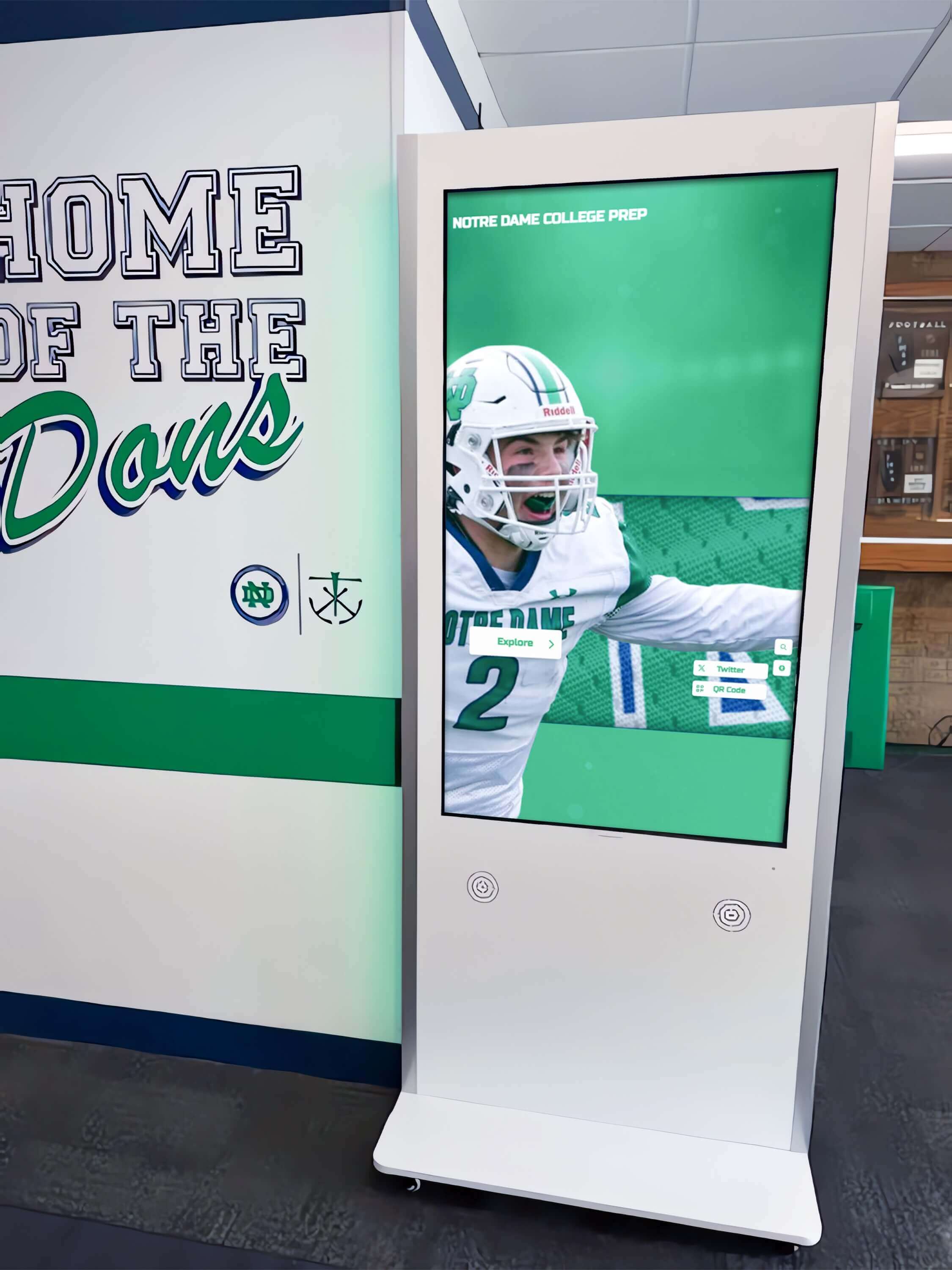
Recognition platforms typically cache large media files in IndexedDB or the Cache API, not localStorage. Checking both the navigator.storage.estimate() output and any localStorage usage gives a complete picture of how the origin's storage is distributed.
IndexedDB and Cache API: The Larger Offline Bucket
IndexedDB and the Cache API are the storage mechanisms service workers use to hold offline media. Their quotas are substantially larger than Web Storage limits and are managed by the browser’s storage management system. The MDN Storage Quotas and Eviction Criteria documentation gives these browser-specific figures (all figures are approximate and browser-version dependent):
| Browser | Storage Mode | Approximate Quota (IndexedDB / Cache API / OPFS) | Notes |
|---|---|---|---|
| Chrome / Edge (Chromium) | Best-effort and persistent | Up to 60% of total disk size | Applies to both modes; eviction applies in best-effort |
| Firefox | Best-effort (default) | Smaller of 10% of disk or 10 GiB per group | Example: 500 GiB drive → ~10 GiB available |
| Firefox | Persistent (after persist()) | Up to 50% of disk (capped at 8 TiB) | No group limit; not evicted automatically |
| Safari (macOS 14+ / iOS 17+, browser app) | Best-effort | ~60% of disk | 7-day inactivity eviction applies; see below |
| Safari (embedded WebView) | Best-effort | ~15% of disk | Significantly lower than full browser; relevant for kiosk WebView deployments |
These quotas are calculated from total disk size, not available free space. A device with a 256 GB SSD where Chrome holds 60% of total capacity as its theoretical maximum may still have very little actual free disk space available for other uses. For school IT teams managing display hardware with modest internal storage (64–128 GB SSD media players are common in recognition display installations), total disk size matters — a 60% quota on a 64 GB device is roughly 38 GB, which sounds large until you account for the OS, browser, and other software.
The quota value from navigator.storage.estimate() reflects the browser’s computed allocation for the origin under these rules. It is the budget available to the service worker for offline media, not a reservation of free disk space.
Best-Effort vs Persistent Storage: What the Difference Means in Practice
By default, all origin storage is best-effort. This means the browser may evict it — delete the entire origin’s cached data at once — when the device is under storage pressure. Eviction follows a Least Recently Used (LRU) policy: origins that have not been accessed recently are evicted first. When an origin is evicted, all of its storage goes at once: IndexedDB records, Cache API entries, and OPFS files. There is no partial eviction that removes only the oldest cached photos while preserving more recent ones.
Persistent storage opts the origin out of automatic eviction. To request it, the recognition platform’s service worker calls navigator.storage.persist():
navigator.storage.persist().then(function(granted) {
  if (granted) {
    console.log('Persistent storage granted — origin will not be auto-evicted');
  } else {
    console.log('Persistent storage not granted — storage remains best-effort');
  }
});
Browser behavior on this request differs:
- Chrome: Auto-approves persistent storage for origins the user has bookmarked, installed as a PWA, or engaged with regularly. Auto-denies for origins with low engagement. No user-facing prompt.
- Firefox: Shows a visible browser UI prompt asking the user to grant or deny the request.
- Safari: Handles this internally; behavior varies and may not present a user prompt.
Persistent storage is not backup. A user clearing site data through the browser’s settings removes persistent origin data exactly as it removes best-effort data. Persistent only means the browser’s automatic storage-pressure eviction process skips this origin. The school’s recognition program still needs a separate content management backup strategy — persistent browser storage does not protect against a user or IT staff member manually clearing the browser’s cache.
For recognition displays in kiosk mode where a dedicated device runs the platform continuously, persistent storage is worth requesting as a safeguard against low-storage events on the device. But the appropriate place to request it is the platform’s service worker or application code, not a manual console command — it needs to run on every new browser session.

Persistent storage prevents automatic browser eviction of the recognition display's offline media cache. Requesting it via navigator.storage.persist() — from the platform's service worker rather than a manual console command — ensures it is set on every session.
QuotaExceededError: What Triggers It and How to Handle It
A QuotaExceededError is thrown when a write operation to IndexedDB, the Cache API, OPFS, or Web Storage exceeds the available quota for the origin. For recognition displays, this most commonly surfaces as:
- A service worker failing to store a newly cached athlete photo or video segment during a media sync
- An IndexedDB write failing when the database of inductee profile records exceeds the origin’s storage ceiling
- A localStorage write failing when small configuration strings exceed the Web Storage limit
The error does not always surface visibly. A service worker that encounters QuotaExceededError during a cache update may silently skip the failing asset, log the error only to the browser console, and continue serving older cached content. From the recognition program coordinator’s perspective, the display appears to be working — but it is presenting outdated photos or missing the newest inductees from its offline content.
A recoverable pattern in service worker code wraps Cache API writes in error handling:
// Example pattern — label as illustrative only
caches.open('recognition-media-v1').then(function(cache) {
  return cache.add('/athletes/2024/portrait-smith.jpg');
}).catch(function(err) {
  if (err.name === 'QuotaExceededError') {
    // Log for IT review; do not attempt to silently clear older entries
    console.warn('Storage quota exceeded — review usage before next sync');
  }
});
The right response to a QuotaExceededError on a recognition display is a quota review, not immediate destructive cache clearing. Clearing older cached content removes media that the display relies on for offline service. The review workflow in the next section establishes which assets are consuming the most space before any removal decision.
Safari Eviction: Exact Conditions to Know
Safari applies a proactive eviction policy that does not exist in Chrome or Firefox. Per the MDN documentation, Safari deletes script-created storage for an origin when all of the following are true:
- The origin has not received any user interaction in the past seven days
- The storage is script-created (IndexedDB, Cache API, OPFS) — server-set cookies are exempt from this policy
- The device is running a version of Safari subject to the policy (macOS 14+ / iOS 17+ equivalents and later)
For a school recognition display running Safari — or a display embedded in a WebView on an Apple device — this means that a kiosk which goes unvisited over a school holiday break of more than seven days may return from the break with its offline media cache cleared. The next startup will require a full re-download of cached assets from the recognition platform’s content delivery network, which takes time and requires an active network connection. If the display is expected to operate offline during or immediately after the break, the Safari 7-day policy is a planning constraint.
The practical mitigation is either switching to a Chromium-based kiosk browser where this policy does not apply, or ensuring that the recognition platform’s service worker or a scheduled IT check verifies storage state and re-caches media before any extended school closure.
Private browsing mode in any browser also applies different, lower quotas, and deletes all stored data when the private session closes. A recognition display should never be run in a private browsing session — it will lose all cached assets on every restart.
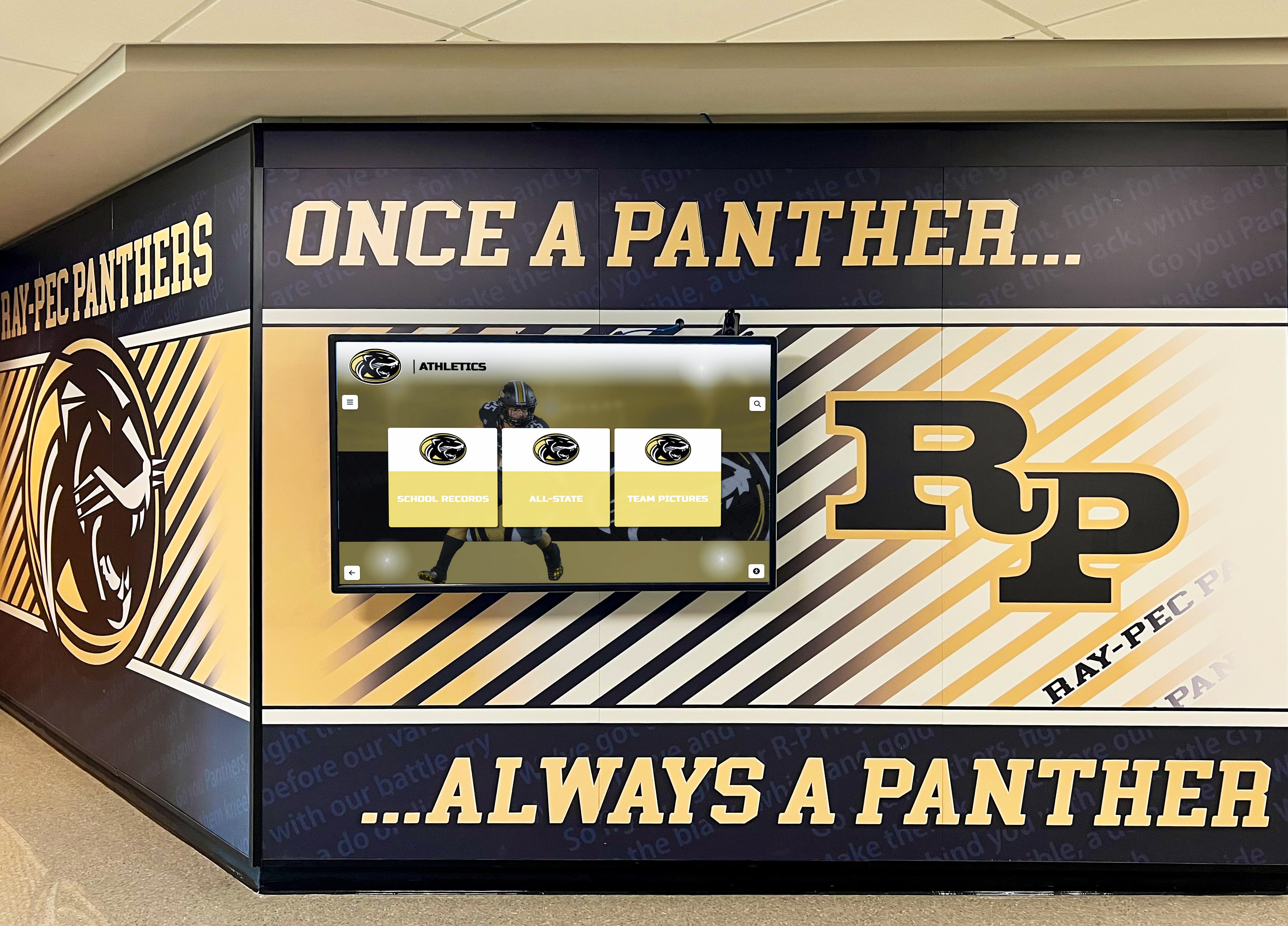
Safari's proactive eviction removes script-created offline storage after seven days of no user interaction. School recognition displays on Apple hardware or in WebView contexts should be verified after holiday closures before an event where offline operation is expected.
Storage Quota Review Workflow and Decision Table
Use this table to determine which checks apply to your recognition display’s configuration before adding new cached media.
| Condition | Check Required | Tool or Method | Threshold to Flag |
|---|---|---|---|
| About to add new inductee photos or videos to offline cache | Run navigator.storage.estimate() | Browser console on the kiosk device | Flag if usage/quota > 70% (example threshold — label as planning guidance, not a specification) |
| Display runs on Safari or a WebView on Apple hardware | Verify last user interaction date; check if >7 days since break | IT log or kiosk attendance record | Flag if 7-day window approached or exceeded before media-dependent event |
| Recognition platform uses localStorage for config or sync state | Check localStorage usage separately | console: Object.keys(localStorage).reduce(…) or DevTools Application tab | Flag if approaching 5 MiB per area |
| Service worker in place; persistent storage not yet requested | Check navigator.storage.persisted() | Browser console: navigator.storage.persisted().then(console.log) | Flag if returns false on a device expected to operate offline |
| Kiosk device has small internal storage (64–128 GB SSD) | Check quota value against device total disk size | navigator.storage.estimate() + device disk info | Flag if quota is under 5 GB for a media-heavy recognition program (example value — adjust to program's actual asset inventory) |
| Display returns from holiday closure | Verify offline cache is populated before first public use | DevTools Application > Cache Storage or Service Workers panel | Flag if cache is empty or stale after >7 days (especially Safari) |
A 70% usage/quota ratio used in the table above is an example planning threshold — it is not a browser-enforced limit or a specification. The appropriate threshold for a given installation depends on how quickly the recognition program adds new content, how the platform’s media sync is scheduled, and how much headroom IT staff want to maintain before a quota review is triggered. Some programs may choose 80%, others 60%. What matters is having a defined threshold rather than waiting for a QuotaExceededError to surface.
Before decisions about which cached content to reduce, verify what the offline cache actually contains. For a technical review of how video assets are delivered and seeked on the recognition platform, the HTTP range request video seeking behavior documented for school recognition displays covers how the server responds to partial-content requests — relevant when deciding whether to cache full video files offline or rely on on-demand range requests over the network.
Copyable Quota Review Worksheet
Copy this into your school’s IT ticketing system or a shared maintenance document. Fill in the recorded values before the media sync session.
| Step | Action | Record This Value | Done |
|---|---|---|---|
| 1 | Open DevTools console on kiosk; run navigator.storage.estimate() | usage: ___ bytes | quota: ___ bytes | usage %: ___ | ☐ |
| 2 | Check if persistent storage is granted: navigator.storage.persisted() | Returns: true / false | ☐ |
| 3 | If false and display requires offline operation: request persist() from platform service worker (coordinate with vendor) | Persist request outcome: granted / denied / N/A | ☐ |
| 4 | Check localStorage usage via DevTools Application tab | localStorage keys count: ___ | approx size: ___ KB | ☐ |
| 5 | Note the browser and version (DevTools console: navigator.userAgent) | Browser: ___________ | Version: ___________ | ☐ |
| 6 | For Safari/WebView: record date of last confirmed user interaction on the display | Last interaction: ___________ | Days since: ___ | ☐ (Safari/WebView only) |
| 7 | Estimate size of new media batch to be cached (ask platform vendor or measure files) | New batch estimated size: ___ MB | ☐ |
| 8 | Verify: current usage + new batch < quota (with chosen headroom %) | Fits within budget: Yes / No — if No, coordinate with vendor before syncing | ☐ |
| 9 | After sync: re-run navigator.storage.estimate() to confirm new usage | Post-sync usage: ___ bytes | New usage %: ___ | ☐ |
The worksheet intentionally does not include a step for destructively clearing older cached content. Decisions about which cached assets to remove — and in what order — require coordination with the recognition platform vendor to avoid breaking the display’s offline media inventory. The worksheet records the data needed to have that conversation with full information.
How Decoding and Display Capabilities Fit Alongside Storage
Storage quota is one variable in a multi-factor offline readiness review. A recognition display can have plenty of quota headroom but still fail to play cached video correctly because the device’s media decode hardware does not support the cached format. Before adding video highlights to an offline cache, verify that the kiosk device can decode the target format using the browser’s built-in decode capability detection. The MediaCapabilities API decoding check for school lobby recognition displays documents how to run mediaCapabilities.decodingInfo() to confirm decode support before committing media to the offline cache — catching a codec mismatch at planning time rather than after the media sync has consumed storage.
Similarly, displays that depend on continuous screen presence for offline recognition content should also verify that the screen wake lock is functional on the hardware. The screen wake lock release and reacquisition test for school recognition displays covers how to confirm the wake lock survives network interruptions and display power events — relevant context for any installation relying on offline-cached media to maintain continuous presentation.
When Recognition Program Assets Also Include Physical Artifacts
Offline-cached digital media represents the display side of a recognition program. Athletic programs that manage physical memorabilia alongside digital recognition displays face parallel cataloging responsibilities. For physical items that are accession-tracked alongside a recognition program — trophies, uniforms, game balls, plaques — having a documented record before display helps ensure nothing is lost or misattributed. The athletic hall of fame accession form documents the item-level fields used to formally record artifacts before they are displayed or stored, which is a parallel discipline to the digital asset inventory a storage quota review supports.
For programs that include donated or loaned memorabilia with provenance histories, the athletic memorabilia provenance form provides a structured framework for documenting ownership history, transfer chain, and display rights — ensuring that digital recognition content representing physical objects reflects verified records rather than assumptions.
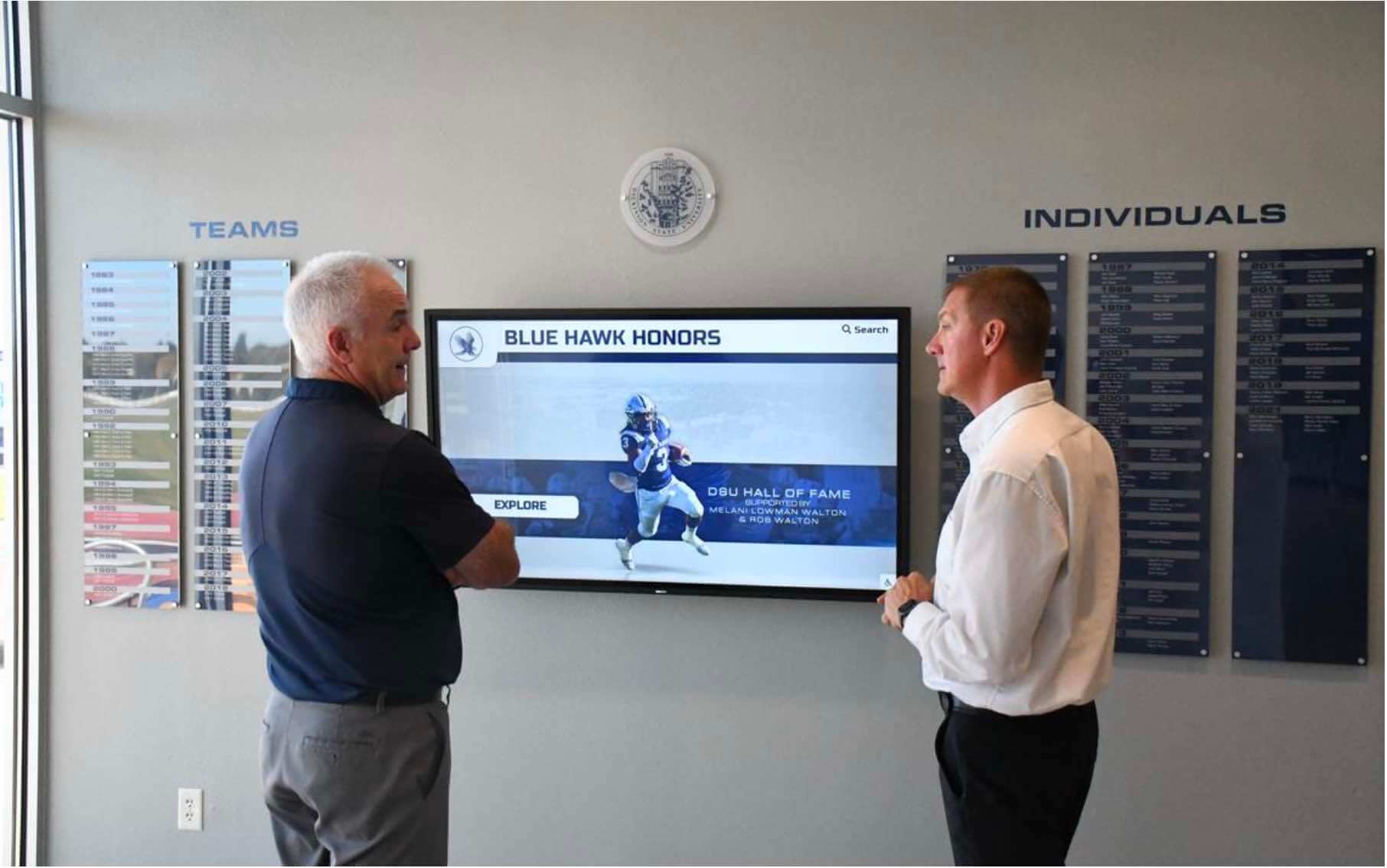
A school recognition display that operates reliably offline pairs a maintained storage quota — reviewed before each media sync — with accurate, well-documented records of the athletes and artifacts it represents.
Frequently Asked Questions
What does navigator.storage.estimate() actually measure on a recognition display?
navigator.storage.estimate() returns estimated bytes used (usage) and estimated bytes available (quota) for the calling origin — the scheme, hostname, and port combination of the recognition platform. It covers IndexedDB, Cache API, and OPFS data held by that origin. It does not measure localStorage or sessionStorage, does not reflect free disk space on the device, and returns padded estimates rather than exact figures. The quota is calculated from total device disk size, not available free space, so a device with limited free space may still report a large theoretical quota. Use the estimate to assess how full the origin’s bucket is relative to its ceiling, not to predict actual device disk capacity.
What is the difference between best-effort and persistent storage for an offline recognition display?
Best-effort storage — the default — can be evicted by the browser automatically when the device runs low on disk space. Eviction uses a least-recently-used policy and removes all of an origin’s data at once. Persistent storage, requested via navigator.storage.persist(), tells the browser to skip that origin during automatic eviction. The grant is browser-dependent: Chrome approves it based on user engagement signals, Firefox prompts the user, and Safari handles it internally. Persistent storage does not prevent a user or IT administrator from manually clearing browser data through the browser’s settings — it only prevents the browser’s own background eviction process from removing it. It is not a backup mechanism.
Does Safari handle storage quotas differently from Chrome on a school kiosk?
Yes, in two important ways. First, Safari on embedded WebView contexts — common for certain kiosk deployments — limits storage to approximately 15% of total disk size rather than the ~60% available in a full browser. Second, Safari applies a proactive eviction policy: script-created storage (IndexedDB, Cache API) is deleted for origins that have received no user interaction in seven or more days. Chrome and Chromium-based browsers do not apply this time-based eviction. Schools running recognition displays on Apple hardware or using WebView-based kiosk wrappers should factor both constraints into storage planning and verify cache state after any school closure exceeding seven days.
What triggers a QuotaExceededError on a recognition display and how is it detected?
QuotaExceededError is thrown when a write to IndexedDB, Cache API, OPFS, or Web Storage exceeds the available quota. For Web Storage (localStorage), the limit is typically around 5 MiB per storage area; the error is thrown synchronously. For IndexedDB and Cache API, the error is thrown when the origin’s browser-managed quota ceiling is reached. On a recognition display in kiosk mode, the error often appears only in the browser console — the display may continue running on its existing cached assets without showing a visible error to visitors. Routine post-sync console checks (opening DevTools after a media sync and scanning for storage errors) help catch these failures before they accumulate into content gaps.
Does requesting persistent storage protect the recognition display’s offline cache from being cleared by school IT?
No. navigator.storage.persist() protects against the browser’s automatic, low-storage-pressure eviction process. It does not protect against a user or IT administrator manually clearing site data through the browser’s settings, clearing all browser data on the device, reinstalling the browser, or resetting the kiosk device. Recognition program staff and IT coordinators should treat offline cached media as a convenience layer for network resilience, not as a content archive. The authoritative copy of all athlete photos, inductee records, and highlight videos should remain in the recognition platform’s cloud CMS — the offline cache is a local mirror, not a backup.
A storage quota review before each recognition media sync is a low-effort, high-value maintenance step. Running navigator.storage.estimate() on the kiosk device, checking whether persistent storage is granted, noting the browser vendor’s eviction rules, and verifying that the new media batch fits within the remaining quota prevents the silent caching failures and content gaps that can leave a recognition display showing outdated athletes or missing inductees without any visible warning to program staff.
See How Rocket Manages Athletic Recognition Display Content
Rocket Alumni Solutions builds cloud-managed interactive hall-of-fame, athletic record board, and donor wall touchscreens for schools — with a CMS designed so athletic directors and program staff can update recognition content without managing offline storage infrastructure themselves.
Request a Custom Demo