Building a new school gymnasium or facility creates an ideal opportunity to integrate modern touchscreen displays from the start, but timing this technology installation correctly determines whether your project achieves a polished final result or faces costly delays and rework. Many athletic directors and school administrators wonder: Should touchscreen displays be installed during early construction phases, or should they wait until the building nears completion?
The answer depends on understanding the distinct difference between electrical infrastructure installation and actual display deployment. While electrical conduit, network cabling, and power circuits must be planned during initial design and installed during early construction phases, the physical touchscreen displays themselves are installed much later in the construction sequence—typically during the final weeks before building occupancy.
This comprehensive guide explains exactly when to install touchscreen displays during new school building construction. You’ll learn how to plan electrical infrastructure during design phases, coordinate technology specifications with your contractor, protect display locations during construction, schedule final installation timing, and prepare your staff for successful deployment. Whether you’re building a new gymnasium, renovating athletic facilities, or constructing an entire school building, this timeline ensures your touchscreen recognition displays integrate smoothly without construction delays or budget overruns.
New school construction projects represent significant institutional investments often exceeding millions of dollars and spanning 12-24 months from groundbreaking to ribbon cutting. During this complex process, hundreds of decisions about materials, systems, and technologies must be made in the correct sequence. Touchscreen display installation represents one technology decision that requires careful timing coordination between design, construction, and final occupancy phases.
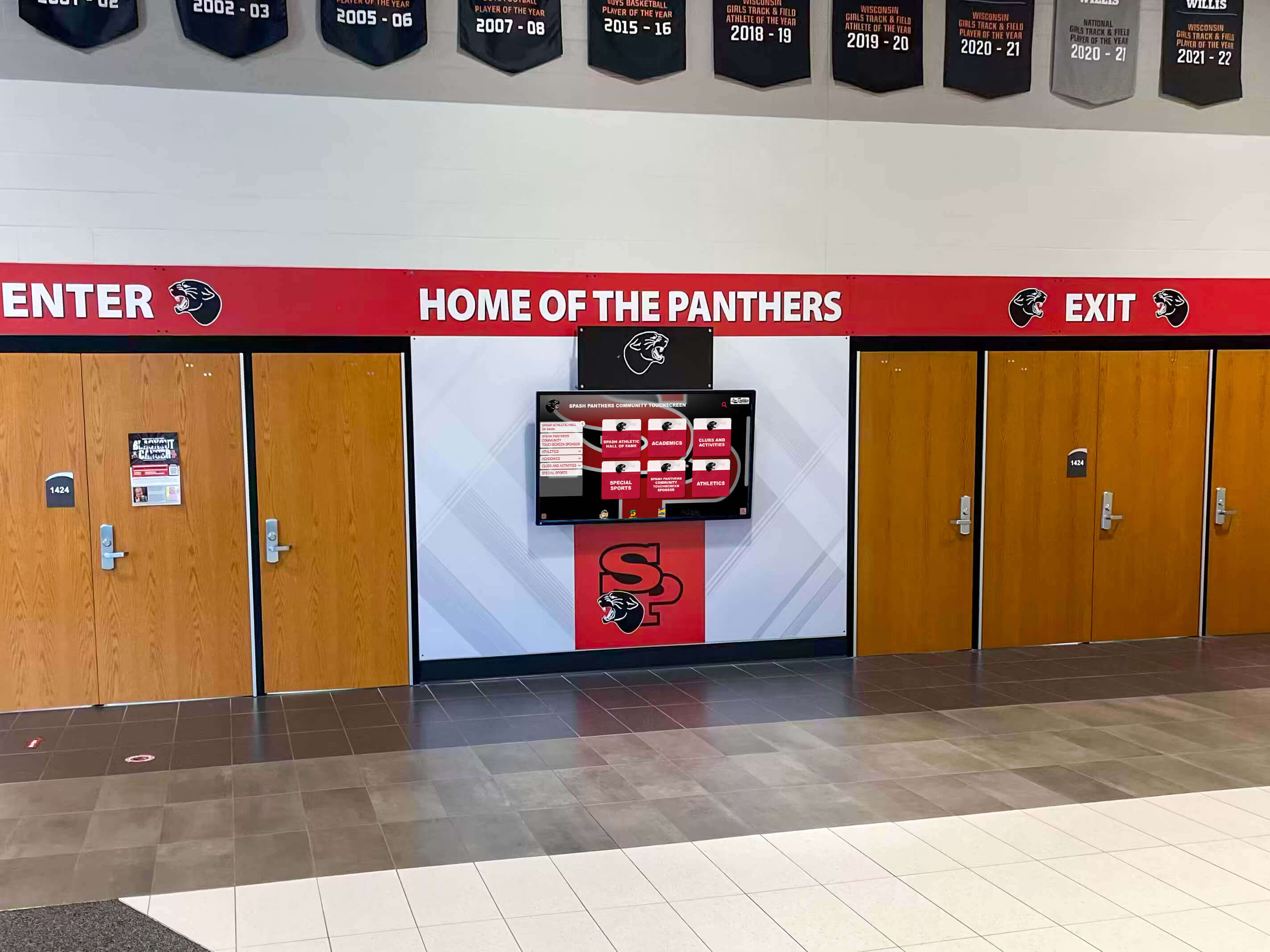
Modern school buildings integrate touchscreen displays during final construction phases for recognition and wayfinding
Understanding Construction Phases and Technology Installation
School building construction follows a predictable sequence of phases, each with specific activities and appropriate technology decisions. Understanding this sequence helps you plan touchscreen display installation at the optimal time.
The Five Main Construction Phases
Construction projects move through distinct phases from conception to completion:
Design and Planning Phase (2-6 months)
Before any physical construction begins, architects, engineers, and school administrators collaborate on building design:
- Architectural design defining room layouts, traffic flow, and space allocation
- Structural engineering determining foundations, framing, and load calculations
- Mechanical engineering planning HVAC, plumbing, and climate control systems
- Electrical engineering designing power distribution, lighting, and technology infrastructure
- Technology planning identifying display locations, network requirements, and power needs
This phase represents the critical window for planning touchscreen display locations. While actual displays are not purchased or installed during this phase, the electrical and network infrastructure supporting them must be included in construction documents. According to planning guidelines for integrating technology into new school buildings, administrators need to consider both short-term cost and long-term usefulness when implementing any new technology before breaking ground on construction.
Foundation and Site Work Phase (1-3 months)
Once permits are obtained, construction begins with site preparation and foundation work:
- Site clearing, grading, and drainage installation
- Foundation excavation and concrete pouring
- Underground utility connections for water, sewer, electrical, and communications
- Parking lot and exterior infrastructure development
Touchscreen displays have no role during this phase. However, underground electrical service and communications connections established during site work will eventually power your displays, making proper capacity planning essential during design.
Structural and Rough-In Phase (4-8 months)
The building’s shell and internal systems take shape during this longest construction phase:
- Steel or concrete structural framework erected
- Exterior walls, roof installation, and weatherproofing completed
- Interior framing for walls and rooms constructed
- Electrical conduit and outlet boxes installed throughout building
- Network cabling and data infrastructure deployed for technology
- HVAC ductwork, plumbing lines, and mechanical systems installed
- Windows and exterior doors installed
This phase is when electrical infrastructure supporting touchscreen displays gets installed. Based on construction phase electrical concepts, contractors install conduits and fittings along predetermined pathways during the rough-in phase, keeping them securely fastened to the building structure. Electrical boxes for future display power and network connection points are mounted in walls at locations specified in construction documents.
However, actual touchscreen displays are NOT installed during this phase. Construction sites during rough-in are dusty, chaotic environments with workers, equipment, and materials throughout the space. Installing expensive touchscreen displays would expose them to construction damage, theft, or environmental contamination from drywall dust and paint overspray.
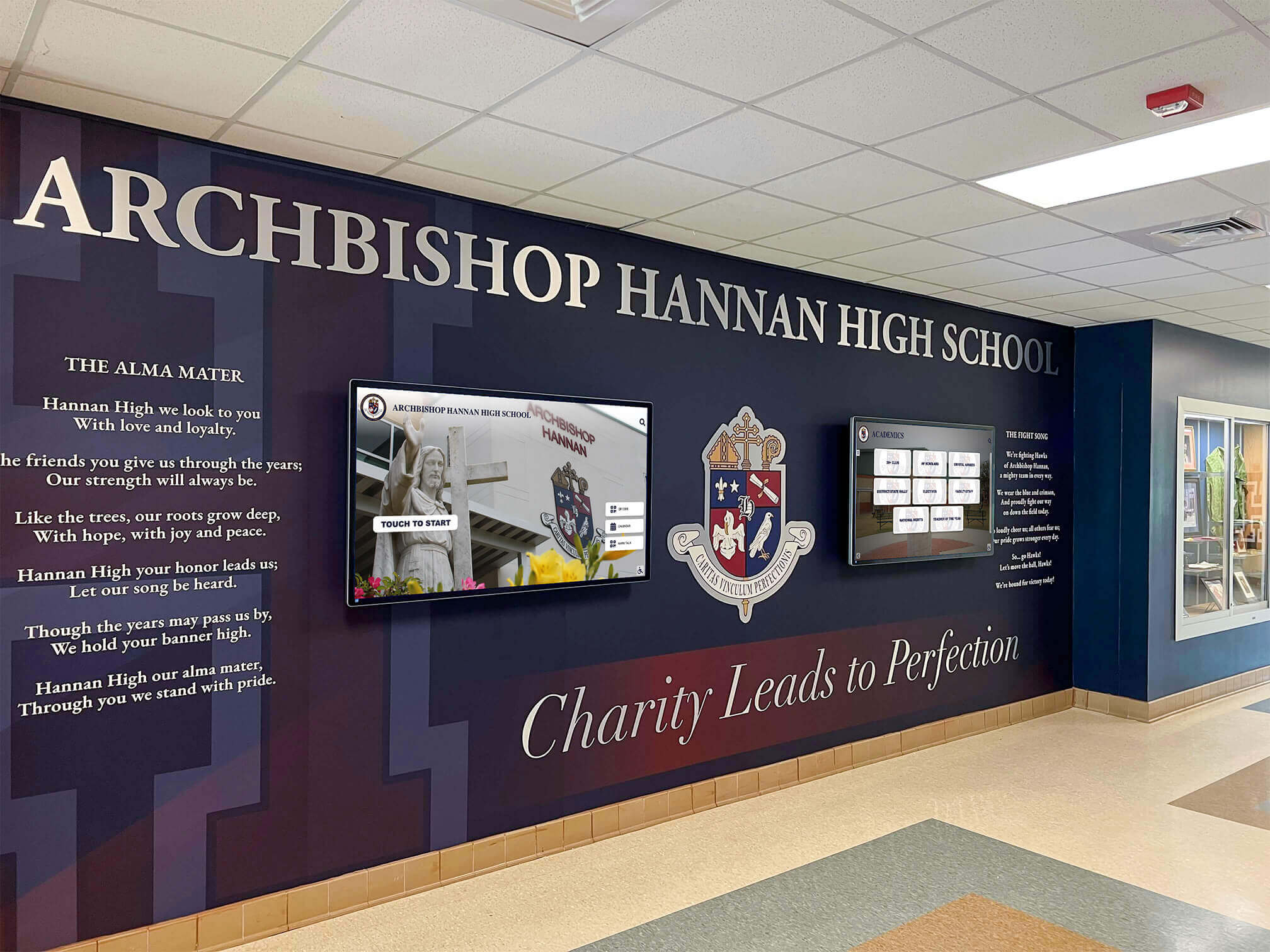
Lobby areas require careful coordination between architectural finishes and technology installation
Interior Finishing Phase (2-4 months)
Once the building is weathered-in and systems are roughed in, interior finishing creates the final appearance:
- Drywall installation and finishing
- Interior painting and wall coverings
- Flooring installation (tile, carpet, wood, vinyl)
- Ceiling tiles and acoustic treatments
- Light fixtures and electrical devices installed
- Cabinet and millwork installation
- Trim, doors, and hardware installed
During this phase, electrical outlets and network connections are completed and made active. Wall surfaces where displays will mount are painted and finished. The spaces begin looking like actual school facilities rather than construction sites.
Touchscreen displays are still NOT installed during most of the finishing phase. Paint fumes, construction dust, and ongoing trades work create conditions incompatible with sensitive electronic displays. However, late in this phase—once painting is complete, floors are finished, and major construction activities have ceased—conditions become appropriate for technology installation.
Final Technology and Commissioning Phase (2-6 weeks)
The final construction phase transitions from building construction to occupancy preparation:
- Technology systems installation including displays, projectors, and interactive equipment
- Network testing and commissioning
- Security system activation
- Furniture delivery and installation
- Building systems testing and adjustment
- Final inspections and punch list completion
- Staff training and orientation
This phase is when touchscreen displays are actually installed. According to a 2025 Watertown High School project example, a digital hall of fame screen was planned near the gymnasium entrance with the school targeting an April 2026 opening, suggesting displays are installed during final weeks before building occupancy.
Why This Sequence Matters for Touchscreen Displays
Installing touchscreen displays at the wrong time creates problems:
Installing Too Early (During Rough-In or Finishing)
- Displays exposed to construction dust permanently damaging internal electronics
- Paint overspray coating screens requiring expensive professional cleaning or replacement
- Physical damage from construction activity, equipment, or materials
- Theft risk in unsecured construction sites
- Premature equipment aging from months sitting unused before building occupancy
- Warranty clock starts before displays are actually used
Installing Too Late (After Building Occupancy)
- Occupied buildings limit access for installation requiring work around school schedules
- Finished surfaces risk damage from mounting hardware installation
- Electrical and network work becomes disruptive to building operations
- Displays unavailable for grand opening events and initial building tours
- Missed opportunity to include displays in construction contract potentially increasing costs
The optimal timing installs touchscreen displays during the final 2-6 weeks before building occupancy when construction is substantially complete but the building remains unoccupied.
Coordinating with General Construction Timelines
Touchscreen display installation must coordinate with other construction milestones:
Coordinate with Electrical Completion
Displays require active power and network connections. Schedule display installation after:
- Electrical panels are energized and tested
- Network infrastructure is installed and active
- Outlet locations are finalized and accessible
- Building has passed electrical inspections
Coordinate with Interior Finish Completion
Mounting displays requires finished wall surfaces. Schedule installation after:
- Painting is complete and fully cured (typically 72+ hours)
- Wall coverings or specialty finishes are installed
- Trim and millwork are finished
- Flooring is installed preventing dust from coating displays
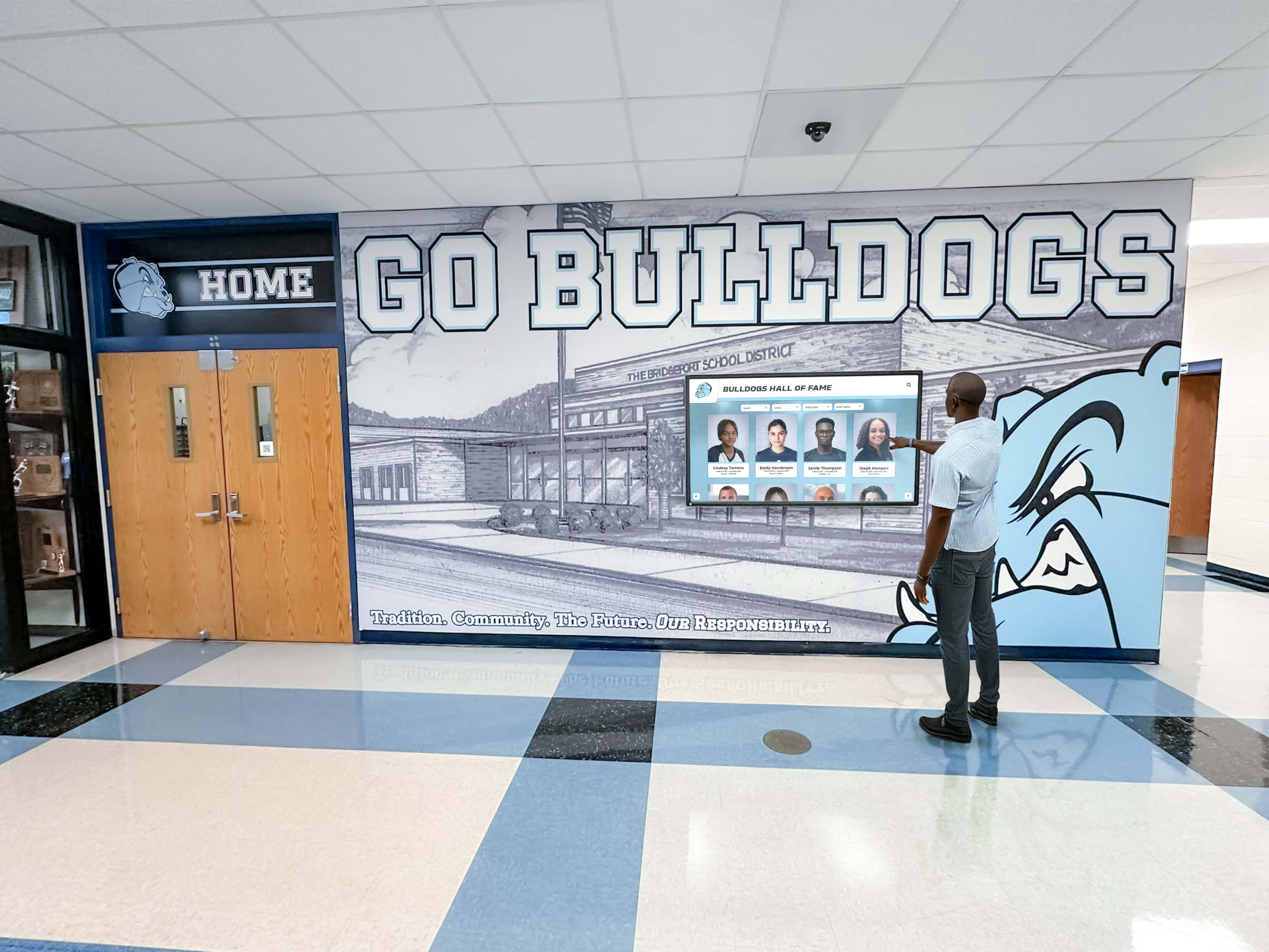
Final installation occurs after all wall finishes and painting are complete
Coordinate with Furniture and Fixtures
In spaces like gymnasiums and lobbies where displays integrate with other elements:
- Cabinet and millwork installation should precede or coordinate with displays
- Trophy cases integrating with digital displays require coordination
- Seating and furniture placement should consider display viewing angles
- Signage and wayfinding elements should complement digital systems
Schools planning comprehensive athletic recognition programs benefit from coordinating touchscreen installations with broader facility design strategies.
Planning Electrical Infrastructure During the Design Phase
While actual display installation happens near project completion, successful touchscreen deployment requires careful infrastructure planning during the initial design phase months before construction begins.
Identifying Display Locations Early
The first planning step determines where touchscreen displays will be located throughout your new building:
High-Value Display Locations
Consider these prime locations for touchscreen displays in new school gymnasiums and buildings:
- Main building entrance and reception lobby (wayfinding, recognition, announcements)
- Gymnasium entrance or lobby (athletic recognition, team histories, records)
- Athletic facility hallways connecting gymnasium to locker rooms
- Multi-purpose room or commons area (event information, student recognition)
- Trophy case areas integrating physical and digital recognition
- Athletic director’s office suite (recruiting displays, donor recognition)
Display Location Criteria
Evaluate potential locations based on these factors:
- High foot traffic ensuring visibility and engagement
- Natural dwell time where people wait or gather
- Adequate wall space for desired display sizes
- Appropriate viewing distances (6-12 feet for most displays)
- Protection from direct sunlight causing screen glare
- Security and supervision reducing vandalism risk
- Proximity to electrical and network infrastructure reducing installation costs
Creating Location Plans
Document display locations in architectural drawings:
- Mark display centerline heights (typically 48-60 inches from floor to center)
- Indicate display sizes (55", 65", 75", or 86" diagonal)
- Note orientation (landscape horizontal vs portrait vertical)
- Show electrical outlet and network connection locations
- Identify any special mounting requirements (recessed vs surface-mount)
Early location planning ensures electrical and network infrastructure is included in construction documents at the correct locations, preventing expensive change orders later.
Specifying Electrical Requirements
Touchscreen displays require proper electrical power at installation locations:
Power Requirements
Modern large-format displays have specific electrical needs:
- Voltage: Standard 120V AC circuits for displays up to 75"
- Amperage: 15-amp dedicated circuits recommended for reliability
- Outlet type: Standard NEMA 5-15R receptacles (standard three-prong)
- Outlet location: Behind or near display location, ideally concealed by display
- Height: Outlets positioned to hide behind mounted displays
- Protection: Circuit breakers properly sized and labeled in electrical panel
For multiple displays in the same space (like a gymnasium with several screens), each display should have a dedicated circuit preventing overload and allowing individual control.
Electrical Specifications for Contractors
Include these specifications in electrical construction documents:
- “Provide dedicated 120V, 15A circuit with NEMA 5-15R receptacle at locations marked ‘TOUCHSCREEN’ on drawings”
- “Outlet height to be 48 inches above finished floor (AFF) unless noted otherwise”
- “Provide box depth adequate for surface-mount or recessed display mounting brackets”
- “Clearly label circuit breakers for touchscreen display identification”
Based on electrical design considerations for educational facilities, schools rely on electrical systems to support data and communication needs, including wiring for network connections and telecommunications equipment.
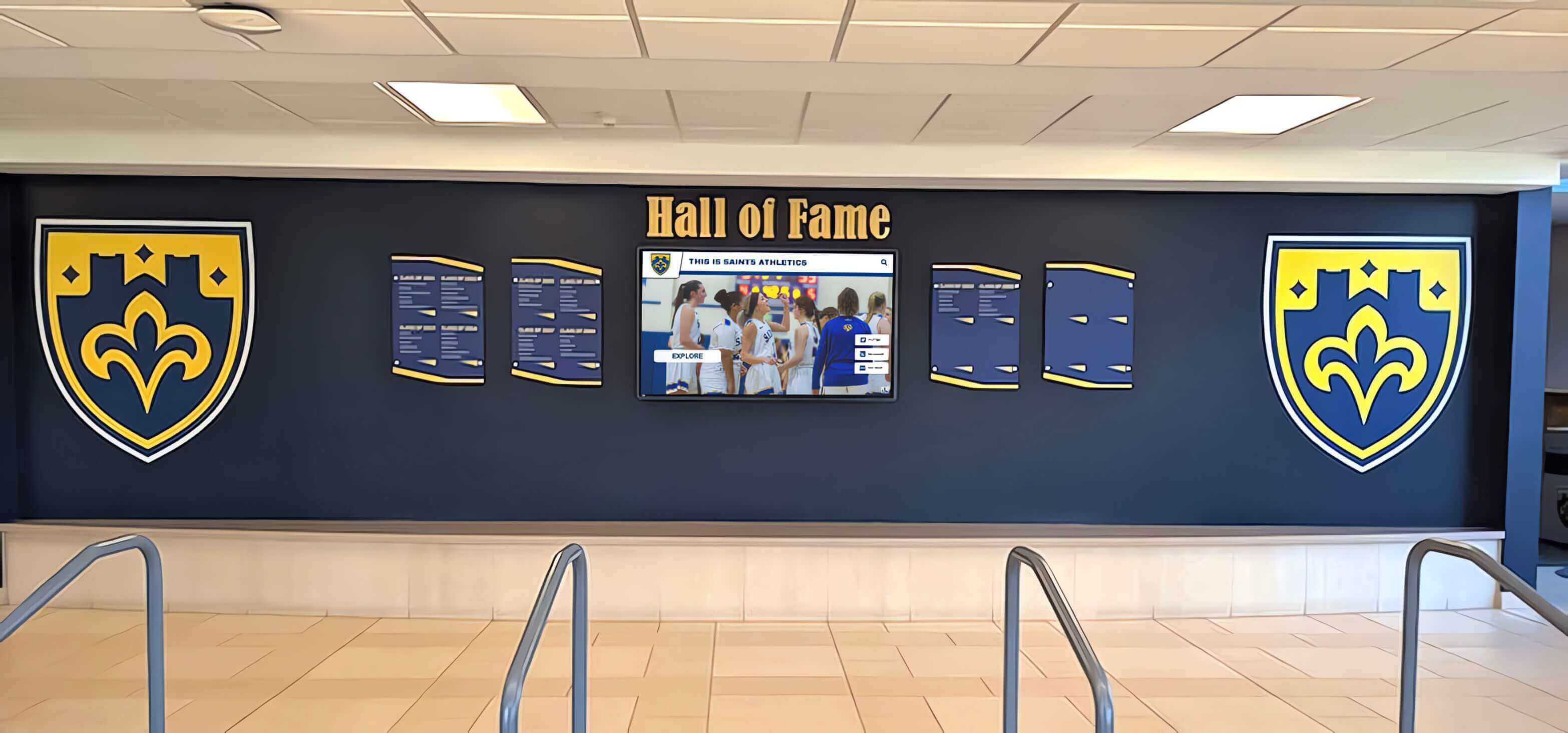
Multiple displays in single spaces require properly designed electrical distribution
Specifying Network and Data Requirements
Interactive touchscreen displays require network connectivity for content management and updates:
Network Requirements
Modern cloud-based touchscreen platforms need reliable internet connectivity:
- Connection type: Hardwired ethernet preferred for reliability (WiFi acceptable as backup)
- Speed: Minimum 10 Mbps download, 5 Mbps upload (100 Mbps+ ideal)
- Cabling: Cat6 or Cat6a ethernet cable from network distribution to display location
- Outlet type: RJ-45 ethernet wall jack near display power outlet
- Network access: Connection to internet-connected network (not isolated VLAN)
- Port configuration: Standard DHCP or static IP as appropriate for your network
Data Infrastructure Specifications
Include these specifications for low-voltage contractors:
- “Provide Cat6 data cable from IDF to locations marked ‘TOUCHSCREEN’ on drawings”
- “Install RJ-45 jack adjacent to power outlet at each display location”
- “Test and certify all data connections for gigabit performance”
- “Provide network access allowing internet connectivity for content management”
Some schools consider WiFi-only connectivity for displays to reduce installation costs. However, hardwired ethernet connections provide more reliable performance, eliminate wireless interference issues, and reduce long-term troubleshooting needs. The additional cost of running ethernet during construction is minimal compared to the lifetime reliability benefits.
Structural and Mounting Considerations
Large touchscreen displays require secure mounting to wall structures:
Structural Requirements
Displays ranging from 55" to 86" diagonal can weigh 60-150 pounds:
- Wall structure must support 4x display weight to account for mounting dynamics
- Steel or wood blocking between studs provides secure mounting surface
- Concrete or CMU walls require appropriate masonry anchors
- Drywall-only mounting is inadequate for large commercial displays
Specifying Structural Blocking
Include these specifications in framing plans:
- “Provide 3/4” plywood blocking 36" wide x 24" high at locations marked ‘TOUCHSCREEN’"
- “Blocking centerline height 54” above finished floor unless noted otherwise"
- “Secure blocking to wall studs or structural framing with appropriate fasteners”
- “Blocking to support minimum 500 lb load for display mounting”
Structural blocking installed during framing costs minimal money but prevents problems later when mounting heavy displays to finished walls.
Working with Architects and Engineers
Successful touchscreen integration requires collaboration with design professionals:
Initial Design Meetings
During early project meetings, communicate your technology vision:
- Share examples of interactive touchscreen displays in school environments
- Explain how displays will be used (recognition, wayfinding, communication)
- Provide display size specifications and mounting requirements
- Discuss aesthetic integration with building design
- Identify critical display locations for architectural consideration
Reviewing Construction Documents
Before construction documents are finalized, verify:
- Display locations are shown on architectural plans
- Electrical outlets are shown on electrical drawings at correct locations
- Data connections are shown on telecommunications drawings
- Structural blocking is shown on framing plans where required
- Display areas are not blocked by other building systems or features
Requesting Allowances or Alternates
If display specifications are still being finalized during design, consider:
- Including display infrastructure (power, data, blocking) in base construction contract
- Making actual display purchase and installation an “allowance” or “alternate” item
- This approach ensures infrastructure is installed during construction
- Display selection and installation can be finalized later without construction changes
Schools implementing comprehensive lobby design strategies benefit from early coordination between technology planning and architectural design.
Selecting Touchscreen Display Technology During Construction
While physical displays are installed near project completion, selecting the specific technology typically occurs during mid-construction:
Understanding Touchscreen Display Options
Several display technologies serve school recognition needs:
Interactive Flat Panel Displays
Purpose-built touchscreen displays designed for interactive use:
- Screen sizes: 55", 65", 75", 86" diagonal
- Resolution: 4K (3840 x 2160 pixels) standard
- Touch technology: Infrared or capacitive multi-touch
- Built-in computer: Android or Windows PC integrated
- Lifespan: 50,000+ hours (15+ years of school use)
- Cost: $2,500-$8,000 depending on size and features
These purpose-built interactive displays offer the most complete solution with touchscreen, computer, and all necessary components integrated in one package.
Commercial Touchscreen Overlays with Displays
Separate display screen plus touchscreen overlay:
- Commercial TV or professional display (55"-86")
- Infrared touchscreen frame mounted over display
- External media player or computer for content
- More components but greater flexibility
- Cost: $2,000-$6,000 depending on configuration
This approach offers flexibility to replace components independently but requires more installation complexity.
Display Size Selection
Choose display sizes based on viewing distance and space:
- 55" displays: Hallways and smaller spaces with 6-8 foot viewing distance
- 65" displays: Standard lobby and gymnasium entrance applications with 8-10 foot viewing
- 75" displays: Large lobbies and gathering spaces with 10-12 foot viewing
- 86" displays: Grand entrances and large venues with 12-15 foot viewing
Larger displays cost more but create greater visual impact in spacious areas. Most schools select 65" displays as the best balance of visibility, cost, and space requirements.
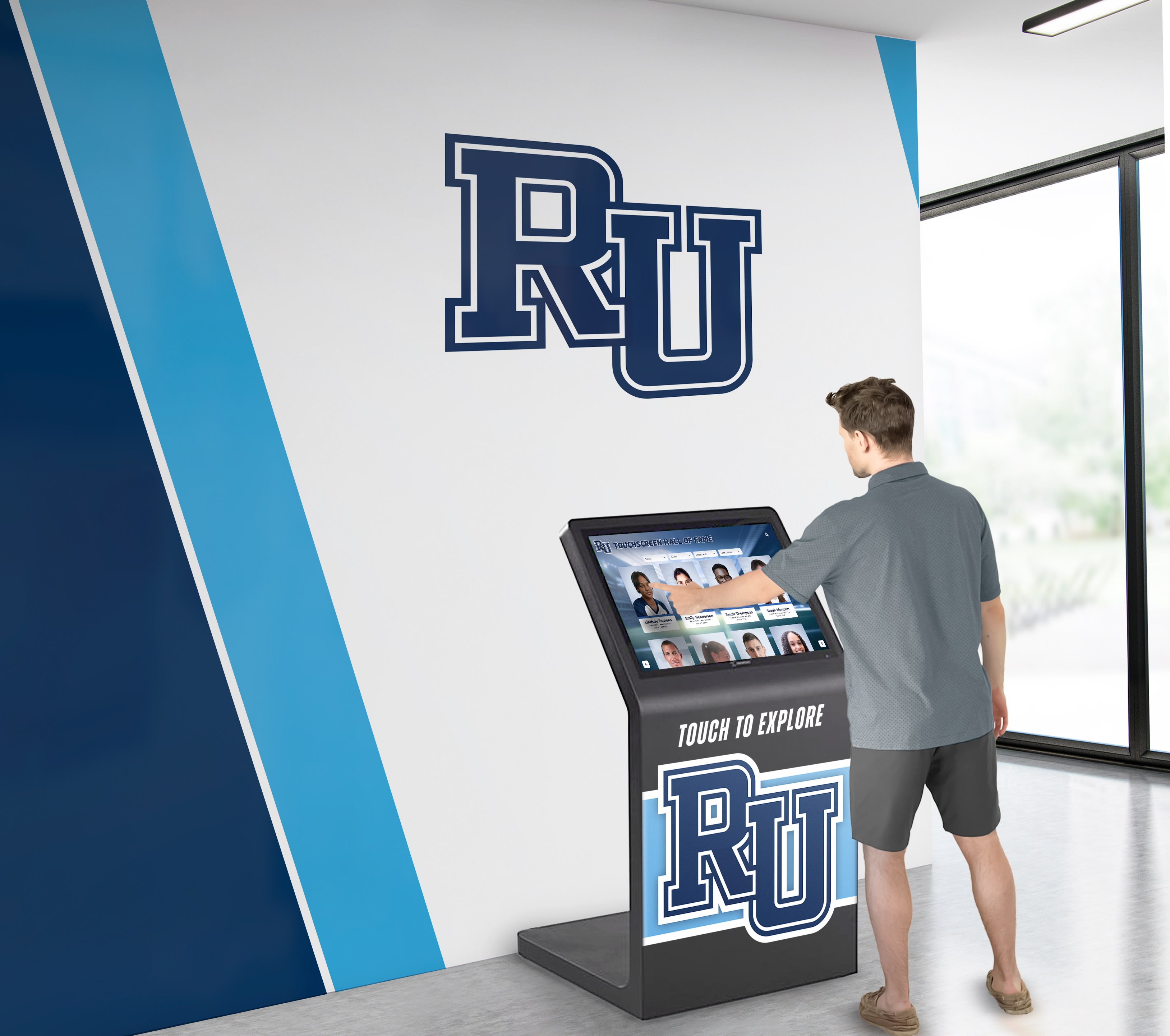
Freestanding kiosks offer alternatives to wall-mounted displays in some spaces
Evaluating Touchscreen Software Platforms
The software platform determines what your displays can accomplish:
Essential Software Features
Schools implementing digital recognition displays for athletic achievements should evaluate platforms based on these capabilities:
- Unlimited content capacity: No artificial limits on athletes, students, or achievements
- Cloud-based management: Update content remotely from any internet-connected device
- Professional templates: Pre-designed layouts ensuring polished appearance
- Multimedia support: Photos, videos, PDFs, and documents
- Search and filtering: Visitors find specific individuals or achievements quickly
- ADA WCAG 2.1 AA compliance: Accessibility features for all visitors
- QR code integration: Mobile access extending content beyond physical displays
- Analytics: Track which content receives most engagement
Content Management Considerations
Evaluate how easily staff can maintain current content:
- Can multiple staff members access the content management system?
- Does content editing require coding or technical skills?
- How quickly can new achievements be added after events?
- Can content be scheduled to publish automatically on specific dates?
- Does the platform include support and training for administrators?
Total Cost of Ownership
Consider all costs over the display’s 10+ year lifespan:
- Initial hardware purchase: $2,500-$8,000 per display
- Software annual subscription: $500-$3,000 per display
- Content development: $1,000-$5,000 one-time or ongoing
- Installation and mounting: $500-$2,000 per display
- Maintenance and support: Minimal with quality systems
Solutions like Rocket Alumni Solutions provide purpose-built platforms designed specifically for school recognition needs, with unlimited content capacity, professional templates, and cloud-based management that requires no technical expertise.
Timing Technology Selection
Choose the right time during construction to finalize display technology:
During Design Phase (Before Construction Begins)
If budget and vision are clear early, selecting technology during design offers advantages:
- Display specifications can be included in construction documents
- Contractors can provide firm pricing for complete installation
- Equipment lead times are accommodated in construction schedule
- Display locations can be optimized during design rather than adapted later
During Mid-Construction (3-6 Months Before Completion)
Many schools finalize display selection during mid-construction:
- Building design is established but displays can still be ordered
- Typical 2-4 month equipment lead times align with construction completion
- Budget clarity improves as construction progresses
- Technology evaluation can be more thorough without design deadline pressure
Avoid Last-Minute Selection
Waiting until final construction weeks creates problems:
- Equipment lead times may delay installation past building opening
- Rushed decisions may not thoroughly evaluate options
- Budget constraints may force compromises on quality or features
- No time for proper content development before opening
Plan to finalize display selection no later than 3-4 months before target building occupancy to ensure adequate lead time for equipment delivery, installation scheduling, and content development.
Protecting Display Locations During Construction
Once display locations are established and infrastructure is installed, protecting these areas during construction prevents problems:
Temporary Protection Measures
Construction sites pose risks to future display areas:
Physical Protection
Install temporary protection at display locations:
- Plywood or cardboard covering electrical outlets preventing paint and debris contamination
- Temporary labels marking “FUTURE TOUCHSCREEN LOCATION” reminding trades to avoid damage
- Protective barriers around finished areas where displays will mount
- Communication with construction superintendent about critical technology areas
Documentation
Photograph display locations at key milestones:
- After electrical rough-in showing outlet and network connection locations
- After drywall installation before painting
- After painting completion showing finished surfaces
- Document any issues requiring attention before display installation
This photographic record helps resolve questions later about infrastructure locations or any construction issues affecting display installation.
Coordinating with Construction Superintendent
Regular communication with the construction site superintendent ensures display areas receive appropriate attention:
Construction Meetings
Attend periodic construction meetings to:
- Review upcoming construction phases affecting display areas
- Confirm display location readiness for equipment arrival
- Coordinate installation timing with other trades and activities
- Address any issues or concerns affecting display deployment
Pre-Installation Walk-Through
Before ordering displays, conduct final walk-through:
- Verify electrical outlets are installed, active, and properly located
- Confirm network connections are installed, tested, and active
- Check wall surfaces are properly finished and ready for mounting
- Measure exact dimensions confirming display sizes fit as planned
- Test power and network connections confirming functionality
This final verification before equipment ordering prevents expensive surprises after displays arrive.
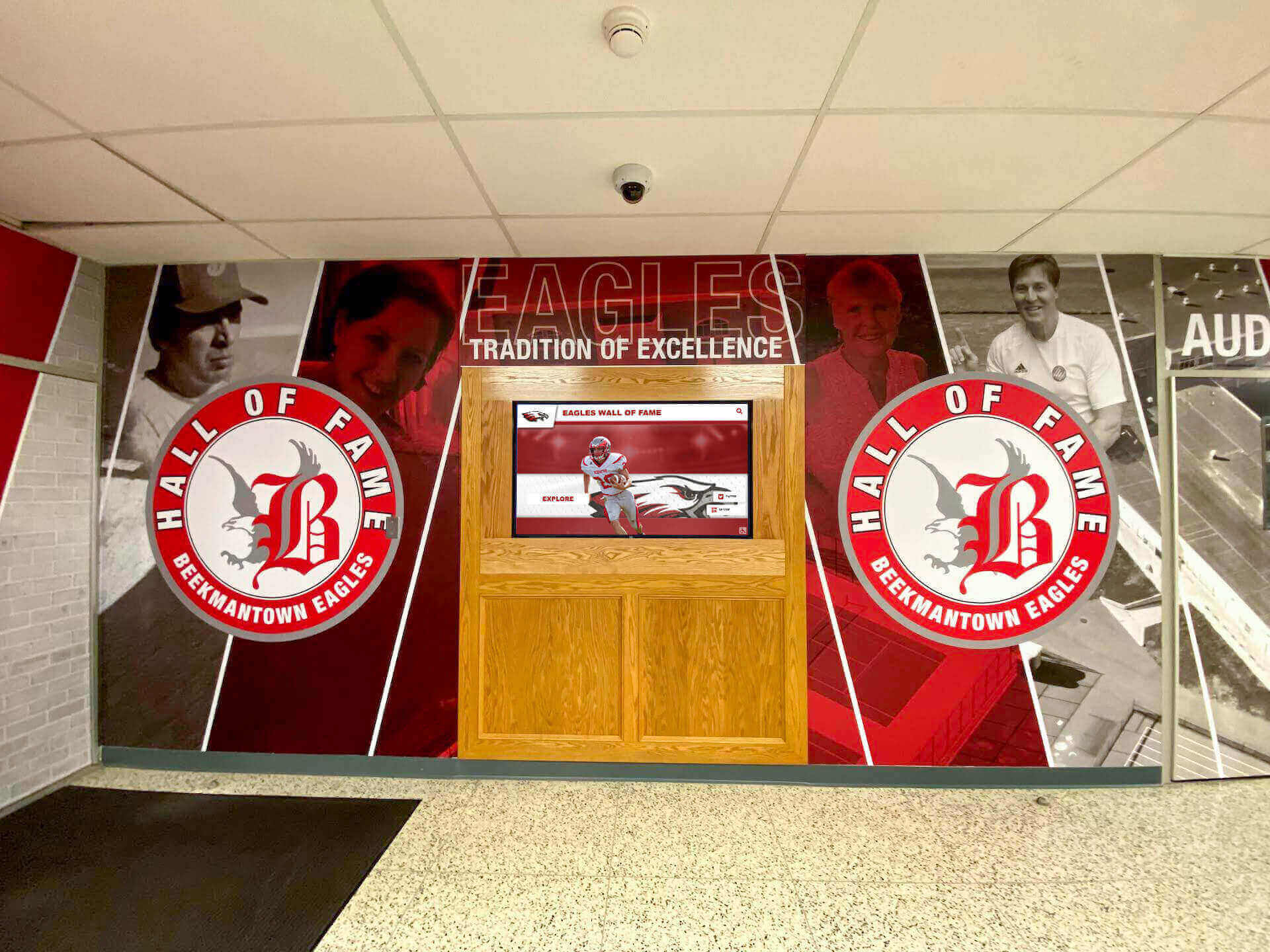
Final construction phases integrate displays with architectural finishes creating cohesive designs
Scheduling Final Display Installation
The final installation process transforms electrical boxes and network jacks into functioning touchscreen displays:
Optimal Installation Timing Windows
Schedule display installation during this specific window:
2-6 Weeks Before Building Occupancy
This timing offers optimal conditions:
- Construction is substantially complete with clean, safe working conditions
- Building electrical and network systems are active and tested
- Interior finishing (painting, flooring) is complete preventing damage to displays
- Sufficient time remains for installation, testing, and content loading before occupancy
- Building remains unoccupied allowing unlimited access without disrupting operations
After These Construction Milestones
Only install displays after confirming:
- Interior painting is complete and fully cured (minimum 72 hours, ideally 7 days)
- Flooring installation is finished
- Ceiling work is complete preventing overhead dust
- HVAC systems are operational maintaining appropriate temperature and humidity
- Building has passed substantial completion inspection
- Furniture delivery schedule is confirmed (displays before or after furniture)
Before These Occupancy Milestones
Install displays before:
- Staff move-in and occupancy begins
- Grand opening, ribbon cutting, or dedication ceremonies
- First public tours of new facilities
- Athletic season begins (for gymnasium displays)
This timing ensures displays are ready for building debut while avoiding construction risks.
Installation Process and Duration
Understanding the installation process helps schedule appropriately:
Physical Installation Steps
Professional installation typically follows these steps:
Site preparation (30 minutes per display)
- Unpack and inspect equipment
- Verify wall location and measurements
- Test electrical power and network connections
- Prepare mounting hardware
Mounting bracket installation (30-60 minutes per display)
- Locate wall studs or blocking
- Level and attach wall bracket
- Verify secure mounting to structure
Display mounting and connection (30-45 minutes per display)
- Lift display onto wall bracket (2-person lift for large displays)
- Secure display to bracket
- Connect power and network cables
- Install cable management covers
System configuration and testing (30-60 minutes per display)
- Power on and verify display function
- Configure network connectivity
- Install and configure software platform
- Test touch functionality
- Verify remote content management access
Total Installation Time
Plan for these timeframes:
- Single display: 2-3 hours from arrival to completion
- Multiple displays in one building: 4-8 hours depending on quantity and locations
- Large installations (10+ displays): 1-2 days for complete deployment
Installation Requirements
Ensure these elements are available during installation:
- Building access for installers and equipment delivery
- Working electrical power at display locations
- Active network connectivity with internet access
- Lift equipment if mounting heights exceed 8 feet
- Two-person crew for displays 65" and larger
- WiFi password and network configuration details if required
Schools implementing multiple recognition displays throughout facilities should schedule installation across several days allowing thorough testing before building occupancy.
Content Development Coordination
Displays are only valuable when populated with content:
Content Development Timeline
Begin content development well before display installation:
3-4 Months Before Installation
- Finalize content categories (athletic hall of fame, academic recognition, etc.)
- Gather historical data, photos, and biographical information
- Identify content sources (yearbooks, archives, databases)
- Write biographical profiles and achievement descriptions
- Collect and organize photos, videos, and documents
1-2 Months Before Installation
- Upload content to cloud-based platform
- Review content for accuracy and completeness
- Create templates and design layouts
- Test content on demo displays or web preview
- Train staff on content management system
At Installation
- Content is loaded and ready to display
- Displays activate showing polished, professional recognition
- Staff understand how to add new content and make updates
For new buildings with extensive recognition content, many schools engage professional content development services that digitize historical archives, write biographical profiles, and populate systems before displays are installed. This ensures new facilities debut with complete, professional content rather than empty screens.
Post-Installation Testing and Training
After displays are mounted and powered, thorough testing ensures successful deployment:
Functional Testing Checklist
Verify these elements before accepting installation:
- Display powers on and shows content correctly
- Touchscreen responds accurately to touch input
- Network connectivity functions reliably
- Content management system is accessible remotely
- QR codes (if included) link correctly to mobile content
- Display sleep/wake settings function as configured
- All multimedia content (videos, photos) loads properly
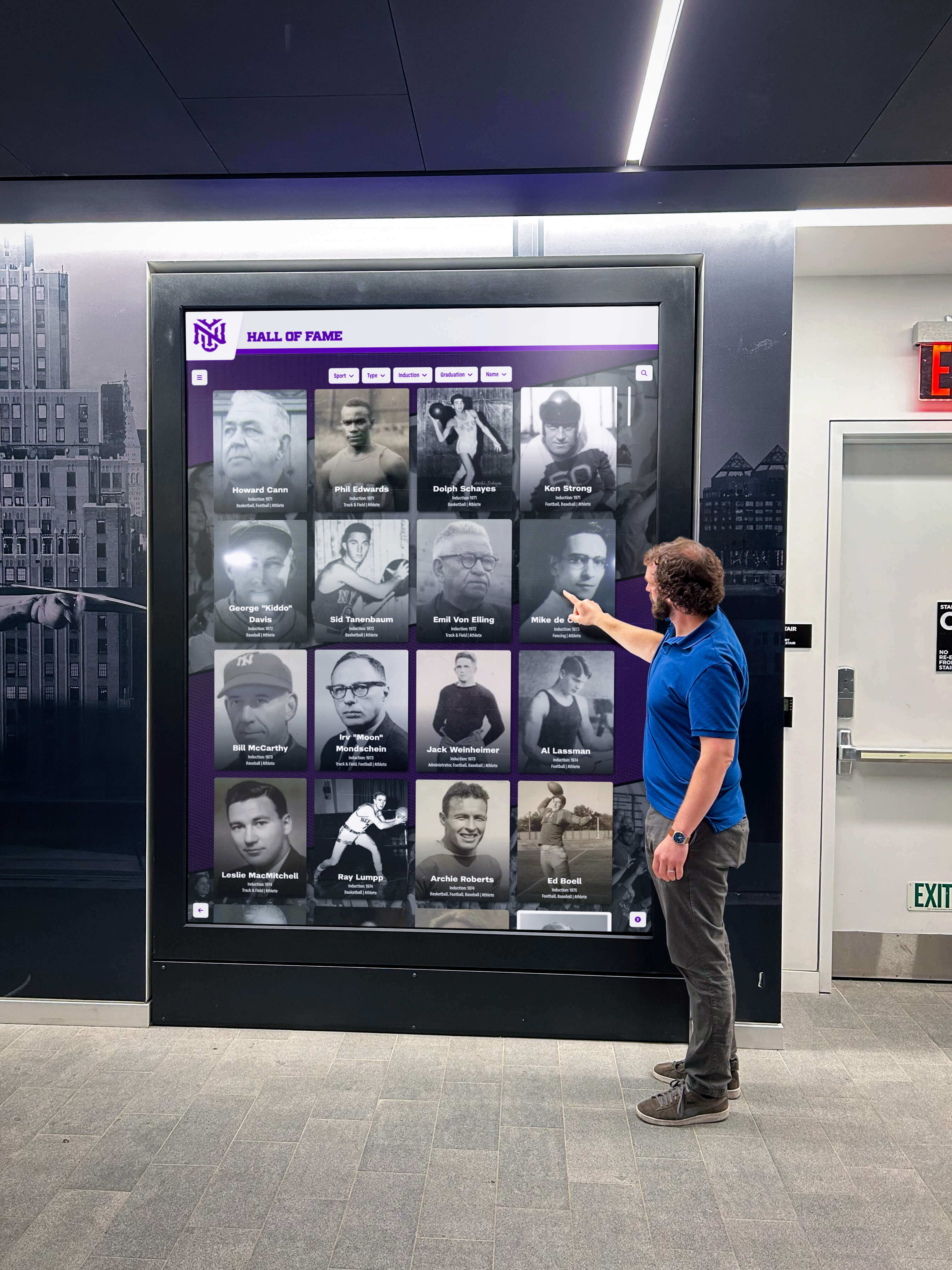
Thorough testing ensures displays function properly before building occupancy
Staff Training
Schedule training sessions before building opening:
- Content management system navigation and features
- Adding new achievements and recognition entries
- Uploading and optimizing photos and videos
- Publishing and scheduling content updates
- Basic troubleshooting for common issues
- Who to contact for technical support
Soft Launch Period
Consider a “soft launch” approach:
- Install displays 2-4 weeks before grand opening
- Conduct internal testing with staff and students
- Identify any usability issues or content gaps
- Make improvements before public debut
- Build internal enthusiasm and ownership
This approach ensures displays perform flawlessly when your building officially opens to the community.
Special Considerations for Gymnasium Installations
Gymnasiums present unique considerations for touchscreen display installation:
Gymnasium-Specific Location Planning
Athletic facilities offer several strategic display locations:
Gymnasium Entrance Lobby
The main entrance creates a prime location for athletic recognition:
- High visibility for all visitors entering for games or events
- Natural gathering space where fans wait and socialize
- Protection from activity within gymnasium proper
- Accessibility for content updates without disrupting athletics
- Proximity to trophy cases creating integrated recognition area
Gymnasium Concourse
For larger facilities with concourse areas:
- Multiple displays showcasing different sports or content categories
- Rotation spaces where visitors circulate between quarters or periods
- Potential for interactive kiosks where families explore during events
Athletic Office Suite
Displays near athletic administration serve recruiting and operations:
- Impress prospective student-athletes and parents during visits
- Showcase program accomplishments to donors and supporters
- Provide coaches access for content updates and management
Avoid Within Gymnasium Proper
Do not install touchscreen displays on gymnasium walls within the playing area:
- Ball impact damage expensive to repair or replace
- Insufficient supervision during events enabling vandalism
- Constant activity prevents meaningful engagement with content
- Safety concerns with visitors distracted near active play
Traditional painted banners, record boards, and signage remain appropriate within gymnasium spaces, while interactive touchscreens excel in entrance lobbies and adjacent spaces.
Gymnasium Environmental Considerations
Athletic facilities create challenging environments for technology:
Temperature and Humidity Control
Gymnasiums experience wider environmental ranges than classroom spaces:
- Winter heating and summer cooling may be less consistent
- Large spaces take longer to reach comfortable temperatures
- Humidity from physical activity and showers
- Door openings to exterior during loading and events
Install displays in climate-controlled areas:
- Entrance lobbies typically maintain more consistent conditions
- Office areas with independent climate control
- Avoid exterior walls experiencing greater temperature fluctuation
Commercial-grade displays withstand normal environmental variations but extreme conditions accelerate component aging.
Vibration and Physical Impact
Athletic activities create vibrations and impact risks:
- Basketballs bouncing, weights dropping, equipment moving
- Crowds stomping feet during games and celebrations
- Doors closing and opening during events
Mount displays to solid structural walls rather than:
- Lightweight partition walls transmitting vibrations
- Walls directly adjacent to bleachers
- Locations within 10 feet of doors that slam
Secure mounting with proper structural blocking prevents long-term damage from vibration.
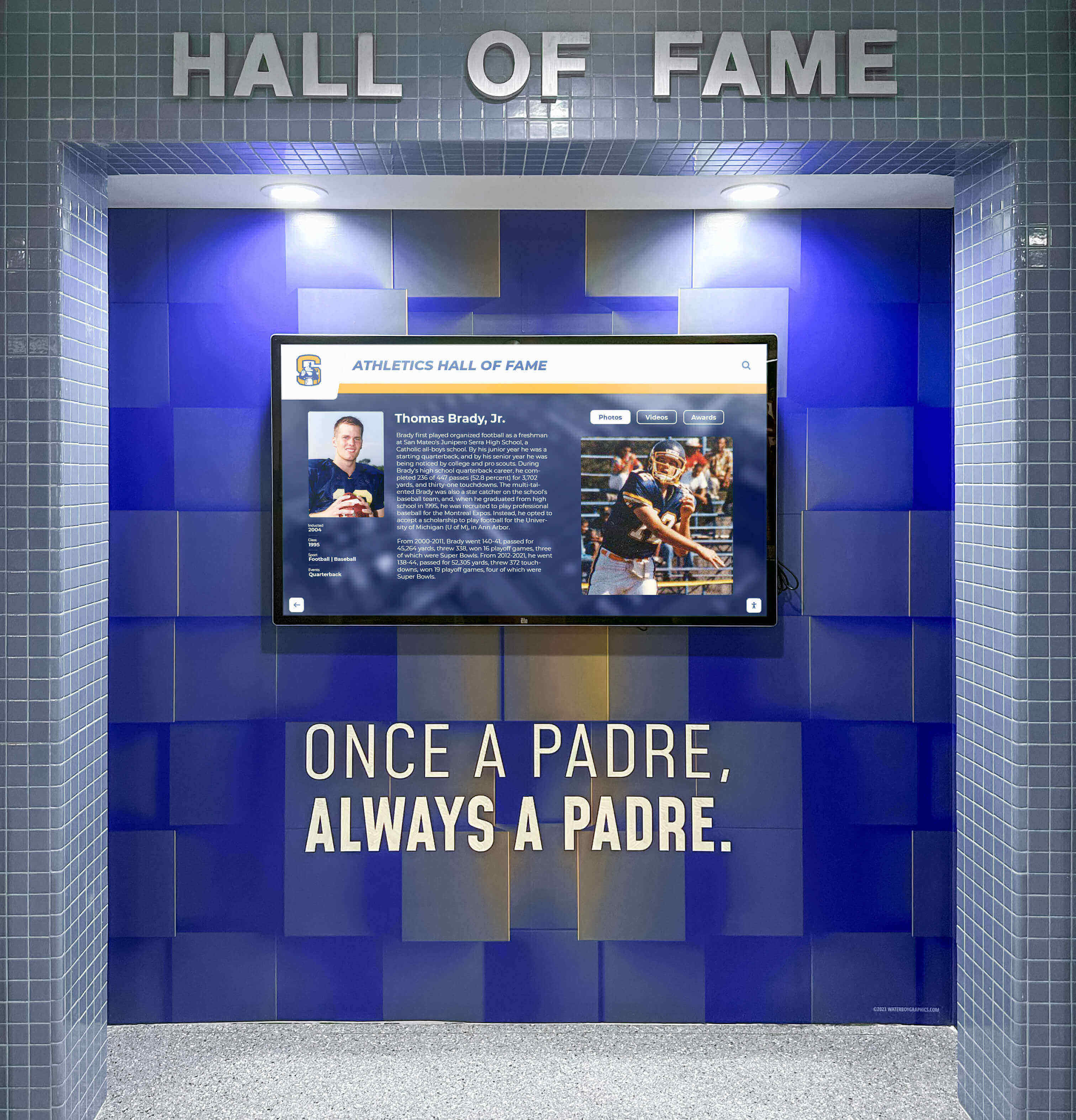
Athletic facility displays should be protected from direct activity while remaining visible to visitors
Integrating with Athletic Recognition Programs
New gymnasiums offer opportunities for comprehensive athletic recognition:
Hall of Fame Programs
Digital touchscreens eliminate traditional hall of fame space limitations:
- Unlimited inductee capacity without wall space constraints
- Complete athlete profiles with statistics, photos, and videos
- Searchable databases helping visitors find specific honorees
- Easy updates adding new inductees immediately without plaque production delays
Championship Recognition
Celebrate team accomplishments across decades:
- Complete team rosters for championship seasons
- Game highlight videos and season summaries
- Historical program achievements and milestones
- Coaching staff recognition and program leadership
Record Boards
Interactive displays replace static painted record boards:
- Automatic ranking updates as records fall
- Historical record progression showing evolution over decades
- Detailed performance information beyond names and marks
- Filtering by decade, gender, or specific events
Schools building new gymnasiums should plan comprehensive digital recognition strategies from the start rather than adding technology as an afterthought to traditional approaches.
Budget Planning and Funding Strategies
Understanding complete costs helps secure funding for touchscreen displays in new construction:
Complete Cost Breakdown
Plan for all expenses associated with touchscreen displays:
Infrastructure Costs (During Construction)
These costs are typically included in general construction contract:
- Electrical outlets and dedicated circuits: $200-$500 per location
- Network cabling and connections: $300-$800 per location
- Structural blocking for mounting: $100-$300 per location
- Conduit and low-voltage pathways: Included in electrical contract
- Total infrastructure cost per display location: $600-$1,600
Hardware Costs (Final Weeks Before Occupancy)
Equipment purchased and installed during final construction phase:
- 55" interactive touchscreen display: $2,500-$4,000
- 65" interactive touchscreen display: $3,500-$5,500
- 75" interactive touchscreen display: $5,000-$7,000
- 86" interactive touchscreen display: $6,500-$8,500
- Mounting brackets and hardware: $200-$500
- Professional installation: $500-$1,500 per display
- Total hardware cost per display: $3,200-$10,500 depending on size
Software and Content Costs (Ongoing)
Annual subscriptions and content development:
- Software platform annual subscription: $500-$3,000 per display
- Initial content development: $1,000-$5,000 one-time
- Training and support: Often included in subscription
- Annual software cost per display: $500-$3,000
Example Budget for New Gymnasium
A typical new gymnasium with three 65" displays:
- Infrastructure (3 locations): $3,600-$4,800
- Hardware (3 displays): $12,000-$18,000
- Software (first year): $1,500-$9,000
- Content development: $2,000-$5,000
- Total first-year investment: $19,100-$36,800
- Annual ongoing costs (years 2+): $1,500-$9,000
Funding Sources for School Technology
Several strategies help fund touchscreen displays in new construction:
Include in Construction Bond
If your building is funded through voter-approved construction bonds:
- Technology infrastructure (electrical, network) included in construction contract
- Display hardware included as fixtures and equipment in bond
- This approach provides complete funding without separate fundraising
Booster Club Fundraising
Athletic booster organizations often support recognition displays:
- Hall of fame displays honor athletes and build program pride
- Recognition of booster club donors on displays
- Naming opportunities for major contributors
- Fundraising events or campaigns targeting technology
Schools implementing recognition displays through booster club support create lasting legacies celebrating program achievements.
Alumni Association Funding
Alumni organizations may support displays showcasing alumni achievements:
- Hall of fame displays recognizing distinguished alumni
- Historical content preserving institutional memory
- Interactive platforms connecting current students to alumni tradition
- Naming opportunities for significant alumni donors
Capital Campaign Integration
Major construction projects often include comprehensive fundraising:
- Display technology as named giving opportunity ($5,000-$25,000 levels)
- Recognition of campaign donors on the displays they funded
- Tiered naming opportunities based on display size and location
Memorial and Tribute Gifts
Individual displays can honor specific individuals:
- Memorial gifts honoring deceased coaches, athletes, or community members
- Tribute gifts recognizing retiring administrators or long-serving staff
- Personalized content acknowledging honoree within display system
District Technology Budget
Some districts allocate technology funding across all buildings:
- Displays included in district-wide technology refresh cycles
- Standardized display specifications across multiple buildings
- Centralized support and management reducing per-building costs
Return on Investment Considerations
Touchscreen displays provide value justifying initial investment:
Eliminated Ongoing Costs
Digital displays eliminate traditional recognition expenses:
- Plaque production: $75-$250 per plaque × dozens or hundreds of honorees
- Record board repainting: $2,000-$8,000 every few years as records change
- Printed directories and signage: $500-$2,000 annually for updates
- Typical savings: $2,000-$10,000+ annually
Enhanced Program Value
Intangible benefits justify investment:
- Increased donor satisfaction from modern recognition approaches
- Enhanced recruitment experiences for prospective student-athletes
- Stronger school pride from comprehensive achievement celebration
- Improved wayfinding and visitor experience reducing staff burden
- Historical preservation ensuring achievements are never forgotten
Lifecycle Comparison
Compare 10-year total costs:
Traditional Physical Recognition (10 years)
- Initial plaques: $10,000-$20,000
- Additional plaques over time: $5,000-$15,000
- Record board repainting: $8,000-$24,000
- Updated directories and signage: $5,000-$20,000
- Total 10-year cost: $28,000-$79,000
Digital Touchscreen Display (10 years)
- Infrastructure and installation: $3,000-$6,000 one-time
- Hardware (65" display): $4,000-$6,000 one-time
- Software subscriptions: $10,000-$30,000 over 10 years
- Content development: $2,000-$5,000
- Total 10-year cost: $19,000-$47,000
Digital solutions often cost less over time while providing superior capacity, flexibility, and engagement compared to traditional approaches.
Preparing for Successful Deployment
Beyond timing and installation, several factors determine long-term success:
Staff Preparation and Training
Displays succeed when staff understand and embrace them:
Identify Content Champions
Designate specific staff responsible for content management:
- Athletic director or assistant for sports recognition
- Activities director for club and organization recognition
- Technology coordinator for technical support and troubleshooting
- Administrative assistant for daily announcements and updates
Provide Comprehensive Training
Schedule training before building opening:
- Hands-on content management system orientation
- Practice adding sample entries and updating content
- Review of content standards and quality expectations
- Troubleshooting common issues and support resources
- Ongoing “office hours” for questions as staff gain experience
Build Enthusiasm and Ownership
Create internal excitement about displays:
- Share examples from other schools using interactive recognition
- Involve staff in content planning and development
- Recognize staff contributions to successful implementation
- Celebrate displays as community resource enhancing school culture
Content Quality Standards
Establish quality expectations ensuring professional results:
Photography Standards
Consistent high-quality photos create polished appearance:
- Minimum resolution: 1920 x 1080 pixels (full HD)
- Consistent lighting and composition across recognition photos
- Professional headshots for individual recognition when possible
- Action photography showcasing activities and achievements
- Proper permissions documented for all photos
Writing Standards
Clear, consistent writing maintains professional quality:
- Biographical format consistent across all entries
- 150-300 words appropriate for touchscreen reading
- Active voice emphasizing achievements and impact
- Fact verification for all claims and statistics
- Grade-appropriate vocabulary ensuring accessibility
Update Frequency
Maintain current, relevant content:
- New achievements added within one week of events
- Historical content expanded systematically over time
- Outdated temporary content (announcements, events) removed promptly
- Annual content audits ensuring accuracy and completeness
Maintenance Planning
Long-term success requires minimal but consistent maintenance:
Daily Maintenance
Simple routine tasks keep displays functioning:
- Visual inspection confirming displays are powered and functioning
- Quick screen cleaning with microfiber cloth as needed
- Note any issues for follow-up
Weekly Maintenance
Regular attention prevents problems:
- Thorough screen cleaning with appropriate cleaning solution
- Content spot-checks ensuring all multimedia loads properly
- Review analytics identifying popular content
Annual Maintenance
Periodic deep maintenance:
- Professional screen cleaning
- Hardware inspection checking for loose mounting or connections
- Software updates applying latest platform improvements
- Content audit reviewing accuracy and completeness
- Backup verification ensuring content is protected
Technical Support
Establish support resources:
- Vendor technical support contact information
- District IT department role and responsibilities
- Troubleshooting documentation for common issues
- Escalation path for problems requiring expert assistance
Displays from quality vendors require minimal maintenance beyond simple cleaning and occasional content updates, making them sustainable long-term solutions.
Conclusion: Strategic Timing Creates Successful Outcomes
Installing touchscreen displays in new school buildings and gymnasiums requires careful timing coordination between infrastructure planning, construction execution, and final technology deployment. Success depends on understanding the critical distinction between planning electrical infrastructure during design phases and installing physical displays during final construction weeks.
The optimal touchscreen display installation timeline follows this sequence:
- Design phase: Plan display locations, specify electrical and network requirements, coordinate with architects
- Construction rough-in: Install electrical conduit, outlets, network cabling, and structural blocking
- Interior finishing: Complete painting, flooring, and surface finishes while protecting display areas
- Final 2-6 weeks: Install displays after construction is substantially complete but before building occupancy
- Pre-occupancy: Test systems, train staff, populate content, and prepare for building opening
Schools following this timeline integrate touchscreen displays without construction delays, budget overruns, or equipment damage. Displays debut with the building looking polished and professional rather than being added as an afterthought months later.
New construction represents your best opportunity to integrate modern touchscreen technology thoughtfully and cost-effectively. Infrastructure costs are minimal when included in original construction compared to retrofitting occupied buildings. Display locations can be optimized during design rather than being constrained by existing conditions. Grand opening events can showcase comprehensive recognition rather than empty screens awaiting future content.
Your new gymnasium or school building will serve students and community for 50+ years. The touchscreen displays you install during construction will celebrate thousands of achievements, welcome tens of thousands of visitors, and strengthen school culture across multiple generations of students. Timing this installation correctly ensures these important tools debut successfully and serve effectively for decades to come.
Ready to explore touchscreen display solutions for your new school building or gymnasium? Learn how interactive recognition platforms help schools celebrate unlimited achievements through cloud-based displays that integrate into new construction projects—providing comprehensive technical specifications, installation guidance, and professional content development services that ensure successful deployment from design through occupancy.