Schools investing in interactive touchscreen technology face a marketplace crowded with competing systems, incompatible specifications, and marketing claims that obscure practical performance differences. Whether purchasing displays for recognition programs, wayfinding kiosks, interactive learning environments, or administrative communication, choosing the wrong touchscreen system wastes budgets, frustrates users, and undermines institutional goals.
This interactive touchscreen display comparison examines key technologies, leading manufacturers, and critical decision factors that separate effective school installations from expensive disappointments. From capacitive versus resistive touch technologies to commercial-grade durability requirements, understanding these distinctions empowers school administrators, technology coordinators, and facilities managers to make informed purchasing decisions.
Educational institutions require touchscreen solutions that withstand heavy daily use, deliver intuitive user experiences, support accessibility requirements, integrate with existing infrastructure, and provide long-term value. This comprehensive guide compares interactive touchscreen displays across technologies, applications, and price points to help schools identify systems matching their specific needs.
Schools adopting interactive touchscreen technology transform static spaces into engaging digital environments. Athletic departments create interactive hall of fame displays celebrating student achievements. Development offices install donor recognition walls acknowledging contributors. Libraries implement wayfinding kiosks directing visitors. Lobbies showcase school history through interactive archives.
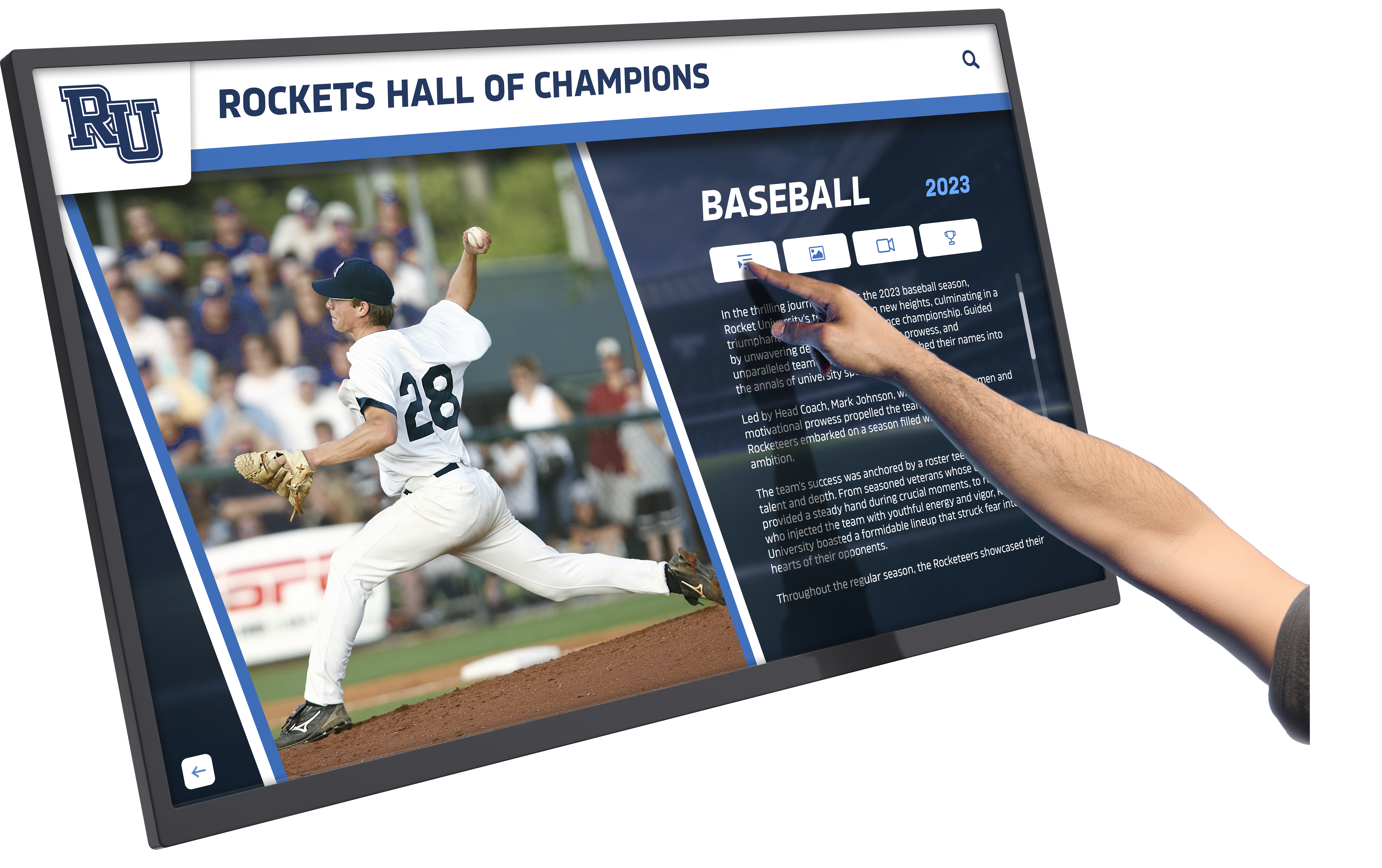
Modern interactive touchscreen displays create engaging experiences in educational environments
However, not all touchscreen systems deliver equal performance in educational settings. Commercial-grade displays designed for retail point-of-sale differ significantly from interactive kiosks built for public education environments. Understanding these differences prevents costly mistakes.
Touch Technology Comparison: Capacitive vs. Resistive vs. Infrared
The fundamental technology detecting touch input profoundly affects user experience, durability, image quality, and long-term reliability.
Capacitive Touchscreen Technology
How Capacitive Touch Works Capacitive screens detect electrical properties of human touch through conductive coating on glass surface:
- Responds to conductive objects (fingers, specialized styluses)
- Multi-touch capability supports gestures like pinch-to-zoom
- Excellent image clarity with no additional layers affecting display
- Highly responsive with minimal pressure required
- Industry standard for smartphones and tablets
- Premium user experience matching consumer device expectations
Advantages for School Environments
- Superior image quality critical for photo and video content
- Multi-touch gestures enable intuitive navigation
- Durable glass surface resists scratching and wear
- Easy to clean and maintain
- Supports accessibility features through gesture alternatives
- Familiar interface reduces learning curve
Disadvantages and Considerations
- Higher initial cost than resistive alternatives
- Requires bare fingers or conductive gloves (problematic in cold climates)
- Cannot be operated with standard gloves or non-conductive objects
- Glass surface can crack under extreme impact
- May require more frequent cleaning to remove fingerprints
Resistive Touchscreen Technology
How Resistive Touch Works Resistive screens use pressure to connect two conductive layers:
- Responds to any pressure including gloves, styluses, or objects
- Single-touch operation (no multi-touch gestures)
- Additional layer slightly reduces image clarity
- Requires more pressure than capacitive screens
- Lower cost than capacitive alternatives
- Proven reliability in industrial applications
Best Use Cases in Schools
- Outdoor installations where glove operation needed
- Industrial/vocational education environments
- Budget-conscious projects prioritizing cost
- Simple single-function kiosks
- Environments with dust or moisture concerns
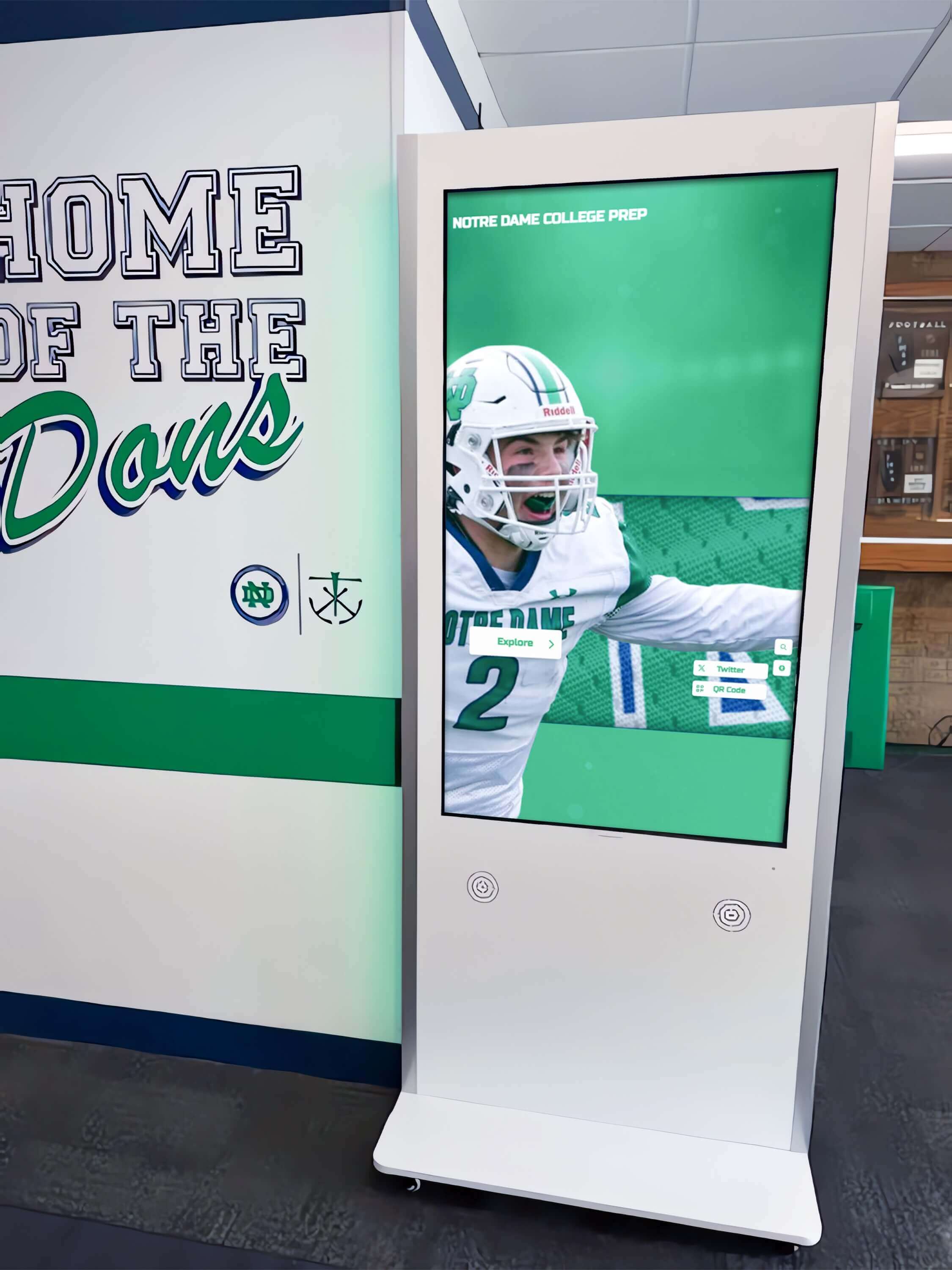
School interactive displays must balance functionality with durability and user experience
Infrared Touchscreen Technology
How Infrared Touch Works Infrared systems use light beams across screen surface to detect touch:
- No overlay affecting image quality
- Excellent optical clarity
- Responds to any touch including gloved hands
- Scales well to very large display sizes
- Durable with no surface wear issues
- Common in large-format interactive displays
Advantages for Large School Installations
- Superior image quality on large displays (55"+ screens)
- No touch surface to wear out over time
- Works with gloves, styluses, or any pointing object
- Excellent for interactive museum displays and galleries
- Scales cost-effectively to wall-sized installations
- Accessibility-friendly for users with different motor abilities
Limitations
- Higher cost than resistive, comparable to capacitive
- Requires frame around display housing sensors
- Bright ambient light can interfere with IR beams
- Small objects may not trigger response reliably
Interactive Touchscreen Display Systems: Brand and Platform Comparison
Schools evaluating interactive touchscreen solutions compare systems spanning general-purpose commercial displays, educational technology platforms, and purpose-built recognition solutions.
General Commercial Touchscreen Displays
Major Manufacturers: Samsung, LG, NEC, Sharp
These mainstream commercial display manufacturers offer interactive touchscreen options originally designed for corporate, retail, and hospitality environments but adapted for educational use.
Advantages
- Wide availability through multiple resellers
- Competitive pricing through volume production
- Proven reliability in commercial applications
- Standard warranty and support infrastructure
- Compatible with various content management systems
- Available in multiple sizes (32" to 98")
Limitations for School Recognition Applications
- Generic displays require separate content management software
- No specialized recognition or donor wall capabilities built-in
- Schools must contract separate developers for custom applications
- Software updates and maintenance become ongoing expense
- Limited templates for school-specific use cases
- Technology and marketing staff must manage content creation
- No turnkey solution for common school recognition needs
Best Applications
- Digital signage displaying announcements and schedules
- Wayfinding kiosks with simple directional content
- General information displays
- Schools with in-house development resources
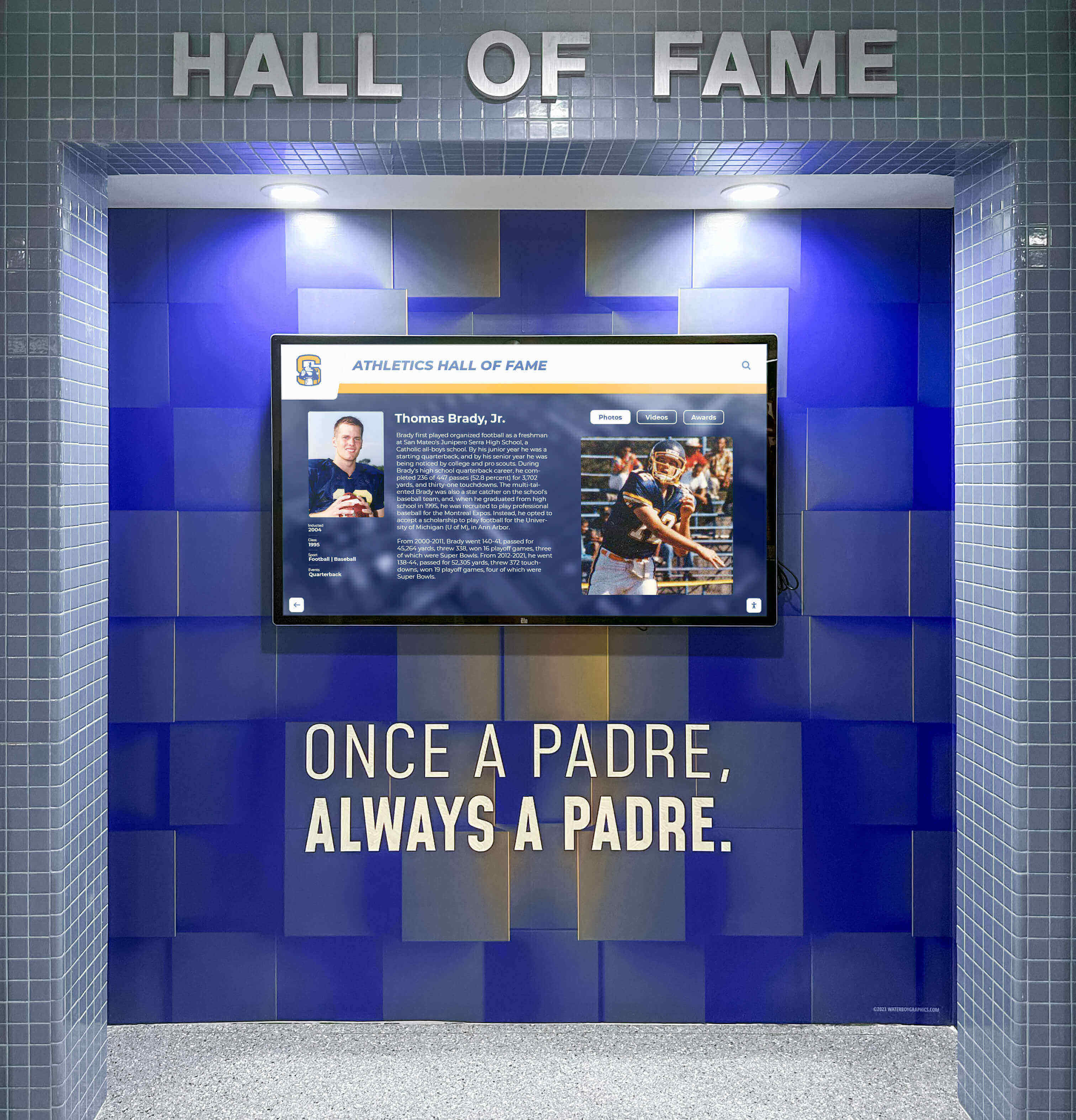
Commercial displays serve various school communication needs but may require custom development
Educational Technology Platforms
SMART Board, Promethean, and Classroom Interactive Displays
Interactive displays designed primarily for classroom instruction offer different value propositions than recognition or public-facing installations.
Primary Design Focus
- Classroom teaching and collaborative learning
- Lesson presentation and student engagement
- Educational software integration (Google Classroom, Canvas, etc.)
- Whiteboarding and annotation capabilities
- Teacher-facing interfaces and controls
Strengths in Educational Settings
- Purpose-built for educational workflows
- Integration with learning management systems
- Familiar interfaces for teachers trained on platforms
- Collaboration tools supporting group work
- Strong educational technology ecosystem
Limitations for Recognition and Public Displays
- Designed for controlled classroom environments, not public spaces
- Software focused on instruction, not self-service exploration
- Administrative interfaces require training
- Not optimized for athletic recognition or donor displays
- Classroom-grade durability different from public kiosk requirements
Appropriate School Applications
- Classroom instruction and learning environments
- Teacher collaboration spaces
- Student computer labs and makerspaces
- Professional development rooms
Specialized Recognition and Digital Trophy Case Solutions
Rocket Alumni Solutions and Purpose-Built Recognition Platforms
A distinct category of interactive touchscreen systems focuses specifically on school recognition, donor acknowledgment, and institutional storytelling applications.
Rocket Alumni Solutions Overview
Rocket Alumni Solutions delivers turnkey interactive touchscreen displays designed specifically for K-12 schools, universities, and athletic facilities requiring recognition solutions:
Core Features
- Pre-built templates for athletic halls of fame, digital trophy cases, and donor walls
- Content management system designed for non-technical administrators
- Easy yearbook photo integration and searchability
- Athletic record displays and championship histories
- Alumni achievement showcases
- Donor recognition displays with gift level organization
- WCAG 2.2 AA accessibility compliance
- Cloud-based content updates requiring no IT expertise
- Professional installation and training included
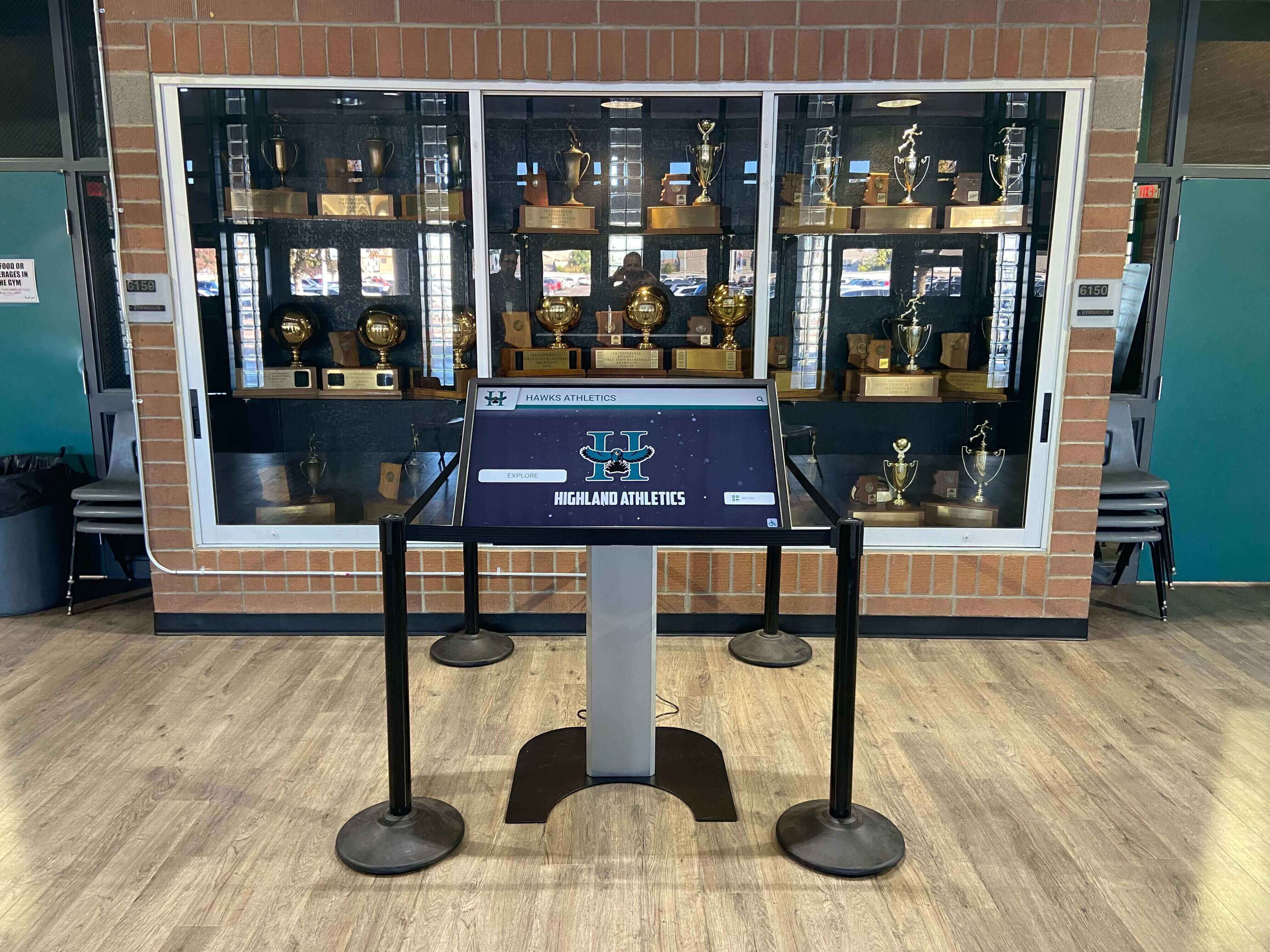
Purpose-built recognition systems integrate seamlessly with school environments and existing trophy displays
Value Proposition for Schools
- Complete solution eliminates need for custom development
- Recognition-specific interface optimized for alumni and visitor exploration
- Quick deployment (weeks instead of months)
- Ongoing content management support
- Regular software updates included
- Templates proven across hundreds of installations
- Significantly lower total cost of ownership versus custom development
Installations and Track Record Rocket systems operate in K-12 schools, universities, athletic facilities, and community organizations nationwide. Notable installations include Florida State University athletics, professional sports venues, and hundreds of high school athletic programs.
Best Applications
- Athletic halls of fame and digital trophy cases
- Donor recognition walls for capital campaigns
- Alumni achievement showcases
- School history and legacy displays
- Community partnership recognition
- Digital yearbook archives
- Student achievement recognition
- Facilities with limited technical staff
Display Size and Resolution Considerations
Interactive touchscreen effectiveness depends heavily on choosing appropriate screen sizes and resolutions for specific applications and viewing distances.
Common Display Sizes for School Applications
32" to 43" Displays
- Best for: Individual workstations, small kiosks, detailed individual viewing
- Typical applications: Library catalog stations, administrative check-in kiosks, individual donor recognition
- Viewing distance: 2-4 feet
- Considerations: Limited simultaneous users, excellent detail visibility
49" to 55" Displays
- Best for: Small group interaction, hallway installations, classroom entrances
- Typical applications: Team recognition displays, small donor walls, departmental showcases
- Viewing distance: 4-6 feet
- Considerations: Balanced between detail and group visibility
65" to 75" Displays
- Best for: Large lobbies, athletic facilities, main recognition walls
- Typical applications: Comprehensive halls of fame, major donor walls, school history displays
- Viewing distance: 6-10 feet
- Considerations: Supports multiple simultaneous users, commanding presence
86" to 98" Displays
- Best for: Auditoriums, large athletic facilities, flagship installations
- Typical applications: Championship trophy cases, comprehensive institutional archives
- Viewing distance: 10-15 feet
- Considerations: Premium investment, maximum visual impact
Resolution Standards
Full HD (1920x1080)
- Adequate for displays under 55"
- Budget-friendly option
- Sufficient for text-based content and standard photography
4K UHD (3840x2160)
- Standard for 55"+ professional installations
- Critical for high-quality photo displays
- Future-proofed for increasing content quality
- Recommended for all recognition applications
8K Resolution
- Emerging technology, limited content availability
- Unnecessary for most school applications currently
- Significant cost premium without proportional benefit
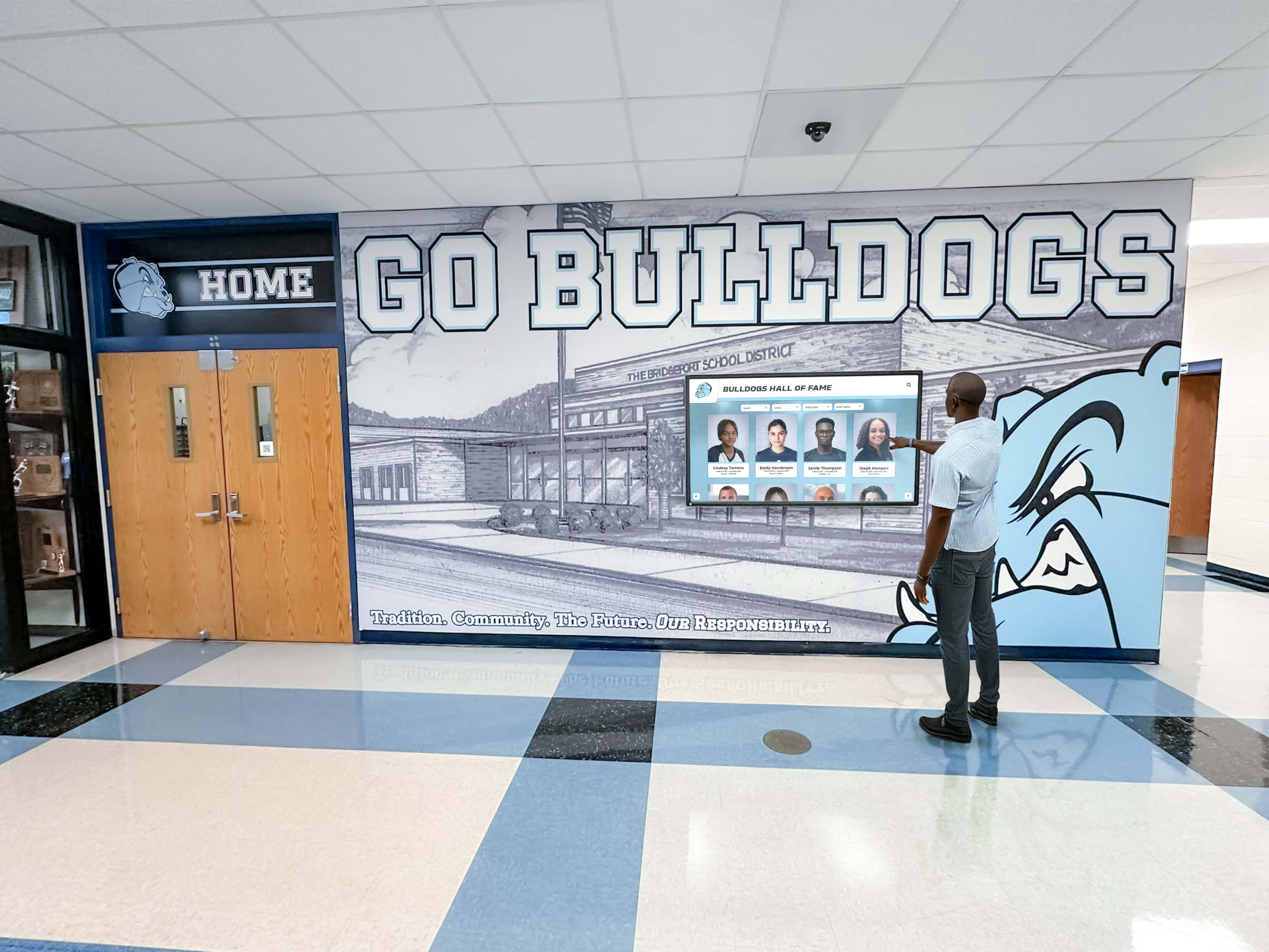
Proper display sizing enables comfortable viewing and interaction at typical distances
Durability and Commercial-Grade Requirements
Consumer-grade displays fail rapidly under continuous operation and public use. Commercial specifications ensure longevity in demanding school environments.
Operating Hours and Duty Cycle
Consumer vs. Commercial Ratings
- Consumer displays: Rated 8-12 hours/day operation
- Commercial displays: Rated 16-24 hours/day continuous operation
- School requirements: Typically 12-14 hours/day during academic year
Why Commercial Ratings Matter Consumer displays installed in public spaces fail within 1-2 years. Commercial panels engineered for continuous operation deliver 5-10 year operational lifespans, preventing premature replacement costs.
Anti-Vandalism and Impact Resistance
Protective Features for Public Installation
- Strengthened glass resisting impact
- Vandal-resistant enclosures
- Tamper-proof mounting hardware
- Protected cable management
- Minimal exposed adjustment controls
- Anti-ligature design for behavioral health settings
Environmental Ratings and Operating Conditions
Indoor Installation Requirements
- Temperature range: 0°C to 40°C (32°F to 104°F)
- Humidity tolerance: 10% to 90% non-condensing
- Dust ingress protection (IP40 minimum)
- Adequate ventilation for heat dissipation
Outdoor or Semi-Outdoor Installations
- Weatherproof enclosures (IP65+ rating)
- Extreme temperature range capability
- Anti-glare/high-brightness panels (1000-2500 nits)
- UV-resistant materials
- Condensation prevention systems
Software and Content Management Comparison
Hardware represents only half of successful interactive touchscreen implementation. Software usability determines whether displays deliver ongoing value or become expensive digital billboards.
Content Management System Capabilities
Essential CMS Features for Schools
- Web-based interface requiring no specialized software
- Intuitive content creation for non-technical staff
- Template libraries for common school applications
- Photo and video upload with automatic optimization
- Search and filtering capabilities for users
- Mobile-responsive admin dashboard
- Role-based permissions for multiple administrators
- Scheduled content updates and rotations
Advanced Features Differentiating Premium Systems
- Bulk import from spreadsheets and databases
- Yearbook integration automatically organizing photos by year
- Athletic record tracking with automatic updates
- Donor gift level organization and display
- Alumni career achievement categorization
- Multi-display management from single dashboard
- Analytics tracking user interactions and popular content
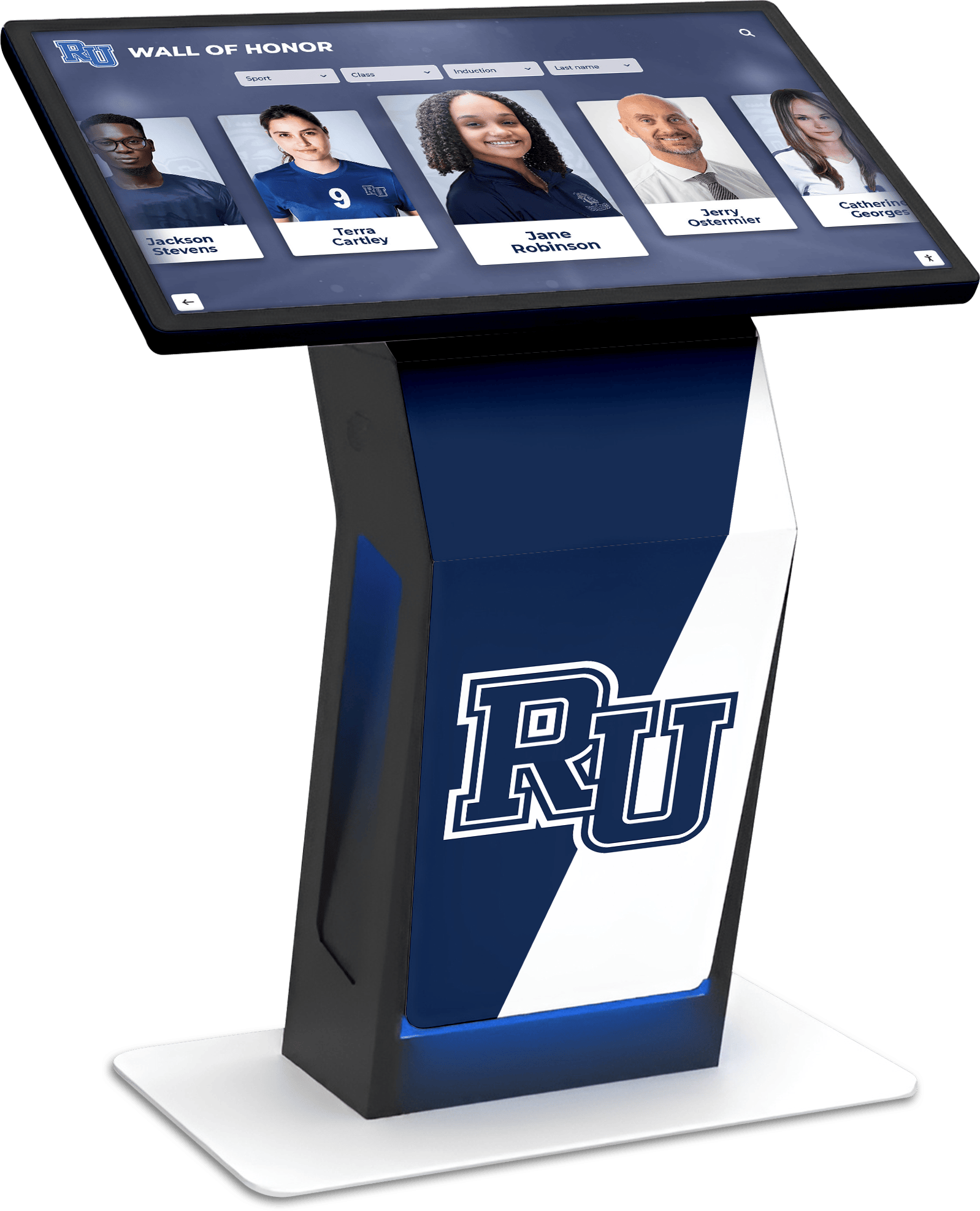
Professional content management systems enable easy updates and ongoing engagement
Ease of Updates and Ongoing Maintenance
Critical Consideration: Who Manages Content?
Schools must realistically assess ongoing content management:
Technical Staff Requirements
- Generic commercial displays require IT or development staff for updates
- Custom-developed systems need ongoing developer contracts
- Educational platforms require trained technology coordinators
- Purpose-built recognition systems designed for advancement/athletics staff use
Time Investment
- Initial content creation: 10-40 hours depending on complexity
- Ongoing updates: 1-5 hours monthly for active programs
- Major updates (new year, campaign completion): 5-10 hours
Budget Implications Schools hiring external developers for content updates spend $2,000-$5,000 annually. Systems with intuitive interfaces enable internal staff to manage content, eliminating recurring costs.
Installation and Integration Considerations
Successful touchscreen installations require planning for physical installation, electrical requirements, network connectivity, and integration with existing school infrastructure.
Mounting and Physical Installation
Installation Types
- Wall-mounted: Most common for lobby and hallway installations
- Freestanding kiosk: Provides flexibility for repositioning
- Built-in millwork: Custom cabinetry integration
- Pedestal mount: Gallery-style presentation
Structural Requirements
- Adequate wall strength (studs, concrete, or reinforced drywall)
- Electrical outlet placement and power requirements
- Network connectivity (wired Ethernet preferred over WiFi)
- ADA-compliant height and reach requirements
- Clearance for user interaction (minimum 5’ x 5’ space)
Network and Security Integration
Connectivity Requirements
- Wired Ethernet connection (100 Mbps minimum, 1 Gbps preferred)
- Static IP address or DHCP reservation
- Firewall ports for cloud-based content management
- WiFi capability for installation flexibility (wired preferred)
Security Considerations
- Network segmentation from student/staff networks
- Regular security updates and patches
- Content approval workflows preventing unauthorized changes
- Secure cloud infrastructure for hosted solutions
- FERPA compliance for student information displays
Accessibility and ADA Compliance
Federal regulations and inclusive design principles require touchscreen installations accommodating users with diverse abilities.
WCAG 2.2 AA Compliance Standards
Critical Accessibility Features
- Text alternatives for images and videos
- Keyboard navigation alternatives to touch
- Sufficient color contrast ratios (4.5:1 minimum for normal text)
- Adjustable text sizes without loss of functionality
- Captions and transcripts for audio/video content
- No time limits or adjustable timing for content interaction
Rocket Alumni Solutions Accessibility Rocket systems achieve WCAG 2.2 AA compliance through deliberate accessibility design, ensuring all students, alumni, and visitors can access recognition content regardless of ability.
Physical ADA Requirements
Installation Height Standards
- Maximum reach height: 48 inches for forward approach
- Maximum reach height: 54 inches for side approach
- Minimum bottom height: 15 inches from floor
- Knee clearance: 27 inches high, 8 inches deep minimum
Operational Requirements
- Operating controls operable with one hand
- No tight grasping, pinching, or twisting required
- Touch targets minimum 44x44 pixels
- Clear floor space 30"x48" for wheelchair users
Total Cost of Ownership Analysis
Comparing initial purchase prices without considering long-term costs misleads school decision-makers. Comprehensive TCO analysis reveals true investment requirements.
Initial Hardware and Software Costs
Hardware Investment Ranges
- Entry commercial display (43"): $1,500-$3,000
- Mid-range interactive touchscreen (55"): $3,500-$6,000
- Premium large-format system (75"): $8,000-$15,000
- Ultra-large flagship installation (98"): $18,000-$35,000
Software and Development Costs
- Commercial display + custom development: $10,000-$50,000 initial development
- Generic CMS annual license: $500-$3,000 per year
- Purpose-built recognition system (Rocket): Included in hardware package
- Educational platform license: $800-$2,500 per display annually
Ongoing Maintenance and Support
Annual Costs to Consider
- Software licenses and subscription fees: $0-$3,000
- Content updates (if outsourced): $2,000-$5,000
- Hardware warranty extensions: $300-$800
- Network and security maintenance: $200-$500
- Cleaning and physical maintenance: $100-$300
5-Year Total Cost Comparison Example (55" System)
Generic Commercial Display Path
- Hardware: $4,000
- Custom development: $25,000
- Annual developer updates (5 years): $15,000
- Software licenses (5 years): $5,000
- Total 5-year cost: $49,000
Purpose-Built Recognition System (Rocket)
- Complete system: $12,000-$18,000
- Annual software/support: $0 (included)
- Content updates: $0 (internal staff capable)
- Total 5-year cost: $12,000-$18,000
Savings: $31,000-$37,000 over 5 years
Decision Framework: Choosing the Right System for Your School
Synthesizing the comparison elements into a practical decision framework helps schools select optimal interactive touchscreen solutions.
Step 1: Define Primary Application and Goals
Identify Core Use Case
- Athletic recognition and hall of fame
- Donor recognition and capital campaign acknowledgment
- General wayfinding and information
- Classroom instruction and learning
- Administrative communication and announcements
- Student achievement and academic recognition
Clarify Success Metrics
- Increased alumni engagement and facility traffic
- Donor stewardship and campaign support
- Improved wayfinding and visitor experience
- Enhanced school pride and community connection
- Student motivation through recognition
Step 2: Assess Technical Resources and Capabilities
Honest Evaluation of Internal Capacity
- Available IT staff time for implementation and maintenance
- Content creation capabilities (graphic design, photography)
- Ongoing content management resources
- Budget for external development if needed
- Long-term administrative ownership
Schools with limited technical staff benefit significantly from turnkey solutions designed for non-technical administrators. Institutions with full-time IT departments and development resources may consider more flexible generic platforms.
Step 3: Evaluate Budget and TCO
Comprehensive Budget Planning
- Initial hardware investment available
- Software development or licensing budget
- Annual operating and maintenance funds
- 5-year total cost of ownership projection
- Funding source (capital budget, donation, operating funds)
ROI Considerations
- Donor recognition displays supporting ongoing fundraising
- Alumni engagement increasing annual giving
- Athletic recognition enhancing community support
- Student achievement displays motivating academic excellence
Step 4: Review Vendor Experience and Support
Critical Vendor Evaluation Criteria
- Proven installations in similar educational environments
- References from comparable schools
- Installation and training support included
- Ongoing technical support availability
- Financial stability and company longevity
- Software update commitment and roadmap
Step 5: Consider Future Expansion
Scalability Planning
- Potential for additional displays in future years
- Multi-display content management capabilities
- Template consistency across installations
- Budget flexibility for phased implementation
Interactive Touchscreen Display Comparison Summary
Choosing the right interactive touchscreen system for your school requires balancing technology specifications, application requirements, budget constraints, and long-term support needs.
Key Decision Factors:
Touch Technology: Capacitive systems deliver premium user experience for most indoor school applications; infrared scales effectively for large displays; resistive serves budget-conscious or specialized industrial environments.
System Type: Commercial displays offer flexibility requiring custom development; classroom systems optimize instruction but not recognition; purpose-built solutions like Rocket Alumni Solutions deliver complete school recognition functionality immediately.
Display Size: Match screen size to viewing distance and space (43-55" for hallways, 65-75" for lobbies, 86"+ for large athletic facilities).
Commercial Grade: Specify 16-24 hour duty cycle commercial panels, not consumer displays, ensuring longevity under continuous operation.
Software Usability: Evaluate who will manage content long-term; systems requiring developer involvement create ongoing costs versus platforms designed for non-technical staff.
Total Cost of Ownership: Five-year TCO reveals purpose-built recognition systems often cost 60-70% less than commercial display plus custom development approaches.
Accessibility Compliance: Ensure WCAG 2.2 AA compliance and ADA physical requirements for inclusive access.
Vendor Support: Prioritize vendors with proven educational installations, comprehensive support, and long-term software update commitments.
The right interactive touchscreen investment transforms school recognition programs, engages communities, celebrates achievements, and provides value for years. Taking time to thoroughly compare options, evaluate total costs, and select appropriate technology ensures successful implementation supporting institutional goals.
Whether showcasing student achievements, honoring athletic excellence, acknowledging generous donors, or preserving institutional history, the right interactive touchscreen display creates lasting impact connecting past achievements with future aspirations. Rocket Alumni Solutions provides purpose-built interactive touchscreen systems designed specifically for schools, universities, and athletic organizations—delivering complete recognition solutions that engage communities, celebrate achievements, and create lasting value without requiring technical expertise or ongoing development costs.