Intent: research. Interactive touch screen digital signage does more than display content—it gives visitors a way to navigate it, search through it, and find exactly what they came to see. Schools, universities, athletic programs, and community organizations increasingly rely on these systems to replace static plaques and paper directories with searchable, updatable displays.
Understanding how these systems work before purchasing one saves time, budget, and considerable frustration after installation. The hardware choices affect durability and operating costs. The software choices determine how much staff effort goes into maintaining content from week to week. The installation decisions affect whether visitors actually engage with the display or walk past it. This guide covers all three layers so you can evaluate systems with realistic expectations.

Interactive touch screen digital signage combines display hardware, touch detection technology, and content management software into a single visitor-facing system
What Interactive Touch Screen Digital Signage Actually Is
An interactive touch screen digital signage system is a combination of three components working together: a commercial-grade display panel, a touch detection layer, and software that responds to touch input by presenting navigable content.
The distinction from standard digital signage matters operationally. A passive digital signage player cycles through images, video, or announcements on a timer—visitors watch. With interactive signage, visitors tap a name to see a full profile, pinch to zoom a campus map, or scroll through decades of athletic records. The display responds to them rather than running through a predetermined sequence.
Comprehensive guides to digital signage kiosk solutions cover the practical distinction between passive and interactive systems in detail—a useful starting point for teams deciding which category their use case actually requires.
How Touch Detection Technology Works
Organizations buying interactive digital signage don’t need a complete engineering background, but understanding the differences between touch technologies explains why displays behave differently under real-world conditions—particularly in public spaces where users may have wet hands, wear gloves, or operate the display in spaces with variable lighting.
Projected Capacitive Touch (PCAP)
PCAP is the same technology used in smartphones and modern tablets. A grid of fine conductive lines embedded beneath the glass surface detects the electrical conductivity of a bare fingertip. When a finger contacts the glass, it disrupts the electrostatic field at that grid intersection and the system registers a touch coordinate.
PCAP displays support multi-touch natively—two fingers pinch to zoom, spread to expand, swipe to scroll. The touch response feels immediate because the sensing layer sits close to the surface. In most institutional settings, PCAP provides a responsive, polished feel that visitors find familiar from smartphone use.
Limitations: PCAP requires bare skin contact or gloves specifically designed for touchscreen use. Wet or heavily soiled surfaces can cause false touch events. PCAP also becomes more expensive at large format sizes (75" and above), which is where infrared alternatives often make more economic sense.
Infrared (IR) Touch
Infrared touch frames work differently. A bezel mounted around the screen’s perimeter emits a grid of invisible infrared beams across the display surface. When any object—a finger, a stylus, a gloved hand—breaks a beam, the system calculates the touch position from which beams were interrupted.
IR touch works with gloves, styluses, and even blunt objects, which suits environments where users vary widely. It also performs well in large-format displays where PCAP becomes expensive to manufacture. Most 75" and 86" interactive displays sold for institutional use rely on IR touch.
Trade-offs include slightly lower precision at the edges of large displays and occasional false readings in environments with high ambient infrared light—direct sunlight through windows can interfere with some IR frames, making display placement relevant.
When Touch Technology Choice Matters
For most school and institutional interactive signage in climate-controlled lobbies and hallways, both PCAP and IR perform adequately. Where the choice matters most:
- High-gloss, reflective environments: PCAP performs more consistently than IR when ambient light is uncontrolled
- Glove-use environments: IR is the better choice when users might approach with winter gloves or work gloves
- Large formats (75" and above): IR is typically the more practical option for cost and manufacturing reasons
- Precision-demanding applications: PCAP delivers finer resolution for interactions requiring accurate tap targets at small scale
Display Hardware: What “Commercial Grade” Means in Practice
The phrase “commercial grade” appears across most interactive signage product listings. The practical differences from consumer displays—televisions purchased from retail electronics stores—are real and affect both daily performance and multi-year longevity.
Brightness Ratings
Commercial displays used in lobbies, hallways, and high-traffic areas typically rate at 400 to 700 nits of brightness. Consumer televisions commonly run at 200 to 300 nits in standard operation modes.
The difference is visible in real-world conditions. A display that looks vivid in a darkened showroom can appear washed out when positioned beneath overhead fluorescent lighting or near a window. For most school lobbies with standard indoor lighting, a 400-nit minimum is a reasonable target. Semi-outdoor installations under covered entries or in atriums with significant glass require higher brightness ratings.
Operating Hours Ratings
Consumer televisions are rated for 4 to 8 hours of daily operation. Commercial displays designed for interactive signage are rated for 16 to 24 hours of continuous operation. A lobby display that runs from 7:00 AM through evening athletic events and community programs needs hardware designed for that duty cycle. Operating a consumer television in that role accelerates component wear and typically voids the manufacturer warranty.
Standard Sizes for Institutional Installations
Interactive touch screen digital signage for school lobbies, athletic corridors, and recognition spaces most commonly installs in four standard sizes:
- 55": Appropriate for corridors with limited viewing distances, alcove installations, or dedicated kiosk spaces where viewers approach within 8 to 10 feet
- 65": The most common size for school lobby and hallway installations; readable at 10 to 15 feet with comfortable letter sizing
- 75": Suited for large athletic facility lobbies and high-ceiling entrance areas where the display competes with surrounding visual elements for attention
- 86": Best for arena concourses, full-wall feature installations, or facilities where visitors approach from 20 feet or more
Guides to wall-mounted touchscreen display selection cover size selection considerations alongside specific installation environments—useful when available wall space creates real constraints on the display size decision.
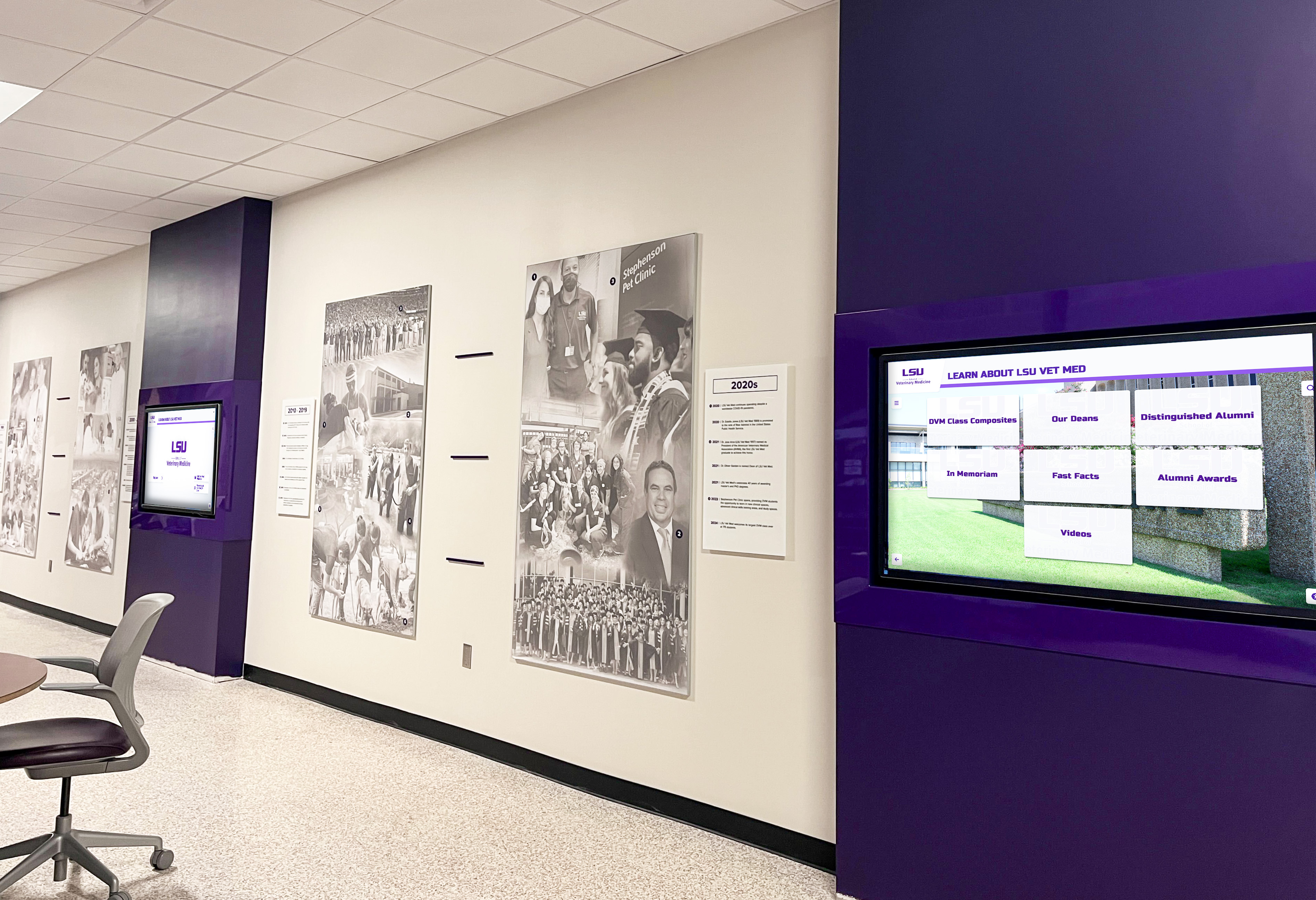
Large-format displays in institutional hallways work best when sized for actual viewing distances—not for what looks most impressive in a product catalog photo
Protective Glass, Enclosures, and Mounting
Interactive displays in high-traffic public areas benefit from protective tempered glass overlays that resist surface scratches and reduce glare. Some manufacturers integrate protective glass into the display design; others offer it as an add-on.
Mounting options include flush wall mounting, tilted mounting (angling the screen toward viewers at a lower angle for accessibility), floor stands, and freestanding kiosk enclosures. The mounting decision affects both the ADA compliance of the installation and how the display integrates visually with the surrounding space. An enclosure that matches institutional branding and architectural materials does more to encourage visitor engagement than a bare screen on a basic mount.
Software: What the Content Management Layer Does
Hardware is visible. Software is invisible until it fails—or until it becomes clear that it was poorly chosen for the actual content workflow. The software layer in interactive digital signage handles everything that determines what visitors see and how they navigate it.
Cloud-Based Content Management Systems
Most modern interactive signage platforms deliver content management through a cloud-based web interface. Authorized staff members log in from any browser, add content, upload images, edit entries, and publish updates—without visiting the physical display location or installing any local software.
For schools and organizations with limited IT staffing, this matters operationally. A coach who wants to update a broken athletic record, a development officer adding a new donor tier, or an alumni director uploading a new inductee’s photo can each handle their content without IT department involvement—if the platform is designed for that workflow.
How interactive touch screen displays in schools support recognition and storytelling goals describes how cloud-managed content enables non-technical staff to keep display content accurate and current year-round—one of the operational differences between purpose-built recognition platforms and general-purpose signage software.
Slide-Based vs. Database-Driven Content Models
Two fundamentally different approaches to content organization exist within interactive signage software, and the distinction determines what visitors can do with the content.
Slide-based systems organize content as discrete pages. Content contributors upload images or build slides using drag-and-drop tools. This works well for announcement-type content—schedules, event promotions, news items—where each piece of content is self-contained.
Database-driven systems organize content as records with structured fields. An athlete’s profile is a record with fields for name, sport, graduation year, career statistics, photos, and biographical text. A donor’s entry has fields for name, gift tier, campaign year, and tribute information. When content exists as structured records, visitors can search and filter—finding the specific person they came to see rather than scrolling through a slideshow that may cycle through 200 slides before reaching the right one.
For recognition applications—athletic halls of fame, donor walls, academic honor displays—the database-driven approach is meaningfully more functional for visitors. Replicating search and filter behavior in a slide-based system requires significant ongoing manual effort and still delivers a worse visitor experience.
User Access Roles and Content Permissions
Athletic departments, advancement offices, and alumni relations teams often manage different content within the same display. Effective interactive signage software separates user access by role:
- Athletic staff can update records, season results, and inductee profiles
- Development staff can manage donor recognition tiers and campaign acknowledgments
- Administrators can control display settings and publish or unpublish content sections
- IT staff can access system configuration without touching content
Without role separation, either all contributors have full administrative access (a security and content integrity risk) or one designated person handles every update (an operational bottleneck).
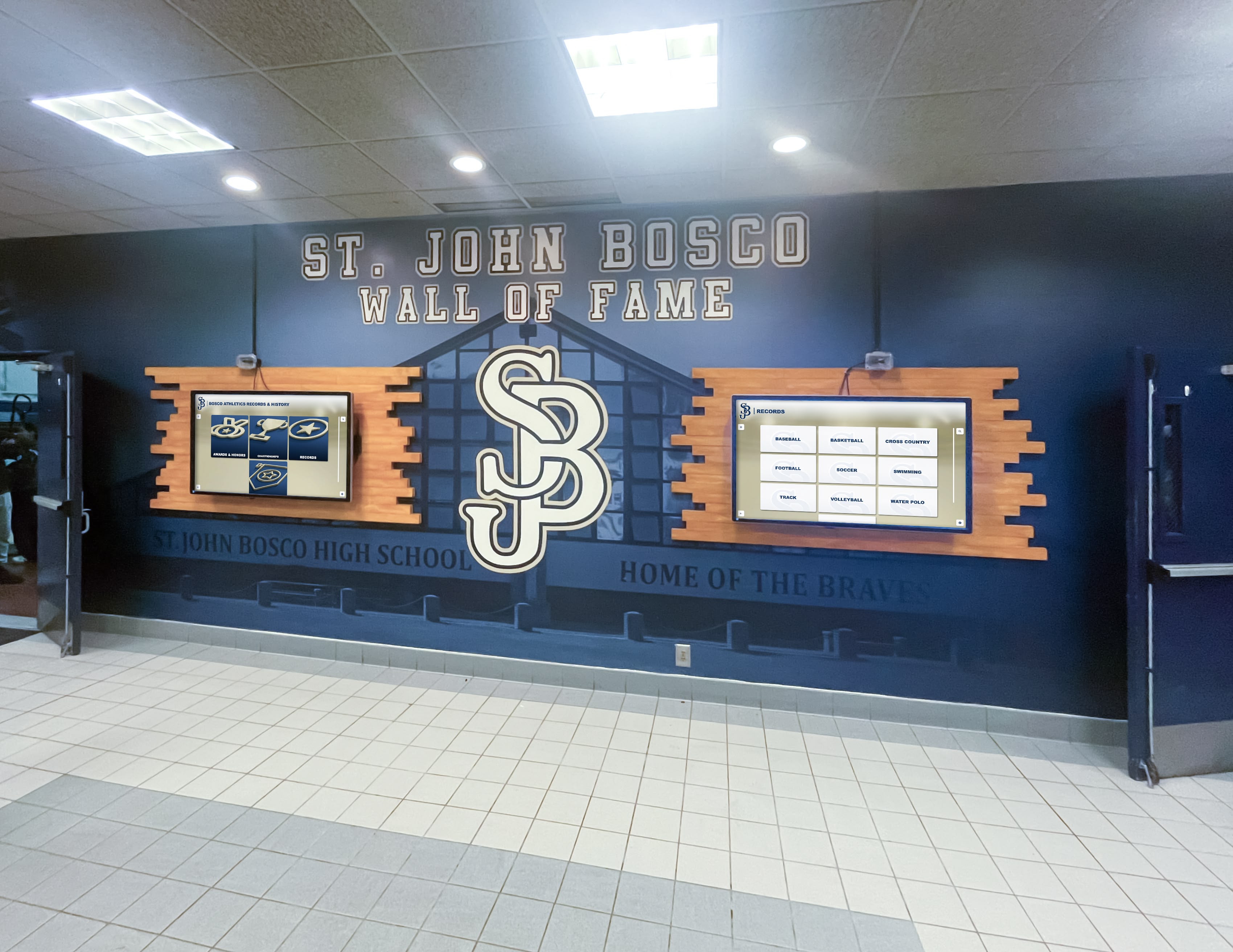
Multi-screen installations work best when content management responsibilities are clearly assigned and role-based access prevents unauthorized changes
Accessibility and Compliance Requirements
Interactive touch screen digital signage installed in public-facing institutional spaces must meet accessibility standards that govern both the physical installation and the software interface.
ADA Physical Accessibility Standards
The Americans with Disabilities Act Standards for Accessible Design specify that operable components—anything a user touches or activates—must fall within a reachable range for wheelchair users. Side-reach requirements place operable elements between 15 and 48 inches from the floor.
For interactive touchscreen displays, the primary interactive zone—where visitors tap to navigate—must fall within this height range to serve all users. A 75" display mounted so the bottom of the screen is at 24" positions its center at roughly 65 inches from the floor, well above the ADA reach range for a seated user.
Practical solutions include tilting displays outward at lower mounting heights, positioning kiosk enclosures with touch surfaces at accessible heights, and providing alternative access through QR codes or web-based versions of display content. Any installation in a public-facing institutional space should address ADA reach requirements explicitly before hardware is ordered, not as an afterthought after mounting is complete.
Complete guides to interactive display solutions for schools include ADA mounting considerations alongside general interactive signage requirements—a practical reference for facilities teams managing compliance across multiple installation locations.
WCAG 2.1 AA for the Software Interface
The Web Content Accessibility Guidelines (WCAG) 2.1 Level AA apply to the software interface presented on the display. Key requirements relevant to interactive signage include:
- Contrast ratios: Text must meet 4.5:1 against its background for normal-size text and 3:1 for large text
- Touch target sizing: Interactive elements—buttons, navigation tiles, profile cards—must be large enough for users with limited fine motor control to activate without inadvertently triggering adjacent elements
- Alternative access: Content available only through direct touch interaction may exclude users who cannot physically operate the touchscreen
Request WCAG documentation from vendors rather than relying on marketing language. Platforms that have undergone formal accessibility testing can provide conformance reports; those that haven’t may assert compliance without any documented evidence to support the claim.
Use Cases: Where Interactive Touch Screen Digital Signage Works
The technology is general-purpose. The use cases that institutions deploy it for vary, and the features you need depend heavily on which application you’re planning.
Athletic Halls of Fame and Honor Walls
Athletic hall of fame displays are among the most demanding recognition use cases for interactive signage. A program with 30 or more years of inductions may have hundreds of inductee profiles across dozens of sports. Visitors arrive specifically to find a particular person—a grandparent, a former coach, a player they remember from a championship season—and they need to reach that profile quickly.
Effective athletic hall of fame software organizes inductees in a searchable database by name, sport, graduation year, and induction class. Touch navigation allows a visitor to find a specific athlete’s profile in seconds rather than waiting through a slideshow rotation that may take minutes to cycle back to the right entry.
Solutions like Rocket Alumni Solutions are built for exactly this use case—structured athlete profiles, sport-level filtering, year-based navigation, and a content management workflow designed for athletic directors and administrative staff who add inductees during annual induction seasons. Explore how Rocket Alumni Solutions serves recognition programs to see how purpose-built recognition software handles the specific content structures that general-purpose digital signage platforms don’t include natively.
What touchscreen kiosks in school lobbies and recognition walls need to include covers the specific requirements for school-focused recognition displays in athletic facilities—useful reading for programs comparing general and purpose-built options.
Donor Recognition Walls
Interactive donor recognition displays work similarly to hall of fame systems, but the content structure focuses on gift tiers, campaign acknowledgment, and tribute information. A single display can recognize hundreds or thousands of donors with individual profiles, photos, and impact statements—content volume that would fill walls with traditional plaques in most school facilities.
The interactive component matters for donor relations. A major gift donor who visits campus expects to see their name displayed prominently and find their profile quickly. A searchable database that surfaces a donor’s name in seconds, alongside a profile that includes their tribute statement and associated campaign, delivers a recognition experience that static physical plaques cannot replicate at scale.
In-depth coverage of donor recognition display options for institutional programs addresses the specific requirements for institutional donor recognition through digital displays—relevant for development offices evaluating how to honor campaign contributors when physical plaque space is exhausted.
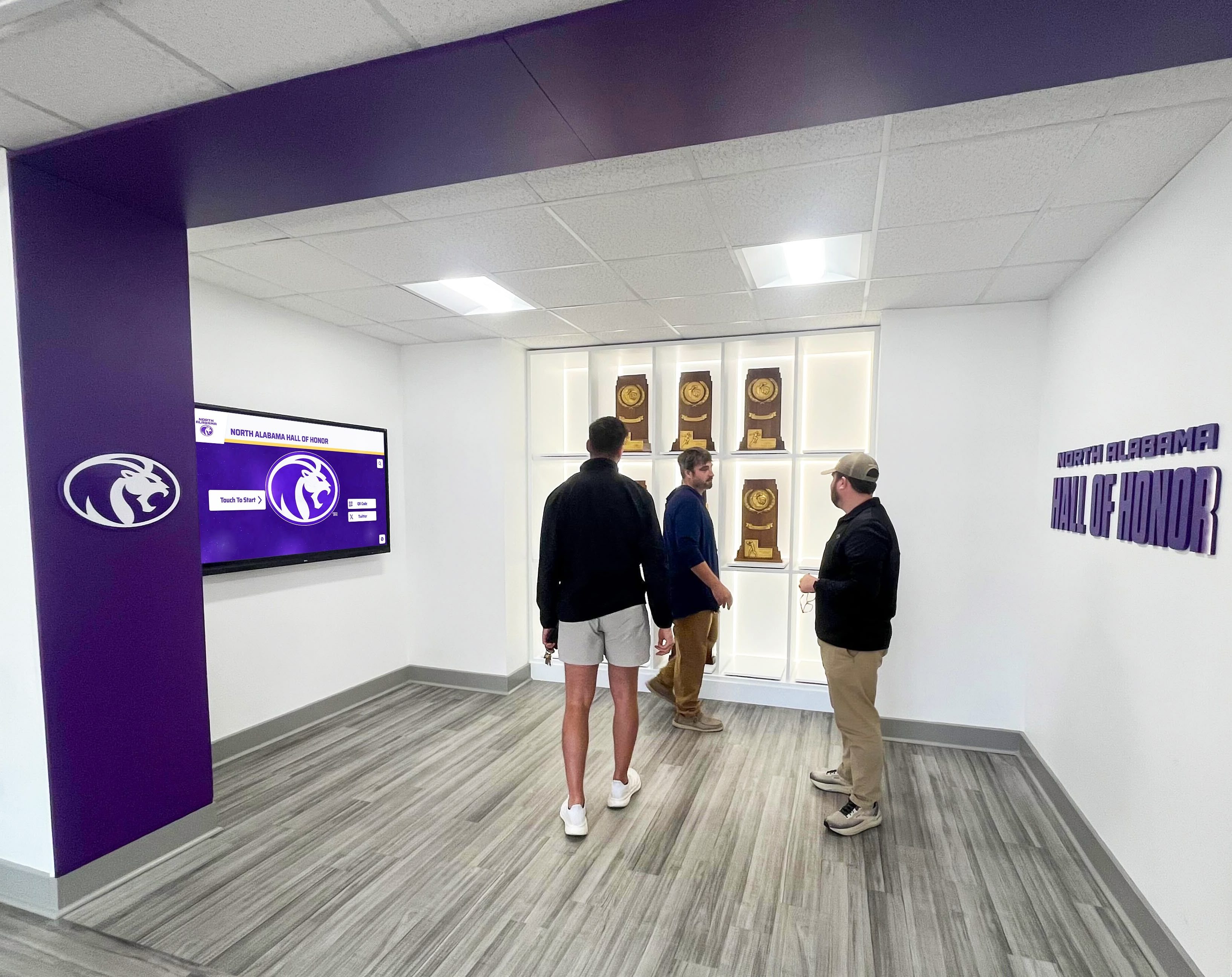
Athletic halls of honor and trophy recognition spaces serve visitors who arrive specifically looking for named individuals—interactive search is the functional difference between a display that serves them and one that doesn't
Campus Directories and Wayfinding
Building directories and campus maps represent a common interactive signage application with a simpler content model. Visitors search for faculty offices, event spaces, or department locations—the interaction model is a search field and a floor plan view. The key requirement is the same as for recognition applications: staff need cloud-based access to update directory information when personnel or room assignments change.
How interactive campus storytelling works in admissions tour environments describes how schools extend the use of interactive displays into prospective student engagement—presenting campus history, student achievement, and program information in a self-directed format that serves families arriving for tours outside scheduled windows.
Events and Scheduled Programs
Sports events, alumni weekends, and community functions create specific interactive signage opportunities. Event-focused kiosks can present schedules, facility maps, sponsor acknowledgment, and program information that visitors navigate independently—reducing demands on staff at busy event check-in areas.
How touchscreen kiosks serve event functions and interactive technology needs outlines the operational requirements for event-mode interactive signage, including content switching for event day and returning to standard display operation afterward.
Installation, Power, and Network Requirements
Interactive digital signage requires more than a screen on a wall. Three infrastructure dimensions affect whether an installation performs reliably or creates recurring problems.
Electrical Power
Commercial interactive displays draw between 150 and 500 watts depending on size and panel technology. The installation location needs adequate electrical service for the load—shared wall outlets that power other equipment can introduce voltage fluctuations that affect display performance and shorten component lifespan. A licensed electrician should assess each installation location before hardware is ordered to confirm circuit capacity and placement.
Freestanding kiosk enclosures may also require power for internal ventilation fans, which are common in enclosed enclosures where heat management is a concern.
Network Connectivity
Cloud-based content management requires a reliable network connection from the display to the internet. Options include wired Ethernet (more stable, the preferred choice for high-reliability installations), wireless Wi-Fi (adequate in most institutional environments with consistent signal), and cellular data (used when network infrastructure doesn’t reach the installation location).
IT teams configuring network access for interactive displays should verify that the content management platform’s domains and IP ranges are not blocked by institutional firewall rules—a common oversight that surfaces only after hardware is mounted and the display fails to pull content updates.
Technical requirements for touchscreen kiosk displays in school lobbies and hallways covers network and power considerations for institutional installations, including common configuration issues that appear during commissioning when infrastructure assumptions don’t match the actual installation environment.
Professional vs. In-House Installation
Most interactive digital signage vendors supply display hardware and software, with physical installation handled by the vendor’s team, a contracted AV integrator, or the institution’s facilities department.
Wall mounting a 75" or 86" commercial display requires hardware rated for display weight—commercial displays at these sizes commonly weigh 100 to 200 pounds. Improper mounting creates genuine safety risks. AV integrators familiar with commercial display installation understand load ratings, wall stud spacing, cable management, and power routing in ways that general facilities staff without AV-specific experience may not. For a lobby installation that represents a meaningful capital investment, professional installation protects both the hardware and the institution.
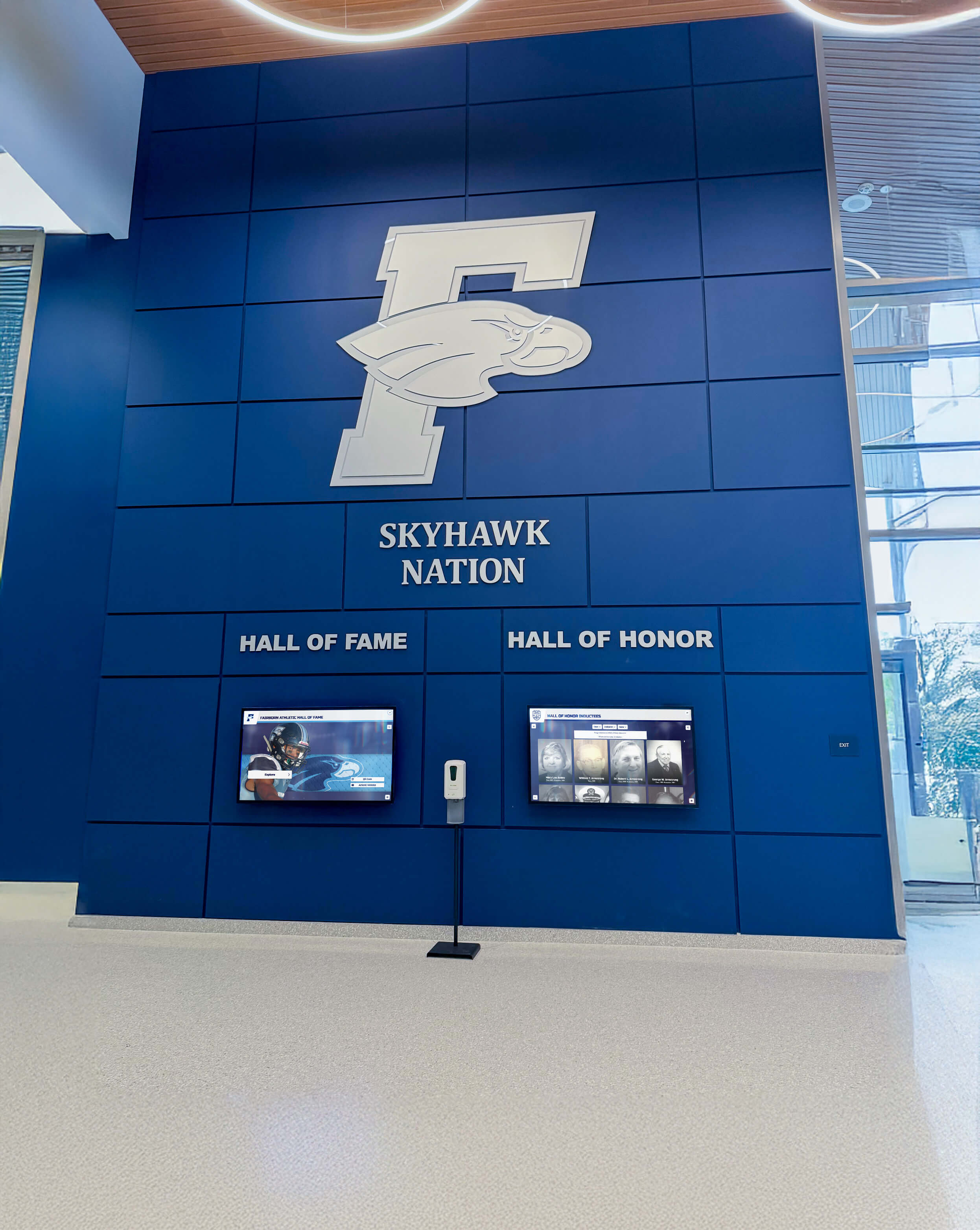
Lobby installations succeed when mounting, cable management, and display placement are planned together with the physical space design—not treated as afterthoughts once hardware arrives
QR Codes and Mobile Access: Extending the Display Beyond the Lobby
An interactive display in a lobby serves visitors who are physically present. QR codes displayed on or adjacent to the touchscreen extend the same content to mobile devices, reaching community members who can’t visit in person.
When a visiting alumni parent scans a QR code at halftime of a homecoming game, they should see the same interactive content available on the lobby display—searchable inductees, donor recognition, school history—on their phone. If the mobile experience shows different or less content than the physical display, the QR code delivers a diminished experience that doesn’t serve the recognition program’s goals.
Questions to ask vendors before committing to a platform:
- Is QR code and mobile access included in standard platform pricing, or priced separately?
- Does the mobile experience present real-time content matching the physical display, or a cached version from when the display was configured?
- Is the mobile interface WCAG 2.1 AA compliant for screen reader and assistive technology users?
- Can visitors share links to specific inductee or donor profiles from the mobile experience?
A QR code that leads to a static PDF or a generic homepage rather than the actual interactive content is not a functional mobile extension—it’s a broken promise to visitors who made the effort to scan.
Evaluating Interactive Signage Platforms: A Practical Framework
Choosing the right interactive touch screen digital signage system requires evaluating hardware, software, accessibility, and support together—not in isolation. Attractive hardware paired with a CMS that creates ongoing friction for staff may cost less upfront but more in operational time over a three-to-five-year contract.
Detailed buyer’s guides for interactive kiosk systems in schools and universities provide comparison frameworks for institutional buyers evaluating multiple vendor proposals with different hardware, software, and pricing structures.
Questions to Ask Before Buying
Hardware:
- What is the display’s rated brightness in nits, and does it match the installation environment?
- What is the rated daily operating hours—is it designed for continuous or limited-hour use?
- What touch technology is used—PCAP or IR—and does it perform adequately with the user population expected?
- What warranty coverage is included on display hardware, and what does the warranty service process require?
Software:
- Is the content management system cloud-based and accessible from any browser without local software installation?
- Does the platform use a slide-based or database-driven content model?
- What user access roles are available, and how granular is the permission system?
- Is content data exportable in standard formats if we change platforms in the future?
Accessibility:
- Has the software interface been formally tested against WCAG 2.1 AA requirements?
- Is written documentation of accessibility conformance available to review before purchase?
- Does the platform support QR code or web-based alternative access for users who cannot operate the physical touchscreen?
Support and Ongoing Costs:
- What does technical support include—phone, email, ticket system—and what are the response time commitments?
- What is the typical contract length, and what happens to content data at contract end?
- Are software updates included in the licensing fee, or billed separately?
Total Cost of Ownership
Initial costs include hardware, software licensing, installation, and content creation. Ongoing costs include software subscription or license renewal, staff time for content management, periodic hardware maintenance, and eventual display replacement at end of hardware lifespan (commonly 7 to 10 years for commercial-grade displays).
A system priced attractively at installation but requiring significant weekly staff time to keep content current may cost more over its lifecycle than a higher-upfront system with minimal operational demands. Evaluating proposals on total cost over a realistic period—three to five years—often changes the ranking among options.
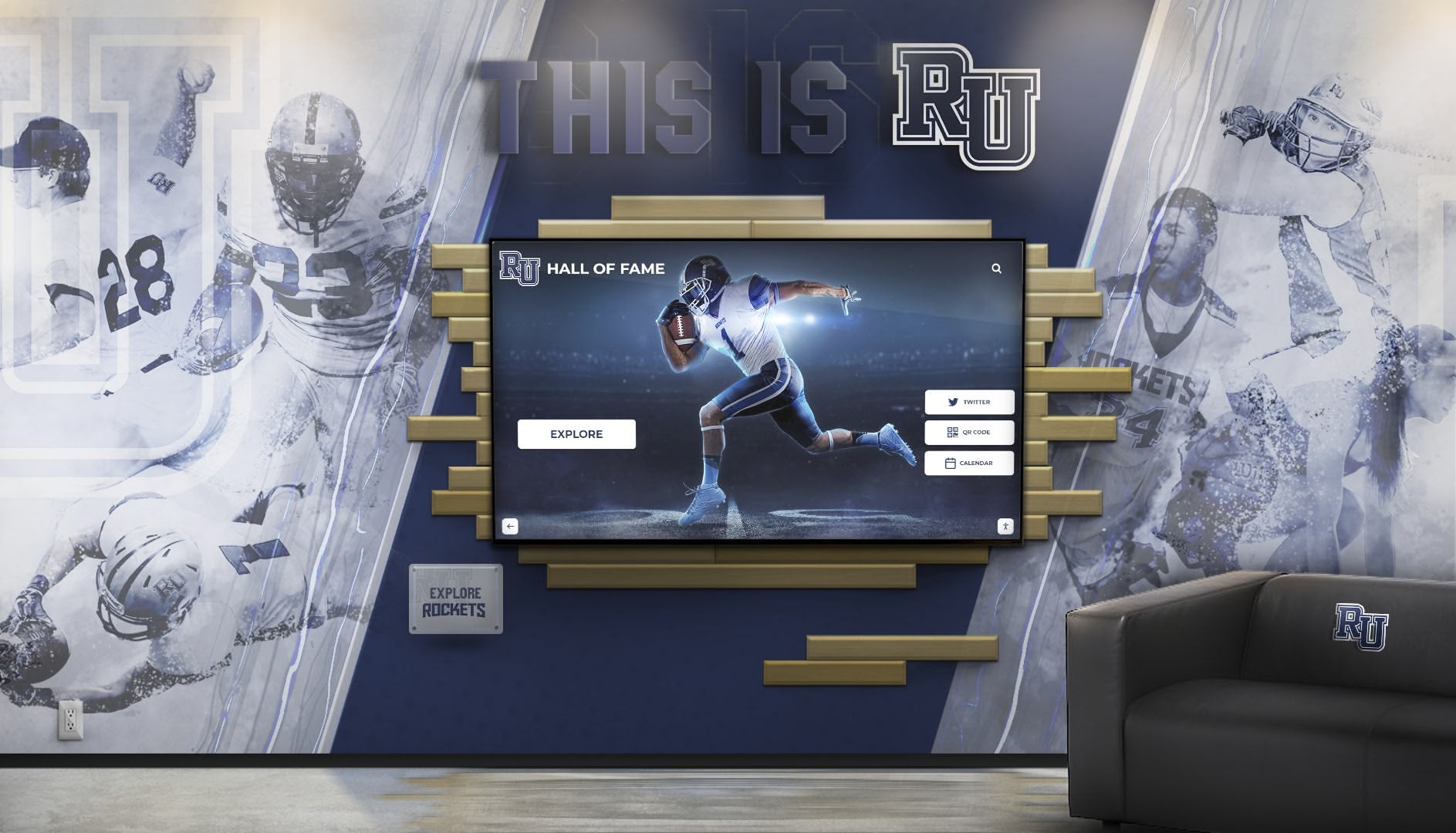
Purpose-built recognition platforms reduce ongoing staff time by organizing content in structured formats that match how recognition programs actually operate—adding an inductee or updating a record is a matter of minutes, not hours
Frequently Asked Questions
What is the difference between interactive digital signage and standard digital signage?
Standard digital signage displays content in a timed rotation without accepting visitor input—images, videos, and announcements cycle automatically. Interactive digital signage accepts touch input, allowing visitors to navigate content, search databases, view profiles, and self-direct their experience. The hardware difference is the touch detection layer (PCAP or IR) that passive displays don’t include. The software difference is a CMS designed around navigable content rather than sequenced playlists.
What hardware do I need for an interactive touch screen digital signage installation?
A complete installation requires a commercial-grade interactive touchscreen display (commonly 55" to 86"), a media player or internal computing module to run the software, a mounting structure (wall mount, tilt mount, or kiosk enclosure), appropriate electrical service, and a network connection. Some platforms include the media player integrated into the display; others supply it as a separate unit. Verify what each vendor’s hardware package includes before comparing prices.
How much does interactive touch screen digital signage cost?
Costs vary significantly based on display size, touch technology, software platform, and installation complexity. A single-display installation with a 65" commercial touchscreen, platform software, and professional mounting commonly ranges from $8,000 to $20,000 or more for initial setup, with ongoing software licensing varying by platform and feature set. Obtain itemized quotes that separate hardware, software, installation, and support costs to compare proposals accurately.
What size display should I choose for a school lobby?
For most school lobbies and athletic facility entrances, 65" is the most practical starting point—readable at standard lobby viewing distances, available from most commercial vendors, and manageable in terms of weight for wall mounting. Programs with large lobbies and high ceilings often select 75" or 86" to maintain visual presence across greater viewing distances and compete with surrounding architectural elements.
Do interactive touchscreen displays work outdoors or in semi-outdoor spaces?
Standard commercial interactive displays are designed for climate-controlled indoor environments. Outdoor or semi-outdoor installations—covered entry areas, open-air atriums—require displays with higher brightness ratings (1000+ nits to manage ambient light), sealed enclosures rated for temperature and moisture ranges, and touch technology tested in those environmental conditions. These installations cost more and require specialized hardware selection. A standard commercial display installed in an environment it was not designed for will likely fail prematurely.
What happens to our display content if we change software platforms?
Request data portability terms in the contract before signing. Platforms that organize content as structured records—athlete profiles, donor entries, event histories—can typically export that content in standard formats (CSV for tabular data, standard image formats for photos). Platforms that store content as vendor-formatted slides often don’t offer clean export options. Verify export capabilities specifically before committing to a long-term agreement.
How long does initial content setup take?
Initial setup time depends on how much historical content exists and in what format. Programs importing well-organized digital records can typically configure a platform and complete initial content entry over several weeks of part-time effort. Programs that are digitizing physical records—from plaques, yearbooks, or paper archives—require more time, but the process also produces a permanent digital archive that serves recognition goals beyond the display itself.
Interactive touch screen digital signage that serves visitors well results from hardware rated for the environment and operating demands, software that organizes content in a format visitors can navigate, and an installation that places interactive elements within reach of all users. Addressing each of these dimensions before purchase produces systems that serve institutional programs for years without becoming maintenance problems.
For recognition-focused applications in schools, universities, and community organizations, Book a demo with Rocket Alumni Solutions to see how purpose-built recognition software compares to general-purpose interactive signage for the specific needs of athletic halls of fame, donor walls, and academic recognition programs.