Intent: decide — this guide helps school administrators, athletic directors, advancement teams, and communications staff evaluate interactive school directory systems, compare deployment scopes, and choose the right combination of wayfinding, staff listings, and recognition content for their campus.
An interactive school directory is a touchscreen kiosk or wall-mounted panel that combines campus wayfinding maps, searchable staff and department listings, hall of fame profiles, award archives, and donor recognition in a single cloud-managed display. Schools deploy them in lobbies, front offices, athletic hallways, and near trophy cases to orient first-time visitors, replace perpetually outdated static boards, and surface student and alumni achievements to every person who walks through the building.
Unlike a printed directory under glass or a PDF floor plan taped to a wall, an interactive directory is updated remotely through a browser-based content management system (CMS). Staff changes, room reassignments, new inductees, and fresh award content reach the screen within minutes — without printing, laminating, or calling a vendor.
This guide covers every dimension of the purchasing decision: what modules to expect, a feature checklist for RFP or vendor comparison, a table contrasting directory-only, recognition-only, and combined deployments, a step-by-step deployment roadmap, and a FAQ section addressing the questions school teams ask most often.
Schools that invest in interactive directories most often do so after a specific pain point becomes impossible to ignore: a new principal’s name is still on the lobby board six months after the previous one left, a visiting parent cannot find the counseling suite without flagging down a staff member, or an alumni donor walks past a trophy case full of plaques with no photos and no biographical context. Any one of these situations points to the same underlying problem — a static information environment that cannot keep pace with a living institution.
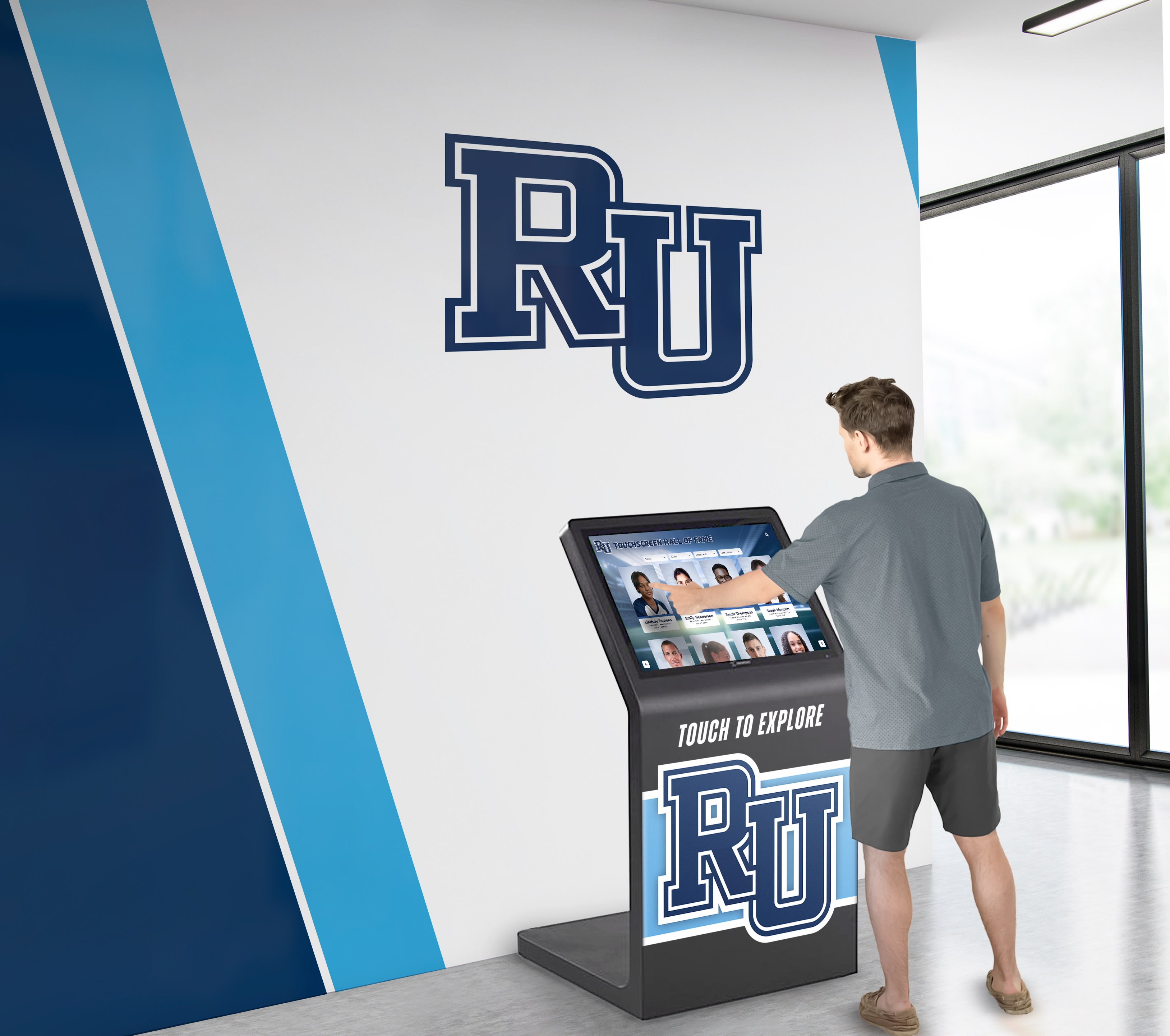
A well-placed interactive school directory orients visitors, surfaces recognition content, and replaces the perpetually outdated static boards found in most K-12 lobbies
Why Static Directories Fail Schools
A printed staff directory is accurate on the day it is published. From that moment forward, it decays. The average K-12 school sees staff turnover affecting 15–25% of listings annually. Room assignments shift when departments reorganize. Phone extensions change when systems upgrade. New counselors, athletic coaches, and department chairs join mid-year with no board entry.
Every outdated listing creates a small friction point. Multiply those friction points across thousands of annual visitors — prospective families, substitute teachers, community volunteers, college recruiters, alumni — and the cumulative cost in lost impressions and wasted staff time is substantial.
Recognition boards face the same problem at a slower pace. Vinyl lettering and individual plaques cost $50–$200 each to install. Adding a new athletic inductee or scholarship recipient to a physical wall requires vendor coordination, installation scheduling, and sometimes repainting. Schools often delay additions until enough names accumulate to justify the expense, creating a recognition gap that undermines the program’s purpose.
Interactive touchscreen directories resolve both problems simultaneously. Content lives in a cloud-based CMS; hardware is a passive display that renders whatever the CMS holds. Updating a staff photo, adding a hall of fame profile, or posting a new floor plan is a browser task, not a facilities project.
What an Interactive School Directory Includes
Not every deployment looks alike. A touchscreen directory can be a focused staff-and-map system, a deep recognition archive, or a campus information hub combining both. Understanding the available modules helps administrators scope the project and write an accurate RFP.
Campus Wayfinding Maps
Interactive wayfinding gives visitors a self-service answer to “where do I go?” Key capabilities:
- Clickable floor plans — visitors tap a department, office, or room number to see a highlighted path
- Multi-floor and multi-building support for campuses with more than one structure
- QR code export so visitors can pull directions to their mobile device
- ADA-compliant route options displayed separately from standard routes
- Room availability integration where scheduling systems allow it
Staff and Department Listings
Staff directories are typically the primary driver of purchase for front office and administrative teams:
- Photo-driven profiles with name, title, department, phone extension, and email
- Search and filter by department, role, or keyword — no scrolling through alphabetical lists
- Bulk-import and sync from existing HR platforms or student information systems (SIS)
- Role-based CMS access so individual department leads update their own listings
- FERPA-compliant field controls defining which data is public-facing
Recognition and Awards Content
Recognition content transforms a utilitarian wayfinding screen into a point of institutional pride. This layer covers:
- Hall of fame inductee profiles with full biographical detail, career highlights, and photos
- Athletic record boards showing current season leaders and all-time records
- Academic honor rolls listing students with GPA distinctions, NHS membership, or scholarship awards
- Team histories and championship archives organized by sport, year, or program
- Fine arts and performing arts recognition for band, theater, and dance programs
Schools that have built structured recognition programs for student athletes — including the data and narrative context behind each achievement — will find that content transfers directly into an interactive directory format. The guide to helping student athletes earn recognition covers how to build that documentation systematically.
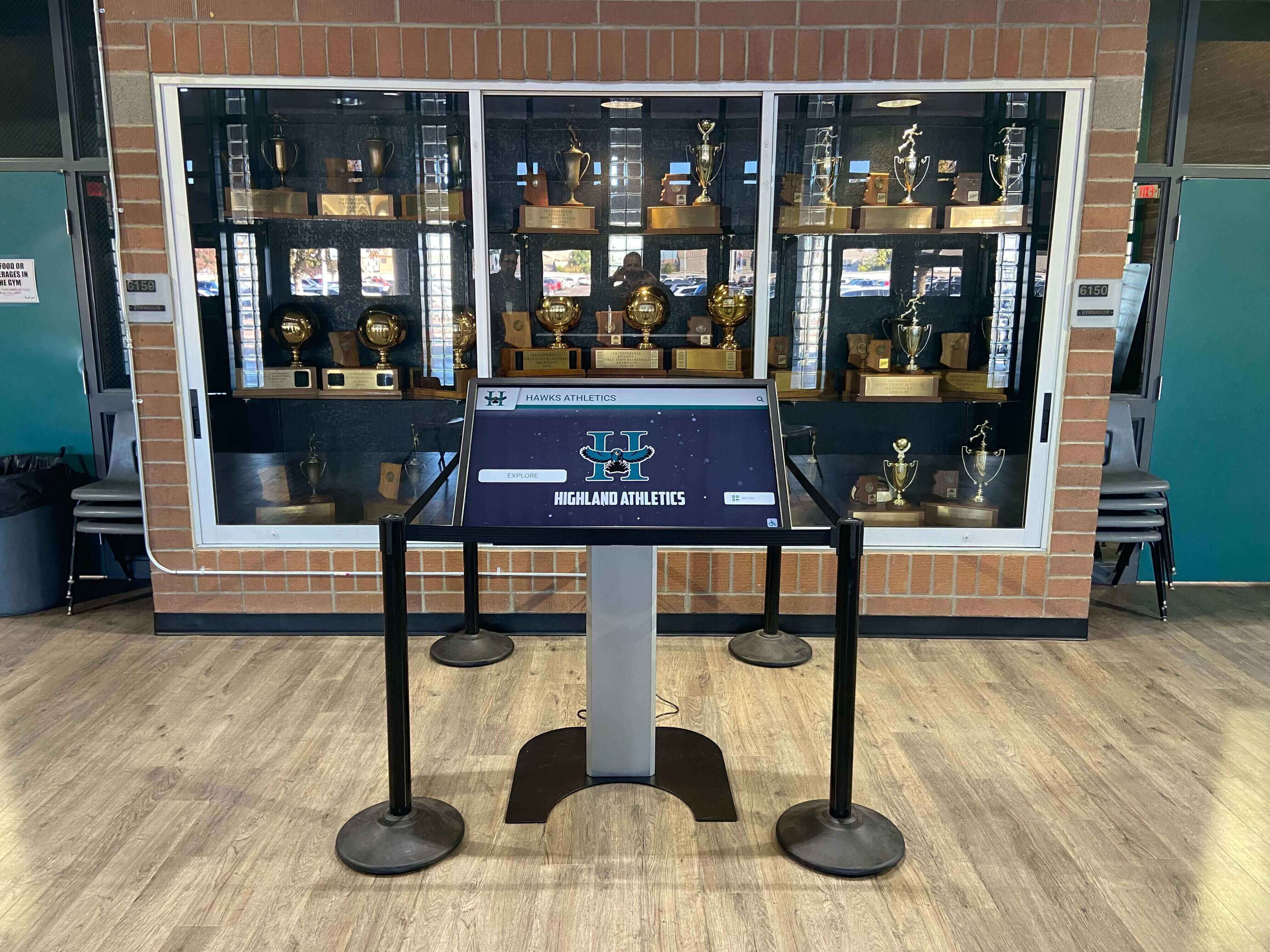
Recognition modules surface athletic achievements, team histories, and individual award content alongside directory wayfinding on shared hardware
Donor Recognition and Alumni Sections
Advancement teams and alumni offices use these modules to replace or supplement static donor walls:
- Named donor panels organized by giving tier, campaign, or named fund
- Alumni spotlight profiles with career highlights, graduation year, and headshot
- Endowment and scholarship naming with fund description and recipient history
- Campaign progress displays for capital campaigns or annual fund drives
Schools planning awards ceremonies and recognition events often discover that the structured data prepared for an annual ceremony is the same content that populates an interactive directory’s recognition modules — creating an efficient content workflow across both channels.
Feature Checklist for Evaluating Interactive School Directories
Use this checklist when comparing platforms, writing an RFP, or conducting vendor demos. Check each capability your school requires:
Content Management
- Cloud-based CMS with remote update capability from any browser
- Role-based access so multiple departments manage independent sections
- Bulk-import or API sync with HR, SIS, or athletic database platforms
- Version history and content rollback
- Scheduled publishing for announcements, events, and seasonal content
Wayfinding
- Interactive floor plan with tap-to-navigate room lookup
- QR code or mobile export for visitor self-navigation
- Multi-building and multi-floor support
- ADA-accessible route highlighting separate from standard paths
Staff Directory
- Photo-driven profiles with full contact detail fields
- Full-text search and department filter
- Department group pages with shared contact info
- Privacy and FERPA field controls for sensitive staff data
Recognition Content
- Hall of fame profiles with unlimited entries (no per-record fee)
- Auto-ranking athletic record boards
- Photo and video upload support for inductee and award content
- Academic, fine arts, and performing arts recognition modules (not athletics only)
- Alumni and donor recognition sections
Hardware Compatibility
- Support for 55", 65", 75", and 86" commercial display sizes
- Portrait and landscape orientation options
- Wall-mount, floor-standing kiosk, and desk configurations
- Commercial-grade panels rated for 18/7 or 24/7 operation
Accessibility
- WCAG 2.1 AA compliance for text contrast and on-screen navigation
- ADA-compliant mounting guidance (max 48" reach range from floor)
- Sufficient tap target sizes for users with limited dexterity
- Screen reader or keyboard navigation support where applicable
Multi-Device Access
- Web-accessible version embeddable on the school website
- QR code linking to mobile view of directory content
- Content viewable on tablets and laptops for remote staff access
Support and Maintenance
- Vendor-managed software updates (no school IT action required)
- Remote diagnostics and uptime monitoring
- Defined response SLA for technical issues
- Onboarding training and ongoing support included in licensing
Comparing Directory-Only, Recognition-Only, and Combined Deployments
Schools evaluate three common scopes when entering the market. The table below contrasts the key factors for each:
| Factor | Directory-Only | Recognition-Only | Combined Directory + Recognition |
|---|---|---|---|
| Primary Use Case | Visitor orientation, staff lookup | Celebrating alumni, donors, athletes | Full campus engagement hub |
| Typical Buyer | Front office coordinator, IT | Athletic director, advancement office | Administrative leadership, communications |
| Content Update Cadence | Weekly to monthly (staff changes) | Annual or seasonal (new inductees) | Mixed: daily to annual depending on module |
| CMS Complexity | Low — names, photos, rooms | Medium — profiles, media, rankings | High — multiple departments, workflows |
| Recommended Display Size | 55"–65" wall mount or kiosk | 65"–86" lobby or trophy-case panel | 75"–86" high-traffic location |
| Content Ownership | Front office or registrar | Athletic director or alumni office | Multiple teams with role-based access |
| Visitor Engagement Type | Transactional — find and leave | Narrative — browse and explore | Both: navigation and discovery |
| ADA Priority | High — visitor accessibility critical | Moderate — typically in public lobby | High — dual audience, multiple heights |
| Integration Needs | HR/SIS sync beneficial | Photo archive, sports database | Both, plus optional event calendar or LMS |
| Relative Scope | Single module, focused | Single module, media-rich | Two or more modules on shared hardware |
Planning note: Schools that launch directory-only and intend to add recognition later typically spend 15–25% more in total than schools that plan for combined deployment from the start, because the second phase involves content migration, template reconfiguration, and sometimes hardware repositioning that could have been avoided with an integrated launch.
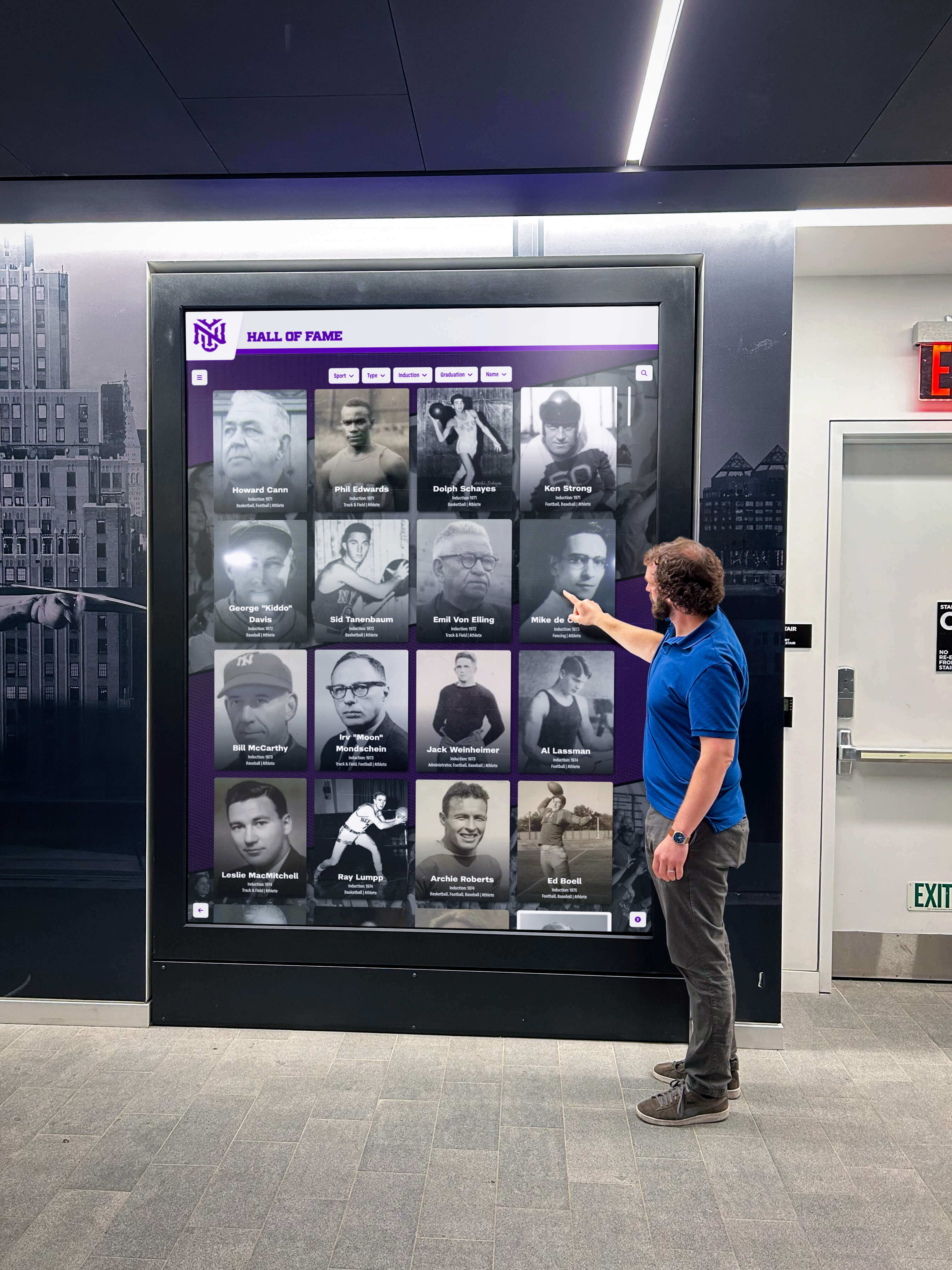
Combined deployments serve both first-time visitors looking for directions and returning alumni exploring recognition content on the same hardware
Steps to Plan and Deploy an Interactive School Directory
Step 1: Define Ownership Before Any Vendor Conversations
The most common reason directory projects stall after purchase is undefined content ownership. Before the first vendor demo, answer three questions in writing:
- Who approves content changes? Name a role, not an individual.
- Which department controls the budget? Front office, advancement, athletics, or shared?
- Who owns first-level troubleshooting? IT coordinator or the content-managing department lead?
Documenting these decisions prevents the “not my job” paralysis that leaves interactive displays showing day-one content for years.
Step 2: Audit Existing Content
Take inventory of what you already have before scoping the project:
- Current staff list: format, completeness, and photo availability
- Hall of fame records and athletic archives: spreadsheets, binders, or existing database
- Donor wall lists: any format — spreadsheet, database, or physical plaque transcriptions
- Floor plans: PDF, CAD, or scanned images
Content gaps are easier to close before a launch date than after go-live. Schools with structured recognition archives from programs like dance team and performance squad recognition can migrate that data directly into a recognition module with minimal reformatting.
Step 3: Choose Hardware and Location
Location determines hardware requirements. Front-office lobbies with natural light need higher-brightness panels (typically 700–1,000 nits). Athletic hallways with controlled fluorescent lighting are more forgiving. The best touchscreen displays for schools comparison evaluates eight commercial display options across the sizes and configurations schools deploy most often.
Key siting factors:
- Traffic flow — place where visitors naturally pause, not where they hurry past
- Wall construction — concrete and CMU walls require different anchoring than metal-stud drywall
- Network access — wired Ethernet outperforms WiFi for reliable CMS connectivity and video playback
- Electrical circuits — a dedicated circuit prevents interference and supports proper surge protection
- Viewing distance — a 75" panel is readable from 10–14 feet; a 55" panel suits closer, counter-depth interactions
Step 4: Establish a Content Governance Plan
Assign a named owner to every module before deployment:
| Module | Suggested Owner | Recommended Update Cadence |
|---|---|---|
| Staff directory | Front office coordinator | As staff changes occur |
| Campus map | IT coordinator or facilities manager | Per semester or as rooms change |
| Athletic hall of fame | Athletic director | Annually at induction ceremony |
| Donor recognition | Advancement director | Per campaign or quarterly |
| Academic honor roll | Registrar or principal designee | Per marking period |
| Fine arts / performing arts | Department lead | Per production or annually |
Platforms with role-based CMS access allow each owner to update their module independently without routing every change through a central IT queue. This reduces both lag time and IT workload.
Step 5: Configure, Test, and Launch
Before go-live:
- Populate a content baseline — at least 80% of staff profiles, floor plan, and one complete recognition section
- Test ADA reach and touch accuracy at the installed mounting height
- Brief all content owners on CMS access before turning the screen on publicly
- Add a QR code linking to the web-accessible directory version for visitors with mobility limitations
- Schedule a 30-day review to identify missing content, navigation gaps, and layout adjustments
A soft launch with front office staff using the system for a week before public unveiling catches most friction points without creating a visible failure in front of visitors.
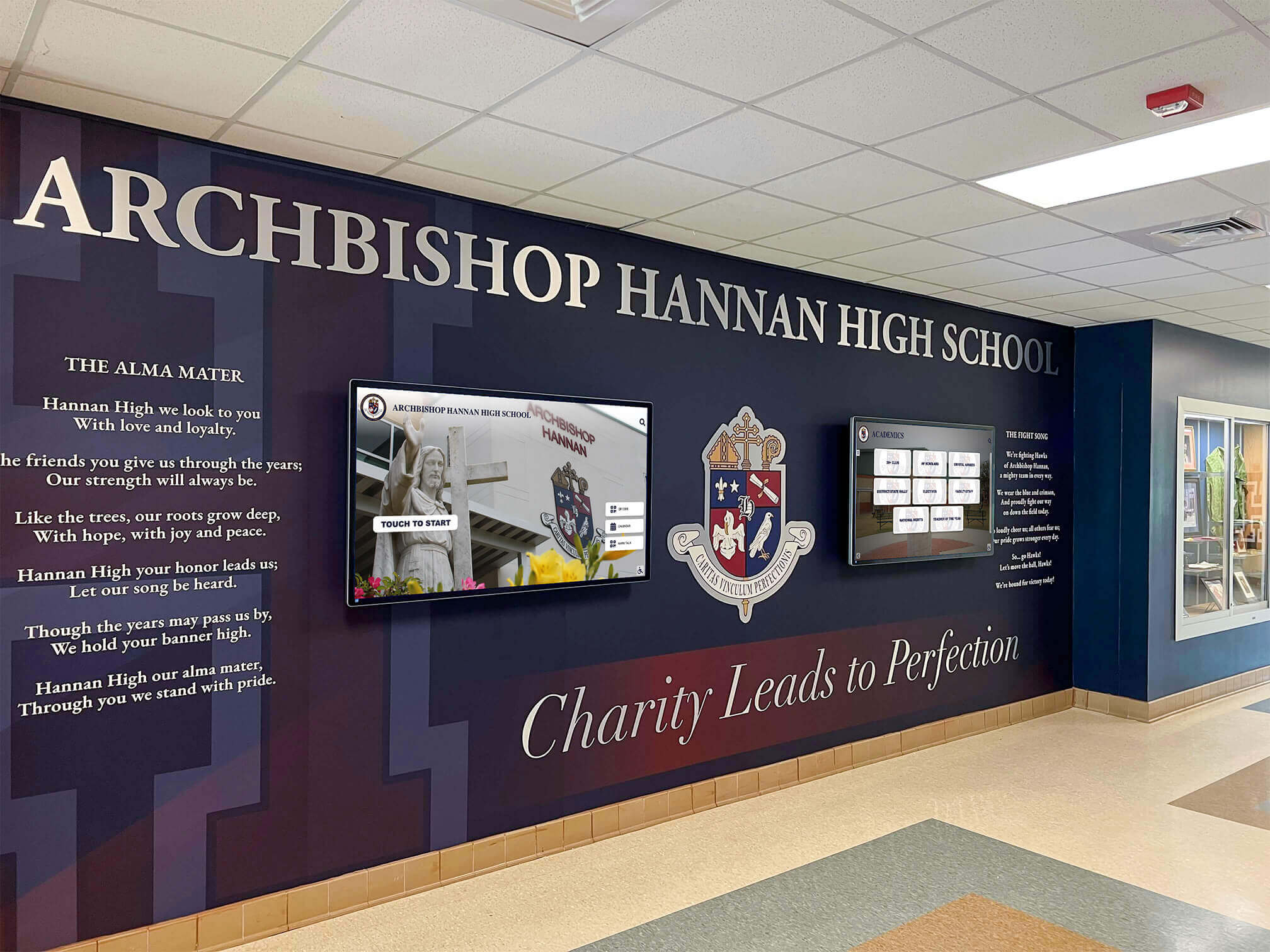
Effective lobby deployments integrate the interactive directory with existing architectural elements, murals, and trophy case displays rather than treating it as a standalone addition
Content Maintenance and Long-Term Ownership
Hardware lasts 7–10 years. Content freshness requires attention every week or month. The schools that sustain the highest engagement from their interactive directories treat content updates as a recurring workflow — not a one-time setup project.
Practices that prevent stale directories:
- Add directory updates to staff onboarding checklists so new hires appear on day one, not month three
- Tie hall of fame and award additions to the annual recognition calendar rather than waiting until the screen looks visibly outdated
- Include directory content review in back-to-school preparation alongside parent portal and handbook updates
- Designate a backup updater for each module so coverage survives vacations, leaves, and staff transitions
Platforms offering remote CMS access and granular role-based permissions — such as those provided by recognition-focused companies like Rocket Alumni Solutions — reduce the coordination burden by keeping each department’s content authoring within that department’s control. When the front office coordinator changes a title, the athletic director’s inductee profiles are unaffected, and the advancement team’s donor wall stays intact.
Frequently Asked Questions
What is an interactive school directory?
An interactive school directory is a touchscreen kiosk or wall-mounted display that lets visitors and students browse staff listings, view campus wayfinding maps, and explore recognition or achievement content. Unlike a static printed directory, it is managed through a cloud-based CMS and can be updated remotely without any changes to the hardware.
How is an interactive directory different from a visitor check-in kiosk?
Visitor check-in kiosks capture arrival data for safety logs and send host notifications to staff. Interactive directories are informational displays — visitors use them to find offices, look up staff contacts, and browse recognition content. Some platforms offer both modules on shared hardware; others are purpose-built for one function. The buying decision depends on whether visitor tracking or information access is the primary need.
Can a single touchscreen handle both wayfinding and recognition content?
Yes. Combined deployments on a single 75" or 86" panel are common in school lobbies that serve first-time visitors and returning alumni simultaneously. A home screen with clear module navigation lets each user type find their content without friction. Planning a combined deployment from the start is generally more cost-effective than adding recognition to a directory-only installation later.
Who manages content on an interactive school directory?
Ownership typically splits by module. Front office staff manage staff listings and maps. Athletic directors or alumni offices manage hall of fame and recognition content. Advancement offices manage donor walls. Academic coordinators manage honor roll sections. A platform with role-based CMS access allows each group to update their section independently, eliminating bottlenecks through central IT.
How long does deployment take from purchase to go-live?
A single-module deployment — staff directory or recognition wall — typically takes 4–8 weeks from purchase order to operational display, including site assessment, hardware delivery, mounting, software configuration, content migration, and staff training. Combined deployments with significant content migration from legacy formats typically run 8–12 weeks. Schools with structured digital archives and existing floor plans move faster than those starting from physical records.
What accessibility standards apply to school directory touchscreens?
ADA guidelines require forward-approach touchscreen reach ranges with a maximum height of 48 inches from the finished floor. WCAG 2.1 AA governs on-screen content: minimum text contrast ratios of 4.5:1, sufficient tap target sizes, and logical navigation structure. Schools in states with supplemental accessibility requirements should verify local code compliance before finalizing mounting specifications.