K-12 schools investing in interactive displays for classrooms face an increasingly complex procurement landscape where panel technologies, software capabilities, and mounting solutions converge to create vastly different user experiences and long-term value propositions. The right interactive display transforms teaching and learning through collaborative activities, multimedia integration, and student engagement—while poor choices result in frustrated teachers, underutilized technology, and wasted budgets.
Modern interactive classroom displays have evolved far beyond basic digital whiteboards. Today’s market offers diverse technologies: infrared touch panels providing reliable input at lower costs, capacitive touchscreens delivering smartphone-like responsiveness, and integrated computing eliminating external devices. Software ecosystems range from proprietary closed platforms to open Android systems supporting thousands of educational apps. Mounting decisions affect everything from classroom flexibility to accessibility compliance to long-term maintenance costs.
This comprehensive buyer’s guide examines how K-12 technology coordinators, administrators, and procurement teams evaluate interactive classroom displays across three critical dimensions—panel hardware, software platforms, and mounting solutions—providing frameworks for comparing options and selecting systems that serve teachers and students effectively throughout 5-10 year deployment lifecycles.
Successful interactive display deployments balance upfront costs with total cost of ownership, teacher training requirements with intuitive usability, and cutting-edge features with proven reliability. Understanding how these factors interact helps schools avoid common procurement pitfalls and select solutions delivering maximum educational impact per dollar invested.
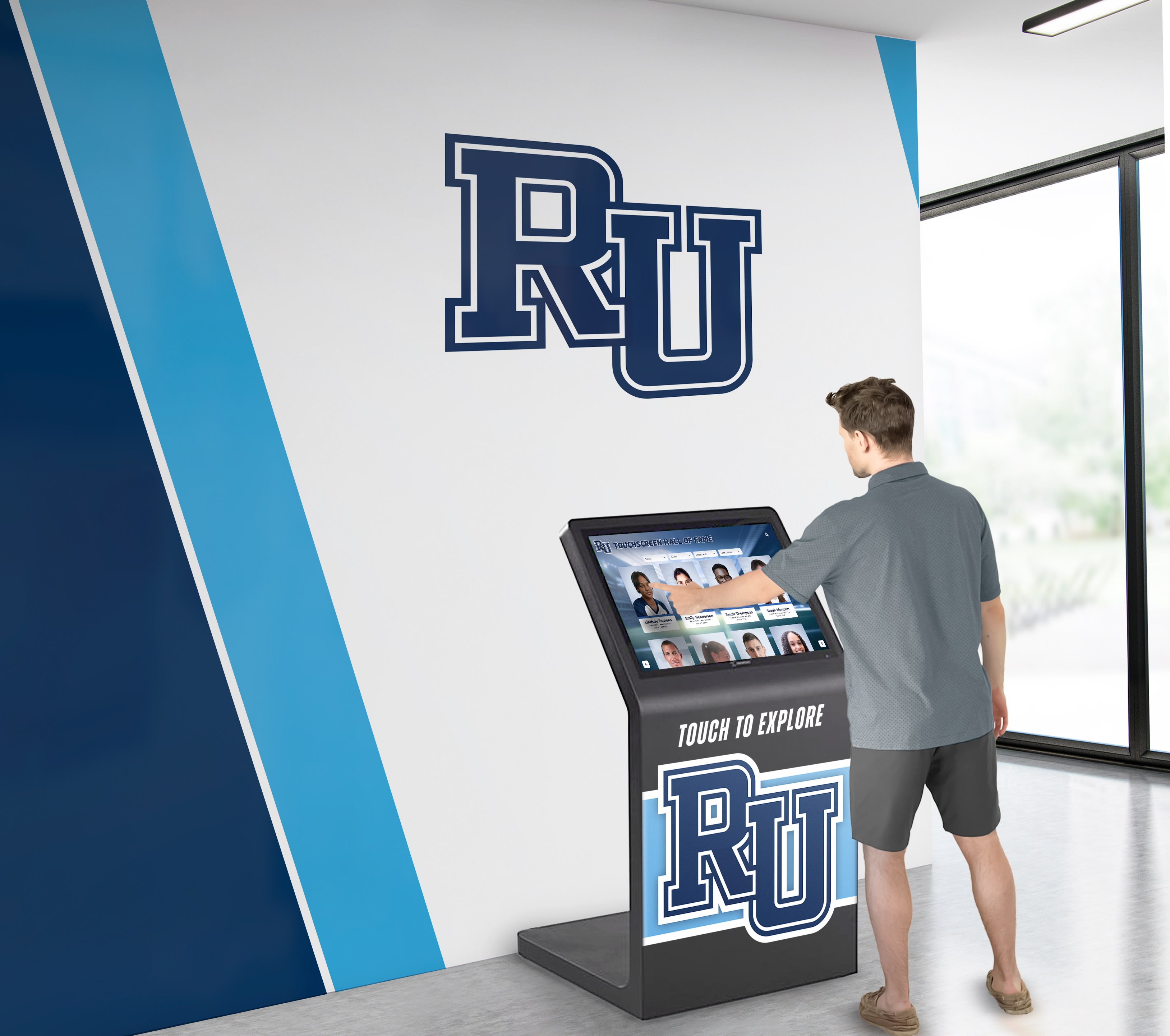
Effective interactive displays create intuitive experiences that engage the school community across multiple applications
Understanding Interactive Display Categories for K-12 Education
Before comparing specific products, understanding the fundamental technology categories helps schools frame appropriate expectations and identify solutions aligned with their instructional priorities.
Interactive Flat Panel Displays (IFPDs)
The most common interactive display category in modern K-12 classrooms combines large-format touchscreens with integrated computing:
Core Components
- 65" to 86" commercial-grade LCD displays with touch overlay technology
- Built-in computing (typically Android, Windows, or Chrome OS)
- Integrated speakers, microphones, and often front-facing cameras
- Multiple HDMI and USB inputs for device connectivity
- WiFi and ethernet network connectivity
- Proprietary or third-party interactive software
Educational Advantages
- All-in-one design simplifying installation and reducing cable clutter
- Touch-enabled collaboration supporting multiple simultaneous users
- Screen mirroring capabilities from student devices
- Annotation and whiteboarding across any content source
- Internet browser access to web-based educational resources
- App ecosystems supporting specialized instructional software
Typical Use Cases
- Elementary classrooms where teachers lead whole-class instruction with multimedia content
- Middle school environments emphasizing collaborative group work
- High school science labs displaying data, simulations, and lab procedures
- Media centers and libraries providing interactive research and presentation capabilities
- Common areas displaying school announcements and community information
Schools implementing comprehensive digital signage and interactive display strategies benefit from understanding how classroom displays integrate with broader technology ecosystems.
Interactive Projector Systems
Though declining in new installations, interactive projectors remain relevant in certain educational contexts:
Core Components
- Short-throw or ultra-short-throw projector
- Infrared or camera-based touch detection system
- Whiteboard surface (standard whiteboard or specialized projection screen)
- External computing device (typically teacher laptop or dedicated computer)
- Separate audio system in most cases
Advantages Over Flat Panels
- Larger display sizes possible (90"+ diagonal) at lower cost per inch
- No concern about screen damage since projection surface is replaceable
- Familiar whiteboard workflow for teachers accustomed to traditional boards
- Lower upfront hardware cost for comparable screen size
Limitations
- Ambient light washout in classrooms with large windows
- Lamp replacement costs and maintenance requirements
- Shadow interference when users stand near display surface
- Calibration drift requiring periodic adjustment
- Generally inferior touch responsiveness compared to capacitive flat panels
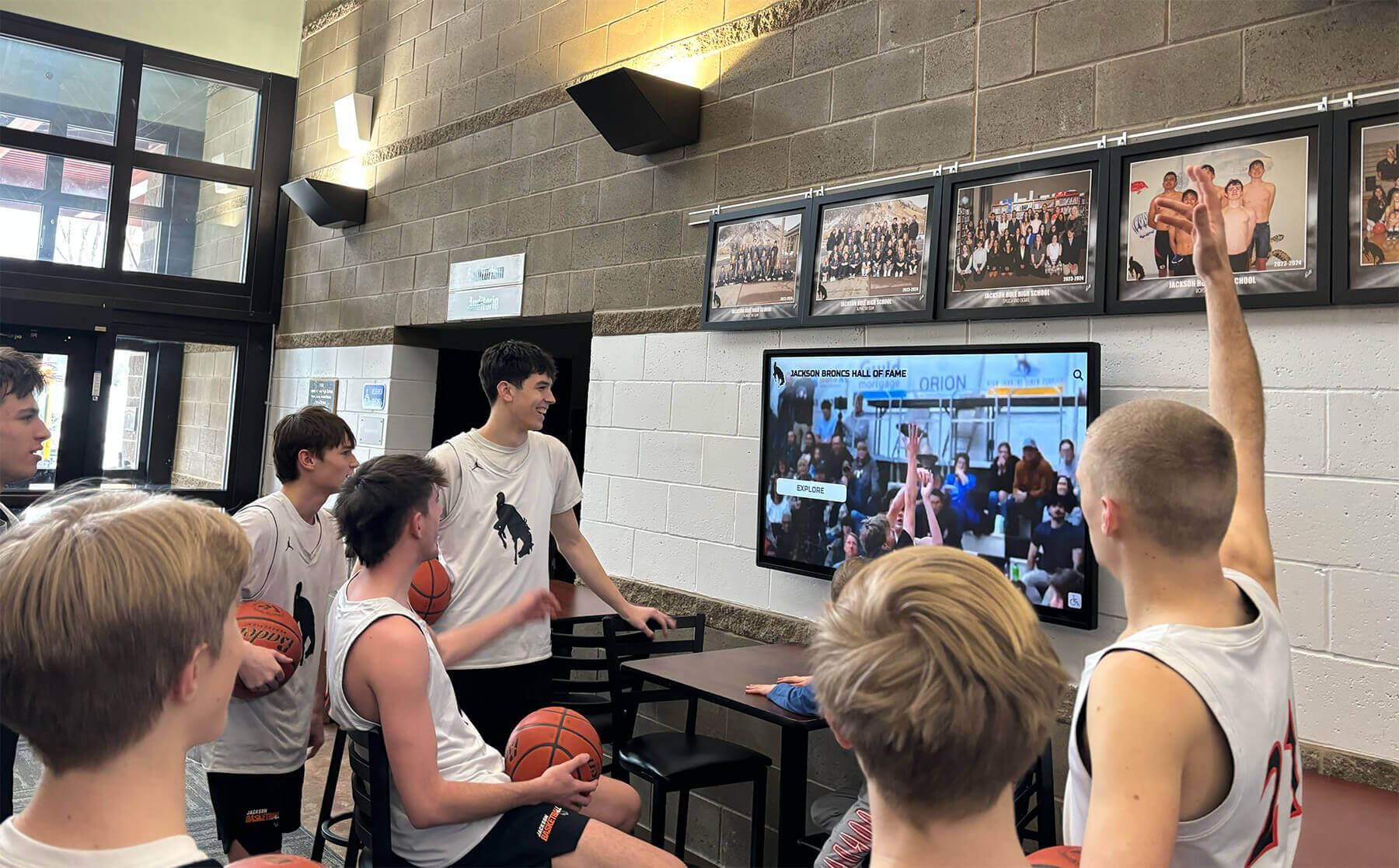
Modern interactive displays support both whole-class instruction and small group collaboration
Interactive Display Carts and Mobile Solutions
Portable interactive display systems provide flexibility for schools unable to install fixed displays in every classroom:
Configuration Options
- 55"-75" flat panel on height-adjustable mobile cart
- Integrated computing and power management
- Locking caster wheels for room-to-room movement
- Cable management systems reducing trip hazards
- Optional battery packs enabling operation without wall power
Deployment Scenarios
- Shared displays rotating among multiple classrooms on schedule
- Specialist teachers (art, music, STEM) traveling between rooms
- Schools phasing technology deployment over multiple budget cycles
- Flexible learning spaces requiring reconfigurable layouts
- Temporary installations during facility renovations
Practical Considerations
- Movement logistics and scheduling coordination
- Secure storage when not in use
- Network connectivity via WiFi rather than wired ethernet
- Higher risk of physical damage from frequent movement
- Teacher setup time at beginning of each class period
Panel Technologies: Comparing Touch and Display Specifications
Understanding the technical specifications that differentiate interactive display panels helps buyers evaluate value propositions and match capabilities to instructional needs.
Touch Technology Comparison
The touch sensing system fundamentally affects user experience, cost, and longevity:
Infrared (IR) Touch
- How it works: IR sensor frame around display bezel detecting touch by interruption of invisible light grid
- Responsiveness: Good for single user; may experience delays with multiple simultaneous touches
- Durability: Highly durable since no overlay to damage; immune to scratches
- Cost: Lower cost option in budget-oriented displays
- Best for: Elementary classrooms with primarily teacher-led instruction; environments where durability matters most
- Limitations: Can be affected by ambient light or IR interference; bezels slightly larger than other technologies
Capacitive Touch
- How it works: Touch-sensitive overlay detecting electrical properties of human touch, similar to smartphones
- Responsiveness: Excellent responsiveness with minimal latency; supports 20+ simultaneous touch points
- Durability: Good durability with tempered glass overlay; resistant to scratches and normal classroom use
- Cost: Higher cost reflecting superior performance
- Best for: Collaborative learning environments; secondary classrooms with student group work; STEM applications requiring precision
- Limitations: Higher initial investment; will not register touch from gloved hands or most styluses (requires specialized styluses)
Optical/Camera-Based Touch
- How it works: Cameras in corners detecting touch by shadow interruption
- Responsiveness: Moderate responsiveness adequate for most educational applications
- Durability: Very durable with no overlay to damage
- Cost: Mid-range pricing between IR and capacitive
- Best for: High-traffic common areas; situations where cost and durability balance is priority
- Limitations: Accuracy can decrease near edges and corners; may struggle with very light touch
Schools exploring interactive touchscreen applications across campus should match touch technology to specific use case requirements rather than assuming one technology suits all applications.
Display Specifications That Matter
Resolution and Image Quality
- Minimum: 4K UHD (3840×2160) now standard for displays 65" and larger
- Why it matters: Higher resolution ensures text remains sharp and readable from all classroom positions
- Viewing angles: IPS (In-Plane Switching) panels provide better viewing angles than VA panels
- Anti-glare coating: Essential for classrooms with windows; reduces reflections without diminishing brightness
Brightness and Contrast
- Brightness: 350-450 nits typical for classroom displays; 400+ recommended for rooms with significant natural light
- Contrast ratio: 4000:1 or higher provides clear image differentiation
- Ambient light sensors: Automatic brightness adjustment saves energy and reduces eye strain
- Blue light reduction: Modes reducing blue light emission during extended viewing
Durability and Lifespan
- Touch surface hardness: 7H rating (Mohs scale) provides scratch resistance for classroom environments
- Expected lifespan: Commercial panels rated 50,000+ hours (approximately 15+ years at typical classroom usage)
- Warranty coverage: 3-5 year warranties standard; understand what components are covered and response time
- Replacement parts availability: Verify manufacturer commitment to supporting products long-term
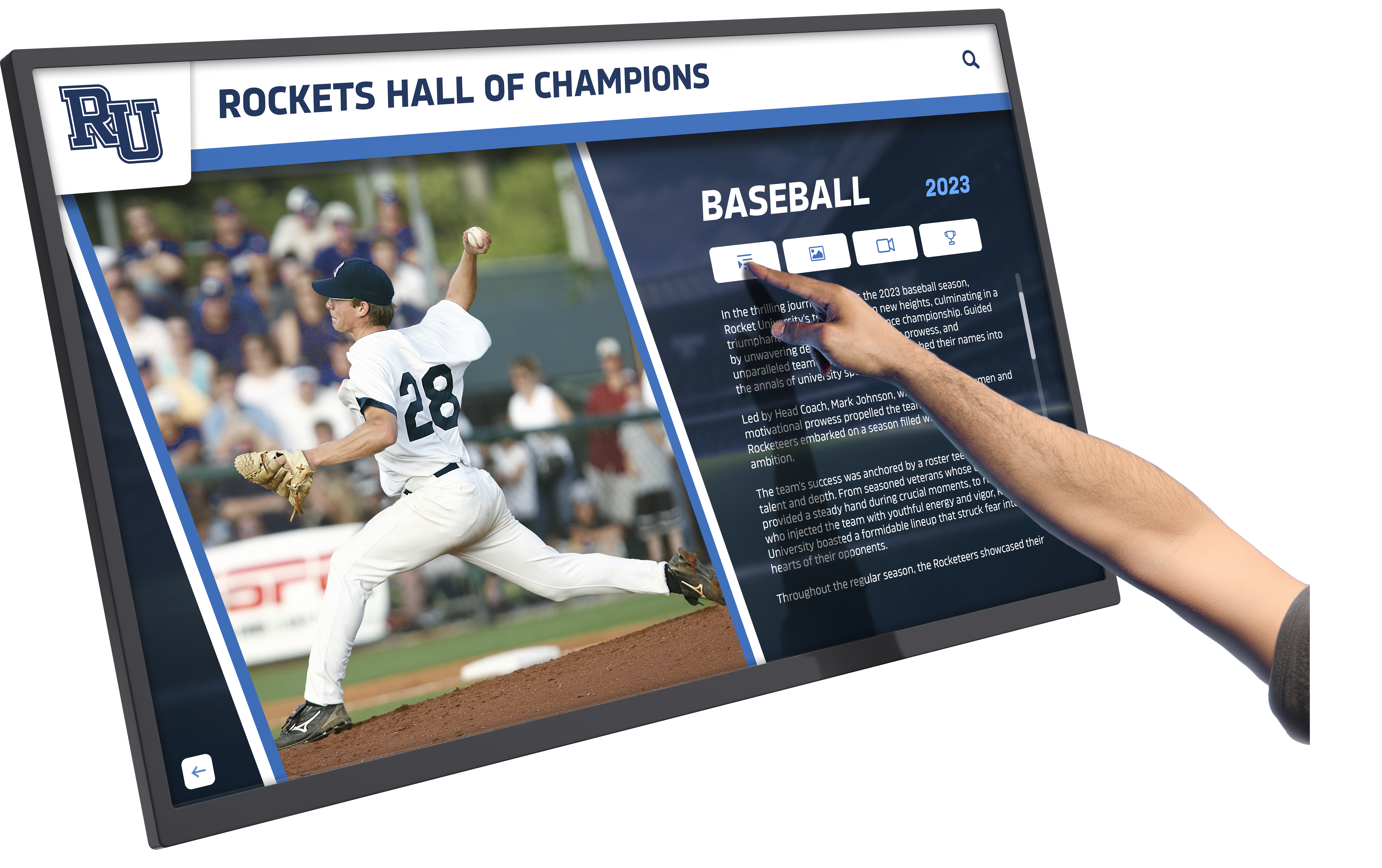
Touch responsiveness and accuracy significantly impact user experience and technology adoption
Size Selection Guidelines
Choosing appropriate display size balances viewing distance, classroom dimensions, and budget:
Elementary Classrooms (K-5)
- Recommended size: 65"-75" for typical 600-800 sq ft classrooms
- Viewing distance: Front row students typically 8-12 feet from display
- Usage pattern: Primarily teacher-led whole-class instruction with occasional student use
- Consideration: Younger students need larger text and graphics remaining visible throughout classroom
Secondary Classrooms (6-12)
- Recommended size: 75"-86" for typical 700-1000 sq ft classrooms
- Viewing distance: Front row 10-15 feet; back row potentially 25+ feet
- Usage pattern: Mix of teacher instruction, student collaboration, and presentation
- Consideration: Larger room sizes and older student presentation use justify larger displays
Specialized Spaces
- Cafeterias and auditoriums: 86"+ or multiple displays for large audience visibility
- Conference rooms and media centers: 65"-75" appropriate for smaller group settings
- Hallways and common areas: 55"-65" sufficient for wayfinding and announcements
Budget Reality Check Display costs increase non-linearly with size:
- 65" interactive display: $2,000-$4,000
- 75" interactive display: $3,500-$6,500
- 86" interactive display: $5,500-$12,000
Schools must balance ideal specifications with budget realities across multiple room deployments.
Software Platforms and Operating Systems
The software ecosystem determines what teachers can actually accomplish with interactive displays beyond basic annotation and mirroring.
Built-In Operating Systems
Android-Based Systems Most common operating system in educational interactive flat panels:
Advantages
- Familiar interface similar to smartphones and tablets
- Google Play Store access (on certified displays) providing thousands of educational apps
- Native Google Workspace integration (Docs, Sheets, Slides, Classroom)
- Lower cost than Windows-based alternatives
- Fast boot times and instant-on capabilities
- Regular security updates from manufacturers
Limitations
- App ecosystem quality varies; not all educational software available
- Some legacy educational software requires Windows
- File management less robust than desktop operating systems
- Processing power may limit complex applications
- Vendor-specific Android implementations may differ in capabilities
Best For
- Schools heavily invested in Google Workspace for Education
- Elementary and middle school environments where app-based instruction predominates
- Budget-conscious deployments prioritizing cost-effectiveness
- Situations where quick startup and simple operation matter most
Windows-Based Systems Less common but important for specific educational contexts:
Advantages
- Full desktop application compatibility including specialized educational software
- Seamless integration with Windows network infrastructure
- Familiar interface for teachers accustomed to desktop computing
- Superior multitasking and file management
- Direct access to legacy educational content and applications
Limitations
- Higher cost (typically $500-$1,500 premium over Android)
- Slower boot times and occasional update interruptions
- More complex management and security patch requirements
- Higher processing power and memory requirements
- Potentially less reliable in continuous-operation scenarios
Best For
- High school science and engineering classrooms requiring specific Windows applications
- Computer labs doubling as general classrooms
- Schools with existing Windows ecosystem and IT infrastructure
- Advanced CTE (Career and Technical Education) programs
- Situations requiring compatibility with industry-standard professional software
Chrome OS Integration Growing interest in Chrome-based interactive displays:
Advantages
- Perfect integration with Chromebook ecosystems and Google Admin Console
- Centralized management through existing Chrome device policies
- Fast, secure, and requiring minimal maintenance
- Web app focus aligning with modern educational technology trends
- Lower cost of ownership through reduced management overhead
Limitations
- Currently fewer dedicated Chrome OS interactive display products on market
- Primarily web-based functionality may limit some specialized applications
- Requires consistent internet connectivity for optimal operation
Educational institutions evaluating digital display solutions for various campus applications should consider how software platforms align with existing technology ecosystems and long-term strategic direction.
Proprietary Interactive Software
Beyond operating systems, interactive displays include manufacturer-specific software affecting day-to-day usability:
Whiteboarding and Annotation Tools Core functionality present in all interactive displays but varying significantly in quality:
Essential Features
- Unlimited canvas space for extended brainstorming and planning
- Multiple page support organizing lesson content
- Shape recognition converting rough drawings to clean geometric forms
- Handwriting recognition converting written text to typed text
- Screen recording for capturing entire lesson or student presentations
- Cloud save functionality preserving work across sessions
- Import capabilities bringing in PDFs, images, and documents for annotation
Quality Differentiators
- Palm rejection accuracy preventing accidental marks while writing
- Pen smoothing making handwriting appear natural rather than jagged
- Color palette comprehensiveness and customization
- Eraser functionality (full erase vs. object erase vs. selective erase)
- Undo/redo depth (can you reverse 10 actions or 100?)
- Export options (formats supported, resolution, ease of sharing)
Wireless Screen Sharing Critical for enabling student device integration:
Implementation Variables
- Platform support: Does it work with Windows, Mac, Chromebook, iOS, Android?
- Simultaneous connections: How many student devices can share simultaneously?
- Connection method: Dedicated app, browser-based, or AirPlay/Chromecast native support?
- Moderation controls: Can teachers approve content before displaying to class?
- Annotation capability: Can teachers annotate over shared student screens?
- Network requirements: Does it work on isolated classroom WiFi or require internet access?
Content Library and Lesson Tools Value-added software differentiating premium from budget displays:
- Pre-built lesson templates for common teaching scenarios
- Subject-specific tools (protractors, periodic tables, musical keyboards, graph generators)
- Integration with learning management systems (Canvas, Schoology, Google Classroom)
- Assessment and quiz tools with instant feedback
- Timer, stopwatch, and classroom management widgets
- Educational content partnerships (YouTube Education, Discovery Education, PBS)
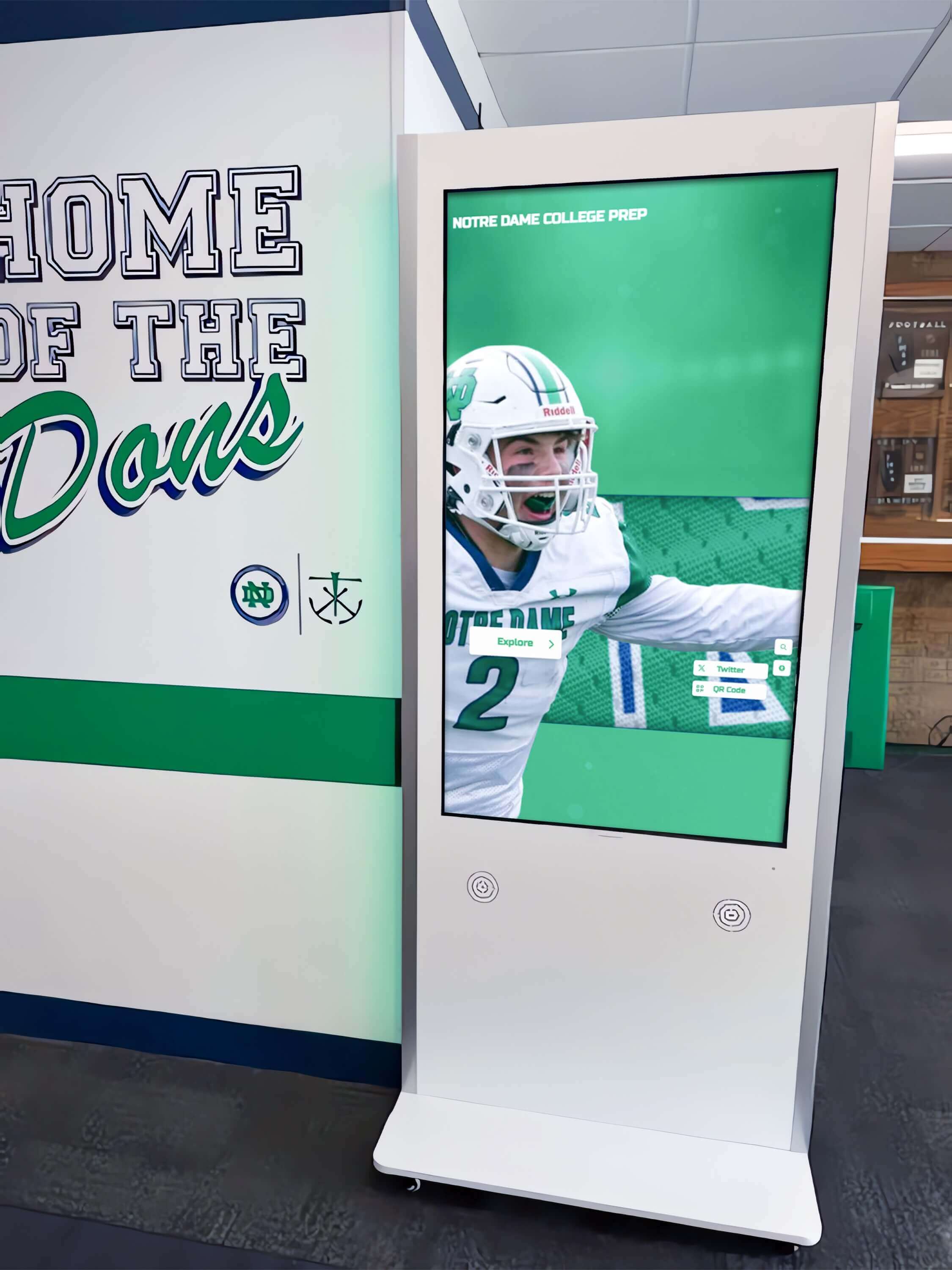
Software capabilities determine whether interactive displays serve diverse educational applications or function simply as expensive monitors
Third-Party Software Ecosystem
Beyond built-in capabilities, compatibility with broader educational software matters:
Learning Management System (LMS) Integration
- Native apps or optimized web access for Canvas, Google Classroom, Schoology
- Single sign-on (SSO) support reducing login friction
- Assignment display and submission capabilities
- Gradebook access and sharing
Educational Content Platforms
- Khan Academy, IXL, Nearpod, Pear Deck, and similar platforms
- Educational video services (YouTube Education, BrainPOP, Discovery Education)
- Digital textbook and curriculum platforms
- Assessment and testing systems (IReady, NWEA MAP, etc.)
Specialized Subject Software
- STEM and coding platforms (Scratch, Tinkercad, Arduino IDE)
- Math tools (GeoGebra, Desmos, graphing calculators)
- Science simulations (PhET Interactive Simulations)
- Language learning applications
- Arts and music creation tools
Mounting Options and Installation Considerations
How interactive displays are mounted significantly affects usability, classroom safety, accessibility, and long-term costs.
Wall Mounting Systems
Fixed Wall Mounts Most common installation approach for permanent classroom deployments:
Advantages
- Clean, professional appearance integrating display into classroom architecture
- No floor space consumption maintaining full classroom capacity
- Secure installation reducing theft and damage risks
- Optimal viewing height customization
- Cable management within walls reducing trip hazards
Installation Requirements
- Structural wall analysis ensuring adequate load-bearing capacity (displays weigh 80-150+ lbs)
- Electrical outlet installation at display location (often requires licensed electrician)
- Network ethernet drop for reliable connectivity (WiFi as backup)
- Raceway or in-wall cable management for clean appearance
- ADA height compliance (typically 15"-48" from floor to operational controls for accessibility)
Cost Considerations
- Mount hardware: $150-$500 depending on size and quality
- Professional installation: $300-$800 per display including electrical work
- Network infrastructure: $200-$500 if new ethernet drop required
- Wall reinforcement: $200-$1,000 if structural support needed
Height Adjustment Systems Motorized or manual height-adjustable wall mounts providing flexibility:
Benefits
- Accommodates different teacher heights and preferences
- Enables accessibility for wheelchair users (required for ADA compliance in certain contexts)
- Facilitates student use by lowering display to child-appropriate heights
- Provides flexibility for different instructional modes
Limitations
- Significantly higher cost ($1,000-$3,000 for motorized systems)
- Mechanical components introduce maintenance requirements
- Installation complexity increases
- May not be necessary in classrooms with minimal student interaction with display
Mobile Cart Solutions
When Carts Make Sense Portable solutions appropriate for specific scenarios:
Shared Display Programs
- Schools rotating single display among multiple classrooms
- Specialist teachers moving between rooms
- Phased technology rollout over multiple years
- Budget constraints limiting per-classroom installations
Flexible Learning Environments
- Modern classrooms with reconfigurable furniture layouts
- Multi-purpose spaces serving different functions throughout day
- Collaborative learning commons without traditional classroom structure
Cart Specifications and Features
- Height adjustability accommodating seated and standing use
- Heavy-duty locking casters supporting display weight while preventing unwanted movement
- Integrated power management with surge protection
- Equipment shelf for computing devices, document cameras, or other peripherals
- Cable management systems preventing tangling and trip hazards
- Storage provisions for remote controls and accessories
- Optional battery backup for operation without wall power connection
Practical Limitations
- Setup and breakdown time at beginning and end of class periods
- Scheduling complexity coordinating shared access
- Higher damage risk from frequent movement
- WiFi dependency since wired ethernet impractical
- Storage requirements when not in use
- Potential student distraction from mobility
Institutions implementing interactive displays across diverse spaces benefit from understanding which mounting approach serves each specific environment most effectively.
Accessibility and Ergonomic Considerations
ADA Compliance Requirements Federal accessibility standards affect installation:
- Reach ranges: Operable controls must be within 15"-48" from floor for forward reach
- Clear floor space: Minimum 30"×48" clear space required in front of display
- Approach: Installations must allow both parallel and forward approach where applicable
- Knee and toe clearance: Specific requirements if forward approach is only option
Classroom Ergonomics Beyond legal compliance, thoughtful installation enhances usability:
- Display bottom height: 30"-40" from floor provides good sightlines while enabling student interaction
- Display tilt: 0-5 degree forward tilt reduces glare and improves viewing from seated positions
- Interaction zone: Primary touch area should be 30"-60" from floor where most users can comfortably reach
- Viewing distance: Install displays ensuring back row students have adequate viewing angles (maximum 40-45 degree off-center viewing typically recommended)
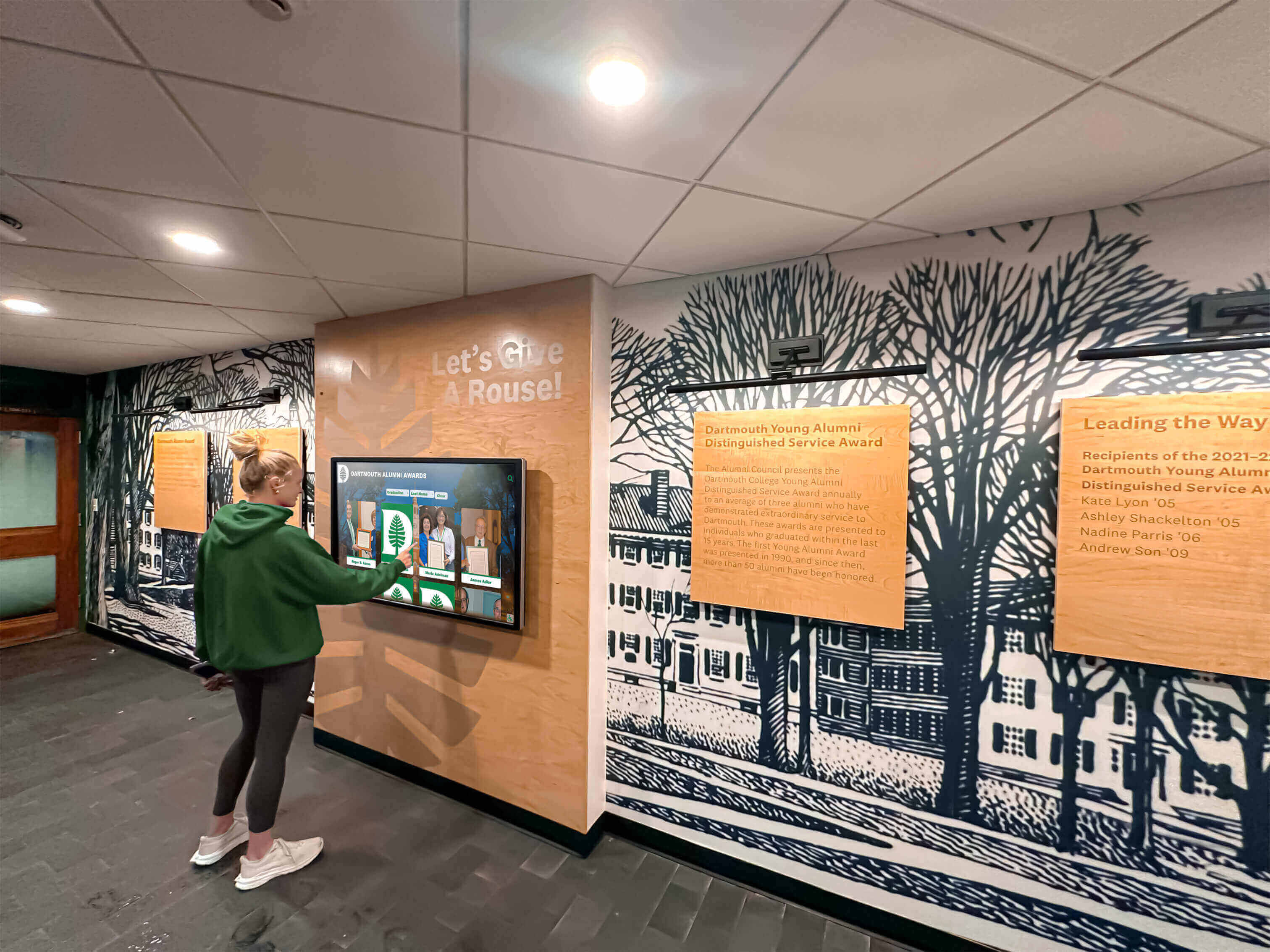
Proper mounting height and positioning ensures displays are accessible and comfortable for all users
Installation Planning and Logistics
Pre-Installation Site Assessment Successful installations begin with thorough planning:
Physical Environment Evaluation
- Wall structure and load-bearing capacity verification
- Electrical power availability and capacity
- Network infrastructure access points
- Ambient lighting conditions and window placement
- Classroom dimensions and viewing distances
- HVAC vent locations to avoid heat interference
- Existing technology integration requirements
Coordination Requirements
- Facilities team scheduling for installation access
- IT department coordination for network connectivity and configuration
- Electrical contractors for power installation (if needed)
- Furniture removal or relocation during installation
- Teacher communication about classroom access disruption
- Summer installation scheduling to minimize instructional interruption
Post-Installation Verification
- Touch calibration and response testing
- Network connectivity confirmation and speed testing
- Audio quality verification
- Software configuration and app installation
- Integration testing with existing classroom technology
- Teacher walkthrough and initial training
- Student safety evaluation and cable management verification
Total Cost of Ownership: Beyond Purchase Price
Savvy K-12 buyers evaluate interactive displays based on comprehensive lifecycle costs rather than simply comparing initial acquisition prices.
Initial Acquisition Costs
Hardware Components
- Interactive flat panel display: $2,000-$12,000 depending on size, touch technology, and features
- Mounting solution: $150-$3,000 depending on fixed, adjustable, or mobile approach
- Installation labor: $300-$800 per display for professional wall mounting and electrical
- Network infrastructure: $0-$500 if new ethernet drops required
- Computing peripherals: $100-$300 for document cameras, wireless keyboards, or additional accessories (if needed)
Software and Licensing
- Built-in software: Typically included with display purchase
- Third-party software licenses: $0-$500 per classroom annually depending on platforms selected
- Content subscriptions: Variable based on curriculum and subject needs
- Management platforms: $0-$100 per display annually for enterprise device management
Initial Training
- Professional development: $500-$2,000 per school for comprehensive teacher training
- Ongoing support materials: $100-$500 for documentation, quick-start guides, tip sheets
Budget Example: Single 75" Classroom Installation
- 75" interactive flat panel (mid-range): $4,500
- Professional wall mount: $250
- Installation labor: $500
- Ethernet drop and electrical: $300
- Accessories and cables: $150
- Teacher training (allocated per classroom): $200
- Total initial investment: $5,900
Annual Operating Costs
Software and Subscriptions
- Operating system updates: Typically included, no direct cost
- Educational app subscriptions: $200-$800 per classroom depending on platforms
- Cloud storage: Often included in existing Google or Microsoft education agreements
- Management platforms: $50-$100 per display annually
Support and Maintenance
- Extended warranty beyond manufacturer coverage: $200-$400 annually
- IT support allocation: Varies by district; generally minimal for well-chosen displays
- Cleaning supplies: $20-$50 annually for screen-safe cleaning solutions
Energy Costs
- Power consumption: 150-300 watts typical during use
- Annual electricity cost: $30-$100 depending on usage hours and local utility rates (assumes $0.12/kWh, 8 hours daily, 180 school days)
- Vampire power: Displays consume 1-5 watts in standby; negligible annual cost
Professional Development
- Ongoing teacher training: $100-$300 per classroom annually for advanced features and pedagogy
- New teacher onboarding: $50-$150 per teacher for new staff
Schools planning comprehensive digital display deployments must budget for both initial acquisition and sustained operational costs to ensure successful long-term implementation.
Long-Term Replacement and Upgrade Costs
Expected Lifespan
- Interactive flat panels: 10-15 years for display hardware with proper maintenance
- Touch overlay: 7-12 years depending on technology and usage intensity
- Built-in computing: 5-8 years before obsolescence affects performance
- Mounting hardware: 15+ years with proper installation
Replacement Triggers
- Touch response degradation beyond acceptable performance
- Computing performance insufficient for current software demands
- Physical damage from impact or vandalism
- Software obsolescence as operating systems stop receiving updates
- Display brightness decrease affecting visibility (typically after 50,000+ hours)
Upgrade Considerations
- Computing module upgrade: Some displays offer separate computing module replacement ($400-$1,200) extending life without replacing entire display
- Software updates: Cloud-based systems receive free updates; legacy systems may require paid upgrades or replacement
- Peripheral refreshes: Document cameras, cameras, and accessories typically need replacement every 5-7 years
10-Year Total Cost of Ownership Single 75" classroom installation example:
- Initial acquisition and installation: $5,900
- Annual operating costs (avg $450 × 10): $4,500
- Computing module replacement (year 6): $800
- Extended warranty (years 4-10): $1,400
- Additional training over decade: $1,000
- 10-year TCO: $13,600 or $1,360 per year
This calculation demonstrates why focusing solely on lowest purchase price can be false economy if operational costs, reliability issues, or early replacement offset initial savings.
Key Features and Specifications Checklist
K-12 buyers should evaluate interactive displays systematically across these critical dimensions:
Hardware Specifications
Display
- Size appropriate for classroom dimensions and viewing distances (65"-86")
- 4K UHD resolution minimum (3840×2160)
- IPS panel for wide viewing angles
- 400+ nits brightness for rooms with natural light
- Anti-glare coating reducing reflections
- 7H hardness rating for scratch resistance
Touch Technology
- Capacitive touch for best responsiveness (or IR for budget/durability priority)
- 20+ simultaneous touch points for collaboration
- Palm rejection functionality
- Response time under 10ms for natural writing feel
- Stylus support if precision work important
Connectivity
- Multiple HDMI inputs (minimum 3, preferably 4+)
- USB ports (at least 4, including front-accessible)
- Ethernet port for wired network connection
- WiFi 5 (802.11ac) or newer
- Bluetooth for wireless peripheral connectivity
- USB-C with charging for laptop connectivity
Audio and Video
- Integrated speakers with minimum 15-20 watts total output
- Microphone array for conferencing (increasingly important post-pandemic)
- Webcam (if video conferencing needed) with privacy shutter
- Audio output jack for external speaker connection
Software and Usability
Operating System
- Android, Chrome OS, or Windows based on ecosystem fit
- Minimum Android 11, Chrome OS 100, or Windows 10/11
- Processor: Quad-core or better; 4GB RAM minimum (8GB preferred)
- Storage: 32GB minimum (more if extensive apps to be installed)
- Regular security updates from manufacturer
Built-In Software
- Whiteboarding app with unlimited canvas, shape recognition, handwriting conversion
- Wireless screen sharing supporting major platforms (Win, Mac, Chrome, iOS, Android)
- Annotation capability over any source
- Screen recording functionality
- Cloud save integration (Google Drive, OneDrive, etc.)
- File management and USB import/export
Educational Features
- Integration with learning management systems (Google Classroom, Canvas, etc.)
- App store access for additional educational applications
- Web browser for accessing online resources
- Split-screen capability for multitasking
- Timer, stopwatch, and classroom management tools
- Subject-specific tools and resources
Installation and Support
Mounting and Installation
- Appropriate mounting solution included or specified
- ADA-compliant installation height and accessibility
- Cable management provisions
- Installation instructions clear and complete
- Professional installation available if needed
Warranty and Support
- Minimum 3-year manufacturer warranty (5-year preferred)
- Coverage specifics: What components are included? Touch overlay? Computing module?
- Response time: Next-day support? Advance replacement program?
- Support channels: Phone, email, chat, online knowledge base?
- Training resources: Videos, manuals, webinars available?
Management and Security
- Remote management capabilities for IT administration
- Integration with existing device management systems (Google Admin, Microsoft Intune, etc.)
- Security features: App lockdown, content filtering, user authentication
- Network security: Isolated VLAN capability, secure boot, encrypted storage
Total Cost Considerations
Upfront Costs
- Display hardware cost fits budget
- Installation costs understood and budgeted
- Additional peripherals or accessories accounted for
- Initial training costs allocated
Ongoing Costs
- Annual software subscription costs (if any) budgeted
- Extended warranty or support contract costs evaluated
- Energy costs acceptable
- Professional development allocation for ongoing training
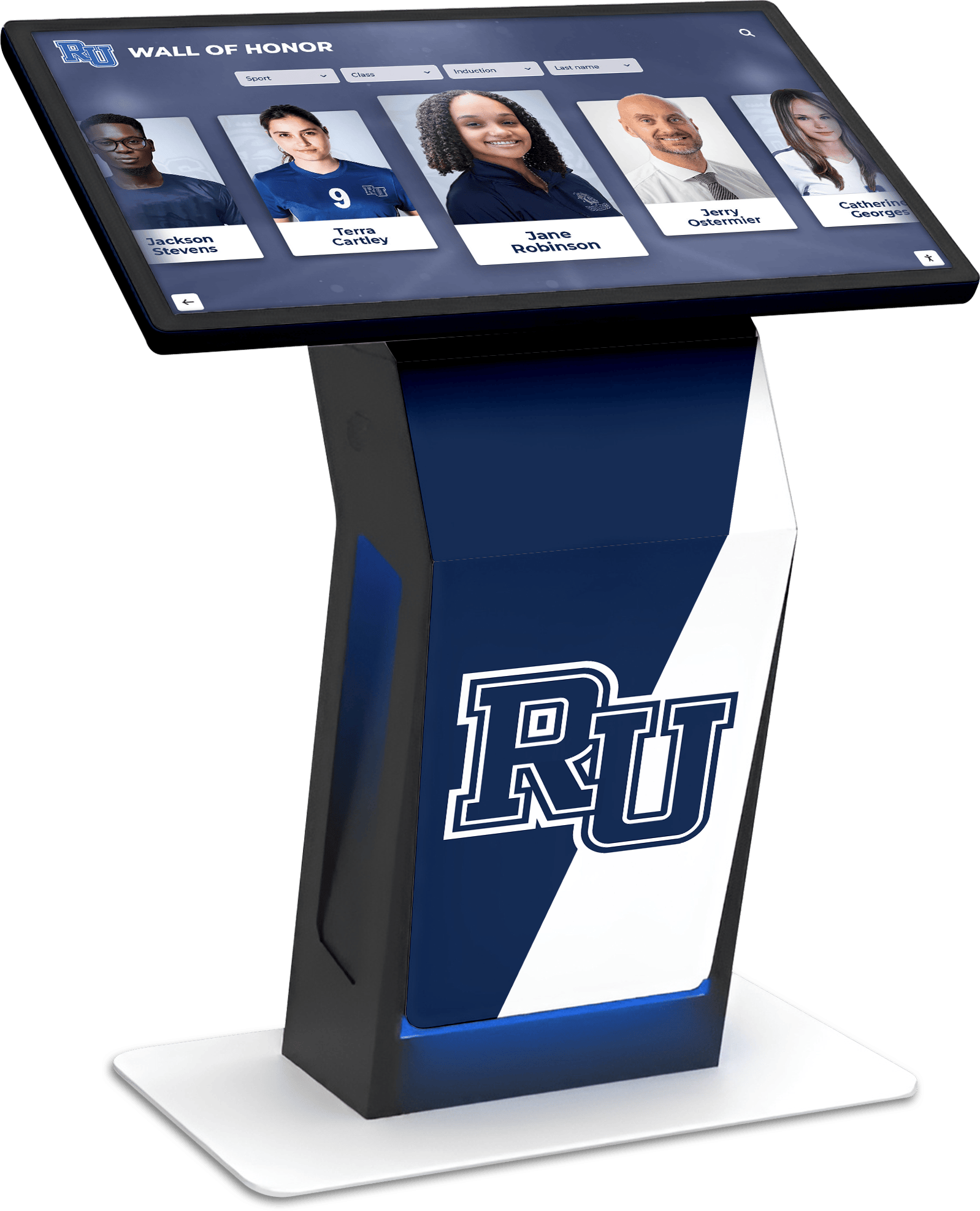
Successful interactive display deployments serve multiple purposes across campus from instruction to community engagement
Making the Final Decision: Evaluation Framework
Conducting Pilot Programs
Before district-wide deployments, pilot testing provides valuable insights:
Pilot Program Structure
- Install 2-4 displays in different environments (elementary, middle, high school; different subjects)
- Run pilot for full semester or school year capturing authentic usage patterns
- Select diverse teachers representing various technology comfort levels
- Document experiences, challenges, and successes systematically
Data Collection During Pilot
- Teacher satisfaction surveys (pre, mid, post pilot)
- Student engagement observations
- Technical issue tracking (frequency, type, resolution time)
- Actual usage patterns (hours per week, primary use cases)
- Integration success with existing technology and curriculum
- Total time required for teacher proficiency
Decision Criteria After pilot, evaluate:
- Teacher adoption rate and enthusiasm
- Student engagement improvement (if measurable)
- Technical reliability and IT support burden
- Actual costs vs. projections
- Vendor support responsiveness
- Alignment with instructional goals
Comparing Vendor Proposals
Request for Proposal (RFP) Best Practices
When soliciting formal bids, ensure RFPs include:
- Detailed technical specifications from this guide
- Quantity and deployment timeline
- Installation requirements and expectations
- Training and professional development needs
- Warranty and support expectations
- Total cost of ownership requirements (not just purchase price)
- Evaluation criteria and weights
- References from comparable educational institutions
Proposal Evaluation Matrix
Create scoring rubrics weighting factors by importance to your district:
| Criterion | Weight | Vendor A Score | Vendor B Score | Vendor C Score |
|---|---|---|---|---|
| Hardware specifications | 20% | |||
| Software capabilities | 20% | |||
| Total cost of ownership | 25% | |||
| Warranty and support | 15% | |||
| Training and resources | 10% | |||
| Reference strength | 10% |
Reference Check Questions When contacting references from vendor proposals:
- What has been your actual experience with reliability?
- How responsive is vendor support when issues arise?
- What surprised you (positively or negatively) after implementation?
- What has teacher adoption been like?
- Would you make the same decision again?
- What advice would you give us?
Special Considerations for Diverse Educational Environments
Elementary Schools (K-5)
- Prioritize durability and simple operation
- Integrated educational apps and content libraries valuable
- Bright, engaging interface appealing to younger students
- Lower installation height accommodating smaller children
- Parent communication and display features useful
Middle Schools (6-8)
- Balance between teacher-led and student-directed use
- Robust collaborative features supporting group work
- STEM tools and coding capabilities increasingly important
- Screen sharing from student devices essential
- Social-emotional learning integration valuable
High Schools (9-12)
- Advanced features for specialized subjects (graphing, CAD, coding, etc.)
- Professional software compatibility for CTE programs
- Student presentation capabilities priority
- Integration with college-prep and career planning tools
- Compatibility with testing platforms (AP, SAT, etc.)
Special Education Environments
- Accessibility features essential (text-to-speech, adjustable text size, high contrast)
- Specialized educational software compatibility critical
- Sensory-friendly settings (brightness adjustment, reduced motion)
- Touch sensitivity adjustments accommodating fine motor challenges
- Height-adjustable installations accommodating wheelchair users
Institutions supporting diverse recognition and engagement needs should consider how interactive display technology serves multiple purposes maximizing return on investment.
Integration with Broader School Technology Ecosystem
Interactive displays don’t exist in isolation—successful deployments integrate with existing and planned technology:
Device Ecosystem Compatibility
Chromebook Environments
- Prioritize displays with native Chromecast built-in
- Google Admin Console integration for centralized management
- Chrome OS app compatibility verification
- Google Workspace optimization (Docs, Sheets, Slides, Classroom)
iPad/Apple Environments
- AirPlay support essential for wireless mirroring
- Apple TV integration if school uses Apple ecosystem
- iOS app availability for screen sharing and control
- Apple School Manager compatibility
Windows Device Environments
- Miracast support for native Windows screen mirroring
- Microsoft 365 app optimization
- Active Directory integration for authentication
- Microsoft Intune compatibility for device management
Mixed Device Environments (most common)
- Universal screen sharing supporting all major platforms
- Agnostic file format support
- Web-based interfaces working across all devices
- Minimal platform-specific dependencies
Network Infrastructure Requirements
Bandwidth Considerations
- Wired connection: 100 Mbps minimum; Gigabit preferred
- WiFi: 50+ Mbps dedicated per display if wireless used
- Simultaneous streaming impact: Account for multiple displays + student devices
- Content delivery network caching for commonly accessed resources
Network Architecture
- VLAN segmentation isolating classroom displays from administrative network
- Quality of Service (QoS) prioritization for video and real-time collaboration
- Firewall rules enabling necessary educational services while maintaining security
- Web filtering integration for age-appropriate content access
Security Measures
- Regular firmware and software updates
- Secure boot preventing unauthorized operating system modifications
- Data encryption for stored files and credentials
- User authentication and access controls
- Privacy compliance (FERPA, COPPA) for student data
Learning Management System (LMS) Integration
Effective interactive displays integrate seamlessly with school LMS platforms:
Google Classroom Integration
- Single sign-on access
- Assignment display and student work viewing
- Direct posting of whiteboard captures to Classroom
- Google Drive native integration
Canvas Integration
- LTI (Learning Tools Interoperability) support for deep integration
- Assignment and grade access
- Discussion board display
- Calendar and due date visibility
Schoology and Other Platforms
- API integration capabilities
- Web-based access optimization
- Student account authentication
- Content sharing workflows
Common Implementation Challenges and Solutions
Understanding typical challenges helps schools anticipate and mitigate issues:
Challenge: Low Teacher Adoption
Symptoms
- Displays used simply as expensive televisions or unused entirely
- Teachers reverting to traditional whiteboards
- Student interaction rare
- Technology viewed as hindrance rather than enhancement
Root Causes
- Insufficient training or professional development
- Overly complex user interfaces or workflows
- Technology not aligned with instructional approaches
- Fear of failure or technology malfunction during lessons
- Lack of curriculum integration examples
Solutions
- Comprehensive, job-embedded professional development
- Teacher champions modeling effective use and mentoring peers
- Ready-made lesson templates aligned with curriculum
- Quick-start guides and reference materials readily available
- Administrative expectation-setting and support
- Celebrate successes and share effective practices
Challenge: Technical Reliability Issues
Symptoms
- Frequent touch calibration required
- Software crashes or freezing
- WiFi connectivity problems
- Slow performance or lag
- Integration failures with other classroom technology
Root Causes
- Inadequate network infrastructure
- Insufficient computing power or memory
- Software bugs or compatibility issues
- Improper installation or configuration
- Environmental factors (heat, humidity, electrical interference)
Solutions
- Pre-installation site surveys and infrastructure verification
- Proper IT configuration during setup
- Regular software updates and maintenance
- Vendor support access and escalation paths
- IT help desk training on common issues
- Spare displays or loaner programs minimizing downtime
Challenge: Content and Curriculum Integration
Symptoms
- Generic use not leveraging display capabilities
- Disconnection between display features and lesson objectives
- Teachers struggle to find relevant educational content
- Interactive features underutilized
- Technology feels “tacked on” to lessons
Root Causes
- Lack of curriculum-aligned content and resources
- Limited teacher time for lesson redesign
- Insufficient examples of effective integration
- Technology-first rather than pedagogy-first approach
Solutions
- Curriculum mapping identifying opportunities for interactive display integration
- Collaborative planning time for teachers to develop lessons together
- Professional learning communities focused on technology pedagogy
- Shared lesson library with peer-contributed content
- Partnerships with content providers and curriculum specialists
- Instructional coaching supporting technology integration
Comprehensive guides for building engagement through interactive technology provide frameworks applicable across diverse educational contexts and technologies.
Emerging Trends and Future Considerations
Understanding where classroom display technology is heading helps schools make forward-looking investments:
Artificial Intelligence Integration
Current and Near-Term Capabilities
- Real-time transcription and captioning of spoken instruction
- Language translation supporting multilingual classrooms
- Personalized content recommendations based on curriculum and student needs
- Intelligent tutoring systems integrated with classroom displays
- Automated accessibility features (text enlargement, contrast adjustment) based on user detection
Pedagogical Implications
- AI-powered formative assessment providing immediate feedback
- Adaptive learning pathways visualized on shared displays
- Natural language interaction reducing interface barriers
- Content summarization and generation assisting teachers
Cloud Integration and Remote Learning
Hybrid and Remote Capabilities
- Seamless integration between in-person and remote learners
- Cloud-based content syncing across home and school devices
- Remote collaboration tools enabling distributed group work
- Virtual field trips and guest expert integration
- Recorded lesson access for absent students or review
Infrastructure Considerations
- Reliable high-speed internet essential
- Cloud storage and application subscriptions
- Privacy and data security for remote access
- Equity considerations ensuring all students have home access
Sustainability and Environmental Considerations
Energy Efficiency
- LED backlighting reducing power consumption
- Automatic sleep and wake scheduling
- Ambient light sensors optimizing brightness for conditions
- Energy Star certification and transparency
Product Lifecycle
- Modular designs enabling component upgrades rather than full replacement
- Manufacturer take-back and recycling programs
- Reduced packaging and sustainable materials
- Longer product lifespans reducing electronic waste
Conclusion
Selecting interactive displays for K-12 classrooms requires balancing technical specifications, software capabilities, mounting solutions, and total cost of ownership while keeping instructional priorities central to decision-making. The most effective deployments match panel technologies to specific educational contexts, choose software platforms aligned with existing ecosystems, and implement mounting solutions that maximize accessibility and flexibility.
Successful interactive display programs extend beyond procurement to encompass comprehensive teacher professional development, thoughtful curriculum integration, robust technical support, and ongoing evaluation and refinement based on actual usage patterns and outcomes. Schools that invest appropriately in these supporting elements achieve dramatically higher returns on technology investments than those focusing primarily on hardware specifications and initial costs.
The classroom interactive display market continues evolving rapidly with improvements in touch responsiveness, software sophistication, AI integration, and cloud connectivity. Schools can future-proof investments by selecting vendors with strong development roadmaps, choosing platforms with robust software update mechanisms, and prioritizing adaptable mounting solutions that accommodate future technology changes.
When technology coordinators, administrators, and teachers collaborate to evaluate options systematically using the frameworks presented in this guide, they position their schools to select interactive displays that genuinely transform teaching and learning rather than simply modernizing classroom aesthetics. The right interactive displays become indispensable instructional tools that teachers rely on daily and students engage with enthusiastically, delivering educational returns justifying investments throughout decade-long deployment lifecycles.
Beyond traditional instructional applications, interactive display technology serves schools across diverse contexts from common area announcements to alumni and community engagement displays. Schools implementing comprehensive digital recognition systems leverage similar touchscreen platforms to honor athletic achievements, celebrate academic excellence, recognize donors, and strengthen school culture through interactive experiences that connect community members with institutional history and values.
Transform Your School with Interactive Display Solutions
Ready to implement interactive displays that engage students, support teachers, and strengthen your school community? Rocket Alumni Solutions provides comprehensive touchscreen display solutions serving K-12 schools across instructional, recognition, and community engagement applications. Our purpose-built platforms combine intuitive interfaces with powerful capabilities, ensuring your interactive displays deliver maximum educational impact throughout years of reliable operation. Contact our team to explore how specialized touchscreen solutions serve educational institutions more effectively than generic display platforms, with dedicated support helping your school succeed with technology investments.