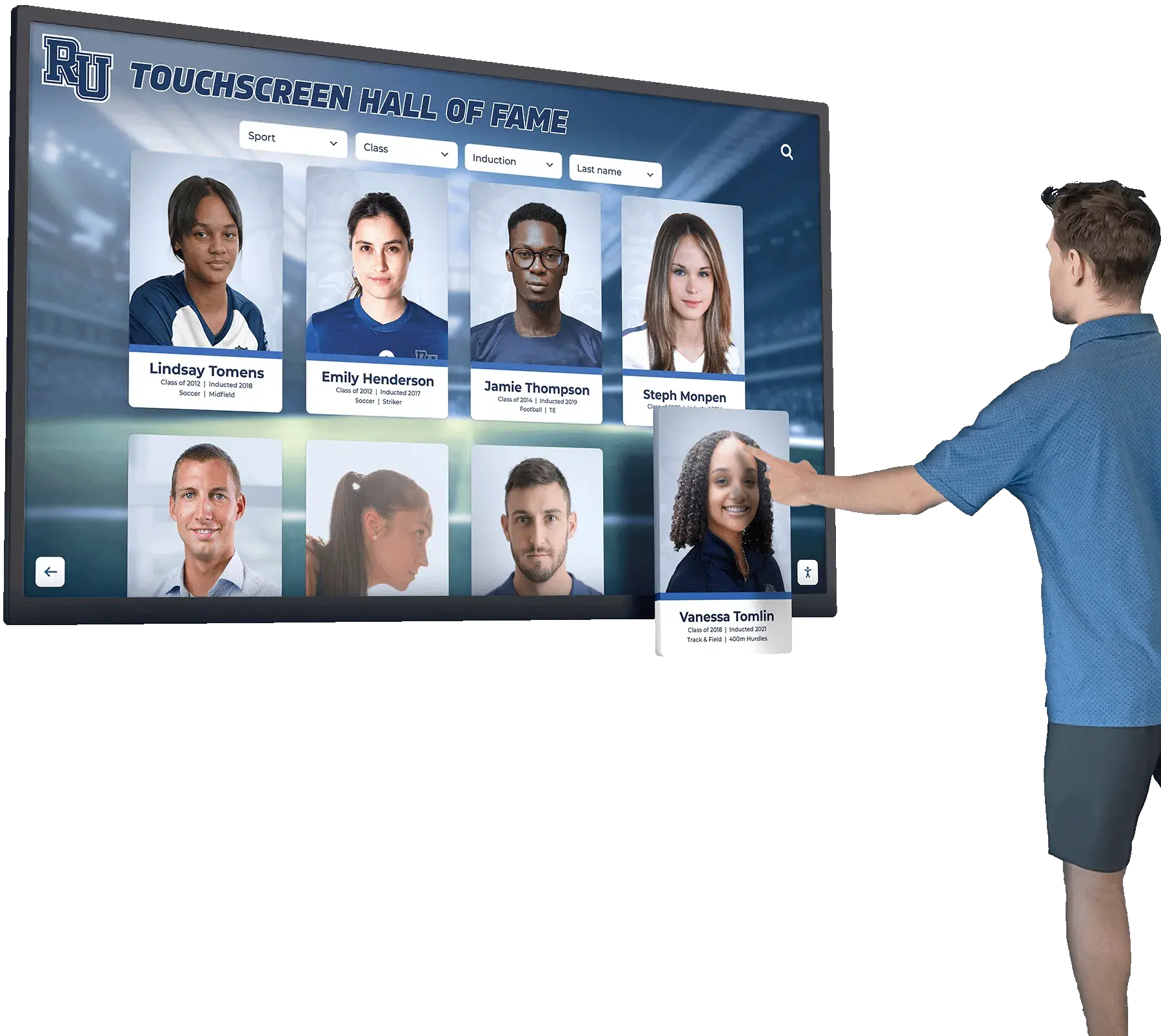
Choosing the right touchscreen for a school hall of fame display is one of the most consequential hardware decisions a school administrator will make. Get it right, and the display becomes a landmark — students pause in hallways to browse athlete profiles, alumni lean in to rediscover memories, and visitors leave with a stronger impression of your institution’s legacy. Get it wrong, and you end up with a screen that’s too dim for your lobby lighting, too small for comfortable reading at a distance, or incompatible with the content management software your team needs to keep it updated.
This guide walks through the key hardware factors — screen size, touch technology, brightness, orientation, durability, ADA compliance, and connectivity — so your team can evaluate options with confidence. The focus here is the physical touchscreen device itself: the panel, the enclosure, and the specifications that determine how the display performs in a real school environment day after day.
Most school recognition programs start with the software question — which platform will manage the content? — and treat the hardware as an afterthought. But touchscreen hardware shapes every visitor interaction. A display with insufficient brightness washes out under lobby lighting. A panel built for consumer use fails under the constant touch input of high-traffic hallways. Understanding how to choose a touchscreen for a school hall of fame means evaluating hardware with the same rigor applied to software.
Schools exploring what a digital hall of fame actually involves often find that the hardware decision has more variables than expected. This guide separates those variables into clear categories so your evaluation process stays structured.
Why Touchscreen Hardware Decisions Matter for Recognition Displays
A hall of fame touchscreen operates in conditions that differ meaningfully from a conference room display or a classroom projector. Several environmental factors make hardware selection especially important:
High-traffic, unattended operation: Front lobbies and athletic hallways see constant foot traffic. Displays run 8-12 hours daily, often without a staff member nearby to restart a frozen screen or clean smudge buildup.
Multiple user types: Elementary students, high school athletes, visiting college coaches, grandparents attending graduation — all interact with the same surface. Touch sensitivity must work reliably across gloved hands, small fingers, and varying pressure levels.
Public-facing visibility: Unlike a back-office monitor, a lobby touchscreen gets scrutinized by families, community members, donors, and accreditation visitors. Image quality and physical presentation reflect directly on the institution.
Long replacement cycles: School technology budgets rarely accommodate display replacements every three to four years. A hall of fame touchscreen needs to perform reliably for seven to ten years, which means commercial-grade specifications are rarely optional.
Understanding these conditions before evaluating specifications helps narrow the field quickly.
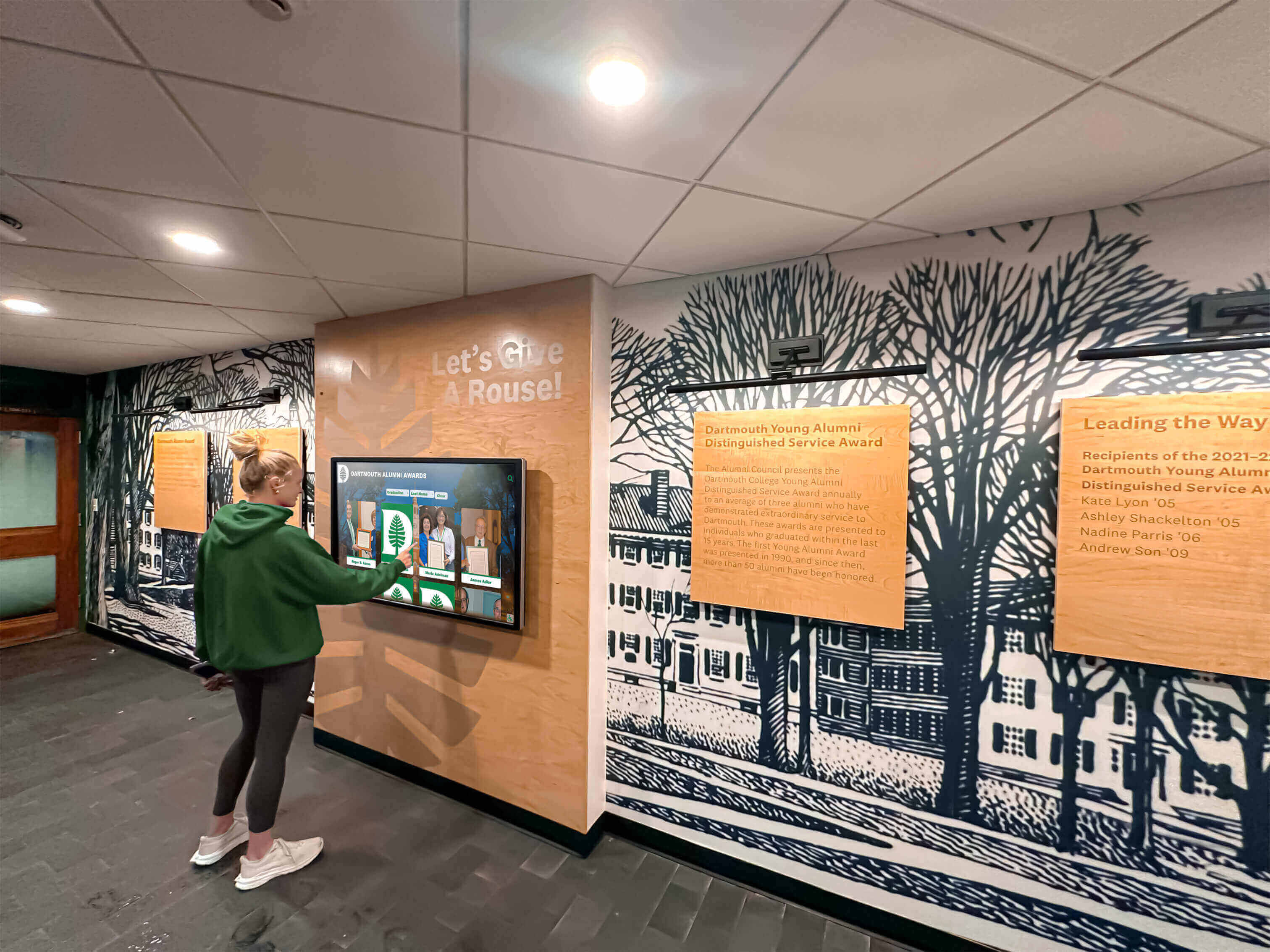
School hall of fame displays serve diverse users across age groups and physical abilities — hardware specifications must accommodate the full range
Screen Size: Matching Display to Space and Content
Screen size is typically the first specification schools focus on, and for good reason: it drives everything from visibility to mounting requirements to cost.
Standard Size Options for Hall of Fame Displays
Commercial touchscreens suitable for recognition displays commonly come in four primary sizes:
55-inch displays work well in narrower hallways, alcoves, or smaller lobbies where viewing distance is limited. At a typical viewing distance of 6-8 feet, a 55-inch screen offers comfortable reading of profile names and statistics. These units are lighter (typically 60-80 pounds) and easier to mount, and they carry lower acquisition costs.
65-inch displays represent the most common choice for school hall of fame installations. They balance visibility at distances up to 10-12 feet with manageable weight and cost. Most standard wall mounting hardware accommodates 65-inch commercial panels without structural reinforcement.
75-inch displays suit large lobbies, gymnasium entrances, and wide hallways where visitors approach from greater distances. Content legibility improves at distances up to 15 feet. Installation requires heavier mounting hardware and often structural wall assessment.
86-inch displays deliver maximum visual impact for flagship installations. Athletic field houses, main building entrances, and multi-display trophy walls benefit from 86-inch panels. These units typically weigh 150 pounds or more, require professional-grade mounting, and command significant price premiums.
How to Determine the Right Size
The simplest approach uses viewing distance as the primary variable. A common guideline for digital signage: display diagonal in inches should approximately equal the viewing distance in feet, multiplied by a factor of 1.5 to 2. For a viewer standing 8 feet away, that suggests a 48-to-64-inch display. For a viewer at 12 feet, a 72-to-96-inch panel.
Consider also:
- Content density: Displays showing multiple athlete profiles simultaneously benefit from larger panels where individual cards remain readable
- Landscape vs. portrait orientation: Portrait orientation effectively extends visual height, sometimes allowing a smaller panel to serve wider corridors
- Single vs. multi-screen installations: Some schools deploy two 65-inch displays side by side rather than one 86-inch unit, gaining flexibility and reduced installation risk
Schools planning high-visibility recognition walls typically find that erring toward larger screen sizes pays dividends in visitor engagement — people naturally gravitate toward displays that are easy to read without moving closer.
Touch Technology: Understanding the Panel Types
Not all touchscreens use the same underlying technology. For school hall of fame applications, three technologies are most commonly encountered:
Infrared (IR) Touch
Infrared touchscreens use a grid of IR LEDs and sensors around the display bezel. Any object breaking the IR beam registers as a touch — fingertip, stylus, or gloved hand.
Advantages for schools:
- Works reliably with gloved fingers (useful for athletic events in cold lobbies)
- No force required — light touch activation suits users with limited dexterity
- Durable and resistant to surface damage since the sensors sit in the frame, not on the glass
- Lower cost compared to PCAP alternatives at larger sizes
- Performs well at 55-inch through 86-inch sizes
Limitations:
- Can experience false touches in very bright environments where ambient IR light interferes with sensors
- Bezels are typically thicker than PCAP panels
- Water, dust, or debris near the frame edges can trigger ghost touches
Infrared touch represents the dominant technology in commercial touchscreens at 65-inch and larger sizes, making it the most common choice for school hall of fame installations.
Projected Capacitive (PCAP) Touch
PCAP technology, familiar from smartphones and tablets, uses a capacitive layer beneath the glass surface. It supports multi-touch gestures and registers touch through standard fingertips.
Advantages for schools:
- Slim, sleek profile with minimal bezel — premium aesthetic
- Supports pinch-to-zoom and swipe gestures if the software uses them
- No external sensors that can be damaged or misaligned
Limitations:
- Gloved touch typically does not register without special gloves
- Less common and more expensive at large commercial display sizes
- Requires direct skin contact rather than any opaque object
PCAP technology is more prevalent in smaller touchscreen kiosks (32-inch to 43-inch) used for check-in stations or information kiosks. For a large hall of fame display, infrared typically offers better reliability and cost efficiency.
Resistive Touch
Resistive touchscreens use pressure to detect input. They are rugged and can be activated by any object, but they lack the responsiveness of IR or PCAP panels and are rarely used in modern school display installations.
When resistive touch might apply:
- Industrial environments with heavy contamination
- Specialized kiosk applications requiring stylus input
For a school hall of fame display, resistive touch is generally not the appropriate choice.
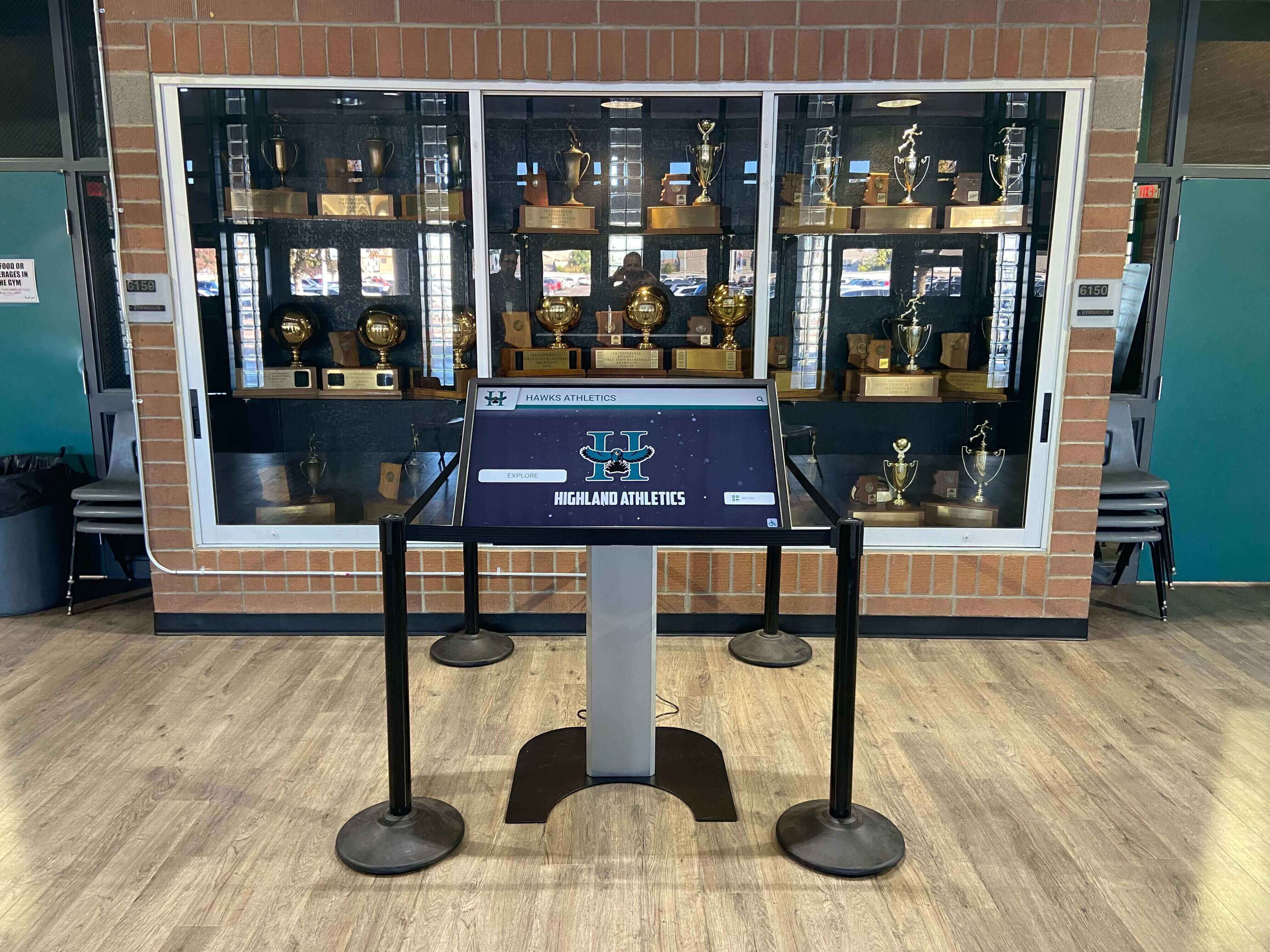
Commercial-grade touchscreen kiosks in athletic facilities require panels that perform reliably under constant use from visitors of all ages
Commercial vs. Consumer Displays: Why the Distinction Matters
One of the most important — and most frequently overlooked — hardware distinctions involves commercial-grade versus consumer-grade displays.
Consumer Displays
Consumer televisions and monitors are designed for residential use. They carry lower price tags and are widely available. But several specifications make them unsuitable for school hall of fame applications:
- Duty cycle: Consumer displays are rated for 6-8 hours of daily use. School lobbies require 8-12 hours or more of continuous operation.
- Brightness degradation: Consumer panels often drop significantly in brightness over their first 2,000 operating hours, leading to washed-out images within one to two years.
- Warranty: Consumer warranties typically cover defects but not commercial-use degradation.
- No touchscreen overlay: Most consumer televisions are not available with integrated touchscreen capability.
- Panel temperature management: Consumer panels lack the thermal management required for sustained operation in warmer lobby environments.
Commercial Displays
Commercial-grade displays are engineered for institutional use. Key differentiators include:
Operating hours: Commercial panels are rated for 16-24 hours of continuous daily operation. A school running a display 10 hours daily will use less than half the panel’s rated capacity.
Brightness stability: Commercial panels maintain consistent brightness over 50,000-70,000 hours of operation. For a 10-hour daily runtime, that represents 14-19 years of operation before significant brightness loss.
Thermal management: Internal cooling systems prevent overheating during sustained operation in environments with limited airflow.
Warranty coverage: Commercial warranties typically cover 3-5 years of on-site service, with panels rated for the duty cycles schools actually impose.
Remote monitoring: Many commercial panels include network-based monitoring allowing IT staff to detect and diagnose issues remotely.
VESA mounting compliance: Commercial displays follow standardized mounting patterns, ensuring compatibility with a wide range of wall mounts and floor kiosk enclosures.
The price premium for commercial panels — typically 30-60% over comparable consumer sizes — consistently represents appropriate value for school installations expected to serve 7-10 year lifecycles.
Brightness: Getting This Right for Your Environment
Brightness, measured in nits (cd/m²), determines whether display content remains visible under the lighting conditions in your specific installation location.
Typical Brightness Ranges
- 250-350 nits: Suitable for dimly lit or controlled-light environments such as dedicated media rooms or interior corridors with low ambient light
- 400-500 nits: Adequate for typical interior lobbies with moderate fluorescent or LED lighting
- 600-800 nits: Recommended for lobbies with overhead skylights, large windows, or strong directional lighting
- 1,000+ nits: Required for any outdoor or semi-outdoor installation, including covered entrance canopies
Assessing Your Installation Location
Before specifying brightness requirements, visit the installation location at different times of day. Note:
- Morning natural light: East-facing lobbies often receive strong direct sunlight in morning hours
- Overhead lighting intensity: Modern LED fixtures in school facilities often deliver high ambient light levels
- Glare angles: Windows or fixtures positioned at certain angles create reflections that brightness alone does not solve — anti-glare coatings address this separately
Most school lobby installations fall in the 400-700 nit range. Underestimating brightness requirements leads to displays that appear washed out — a common complaint from schools that reused lower-spec panels originally purchased for different applications.
Schools designing interactive recognition walls in high-traffic, well-lit environments typically specify 500-700 nit panels to ensure consistent visibility across all daylight conditions.
Orientation: Landscape or Portrait?
Display orientation affects both the visual experience and the content layout requirements. Most schools approach this question based on physical space constraints, but content design should also inform the decision.
Landscape Orientation (Horizontal)
Standard widescreen format (16:9 aspect ratio) is the default for most commercial touchscreens.
Works well when:
- Content displays multiple items side by side (athlete cards, banner images)
- Wall width is greater than wall height in the installation area
- Software templates are designed around standard 16:9 layouts
- Ceiling height limits vertical display space
Portrait Orientation (Vertical)
Rotating a standard display 90 degrees to vertical orientation creates a tall, narrow format (9:16 aspect ratio).
Works well when:
- Wall height is generous but width is limited (narrow corridors)
- Content design emphasizes full-length athlete photos or tall profile cards
- Displaying lengthy scrollable lists of inductees or records
- Creating a visual anchor at the end of a hallway
Hardware consideration: Not all commercial displays support portrait orientation out of the box. Verify that the panel’s internal components — particularly the cooling system and any built-in media player — are rated for operation in portrait position. Some panels require portrait-specific mounting to ensure proper ventilation.
Dual-Screen Configurations
Some schools install two displays side by side in landscape orientation, creating a wide-format presentation without the structural requirements of a single 86-inch panel. This approach allows one screen to display video highlights while the other shows inductee profiles, or allows both to show a unified panoramic design. Content management systems that support multi-display configurations make this feasible from a software standpoint.
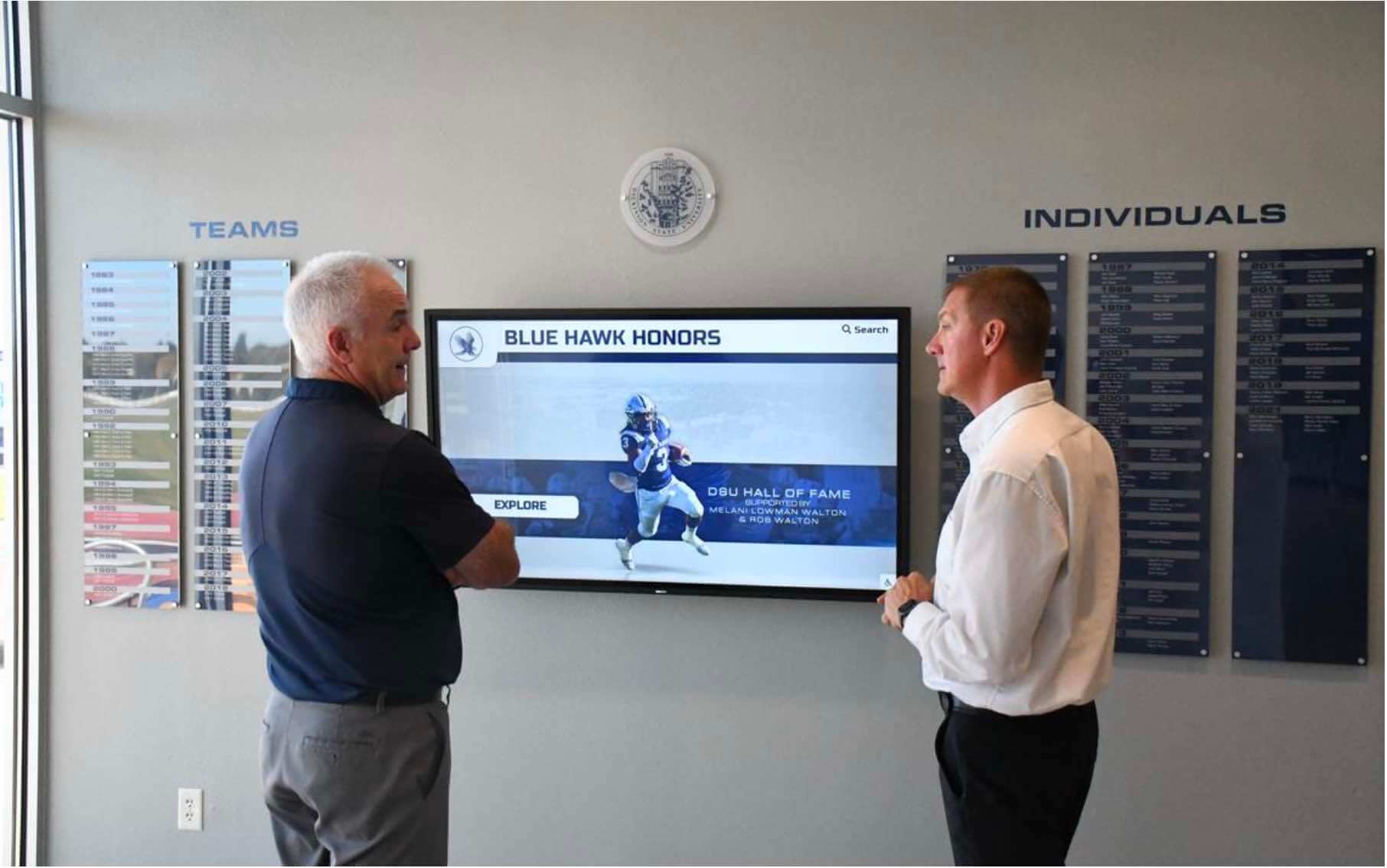
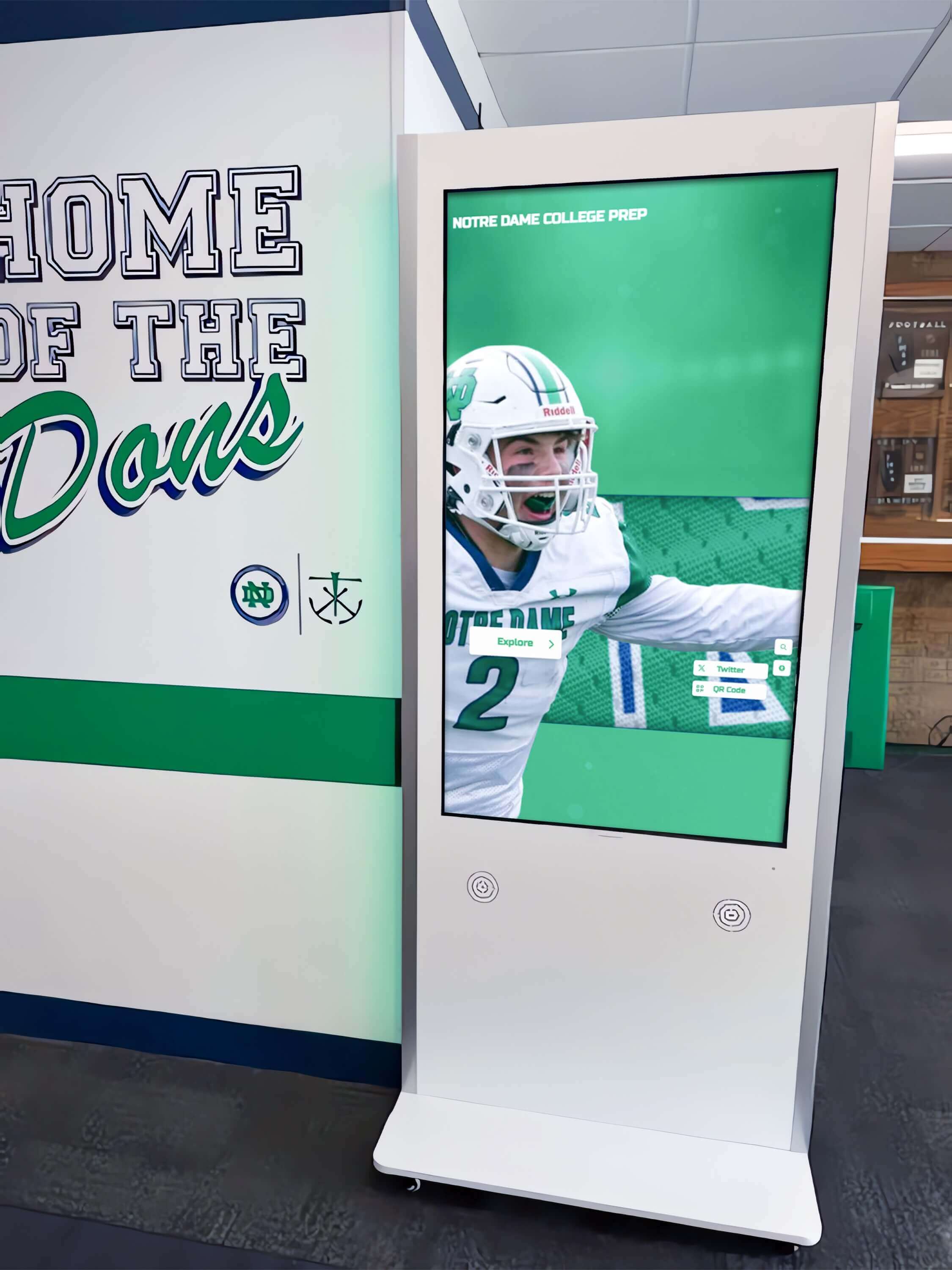
Display orientation and size should be selected based on the physical dimensions of the installation space and the content layout requirements
ADA Compliance and Accessibility
Federal accessibility requirements under the Americans with Disabilities Act (ADA) establish physical standards for interactive touchscreens accessible to visitors using wheelchairs or other mobility aids. These are not optional considerations — they are compliance requirements for school facilities.
Key ADA Physical Requirements for Touchscreen Displays
Maximum reach height: Interactive touchscreen controls must be reachable from a seated position. The ADA specifies a maximum height of 48 inches from the floor for forward approach and 54 inches for side approach. For touchscreen hall of fame displays, the highest interactive content element should fall within these limits.
Mounting height: Wall-mounted displays must be positioned so that the lowest interactive element is reachable. For a 65-inch display in landscape orientation, center mounting height is typically 54-58 inches from the floor — a range that positions the bottom quarter of the screen within comfortable seated reach.
Floor clearance: Displays mounted in corridors must maintain minimum passable floor space (36 inches minimum path width, 60 inches preferred) around any kiosk or floor-standing enclosure.
Touch sensitivity: Touch input mechanisms must be operable with one hand without tight grasping or twisting — important for displays used by visitors with limited hand strength or dexterity.
WCAG and Software Accessibility
Physical ADA compliance addresses the hardware installation. Software accessibility — governed by Web Content Accessibility Guidelines (WCAG) 2.1 AA — addresses on-screen content. Schools evaluating touchscreen hardware should simultaneously verify that their chosen software platform meets WCAG 2.2 AA accessibility standards for digital recognition displays, including text contrast ratios, font sizing, and screen reader compatibility.
Hardware and software accessibility must both be addressed for a fully compliant installation. Selecting a display with appropriate mounting specifications solves the physical compliance dimension; selecting accessible content management software solves the digital dimension.
Durability, Enclosure, and Vandal Resistance
School environments impose durability requirements that differ from corporate or retail settings.
Glass and Surface Protection
Tempered safety glass: Commercial touchscreens with tempered glass overlay withstand accidental impacts better than standard glass panels. For installations in high-traffic hallways near athletic events, this is a meaningful consideration.
Anti-glare coating: Matte anti-glare coatings reduce reflections from overhead lighting and windows. They improve visibility in bright environments but can slightly reduce perceived sharpness in low-light conditions. For most school lobbies, anti-glare coatings offer a net benefit.
Anti-fingerprint coating: Oleophobic coatings reduce smudge accumulation on frequently touched surfaces. While these coatings wear over time, they meaningfully reduce the frequency of cleaning required in the first several years of operation.
Enclosure Options
Slim wall-mount configuration: The display panel mounts directly to the wall with a profile of 2-4 inches. This configuration works well in corridors where protruding surfaces would obstruct foot traffic. Cable management conceals connections within the wall or through surface-mounted conduit.
Floor-standing kiosk enclosure: A freestanding housing holds the display panel at an appropriate height, often with a base that can be secured to the floor. Kiosk enclosures typically include integrated cable management, optional locking side panels for securing the internal computer, and modular designs that allow panel upgrades without replacing the entire enclosure.
Recessed installation: In new construction or renovation projects, displays can be recessed into the wall so the screen surface sits flush with the wall plane. This approach eliminates any protrusion, creates a clean architectural integration, and reduces the risk of accidental impact damage. Recessed installations require advance coordination during construction and are more complex to service.
Ingress Protection (IP Rating)
For standard interior school hallway installations, IP ratings for dust and moisture resistance are rarely required. Exceptions include:
- Pool facilities or natatoriums where humidity levels are elevated
- Covered outdoor installations at building entrances
- Gymnasium areas with high cleaning frequency using liquid cleaners
For those environments, displays with IP54 ratings (protected against dust ingress and water splash from any direction) offer appropriate protection.
Connectivity and Software Compatibility
A touchscreen is a display device — its value depends on the software running on it. Ensuring hardware and software compatibility prevents costly surprises after purchase.
Operating System Compatibility
Most hall of fame content management software runs on one of three OS environments:
Windows (commercial media player): Many commercial displays include a built-in Windows-based media player, or the software operates on an external Windows PC connected via HDMI/DisplayPort. Windows platforms offer broad software compatibility and familiar administration tools for school IT staff.
Android (System on Chip): Some commercial displays include built-in Android-based SoC (System on Chip) modules. Android platforms offer lower hardware costs but may limit software options to Android-compatible applications.
Browser-based / OS-agnostic: Some content management platforms are browser-based, running on any operating system with a modern browser. This offers maximum hardware flexibility — the platform works with whatever OS the display includes.
When evaluating touchscreen hardware, confirm with your software vendor which OS environments are supported and whether any specific hardware configurations are required or recommended.
Input and Output Ports
Verify that the display includes the ports your installation will need:
- HDMI / DisplayPort: For connecting an external computer if the display doesn’t include a built-in media player
- USB-A ports: For connecting peripherals, updating software via USB drive, or connecting external devices
- USB-C: Increasingly common for both data and power connections
- Ethernet (RJ45): For wired network connectivity — preferred over WiFi for reliability in production environments
- RS232 / RS485: For integration with building automation systems (not commonly required but available on commercial panels)
Network Requirements
Cloud-based content management platforms require reliable network connectivity. Key considerations:
- Wired vs. wireless: Ethernet connections provide superior reliability for video-heavy hall of fame content. WiFi may be adequate for static content but can suffer from interference or bandwidth competition in busy school networks.
- Bandwidth: 4K video content requires sustained bandwidth of 25+ Mbps. Even without 4K video, cloud platforms performing content synchronization benefit from consistent connections.
- Firewall access: IT departments may need to configure firewall rules allowing the content management platform to communicate with cloud servers. Confirm required ports and domains with the software vendor before finalizing network planning.
Schools building comprehensive digital walls of achievement benefit from hardware that supports stable cloud connectivity, enabling remote content updates without requiring physical access to the display.
Connectivity planning for hall of fame touchscreens should account for wired Ethernet runs, firewall configuration, and bandwidth allocation
Budget Planning: Hardware Cost Tiers
Understanding commercial touchscreen pricing helps schools establish realistic budgets before beginning vendor conversations.
Entry-Level Commercial Touchscreens (55-inch, basic specs)
Typical price range: $1,800–$2,800
These panels offer:
- 400-500 nit brightness
- Infrared 10-point touch
- 1080p or 4K resolution
- Basic built-in media player
- 3-year commercial warranty
Suitable for: Smaller installations in controlled-light environments with modest traffic volumes.
Mid-Range Commercial Touchscreens (65-inch, full-featured)
Typical price range: $3,000–$5,500
These panels offer:
- 500-700 nit brightness
- Infrared 20-point touch
- 4K resolution
- Commercial-grade duty cycle (16+ hours daily)
- Enhanced thermal management
- 3-5 year commercial warranty with on-site service
Suitable for: Most school hall of fame lobby installations. This tier represents the most common price point for new recognition display projects.
Premium Commercial Touchscreens (75-inch and 86-inch)
Typical price range: $5,500–$14,000+
These panels offer:
- 600-1,000 nit brightness
- 20-40 point infrared touch
- 4K resolution
- Enhanced panel longevity ratings
- Extended warranty options
- Advanced network monitoring capabilities
Suitable for: Flagship athletic complex installations, multi-display configurations, or high-visibility entrance installations where maximum impact is required.
Total Project Cost Context
Hardware represents one component of total installation cost. Schools should budget for:
- Professional mounting and installation: $500–$2,000 depending on complexity
- Electrical work: $300–$1,000 for dedicated circuit installation if needed
- Network infrastructure: $200–$500 for Ethernet runs
- Content management software: $500–$3,000 annually
- Content development and migration: $1,000–$5,000 for initial population
- Training: Often included in software licensing or available as supplementary service
Total project costs typically range from $6,000–$18,000 for a single-display hall of fame installation, with hardware representing 35-55% of the total.
Schools creating donor recognition displays alongside athletic recognition programs often find that shared hardware infrastructure reduces per-program costs when multiple recognition categories run on the same platform.

Touchscreen hardware quality directly shapes the visitor interaction experience — precision touch response and clear display quality maintain engagement
Evaluating the Full Solution: Hardware Plus Software Together
The most reliable approach to selecting touchscreen hardware involves evaluating hardware and software as an integrated system rather than making independent decisions. Several factors reward this integrated approach:
Software-certified hardware: Some content management platforms maintain certified hardware lists — displays they have tested and confirmed to work reliably with their software. Purchasing from a certified hardware list reduces the risk of compatibility issues and simplifies troubleshooting if problems arise.
Turnkey supply chains: Providers who supply both hardware and software typically negotiate volume pricing with display manufacturers, often delivering better specifications at equivalent or lower cost than schools can achieve through independent hardware procurement.
Single point of accountability: When hardware and software come from the same provider, support conversations don’t devolve into finger-pointing between vendors. A software problem that manifests as display behavior — or a hardware limitation that affects software performance — gets resolved by one team with full visibility into the complete system.
Warranty alignment: Hardware and software support cycles that align simplify long-term planning. A 5-year hardware warranty paired with annual software licensing that includes hardware replacement options creates a coherent lifecycle management approach.
Solutions like Rocket Alumni Solutions provide this kind of integrated approach — combining purpose-built hall of fame content management software with compatible hardware, coordinated installation, and ongoing support — which simplifies the decision process significantly compared to independently sourcing and integrating hardware and software components.
Schools evaluating recognition solutions for community belonging benefit from integrated providers who understand that a hall of fame display serves an institutional purpose, not just a technical function.
Frequently Asked Questions
What screen size do most schools choose for hall of fame displays?
The 65-inch commercial touchscreen is the most common size for school hall of fame installations. It balances visibility at typical lobby viewing distances (8-12 feet), manageable weight for standard wall mounting, and cost efficiency. Schools with larger lobbies or athletic field house entrances frequently choose 75-inch panels. Smaller installations in narrow corridors or alcoves sometimes use 55-inch panels.
Is a commercial display really necessary, or can a consumer TV work?
Consumer televisions are not designed for the continuous operation, touch functionality, and multi-year lifespan that school hall of fame installations require. Commercial displays cost more initially but carry specifications — duty cycles, brightness stability ratings, commercial warranties, and integrated touch capability — that make them appropriate for institutional use. Schools that choose consumer TVs often face premature failure, significant brightness degradation within two to three years, and lack of warranty support for commercial-use degradation.
What brightness level do I need for a school lobby?
Most school lobby installations should specify 400-700 nits of brightness. Lobbies with overhead skylights, large windows facing south or west, or strong directional LED fixtures trend toward the higher end of that range. Dimly lit interior corridors may be adequately served by 400-450 nit panels. Avoid under-specifying brightness — displays that appear washed out in real lighting conditions disappoint visitors regardless of content quality.
Can the touchscreen work with any hall of fame software?
Compatibility depends on the operating system the display runs or supports. Verify with your software vendor which OS environments are supported. Many content management platforms are browser-based and OS-agnostic, providing the broadest hardware compatibility. Some platforms maintain certified hardware lists — consulting those lists before purchasing hardware is recommended.
How long should a commercial touchscreen last in a school environment?
Commercial touchscreens rated for 16-24 hour daily duty cycles typically maintain acceptable performance for 7-10 years in school environments operating 8-12 hours daily. Panel brightness may show modest decline after 50,000 hours of operation, but the panels remain functional. Touch sensor reliability and network connectivity hardware are often more likely to require attention before the display panel itself reaches end of life.
Does mounting height affect compliance?
Yes. ADA requirements establish maximum reach heights for operable interactive elements — 48 inches for forward approach and 54 inches for side approach. The mounting height of the display center, combined with the height of the panel itself, determines where interactive elements fall within the ADA reach range. Work with your installation provider to specify mounting height before hardware arrives, as correcting height after mounting requires additional labor and wall patching.
What is the difference between infrared and PCAP touchscreens?
Infrared (IR) touchscreens detect input via a grid of sensors around the frame bezel — any object (including gloved hands) that breaks the sensor grid registers a touch. PCAP touchscreens use a capacitive layer beneath the glass and require direct skin contact, similar to a smartphone. For school hall of fame displays at 55-inch and larger sizes, infrared touch is the most prevalent technology, offering reliable performance, compatibility with any finger or stylus input, and lower cost at larger panel sizes.
Choosing Your Display: A Practical Decision Framework
Synthesizing the considerations above into a practical selection framework:
Measure your space: Identify the installation location, measure available wall dimensions, and determine typical visitor viewing distance. This sets your size range.
Assess lighting conditions: Visit the location at different times of day. Note overhead lighting intensity, window glare angles, and any directional light sources. This sets your brightness specification.
Confirm accessibility requirements: Identify the mounting height range that satisfies ADA reach requirements for your visitor profile. This constrains your mounting specification.
Verify software compatibility: Contact your content management software vendor to confirm which hardware configurations are supported or certified. This filters your hardware options.
Set the commercial-grade requirement: Unless the installation runs fewer than 6 hours daily in an environment with minimal user interaction, specify commercial-grade panels with 16+ hour rated duty cycles.
Define orientation: Based on wall dimensions and content design, choose landscape or portrait. Confirm that your chosen panel supports operation in your preferred orientation.
Evaluate total cost of ownership: Compare hardware cost, installation, software licensing, and support across options rather than hardware cost alone.
Request integration-friendly proposals: Ask vendors to propose hardware and software as an integrated system with aligned warranty and support terms.
Schools that work through this framework systematically arrive at hardware specifications that match their environment, serve their recognition program goals, and remain reliable for the display’s expected lifetime.
Schools looking for practical guidance on designing the physical layout of a hall of fame display can combine hardware selection with content design planning to ensure the physical panel and the content structure reinforce each other. Similarly, schools considering the athletic context of their recognition programs may find useful framing in resources on complete basketball hall of fame guides that address both physical and programmatic considerations.
Making the Investment Work Long-Term
A touchscreen hall of fame display is a capital investment that serves the school community for a decade or more. The hardware decision establishes the foundation — screen quality, touch reliability, durability, and accessibility compliance — that everything else builds on. Choosing the right panel for your specific environment, installed professionally at the correct height with appropriate connectivity, creates conditions for a display that works day after day without requiring IT interventions or administrator attention.
The hardware selection process is most effective when approached alongside software evaluation, installation planning, and content development as interconnected decisions rather than sequential phases. Schools that make these decisions together — often by working with a provider who integrates all components — consistently report smoother implementations and higher long-term satisfaction.
Ready to explore hardware and software options for your school’s hall of fame display project? Rocket Alumni Solutions provides integrated touchscreen hall of fame systems — purpose-built software, compatible hardware, professional installation, and ongoing support — helping schools create recognition displays that serve their communities for years.