Intent: research. Digital signage for schools has moved from novelty to standard infrastructure in many districts—but purchasing decisions still vary widely based on what administrators know going in.
School technology budgets are tight. Screens cost money, software costs money, and managing devices across a campus—let alone multiple buildings—requires either dedicated IT staff or tools that reduce the management burden significantly. For many administrators, the gap between “we want digital signage” and “we know how to deploy and sustain it” is wide enough that projects stall or get pared down far below what the school actually needs.
This guide covers what digital signage software for schools actually does, which features matter most in educational settings, why MDM (Mobile Device Management) integration changes the operational picture significantly, and how licensing models differ—including options that offer unlimited digital signage at a fraction of what most platforms charge per screen.
Digital signage in schools serves purposes that stretch well beyond the scrolling announcement ticker most people picture. From lobby displays that greet visitors to hallway kiosks where students browse athletic history, from emergency communication networks to donor recognition walls, the category of “school digital signage” covers substantially different use cases that require different software capabilities.
Understanding the full scope of what digital signage software can do—and which features match your institution’s specific needs—shapes a much more informed purchasing decision than starting with a vendor demo and working backward.
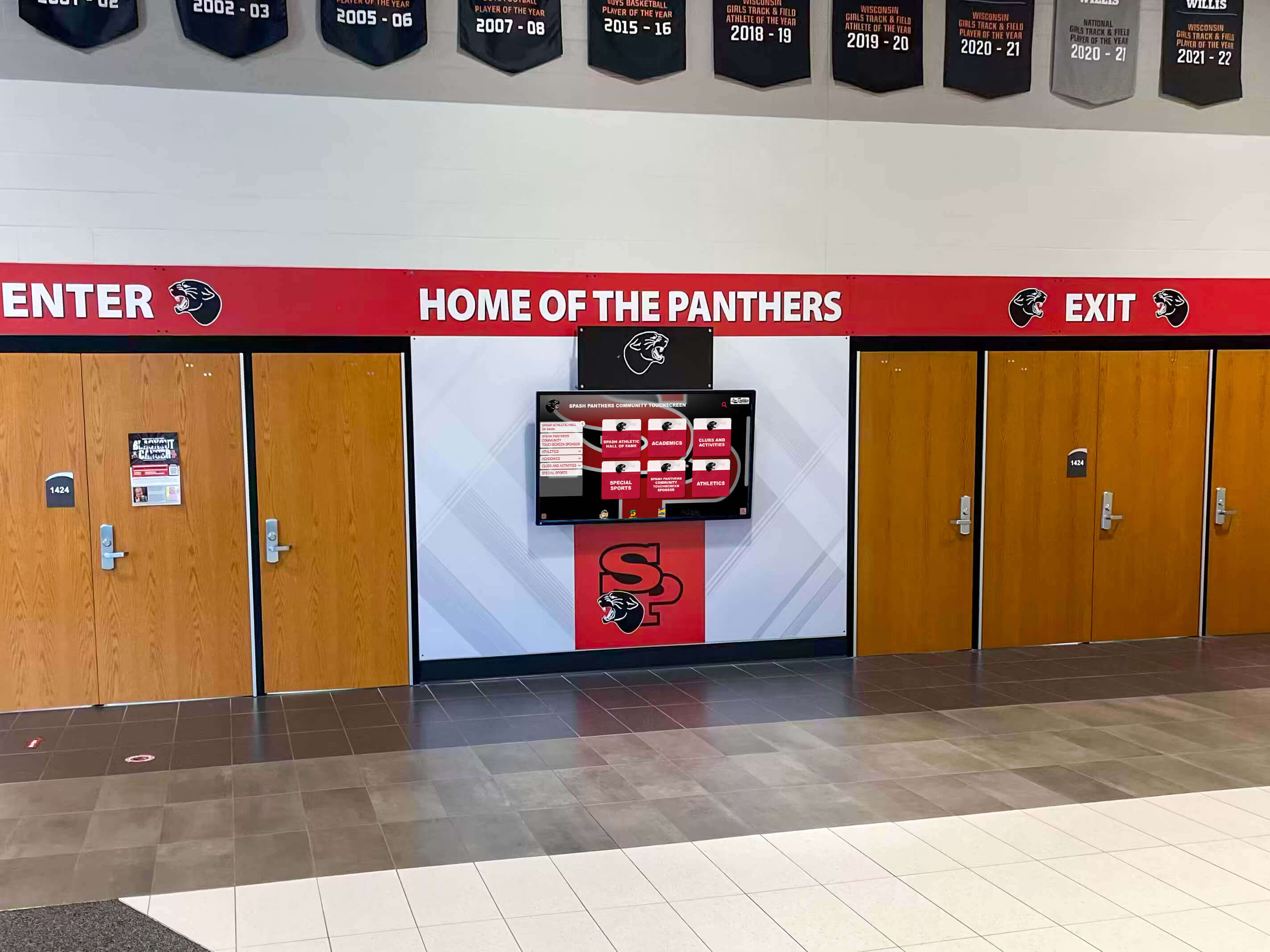
School entrances are among the highest-traffic locations for digital signage—visitors, students, and parents all pass through, making the first impression count
Why Schools Are Deploying Digital Signage Now
Several converging factors have accelerated digital signage adoption across K-12 and higher education institutions.
Display hardware costs have dropped significantly. Commercial-grade displays in the 55" to 86" range that once represented major capital purchases are now accessible at price points that fit standard technology budgets. Types of screens used for digital signage in schools covers the range from basic commercial panels to large-format touchscreens and multi-panel video walls, helping administrators match hardware to specific installation contexts.
Cloud-based software has eliminated the server room. Earlier digital signage systems required on-premise media servers, dedicated hardware at each screen, and IT expertise for routine updates. Current cloud platforms allow content managers to publish across an entire campus from a browser, with changes propagating in seconds.
Schools are recognizing the limits of static communication. Bulletin boards, printed flyers, and paper newsletters don’t reach students who don’t stop to look. Digital displays in high-traffic areas generate attention passively—a student walking to class sees a championship announcement without having to seek it out.
Recognition program needs are growing. Athletic halls of fame, academic honor displays, donor recognition walls, and community tribute installations require more than framed photos and brass plaques. Digital formats allow schools to honor more people, update content year-round, and give visitors ways to explore recognition content on their own terms.
Core Features in Digital Signage Software for Schools
Not all digital signage platforms offer the same capabilities. These features separate basic content players from platforms genuinely suited to educational environments.
Cloud-Based Content Management
The content management system (CMS) is where staff create, schedule, and publish content to screens. For schools, CMS usability matters more than in most industries—the person updating the lobby display might be an athletic secretary, a front office assistant, or an administrator who uses the platform infrequently.
Platforms that require technical training for routine updates create friction that leads to stale content.
Look for:
- Browser-based access without software installation
- Drag-and-drop content creation or template-based workflows
- Role-based permissions so different staff manage different displays
- Scheduling by date, time, or day-of-week without rebuilding playlists
Hardware Compatibility
Digital signage software runs on media players—small computing devices connected to displays. The software must support the media player hardware the school has or plans to purchase. Common media player form factors include Android-based sticks, dedicated Windows players, Chrome OS devices, and Amazon Fire Sticks. School lobby digital signage installations typically combine hardware selection with network planning, since hardware and connectivity determine whether deployments run consistently in practice.
Emergency Alert Integration
School safety protocols require the ability to override scheduled content instantly. Emergency alert integration—whether through external notification systems or built-in alert tools—ensures all displays transition to safety messaging without manual intervention at each screen.
Content Zones and Multi-Region Layouts
Many effective school displays divide the screen into multiple zones: a primary content area for announcements or recognition, a ticker for quick updates, a clock or weather widget, and a logo bar for institutional branding. Multi-zone support requires software that manages independent content regions within a single screen layout.
Schedule Management
Content relevance depends on timing. An event promotion doesn’t need to run after the event ends. Athletic schedules should display during game seasons, not year-round. Good scheduling tools let content managers set start and end dates, restrict content to specific hours, and configure day-of-week patterns without rebuilding playlists from scratch.
QR Code and Mobile Access
Digital signage visible in school hallways or lobbies serves visitors who are physically present. QR codes displayed alongside content allow students, alumni, and community members to scan and access the same information—or extended content—on personal devices. This extends reach beyond anyone within sightline of a physical display.
For recognition content specifically, QR access means an alumnus at homecoming can browse the hall of fame database from a phone rather than waiting for a specific profile to appear on screen.
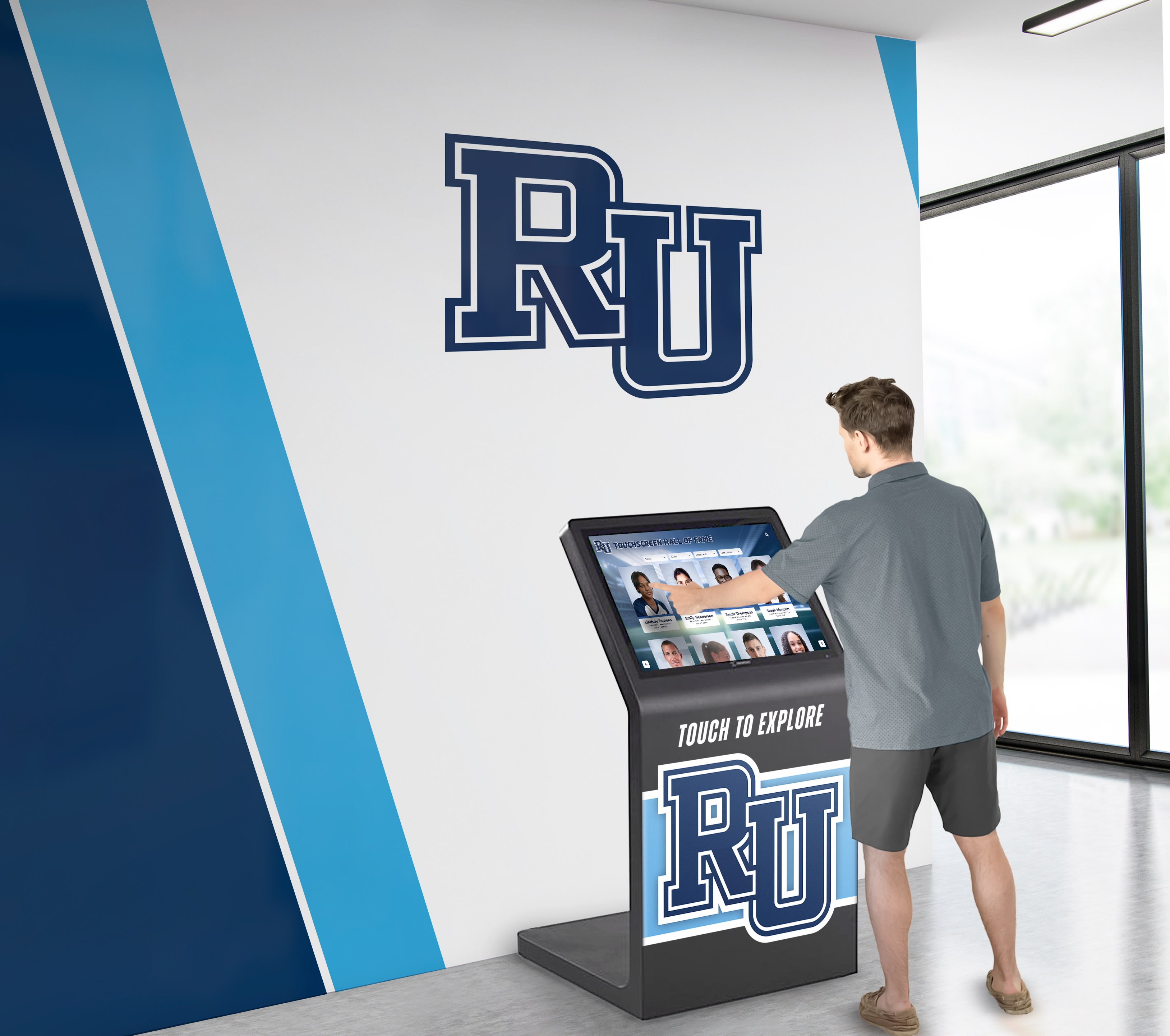
Interactive kiosks with QR code access extend digital signage content to personal devices, reaching visitors beyond the physical display location
ADA and WCAG 2.1 AA Compliance
Schools operating public-facing digital displays are subject to accessibility requirements. WCAG 2.1 AA (Web Content Accessibility Guidelines) sets standards for contrast ratios, text sizing, and interface operability. For touchscreen installations, ADA Standards for Accessible Design address mounting heights and operable component placement—specifically, operable components should fall within 15–48 inches for wheelchair accessibility.
Request written compliance documentation from vendors rather than relying on general assurances. Compliance language in marketing materials does not substitute for documented conformance testing.
MDM Device Management: What It Is and Why It Matters
MDM (Mobile Device Management) is software that lets IT administrators manage, configure, monitor, and secure devices from a central dashboard—without physically accessing each device.
In a digital signage context, MDM allows a school’s IT coordinator to:
- Push software updates to 20 media players across campus simultaneously
- Remotely restart a player that stopped responding
- Lock players into kiosk mode so they only run digital signage software
- Monitor device status—online/offline, storage, connection health—from a single view
- Provision new devices with standard configurations in minutes rather than hours
Without MDM, managing a fleet of digital signage media players requires on-site access to each device for updates and troubleshooting. In a school with displays across multiple hallways, classrooms, and athletic facilities, that adds up to considerable IT staff time as the deployment grows.
Digital signage kiosk deployments in schools and organizations treat MDM as a core operational requirement for multi-device environments—not an advanced feature, but a baseline for any school running more than a handful of screens reliably.
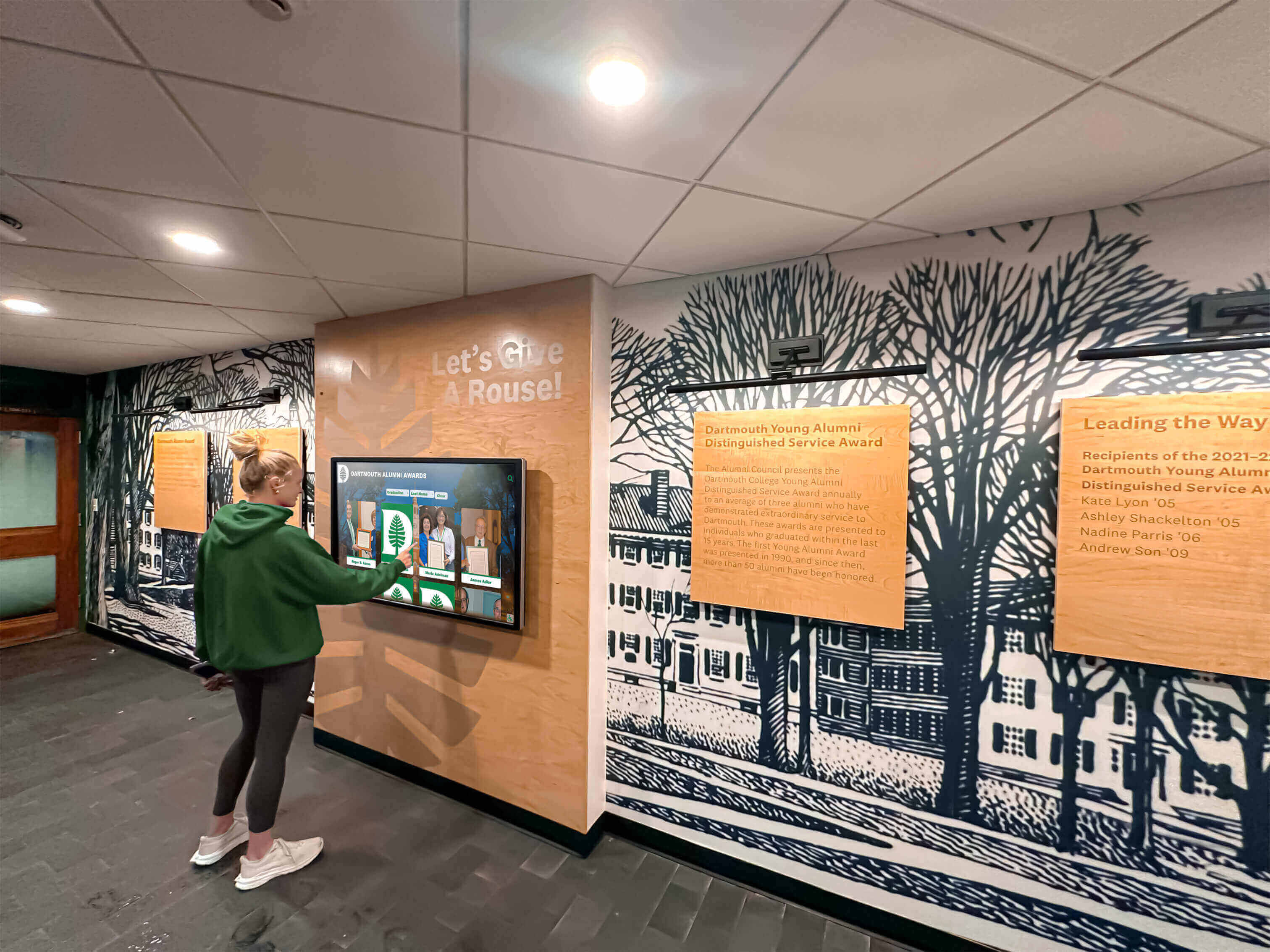
Behind every functioning digital display is device management infrastructure—MDM ensures media players stay updated, secure, and responsive without on-site IT intervention at each screen
What MDM Covers in a School Deployment
Device enrollment: New media players are registered in the MDM system and automatically receive the standard software configuration. A device that ships to the school can be operational with correct settings without IT physically configuring it on-site.
Policy enforcement: MDM enforces that devices run only approved applications, maintain correct time zones, and connect only to authorized networks. This prevents tampering with display content and ensures security standards are maintained across every player.
Remote troubleshooting: When a screen goes dark or a player stops responding, MDM allows IT to restart, reconfigure, or inspect the device remotely. Many issues that previously required a trip to the display location resolve in under a minute from an IT dashboard.
Software and firmware updates: Operating system updates and digital signage software updates deploy across the entire device fleet simultaneously. IT doesn’t update each player individually, reducing time investment and the risk of devices running different software versions.
Inventory management: MDM maintains a real-time record of all managed devices, their configurations, and their status. This simplifies hardware replacement planning and ensures no devices fall outside the managed environment over time.
MDM Options for Schools
MDM is available in several configurations:
- Built into digital signage platforms: Some platforms include device management as part of the subscription, handling enrollment, updates, and monitoring within the same interface as content management
- Third-party MDM services: Dedicated MDM tools (commonly used in K-12 for Chromebook and iPad fleets) can often extend coverage to digital signage media players
- Bundled with school-specific licensing: Some vendors include MDM as a feature of education-focused licensing plans
When MDM is built directly into the digital signage platform, the operational benefit is significant—content managers and IT staff access a unified interface rather than switching between separate systems for content publishing and device management.
Types of Digital Signage Content Schools Manage
Understanding what content schools actually display clarifies which software features matter most during platform selection.
Daily Announcements and Communication
The highest-volume content category for most schools: event reminders, bell schedule changes, club announcements, cafeteria menus, weather alerts, and daily acknowledgments. This content changes frequently and needs staff to update it easily, without technical skills or IT involvement.
Athletic Recognition and Record Boards
Athletic programs generate recognition content year-round: new records set, championship banners earned, students who sign college letters of intent, seniors completing final seasons. Touchscreen TV displays for athletic information in high schools detail how schools display this category across different screen sizes and locations.
Athletic record boards require structured data—sport, event, record holder, performance mark, date—that general announcement displays aren’t designed to manage. Platforms with database-driven record management handle automatic re-ranking when records break, eliminating the need to manually recreate graphics after every new achievement.
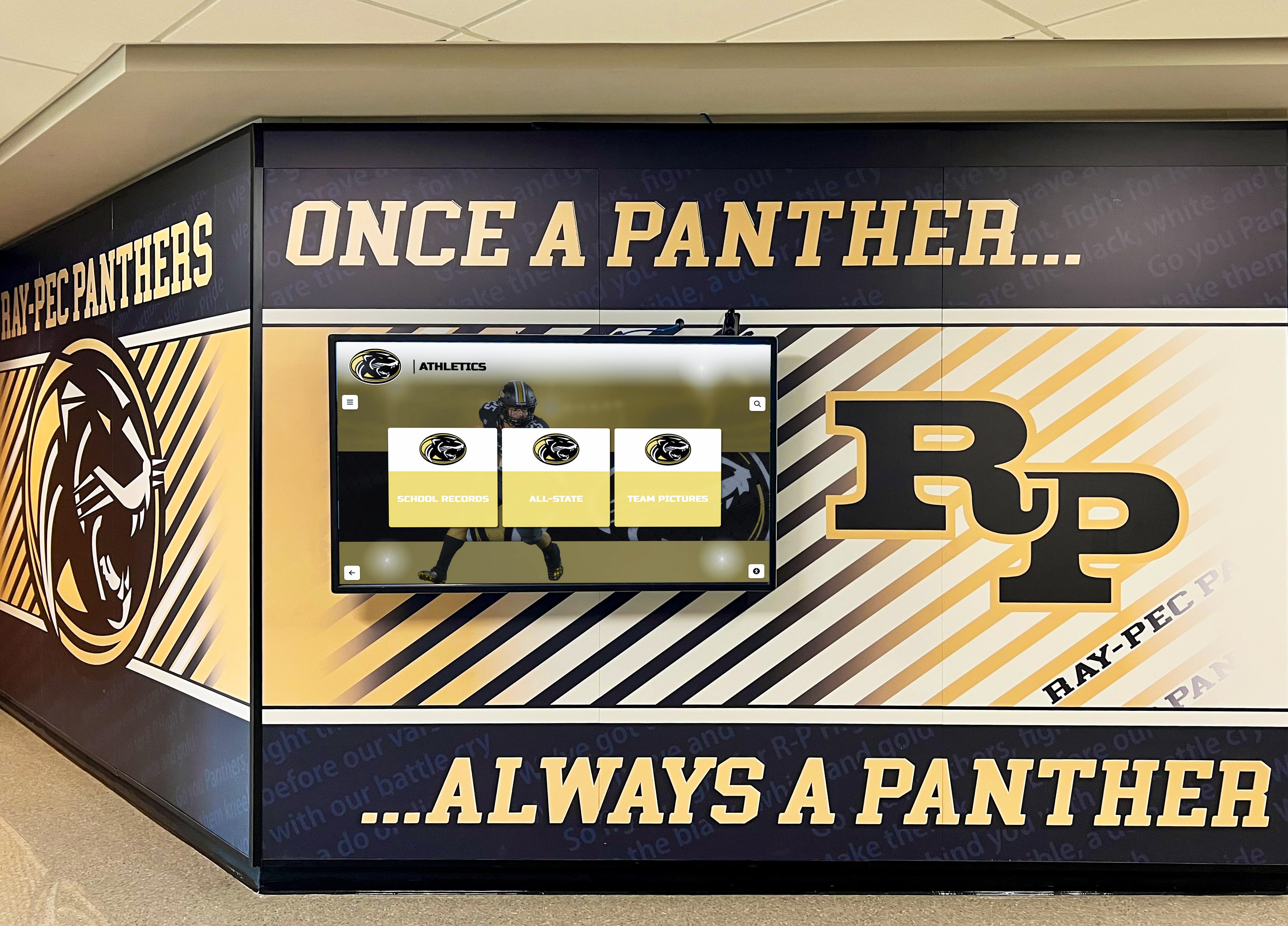
Athletic hallways with built-in digital screens serve as year-round recognition spaces—mural installations and displays work together to tell the complete athletic story
Hall of Fame and Alumni Recognition
Schools with established athletic or academic recognition programs need displays that go beyond rotating slideshows. Hall of fame digital signage allows visitors to search by name, filter by sport or graduation year, and explore full biographical profiles for individual honorees.
This content type typically requires dedicated recognition software—either as a standalone platform or as a specialized module within a broader digital signage system. The difference between a searchable database and a rotating slideshow becomes apparent to any visitor who arrives looking for a specific person.
Wayfinding and Campus Navigation
Large campuses and buildings with complex layouts benefit from digital wayfinding displays at entrances and high-traffic intersections. Interactive touchscreens allow visitors to find specific rooms, departments, or individuals rather than relying on static printed maps. Touch screen kiosk software for interactive displays covers the distinction between passive wayfinding and fully interactive navigation systems designed for public-facing kiosk environments.
Donor Recognition
Capital campaigns, naming rights agreements, and endowment gifts come with recognition commitments. Digital donor walls can display giving tiers, acknowledge named spaces, and honor major gifts with more depth than static plaques allow. Recognition content can include donor names, contribution descriptions, and images of the facilities or programs those gifts supported.
Community and Culture Content
Spirit-building content—mascot features, school history highlights, championship retrospectives, teacher and student spotlights, and community partnership acknowledgments—builds institutional identity without requiring a special occasion. School history display ideas that span generations cover how schools use digital displays to share history and tradition with current students who weren’t present for key institutional moments.
Digital Signage Pricing Models for Schools
Software licensing structures vary significantly across platforms, and the pricing model affects total cost of ownership more than the advertised per-unit rate suggests.
Per-Screen Licensing
The most common model charges a monthly or annual fee per screen. A school with 10 displays pays 10× the per-screen rate; a school with 50 displays pays 50×. This creates predictable costs at small deployments but scales costs proportionally as programs grow.
Common per-screen rates range from $10 to $40 per screen per month, or $120 to $480 per screen annually. A 20-screen deployment on a $25/screen/month platform costs $6,000 per year in software alone—before hardware, installation, or content creation.
Flat-Rate and Unlimited Licensing
Some platforms offer flat-rate licenses covering unlimited screens within an institution. Under this model, a school pays a single annual fee regardless of how many displays it operates. This structure strongly favors schools planning to grow their digital signage networks over time, since adding additional screens doesn’t increase software costs.
Digital signage and touchscreen kiosk service features cover licensing approaches and the split-screen and widget features that determine day-to-day platform usefulness for school deployments.
What’s Included at Each Price Tier
Licensing fees don’t always cover the same things. Verify before purchasing:
- Is MDM device management included, or is it a separate cost?
- Are content templates included, or do they require additional design subscriptions?
- Is technical support included, or tiered based on response time commitments?
- Are software updates included throughout the licensing period?
- Is there a per-user fee for CMS access, or unlimited staff accounts?
Hidden fees in any of these categories can materially change the true annual cost versus the advertised license rate.
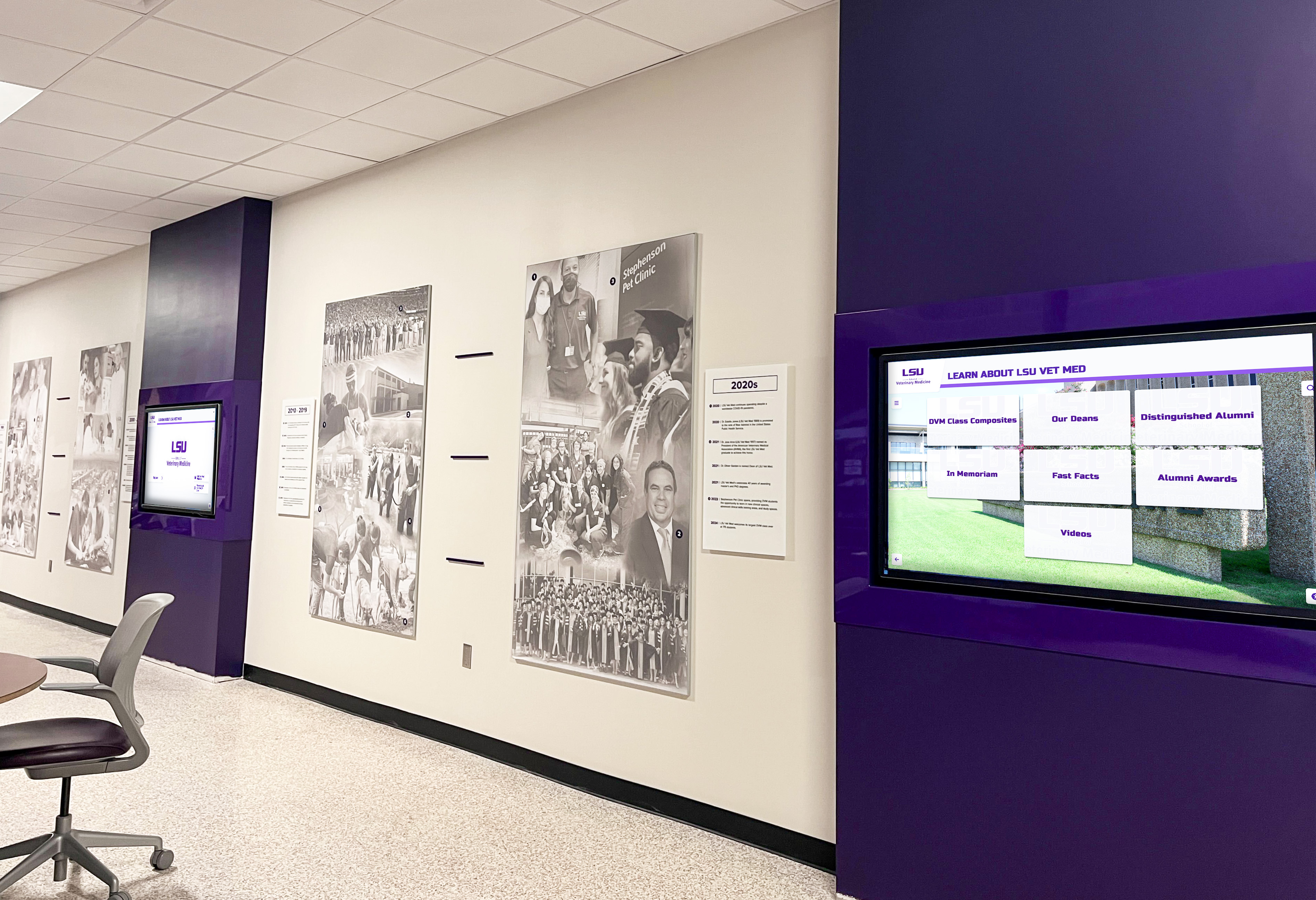
Multi-screen hallway networks serve ongoing communication needs—software pricing models should account for the full deployment scale, not just a pilot installation
Rocket Alumni Solutions: Unlimited Digital Signage at $50/Year
Rocket Alumni Solutions offers a digital signage platform for schools designed to deliver feature parity with established digital signage platforms at a licensing cost far below the per-screen model: $50 per year for unlimited digital signage across the institution.
That pricing covers unlimited screens—a school with 5 displays and a school with 50 displays pay the same annual rate—along with MDM device management built directly into the platform.
What the $50/Year Platform Includes
Unlimited digital signage screens: No per-device fees as deployments grow. Schools can add displays to hallways, athletic facilities, libraries, cafeterias, and administrative spaces without triggering licensing cost increases.
MDM device management: Device enrollment, remote monitoring, policy enforcement, and software updates are managed through the platform. IT administrators control the full device fleet from a centralized dashboard without on-site visits for routine maintenance.
Feature parity with major digital signage platforms: Content scheduling, cloud-based CMS access, multi-zone screen layouts, template libraries, playlist management, and role-based user permissions match the capabilities schools expect from established enterprise digital signage software.
Cloud-based content management: Content managers update displays from any browser. Changes publish across all managed screens without requiring IT involvement for routine content updates.
For budget-conscious schools—which describes most schools—the arithmetic on per-screen licensing adds up quickly. A 15-screen deployment paying $20 per screen per month costs $3,600 annually. At $50 per year for unlimited screens, the same deployment represents a fraction of that software cost, freeing budget for hardware, installation, and content creation.
Digital hall of fame high school buying guides address how schools evaluate digital display investments across hardware and software costs together—a useful framework for administrators comparing total cost of ownership across different licensing models before committing.
Recognition Features Within the Platform
Rocket Alumni Solutions is built specifically for educational institutions, which means digital signage capabilities extend into recognition-specific content types that general-purpose platforms don’t address natively:
- Athletic hall of fame profiles with searchable databases
- Automated record board ranking across sports and events
- Alumni directories and history archives
- Donor recognition panels placed within athletic content sections
- Championship history timelines and legacy content
Athletic recognition programs that function as year-round displays address how schools move beyond annual ceremonies toward recognition systems that work continuously—which is exactly what digital signage platforms designed for athletics make possible.
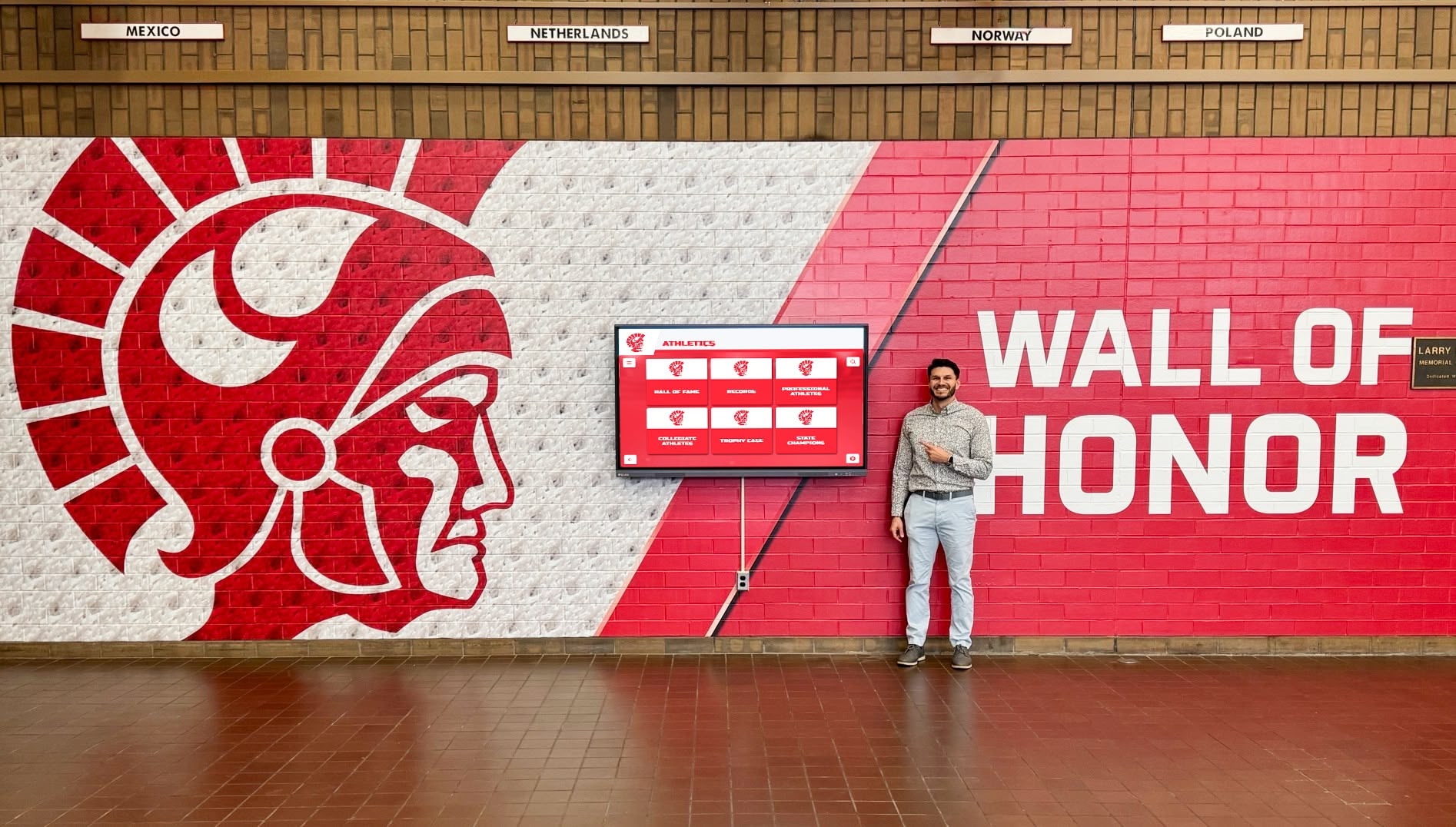
Purpose-built recognition platforms integrate hall of fame, record boards, and historical content alongside general digital signage—all managed through a single platform at a single licensing cost
Evaluating Digital Signage Platforms: Key Questions
Before committing to any digital signage platform, administrators should work through structured evaluation covering both immediate needs and future scalability.
Content management usability: Who updates the displays day to day? Can that person complete routine tasks—adding an announcement, updating a schedule, uploading a photo—without IT assistance? Request a hands-on trial of actual content creation workflows rather than relying on polished vendor demonstrations.
Device management capabilities: How are media players managed at scale? Is MDM built into the platform or does the school need a separate MDM solution? When a player goes offline, does the platform alert IT automatically?
Licensing structure: How does cost change as the deployment grows? A flat-rate unlimited license changes the 3–5 year math significantly compared to per-screen pricing when planning to add displays over time.
Content capacity and data portability: Is there a limit on the number of entries, profiles, or media files? Can content be exported if the school changes platforms? Locking years of recognition data into a vendor-specific format creates switching costs that affect future vendor relationships.
Support and implementation: What does deployment support look like? Is there assistance during initial setup, or is the school expected to self-provision all devices and configure the CMS independently? For schools without dedicated IT resources, implementation support materially affects whether deployments succeed.
Hardware compatibility: Which media players does the software support? Can the school use Android-based devices, Windows players, or Chrome OS—whichever fits existing purchasing contracts and IT preferences?
School lobby touchscreen displays that welcome visitors and build school pride describe how schools configure lobby displays to serve multiple simultaneous purposes—useful context for administrators planning content strategy before selecting software.
Implementation Considerations for School Digital Signage
Selecting software is one decision; deploying it successfully involves additional planning that directly affects how well the system functions once live.
Network infrastructure: Digital signage requires steady network connectivity at each display location. Wired ethernet connections are recommended over wireless, particularly for lobby and athletic facility displays. Assess network readiness at proposed locations before purchasing hardware.
Power and mounting: Displays require appropriate electrical access and mounting hardware. Lobby and hallway installations may need wall modifications or structural mounting for larger displays. Factor installation labor into total deployment budgets alongside software and hardware costs.
Content creation resources: Who creates visual content for displays? Many schools discover that while the software is manageable, producing high-quality graphics consistently requires design resources they haven’t budgeted. Platforms with strong template libraries reduce this friction, but professional photography and custom design assets meaningfully improve display quality.
Staff training and adoption: The best platform fails if designated content managers don’t use it consistently. Invest in initial training and keep onboarding materials accessible for future staff who inherit content management responsibilities as personnel changes occur.
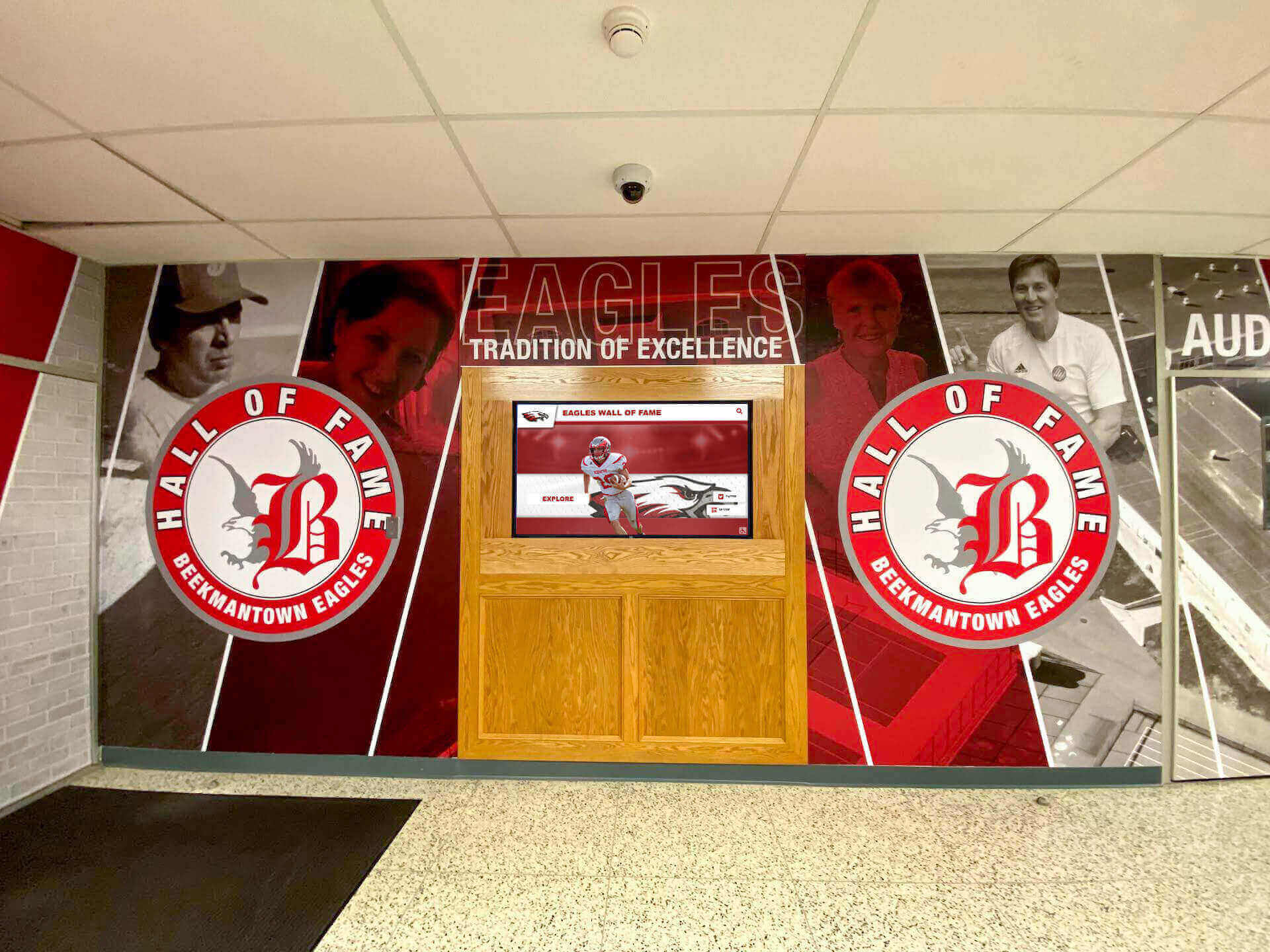
Successful school digital signage combines thoughtful content planning, sound hardware choices, and software that staff can manage without ongoing technical assistance for routine updates
Frequently Asked Questions
What size displays work best for school digital signage?
55" and 65" displays are the most common for hallways and interior lobby spaces. 75" and 86" displays suit larger lobbies, athletic facilities, and cafeterias where viewing distances are greater. Touchscreen installations for interactive recognition displays typically use 55" or 65" commercial-grade panels with built-in touch capability.
How long does a school digital signage deployment take from decision to live screens?
Timeline depends on installation complexity and content readiness. Simple deployments with existing network infrastructure and pre-built content can be live within days of software setup. More complex installations involving new network runs, structural mounting, and custom content creation commonly take 4–8 weeks from project start to operation.
Can digital signage software run on existing school technology hardware?
Many platforms support low-cost Android media sticks and TV boxes that schools can purchase for under $50 per device. This allows schools to deploy digital signage to existing commercial displays without purchasing dedicated media players. Verify hardware compatibility lists from any platform vendor before assuming a specific device will work.
Does MDM require a separate IT staff member to manage?
MDM adds management capability without necessarily adding workload. Initial setup requires IT involvement, but ongoing management of a stable device fleet—applying updates, monitoring status—typically takes a fraction of the time that unmanaged environments require. The time savings from remote troubleshooting versus on-site visits generally far exceed the time invested in MDM configuration.
Is digital signage software different from software used on interactive recognition touchscreens?
The terms overlap but describe different products. General digital signage software manages scheduled content on non-interactive displays—the platform controls what appears on screen without visitor input. Interactive recognition platforms additionally support user-driven navigation, searchable databases, and touchscreen interfaces where visitors control their own exploration. Some platforms deliver both capabilities within a single system.
What’s the difference between unlimited and per-screen licensing over a multi-year horizon?
Per-screen pricing scales linearly—each display added costs the same as every previous one. Unlimited licensing absorbs additional displays at no added software cost. For schools that expect to grow their digital signage network beyond an initial pilot, the long-term cost difference can be substantial. A 30-screen deployment on a $20/screen/month platform costs $7,200 per year in software; the same deployment under unlimited licensing at $50/year is dramatically less.
Digital signage for schools has become a standard communication tool, but the gap between basic announcement screens and comprehensive platforms with MDM, unlimited licensing, and recognition capabilities is significant. Schools that evaluate platforms against the full scope of what they plan to do with digital displays—not just the most immediate use case—make decisions that serve the institution well as programs grow over time.
For schools ready to see unlimited digital signage with MDM device management and full recognition capabilities at $50/year, explore Rocket Alumni Solutions — built specifically for educational institutions.