Caring for family members with dementia presents unique challenges. Memory loss, confusion, and disorientation affect daily routines, while caregivers search for tools that provide comfort and cognitive support. Many families explore memory displays—touchscreen systems showing familiar photos, videos, and reminders—to help loved ones maintain connections to people and places they recognize.
A common question emerges: “I’d like to make and manage a screen for two family members with dementia. Do you have an economical solution for that? It’s just me looking after my mom and my wife.”
This scenario represents thousands of family caregivers managing multiple loved ones with memory challenges while working within limited budgets. Traditional institutional memory care systems cost thousands of dollars with ongoing subscription fees. Yet practical, affordable alternatives exist for home caregivers ready to implement touchscreen memory displays with basic technology and thoughtful planning.
This comprehensive guide explains how individual caregivers can create effective memory displays using consumer hardware, accessible software, and organizational strategies that make daily management feasible even when caring for multiple people.
Family caregivers need solutions that balance effectiveness with affordability, simplicity with customization, and professional quality with realistic time investment. Memory displays for dementia care don’t require enterprise-level technology—they require thoughtful design that addresses specific cognitive and emotional needs.
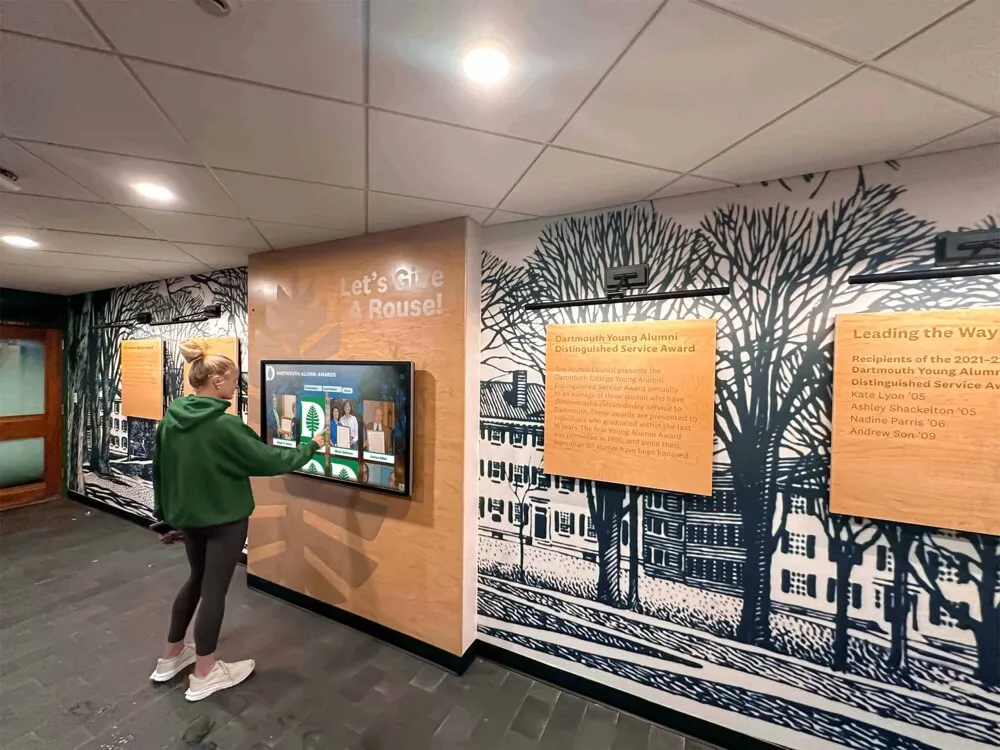
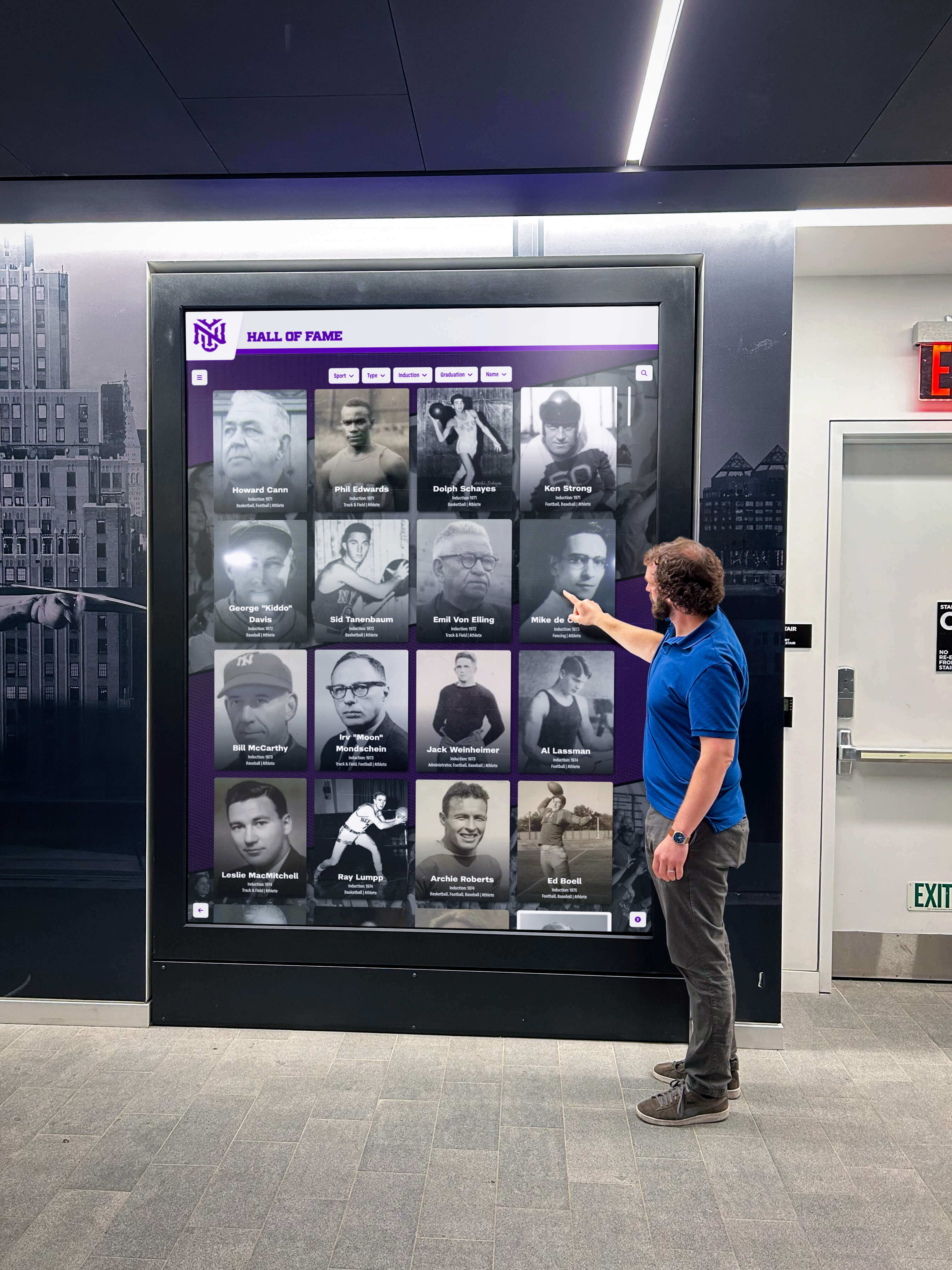
Interactive touchscreen displays can be adapted for memory care applications in home environments
Understanding Memory Displays for Dementia Care
Memory displays serve distinct purposes for individuals experiencing cognitive decline. Understanding these functions helps caregivers design systems that deliver meaningful benefit.
Core Functions of Memory Displays
Orientation and Reality Anchoring
People with dementia often experience confusion about time, place, and relationships. Memory displays provide visual anchors:
- Current date and day of week displayed prominently
- Familiar faces with name labels reinforcing identity connections
- Location reminders showing current residence or room
- Daily schedule information reducing anxiety about upcoming events
- Weather displays helping with appropriate clothing choices
Reminiscence and Emotional Engagement
Long-term memories typically persist longer than recent memories in dementia. Displays showing familiar past experiences stimulate positive emotions:
- Family photos from significant life events
- Childhood home images triggering recognition
- Wedding photos and anniversary celebrations
- Vacation and travel memories from active years
- Pet photos and nature scenes promoting calm feelings
Social Connection Maintenance
Dementia gradually erodes relationship recognition. Visual systems help maintain awareness:
- Immediate family member photos with relationship labels
- Grandchildren and extended family identification
- Caregiver photos with names for staff or regular visitors
- Friend connections from social circles
- Video messages from distant family members
Cognitive Stimulation
Appropriate cognitive engagement may slow functional decline:
- Simple interactive elements like swiping photos
- Music integration triggering memory associations
- Familiar location recognition games
- Seasonal content maintaining calendar awareness
- Repetitive viewing reinforcing retained memories
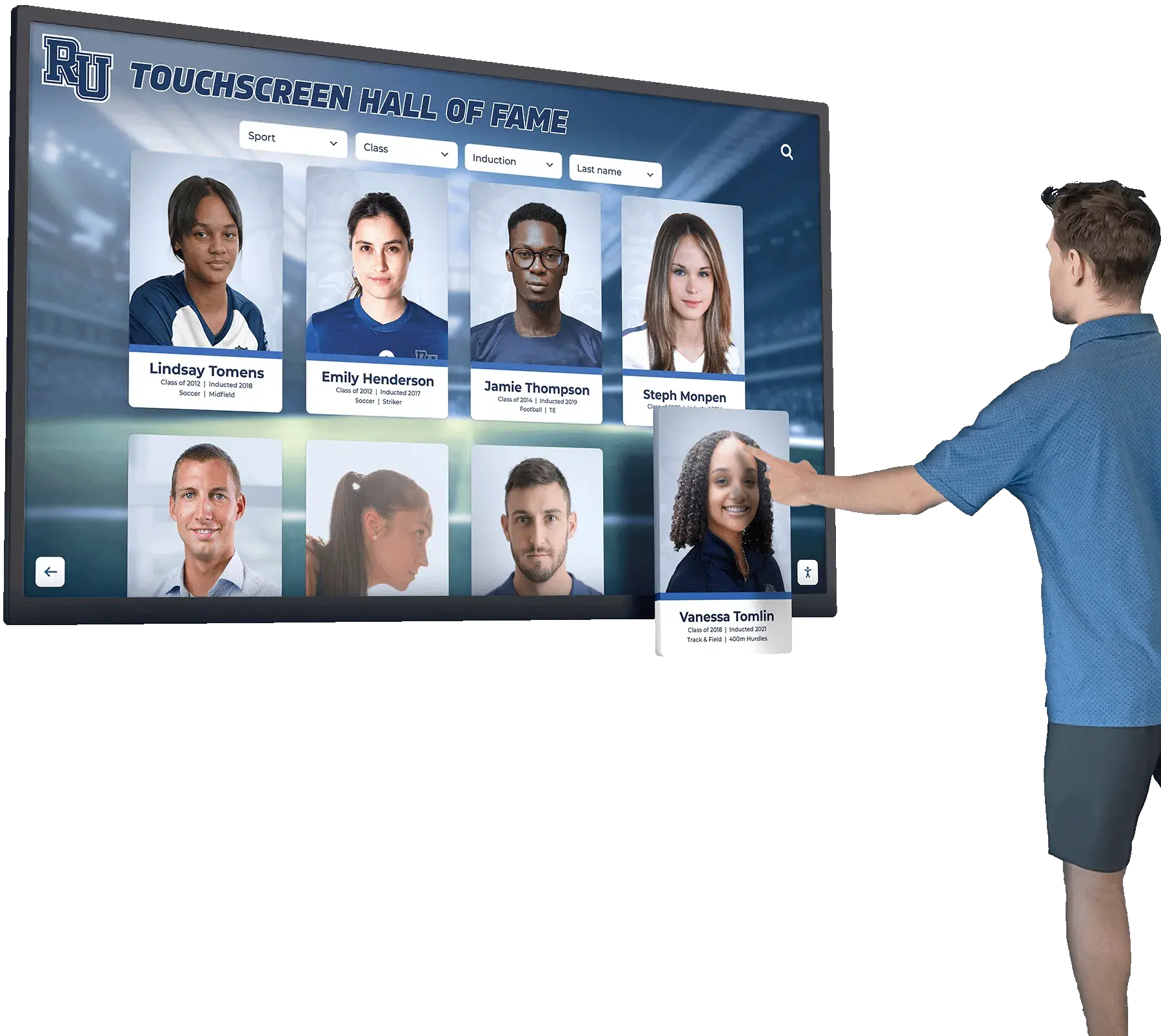
Simple touch interfaces enable individuals with cognitive challenges to navigate content independently
Design Principles for Dementia-Appropriate Displays
Effective memory displays differ significantly from general digital photo frames or standard tablet applications:
Simplicity and Clarity
- Large, high-contrast text visible from typical viewing distances
- Uncluttered layouts avoiding visual confusion
- Limited interactive elements preventing frustration
- Consistent navigation patterns reducing learning requirements
- Clear relationship labels eliminating identity guessing
Familiarity and Comfort
- Photos from prime memory years (typically ages 10-30 for oldest retained memories)
- Familiar music from young adult years triggering recognition
- Comfortable viewing positions matching mobility limitations
- Appropriate content rotation avoiding overstimulation
- Predictable displays reducing anxiety from constant change
Accessibility Considerations
- Touch targets sized for reduced manual dexterity
- Automatic rotation eliminating need for constant interaction
- Volume controls accessible to caregivers
- Simple on/off operation for daily routines
- Durable construction tolerating accidental impacts
Safety Features
- No internet access requirements reducing complexity
- Locked-down operation preventing inadvertent changes
- No advertisements or confusing commercial content
- Family-controlled content ensuring appropriateness
- Battery backup maintaining function during power interruptions
Economical Hardware Options for Family Caregivers
Budget constraints represent reality for most family caregivers. Fortunately, effective memory displays don’t require expensive specialized equipment.
Consumer Tablets as Memory Display Platforms
Standard consumer tablets provide excellent memory display foundations at reasonable costs:
iPad Options (iOS)
iPad models offer reliability and simplicity:
- iPad (10th generation): $349 base model, 10.9" display, excellent for bedside use
- iPad Air: $599, larger 10.9" screen, more powerful for video content
- Refurbished iPads: $250-$400, previous generation models work perfectly for static displays
- iPad mounting: $20-$50 for adjustable stands or wall mounts
iPad advantages include long software support (6-7 years typical), intuitive interfaces familiar to many caregivers, excellent accessibility features built into iOS, and reliable performance.
Android Tablet Options
Android devices offer cost advantages:
- Samsung Galaxy Tab A9: $150-$200, 11" display, good performance
- Amazon Fire HD 10: $150, 10.1" display, basic but functional
- Lenovo Tab M10: $130-$180, adequate for photo and video display
- Generic Android tablets: $100-$150, variable quality, suitable for stationary displays
Android benefits include lower purchase costs, wider hardware variety, flexible customization options, and sideloading capabilities for specialized apps.
Large-Format Options
Larger displays suit living room or communal space installations:
- iPad Pro 12.9": $799-$1,099, exceptional display quality, best for primary displays
- Samsung Galaxy Tab S9 Ultra: $999, massive 14.6" screen, impressive for shared viewing
- Converted monitors with mini PCs: $200-$400 total, technical but extremely customizable
For two family members, consider one personal device for each (smaller tablets) plus one shared larger display in a common space.
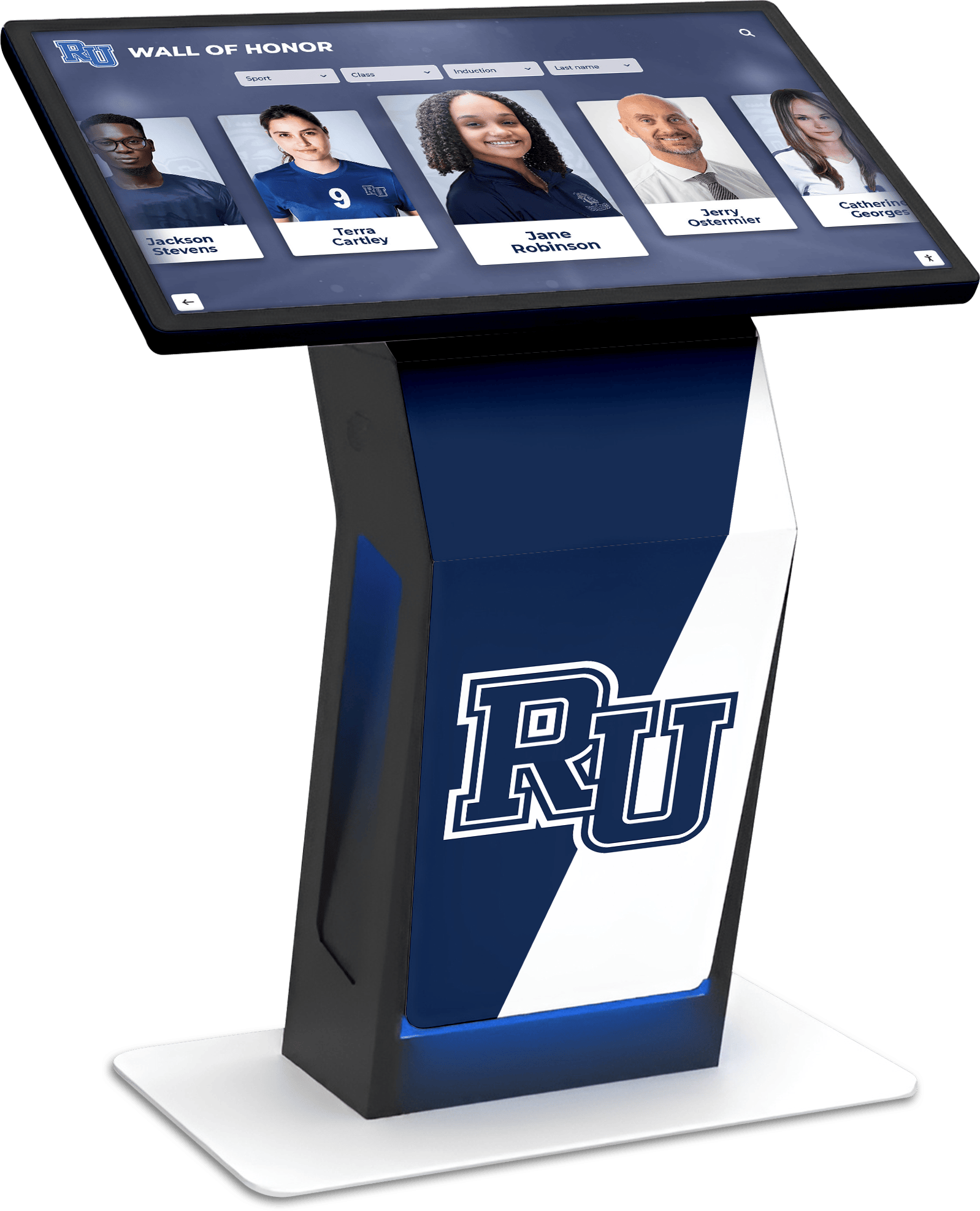
Freestanding displays work well in shared spaces where multiple family members can view content
Purpose-Built Digital Photo Frames
Digital photo frames specifically designed for seniors offer simplified alternatives:
Dedicated Senior Photo Frames
Specialized products designed for dementia care:
- Pix-Star: $150-$200, 10" display, email-to-frame functionality, no subscription fees
- Nixplay: $130-$180, cloud-based photo delivery, optional subscription features
- Skylight Frame: $160, 10" display, email-based photo sharing, simple operation
- Aluratek: $80-$120, basic functionality, SD card or USB operation
Advantages of Photo Frames
- Simpler operation than full tablets
- Designed specifically for photo display optimization
- Lower learning curve for non-technical caregivers
- Often include remote management from caregiver phones
- Generally more affordable than tablets
Limitations Compared to Tablets
- Less flexibility for interactive features
- Limited video capability compared to modern tablets
- Restricted customization options
- May lack accessibility features like screen readers
- Generally smaller screen sizes
For caregivers comfortable with basic technology, tablets provide better long-term value. For those wanting maximum simplicity, specialized frames offer immediate usability.
Computer Monitor Solutions with Streaming Devices
Technical caregivers can create powerful systems using standard monitors:
Components for Monitor-Based Systems
- Used computer monitors: $40-$100 for 24-27" displays
- Raspberry Pi 4: $55-$75, tiny computer capable of photo/video display
- Amazon Fire TV Stick: $25-$40, simple streaming device for content display
- Apple TV: $150, premium option with excellent interface
- Mounting hardware: $30-$60 for adjustable arms or wall plates
Technical Requirements
This approach requires:
- Basic computer literacy for initial setup
- Ability to configure software and content libraries
- Troubleshooting skills when issues arise
- Network configuration capability
- Comfort with technical documentation
Cost vs. Capability Trade-offs
Monitor systems offer maximum screen size per dollar but require more technical investment. A 27" monitor plus Raspberry Pi costs approximately $130 total—significantly less than equivalent-size tablets while providing larger displays.
Consider technical comfort level honestly. Simple solutions requiring minimal maintenance often prove more sustainable than complex systems requiring regular intervention.
Software and Content Management Solutions
Hardware provides the display platform; software determines functionality and caregiver experience managing content.
Photo Management and Display Applications
iOS Applications for Memory Displays
- Guided Access Mode: Built into iOS, locks iPad to single app, free
- Fotoo Digital Photo Frame: $10 one-time purchase, automatic slideshow with captions
- MemoryLane: $15/month, specifically designed for dementia care with activity tracking
- Simple Slideshow: Free basic app, easy setup, local photo management
Android Applications
- Dayframe: Free with ads, $5 ad-free, automatic photo rotation from various sources
- PhotoSync: $4, synchronizes photos across devices automatically
- Fully Kiosk Browser: $15-$25, locks device and displays web-based slideshows
- Simple Gallery Pro: Free/open source, straightforward local photo display
Cloud-Based Photo Services
Services enabling remote content management:
- Google Photos: Free (with storage limits), easy sharing from caregiver phone
- iCloud Photos: Included with Apple devices, seamless family sharing
- Dropbox: Free 2GB, paid plans for more storage, accessible from tablets
- Amazon Photos: Included with Prime membership, unlimited full-resolution storage
Cloud services provide significant advantages for family caregivers managing content remotely. Upload photos from anywhere and displays update automatically.
Video and Multimedia Integration
Photos combined with video and audio create richer experiences:
Video Message Platforms
- Marco Polo: Free app, easy video messaging specifically designed for families
- Loop: Simplified video messaging for seniors, $8/month
- Family Video Gallery: Custom video playlists from family members
- YouTube playlists: Free, curated music and video content from specific eras
Music Integration
Music triggers powerful memory connections:
- Spotify: $11/month individual, $17/month family plan, curated oldies playlists
- Apple Music: Similar pricing, good elderly-focused playlists
- YouTube Music: $11/month, access to decades of recorded performances
- Local music libraries: Play personally owned music without subscriptions
Research indicates music from ages 10-30 creates strongest memory associations. Focus playlists on music from those years for maximum recognition benefit. Digital signage content approaches can be adapted for memory care displays.
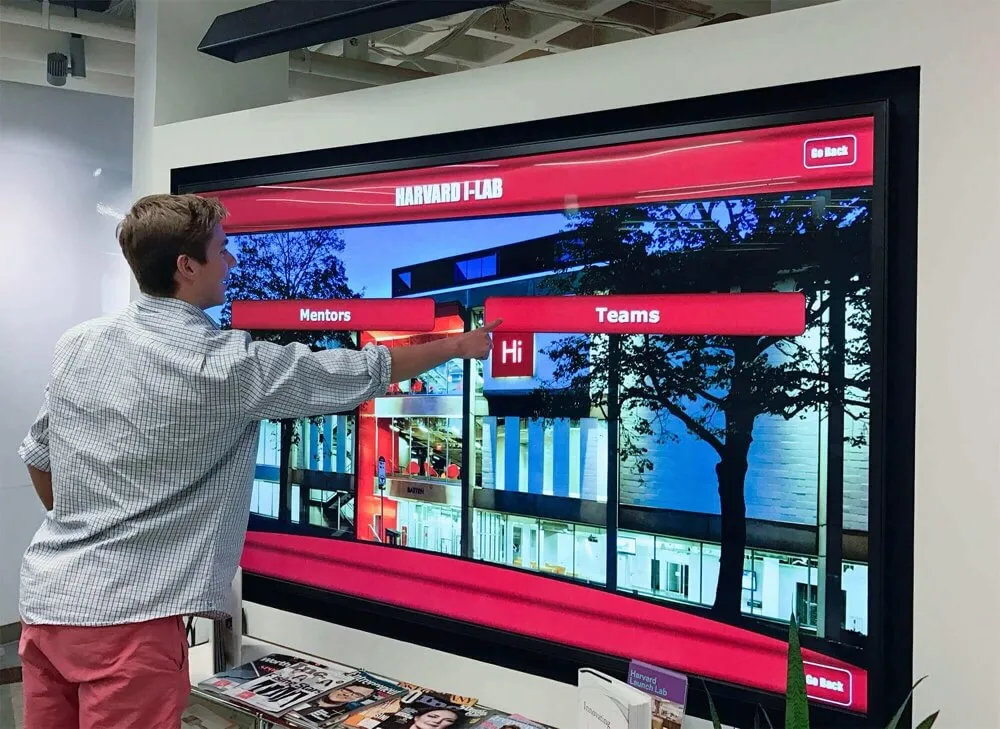
Intuitive navigation enables family members to explore photos and videos independently
Calendar and Orientation Information
Displays incorporating daily information reduce confusion:
Calendar and Clock Applications
- Cuckoo Clock: iOS app, large clock with date, weather, and daily schedule
- Senior Safety App: Android, medication reminders with photo displays
- Big Digital Clock: Free, extremely large time display with date
- DayClox: $40 device, specifically designed clock showing time of day context
- Custom web dashboards: Technical option using web pages with multiple widgets
Content Rotation Strategies
Balance consistency with variety:
- Morning display: family photos with daily schedule and weather
- Afternoon display: reminiscence photos from prime memory years
- Evening display: calming nature scenes with familiar music
- Night display: simple clock with nightlight function
- Weekly rotation: gradual content changes preventing staleness while maintaining familiarity
Content Collection and Organization Strategies
Effective displays require thoughtful content curation and organization.
Gathering Appropriate Photos and Videos
Optimal Photo Selection
Focus on images from strong memory periods:
- Early life photos (childhood, teen years) often retained longest
- Young adult photos (ages 20-40) typically show strong recognition
- Major life events: weddings, births, significant celebrations
- Career-defining moments for work-identified individuals
- Locations of emotional significance: childhood homes, vacation spots
Photos to Avoid
Some content creates confusion rather than comfort:
- Very recent photos showing aging not matching mental self-image
- Images of deceased family members without clear context
- Confusing group photos with many unfamiliar faces
- Poor quality photos requiring interpretation
- Stressful memories even if historically significant
Organizing Photo Libraries
Systematic organization enables easy content management:
- Create folders by time period (1960s, 1970s, etc.)
- Organize by relationship (immediate family, grandchildren, friends)
- Sort by location (childhood home, vacation spots, current residence)
- Label photos clearly with names and relationships
- Include date information when available
- Back up original photos in multiple locations
Adding Context with Captions and Labels
Text labels transform anonymous faces into recognized connections:
Effective Caption Strategies
- Use relationship labels: “Your daughter Jennifer” rather than just names
- Include brief context: “Vacation at beach house, 1975”
- Keep text large and high-contrast for visibility
- Use present tense maintaining temporal consistency
- Avoid complex explanations requiring comprehension
- Repeat information across similar photos reinforcing connections
Creating Video Messages
Family members can record brief messages:
- Keep videos 30-60 seconds maximum
- Speak clearly with good audio quality
- Identify relationship immediately: “Hi Mom, this is your son David”
- Share simple updates or expressions of love
- Record in well-lit settings showing speaker clearly
- Create multiple short videos rather than long recordings
Clear, simple interfaces work best for individuals with cognitive challenges
Balancing Content for Multiple Family Members
Caregivers managing displays for two people face content sharing challenges:
Individual Content Strategies
- Separate devices in personal spaces showing individual content
- Scheduled rotation on shared displays (morning for one person, afternoon for another)
- Distinct visual themes helping each person identify their content
- Primary navigation clearly identifying whose content displays
- Personal music playlists reflecting individual preferences
Shared Content Opportunities
Some content works for both family members:
- Shared family events where both participated
- Common grandchildren and family connections
- Neutral calming content like nature scenes
- Familiar music from overlapping time periods
- Current calendar and orientation information
Separate Device Configuration
For a caregiver managing two family members:
- Configure identical software on both devices for consistent management
- Use same cloud photo service with different shared folders
- Establish similar daily schedules creating routine expectations
- Maintain separate content libraries preventing confusion
- Consider coordinated but distinct visual themes
Organizations implementing senior living recognition displays face similar multi-resident content challenges that inform home care solutions.
Practical Implementation Guide for Family Caregivers
Step-by-step approach for creating memory displays on limited budgets.
Budget-Conscious Hardware Recommendations
Minimum Viable Setup (Under $200 per person)
- Amazon Fire HD 10 tablet: $150
- Adjustable tablet stand: $25
- Total per display: $175
This configuration provides functional memory display capability with simple setup and minimal ongoing costs.
Recommended Setup ($300-$400 per person)
- iPad 10th generation (refurbished): $300
- Quality adjustable stand or wall mount: $40
- Protective case for durability: $30
- Total per display: $370
Mid-range option provides better reliability, longer software support, and superior display quality justifying modest cost increase.
Premium Setup ($600-$800 per person)
- iPad Air or iPad Pro: $600-$800
- High-quality adjustable arm mount: $80-$150
- AppleCare+ protection plan: $80
- Total per display: $760-$1,030
Premium option makes sense for primary displays in main living spaces where superior quality enhances daily experience.
Two-Person Total Cost Scenarios
- Budget approach: $350 total for two Fire tablets
- Recommended approach: $740 total for two refurbished iPads
- Hybrid approach: One premium shared display ($700) plus one budget personal display ($175) = $875 total
Most family caregivers find the recommended or hybrid approach provides best balance between affordability and functionality.
Initial Setup Process
Step 1: Hardware Preparation
- Unbox and charge device fully before configuration
- Install protective case if using tablets in high-traffic areas
- Mount or position display in optimal viewing location
- Connect to reliable WiFi network
- Update device to latest operating system
Step 2: Software Configuration
- Download chosen photo display application
- Configure cloud photo service for remote management
- Enable accessibility features (larger text, higher contrast)
- Set up auto-rotation with appropriate timing (2-5 minutes per photo)
- Configure auto-lock preventing device sleep during display
- Disable notifications preventing interruptions
Step 3: Content Loading
- Upload initial photo collection to cloud service
- Organize photos into appropriate albums or folders
- Add captions and labels to key images
- Create initial slideshow with 30-50 photos
- Test display cycle ensuring photos show correctly
- Adjust timing, brightness, and other settings
Step 4: Locking Down Display
iOS: Enable Guided Access restricting device to photo app Android: Use kiosk mode apps preventing unauthorized changes Create simple caregiver override (passcode or fingerprint) Document procedures for restarting if problems occur
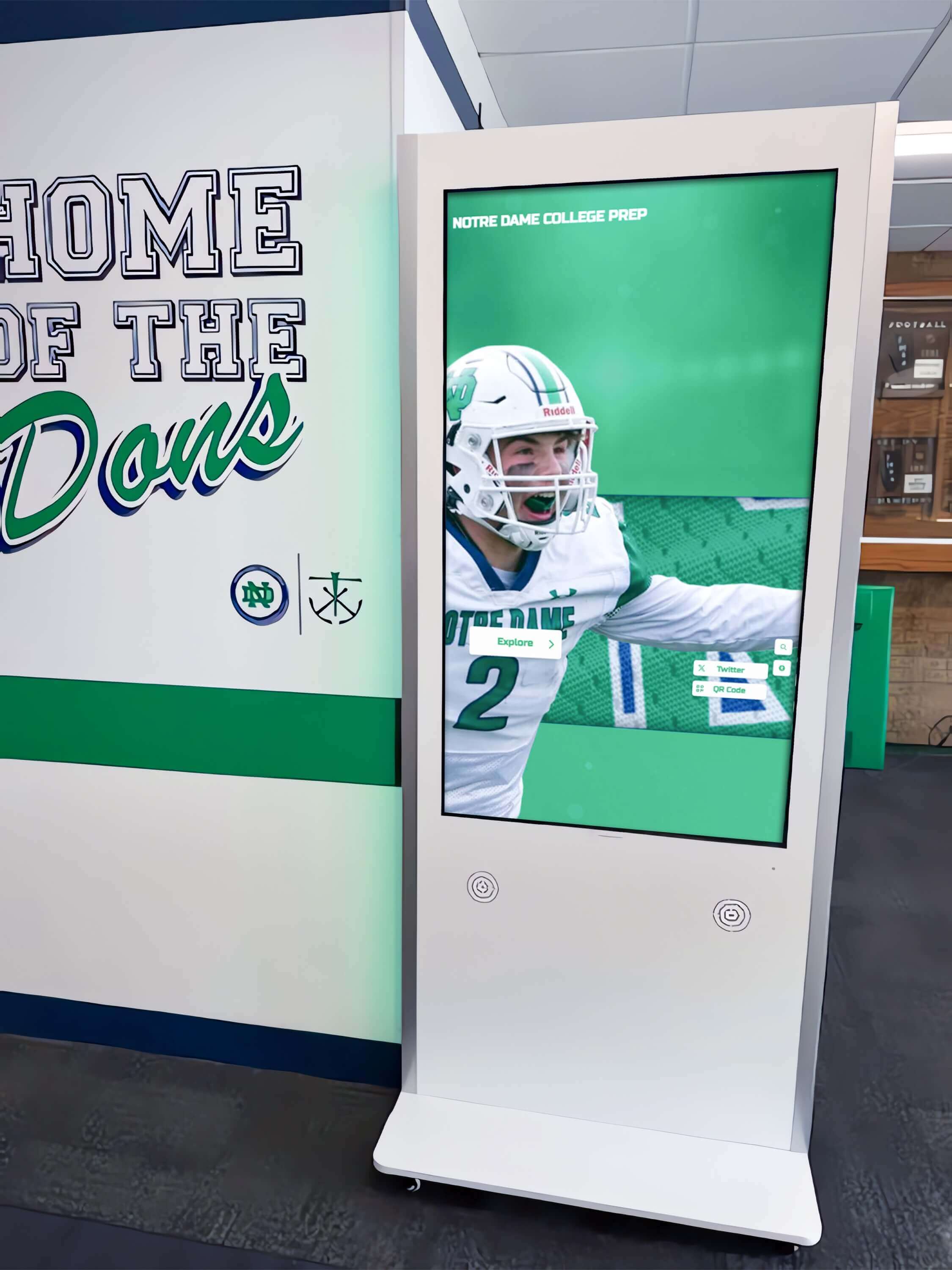
Freestanding displays work well in hallways and communal spaces
Daily and Weekly Management
Daily Caregiver Tasks (5-10 minutes)
- Verify display functioning properly
- Check device charge level if not continuously powered
- Wipe screen clean with appropriate cloth
- Observe family member engagement and responses
- Note photos triggering positive or negative reactions
Weekly Content Management (15-30 minutes)
- Add 3-5 new photos maintaining fresh content
- Remove photos causing confusion or distress
- Update calendar information for upcoming week
- Refresh video messages from family members
- Adjust content rotation based on observed preferences
Monthly Maintenance (30-60 minutes)
- Review entire content library removing ineffective photos
- Solicit new photos from extended family members
- Update software and applications
- Back up content to external drives
- Document what works well and challenges encountered
Content Contribution from Extended Family
Reduce caregiver burden by enabling family participation:
- Share cloud photo folder with siblings and relatives
- Establish simple guidelines for appropriate photos
- Create email addresses family can send photos to
- Use family messaging apps collecting photo submissions
- Schedule quarterly family video recording sessions
This distributed approach creates sustainable content management while engaging broader family in memory care support.
Safety, Privacy, and Ethical Considerations
Memory displays require thoughtful attention to protection and dignity.
Privacy Protection in Home Environments
Digital Privacy Concerns
- Cloud photo services store family images on company servers
- Consider privacy policies of chosen platforms
- Evaluate whether photo recognition features are acceptable
- Understand data retention after account closure
- Use strong passwords protecting photo libraries
Physical Privacy Considerations
- Position displays avoiding visibility from windows or doors
- Consider who has physical access to living spaces
- Protect personal photos from visiting workers or caregivers
- Be thoughtful about what personal information displays publicly
- Consider dignity when displaying private family photos
Access Control
- Limit who can upload content to family photo libraries
- Establish clear approval process for new photos
- Create separate family accounts versus personal accounts
- Use device locks preventing unauthorized changes
- Document who has administrative access to systems
Dignity and Respect in Content Choices
Maintaining Personhood
Dementia doesn’t eliminate personhood:
- Choose photos showing dignity and capability
- Avoid infantilizing content inappropriate to adult identity
- Respect privacy preferences expressed during healthier times
- Include photos reflecting accomplishments and identity
- Balance nostalgia with recognition of current reality
Consent Considerations
People with dementia may lack legal capacity but deserve respect:
- Observe non-verbal responses to content shown
- Remove photos causing visible distress even if historically positive
- Include current photos appropriately despite cognitive decline
- Consider whether person would approve of specific content
- Consult advanced directives or previously expressed preferences
Avoiding Harmful Content
Some memories trigger distress rather than comfort:
- Photos of deceased family members may cause grief or confusion
- Images from traumatic periods may re-trigger emotional responses
- Very recent photos may create distress about aging
- Content about lost capabilities may emphasize decline
- Previously enjoyed activities may now remind of limitations
Caregivers must balance reminiscence benefits against potential for distress, adjusting content based on observed responses.
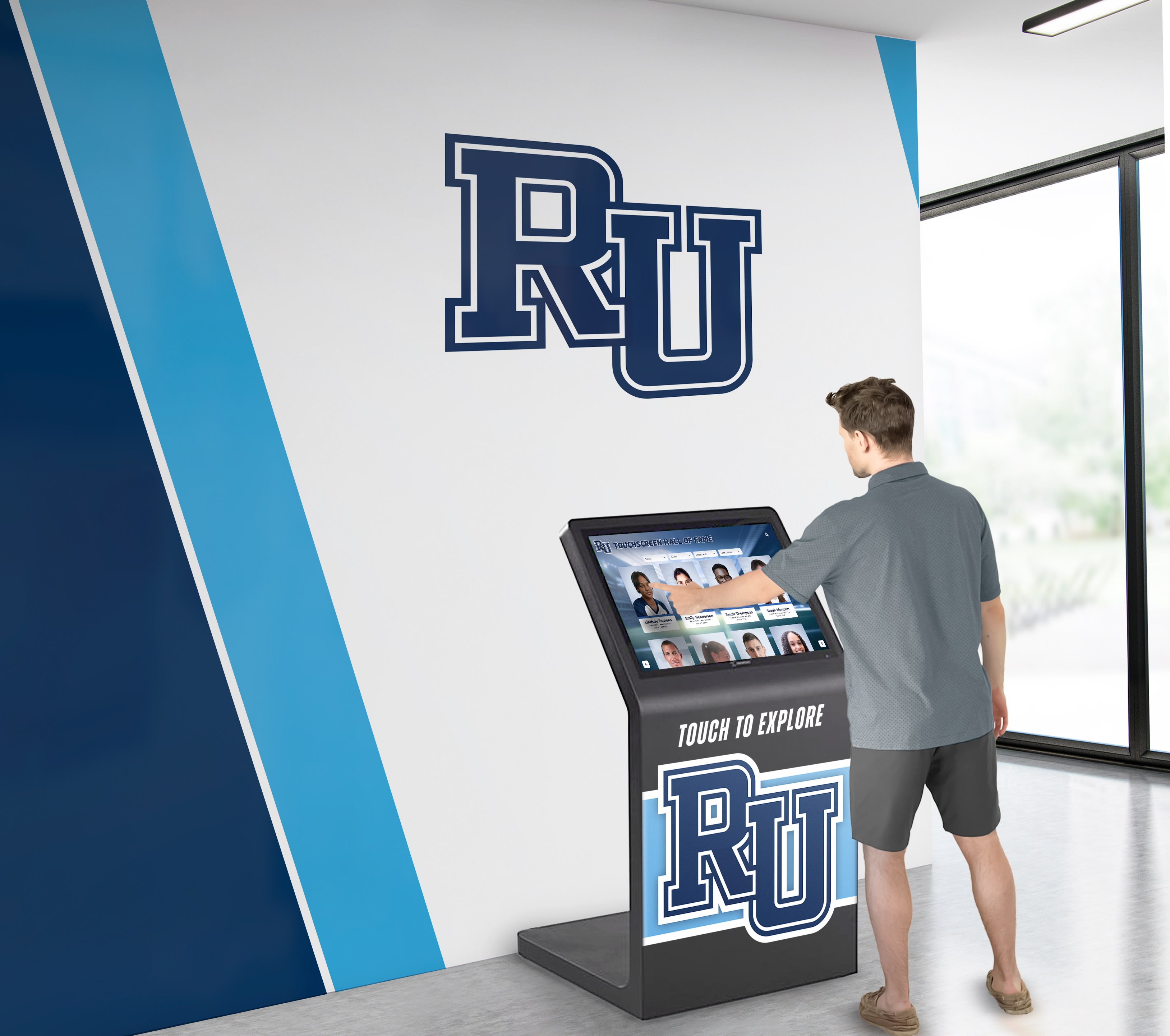
Respectful content choices maintain dignity while providing cognitive support
Technical Safety Measures
Preventing Inappropriate Internet Access
Memory displays should avoid open internet access:
- Configure devices in kiosk mode restricting app switching
- Disable web browsers preventing confused web surfing
- Block app store access preventing accidental downloads
- Set parental controls restricting content changes
- Use offline content whenever possible reducing connectivity dependency
Physical Safety Considerations
- Secure mounting preventing tip-over hazards
- Use tempered glass screen protectors preventing sharp edges if broken
- Ensure electrical cords don’t create trip hazards
- Position displays avoiding fall risks
- Consider battery-operated options in bathrooms or bedrooms
Emergency Override Access
Caregivers need quick system access during emergencies:
- Document passcodes in secure location accessible to emergency contacts
- Create simple restart procedures for technical problems
- Maintain vendor support contact information
- Keep user manuals for reference
- Establish backup communication methods if displays fail
Measuring Effectiveness and Adjusting Approaches
Memory displays should provide meaningful benefit justifying ongoing effort.
Observing Behavioral Responses
Positive Indicators
- Increased calm and reduced agitation around display times
- Voluntary engagement with display without prompting
- Verbal recognition of people or places shown
- Emotional responses suggesting positive memories
- Requests to see displays or specific photos
- Improved social interaction following display viewing
Concerning Responses
- Increased agitation or distress during or after viewing
- Confusion about photo content or relationships
- Emotional upset from specific images
- Avoidance of display area
- Frustration with technology or interface
- Sleep disruption if displays in sleeping areas
Neutral Responses
Some family members show minimal engagement:
- Passive viewing without apparent recognition
- No emotional response positive or negative
- Limited attention span with displays
- Preference for other activities
- Tolerance without enthusiasm
Neutral responses don’t necessarily indicate failure—passive familiarity may provide subtle orientation benefits without obvious behavioral changes.
Gathering Family and Caregiver Feedback
Structured Observation Methods
- Keep weekly notes documenting responses and reactions
- Track which photos generate positive recognition
- Document times of day displays work best
- Note correlation between display viewing and mood
- Photograph or video responses (with appropriate privacy)
Extended Family Input
Relatives often provide valuable observations:
- Visit family members and note their interaction with displays
- Ask about their responses to specific content
- Solicit suggestions for additional photos or content
- Evaluate whether displays facilitate conversation during visits
- Consider professional caregiver observations when applicable
Adapting Content and Approach Over Time
Dementia progression requires ongoing adjustments:
Early Stage Adaptations
- More complex interactive features may work initially
- Greater variety in content maintains interest
- Some current photos remain recognizable
- Calendar and schedule information provides useful orientation
- Interactive elements like touch navigation may succeed
Mid Stage Modifications
- Simplify displays focusing on strongest memories
- Reduce content variety emphasizing repetition
- Focus more on prime memory years (ages 10-40)
- Increase photo display duration allowing processing time
- Minimize interactive requirements favoring automatic rotation
Late Stage Approaches
- Emphasize emotional comfort over cognitive stimulation
- Use extremely simple displays with minimal complexity
- Focus on soothing content rather than specific memory triggers
- Consider ambient nature scenes and calming music
- Reduce expectations for specific recognition or interaction
Organizations operating interactive touchscreen displays understand that interface complexity must match user capability—a principle equally important in dementia care applications.
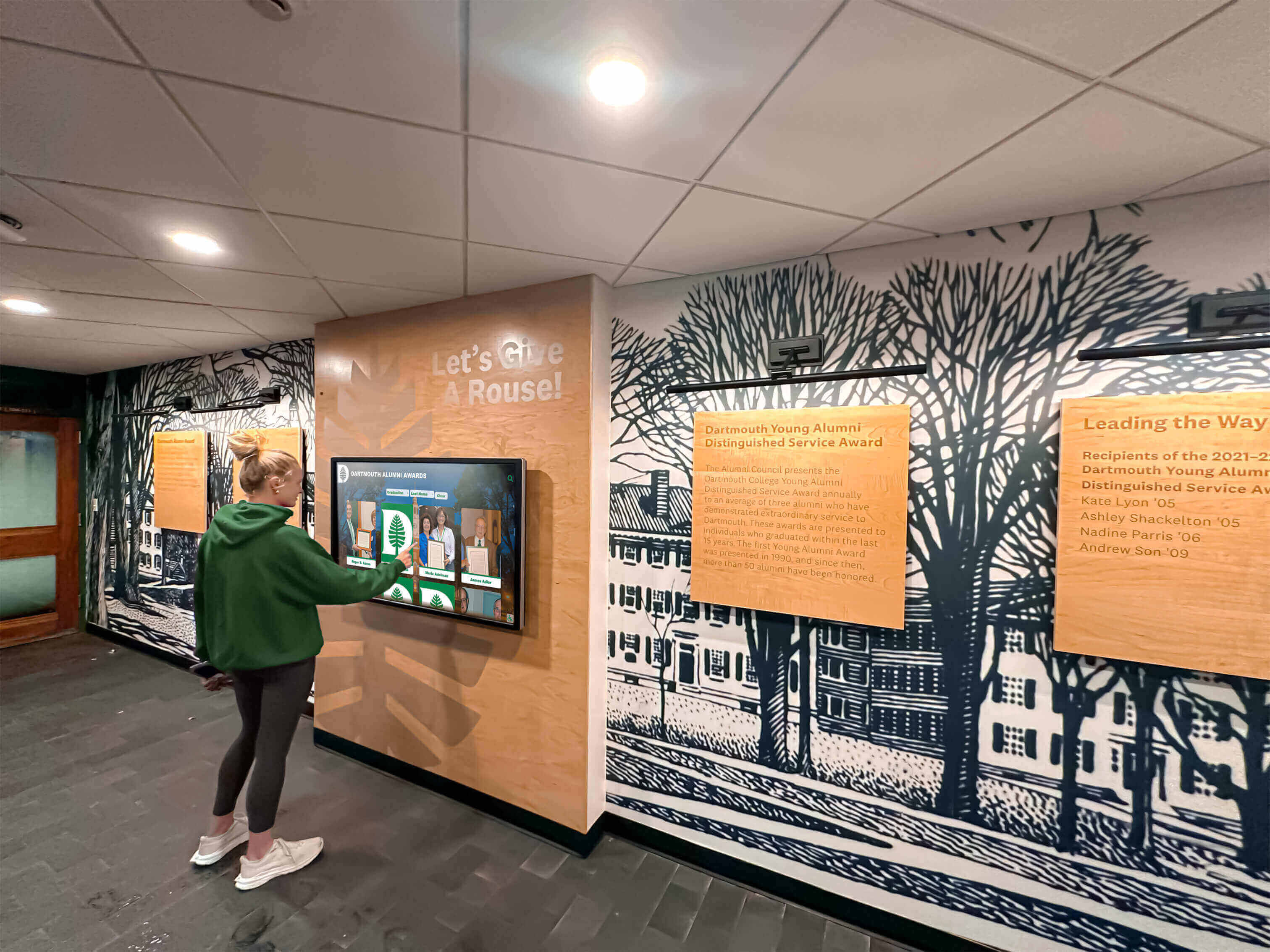
Interface simplicity enables users across ability levels to engage with content successfully
Frequently Asked Questions
What’s the most affordable option for a family caregiver managing two memory displays?
Two Amazon Fire HD 10 tablets ($150 each) with basic stands ($25 each) create functional displays for approximately $350 total. While budget options limit some advanced features, they provide essential photo display and basic video capability. Free Google Photos enables remote content management from a caregiver’s phone without subscription costs. This represents the minimum effective investment for dual displays.
Can memory displays work without WiFi or internet connectivity?
Yes. Tablets can display photo and video content stored directly on the device without any internet connection. Load content via USB cable from a computer, then configure the tablet for offline slideshow operation. This approach eliminates ongoing connectivity costs and privacy concerns about cloud storage. Update content periodically by reconnecting to a computer. Offline operation works particularly well for caregivers uncomfortable with cloud services or living in areas with unreliable internet.
How much time does content management require weekly?
Initial setup requires 4-6 hours organizing photos, configuring devices, and establishing workflows. Ongoing management typically requires 15-30 minutes weekly for adding new photos, updating schedules, and removing ineffective content. Caregivers who establish efficient systems using cloud photo sharing often reduce weekly time to 10-15 minutes. Monthly maintenance adds another 30-60 minutes for software updates and content review. Time investment decreases as caregivers develop efficient routines.
Will this confuse my family members more by showing people they don’t remember?
Responses vary by individual and disease stage. Most people with dementia respond positively to familiar faces even without specific name recognition, experiencing emotional comfort from visual familiarity. However, some individuals become distressed by photos they can’t place. Start with a small collection of highest-confidence recognition photos and observe responses. Expand content gradually based on observed comfort level. Remove any photos causing visible distress. Professional care consultants can provide individualized guidance for complex cases.
What if my loved one keeps pressing buttons and changes settings accidentally?
Enable kiosk mode or guided access features locking devices to photo display functions. On iPad, Guided Access restricts the device to a single app and disables hardware buttons. Android devices offer similar kiosk mode applications. These features prevent accidental changes while still allowing basic viewing. Set a caregiver passcode enabling you to unlock and adjust settings when needed. Physical protective cases can also disable hardware buttons.
Can family members in different cities add photos remotely?
Yes. Cloud photo services enable distributed family photo contributions. Create a shared Google Photos album or iCloud shared album and invite family members. Anyone granted access can upload photos from anywhere using their phone or computer. Set expectations for appropriate content through simple guidelines. Review new submissions before they display ensuring quality control. This distributed approach significantly reduces primary caregiver burden while engaging extended family in memory care.
How do I handle one family member who engages with the display while the other shows no interest?
Different responses indicate different needs rather than system failure. The engaged individual clearly benefits and should continue access. For the non-engaged person, consider different content, alternative display locations, different times of day, or different devices with distinct approaches. Some people respond better to music than photos, others prefer nature scenes to family photos. Experiment with varied content and accept that memory care approaches must be individualized. One size does not fit all.
What resolution or image quality do photos need?
Standard smartphone photos (typically 8-12 megapixels) provide excellent quality for tablet displays. Very old photos can be scanned at 300-600 DPI for good reproduction. Photo quality matters less than content appropriateness—a lower-quality photo showing clear facial recognition works better than a high-resolution photo of unrecognized people. Don’t delay implementation waiting for perfect photo quality. Start with available images and enhance quality gradually through better scanning or photo restoration services.
Conclusion
Family caregivers managing memory care for loved ones with dementia face demanding responsibilities with limited resources. Memory displays provide accessible tools supporting orientation, reminiscence, emotional comfort, and maintained social connections without requiring institutional budgets or technical expertise.
A single caregiver managing displays for two family members—a common scenario for spouses caring for both an aging parent and partner—can implement effective systems for $350-$750 total investment using consumer tablets, cloud photo services, and thoughtful content curation. The most significant investment involves time organizing photos and learning basic device configuration rather than expensive specialized hardware.
Successful implementations prioritize simplicity over complexity, emphasizing reliable automatic operation rather than feature-rich interaction. Display effectiveness comes from appropriate content selection showing faces and places triggering recognition and comfort, not from sophisticated technology. The most economical approaches often prove most sustainable because they require minimal ongoing technical intervention.
Start with basic configurations using available photos and affordable hardware. Observe responses carefully and adjust content based on what generates positive engagement. Engage extended family in photo contribution spreading workload. Accept that responses will vary between individuals and across disease progression, adjusting approaches as needs evolve.
Memory displays represent tools supporting dignity and connection during difficult cognitive decline. While technology cannot reverse dementia progression, thoughtfully designed systems provide moments of recognition, comfort, and maintained identity that benefit both individuals with memory challenges and the family members caring for them.
Caregivers implementing these approaches rarely achieve perfect systems immediately. Success comes from starting simply, learning through observation, and adjusting continuously based on responses. Every family photo that triggers a smile or moment of recognition justifies the investment.
Ready to explore interactive touchscreen display technology that can be adapted for various recognition and memory applications? Book a demo to discover how professional display systems work, which principles can inform home memory care implementations for family caregivers managing their own solutions.